Skip to content

Features

Match your bank statement against the ledger until the difference is zero

Import the statement as CSV, XLS or XLSX and Invoice Crowd finds the header row, maps the columns and shows you a preview before anything is saved. Tick off the expenses, bills, income and journal entries that cleared, watch the difference fall to zero, then close the period.

  • CSV, XLS and XLSX import
  • Columns and dates detected for you
  • Closed statements kept as a record

Last updated:

Closing a monthly bank reconciliation in Invoice Crowd with the difference between the statement balance and the cleared balance at zero.

What is inside

Import the statement, tick what cleared, close at zero

Reconciliation covers one account over one date range: get your bank's record of it into Invoice Crowd, compare it against what you have already posted, and store the result once the two sides agree.

Getting the statement in

CSV, XLS or XLSX

Mapping a bank statement's columns in the Invoice Crowd import wizard, with the normalized preview updating below.

The import wizard reads your bank's file

Upload the statement as CSV, XLS or XLSX and the wizard parses it on the server. It scans the first 30 rows for the header, maps your bank's column names onto its own fields, works out whether amounts are split, flagged DR and CR, or signed, and detects the date format. Override any of those and the parse re-runs, so the preview you approve is what gets imported.

  • Header found within the first 30 rows
  • Split, DR/CR and signed amounts all handled
  • Every detection can be corrected before you confirm

Why there is no bank feed to switch on

Invoice Crowd does not integrate with banks directly. There is no screen where you pick your bank and log in, and no automatic feed on any plan. Importing a statement needs no setup and shares no banking credentials, so you download the file from your bank and upload it.

  • One workspace for every imported row
  • Provider onboarding is not embedded in the app
  • Feed rows need no column mapping

Matching it up

Two tabs, one number

Reviewing imported bank statement lines in Invoice Crowd, with matched rows checked and unmatched rows offering a create-entry button.

See what already agrees, and what does not

The Uncategorized Transactions tab holds the raw bank lines with their date, withdrawals, deposits, payee, description and reference number. A line that corresponds to something already in your books shows a check. The rest show a plus that opens a pre-filled Create Income or Create Expense panel with the amount, date, description, reference and account carried over. Save it and the tab re-runs the match.

  • Matched and unmatched shown line by line
  • Create the missing entry without leaving the tab
  • The comparison is recalculated on every load

Tick what cleared and watch the difference fall

The Reconciliation tab lists your side of the same period: the expenses, bills, income entries and manual journal lines recorded against that account, each with a checkbox. Check the ones that cleared or use Select All. The calculator does the arithmetic on one line, subtracting the cleared balance from the statement ending balance, alongside a starting balance worked out from everything posted before your start date.

  • Statement ending balance minus cleared balance is the difference
  • Entries matching a staged bank line arrive pre-ticked
  • Select All for a period that cleared cleanly

Closing the period

Written once, kept as record

In-progress and closed bank reconciliations listed together in Invoice Crowd, each showing the account, period and closing balance.

Closing writes the record and cannot be undone

Save asks you to confirm, then three things happen inside a single database transaction. The ledger entries you ticked are flagged reconciled. A statement record is stored with the account, the period, the balances, the matched totals, a skipped count and a snapshot of the matched entries. The staged bank lines are deleted, which is why the session leaves the resume list.

  • Closed statements listed below your in-progress sessions
  • Close anyway when the cleared balance is short
  • No re-open, so correcting a period means importing again

A checking tool, not an automatic bookkeeper

Matching is a heuristic rather than a stored link between a bank line and a ledger entry, so two identical lines on the same day can both read as matched against one entry. Amounts are compared exactly and in the account currency, which leaves converted and rounded lines in Uncategorized. Nothing is recorded for you: the plus opens a form, and you check it and save it.

  • No stored one-to-one match table
  • Foreign-currency lines stay in Uncategorized
  • You approve every entry that gets created

Built in

The rest of the reconciliation screen

The smaller behaviours you meet the first time you import a statement, and the boundaries worth knowing before you close a period.

  • Column mapping

    Your bank's headings are matched to date, description, payee, reference, withdrawal, deposit, amount, DR/CR and balance, and you can reassign any of them.

  • Three amount styles

    Split withdrawal and deposit columns, a single amount column with a DR or CR flag, or one signed column using negatives for money out.

  • Date format detection

    The wizard reads the date column and picks a mode. Set the format yourself when your bank writes dates a different way.

  • Parse warnings

    Warnings show alongside the preview. Rows with nothing usable are skipped, and a file that produces no usable rows is rejected rather than imported empty.

  • Generated reference numbers

    Where a bank file carries no reference numbers, the import generates them so every staged line can still be told apart.

  • Statement file handling

    The uploaded statement file is held only for the length of the import and deleted once it finishes.

  • Accounts you can reconcile

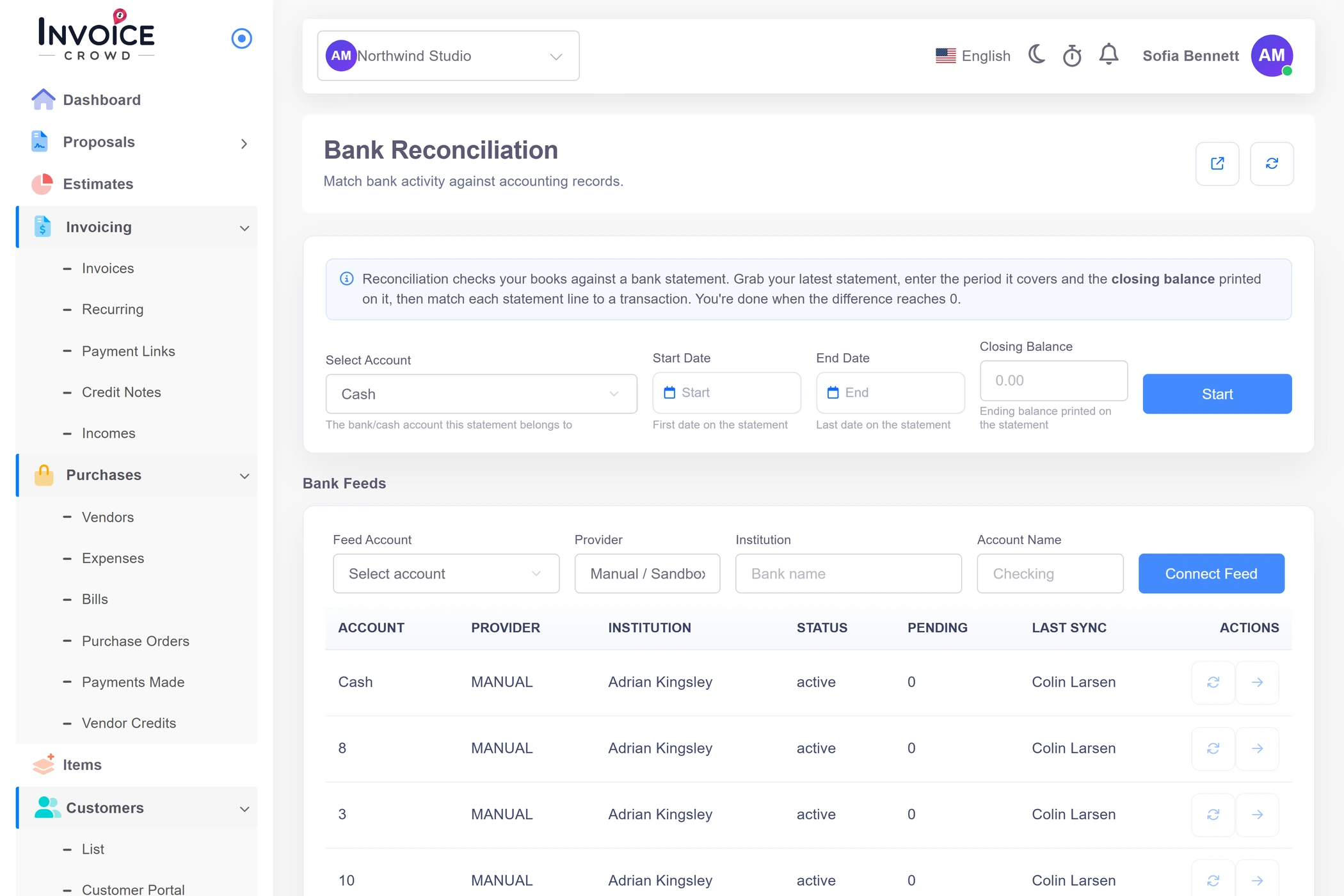
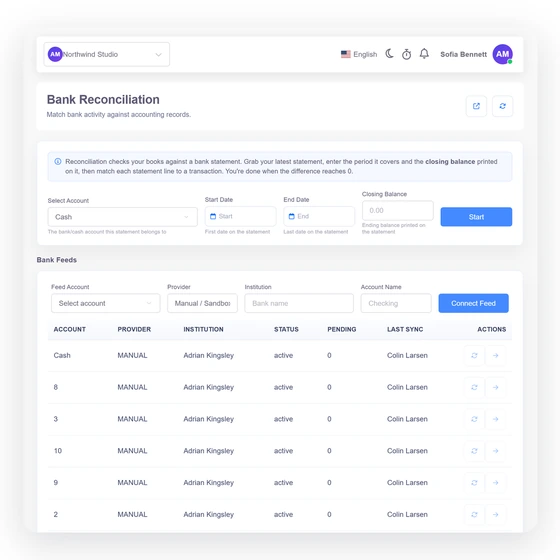
    The Cash account under Cash & Bank, or any account backed by a payment gateway you have configured. A business with neither sees an empty list.

  • Resume an unfinished session

    Leave the screen mid-reconciliation and it comes back as a resume card showing the account, the date range and the closing balance.

  • Change it mid-session

    Adjust the account, the dates or the closing balance from the settings panel, and correct a staged line's amount inline, which locks that field once saved.

  • Statement import panel

    Where a feed is configured, the landing page lists the connections, and rows arrive by background sync or a sync you trigger.

  • Large statements

    Both tables render the whole statement at once, so loading slows noticeably past roughly a thousand rows. There is no pagination.

  • Who can open it

    Any team member who can sign in to the business profile can reconcile. Every record stays scoped to that profile and its owner.

Questions

Bank Reconciliation, answered

What file formats can I import a bank statement in?

Invoice Crowd's statement import accepts CSV, XLS and XLSX files downloaded from your bank. The wizard finds the header row within the first 30 rows, maps your bank's column names onto date, description, payee, reference, withdrawal, deposit and balance fields, and shows a normalized preview. Every one of those decisions can be corrected before you confirm, including the date format and how the file expresses debits and credits.

How does Invoice Crowd match bank lines to my books?

Invoice Crowd compares each imported bank line against the expenses, bills, income entries and manual journal lines recorded against the same account in the same period, using the amount together with the date or the reference number. Matched lines show a check in the Uncategorized Transactions tab, and unmatched lines offer a button that opens a pre-filled expense or income form. The comparison is recalculated on each load rather than saved as a fixed link.

Can I close a reconciliation when the difference is not zero?

Yes. When the cleared balance is still short of the statement balance, Invoice Crowd's confirmation dialog says so and offers to ignore the mismatch and close anyway. The reconciliation then closes with the balances and matched totals recorded in the stored statement, mismatch included. Closing cannot be reversed, so an unexplained difference stays in that stored statement.

Does Invoice Crowd connect directly to my bank?

No. Invoice Crowd does not integrate with banks directly, and no plan includes an automatic bank feed. There is no screen where you pick your bank and log in. Importing a statement is the supported path: you download the file from your bank and upload it, and no banking credentials are shared with anyone.

Can I undo a reconciliation after closing it?

No. Closing a reconciliation in Invoice Crowd flags the selected ledger entries as reconciled, stores a statement record holding the account, period, balances, matched totals and a snapshot of the matched entries, then deletes the staged bank lines for that import. There is no re-open action. Reviewing the period again means importing the statement a second time, and the reconciled flags already set are not cleared.

Which accounts can be reconciled?

Reconciliation runs against one account at a time, drawn from two sources in the chart of accounts: the Cash account under Cash & Bank, and any account backed by a payment gateway you have configured. A business with neither will see an empty account list on the reconciliation screen until one is set up. Each session covers a single account across a single start and end date.

Close this month's bank reconciliation

Download the statement from your bank, upload it, tick off the entries that cleared, and save when the difference reads zero.

  • No card required to start
  • Your data stays yours
  • Cancel anytime