Skip to content

Features

Time tracking that ends in an invoice, not a spreadsheet

Start the stopwatch in the app header from any page, log the hours against a project task, and mark them billable or not. When it is time to bill, select the logs and Invoice Crowd writes the invoice lines at the rate the project's billing method sets.

  • Timer on every page
  • Billable and non-billable hours
  • Logs become invoice lines

Last updated:

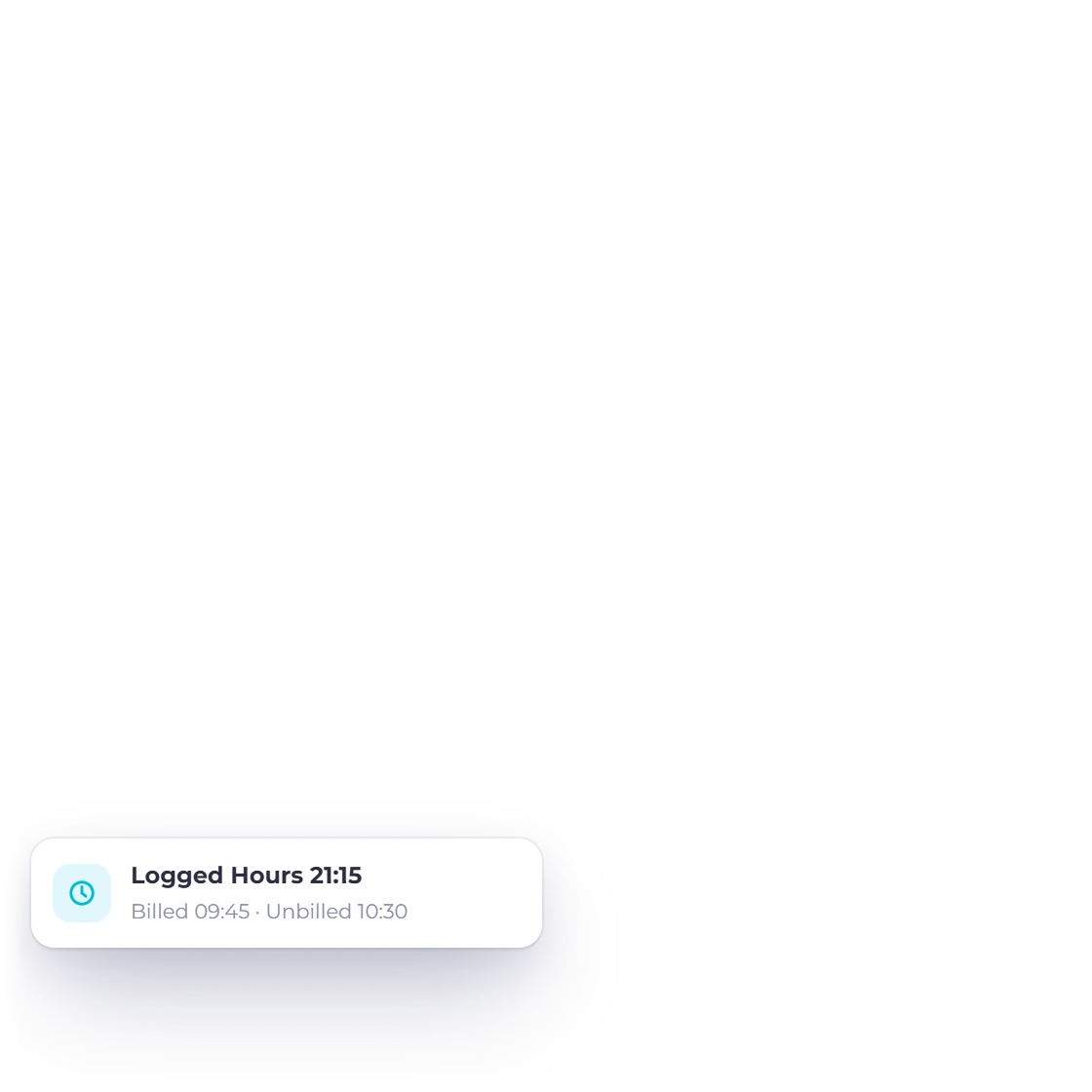
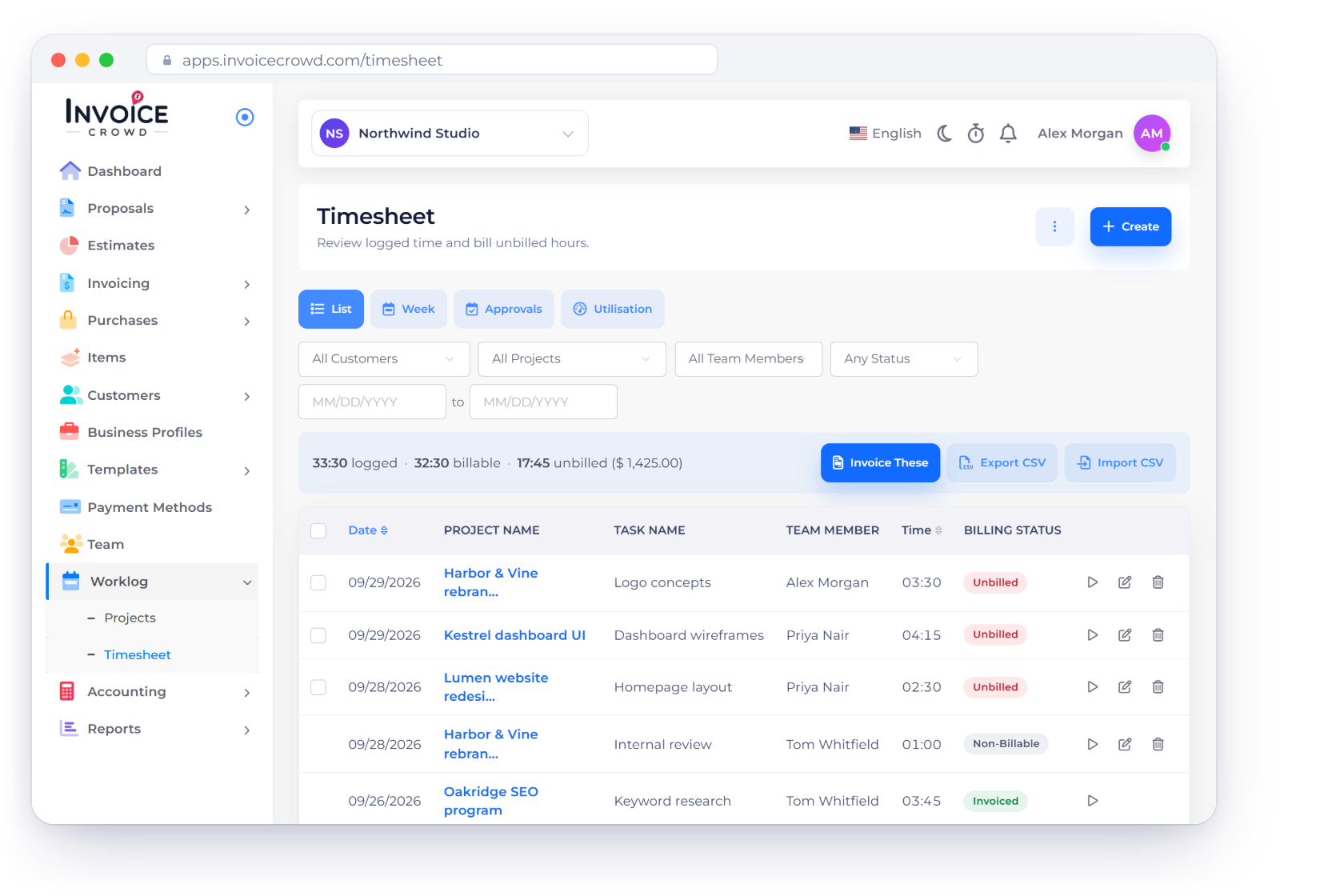
The Invoice Crowd timesheet with a timer running in the header above logged hours for each project, task and team member.

What is inside

Start the clock, price the hours, send the bill

Every hour in Invoice Crowd follows one path: recorded against a project task, priced by the project's billing method, and carried onto an invoice line when you bill it.

Getting the hours down

Timer, entry or grid

Starting a timer in Invoice Crowd by choosing a project, task and team member and marking the time billable.

A timer in the header, on every page

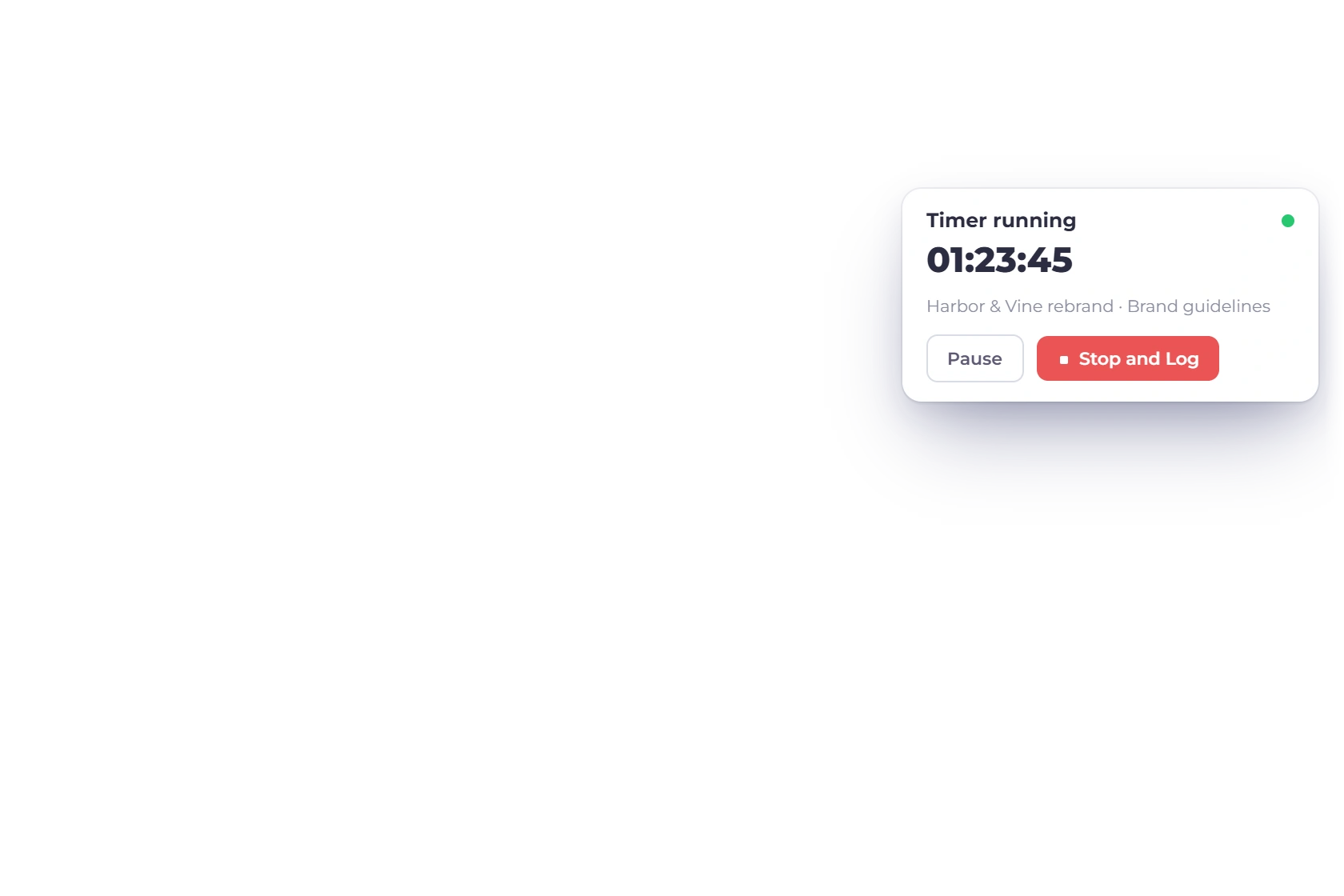
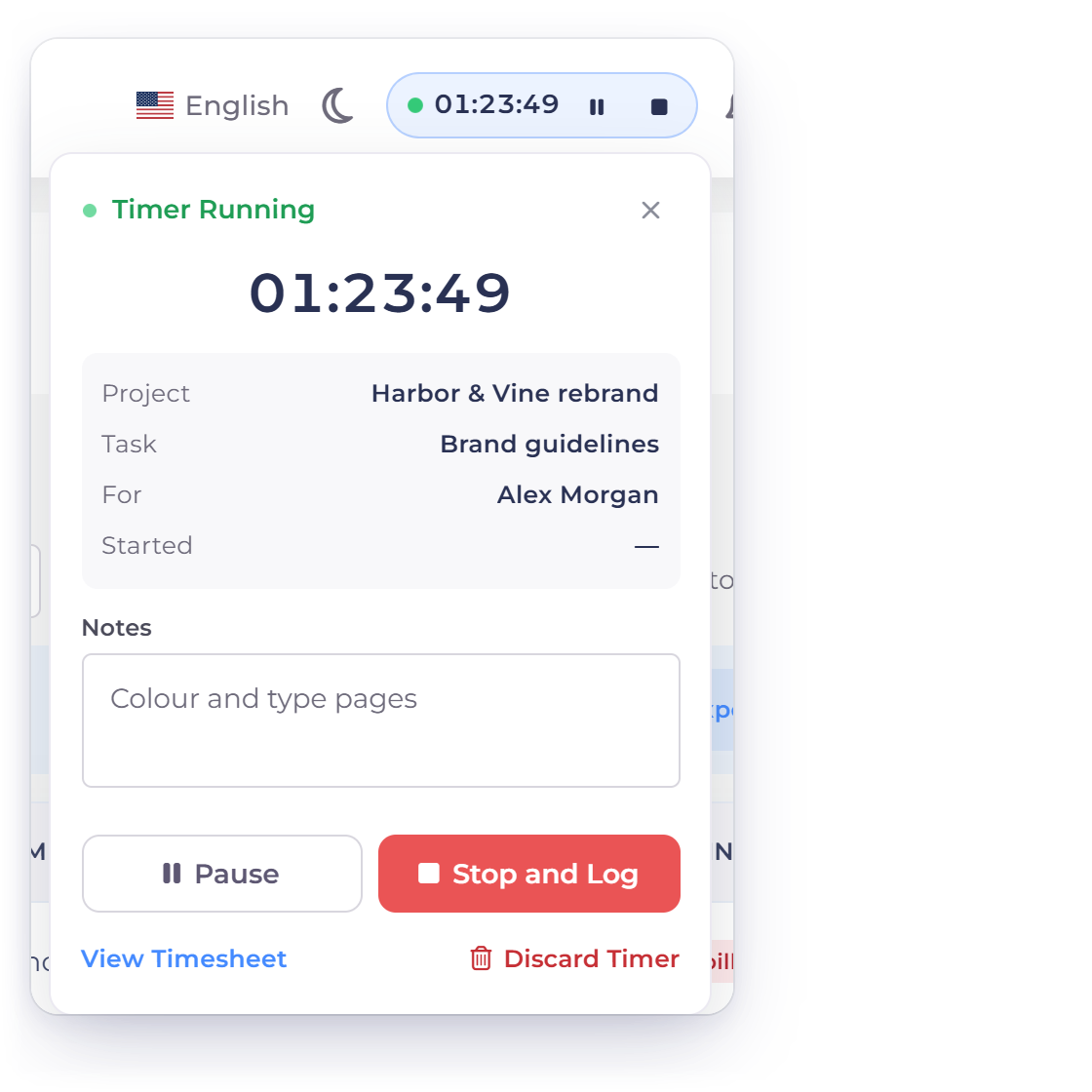
The timer is a stopwatch icon anchored in the app header, so you can start tracking from the invoice editor or the dashboard without opening the projects screen. Pick a project and the task and team member are matched for you; set the time billable or not, add a note, and start. A live HH:MM:SS chip runs in the header, and pausing banks the time so far without ending the log.

  • One running timer per person, across business profiles
  • Stopping rounds to the nearest minute, 30 seconds up
  • A paused timer cannot be resumed the next day

Type in the hour you forgot, or the whole week

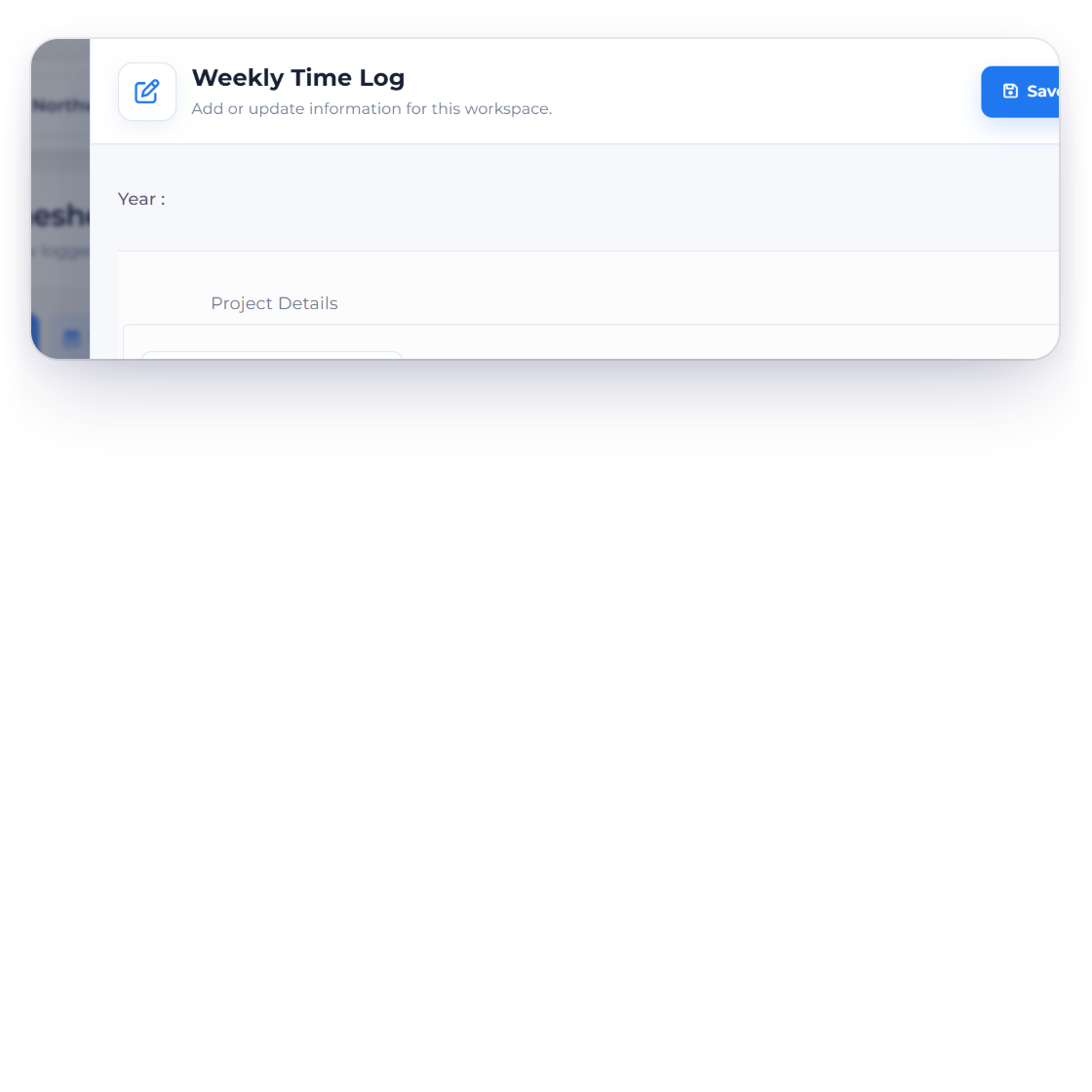
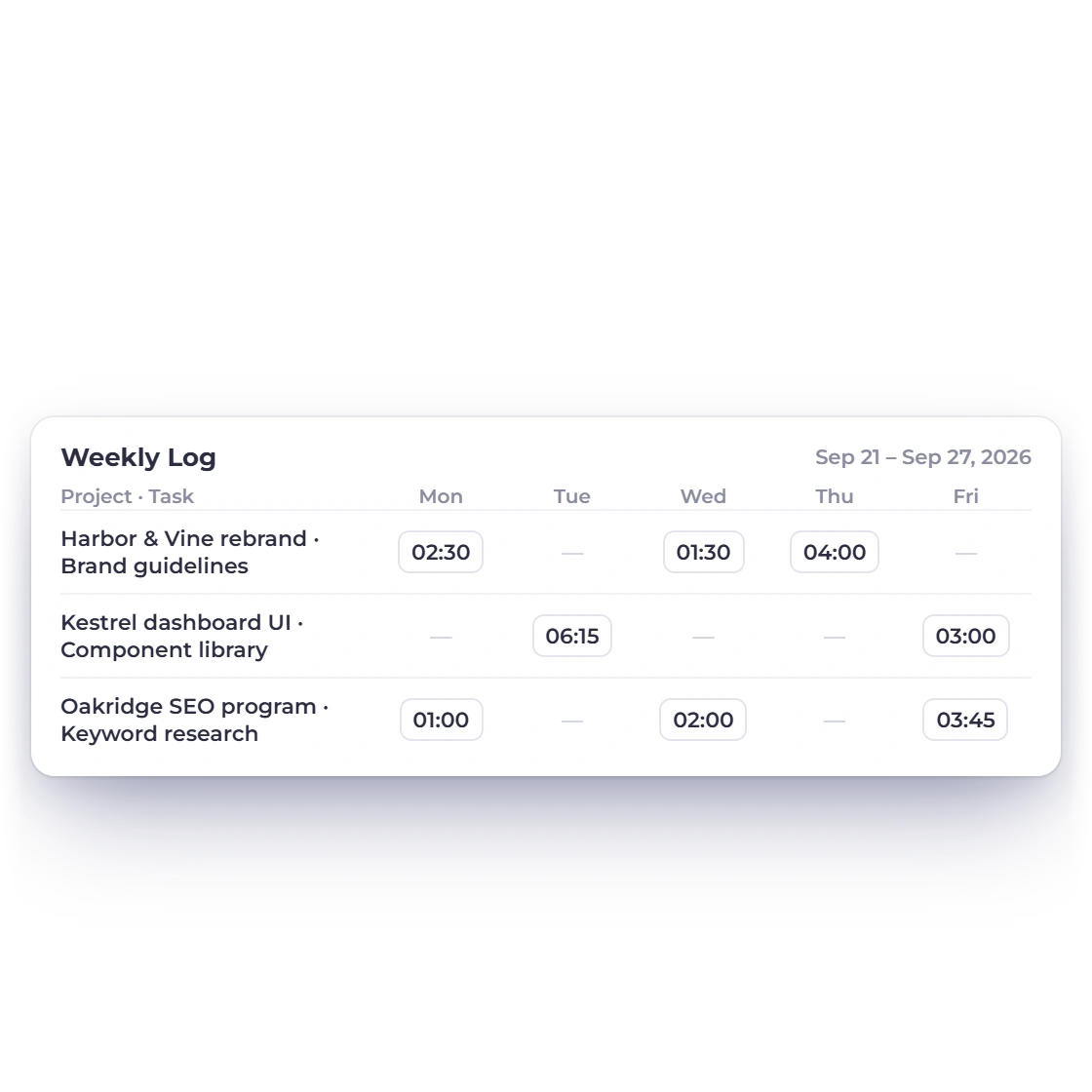
Not every hour gets a timer. The + menu on Projects and Timesheet takes a single Log Time entry with a date, project, task, team member and a duration in HH:MM, and a Weekly Log grid with a row per project and task and a cell for each day, so Friday afternoon can cover the whole week. Every log carries a billable flag.

  • A stopped timer behaves like an entry you typed
  • Every log names one project, one task and one member
  • Edit, delete, filter and bill them all the same way

Pricing the hours

Four billing methods

Per-member hourly rates on an Invoice Crowd project, used to price each person's logged time on the invoice.

The project's billing method sets the rate

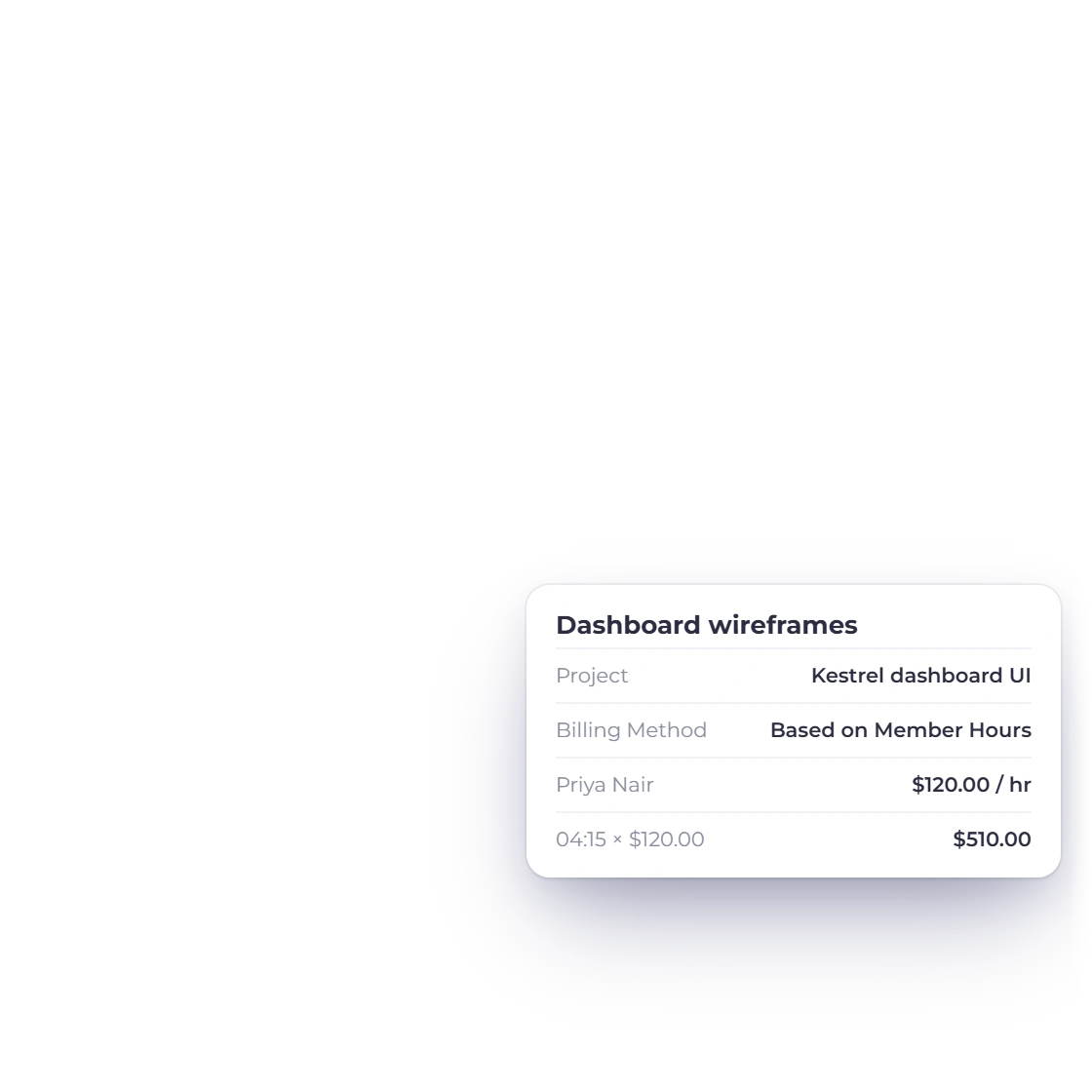
A project is tied to one customer and one billing method, both chosen when the project is created, so the rate question is settled once rather than on every invoice. Fixed prices the whole job. Project Hours, Task Hours and Member Hours price by the hour, taking the rate from the project, the task, or the member selected on the log. Money is seconds divided by 3,600 times that rate.

  • Under Member Hours the rate follows the selected member
  • Rounding lands on the money, never on the hours first
  • A grouped line spanning several people uses a weighted rate

Billable and non-billable both stay on the record

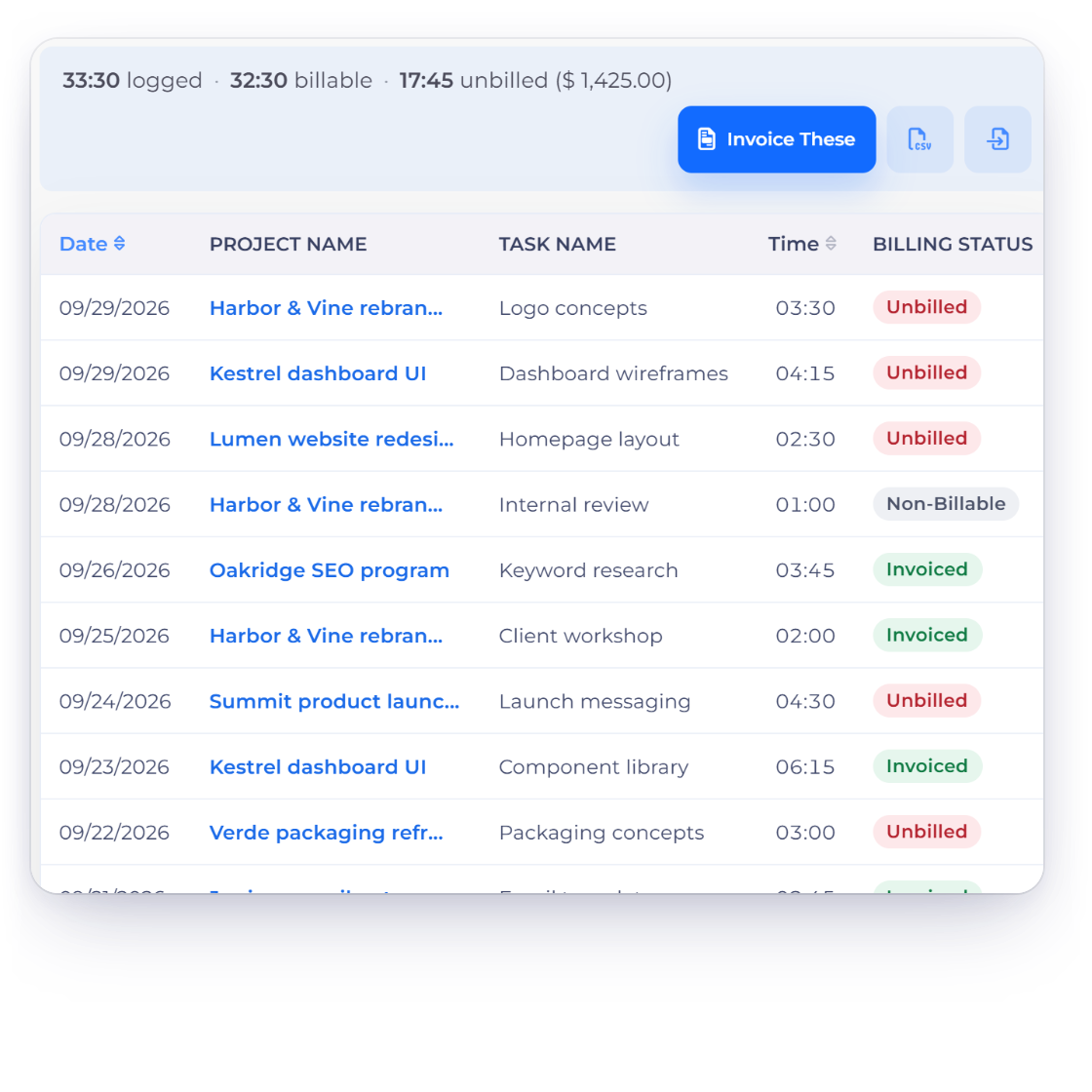
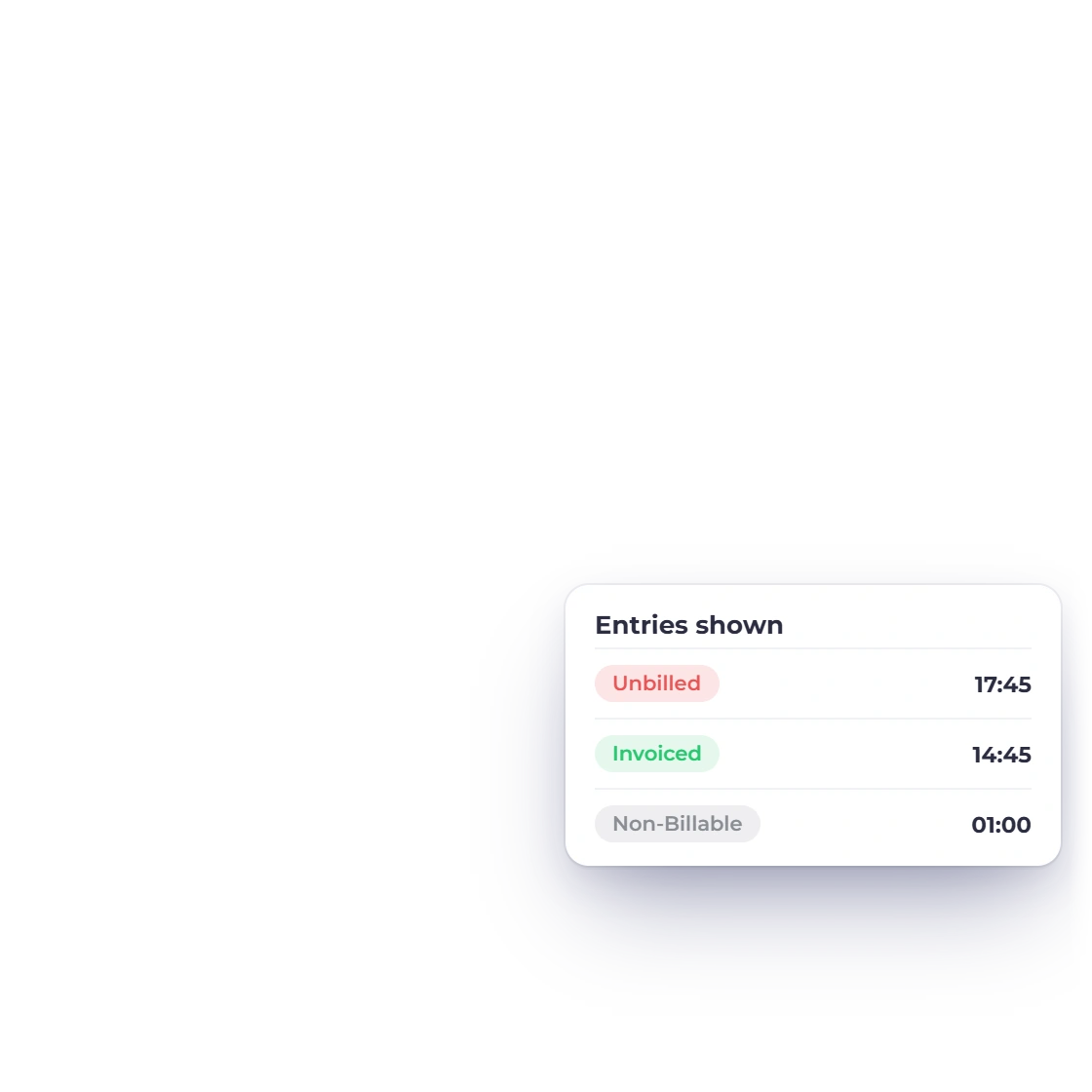
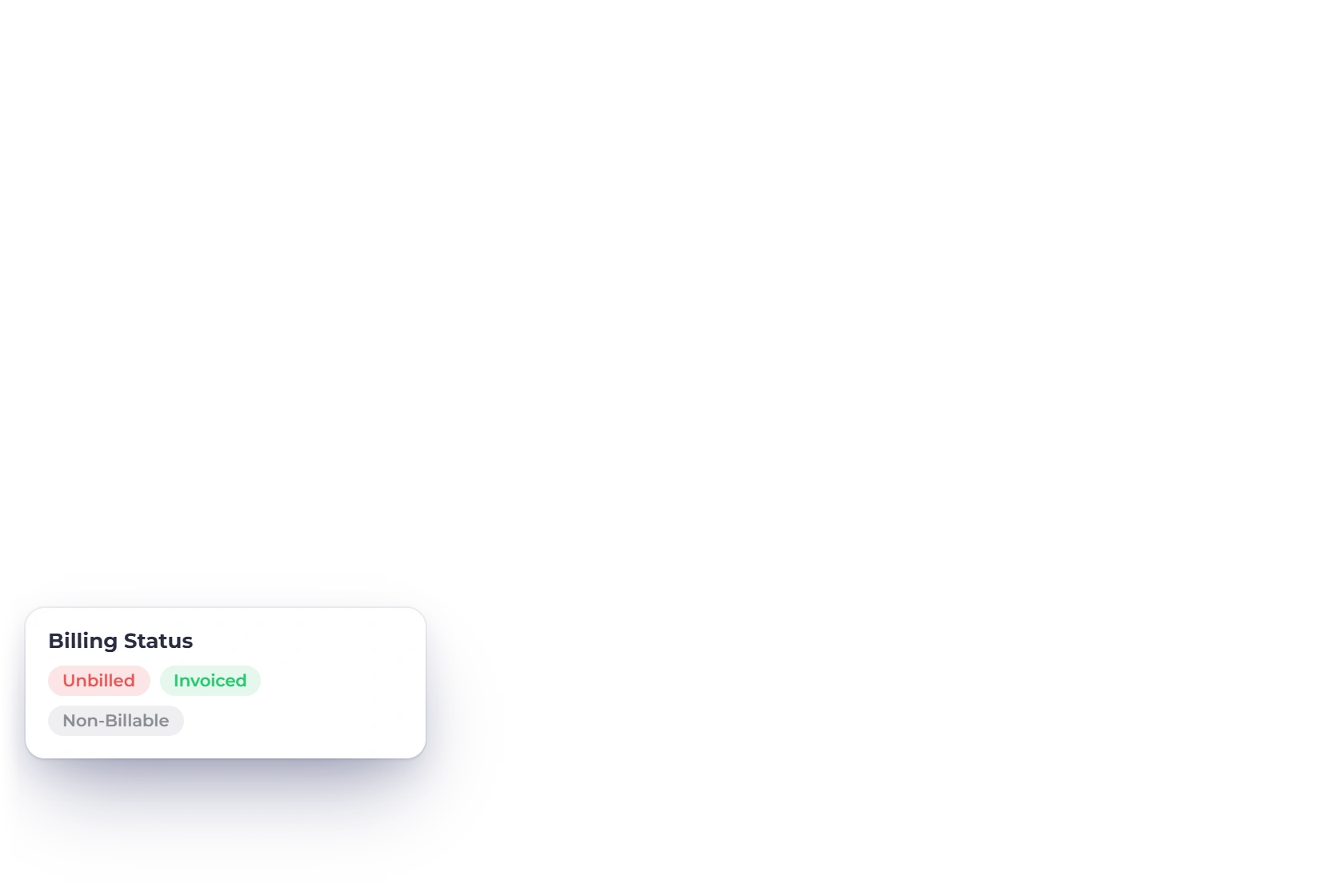
Every log carries a billable flag, and only billable logs are ever carried onto an invoice. Non-billable hours are still recorded and still show in the timesheet and on the project's time logs, so internal work, rework and admin stay visible to you without ever reaching a client's bill. Budgets sit beside the rates, on the project and on each assigned member.

  • Cost, revenue and hours budgets, hours in HH:MM
  • Budget in total, per task or per member
  • Each assigned member carries a rate and an optional budget

Sending the bill

Selected logs, one invoice

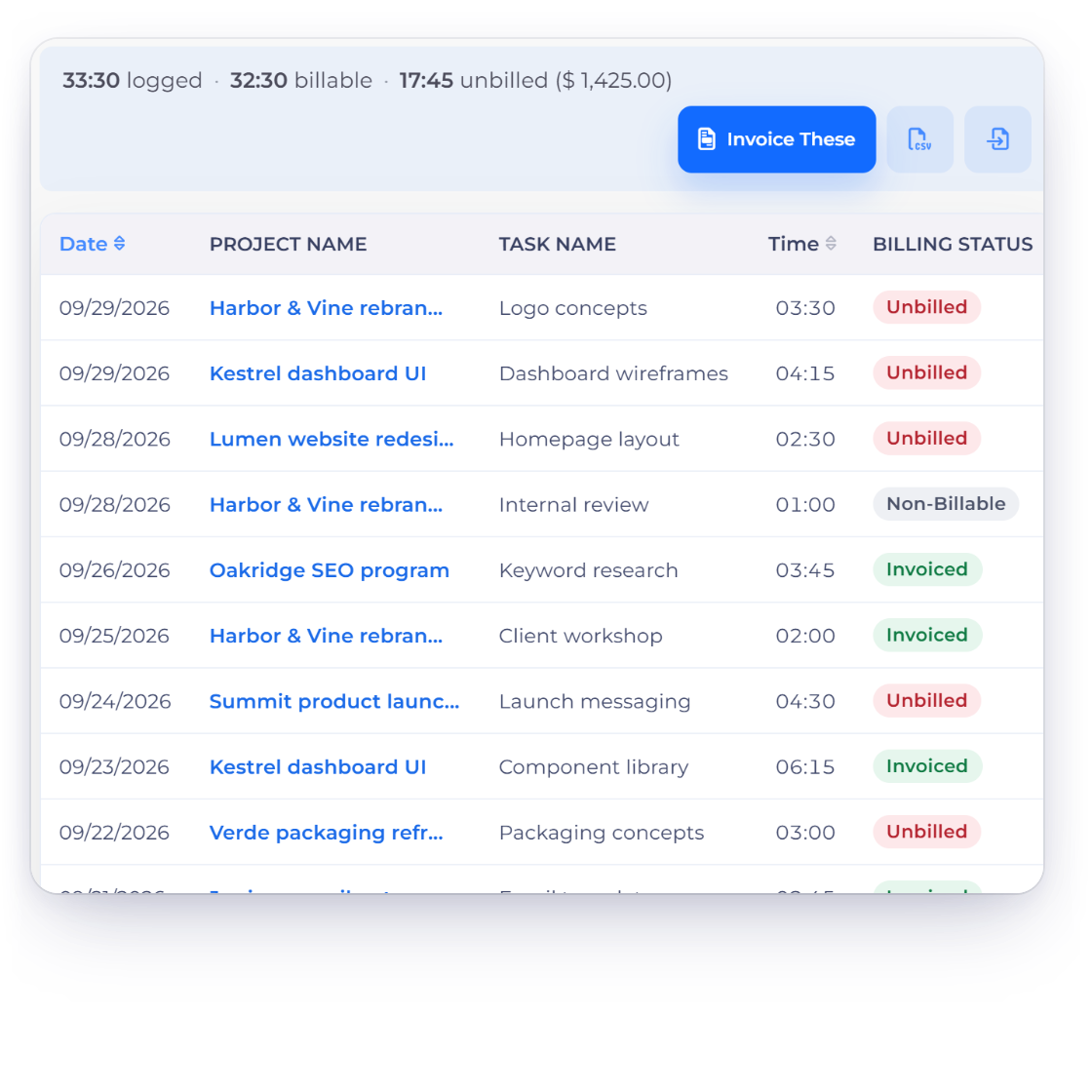
Selecting billable time logs on an Invoice Crowd project and creating an invoice from the tracked hours.

Select the logs and create the invoice

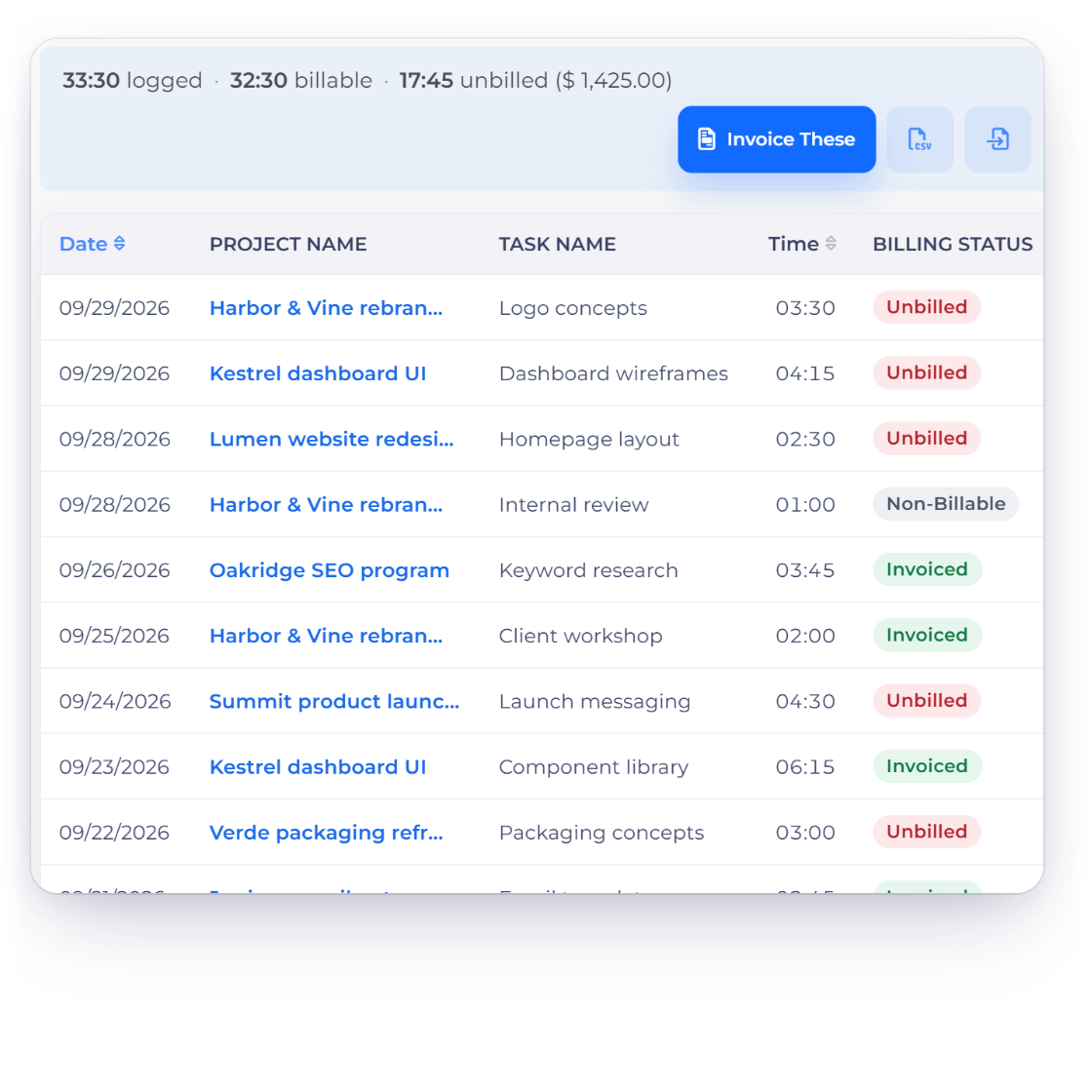
Select the projects or the individual logs you want to bill and use Create Invoice. Invoice Crowd writes the line items from those logs at the rate the billing method sets, marks each log invoiced, links it back to the new invoice and opens that invoice in the normal editor. Only billable logs that have not already been invoiced are used.

  • Everything selected must belong to one customer
  • A fixed-cost project cannot be billed from the timesheet
  • One transaction, and a repeat submission returns the same invoice

The hours stay visible after the invoice goes out

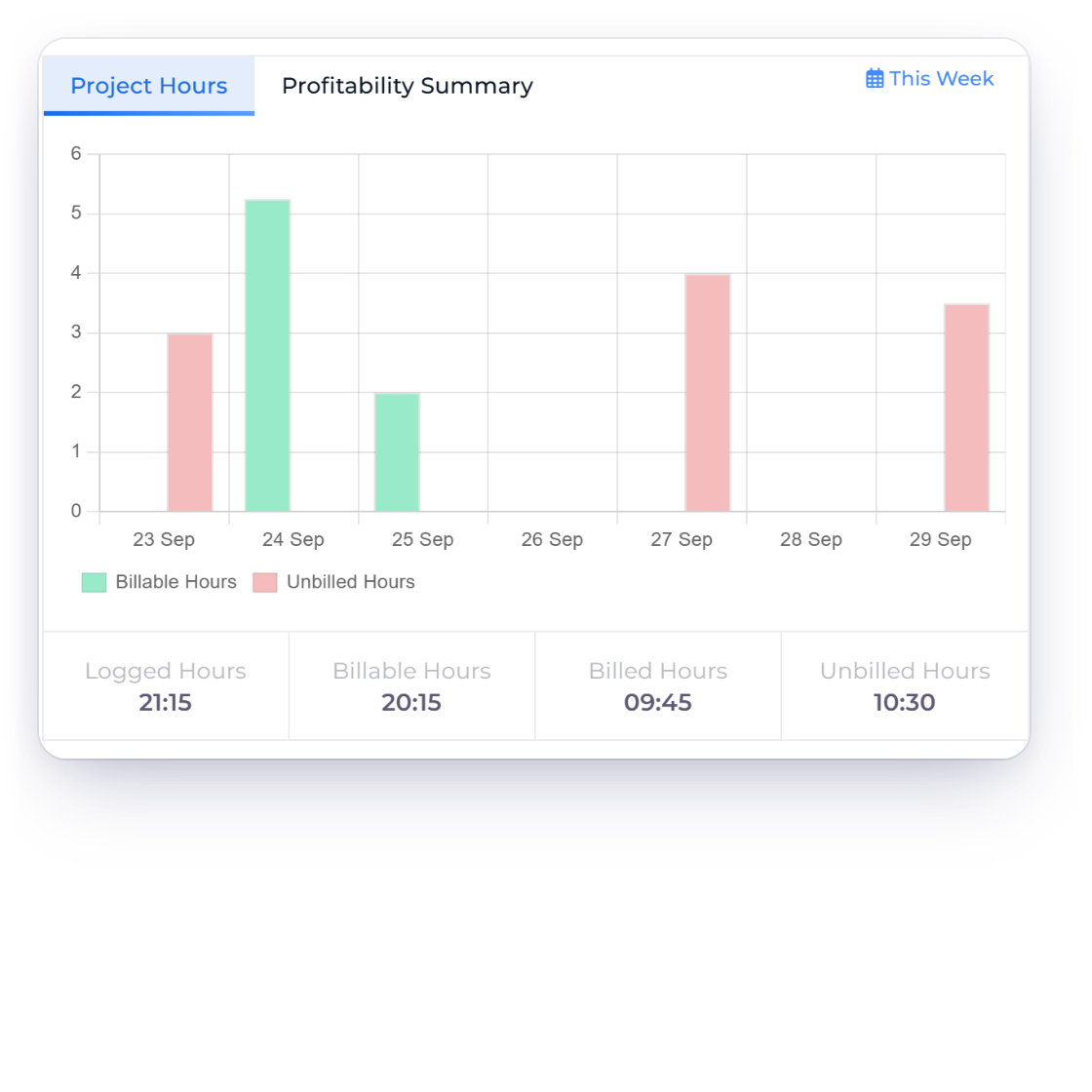
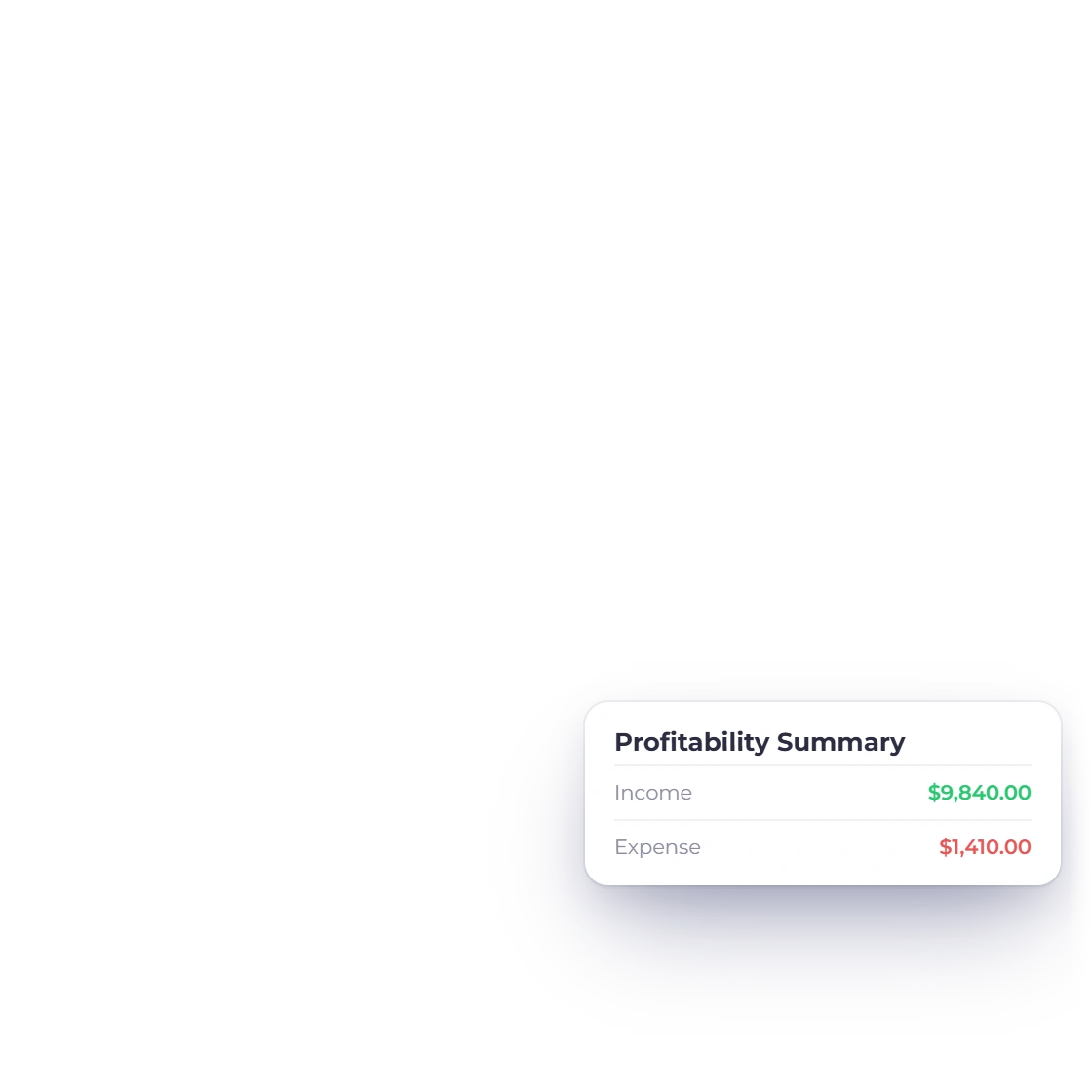
Every log lands in the Timesheet list and on the project's own time-logs tab, both filterable and paginated on the server at ten rows a page. The project detail charts those hours and sets project income against the expenses charged to the job. An invoice raised from tracked time is an ordinary invoice and sits in your books with the rest.

  • Profitability by financial year, six months or twelve
  • Tasks, expenses, invoices, estimates and notes on the same project
  • Customer-portal clients open their projects and timesheets read-only

Built in

The rest of the timesheet

The pricing choices behind each invoice line, and the boundaries worth knowing before you hand the timer to a team.

  • Fixed price

    Fixed sets one agreed cost on the project, so the hours you log are recorded and still visible but do not change the amount.

  • Project Hours

    Project Hours takes one rate per hour from the project itself, a single blended rate that applies to everyone logging time on it.

  • Task Hours

    Task Hours reads the rate per hour from each task, so design can be billed at a different number to development.

  • Member Hours

    Member Hours prices each line from the hourly rate on the assigned team member, keeping senior and junior time apart on the same task.

  • Four line layouts

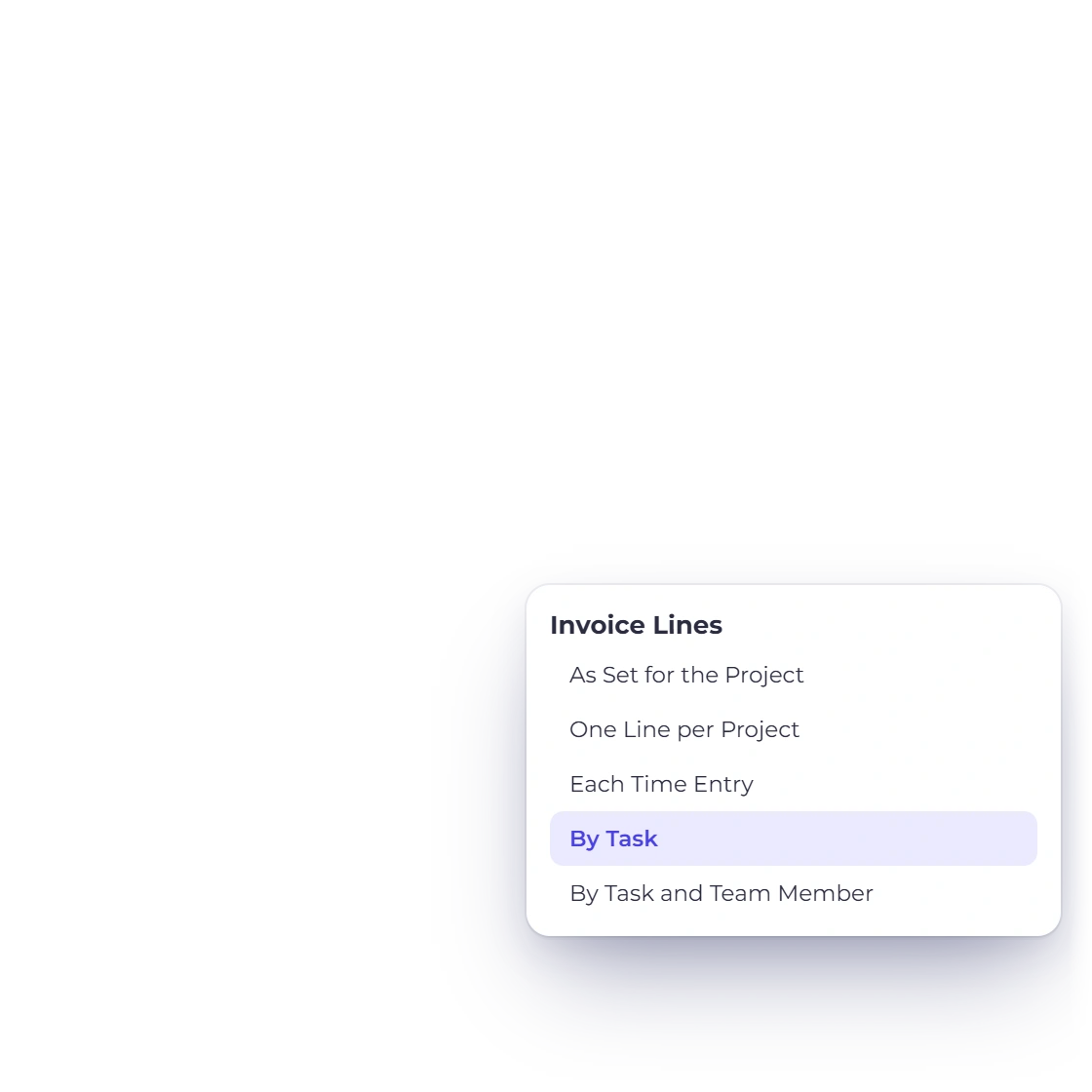
    One line for all the hours, a line per log, a line per task, or task split by member. The layout is set per project.

  • Hours chart ranges

    The project's hours chart covers one week, one month, three, six or twelve months, or a custom range you set yourself.

  • Locked once billed

    A log that has been billed cannot be edited or deleted, and a later conversion skips it. Deleting an unbilled log is permanent, with no recycle bin.

  • No overlap check

    Manual entries are not checked for overlap. Two entries covering the same hour both save, so a week nobody reviews can double-count.

  • Tasks are flat

    A task holds a name, an hourly rate, an hour budget, a billable flag and a status. No subtasks, dependencies, due dates, assignees, Gantt charts or kanban boards.

  • Not a monitoring tool

    There is no screenshot capture, idle detection or GPS tracking, and the hourly rates price client invoices rather than running payroll.

  • Who can track time

    A team member only sees the projects they are assigned to, and the timer is hidden for customer-portal and vendor-portal users.

  • Estimates from a project

    Creating an estimate from a project links the project and customer, but it does not build lines from your logs or mark them invoiced.

Questions

Time Tracking, answered

Does Invoice Crowd have a timer, and does it work on every page?

Yes. The timer sits in the Invoice Crowd app header as a stopwatch icon and is available on every page, so tracking can be started from the invoice editor or the dashboard without opening the projects screen. Choose a project, and the task and team member are matched for you; set the time billable or not, add a note, and the header shows a live HH:MM:SS chip with pause and stop beside it. One timer runs at a time per person, and stopping it rounds the total to the nearest minute.

Can time be logged in Invoice Crowd without using the timer?

Yes. Invoice Crowd takes a single manual entry from the + menu on Projects or Timesheet, with a date, project, task, team member and a duration in HH:MM, and it takes a weekly grid with a row per project and task and a cell per day, so a whole week can be filled in at once. Manual entries and timer entries produce the same record and bill the same way. Manual entries are not checked for overlap, so two entries covering the same hour will both save.

How do tracked hours become an invoice?

Select the projects or the individual time logs to bill and use Create Invoice. Invoice Crowd builds the invoice lines from those logs at the rate the project's billing method sets, marks each log as invoiced, links it to the new invoice, and opens that invoice in the normal invoice editor. Only billable logs that have not already been invoiced are used, everything selected must belong to one customer, and a fixed-cost project cannot be billed from the timesheet screen.

Can billable and non-billable time be separated?

Yes. Every time log in Invoice Crowd carries a billable flag. Non-billable hours are still recorded and still appear in the timesheet and on the project's time logs, so internal work and rework stay visible, but they are never carried onto a client invoice. Only billable logs are consumed when tracked time is converted into an invoice.

Can each team member have their own hourly rate?

Yes. Team members are assigned to a project individually, each with an hourly rate, and the Member Hours billing method prices invoice lines from the rate of the member selected on the log. Amounts are calculated as seconds divided by 3,600 multiplied by that rate, with rounding applied only to the final money figure. A grouped line covering several people uses an exact weighted rate.

Can time that has already been invoiced be edited or deleted?

No. Once a time log in Invoice Crowd has been converted into an invoice it is locked: edits are refused, deletion is refused, and a later conversion will not pick it up again, so the hours behind a sent bill cannot change underneath it. Logs that have not been invoiced can be edited or deleted at any point, though deletion is permanent and there is no recycle bin for time logs.

Does Invoice Crowd time tracking replace a project management tool?

No. Tasks in Invoice Crowd are flat records: a name, an hourly rate, an hour budget, a billable flag and an active or inactive status. There are no subtasks, dependencies, due dates, per-task assignees, Gantt charts or kanban boards, and no screenshot capture, idle detection or GPS tracking. The purpose is to price and bill work accurately rather than to plan or monitor it.

Put this week's hours on an invoice

Start the timer from any page in Invoice Crowd, mark the time billable against a project task, then select the logs and create the invoice.

  • No card required to start
  • Your data stays yours
  • Cancel anytime