Skip to content

Features

Vendor management software with a vendor portal built in

Keep one record per supplier with contact details, address, tax ID and business profile. Give any vendor a read-only login to see the bills, purchase orders, vendor credits and payments you have recorded against them.

  • One record per supplier
  • Read-only portal, by invitation
  • Feeds bills, POs and payments

Last updated:

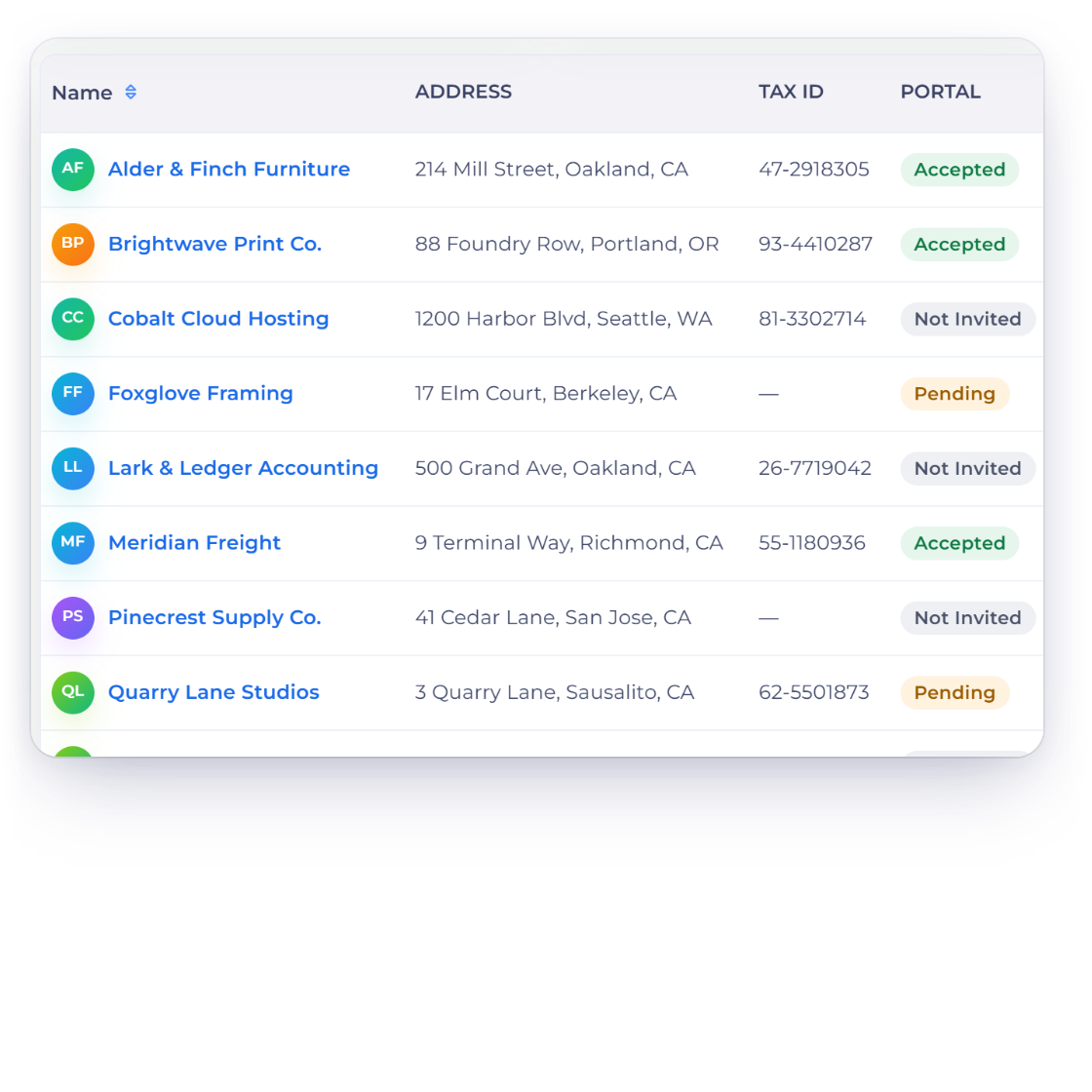
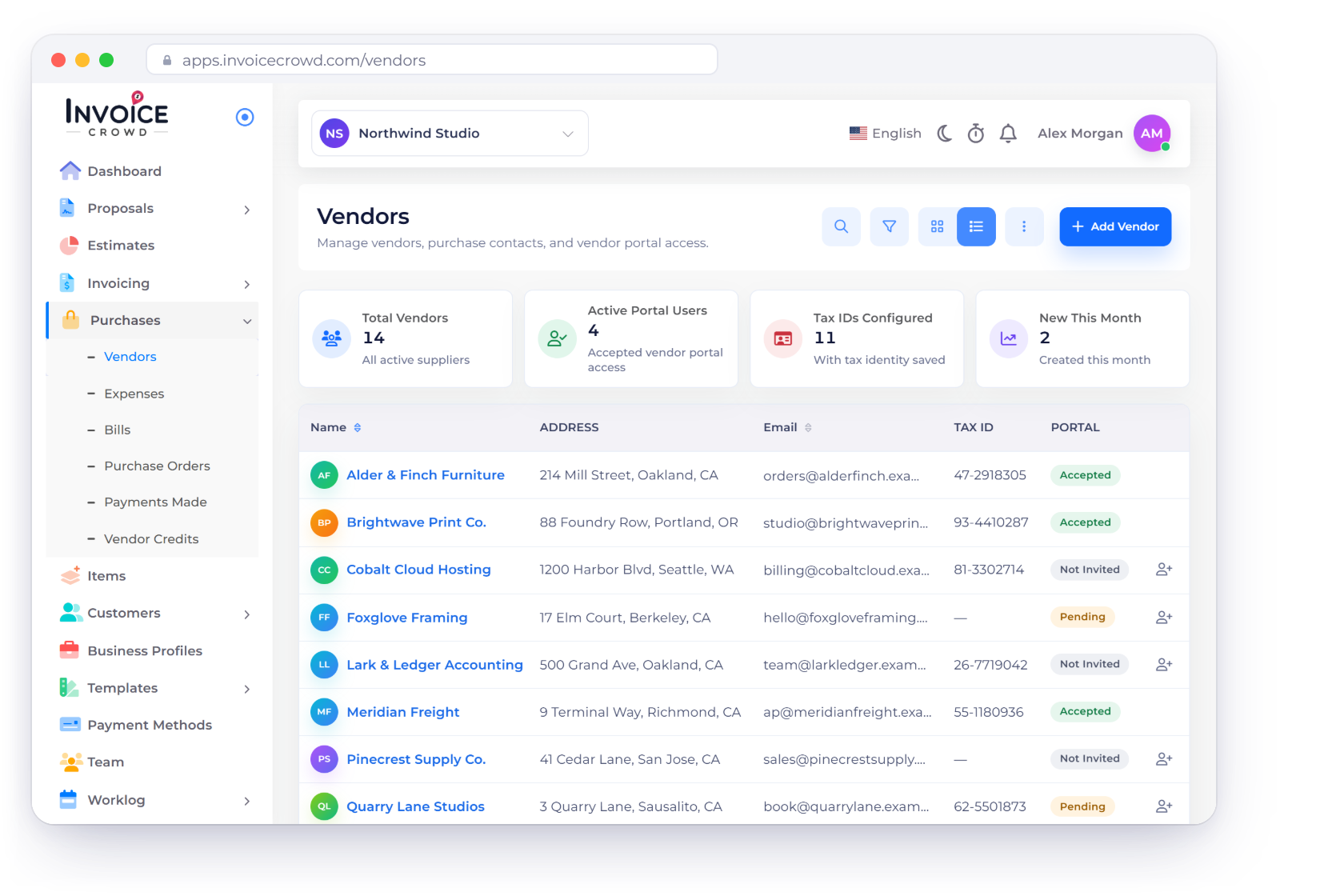
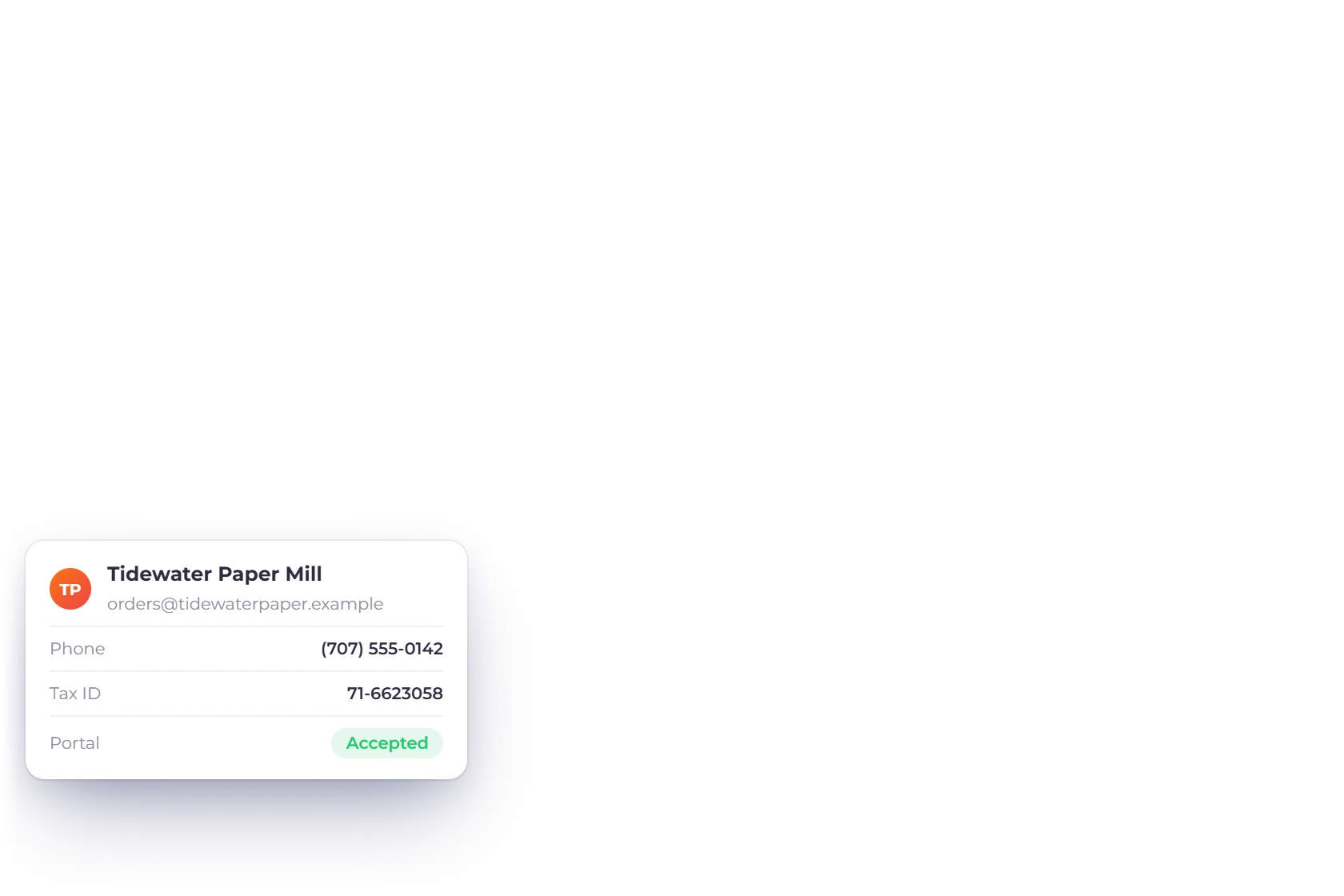
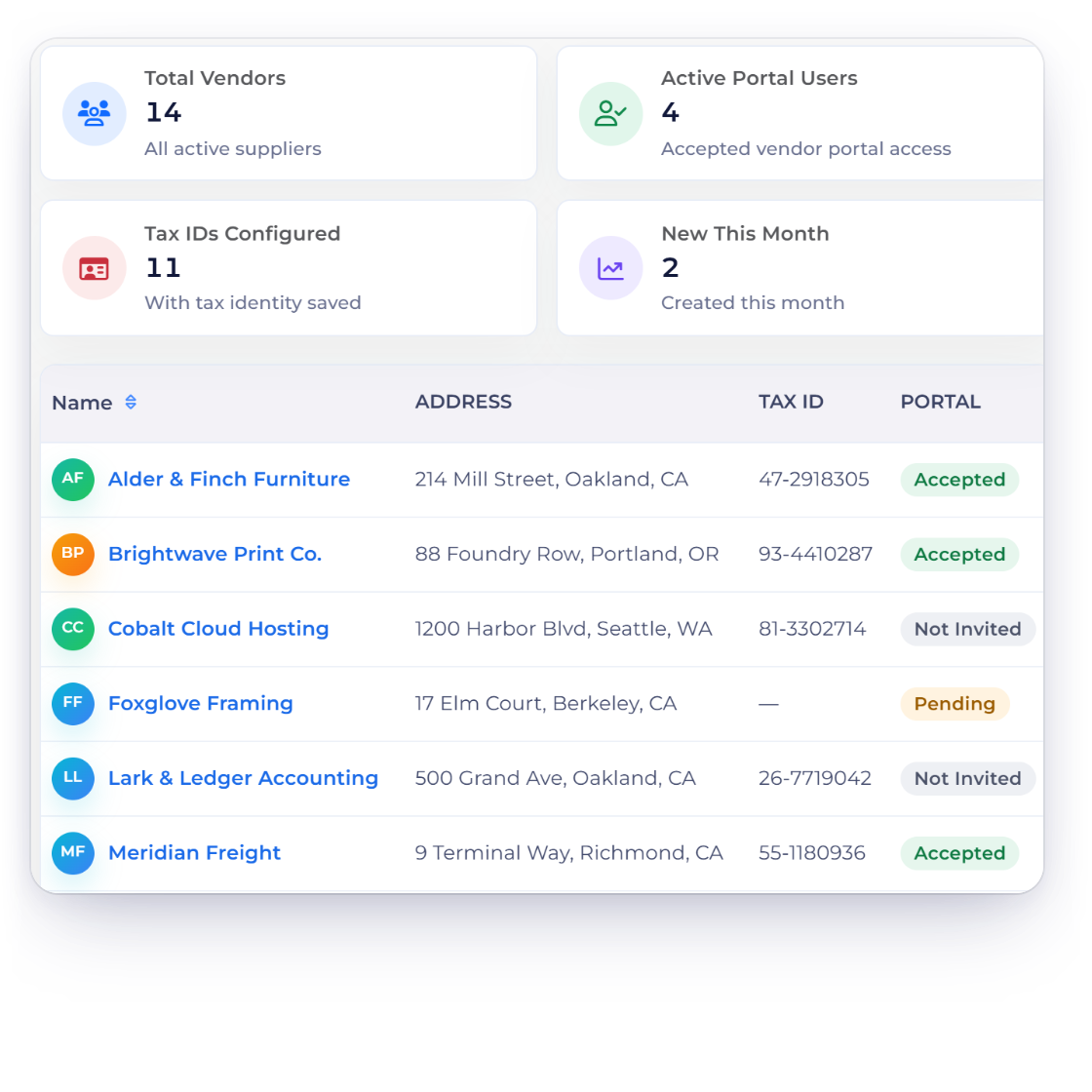
The vendor list in Invoice Crowd showing each supplier's address, email, business profile, tax ID and portal invite status.

What is inside

One supplier record, and a window your vendor can look through

A vendor record is the picker behind every bill, purchase order, vendor credit and payment made. If you switch it on, it is also a read-only login that lets the supplier check those same documents without emailing you for a copy.

Setting them up

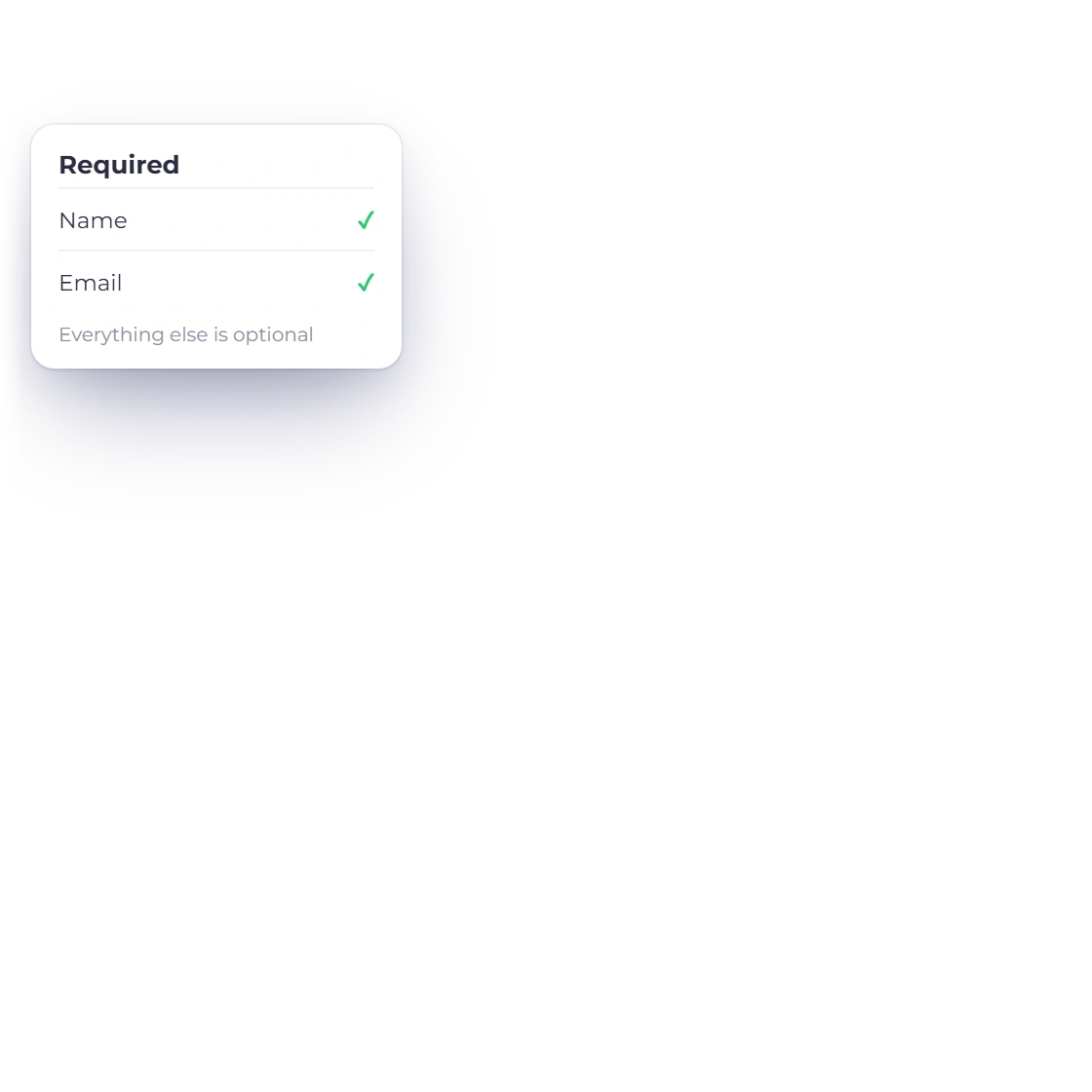
Name and email required

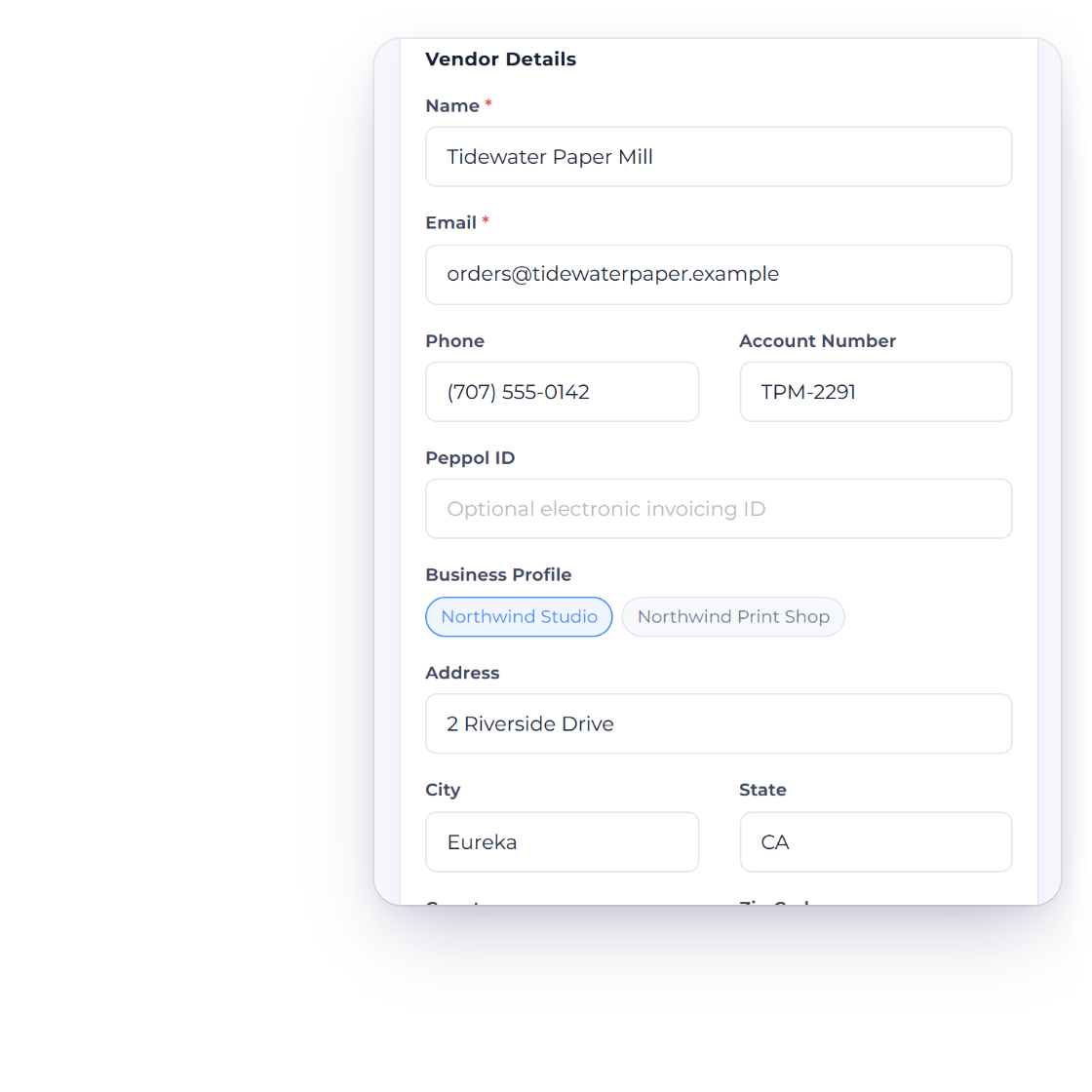
Adding a supplier to Invoice Crowd, with name and email required and the tax ID recorded on the same record.

One record per supplier

A vendor record holds contact details, an address, a tax ID and the business profiles the supplier belongs to. Name and email are the only required fields; Invoice Crowd checks them in the form and again on save. Everything else is optional. Adding and editing both happen in a slide-in side panel, and clicking a supplier's name opens that same panel rather than a separate detail page.

  • Business profile is a multi-select, defaulting to your current one
  • Address, city, state, country and zip, all optional
  • Tax ID gets its own column on the vendor list
The vendor list is where you work

Search it, filter by business profile, sort on the Name and Email columns, and switch between list and grid. Invoice Crowd remembers that choice for your next visit. The toolbar adds a supplier, opens the import tool for CSV, XLS and XLSX files, and exports your vendors to a file. Each row carries its own edit and delete actions.

  • Twelve rows a page, sorted by name
  • Four stat cards sit above the table
  • Columns for address, email, profile, tax ID and portal status

Using them on purchases

One record, every document

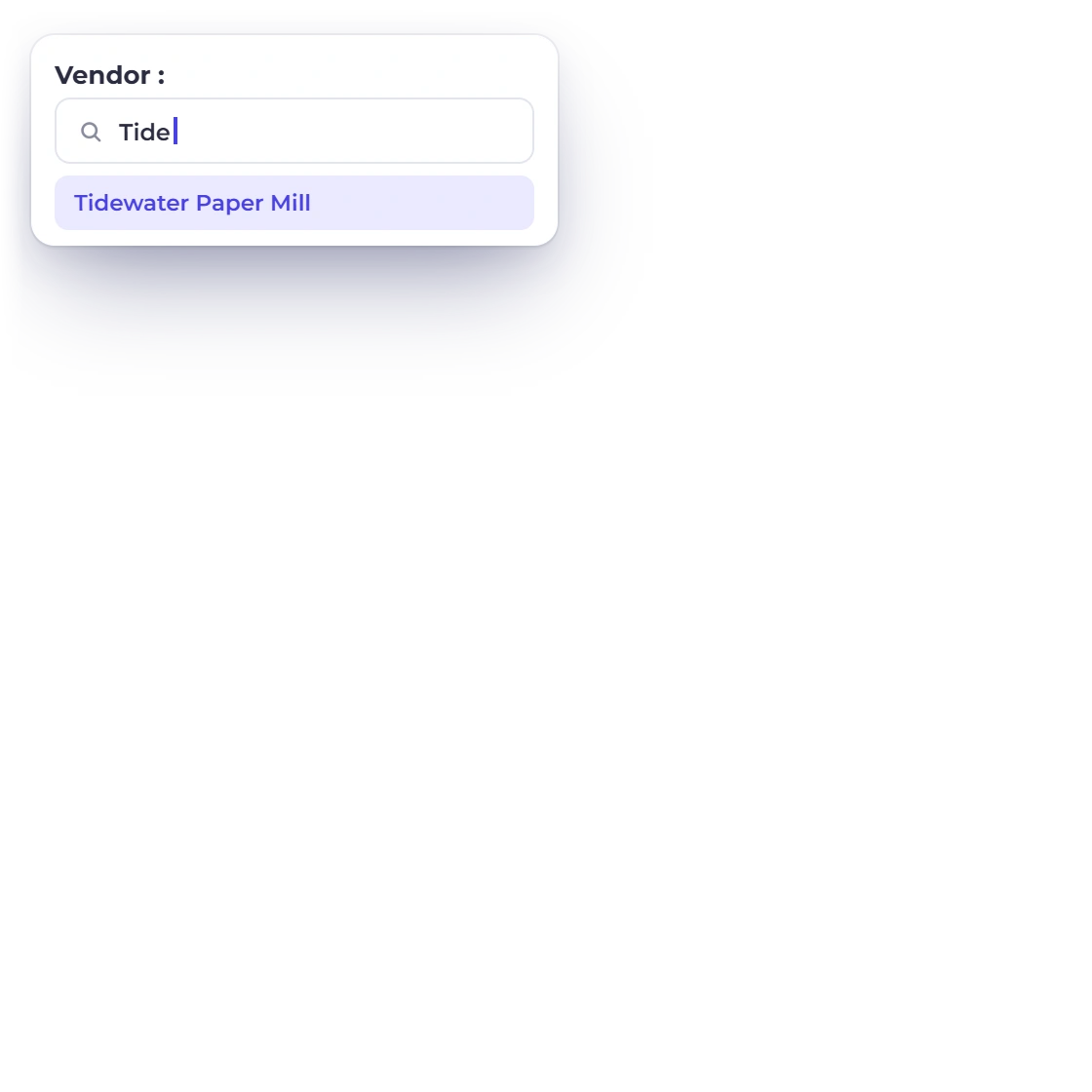
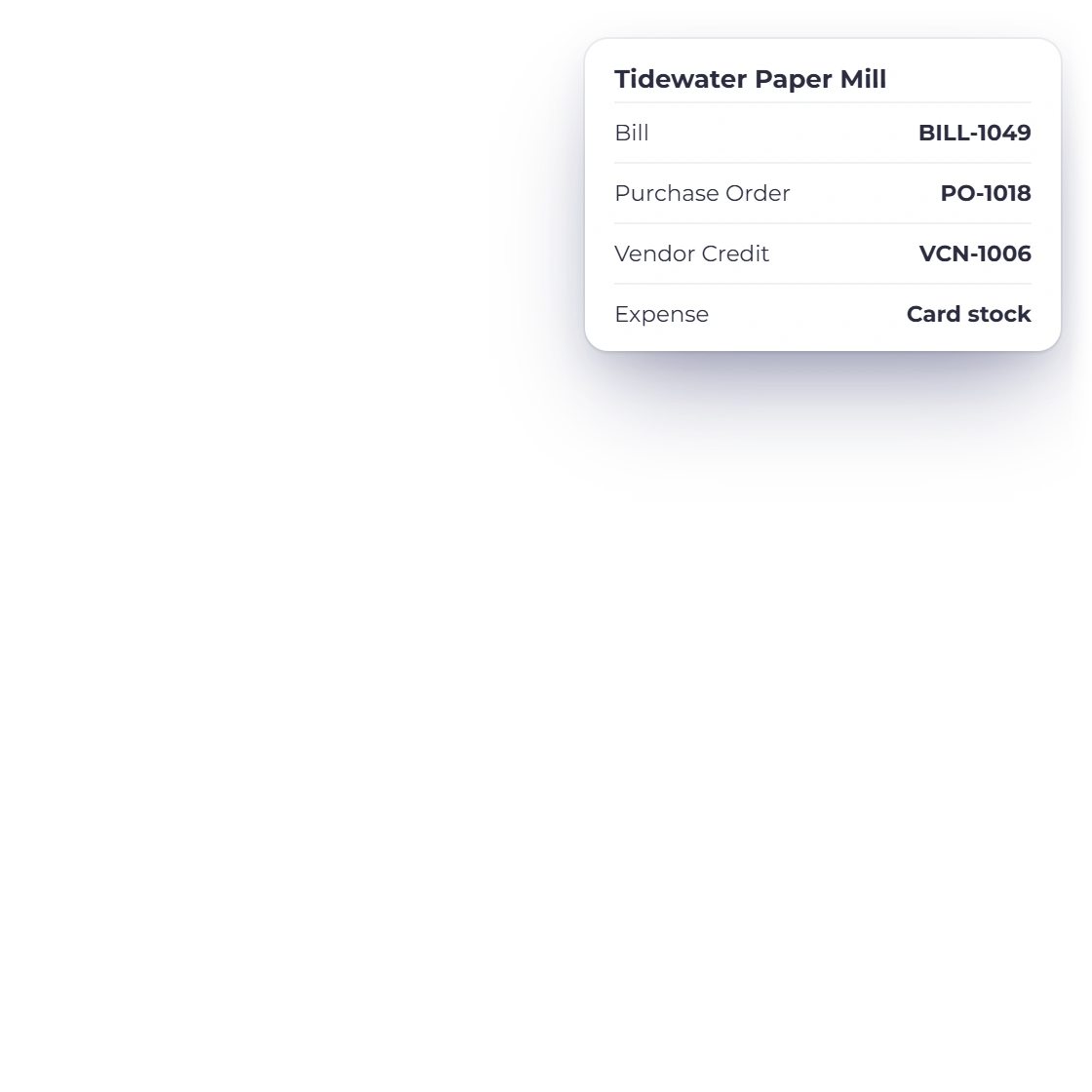
Picking a supplier from the vendor list while recording a bill in Invoice Crowd.

The same supplier on every purchase document

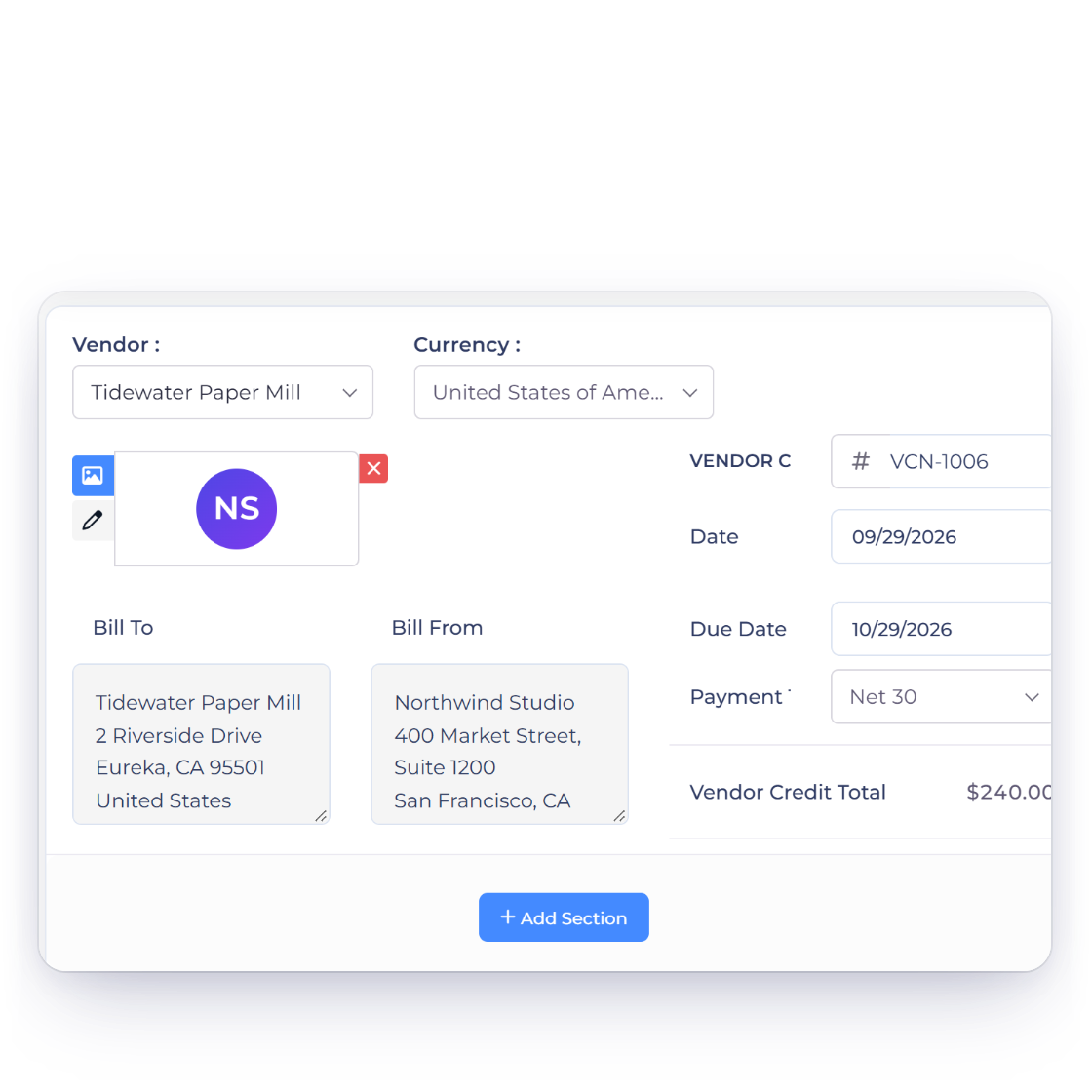
One vendor record feeds every purchase document. Record a bill against a vendor, raise a purchase order or issue a vendor credit and the picker lists your active suppliers for the current business profile, so a supplier you deleted stops appearing on new documents. The same list drives the vendor filter on those screens, and Payments Made records a payment against a chosen vendor's bills.

  • Bills, purchase orders, vendor credits and payments made
  • An item in your catalogue can store a preferred vendor
  • Deleted suppliers drop out of every picker and filter

Deleting a supplier hides the record

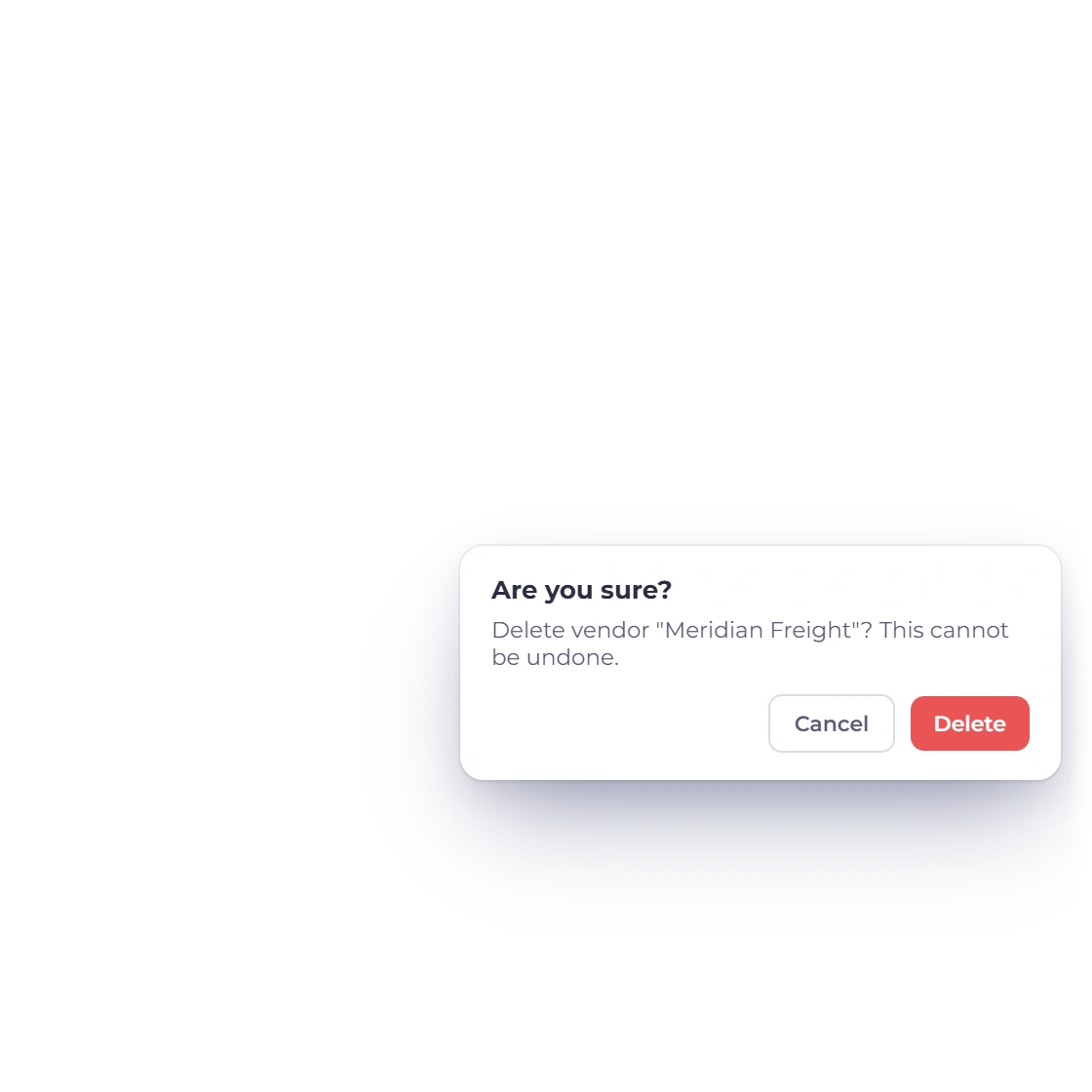
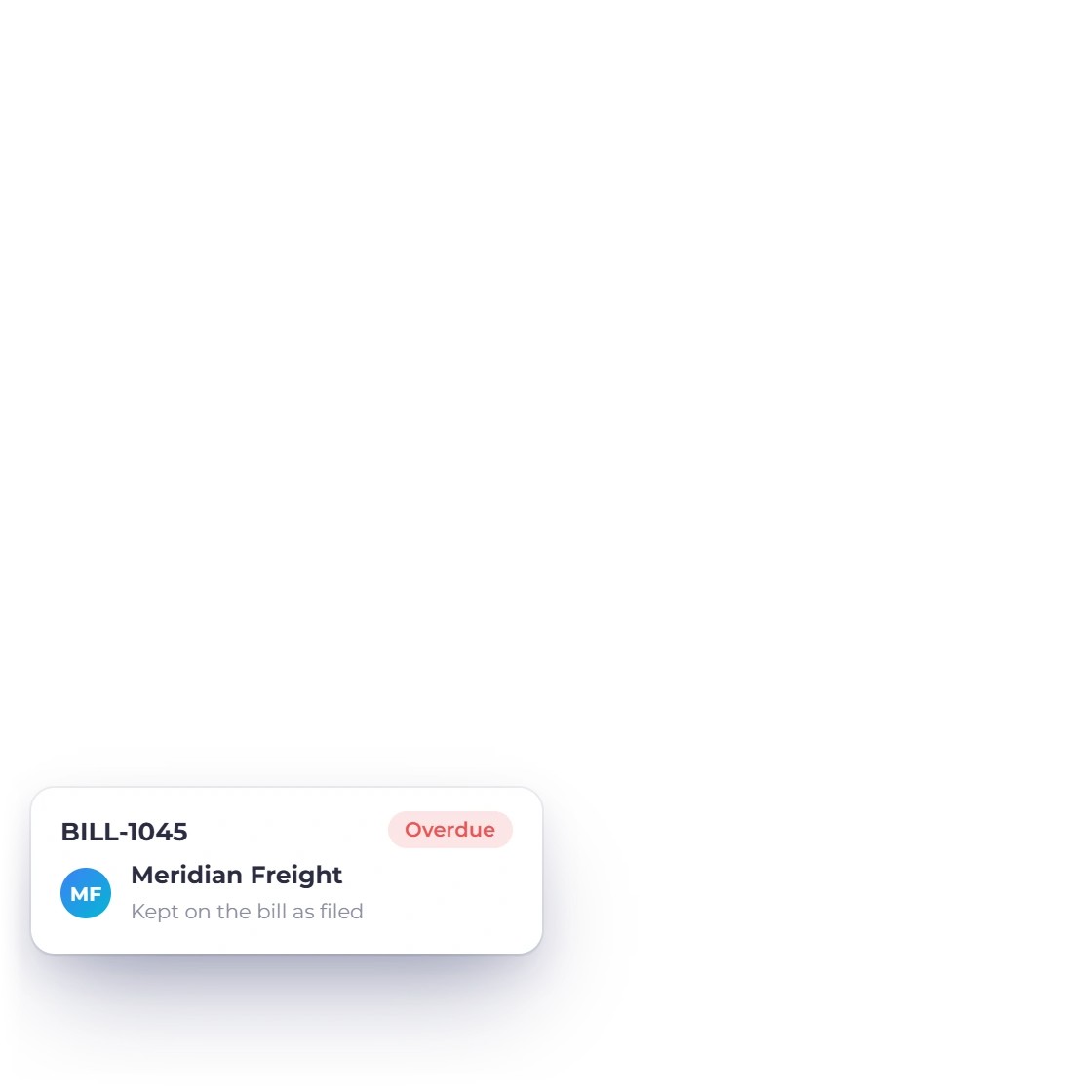
Deleting drops a supplier out of the vendor list, out of every picker and out of every filter dropdown, but nothing is wiped. Invoice Crowd does not check for existing documents first, so the bills, purchase orders, vendor credits and payments you recorded earlier keep the supplier's name on them exactly as filed. There is no undo on the vendors screen, so treat a deletion as final.

  • Old documents keep the supplier's name on them
  • No check for existing documents runs before the delete
  • The CSV export still includes deleted suppliers

Handing them a login

Read-only, by invitation

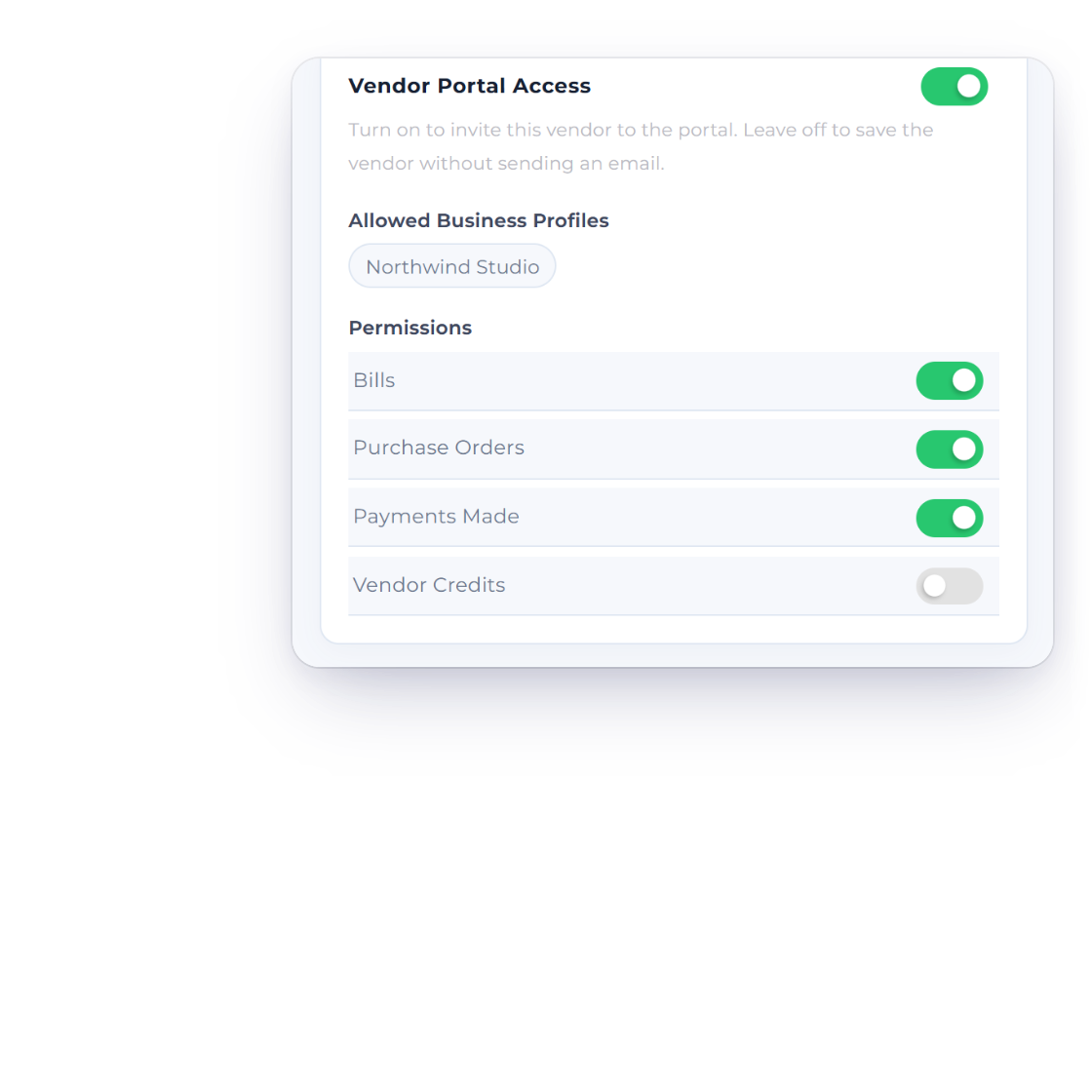
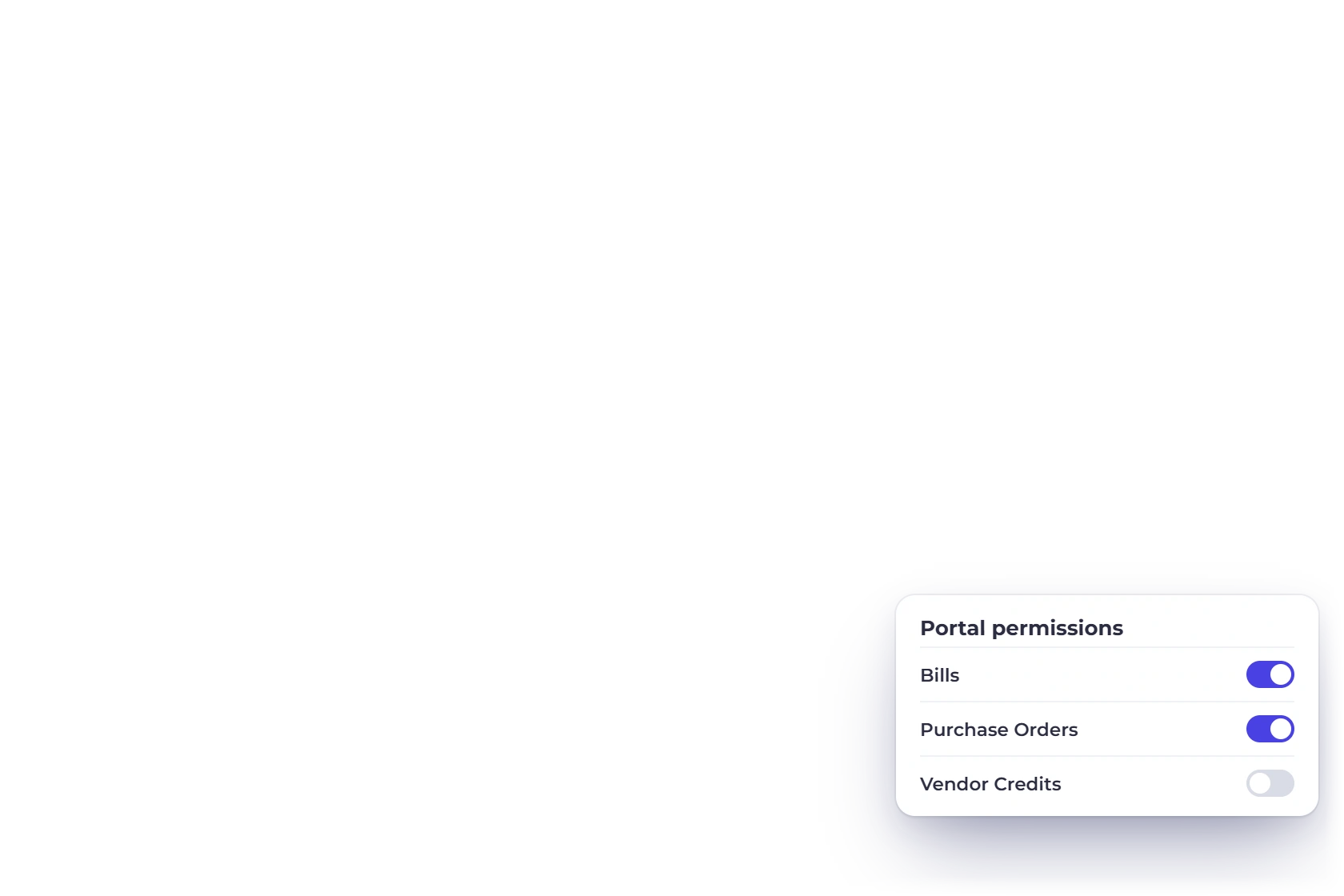
Switching on vendor portal permissions in Invoice Crowd so a supplier can see their own bills and purchase orders.

Switch the portal on as you add the supplier

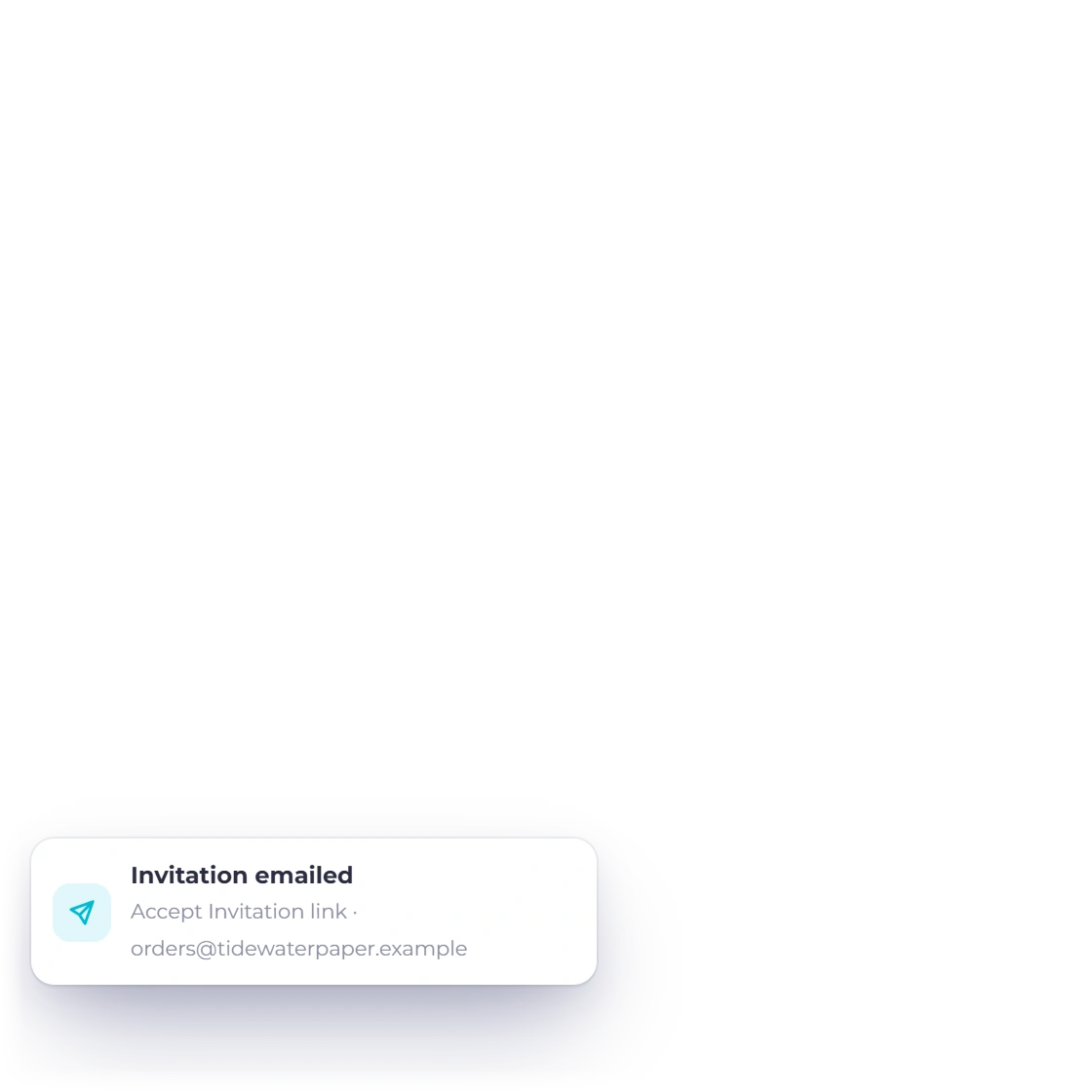
Pick at least one portal business profile and turn on one or more of four permissions: Bills, Purchase Orders, Payments Made and Credit Notes. Invoice Crowd emails the supplier an Accept Invitation link that stays valid for one year. Do this while you are adding them. Turning permissions on for a supplier you saved earlier moves their status to Pending but sends no email.

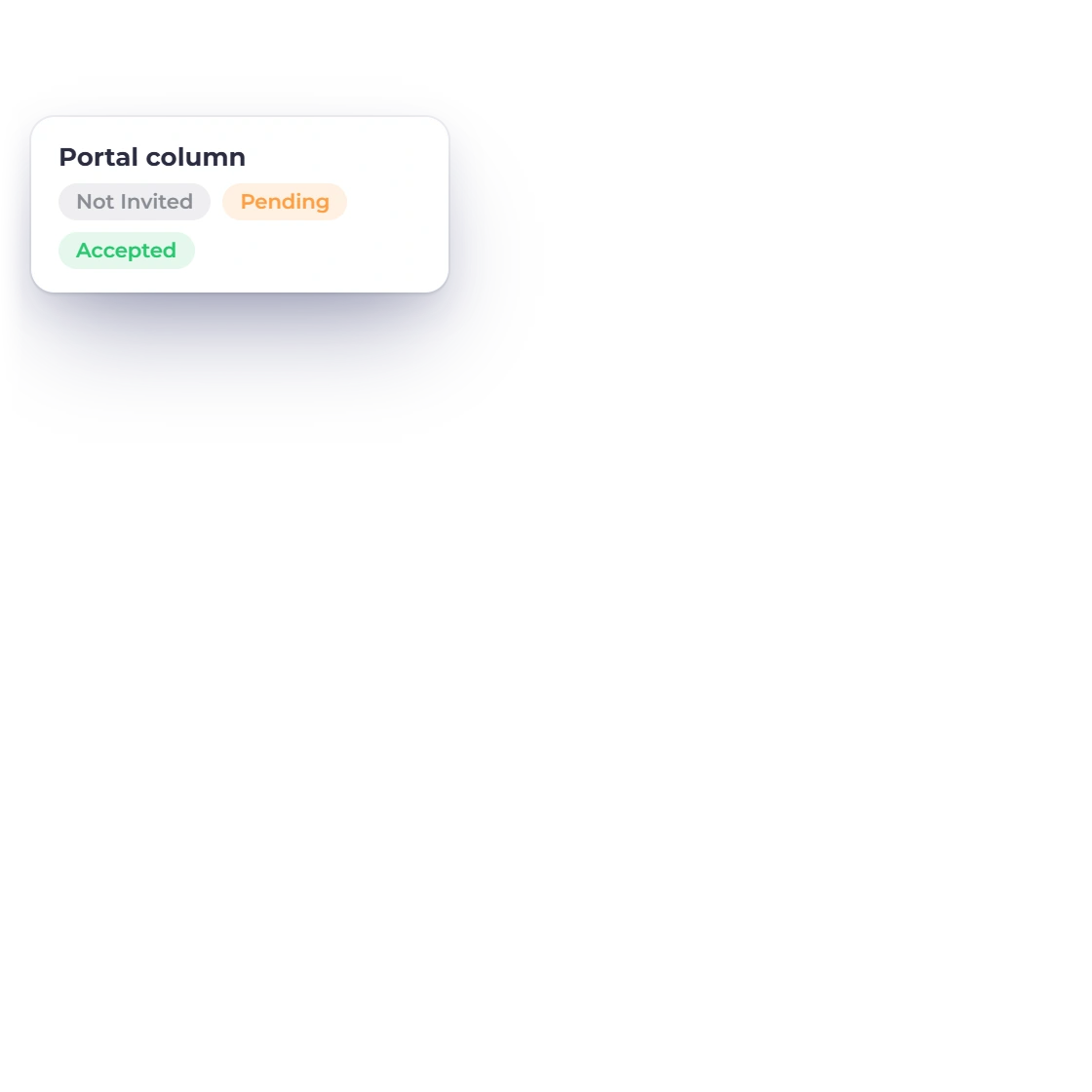
  • The Portal column reads Not Invited, Pending or Accepted
  • Turn a switch off and that tab disappears
  • Typing a hidden tab's address redirects the vendor away

A dashboard, and only what you allowed

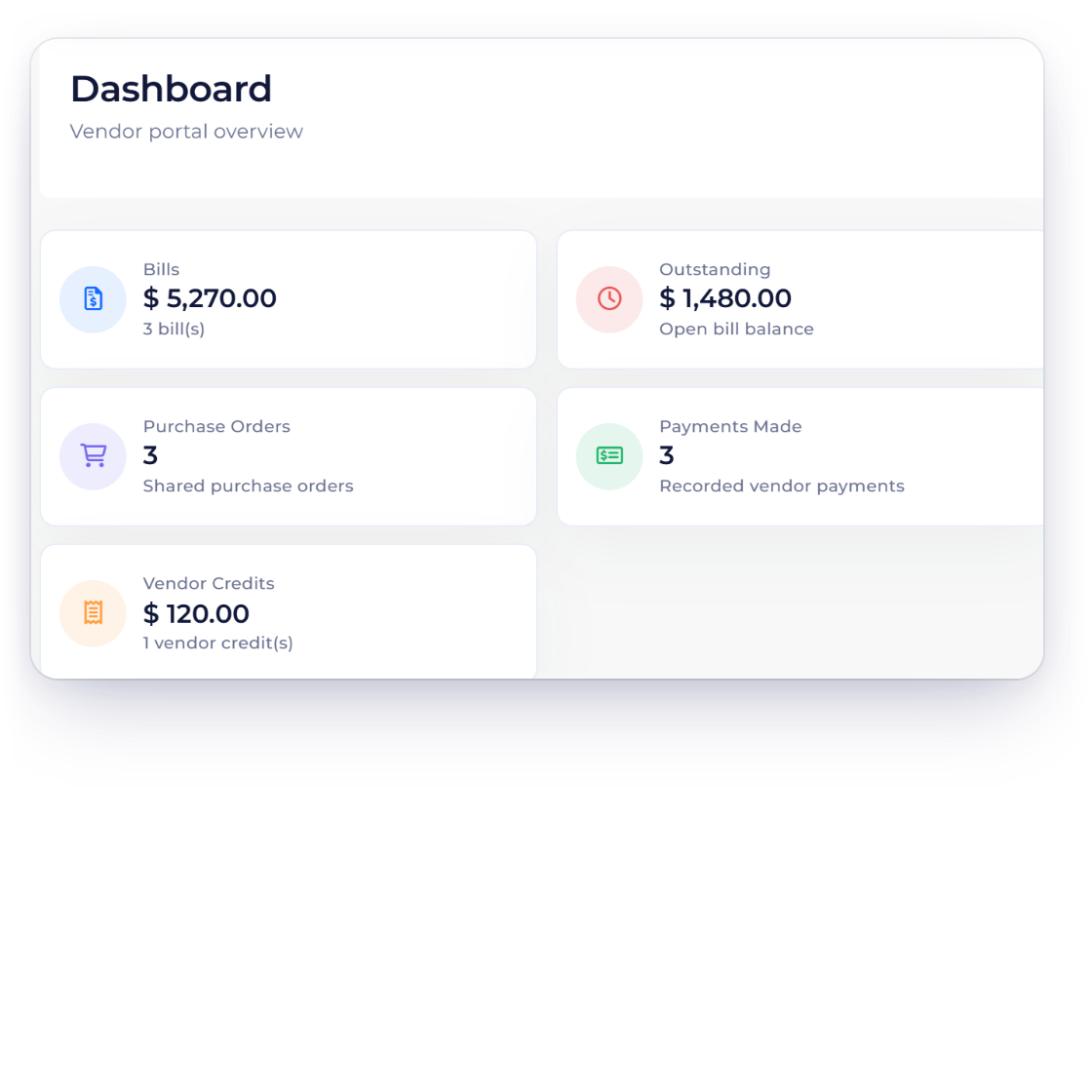
Every vendor gets a Dashboard, and each switch you turn on adds exactly one tab beside it. The dashboard shows four totals drawn from the bills you entered (billed, received, outstanding and overdue) summed per currency, alongside the credit balance still open and the ten most recent payments you recorded. Filters cover currency and period, and padlock icons hold a filter choice for the next visit.

  • Read-only: view a document and download its PDF
  • Drafts stay private until sent, viewed or marked paid
  • Periods run from this month to a custom date range

Built in

The rest of the vendor screen

What each permission switch puts in front of your supplier, what the export actually contains, and the edges worth knowing first. Invoice Crowd handles vendor records, vendor documents and vendor self-service; it is not a procurement suite, so there are no requisitions, approval chains, spend limits, scorecards or contract tracking here.

  • Bills tab

    Switch Bills on and your supplier sees bill number, status, total and bill date, with View and Download PDF on each row. Page sizes run 10 to 100.

  • Purchase orders tab

    PO number, status, total, purchase date and last sent, with View and Download PDF on each row. Page sizes run 10 to 40.

  • Payments made tab

    Payment number, reference, bill number, mode, date, amount and unused amount. This tab carries no row actions at all, not even a download.

  • Vendor credits tab

    The Credit Notes switch adds a Vendor Credits tab showing credit number, status, invoice number, total and balance, with View and Download PDF.

  • Invitations bind to email

    The invitation attaches to the address your vendor signs in with and is used up at that point, so a forwarded link cannot be claimed.

  • One profile per login

    A vendor login is fixed to the first portal business profile you selected, and there is no profile switcher inside the portal.

  • Financial year on payments

    The Payments Made tab shows only payments dated inside the financial year set on your business profile, which is April to March unless you changed it.

  • Export to CSV

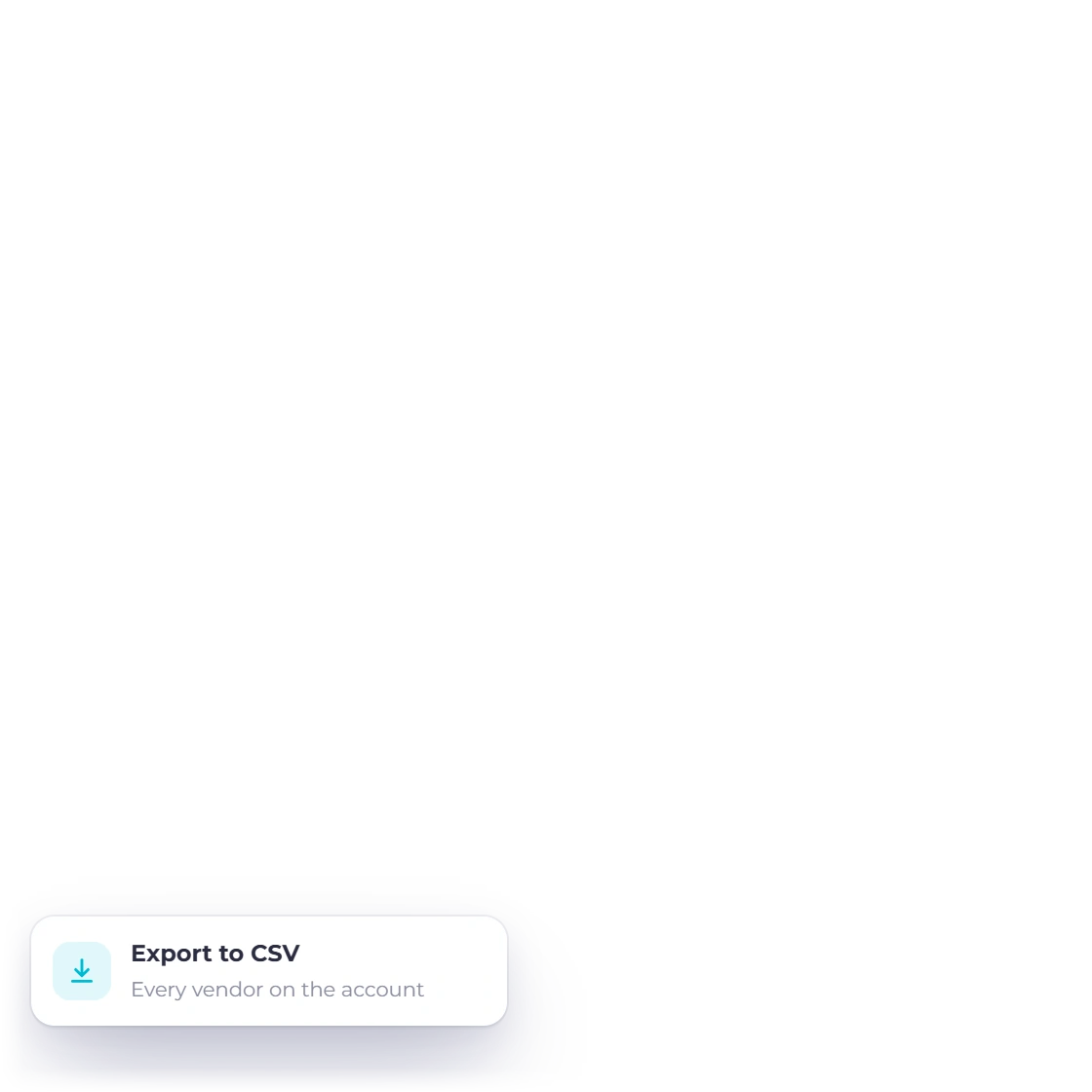
    The toolbar downloads vendors-collection.csv. It covers every vendor on the account, ignoring the filter and search on screen, and includes suppliers you deleted.

  • No portal search

    Vendors get no search box, no CSV export and no bulk actions. The dashboard filter for currency and period is their only control.

  • No pay step

    Online payment belongs to the customer-facing portal. Payments Made here is a read-only history, and a vendor cannot upload a document either.

  • No duplicate check

    Nothing stops two records sharing a name and email, so submitting the form twice creates two suppliers. Check the list before saving again.

  • No phone field

    There is no phone number input on the vendor form today, and no logo or avatar upload, so plan a supplier migration around both.

Questions

Vendor Management, answered

Is vendor management free in Invoice Crowd?

Vendor records sit on the purchases side of Invoice Crowd alongside bills, purchase orders, expenses and vendor credits, and the vendor portal is switched on from the same vendor form rather than bought separately. Plan availability depends on the current tier, team size and business-profile allowance, so check the pricing page for the up-to-date details.

How do you invite a supplier to the Invoice Crowd vendor portal?

Open the vendor form, select at least one portal business profile, and switch on the permissions you want that supplier to have: Bills, Purchase Orders, Payments Made or Credit Notes. Saving a new vendor with permissions granted emails them an Accept Invitation link valid for one year, and their Portal status changes to Pending, then to Accepted once they create their login. Do this while you are first adding the supplier: turning permissions on for a vendor you saved earlier sets the status to Pending but does not send an invitation email.

Can a vendor pay a bill or upload an invoice through the vendor portal?

No. Every page in the Invoice Crowd vendor portal is read-only. A vendor can open a bill, purchase order or vendor credit, view it and download the PDF, and read a history of payments you have already recorded to them. There is no payment step, no upload box and no create, edit or approve action anywhere in the portal, so a vendor cannot alter a single figure or send you a document through it.

Can a vendor see documents from more than one of my business profiles?

No. A vendor portal login is fixed to one business profile, the first of the portal business profiles you selected for that supplier, from the moment they accept the invitation, and there is no business profile switcher inside the portal. Every dashboard total and document list is scoped to that profile and to that vendor's own records, so a supplier who works with two of your business profiles sees only the one their login is attached to.

Does deleting a vendor delete their bills and purchase orders?

No. Deleting a vendor in Invoice Crowd hides the record rather than erasing it. The supplier disappears from the vendor list, from vendor pickers and from filter dropdowns, but bills, purchase orders, vendor credits and payments already recorded keep the supplier's name on them and stay readable and printable. There is no undo control on the vendors screen once you have deleted a supplier.

Can I export my vendor list from Invoice Crowd?

Yes. The Export to CSV action on the vendors toolbar downloads a file named vendors-collection.csv. Expect two things from it: the export is account-wide, so it returns every vendor on the account rather than only the business profile, search or filter applied to the list on screen, and it includes suppliers you have deleted. For bringing suppliers in, the vendors toolbar opens Invoice Crowd's import tool, which accepts CSV, XLS and XLSX files.

Give your suppliers a read-only copy of their own

Add a supplier with a name and an email, switch on the tabs you want them to see, and they get a login showing the bills, purchase orders, vendor credits and payments you have recorded against them.

  • No card required to start
  • Your data stays yours
  • Cancel anytime