



Skip to content

Features

Items and inventory tracking built into your invoicing

Items are the reusable catalog behind every invoice, estimate, bill and purchase order you raise. Add a product or service once with its selling price, cost, unit and tax code, and pick it onto any document. Turn on inventory tracking and each tracked item keeps a stock-on-hand figure that moves as you buy and sell.

  • One catalog for every document
  • Stock on hand per item
  • Import from CSV, XLS or XLSX
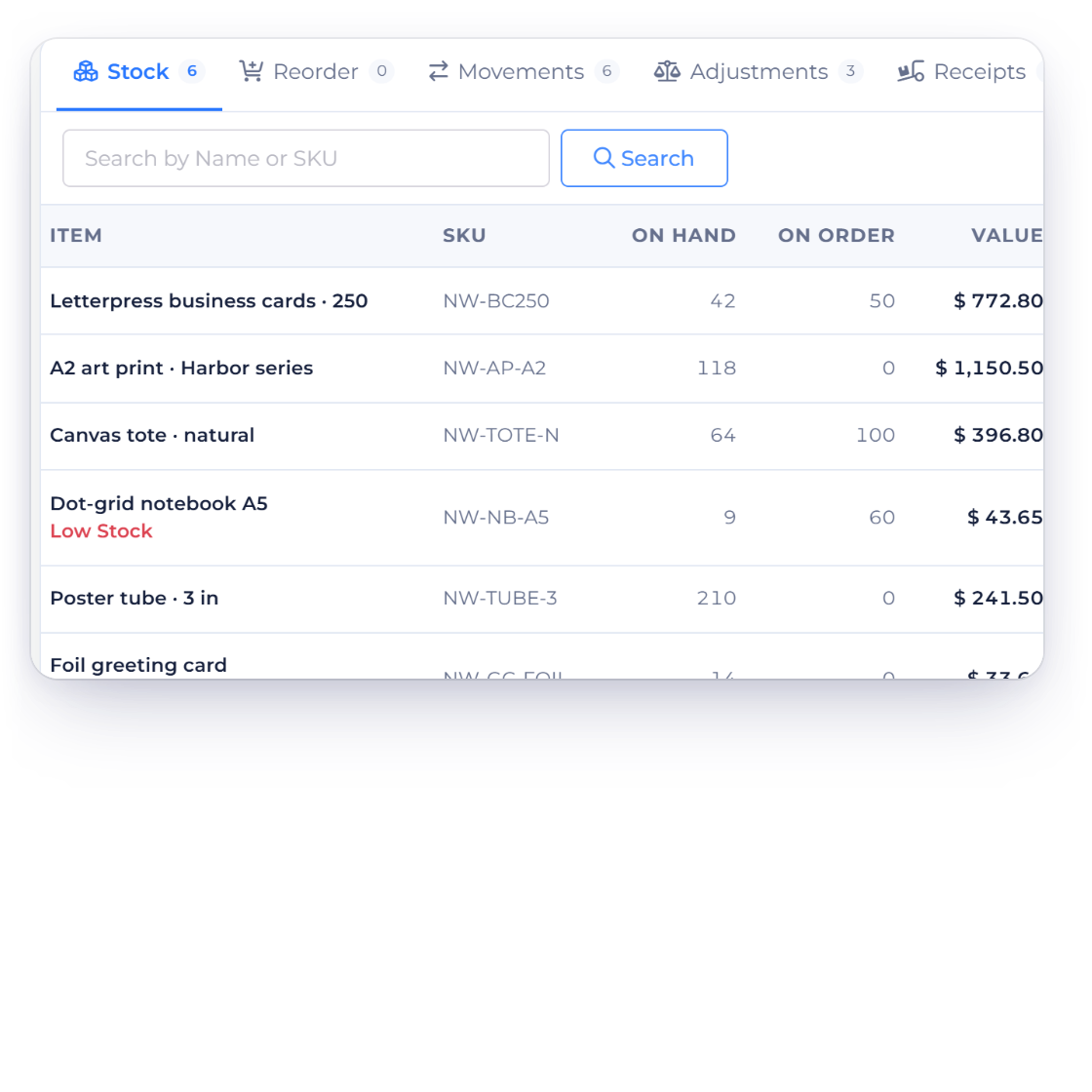
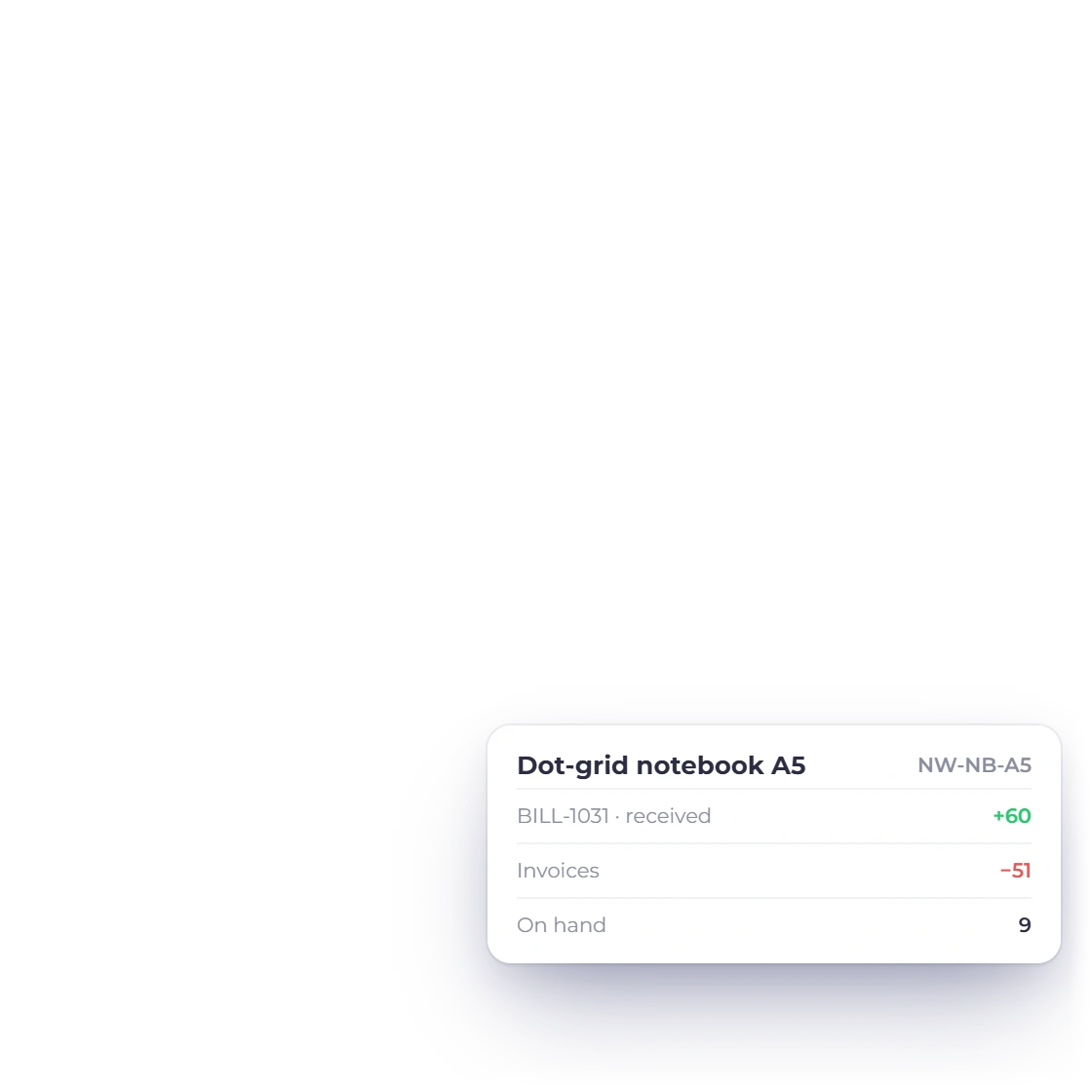
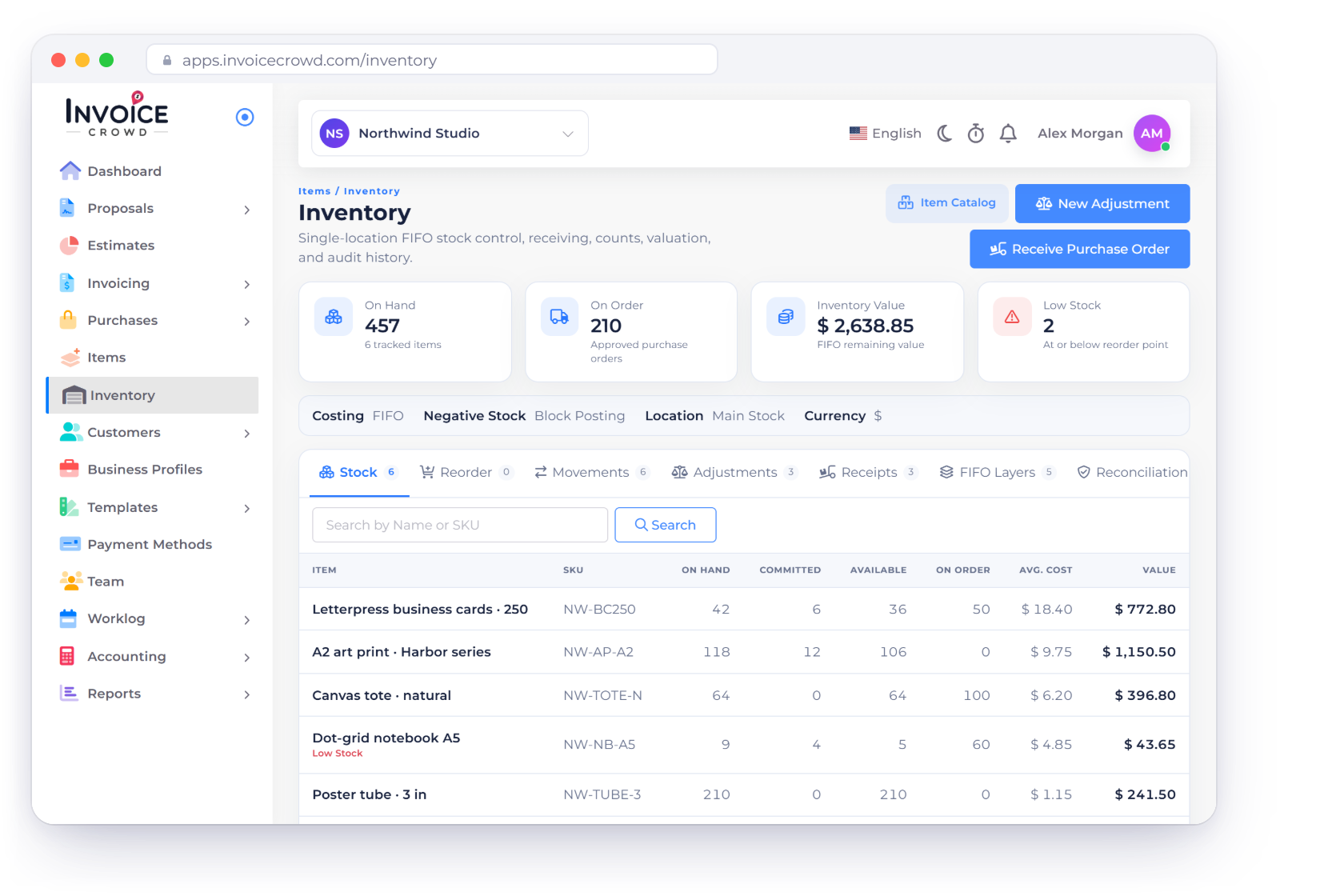
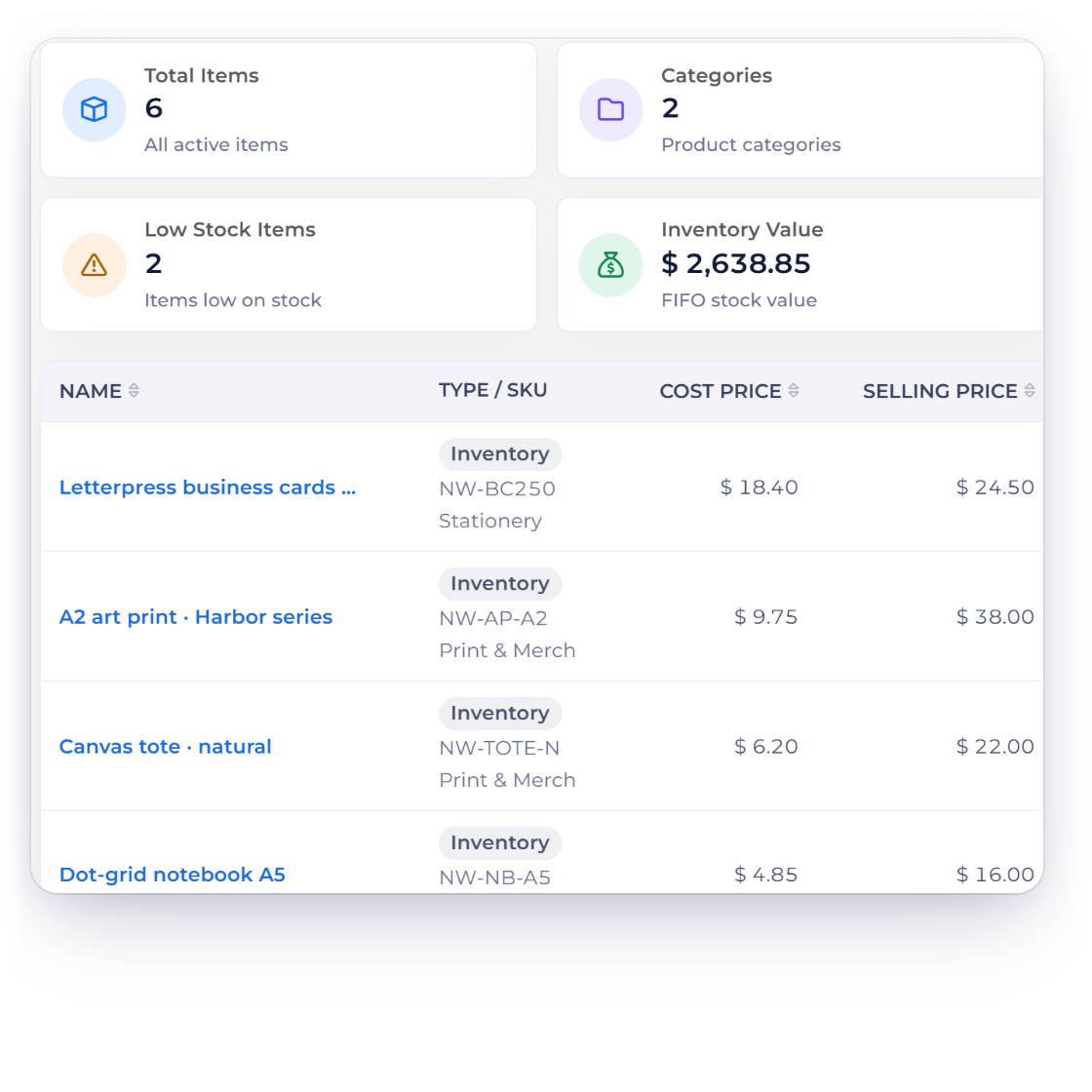
The Inventory screen in Invoice Crowd with on-hand, on-order, FIFO value and low-stock totals, single-location FIFO costing and stock per item, with a bill receiving stock

What is inside

Build the catalog once, then let the documents keep the count

Items are the reusable list behind every invoice, estimate, bill and purchase order you raise. Set the catalog up, keep it findable as it grows, and switch stock tracking on for the products that need counting.

Building the catalog

Enter it once

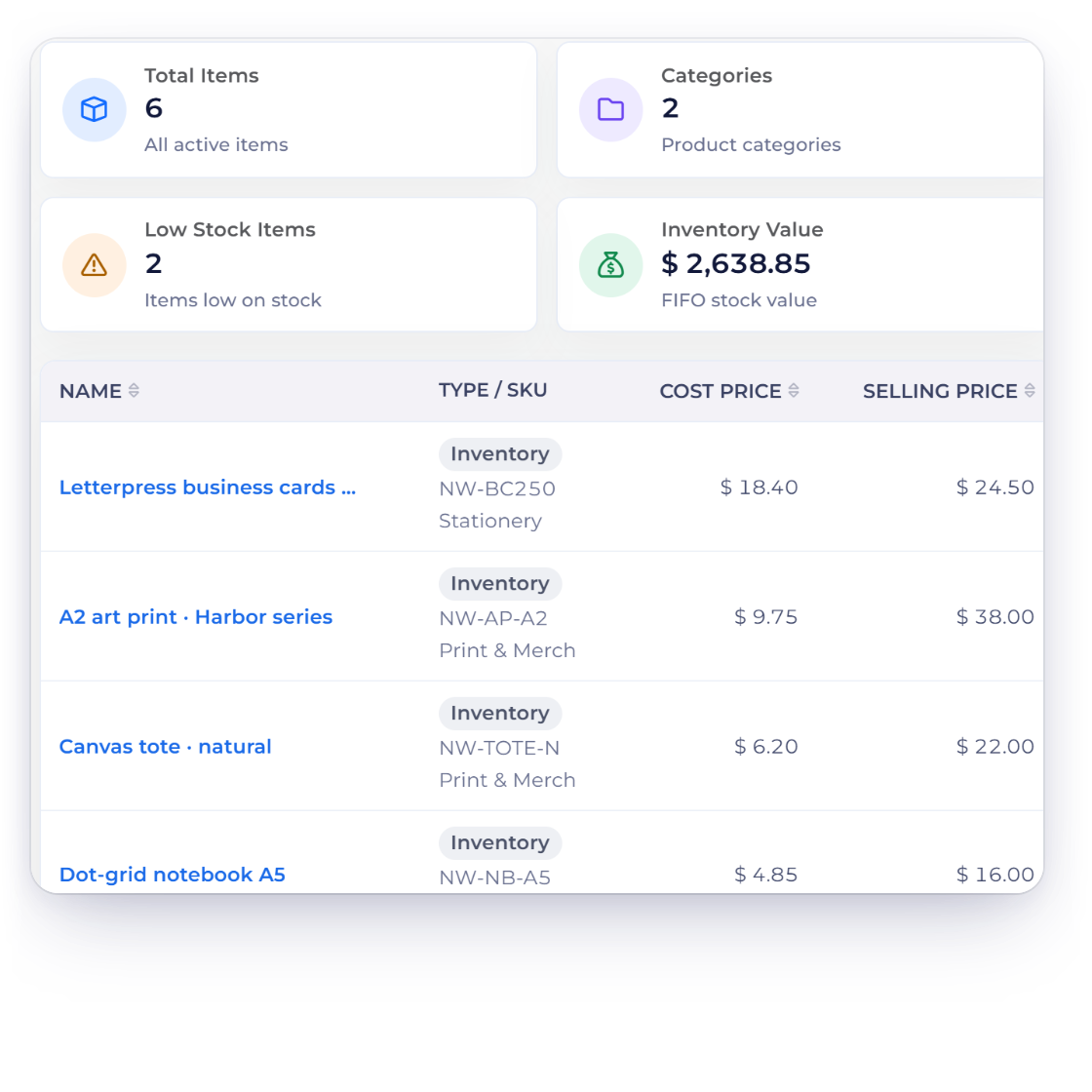
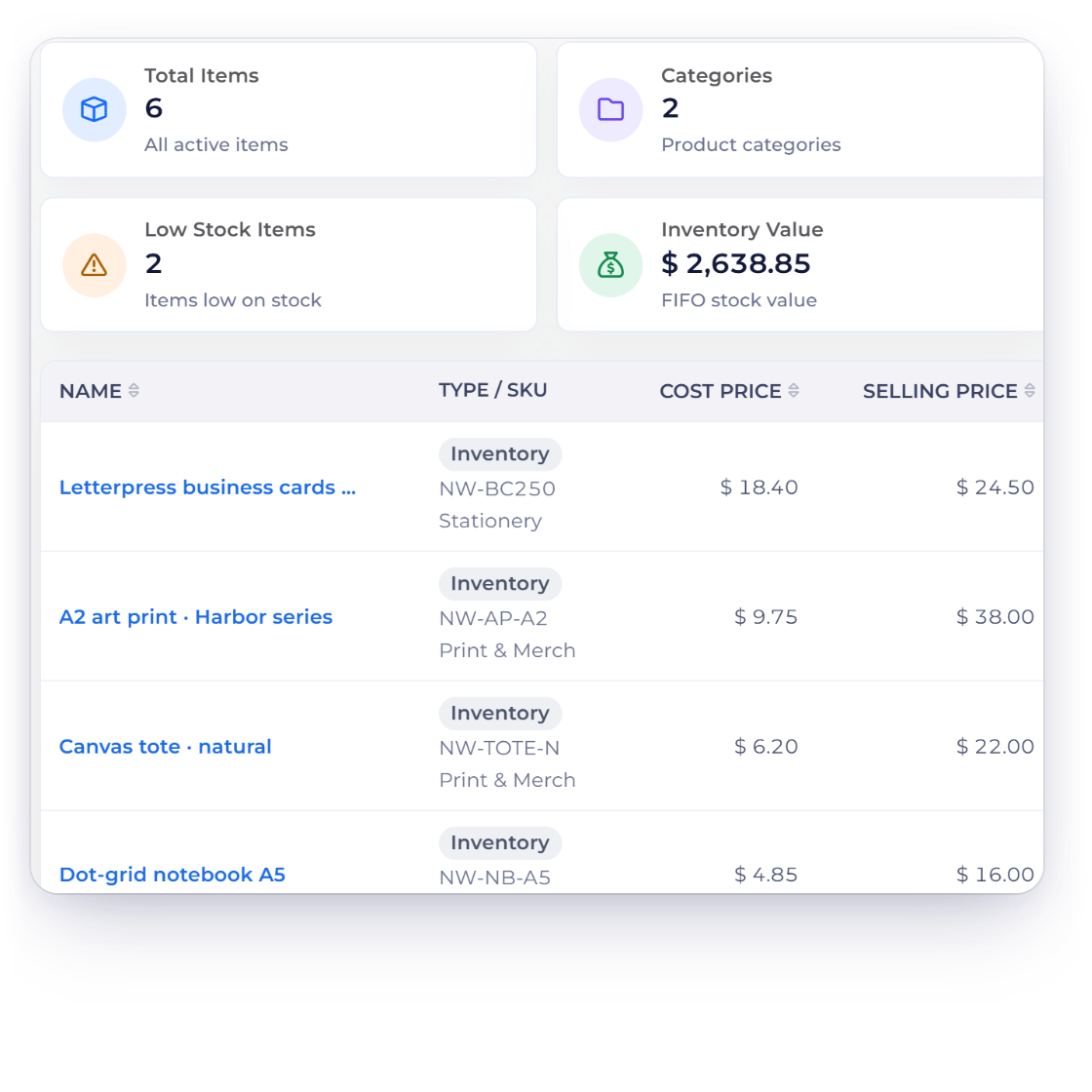
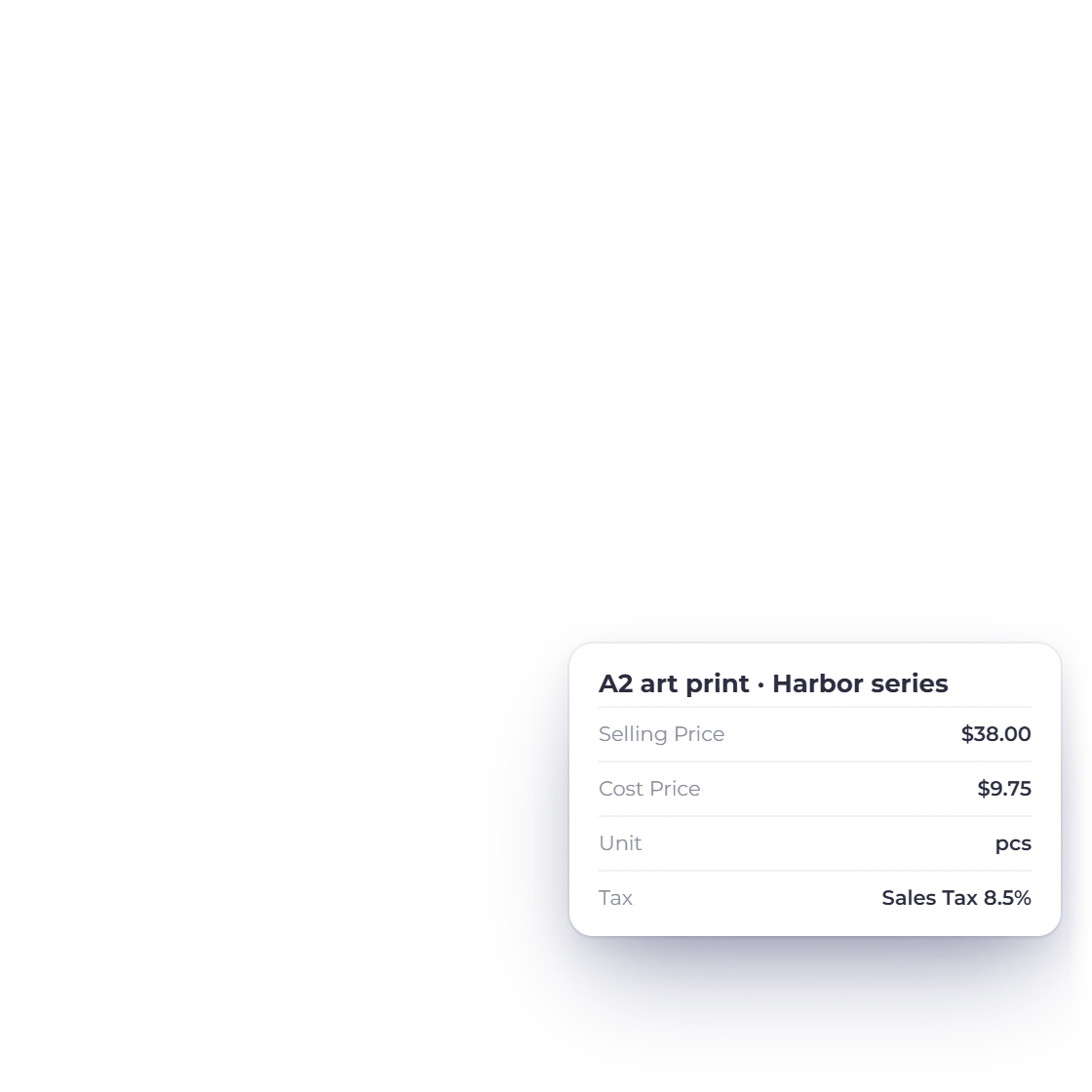
The Invoice Crowd items list with SKU, category, cost price and selling price, and an item with its selling price, cost price, unit and tax

One record behind every document

Enter a product or service once with its selling price, cost price, unit, HSN number and its default taxes and discounts, then pick it from a dropdown as you build a document. The same catalog feeds invoices, recurring invoices, estimates, credit notes, bills, purchase orders, vendor credits and delivery notes, because they share one line-item editor.

  • Start with just a name
  • Prices, units and taxes carry onto the line
  • Kept with their business profile
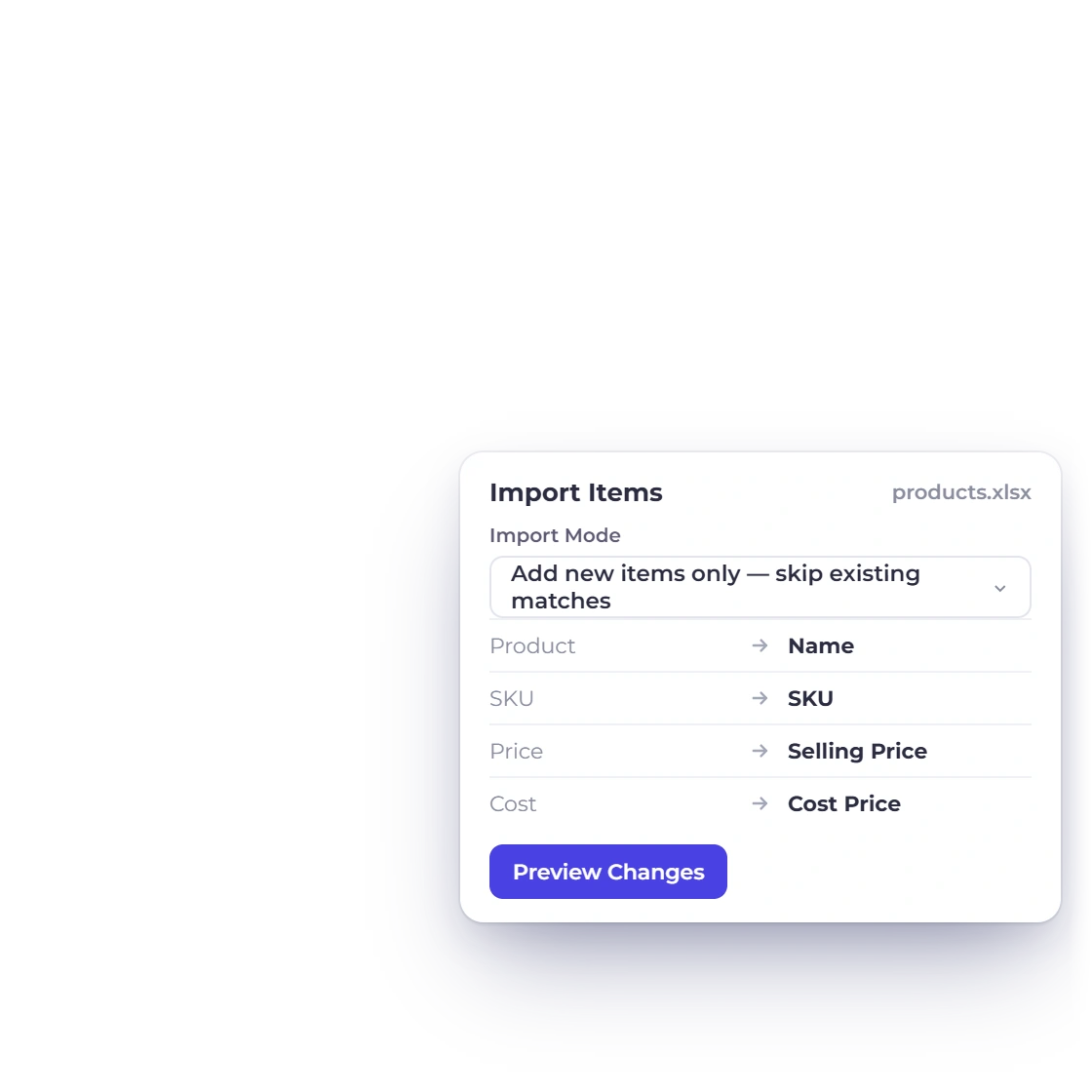
Importing items into Invoice Crowd from a spreadsheet: the Import Mode, the file columns matched to item fields, and Preview Changes before anything is saved

Import the product list you already have

Items come in from CSV, XLS and XLSX through More, then Import File. Choose whether to add new items, update existing ones matched by SKU or Item ID, or both, check the matched columns, and review every row in a preview before you import. Up to 1,000 rows go in per batch.

  • CSV, XLS and XLSX files
  • Every row checked before import
  • A review report downloads as a CSV

Keeping it findable

Once the list gets long

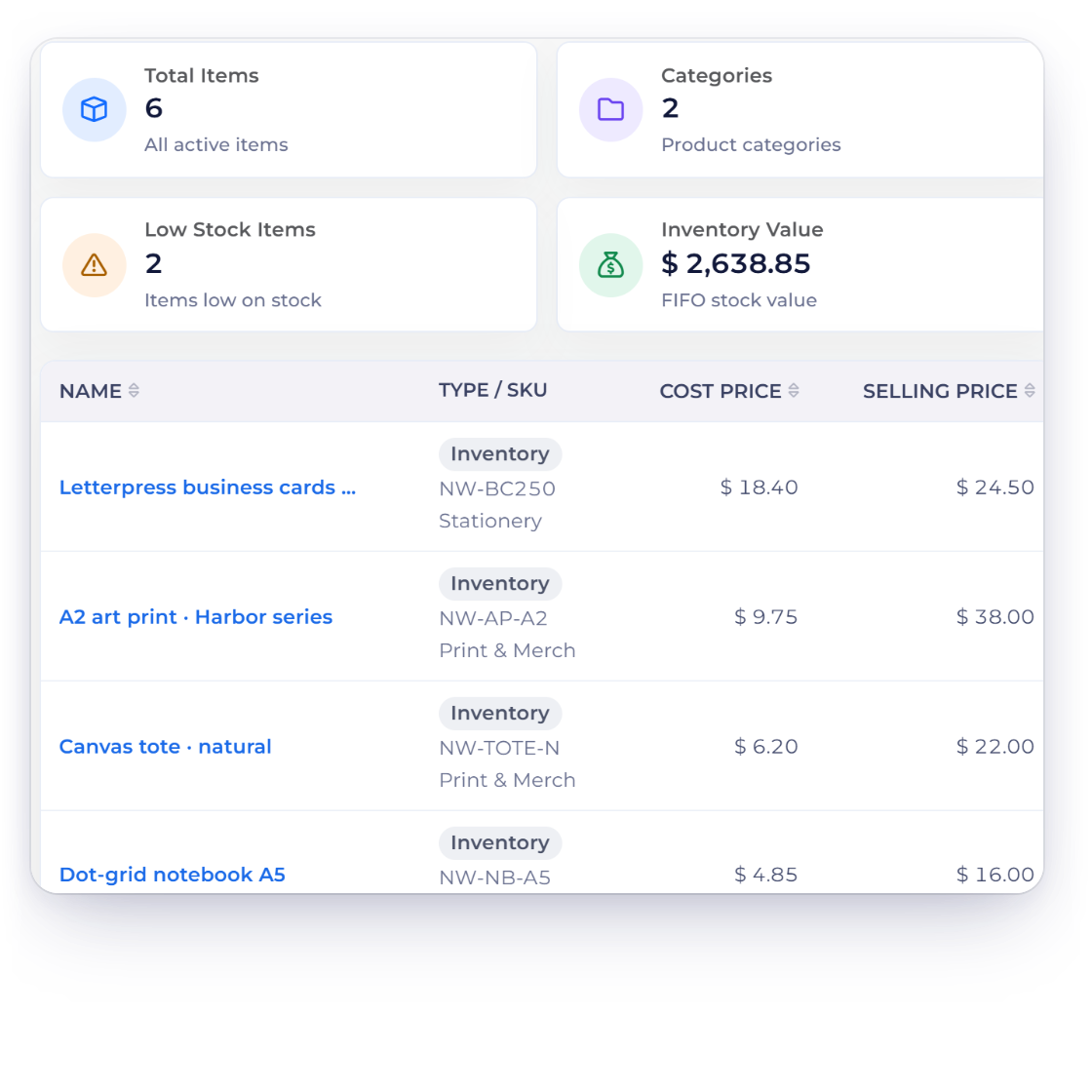
Invoice Crowd items grouped by category, with the category column on the list and a filter for one category

Categories that group a long catalog

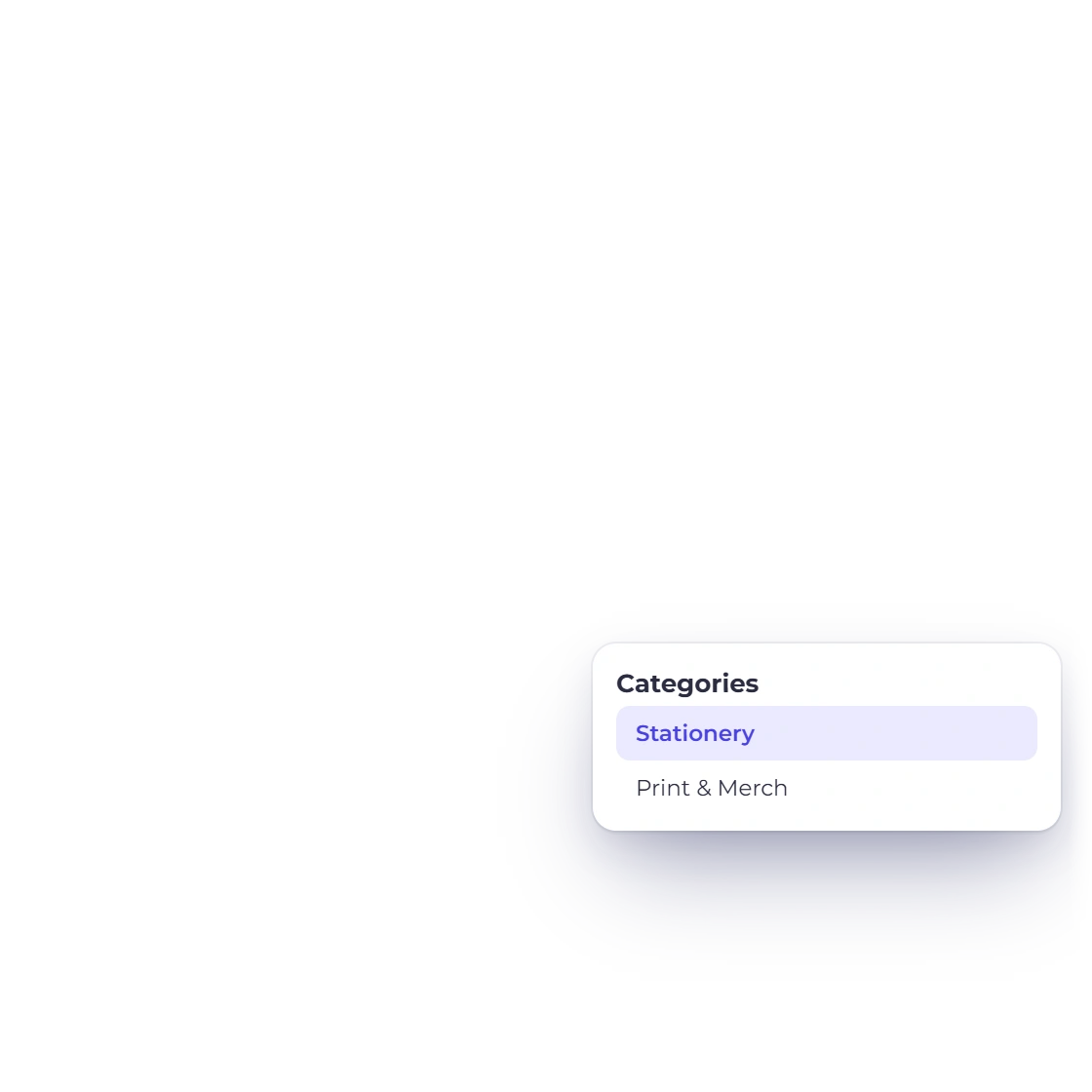
Item categories are labels you create on the Items screen and attach to items, and one item can carry several. The list filters by category, and each item's categories show as a column, so the grouping is readable without opening anything. Delete a category and it stops appearing on the items that carried it; the items themselves stay.

  • Several categories on a single item
  • Added, renamed and deleted on the same screen
  • Dedicated to your catalog
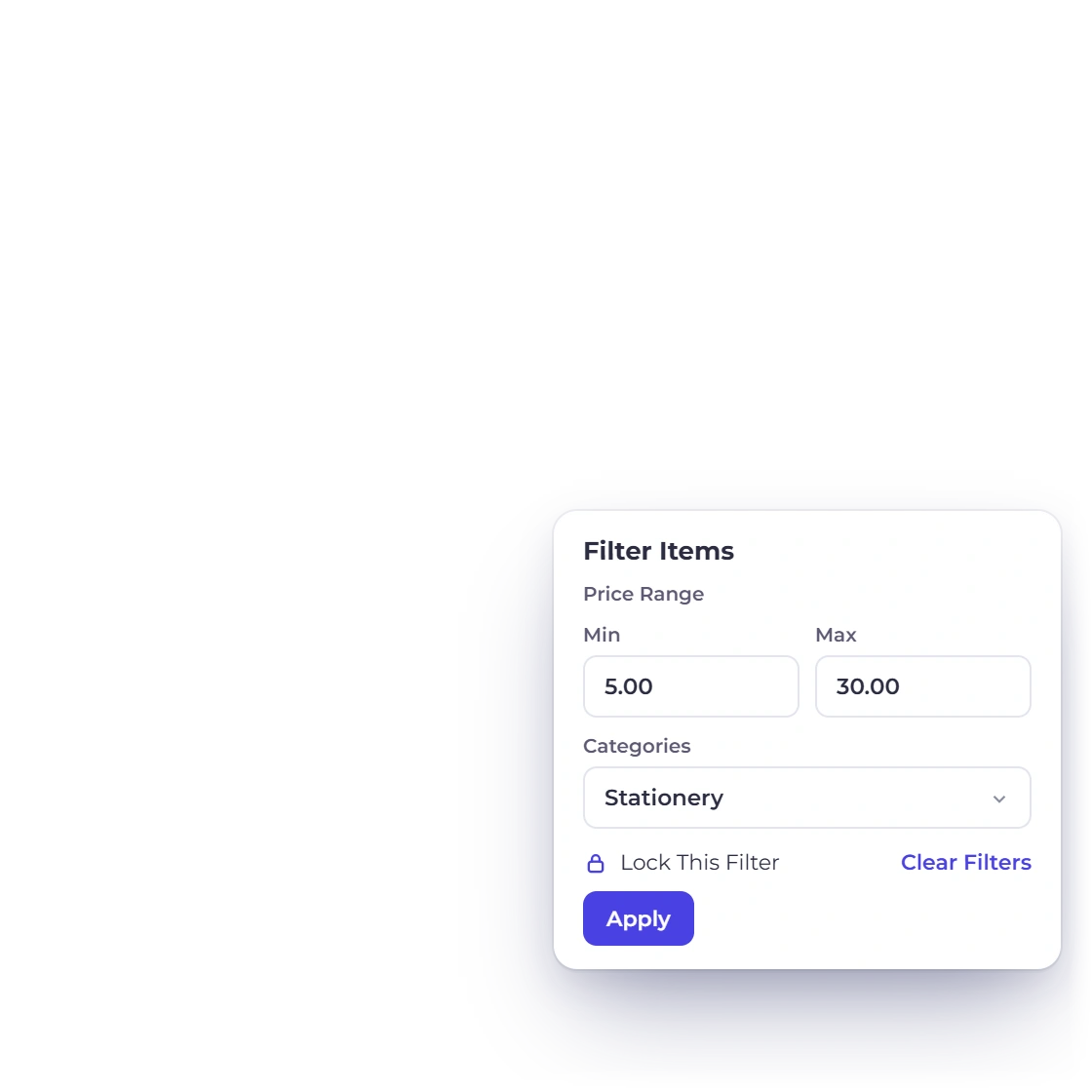
The Invoice Crowd Filter Items panel with a price range and categories, each with a lock that keeps the filter for the next visit

Filters that stay where you left them

The Items list filters by name, by category and by a minimum and maximum price, and sorts by name, cost price or selling price. Lock a filter and it is still there when you come back.

  • Sort by name, cost price or selling price
  • Ten rows per page by default
  • Lock filters for your next visit

Tracking the stock

The documents move it

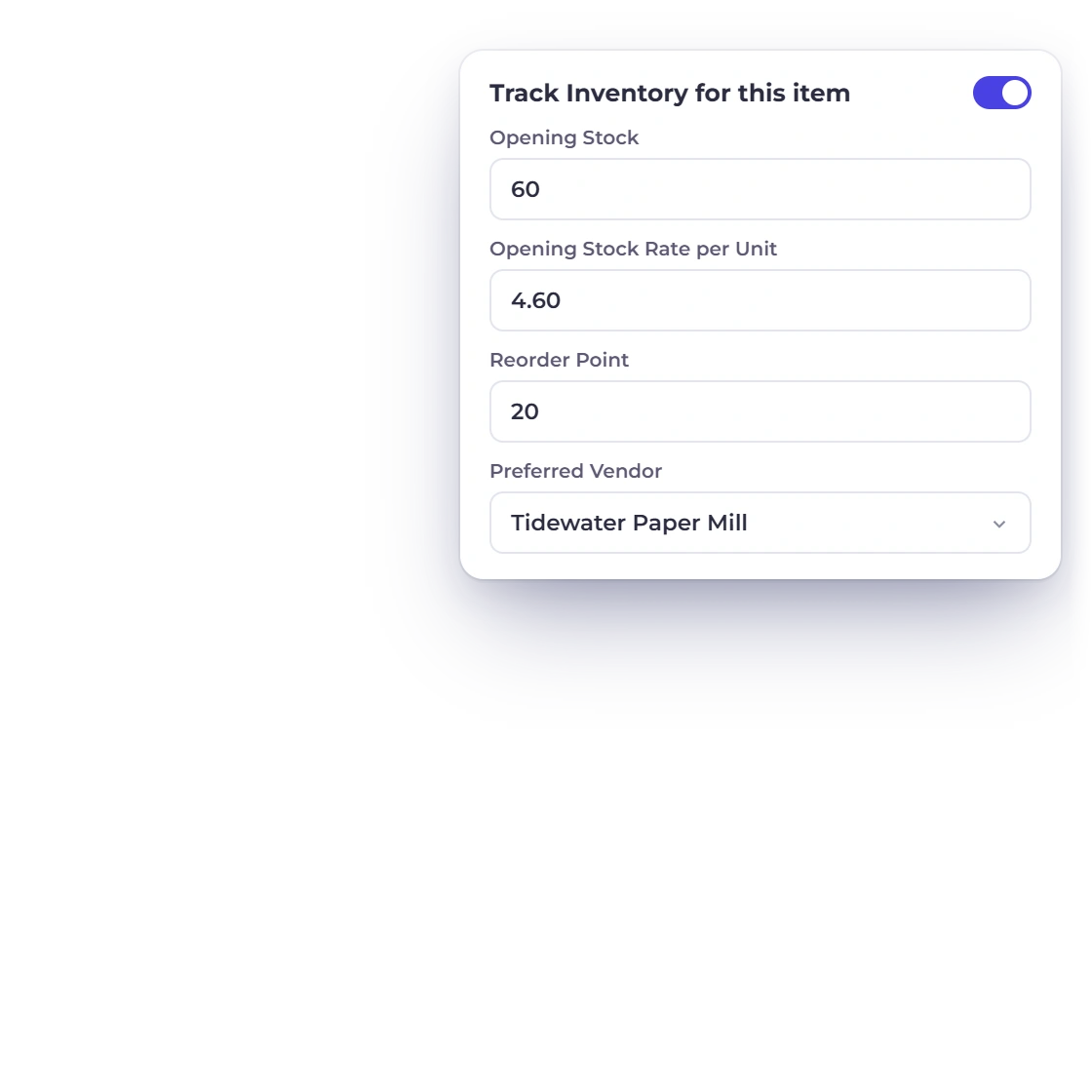
Inventory tracking on an Invoice Crowd item: Track Inventory for this item with opening stock, rate per unit, reorder point and preferred vendor, next to its stock line

Turn tracking on, item by item

Inventory tracking is built in. Turn it on in business settings, set an inventory start date, then tick Track inventory on the items you want counted. That reveals the opening stock, rate per unit, reorder point and preferred vendor fields, and gives the item a stock-on-hand column on the list.

  • One business switch, then a tick per item
  • Opening stock and its rate per unit
  • Reorder point and preferred vendor on the item
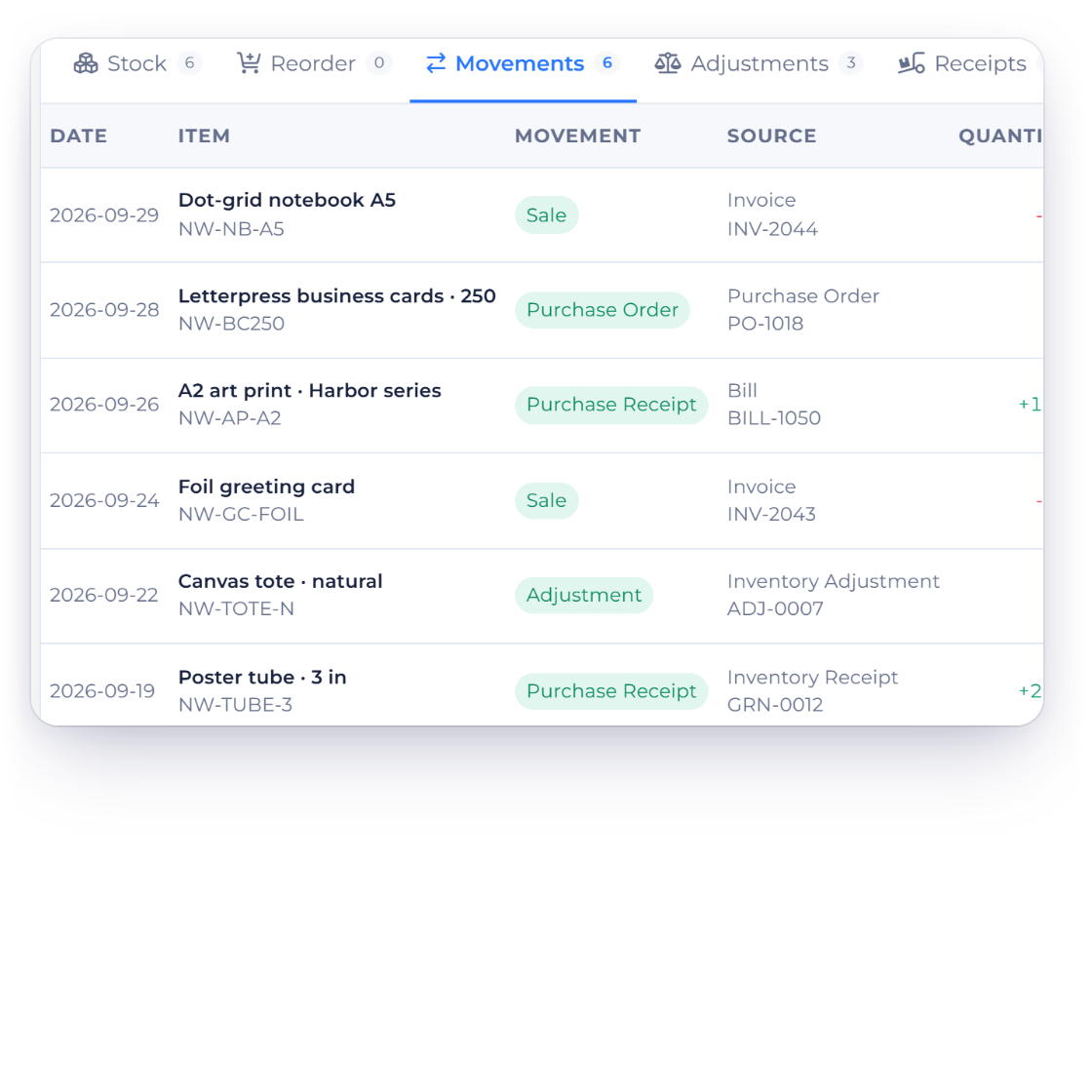
Invoice Crowd inventory movements: sales on invoices take stock out, bills and receipts bring it in, and adjustments correct a count

Stock that moves with the paperwork

Stock on hand starts at the opening stock figure and moves whenever a document is recorded: sell a tracked item on an invoice and it falls, record it on a bill and it rises, and recurring invoices move it on each scheduled run. Every change comes from a recorded document, so your count always has a paper trail.

  • Opening stock edits apply the difference
  • Negative stock blocked by default
  • Every movement traced to a document

Built in

The rest of the catalog

Item setup, imports, stock movement and document history, connected across your invoicing and purchasing.

  • Cost price column

    Store what an item costs you next to what you charge for it, and sort the Items list by either figure.

  • Per business profile

    New items are stamped with the business profile you created them under, so a second business you add starts with its own catalog.

  • Stock warnings

    Set a reorder point on the item and switch on the reorder notice in inventory settings, and crossing it raises a bell notification. The Reorder tab turns low items into draft purchase orders, one per preferred vendor.

  • Inventory Summary report

    The Inventory screen's Movements tab and the Inventory Summary report show the history behind every stock figure.

  • Export to CSV

    Download your catalog as a CSV with each item's name, SKU, type, descriptions, category, quantity, prices, inventory settings, unit and GST code.

  • Re-import without duplicates

    The default add-only mode skips items that already match by SKU or Item ID, and the update modes change them, so the same file can be imported again safely.

  • Controlled stock updates

    Outside a document, stock changes through a posted adjustment or a purchase receipt, each saved as a draft first.

  • Edit item by item

    Open any item to adjust its prices, unit, taxes or stock settings, and the change is saved to that item.

  • One clear stock count per item

    Each tracked item keeps one clear stock-on-hand figure that moves with your sales and purchase documents.

  • FIFO valuation

    Stock is valued first in, first out from your opening rate and purchases, and posts to Inventory Asset and Cost of Goods Sold.

  • Archive, then restore

    Archiving hides an item from lists and pickers while its documents and history stay intact, and you can restore it at any time.

  • Item webhooks

    Creating or updating an item can notify your own systems with an Item created or Item updated webhook, set up on the Integrations page.

Questions

Items & Inventory, answered

Does Invoice Crowd do inventory management?

Yes, at item level. Switch inventory tracking on for the business, tick Track inventory on an item, and that item keeps a stock-on-hand figure that falls as you invoice it and rises when you record the purchase on a bill. Stock is held at one location and valued first in, first out (FIFO), and its value posts to Inventory Asset and, as you sell, to Cost of Goods Sold in your books.

How does stock on hand get updated in Invoice Crowd?

Stock on hand starts at the opening stock entered on the item, then moves whenever a document is recorded against that item. Selling a tracked item on an invoice takes stock out, buying it in on a bill puts stock back, and recurring invoices move the figure on each scheduled run. The documents keep the figure current, so every change has a source.

Can I adjust stock without raising an invoice?

Yes. The Inventory screen has New Adjustment for a physical count or a quantity change, saved as a draft and then posted, and Receive Purchase Order for goods that arrive against an approved order. Editing an item's opening stock applies the difference to the current stock-on-hand figure rather than replacing it. A negative-stock policy in your inventory settings decides what happens when a change would take stock below zero: Block Posting (the default), Warn and Allow, or Allow.

Can I import my product list into Invoice Crowd?

Yes. Item lists import from CSV, XLS and XLSX, reached from More, then Import File, on the Items screen. Pick add-only, update-only or add-and-update, with existing items matched by SKU or Item ID, check the column matching, then review the rows in a preview. Up to 1,000 rows go in per batch, and each row is validated before anything is saved.

What happens to an item I no longer sell?

Archive it. An archived item leaves the list and the pickers, keeps its place on the documents that used it, and can be restored from the archived view at any time. Clear any stock on hand, on order or committed before you archive it.

Do item prices and taxes fill in automatically on an invoice?

Yes. Each item stores a selling price, a unit, an HSN number and its default taxes and discounts, so a line built from that item starts with those figures instead of being retyped. Cost price is stored on the item as well, as its own sortable column on the Items list. Only the item name is required, which means a catalog can begin as a list of service names and gain prices, units and tax codes later.

Does Invoice Crowd alert me when stock runs low?

Yes, inside the app. Set a reorder point on the item and switch on "Notify me if an item's quantity reaches the reorder point" in the inventory settings. When stock falls to that point you get a bell notification. The Inventory screen's Reorder tab then groups low items by preferred vendor and can create a draft purchase order for each.

Put your product list where the invoices are

Add your items once, switch tracking on for the ones you count, and let the invoices and bills you already raise keep the figure current.

  • No card required to start
  • Your data stays yours
  • Cancel anytime