Skip to content

Accounting

A chart of accounts you can shape around the way your business works

Invoice Crowd organizes accounts as a tree across Assets, Liabilities, Equity, Income and Expense. Add your own accounts and sub-accounts, edit what belongs to you, or hide a system default without deleting the shared chart.

  • Five account families in one tree
  • Custom accounts and sub-accounts
  • System defaults can be hidden and restored
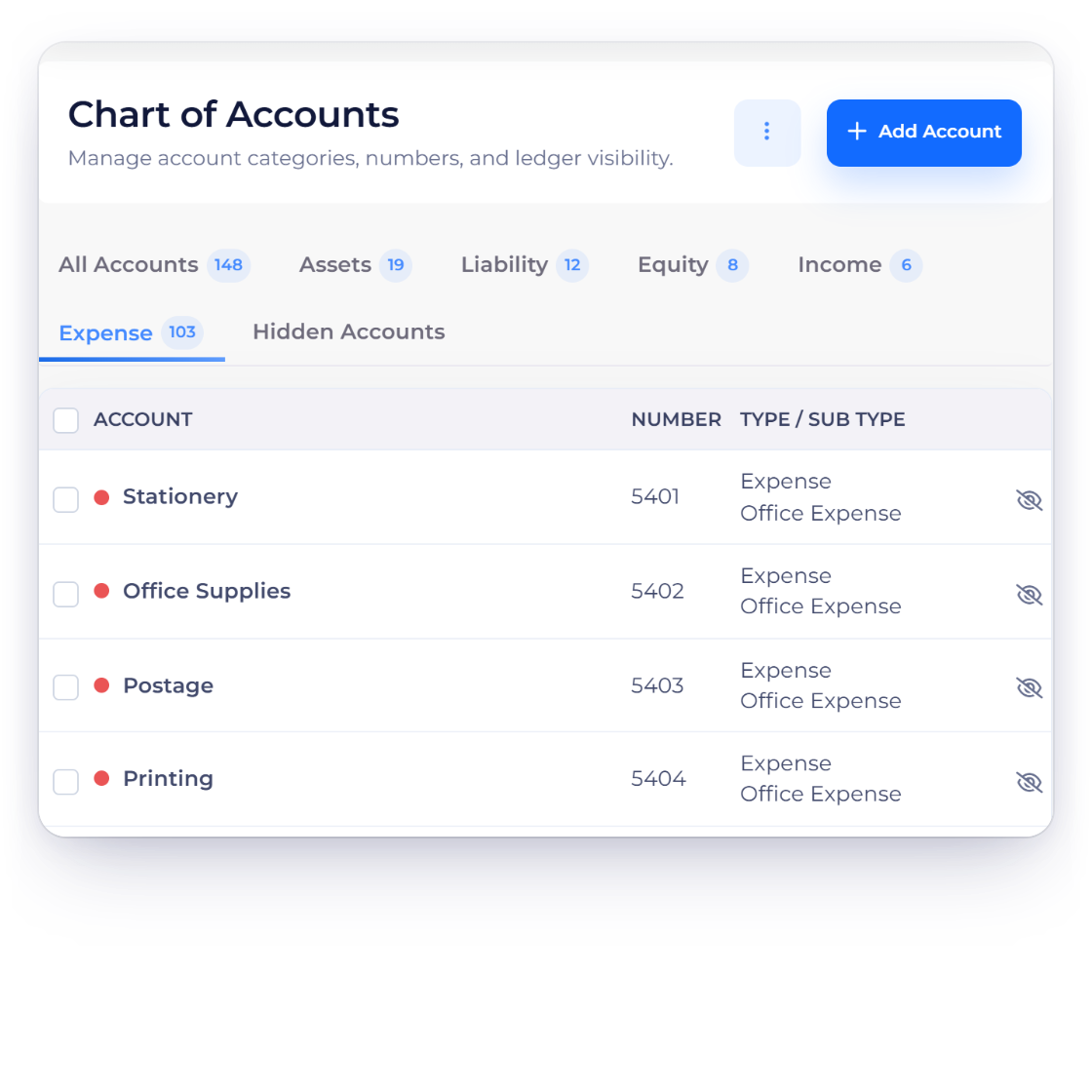
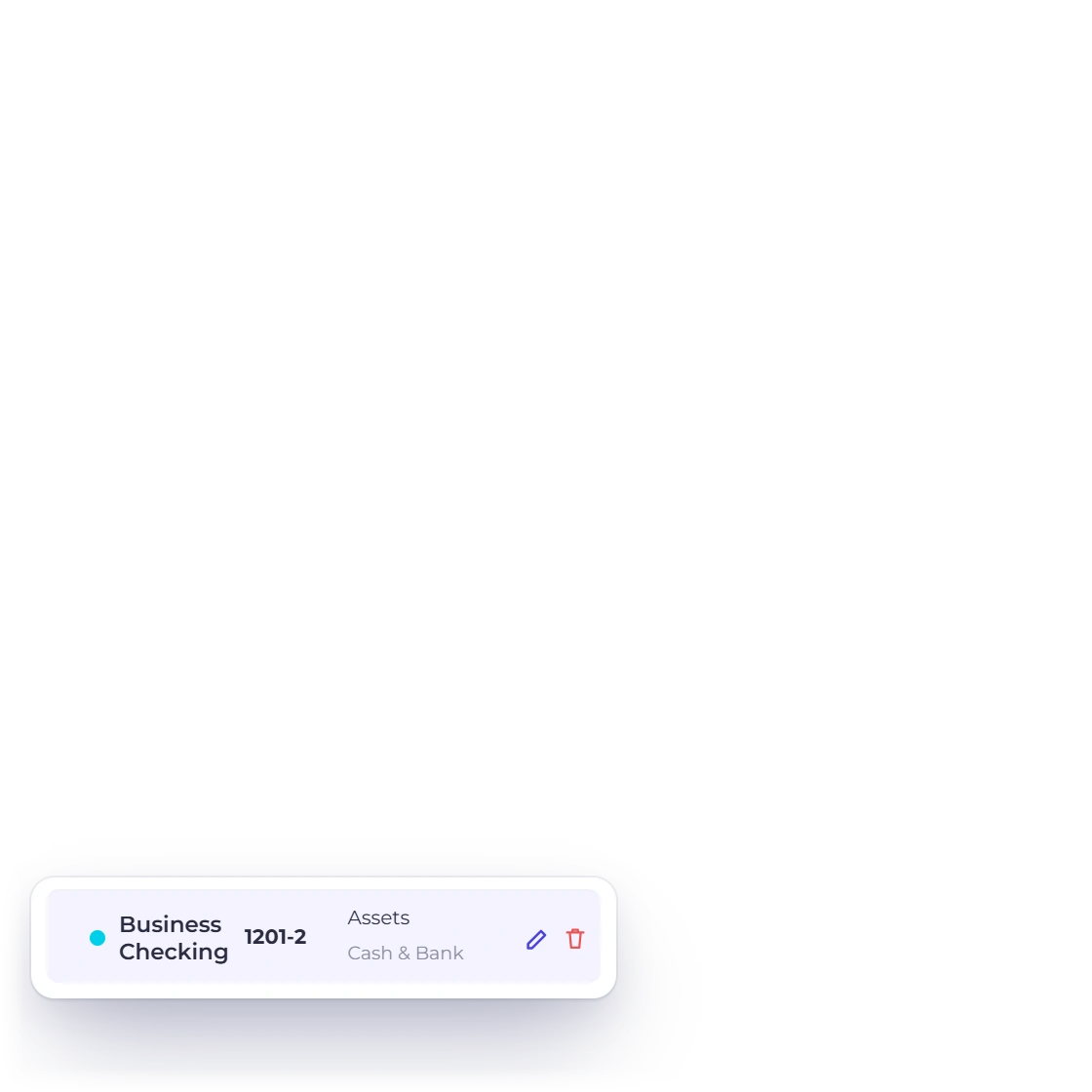
Invoice Crowd Chart of Accounts with tabs for Assets, Liability, Equity, Income, Expense and Hidden Accounts, a custom Business Checking sub-account and the Add Account form

How it works

A usable account tree, without pretending every default fits every business

The chart is the classification layer used by invoices, expenses, payments and reports. Its strongest feature is practical control: custom rows are yours to manage, while shared defaults can be hidden and brought back.

Organize the chart

Five families, with a tree underneath each one.

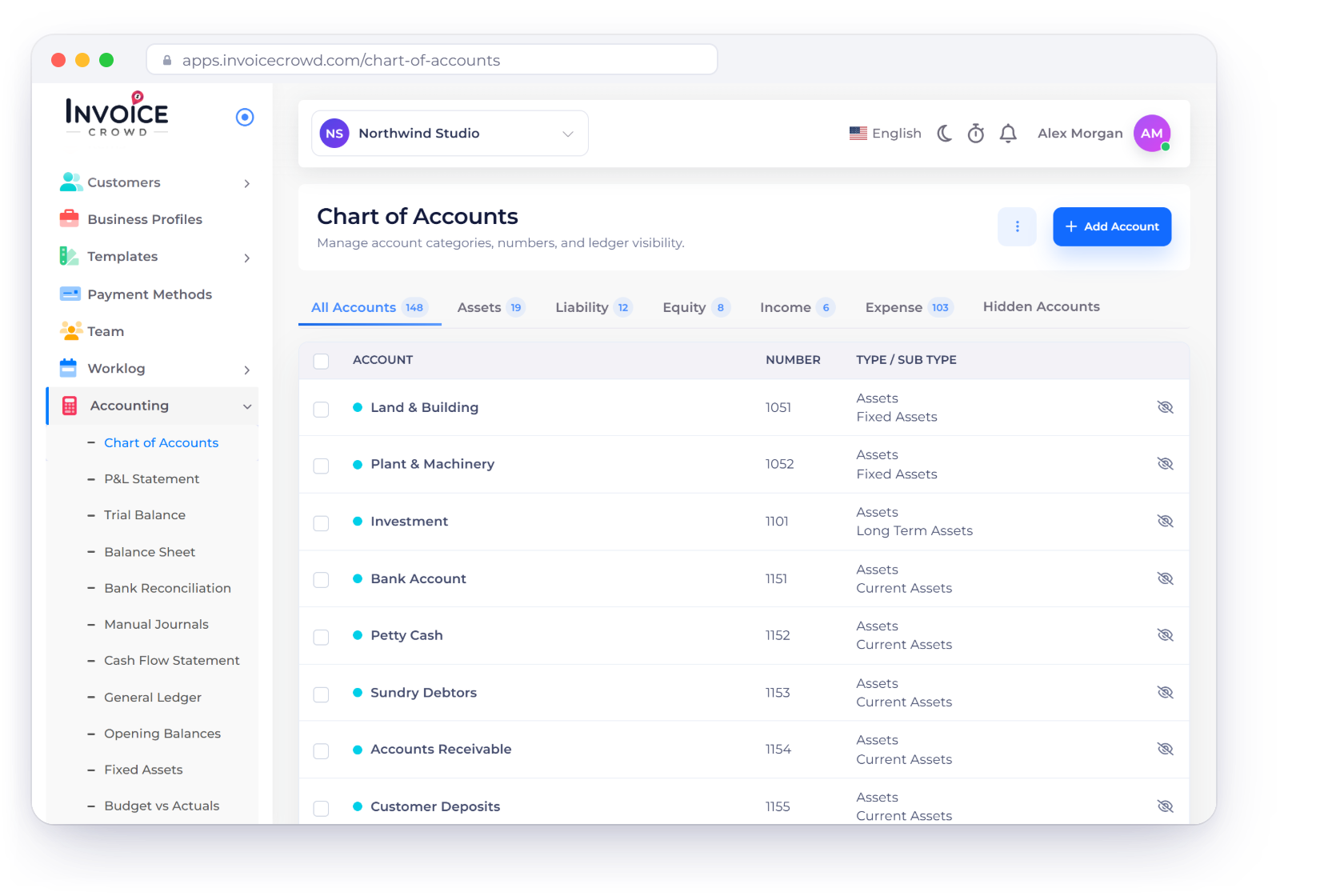
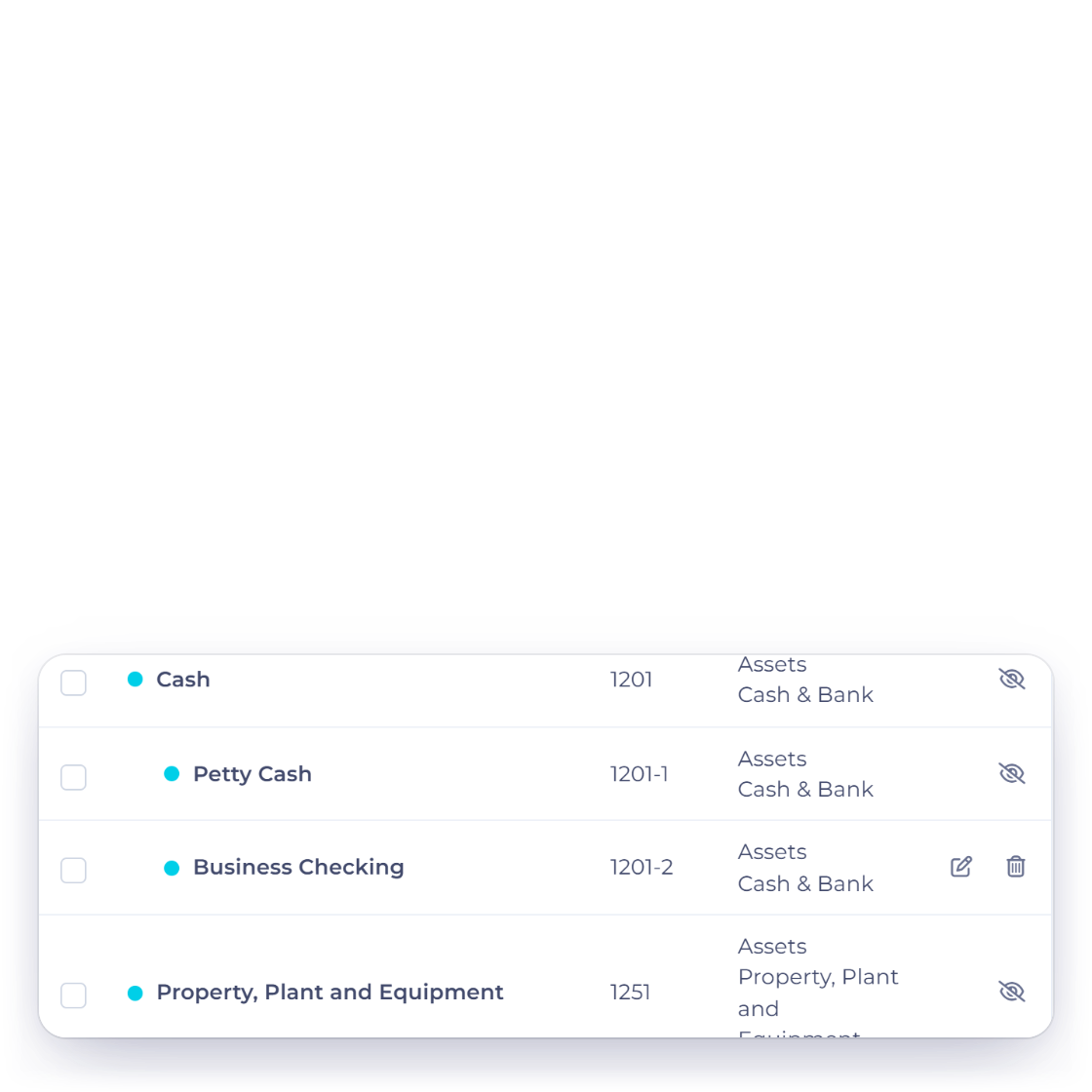
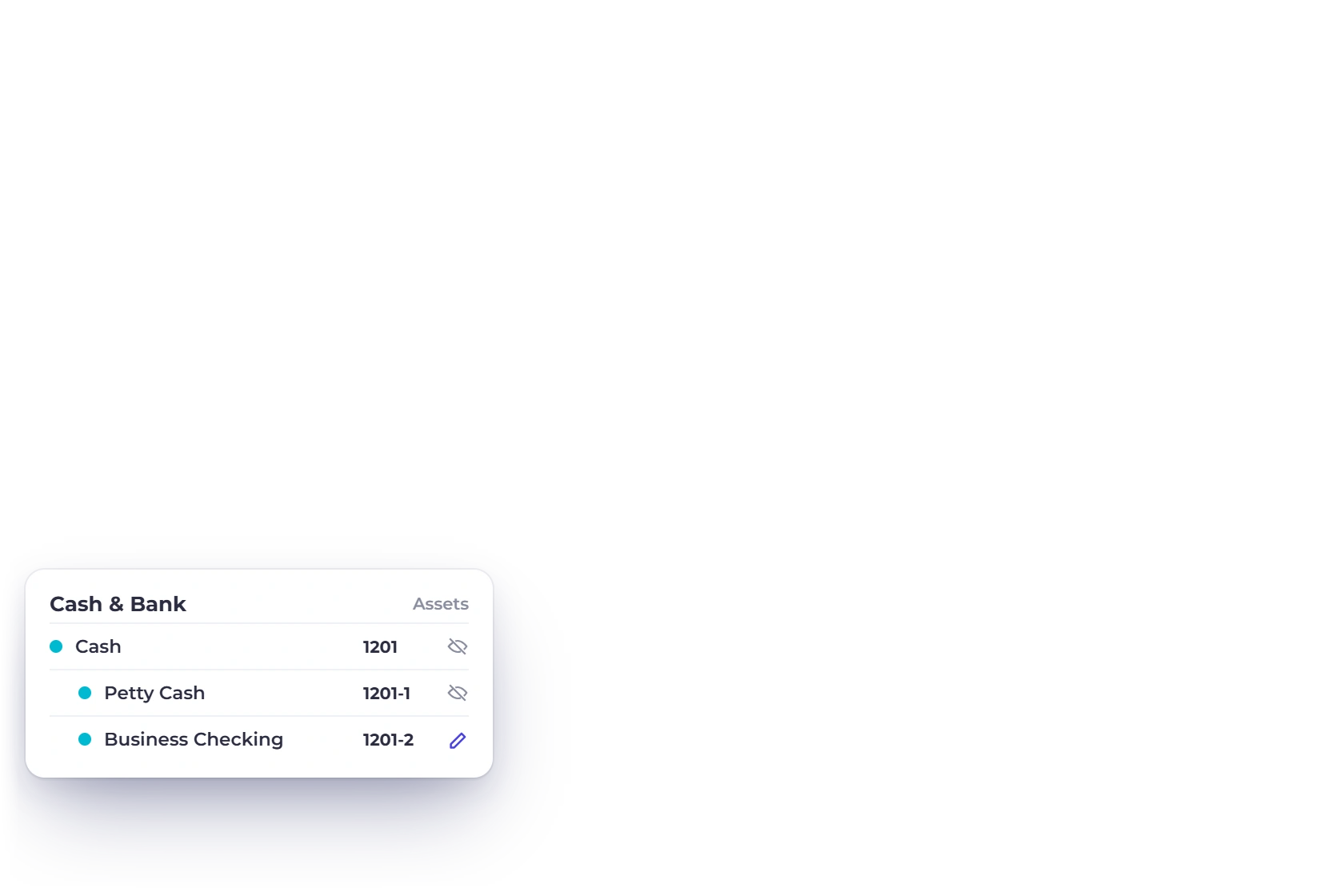
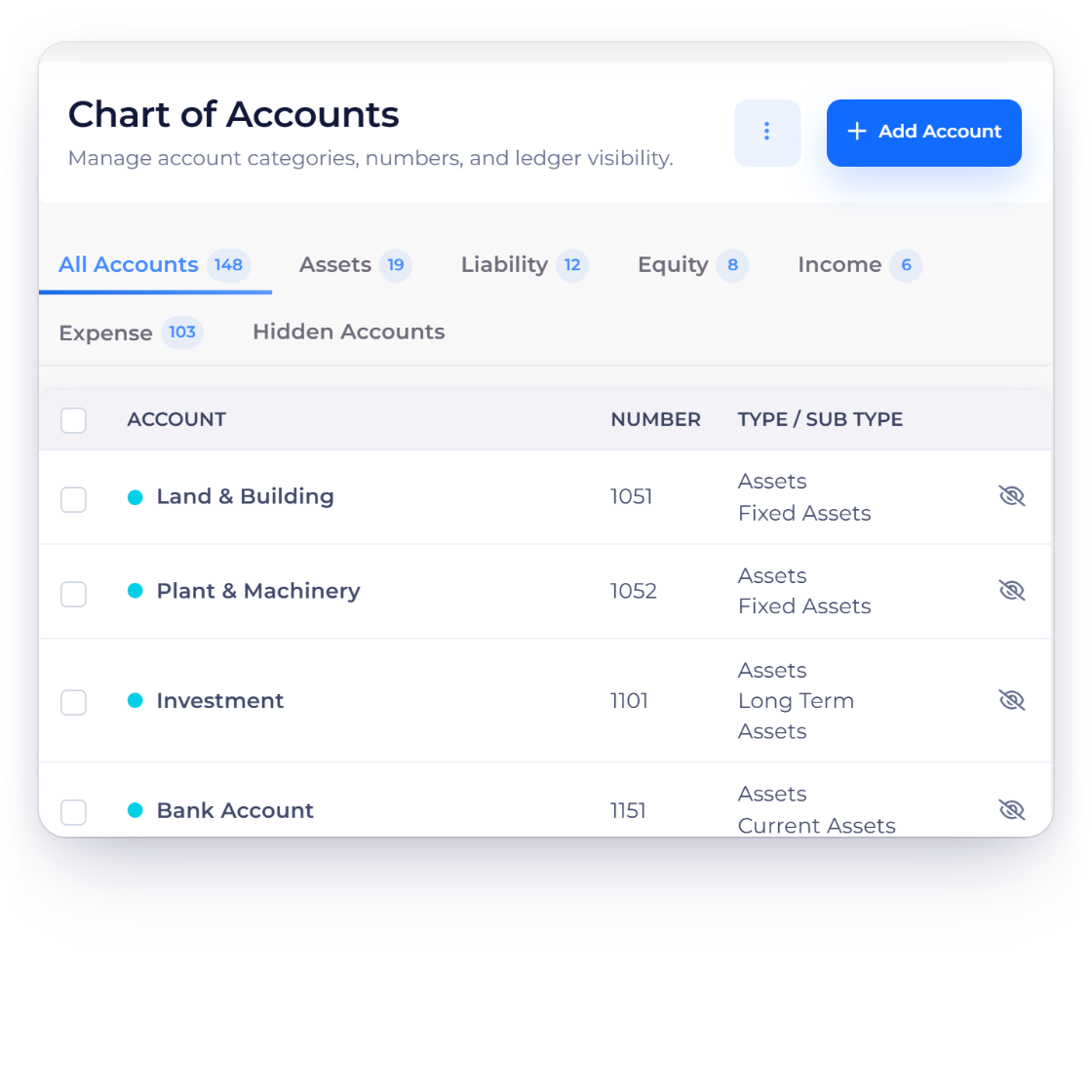
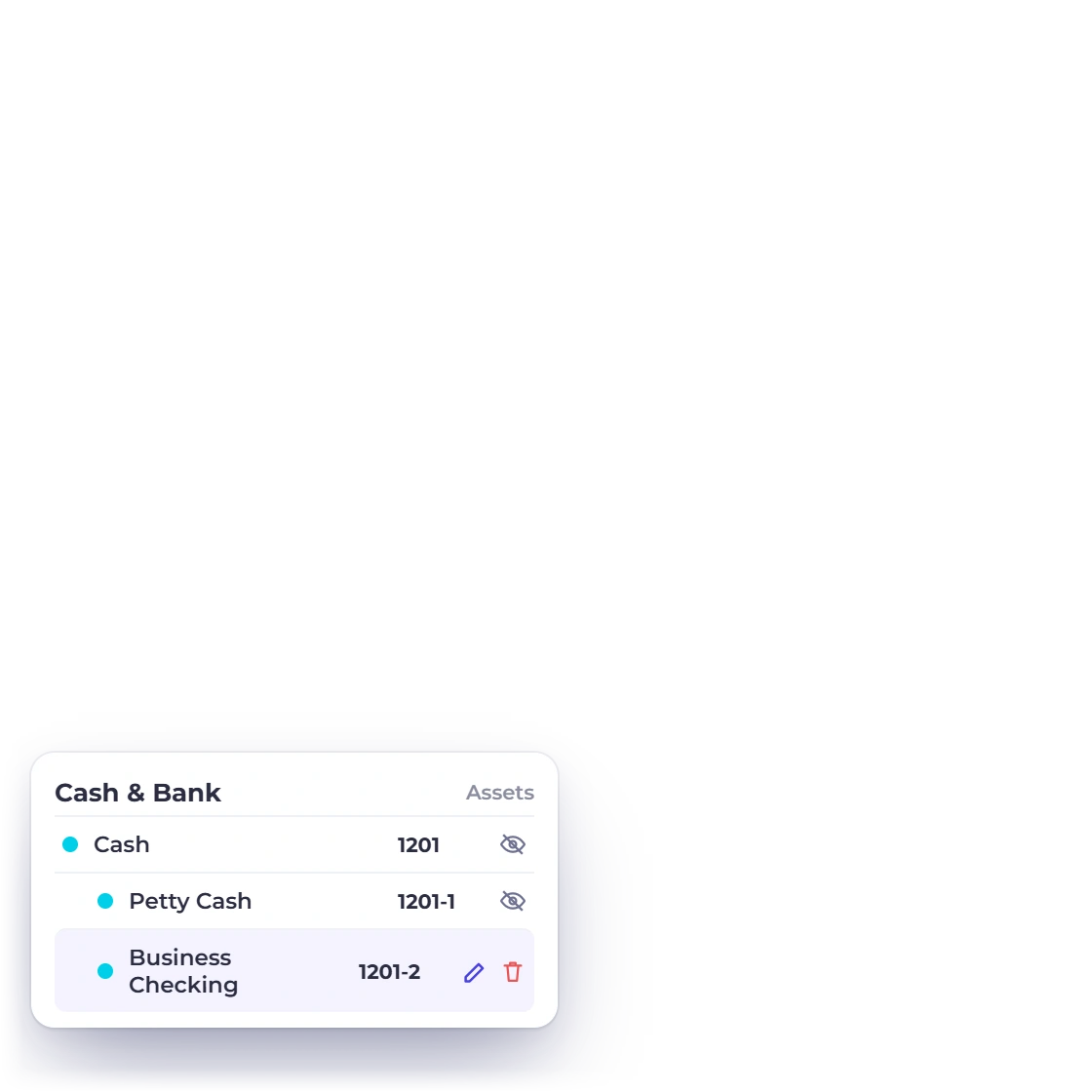
Invoice Crowd Chart of Accounts with tabs for All Accounts, Assets, Liability, Equity, Income, Expense and Hidden Accounts, and the Cash account with its sub-accounts

Browse accounts by financial family

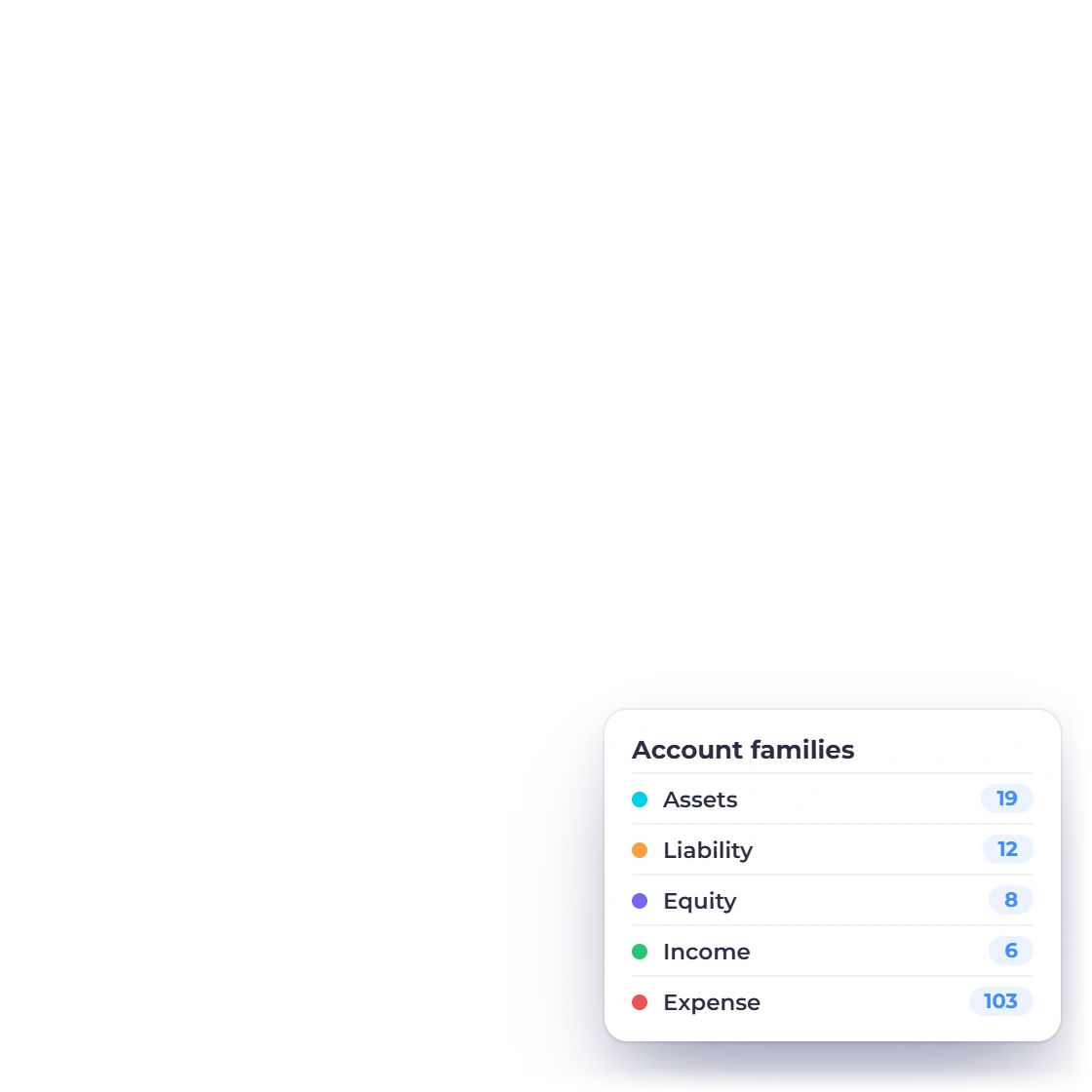
The SPA separates Assets, Liabilities, Equity, Income and Expense into familiar tabs, while the all-accounts view keeps the whole tree visible. Parent and child rows make the classification easier to scan than a flat category list.

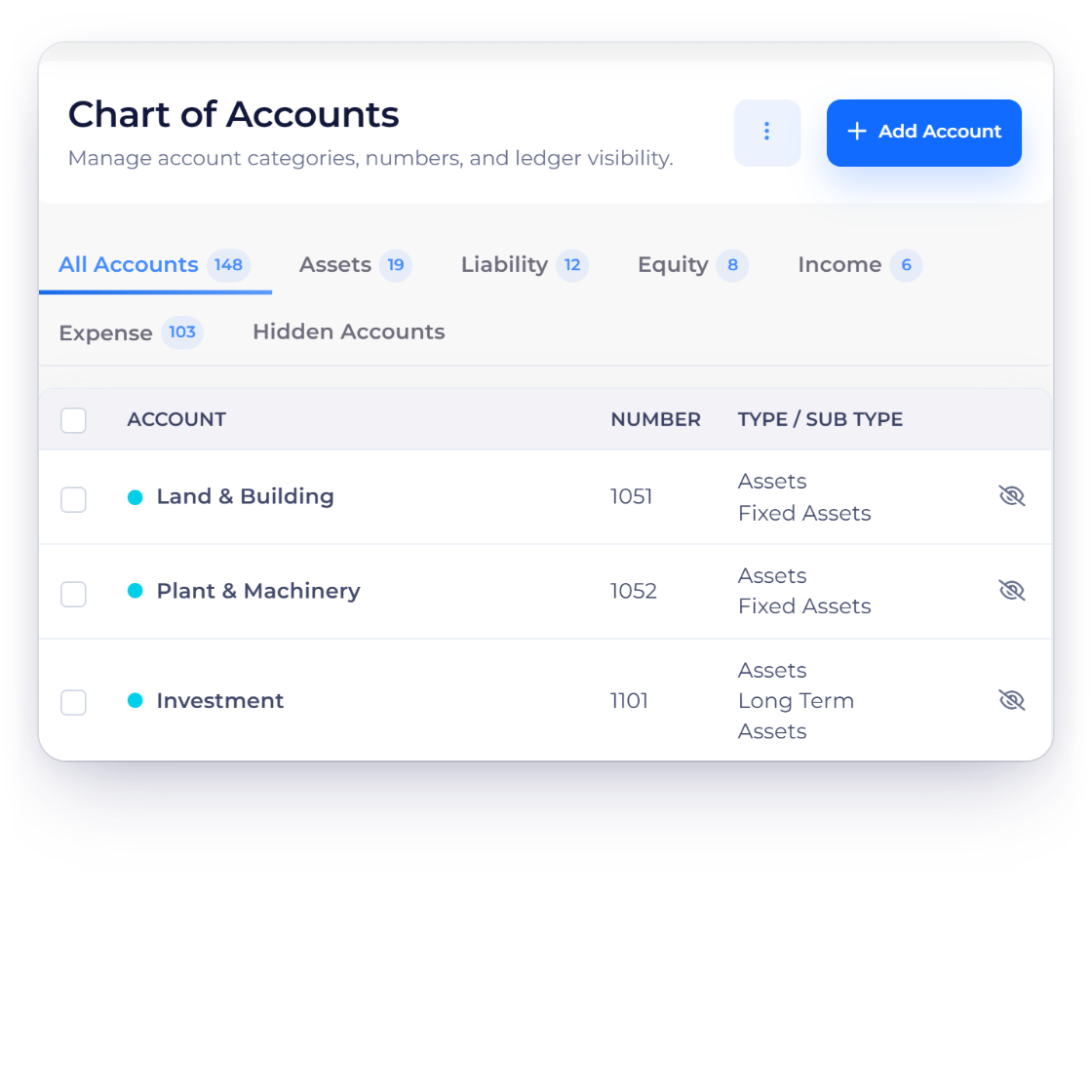
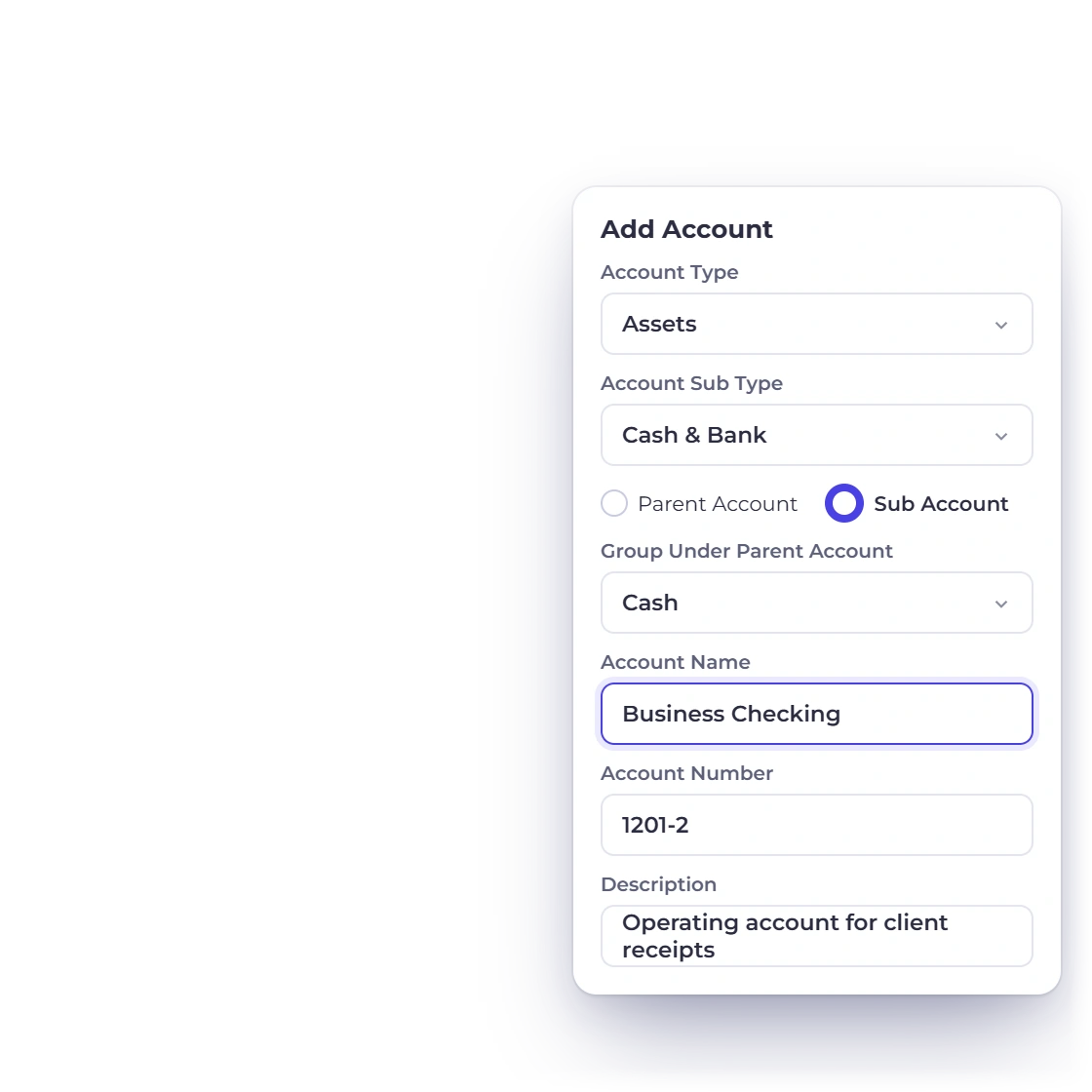
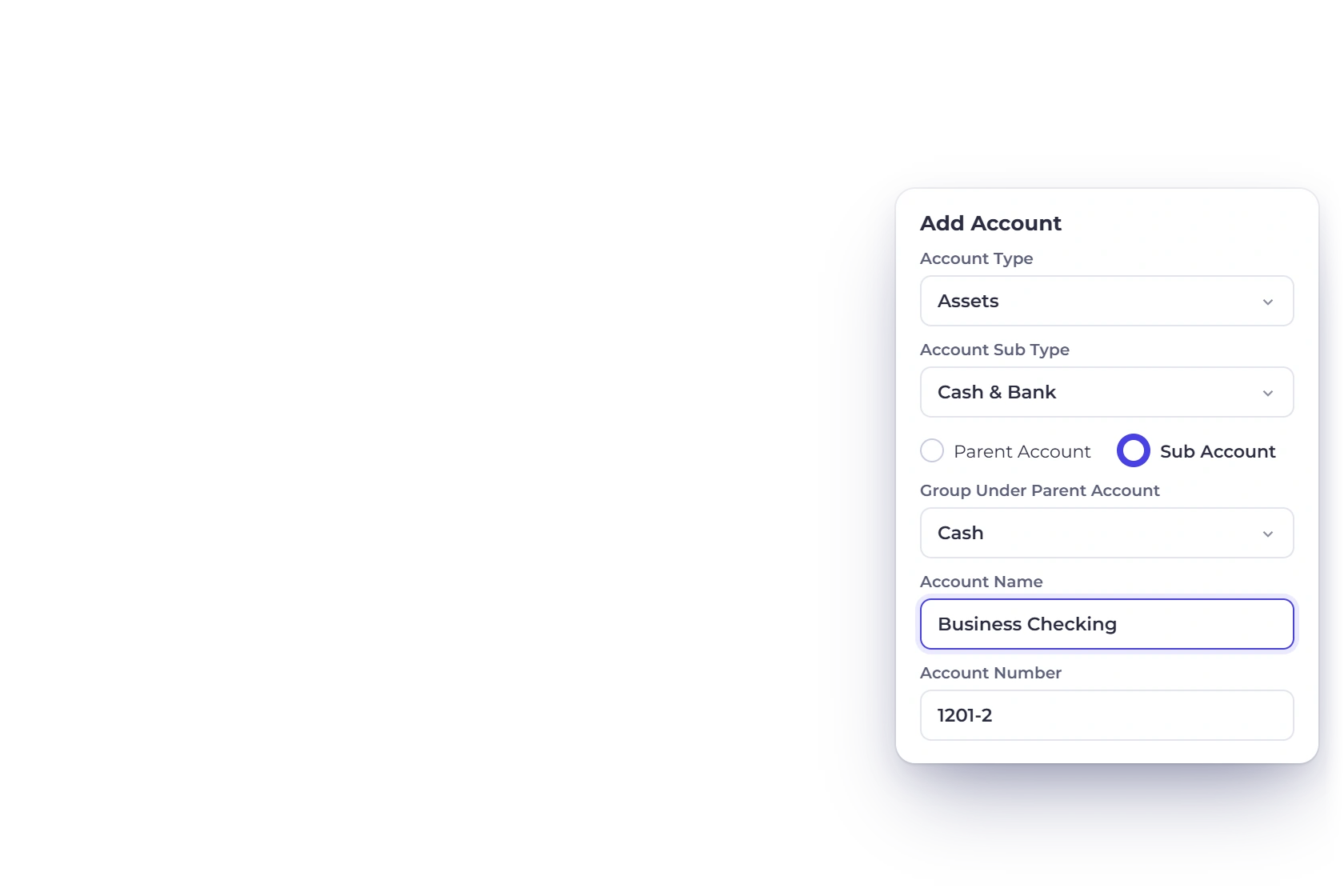
Invoice Crowd Add Account form creating a Business Checking sub-account under Cash with its own account number, next to the Chart of Accounts list

Add an account where the business needs one

Choose the account type, subtype, parent or sub-account position, account number, name and description. On an expense account, the Profit & Loss section field decides whether it reports under Cost of Goods Sold (Direct Cost) or Operating Expenses. The account appears in your business's account lists after it is saved.

Adapt the defaults

Personalize the chart without erasing shared seed data.

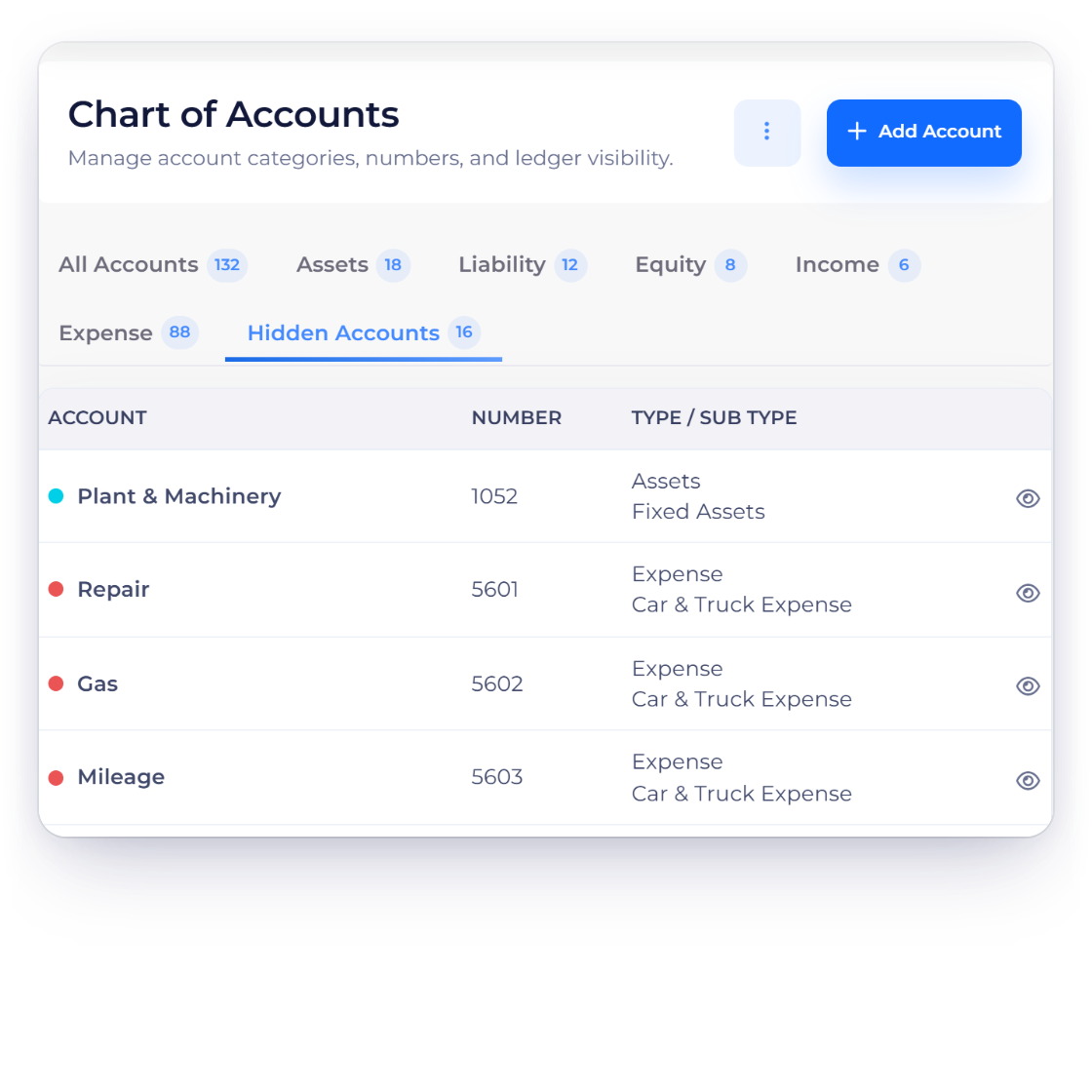
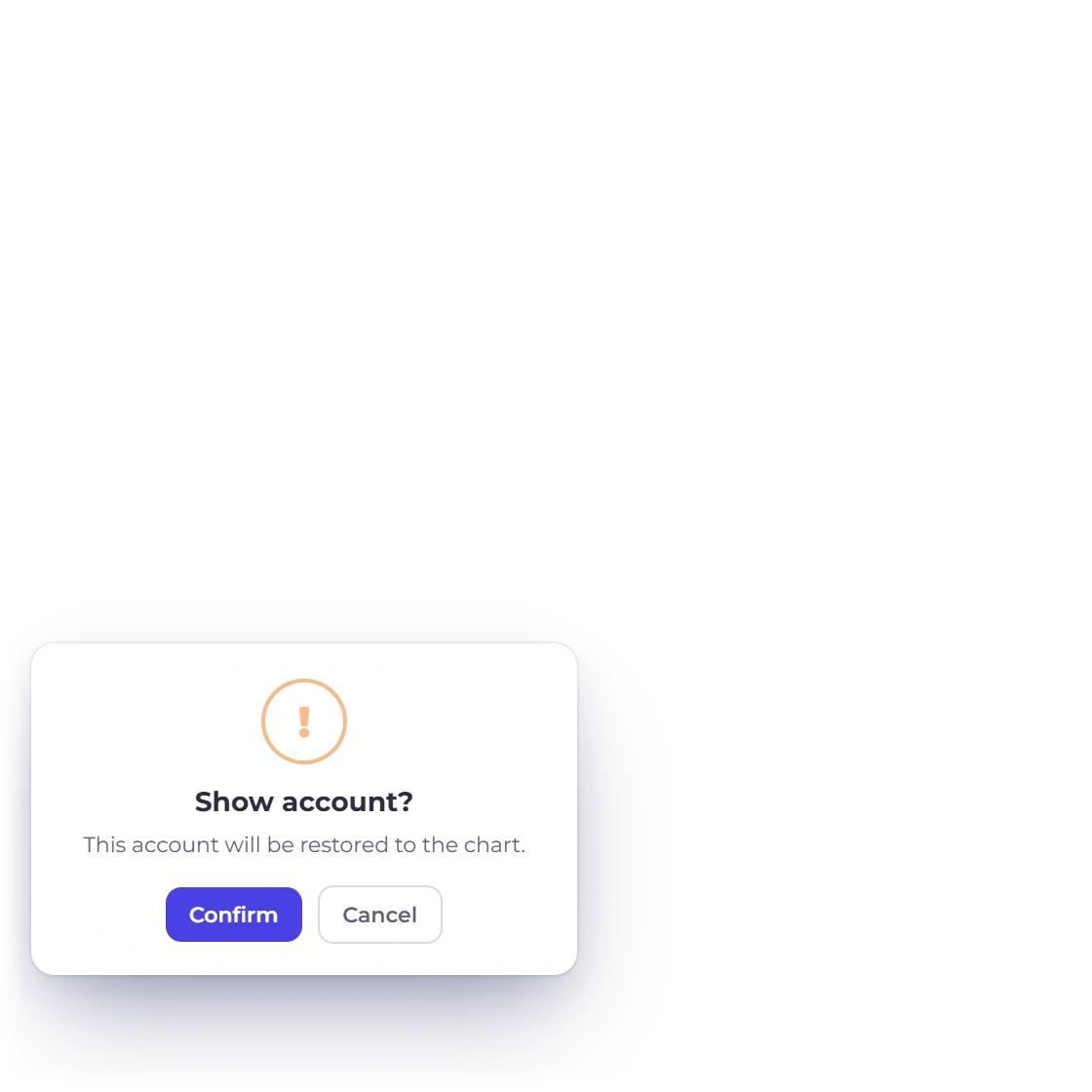
Invoice Crowd Hidden Accounts tab listing vehicle and machinery defaults hidden from a design studio chart, each with a Show Account action to restore it

Hide a system account instead of deleting it

A shared default is hidden through a user-specific relation rather than removed from the database. The Hidden Accounts tab lets you retrieve it later if the classification becomes useful again.

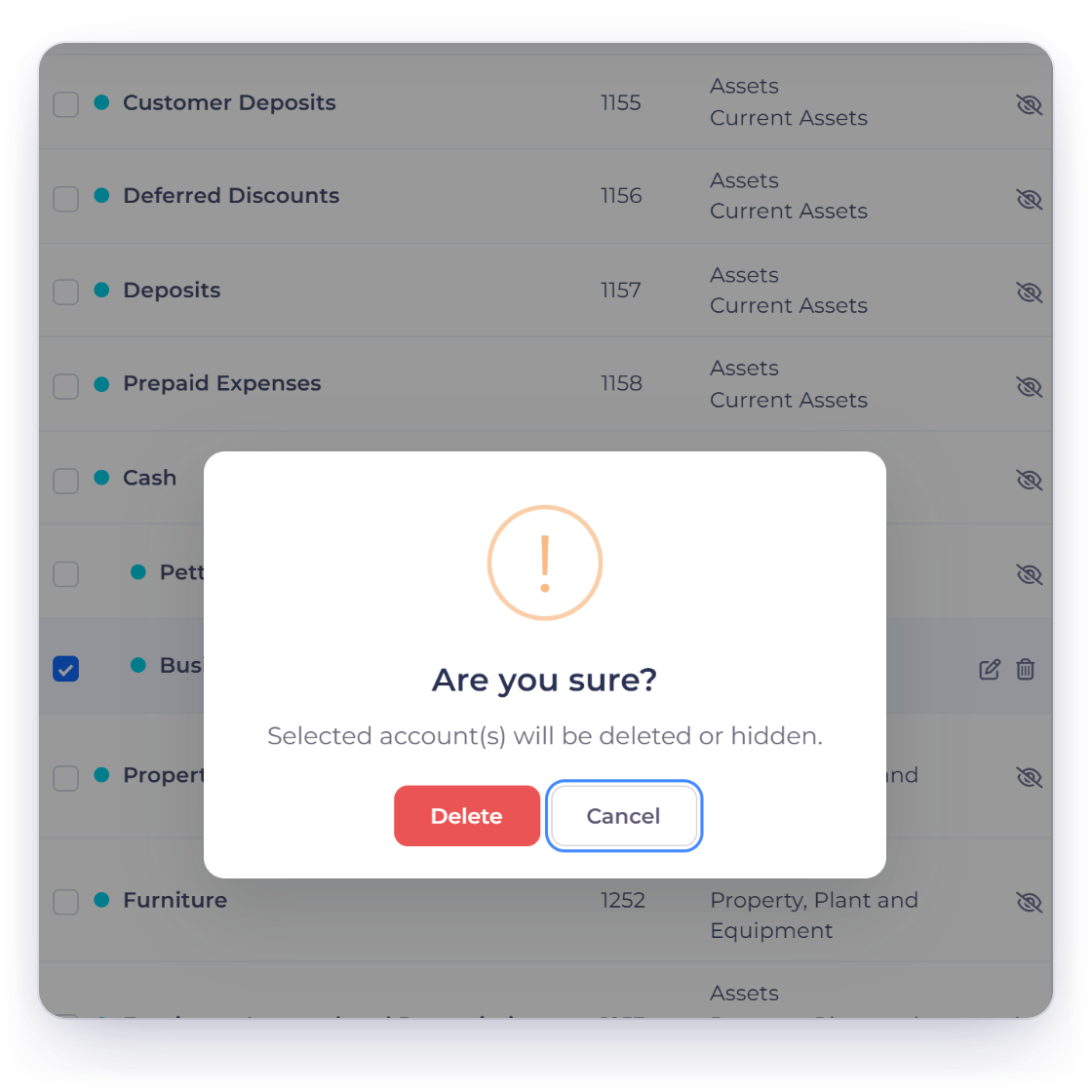
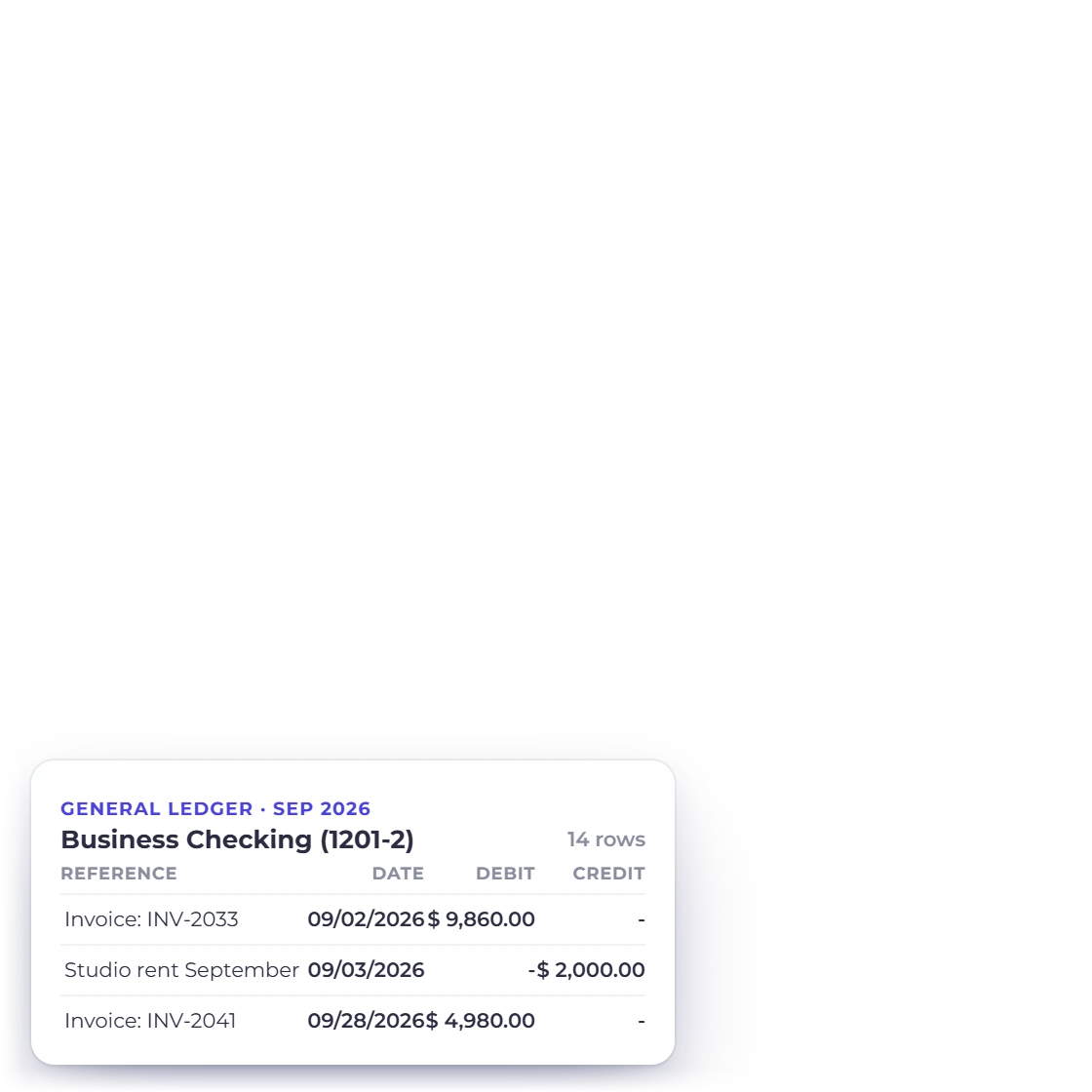
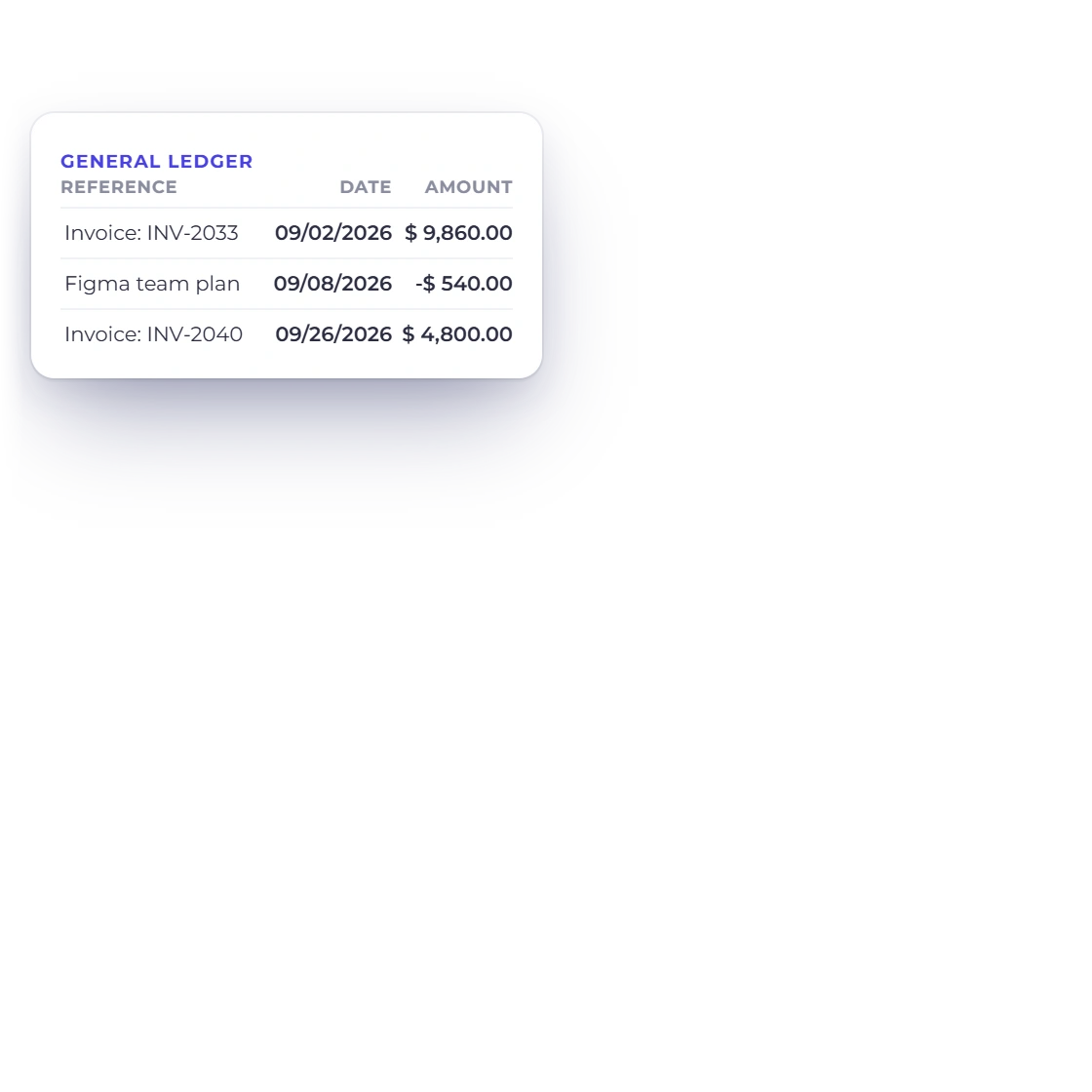
Invoice Crowd delete confirmation for a custom account, beside the General Ledger rows already classified to Business Checking

Know what a delete can affect

A custom account can be deleted, but the current chart workflow does not cascade that decision into every historic row that may reference it. Review use before deleting an account that has already classified transactions.

Where the chart stops

The chart classifies records; it is not the posting engine by itself.

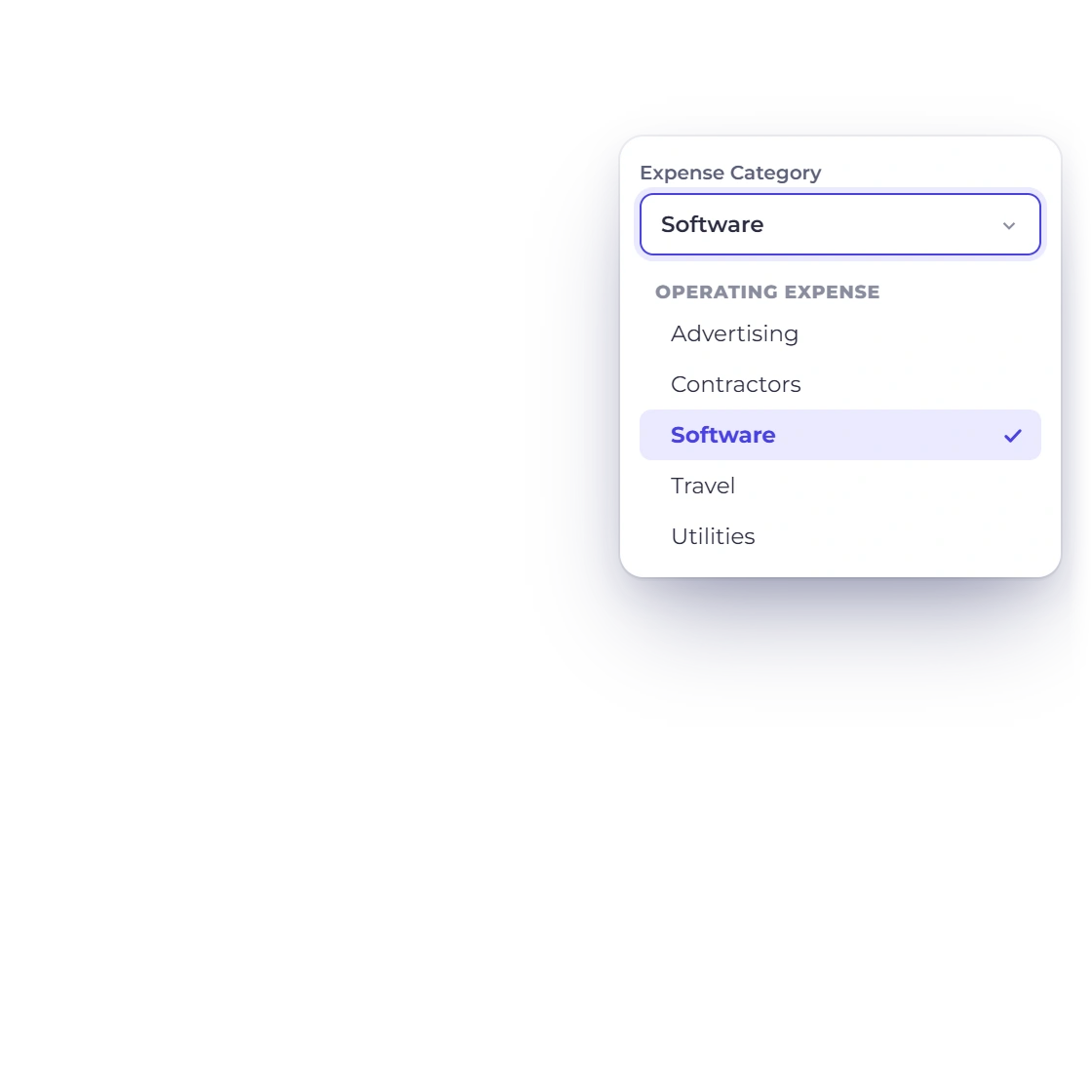
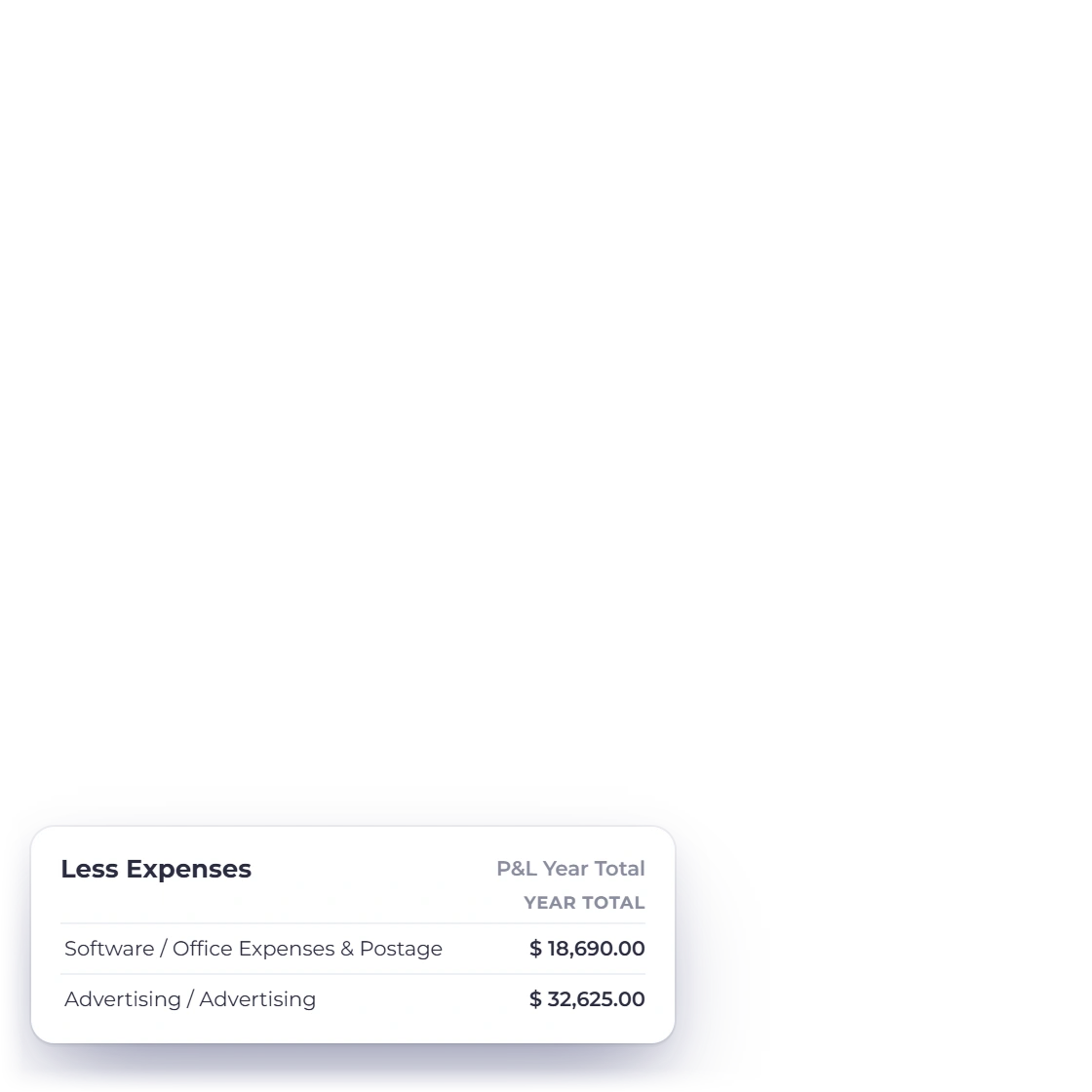
Invoice Crowd Expense tab of the Chart of Accounts, the same accounts offered in the Expense Category picker, and the Software line they feed on the profit and loss statement

Categories are the accounts

The feature is a CRUD surface over the Categories table; there is no separate active Accounts model behind the screen. Journals and reports refer back to these category rows.

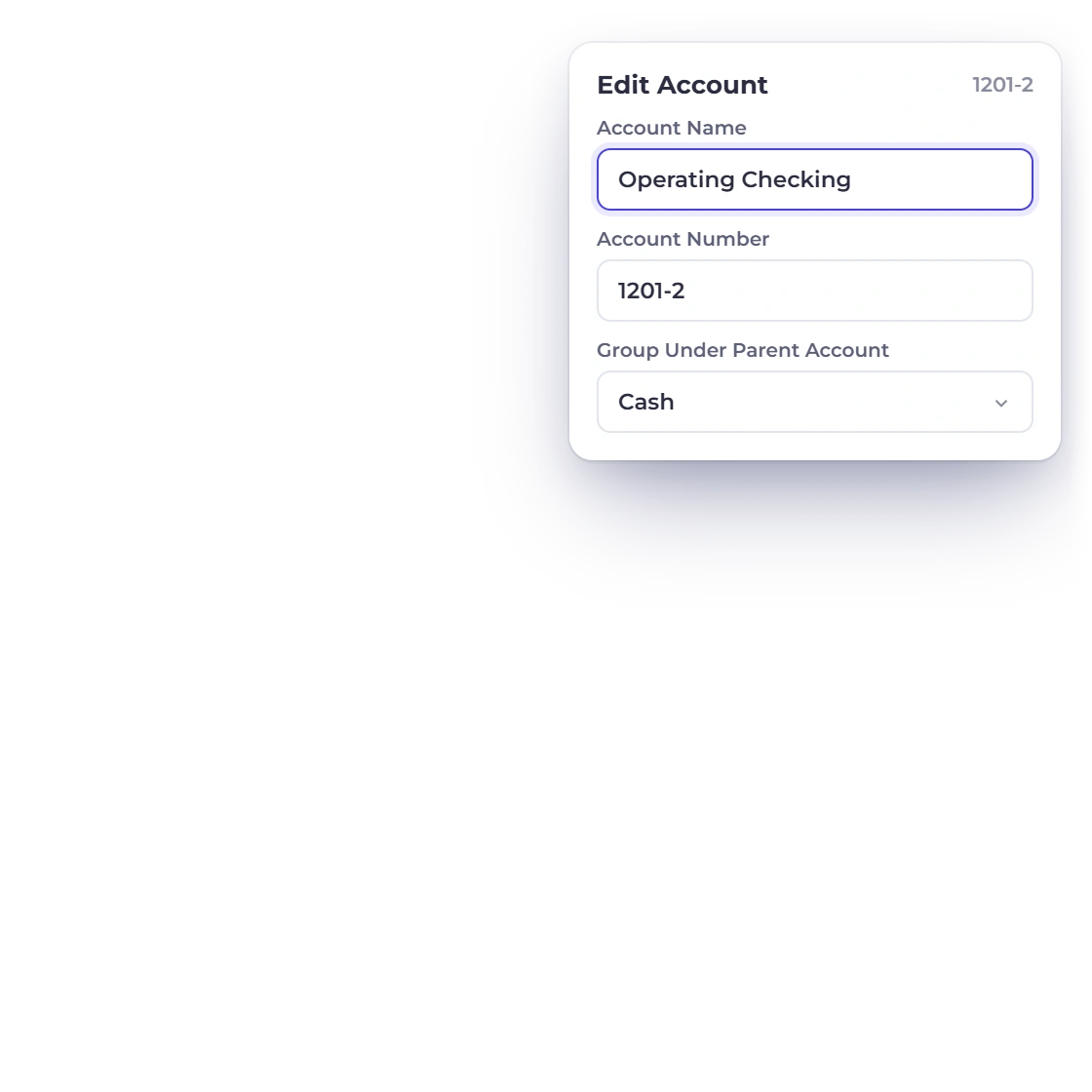
Invoice Crowd Edit Account form renaming a custom account, with the earlier ledger rows keeping their original dates and amounts

Changing the tree does not rewrite history

Renaming or moving an account changes the classification record, not the factual source documents that created earlier activity. Historic correctness still depends on the entries and report paths that use the chart.

Built in

What you can control in the chart

Account structure, ownership rules and the limits that matter before you reorganize a live set of books.

  • Browse accounts by financial family

    The SPA separates Assets, Liabilities, Equity, Income and Expense into familiar tabs, while the all-accounts view keeps the whole tree visible. Parent and child rows make the classification easier to scan than a flat category list.

  • Add an account where the business needs one

    Choose the account type, subtype, parent or sub-account position, account number, name and description. On an expense account, the Profit & Loss section field decides whether it reports under Cost of Goods Sold (Direct Cost) or Operating Expenses. The account appears in your business's account lists after it is saved.

  • Hide a system account instead of deleting it

    A shared default is hidden through a user-specific relation rather than removed from the database. The Hidden Accounts tab lets you retrieve it later if the classification becomes useful again.

  • Know what a delete can affect

    A custom account can be deleted, but the current chart workflow does not cascade that decision into every historic row that may reference it. Review use before deleting an account that has already classified transactions.

  • Categories are the accounts

    The feature is a CRUD surface over the Categories table; there is no separate active Accounts model behind the screen. Journals and reports refer back to these category rows.

  • Changing the tree does not rewrite history

    Renaming or moving an account changes the classification record, not the factual source documents that created earlier activity. Historic correctness still depends on the entries and report paths that use the chart.

  • Account types

    Assets, Liabilities, Equity, Income and Expense are the five top-level families.

  • Custom sub-accounts

    Group an account you created under an appropriate parent.

  • Hidden defaults

    Hide a shared row without deleting it for everyone.

  • Manual journals

    Use the separate Manual Journals screen for balanced adjustment entries.

  • General ledger

    Inspect transaction-level movement for an account and period.

  • Accounting hub

    See how the accounting surfaces fit together.

Questions

Chart of Accounts, answered

What is the chart of accounts in Invoice Crowd?

Invoice Crowd's chart of accounts is the categorized tree used to classify financial activity. It groups accounts under Assets, Liabilities, Equity, Income and Expense and lets a business add its own parent or sub-accounts.

Can I add my own accounts and account numbers?

Yes. Invoice Crowd lets an authorized user choose the account family and subtype, decide whether the row is a parent or sub-account, and enter an account name, number and description. Expense accounts also choose a Profit & Loss section, so direct costs appear under Cost of Goods Sold, marked with a Cost of Sales badge in the chart.

Can I delete a default account?

Invoice Crowd hides a shared system-default account for your user instead of deleting the underlying default. You can restore it later from the Hidden Accounts tab.

What happens if I delete a custom account that was already used?

The current chart workflow does not automatically reclassify every historic record that references a deleted custom account. Review its use and choose a replacement process before removing a live classification.

Is the Chart of Accounts available to every team member?

Access follows the accounting module and capability rules for the selected business. The server rechecks the owner or team-parent scope rather than relying only on whether an action button was visible.

Does editing the chart repair old accounting entries?

No. Editing the Invoice Crowd chart changes an account classification record; it does not infer or rewrite earlier documents, journal rows or statement history.

Give every business record a clear place to land

Set up the categories you actually use, keep recoverable defaults out of the way, and move into journals and reports with a chart your team can understand.

  • No card required to start
  • Your data stays yours
  • Cancel anytime