Skip to content

Features

Raise a purchase order, get it approved, turn it into a bill

A purchase order in Invoice Crowd is addressed to a vendor, numbered with a PO prefix, and built in the same editor you use for invoices. Approve it when the supplier agrees, and one action copies it into a draft bill with the bill's accounting entries generated at the same time.

  • Built in the invoice editor
  • One-way approval, then convert
  • Ordered quantity, not stock on hand

Last updated:

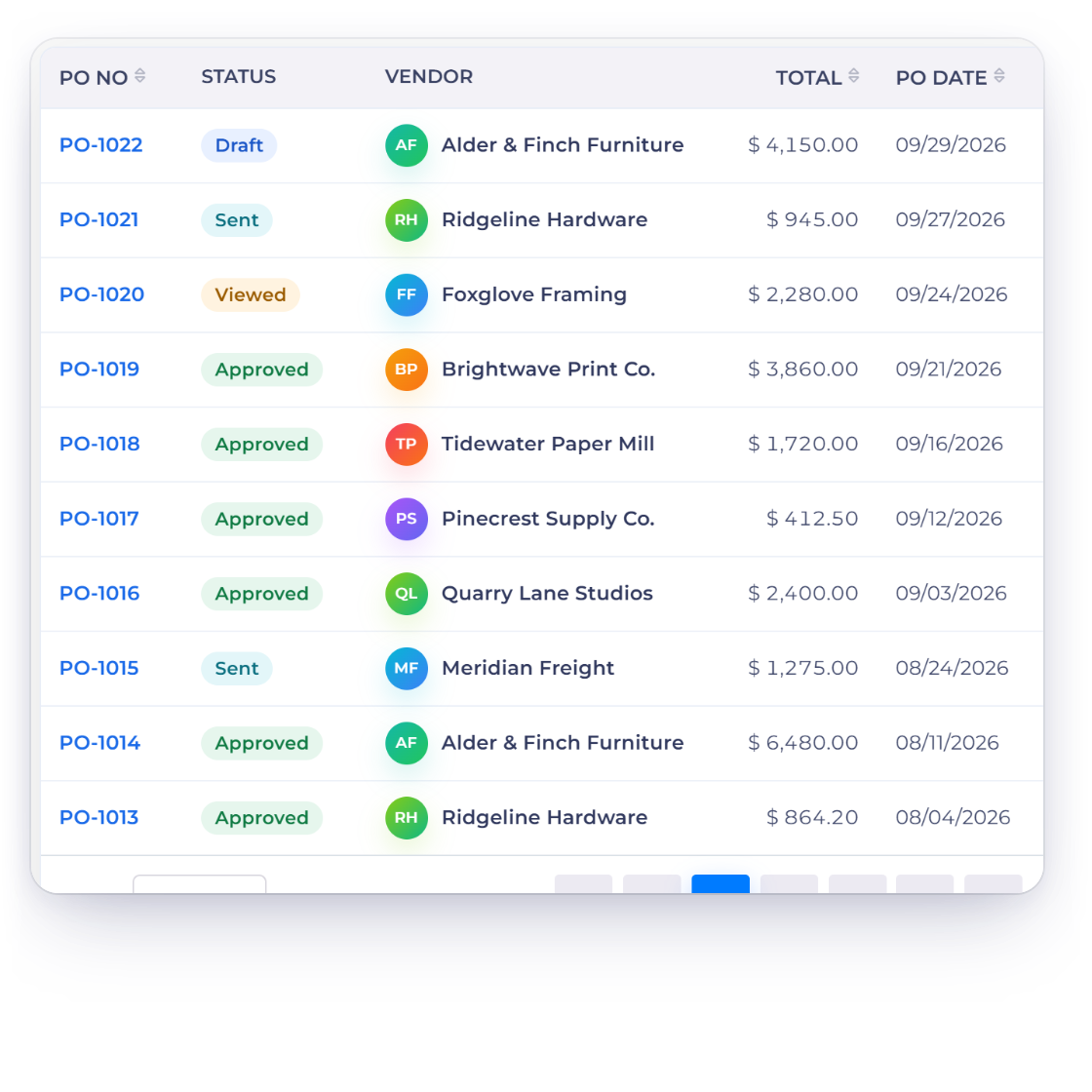
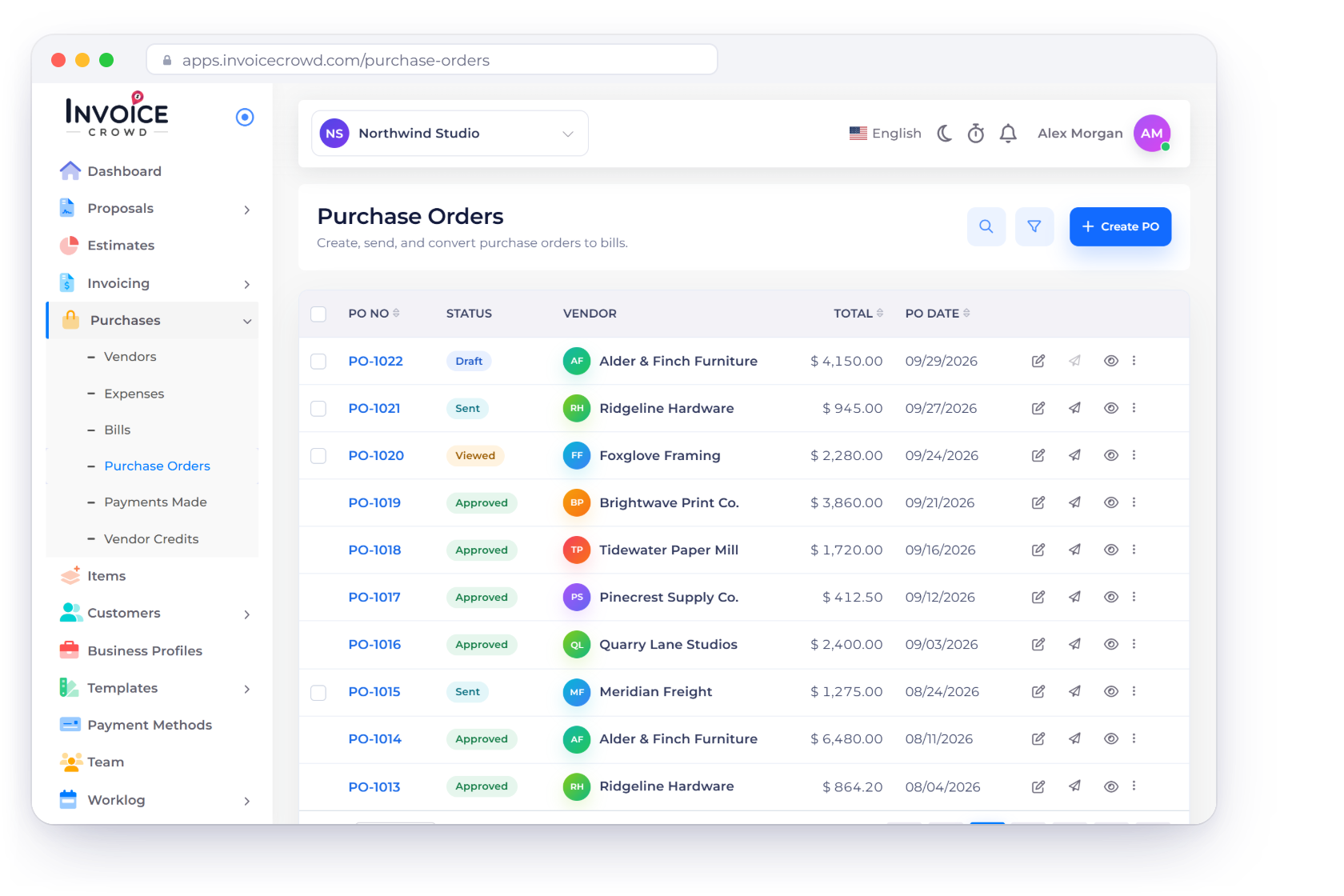
The Purchase Orders list in Invoice Crowd showing each order's PO number, status, vendor, total and last sent date.

What is inside

A commitment on paper, then a bill in the books

A purchase order is the purchasing-side counterpart of an estimate: an estimate quotes a customer, a purchase order commits you to a supplier. It carries no money of its own. Approving it opens the way to a bill, and the bill is what moves your stock and posts to the ledger.

Raising it

The invoice editor, vendor side

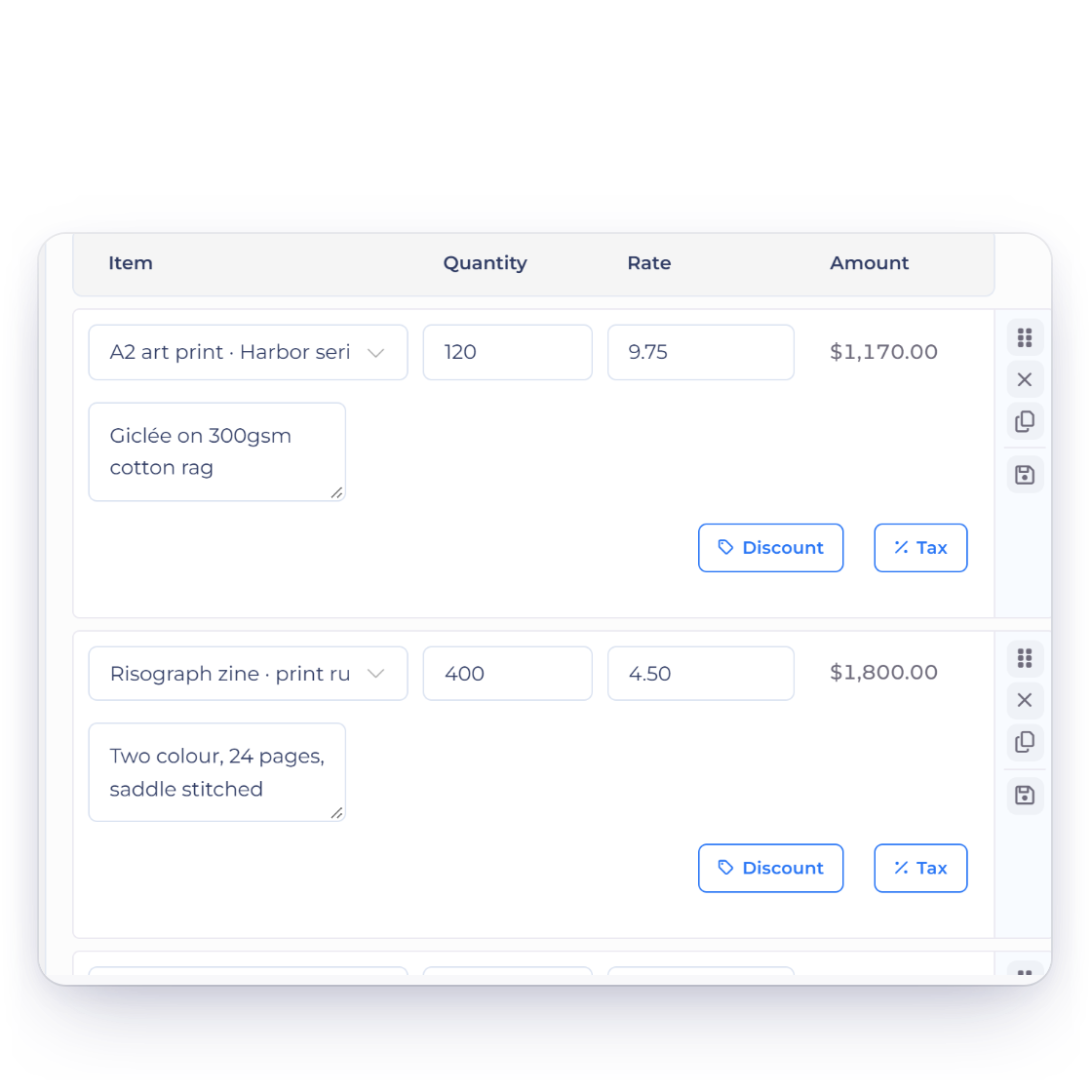
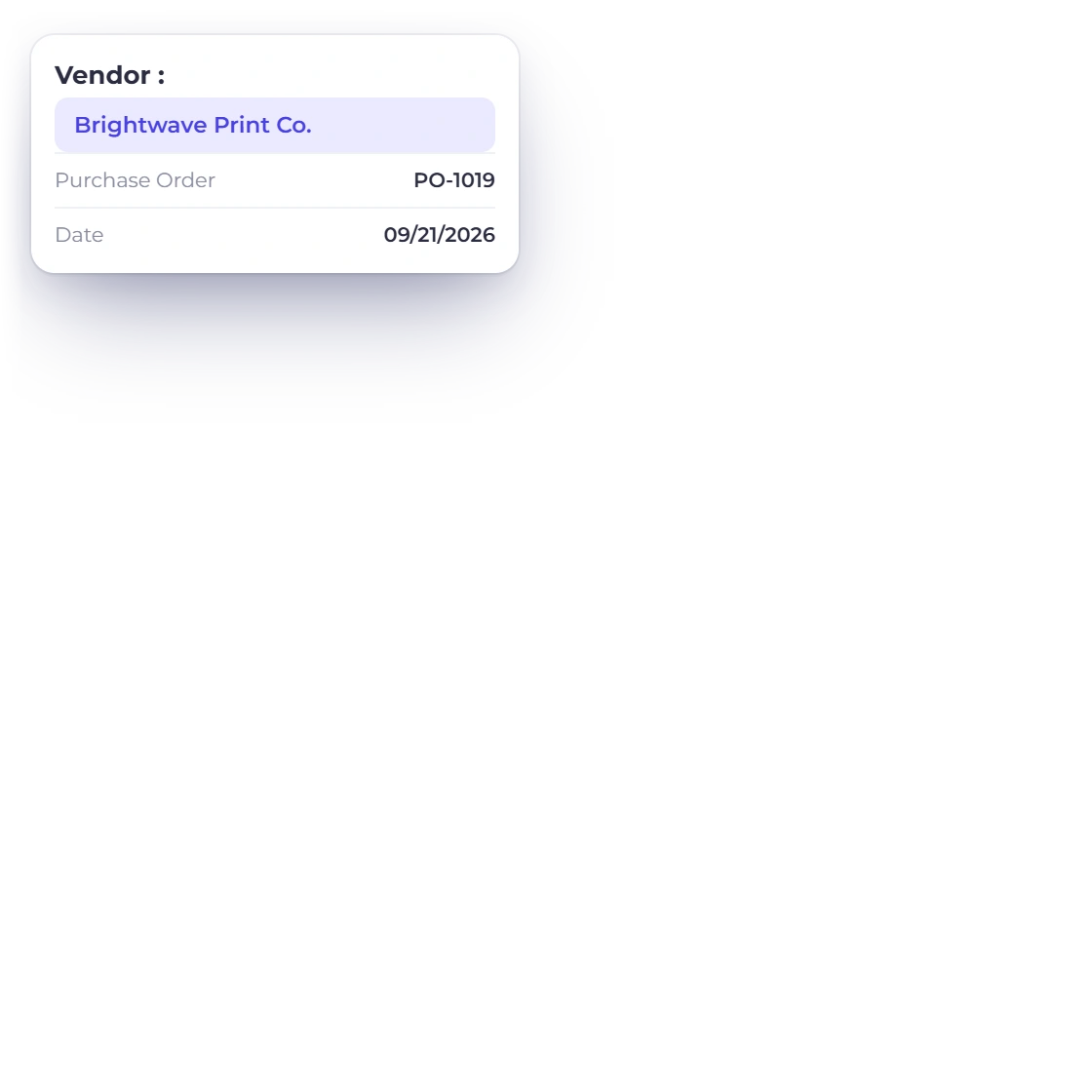
Raising a purchase order in the Invoice Crowd editor, with the vendor selected and the first line items filled in.

The same editor, with a vendor picker

A new purchase order starts from one of your document templates, so the layout, logo and labels match the invoices you already send. It is numbered automatically with a PO prefix and opens in the same editor as an invoice, with the customer picker swapped for a vendor picker. Add line items with quantities, rates, taxes and discounts, write your terms into the notes and signature block, and save.

  • Numbered automatically with a PO prefix
  • Starts from your own document templates
  • No supplier catalogue, punchout or EDI feed

Send it, or share the link

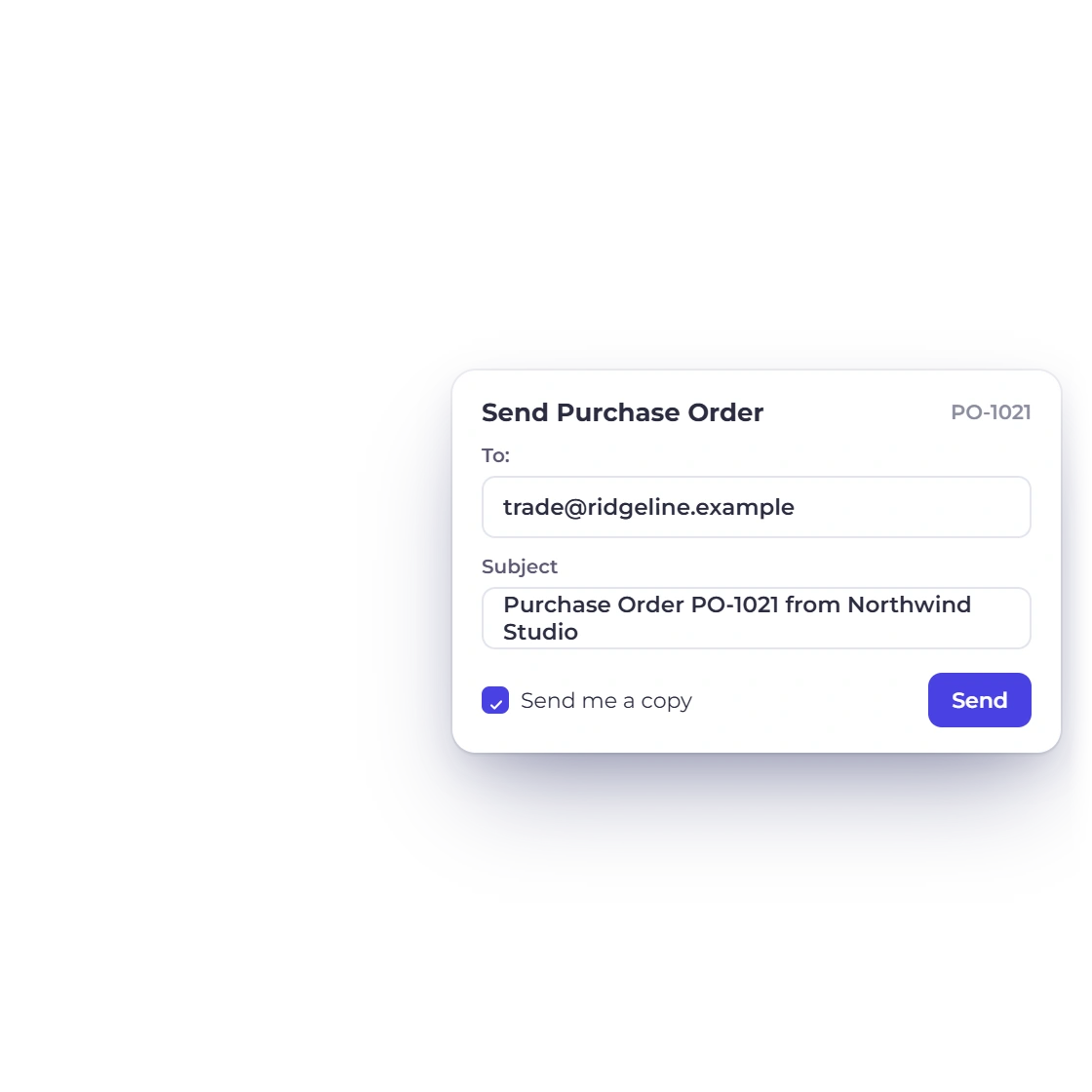
Sending opens a composer with the message pre-filled and addressed to the vendor on the order, and the list records the date it last went out. The supplier does not need a login to read it: every purchase order has a public preview link you can copy to the clipboard, and a PDF you can download and attach elsewhere.

  • The To field and message are pre-filled
  • Copy a public preview link to the clipboard
  • The list records when it last went out

Getting it agreed

One action, no approval chain

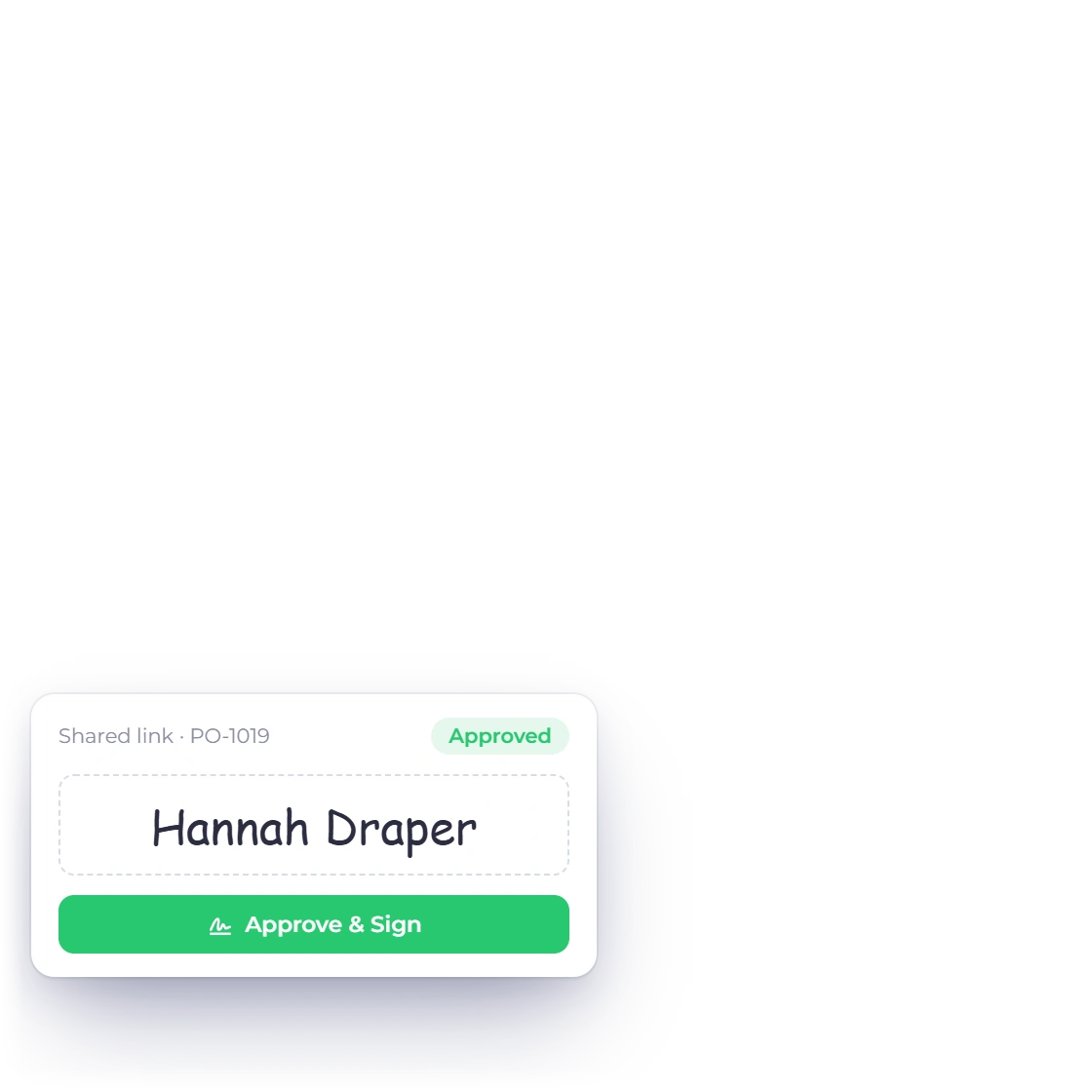
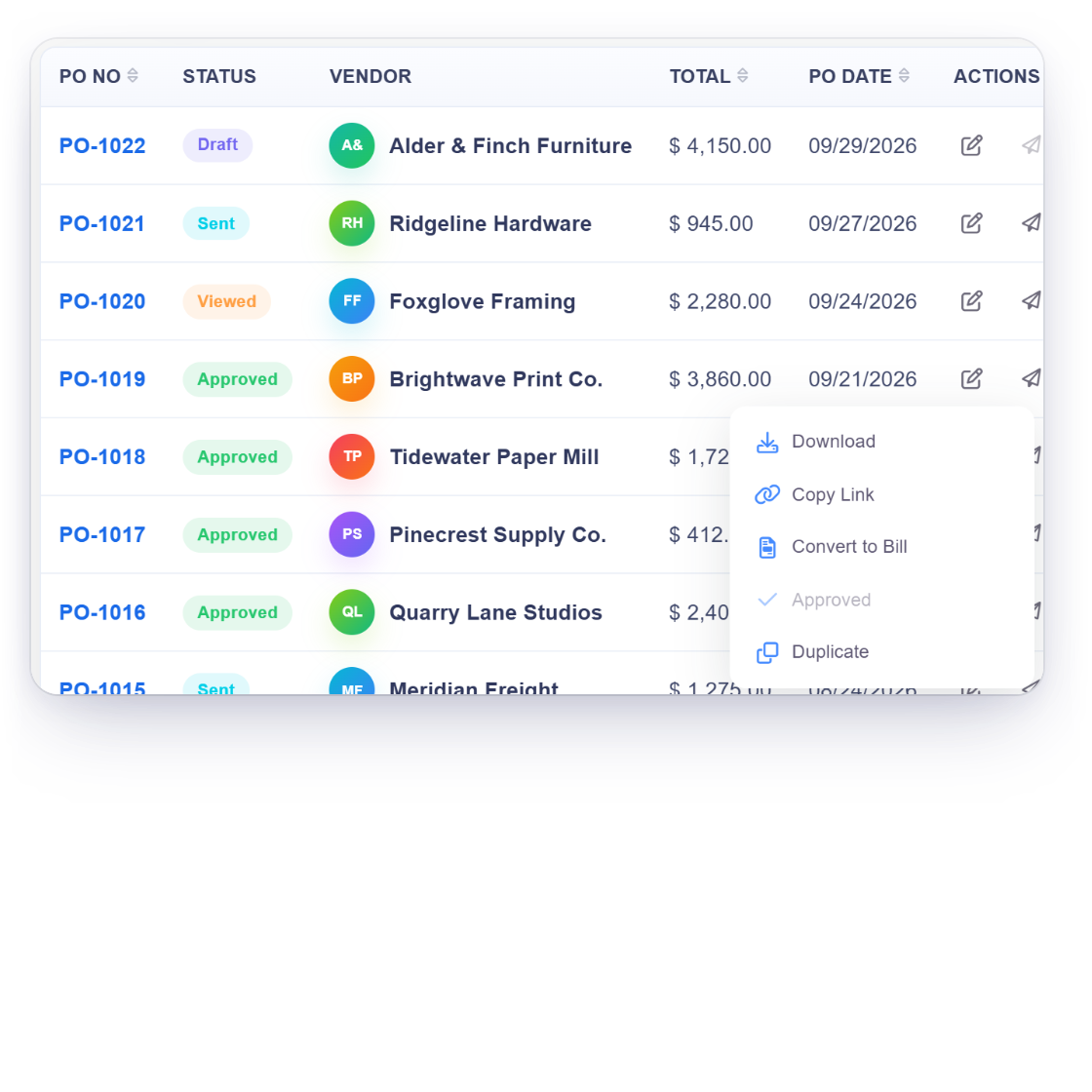
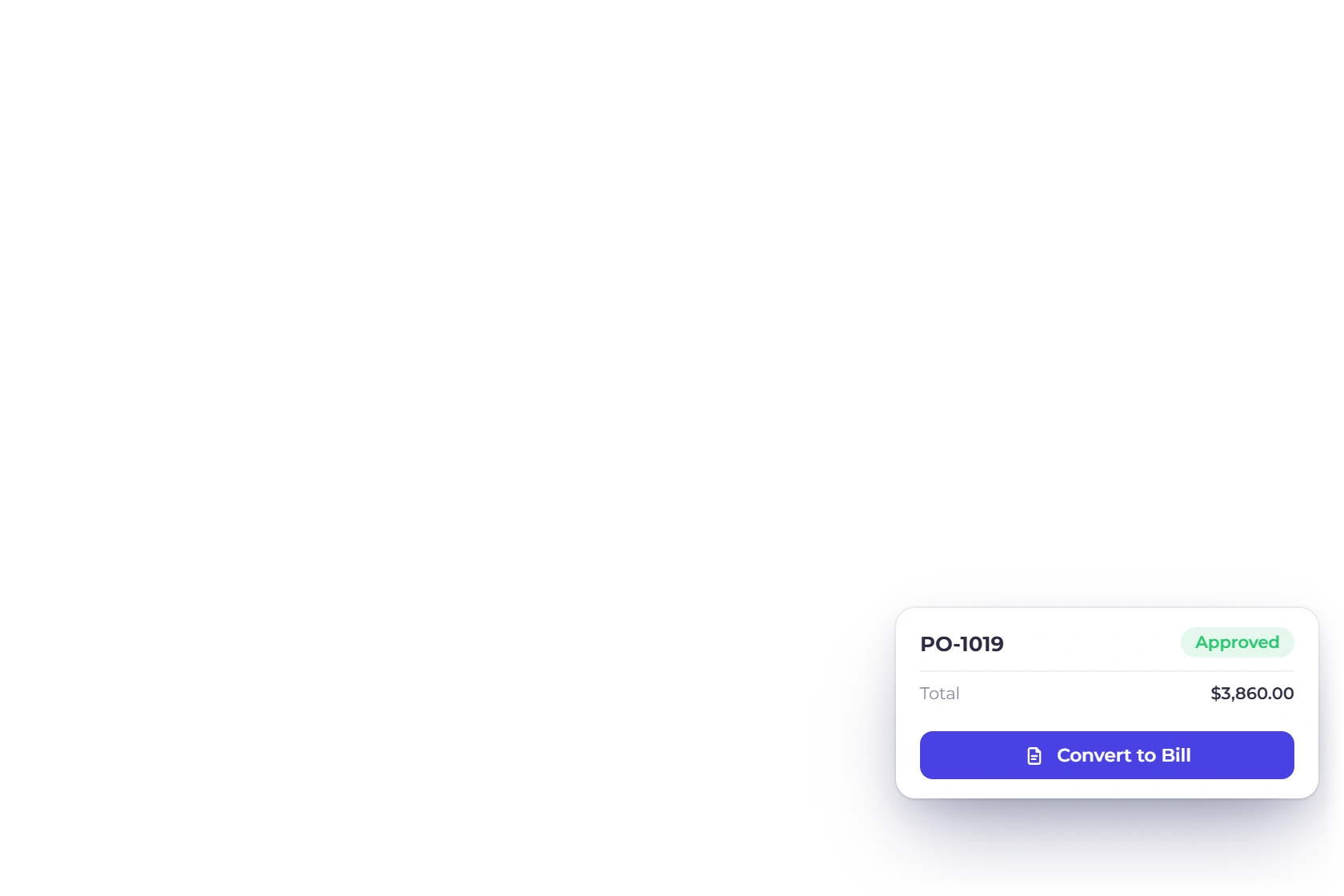
Approving a purchase order in Invoice Crowd, with Convert to bill available on the approved row.

Mark as Approved, and that is the whole flow

A team member with edit rights opens the order, chooses Mark as Approved and confirms the prompt. There is no chain to route it through and no second signature to collect. Approval is one-way in the interface: an approved order has no un-approve button, and Delete is withdrawn from its menu, which stops an agreed order quietly disappearing. The order itself stays editable.

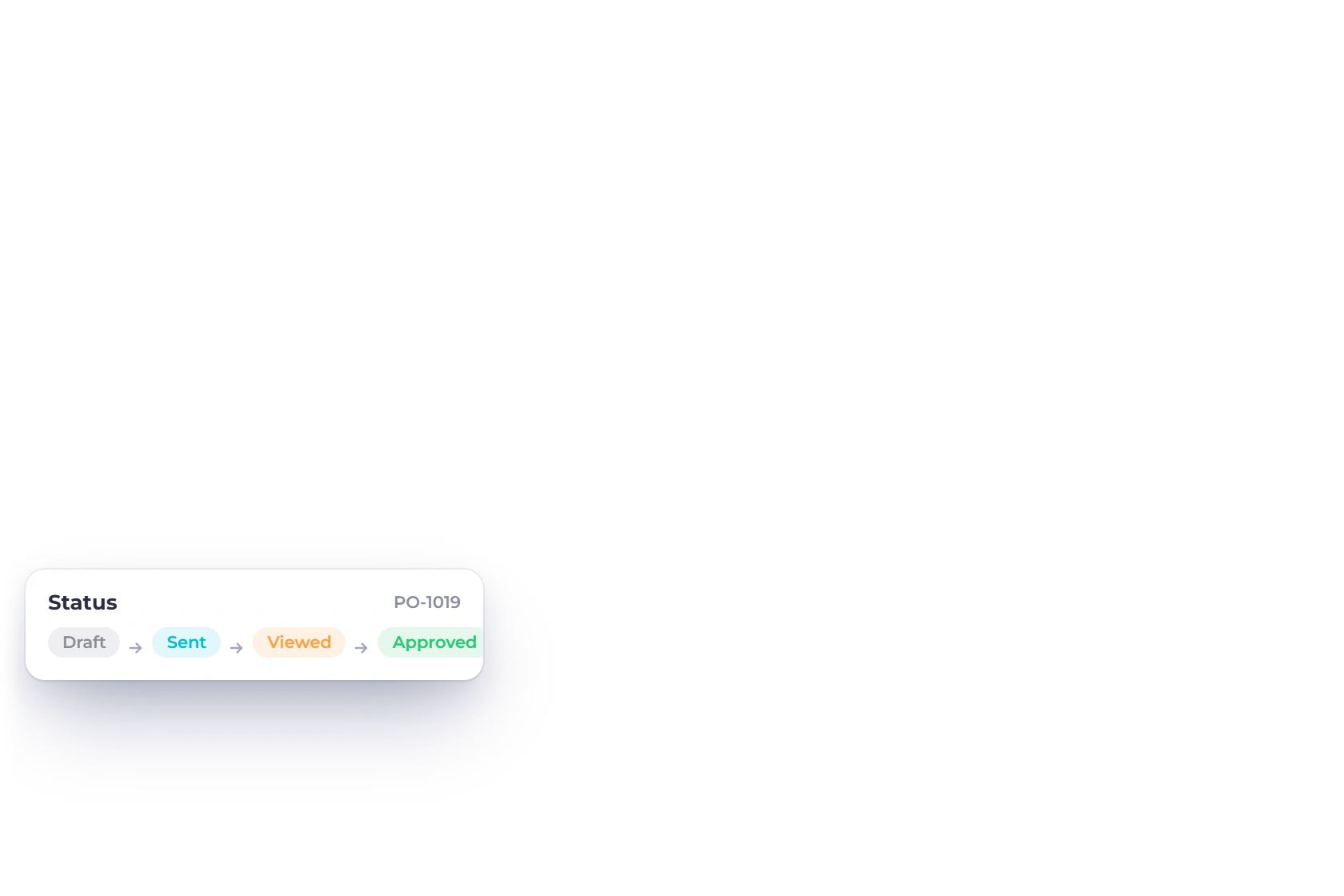
  • Draft, Sent, Viewed and Approved, all derived
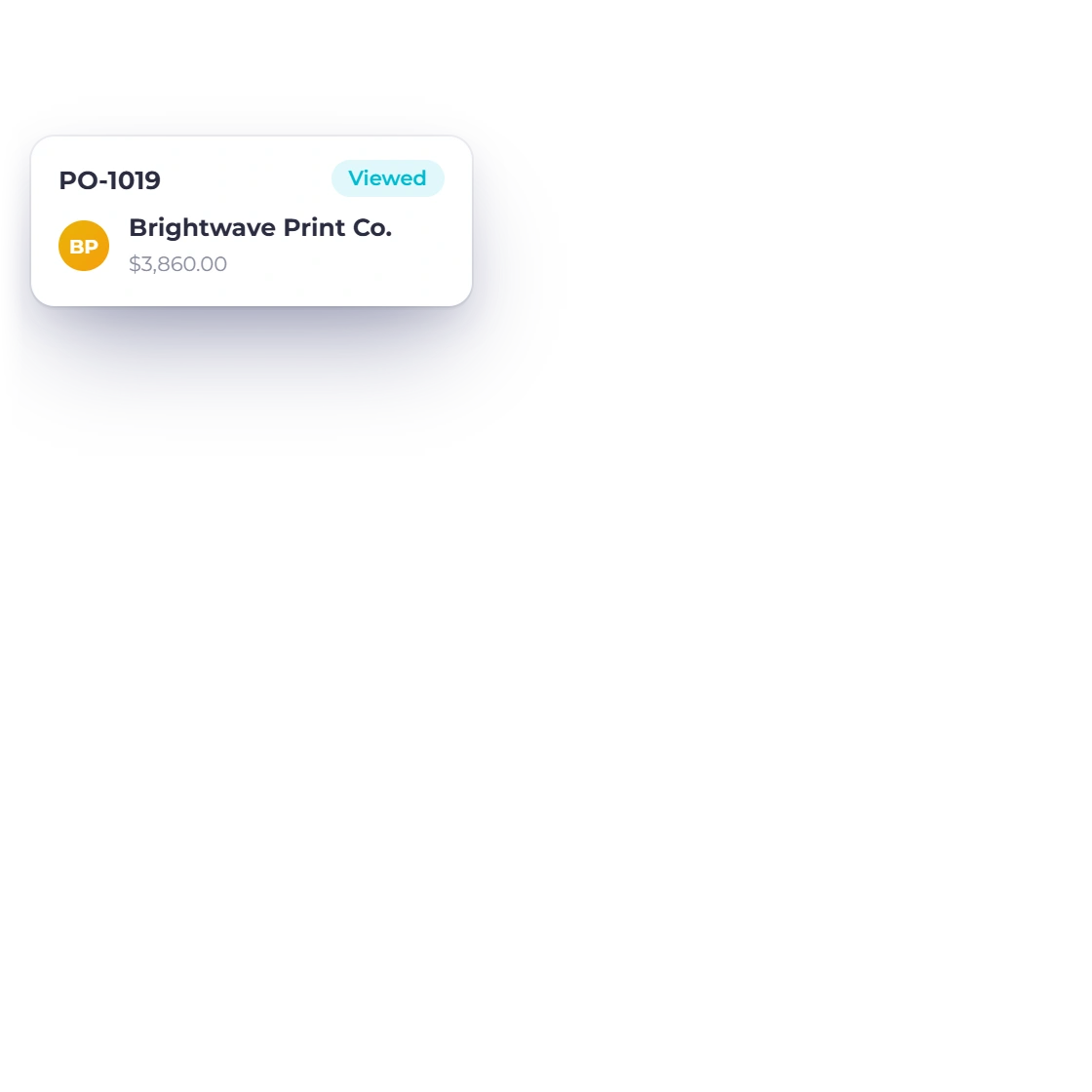
  • Viewed means the public copy has been opened
  • Convert to bill is available only at Approved

Ordered, not received

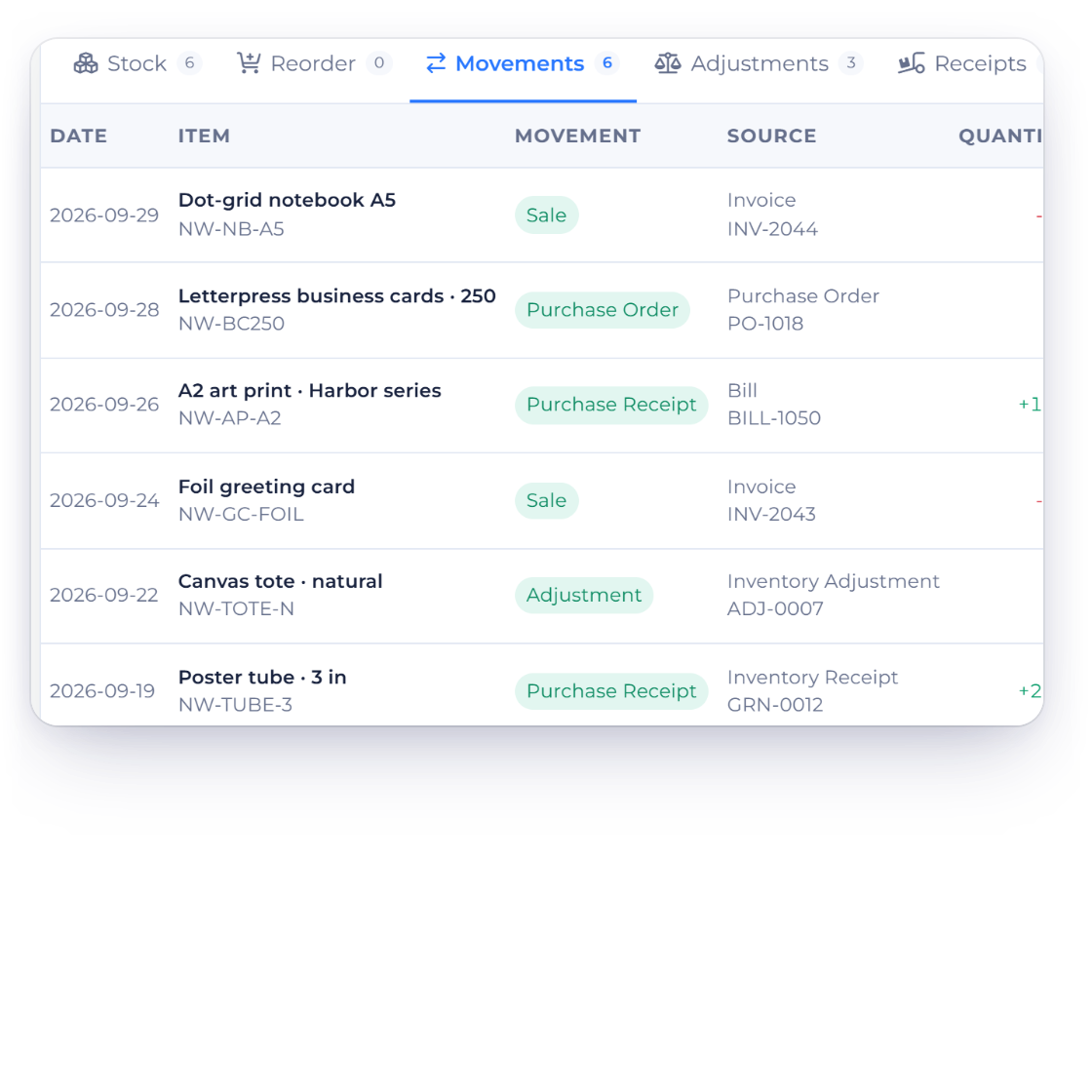
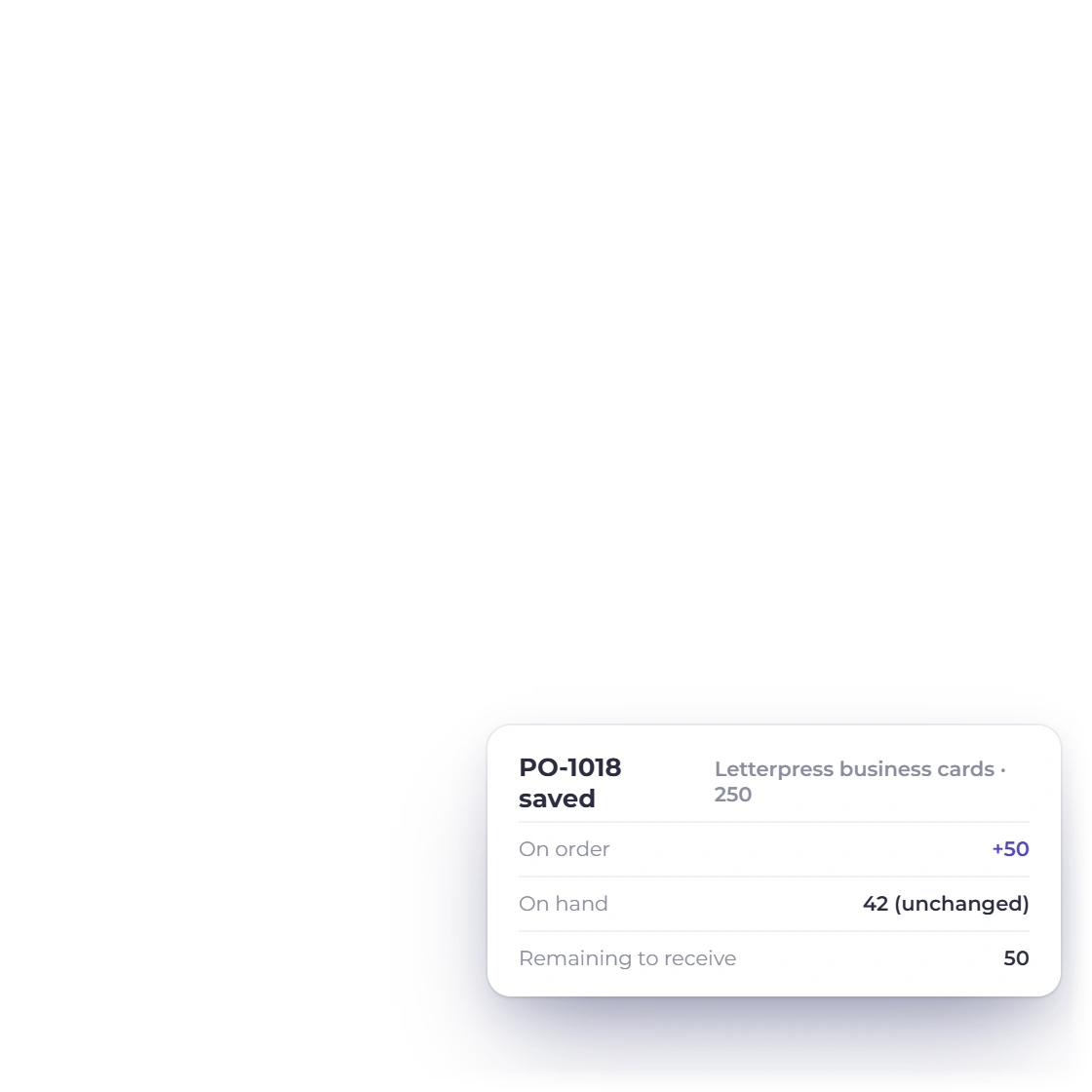
Saving a purchase order records what you have ordered, not what you have received. For tracked items, the order writes an ordered quantity and a remaining quantity against each line, and stock on hand does not move. The increase happens later, when the bill is saved, which is the point Invoice Crowd treats the goods as received. Counting a commitment as stock would overstate what is on the shelf.

  • Ordered and remaining quantities per tracked line
  • Re-saving rebuilds them from the current lines
  • Deleting an order removes the quantities it wrote

Billing from it

Where the money starts counting

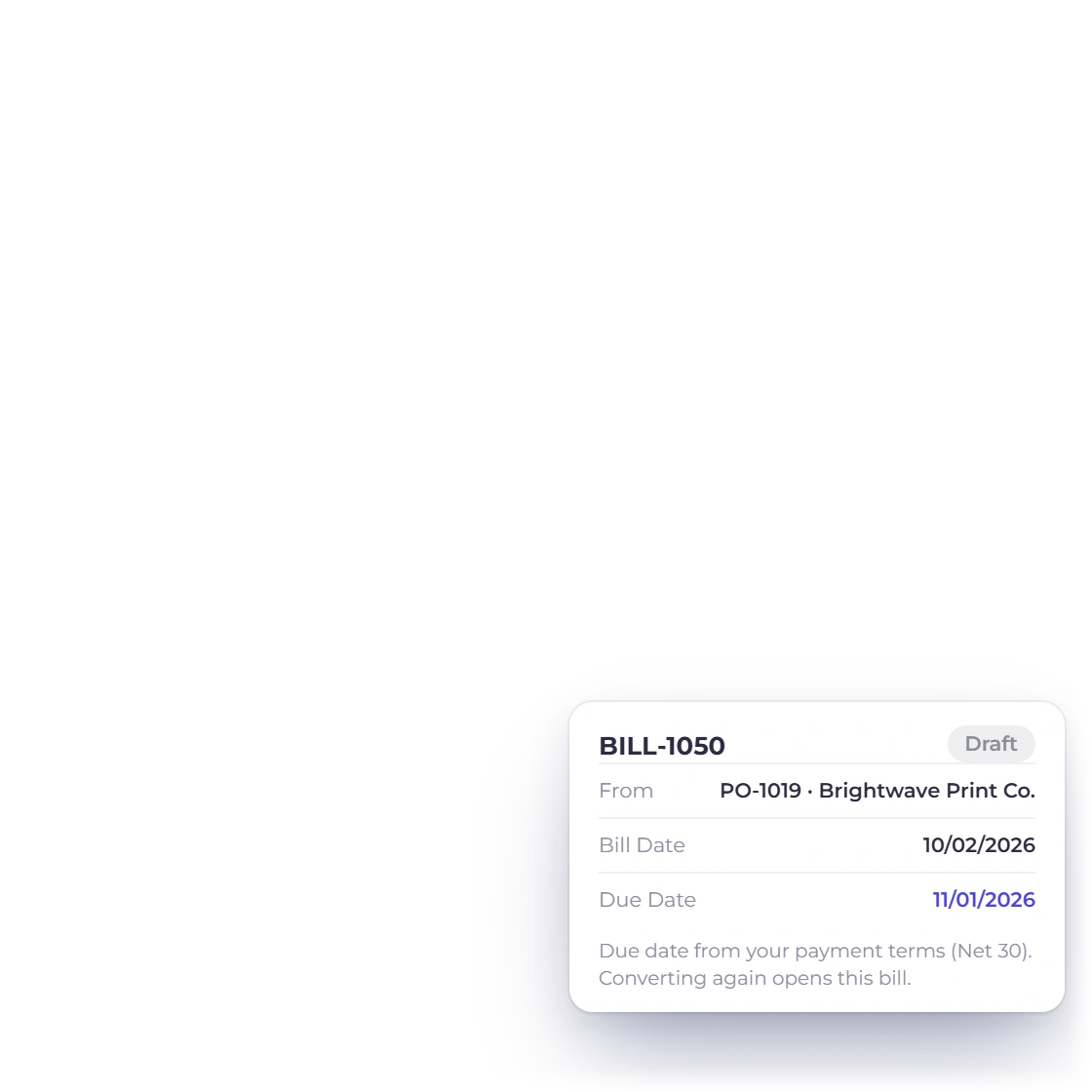
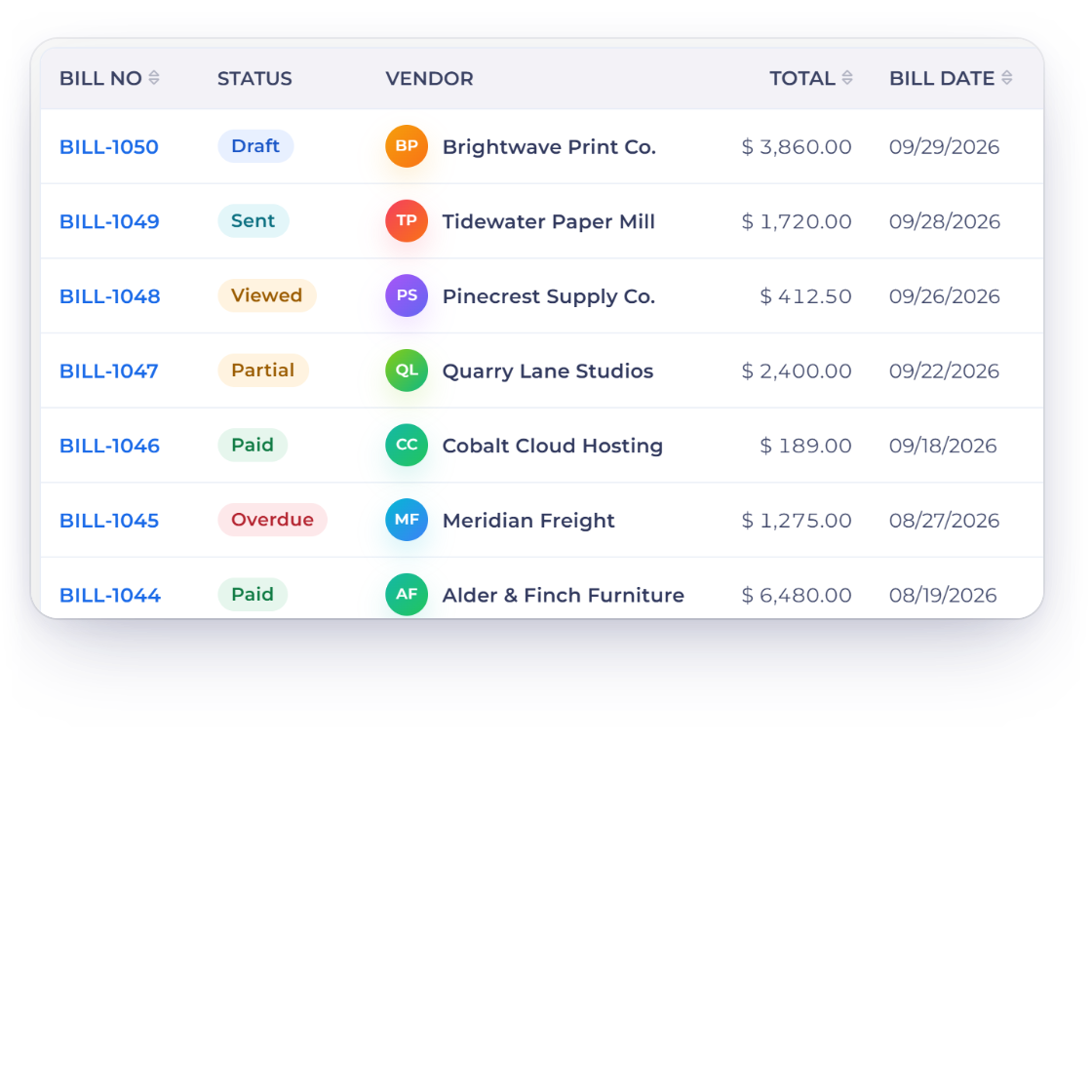
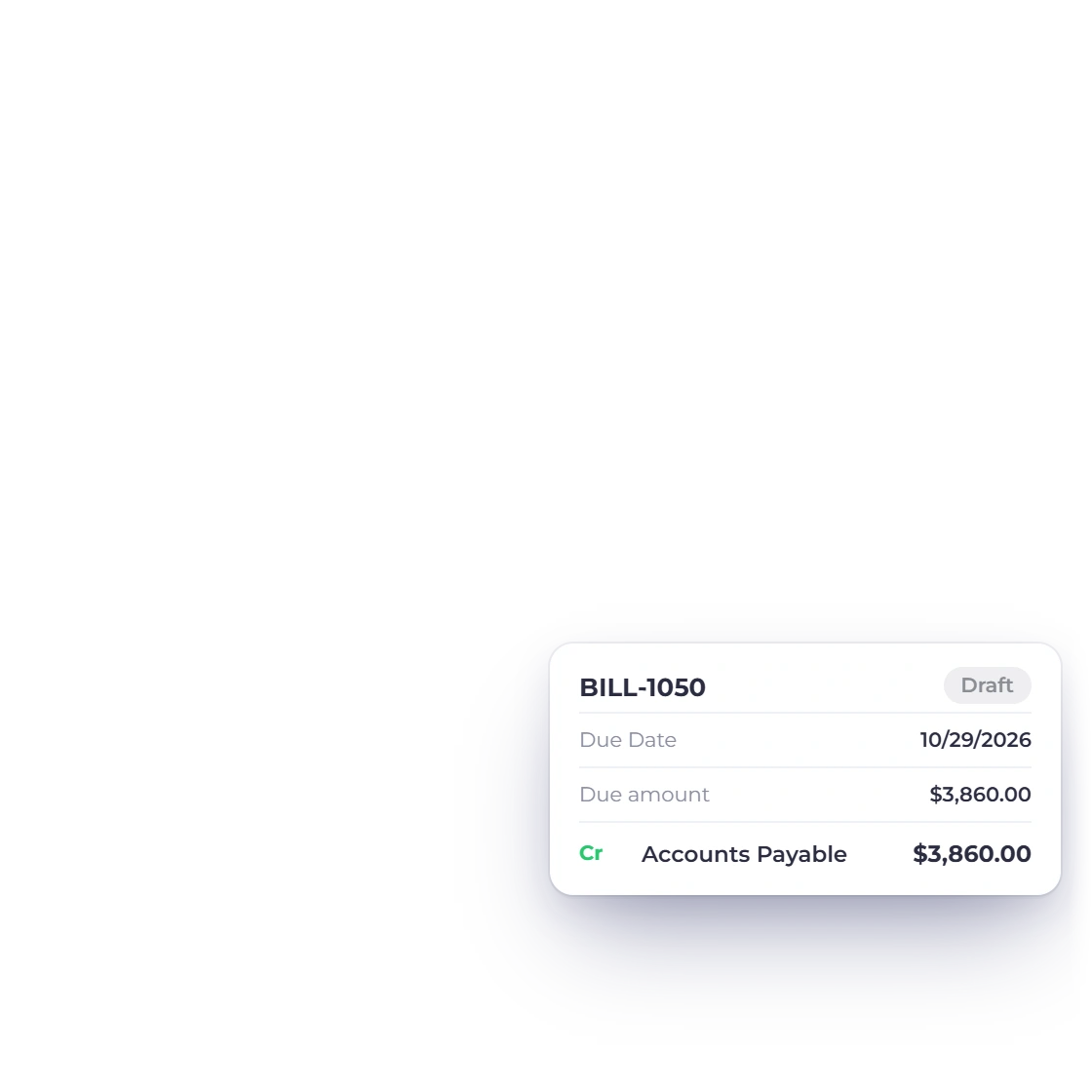
The draft bill Invoice Crowd creates from an approved purchase order, with its own bill number and a due date one month out.

Convert an approved order into a bill

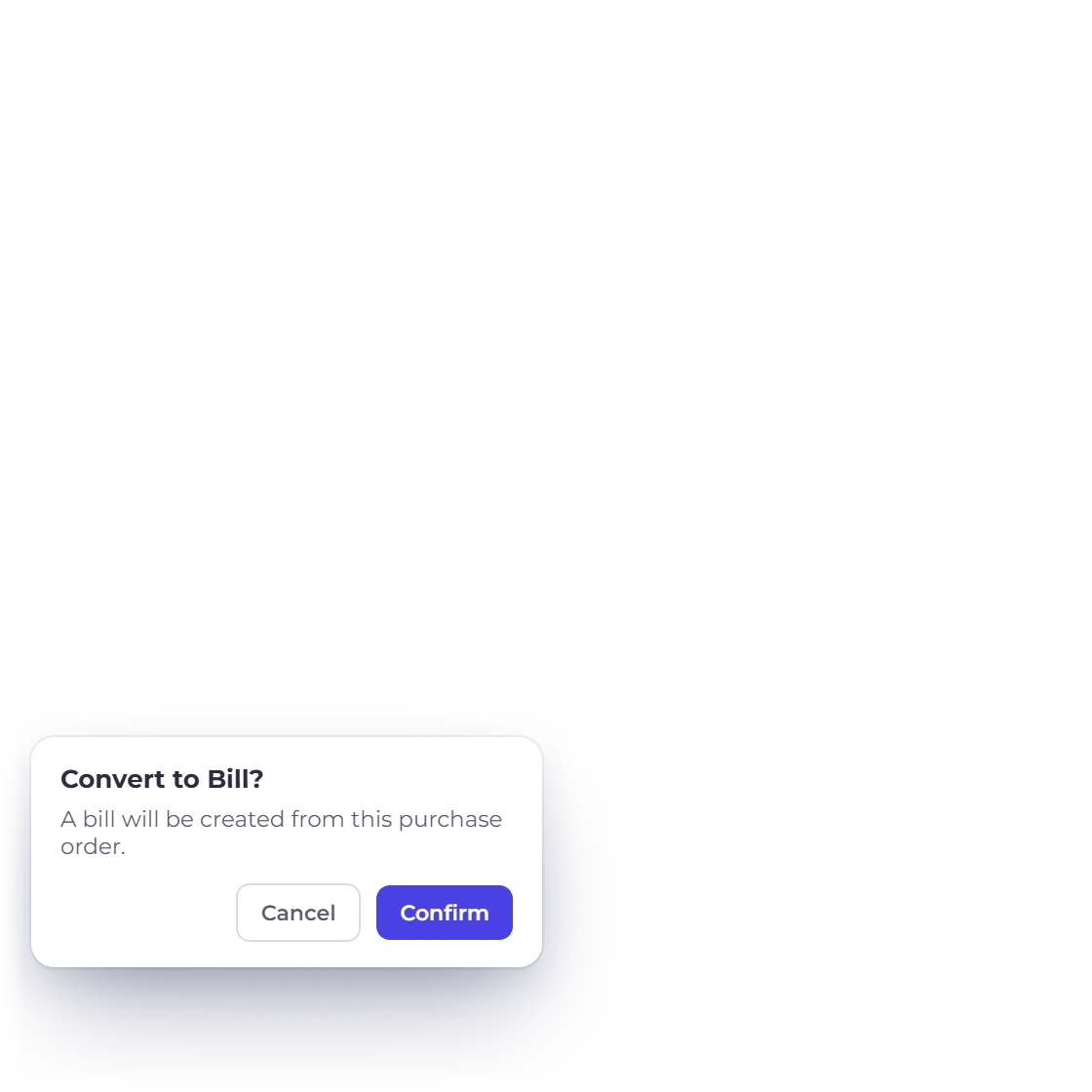
Converting is one action on an approved order, and it produces a new draft bill rather than changing the order. Line items, taxes and totals copy across unchanged. The bill gets its own B-prefixed number, a bill date set to the day you converted, a due date one month out, a due amount equal to the order total, and a link back to the order it came from.

  • Disabled on Draft, Sent and Viewed orders
  • The order stays Approved and is untouched
  • Bill accounting is generated as the bill is created

Where the money is actually tracked

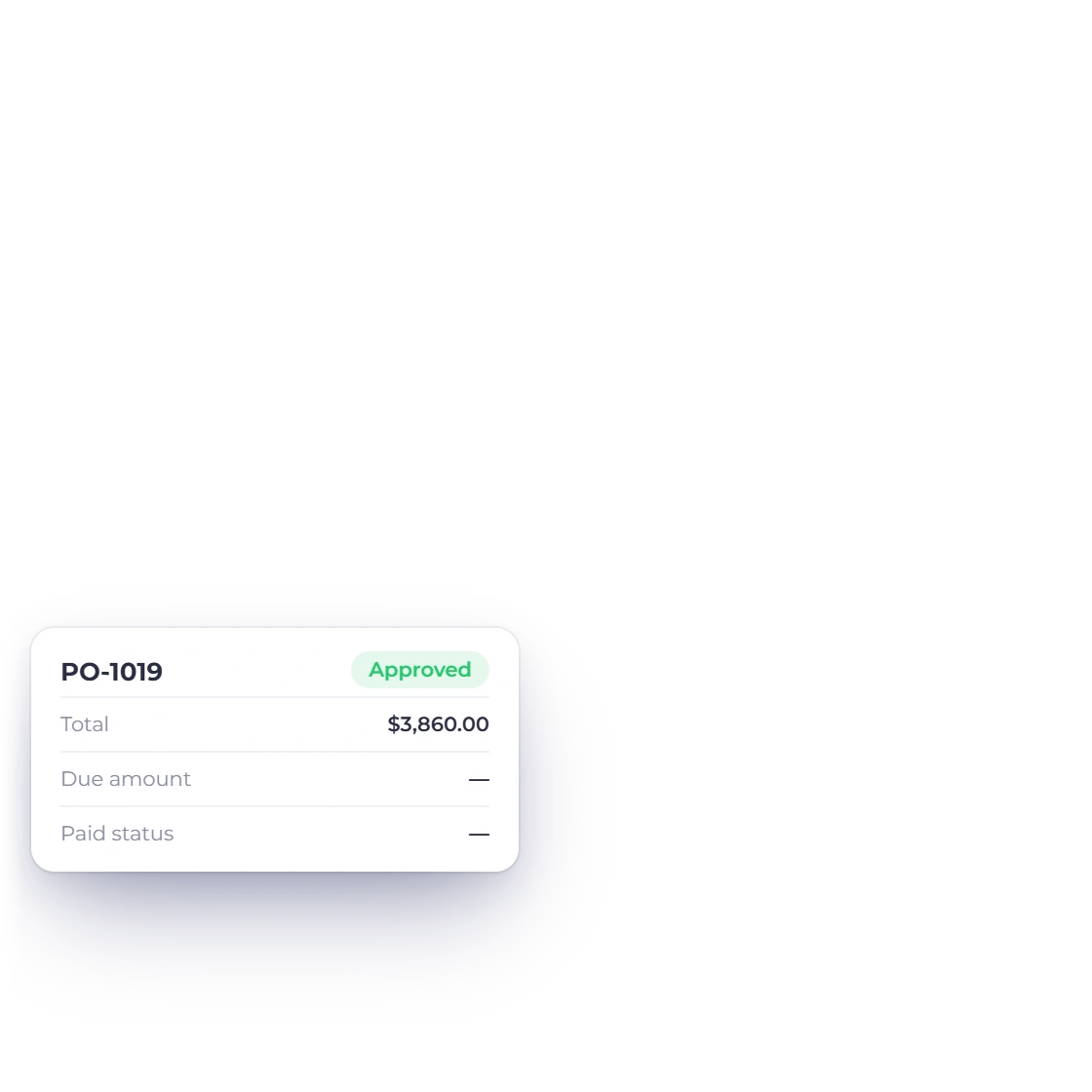
A purchase order carries no due amount and no paid status, so nothing is owed until the order becomes a bill. From there it reaches the books without a second user entry: the bill posts to the chart of accounts and the general ledger, and committed spend becomes recorded spend on the profit and loss statement. Purchase orders sit on eligible paid plans; the Lifetime Free tier redirects to billing.

  • Nothing is owed until the order is a bill
  • One bill for the whole order, no partial receipting
  • See the current plans and pricing

Built in

The rest of the purchase order screen

The list you work from, the settings behind it, and the boundaries worth knowing before you lean on purchase orders for something they were not built to do.

  • Six columns, sortable

    PO number, status, vendor, total, order date and last sent. Sort by number, total or date; search by PO number. Eight rows a page.

  • Filters that stick

    Filter by status, by one or more vendors, and by a date range, then lock the filters you use daily so they survive the next visit.

  • Actions on the row

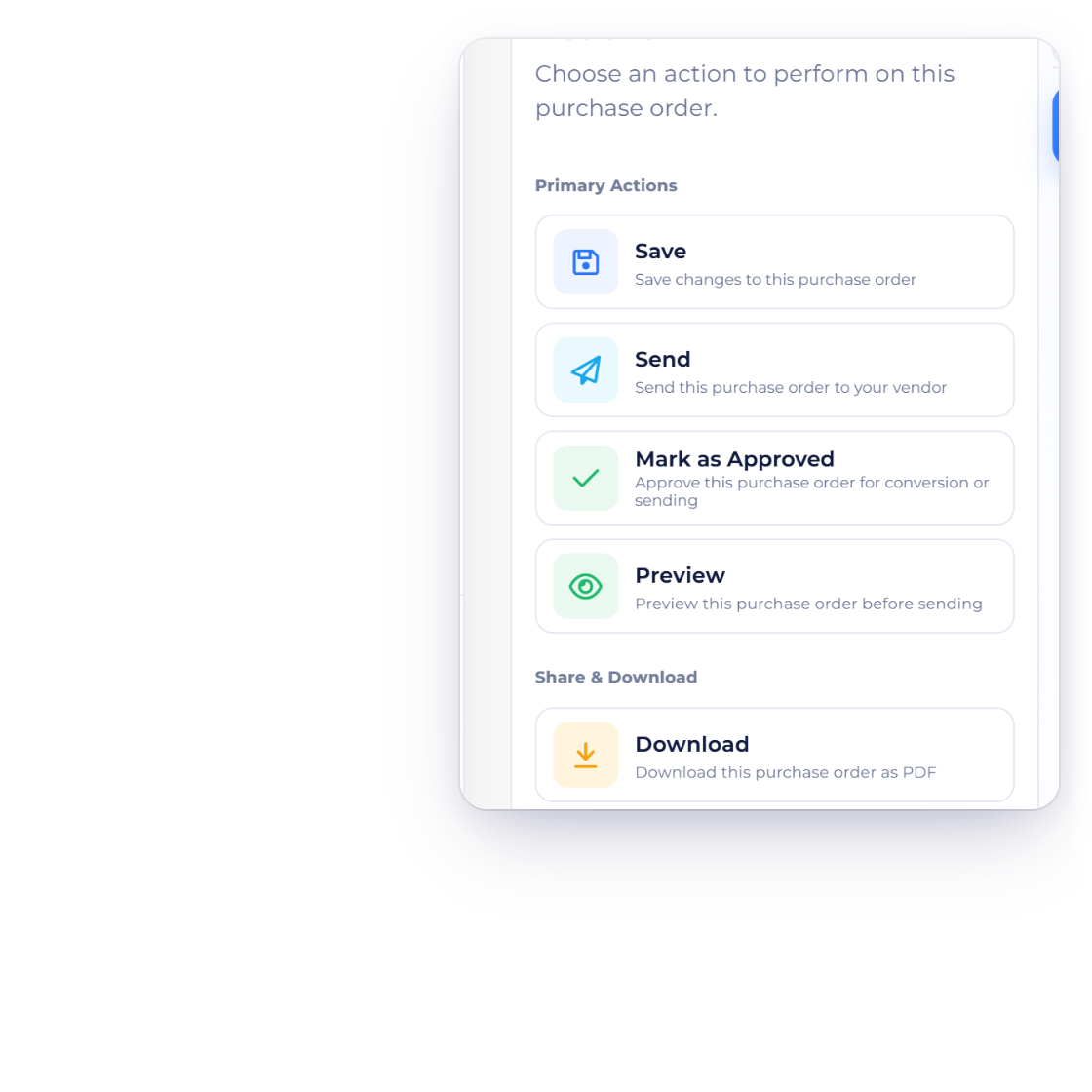
    Each row offers edit, send, preview, PDF download, copy public link, convert, mark approved, duplicate and delete. Select several rows and delete them together.

  • Duplicate a repeat order

    Duplicating produces a new Draft copy, which is how a repeat order to the same supplier gets raised without retyping the lines.

  • Convert on approval

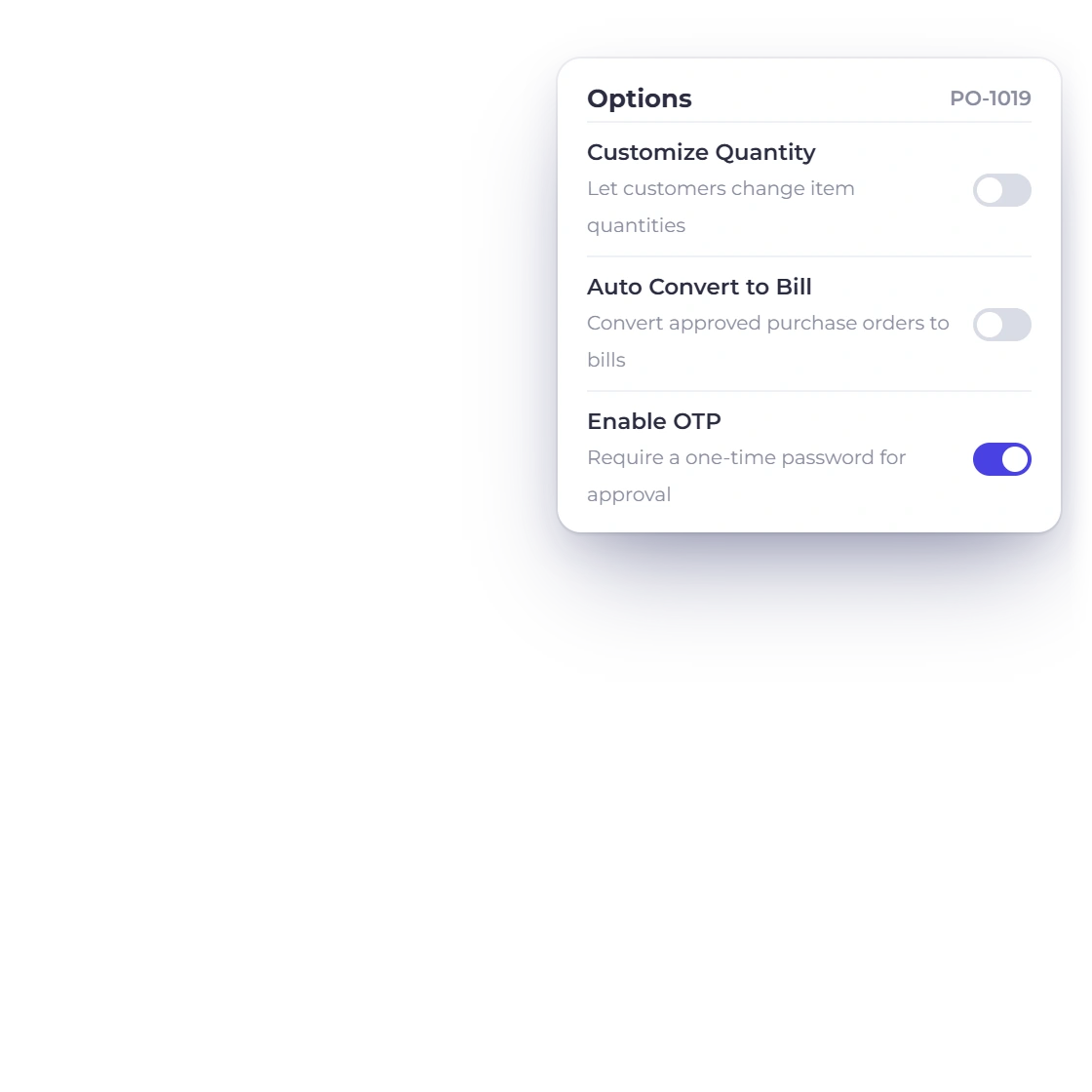
    Switch on auto-convert to bill in business settings and approving an order raises the bill in the same step instead of a second action.

  • No converted lock

    The order is not stamped as converted, so running Convert to bill twice creates two bills. Check the Bills list before converting again.

  • Numbering per business

    Every purchase order belongs to the business profile you are working in, so a second business keeps its own numbering, vendors and orders under one login.

  • Settings shape the editor

    Business settings decide what the purchase order editor offers: units on line items, custom fields, and whether lines can be removed.

  • Inventory start date

    Saving is refused when a tracked line sits on an order dated before your inventory start date. Conversion checks today's date against it instead.

  • Roles per action

    Create, edit and delete are separate permissions on the purchase orders screen, so a buyer can raise orders without being able to remove them.

  • What the vendor sees

    Invited vendors see their orders read-only: PO number, status, total, purchase date and last sent, with view and PDF download and nothing to change.

  • Deletion is final

    A deleted order goes from the list with the ordered quantities it wrote, and there is no recycle bin to restore it from.

Questions

Purchase Orders, answered

Does Invoice Crowd have purchase order software?

Yes. Invoice Crowd includes purchase orders as part of its purchasing side, alongside expenses, vendors and bills. You raise a purchase order against a vendor, send it by email or share the public link, mark it approved when the supplier agrees, and convert the approved order into a draft bill. Purchase orders are available on eligible paid plans rather than the Lifetime Free tier.

How do you convert a purchase order into a bill in Invoice Crowd?

Converting a purchase order in Invoice Crowd requires it to be at Approved status; the action stays disabled before then. One click copies the order into a new draft bill with its own B-prefixed number, the due amount set to the purchase order total, a due date one month out, and a link back to the originating order. The bill's accounting entries are generated at the same time. The purchase order is not marked as converted afterwards, so converting the same order twice creates two bills.

Do purchase orders update stock levels?

Saving a purchase order records an ordered quantity and a remaining quantity against tracked items, but does not change stock on hand. Stock increases when the resulting bill is saved, which is the point Invoice Crowd treats goods as received. Deleting a purchase order removes the ordered quantities it wrote, and re-saving an order rebuilds them from the lines on the document.

Which Invoice Crowd plans include purchase orders?

Purchase orders are not included in the Lifetime Free tier. Opening the purchase orders screen from that tier redirects to billing. They are available on eligible paid plans alongside bills, vendors and vendor credits; check the pricing page for the current plan details.

Can a vendor see the purchase orders you send them?

Vendors invited to the Invoice Crowd vendor portal get a read-only list of the purchase orders raised to them, showing PO number, status, total, purchase date and when it was last sent, with view and PDF download. Which sections a vendor sees is set per vendor and covers bills, purchase orders, payments made and vendor credits. A supplier without a portal login can still open the public link you send.

Can a purchase order be edited or deleted after it is approved?

An approved purchase order in Invoice Crowd can still be edited, but it cannot be deleted: Delete is withdrawn from the menu once the order reads Approved, which stops an agreed order quietly disappearing. There is no un-approve action either. Mark as Approved is greyed out on an approved order. Deleting an order before it is approved removes it along with the ordered quantities recorded against it, and there is no recycle bin to restore it from.

Commit to a supplier, then bill from what you agreed

Raise the order in the editor you already know, mark it approved when the vendor agrees, and one action turns it into the draft bill that posts to your ledger.

  • No card required to start
  • Your data stays yours
  • Cancel anytime