Skip to content

Migration guide

Move from QuickBooks to Invoice Crowd, step by step

Plan your QuickBooks to Invoice Crowd migration: review your exports, map your fields, run a test import and check the totals before you switch.

  • Your original exports kept safe
  • CSV and Excel mapping
  • Totals checked before you switch
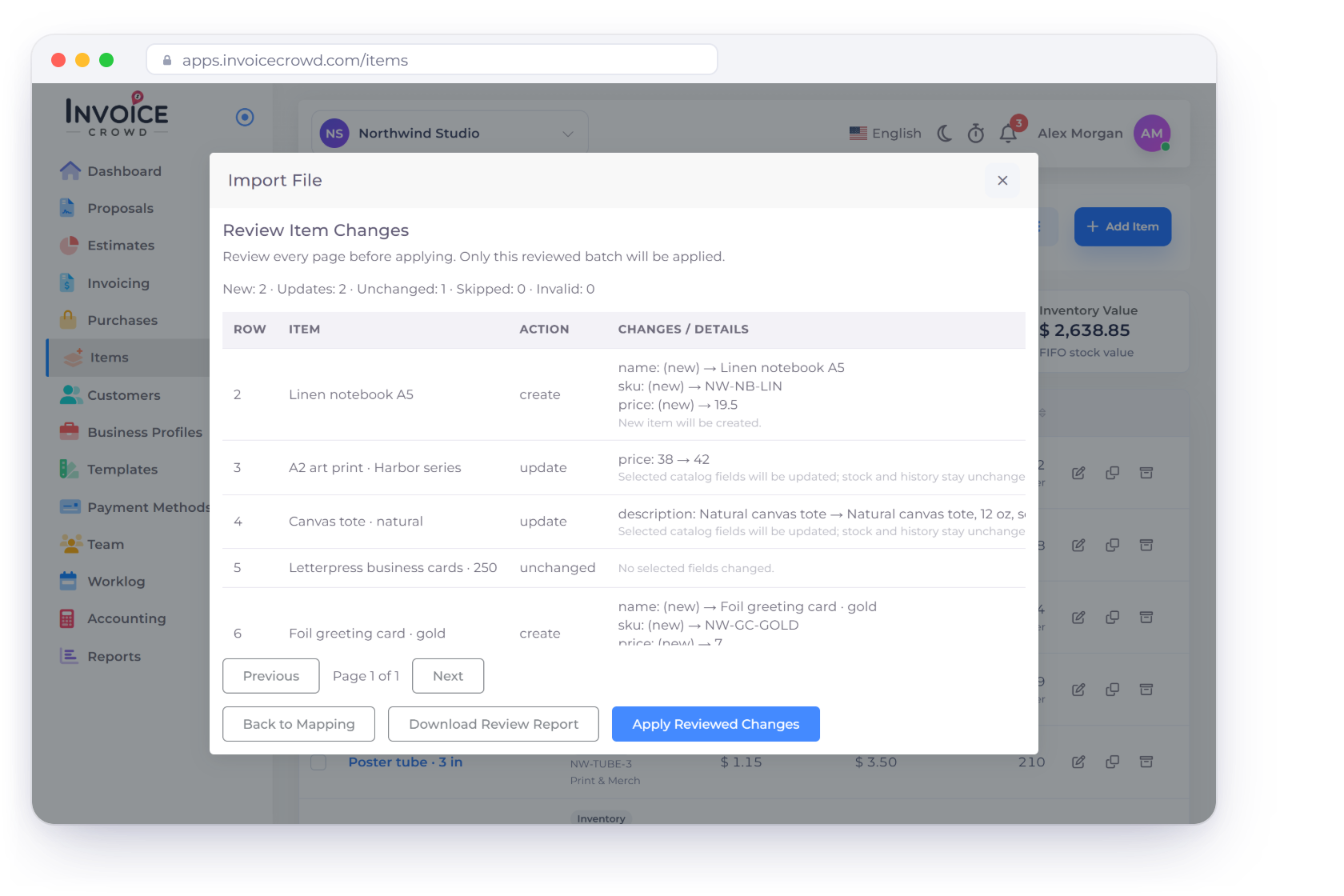
Invoice Crowd Review Item Changes step of an item import, listing the items to create, update or leave unchanged, before the reviewed batch is applied

A safe switch

Your migration plan, step by step

Invoice Crowd suits small businesses, agencies and independent professionals whose work centers on proposals, invoices, purchasing, projects and time.

Keep your originals first

Your old account remains the record of your history.

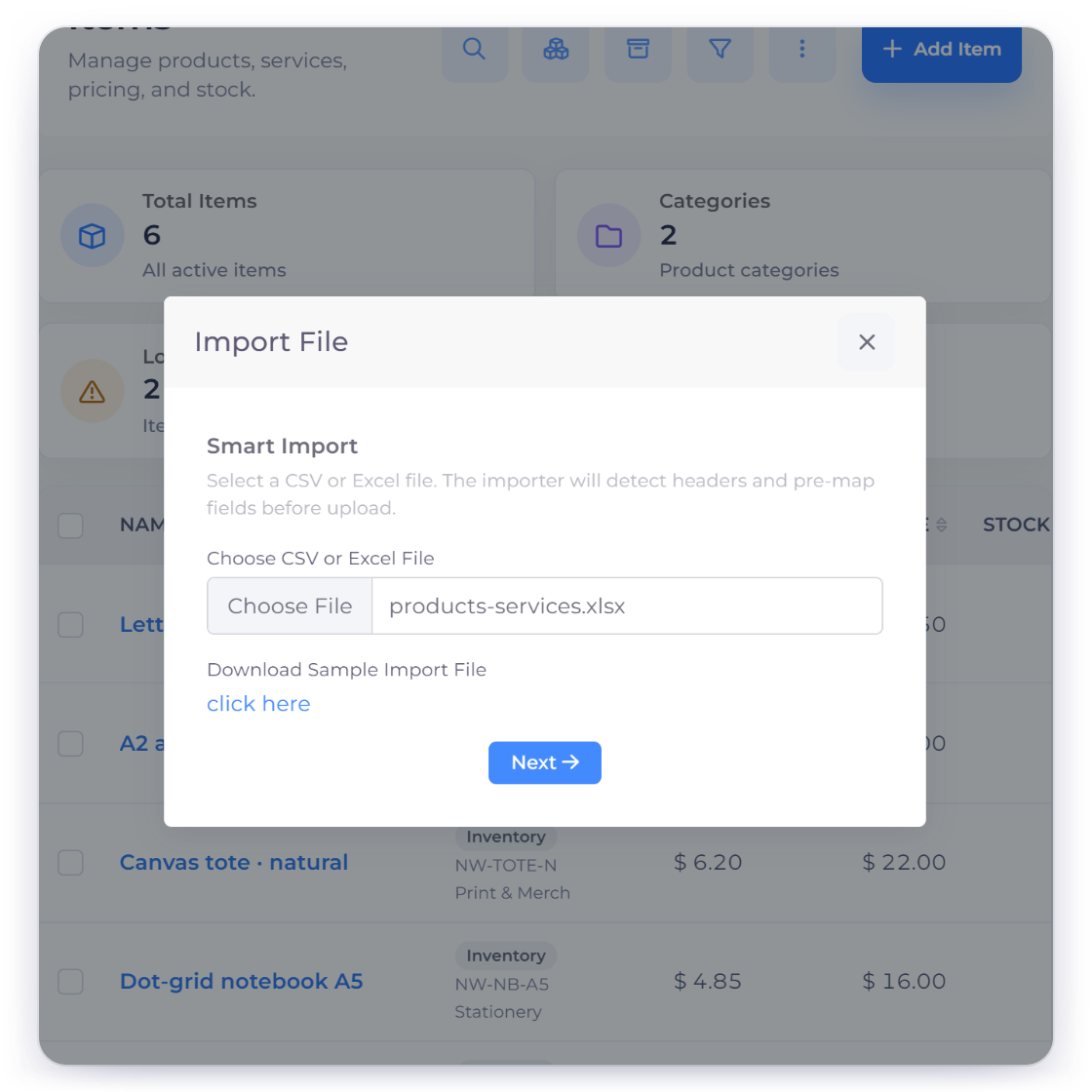
Invoice Crowd Smart Import step for items with a products and services spreadsheet chosen, while the original company file and exports stay archived

Build an archive of your old records

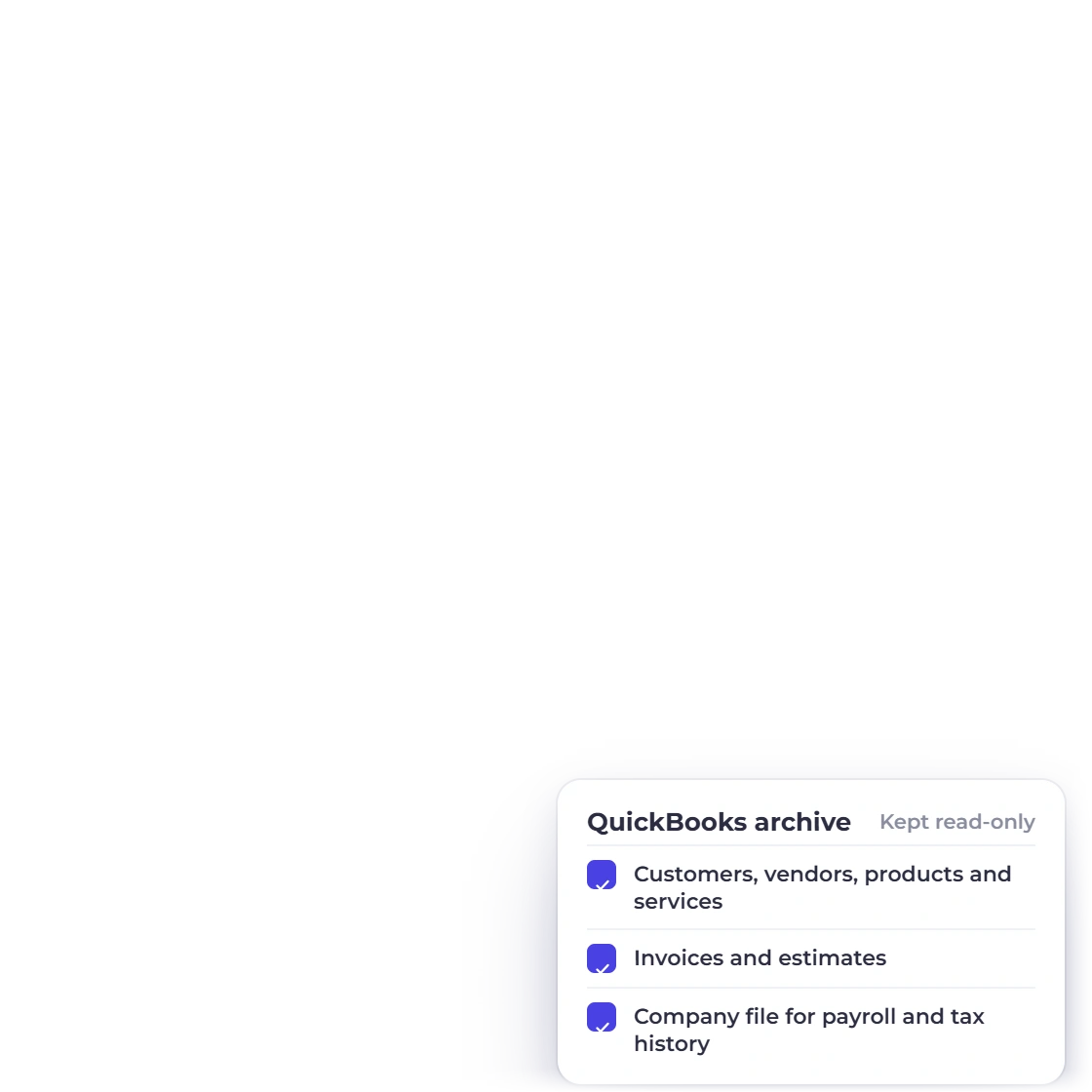
Export the customer, vendor, product/service, invoice and estimate data you intend to carry forward. Keep your QuickBooks company and export files available for historical detail, attachments, payroll, tax filings and audit support.

  • Dated original exports
  • PDFs and attachments
  • Source access retained

Decide what comes across

Choose which records you will work with in Invoice Crowd and which stay in your archive. Note the switch date, who owns each step and how long records must be kept.

  • Records you work with
  • Records you archive
  • Who keeps what

Prepare and test

Invoice Crowd reads CSV, TXT, XLS and XLSX files and suggests the column mapping.

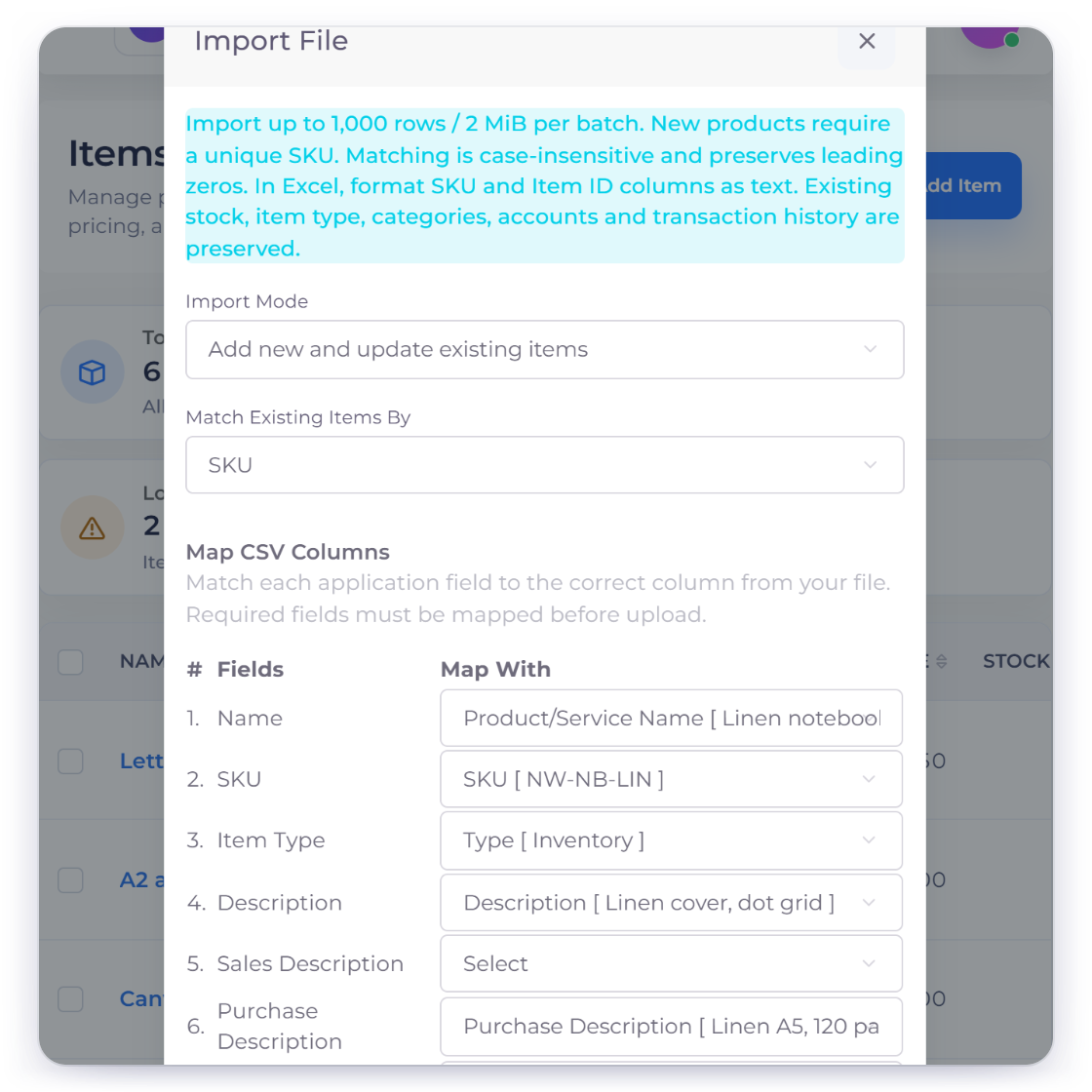
Invoice Crowd item import set to add new items and update existing ones matched by SKU, with product name, description, category, price and cost mapped to file columns

Map your records

Import items, customers, vendors, invoices and estimates. Invoice Crowd suggests the columns, and you review required fields and warnings before anything is imported.

  • Customers and vendors
  • Items
  • Invoices and estimates

Start with a test file

Include duplicate names, foreign currencies, taxes, discounts, long descriptions and open documents. Then check the preview and the skipped rows to see exactly what came through.

  • The awkward cases
  • Preview and warnings
  • Skipped-row report

Check the totals and switch

Switch once the totals agree and each step has an owner.

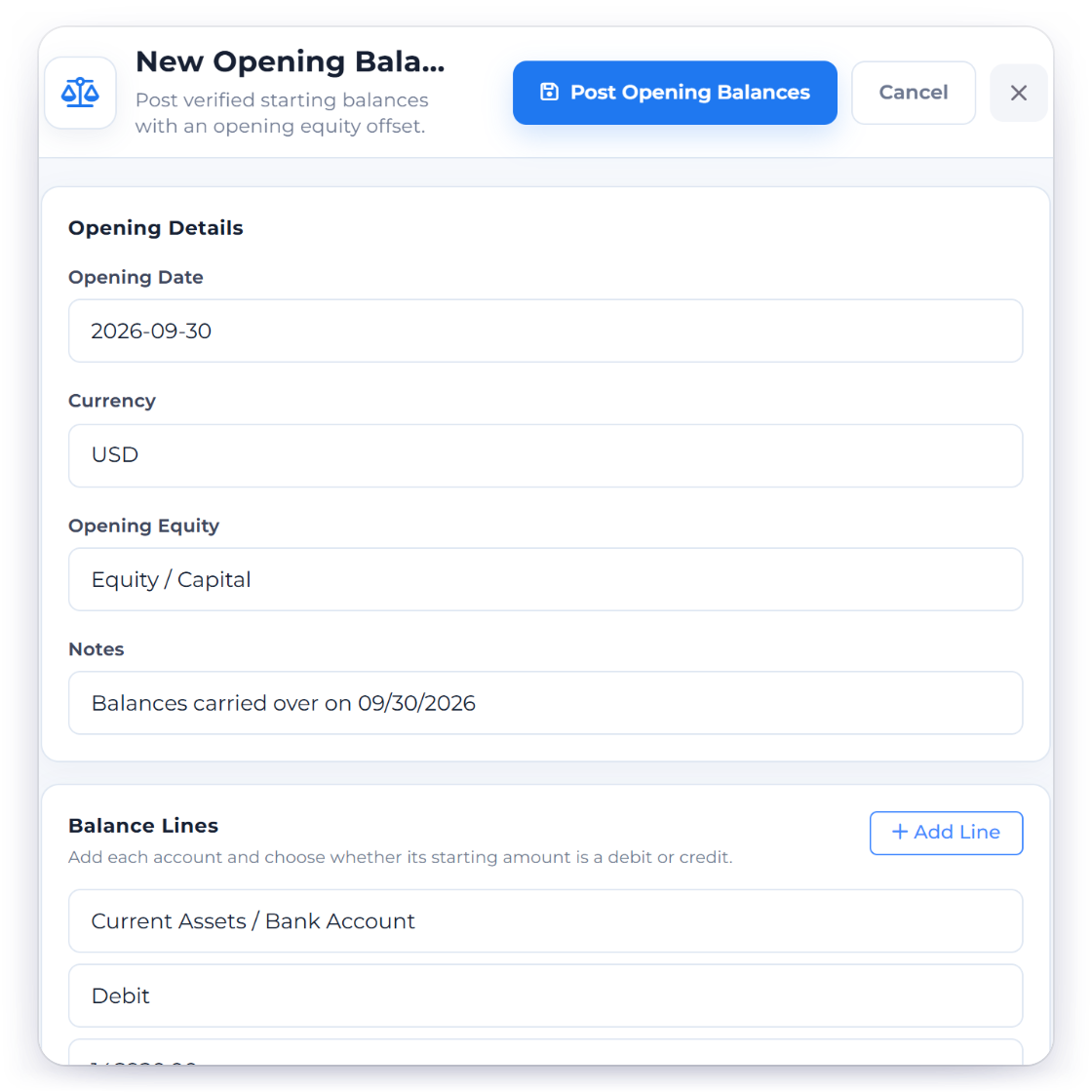
Invoice Crowd New Opening Balance drawer with bank, receivables, prepaid and payables balances entered for the cutover date and the offset to opening equity

Check what came across

Decide how to handle your QuickBooks classes, locations, inventory valuation, payroll, sales-tax detail, reconciliations, credits, journal history and attachments. Keep what you need in your archive and confirm opening balances with an accountant.

  • Counts and totals
  • Open document balances
  • Currencies and tax

Make the switch

Pause new entries in your old system and take final exports. Import the last changes, check opening and open-invoice totals, and keep a fallback plan before you invite the wider team.

  • Final dated export
  • Approved opening balances
  • A fallback plan and your archive

Migration checklist

What to gather before you switch

Work through this checklist with the people who handle your bookkeeping, operations, record keeping and customer communication.

  • Source archive

    Keep dated copies of your exports and access to your old account.

  • Supported files

    Use CSV, TXT, XLS or XLSX files within the upload size limit.

  • Customers

    Map customer names, contact details and required fields.

  • Vendors

    Map supplier names and contact details.

  • Items

    Map product and service fields with care.

  • Invoices

    Preserve document number, dates, customer, currency, lines, tax, discounts and totals.

  • Estimates

    Bring across the quote number, dates, customer and line details.

  • Preview

    Review detected headers, suggested mapping, required fields and sample rows.

  • Warnings

    Fill in missing required fields before you run the import.

  • Skipped rows

    Download and review any rejected records.

  • Reconciliation

    Match open documents, customer balances and approved opening totals.

  • What stays behind

    Record what remains in QuickBooks and why.

Questions

QuickBooks migration, answered

How do I move from QuickBooks to Invoice Crowd?

Export your data from QuickBooks as CSV or Excel files and import them into Invoice Crowd, which takes items, customers, vendors, invoices and estimates. Keep older history in your archive, or rebuild what you still need.

Which file types can I upload?

Invoice Crowd imports CSV, TXT, XLS and XLSX files within the upload size limit. Item imports take up to 1,000 rows or 2 MB at a time.

Which records can I import into Invoice Crowd?

Invoice Crowd imports items, customers, vendors, invoices and estimates. Item imports show a full preview first, so you can fix any invalid row before the batch goes through. Bank reconciliation has its own import.

Should I close the old account after importing?

Not straight away. Keep your old account and exports until your financial, tax, contract and audit record-keeping needs are covered and every significant balance has been reconciled.

How do I know the migration worked?

Check the field mapping, warnings, imported rows, a sample of documents, open balances, currencies, taxes and opening totals. When these agree with your old system, the migration has worked.

What happens to data with no matching field in Invoice Crowd?

Note it in your migration plan, then keep it in your archive, attach it to the record in Invoice Crowd, or rebuild it by hand.

Test with copies before moving live work

Create your archive, prepare a test file, check warnings and skipped rows, and reconcile the result before you switch.

  • Source history preserved
  • Review every column mapping
  • Totals checked before you switch