

Skip to content

Features

Issue a credit note, then apply it to an invoice or refund it

Raise a credit note on its own or straight from the invoice you over-billed, and Invoice Crowd gives it its own CN number and its own balance. Apply that balance to an open invoice for the same customer in the same currency, or record a refund, and the invoice due, the credit balance and the ledger trail update together.

  • Apply to an invoice or refund
  • Balance drawn down as you use it
  • Ledger entries posted with it

Last updated:

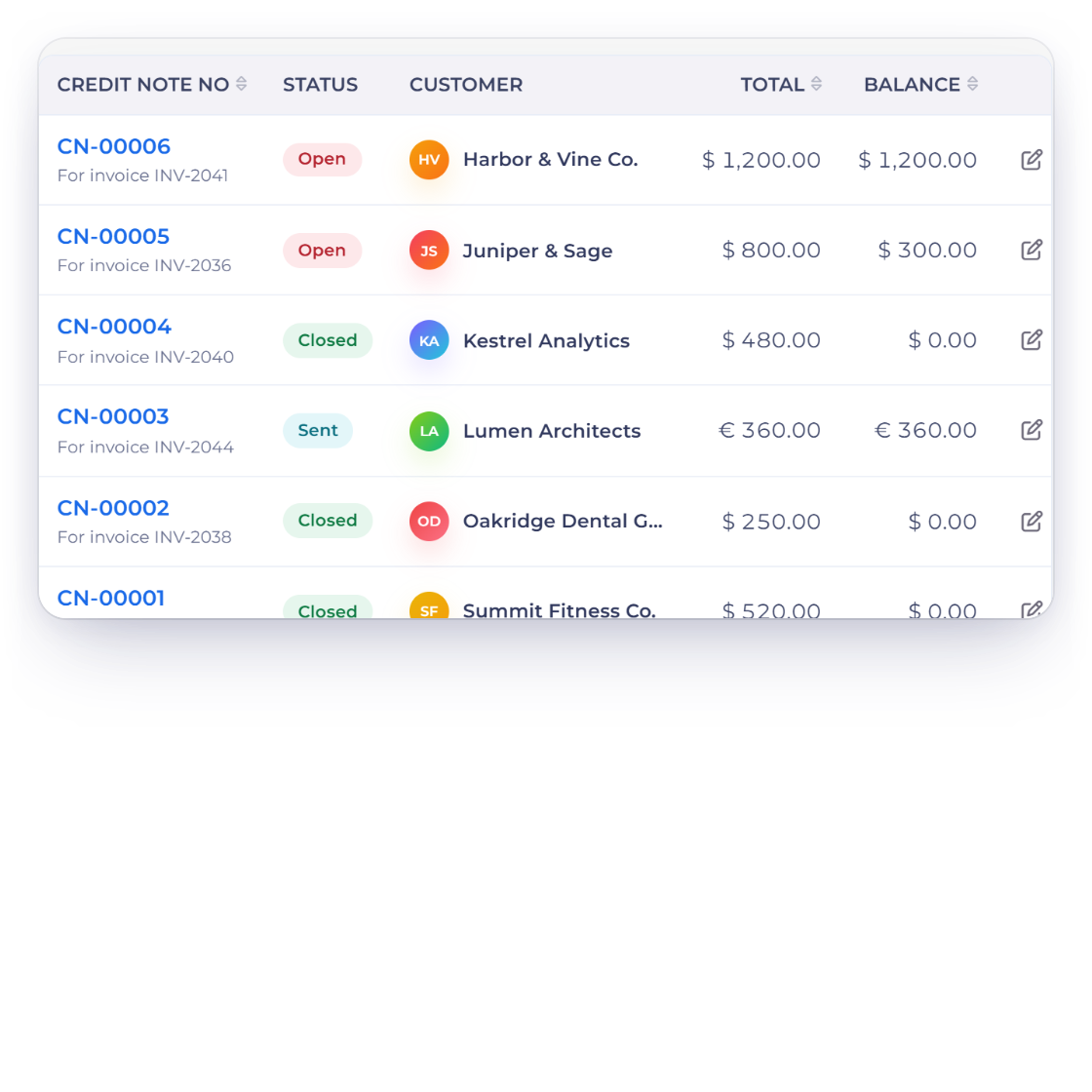
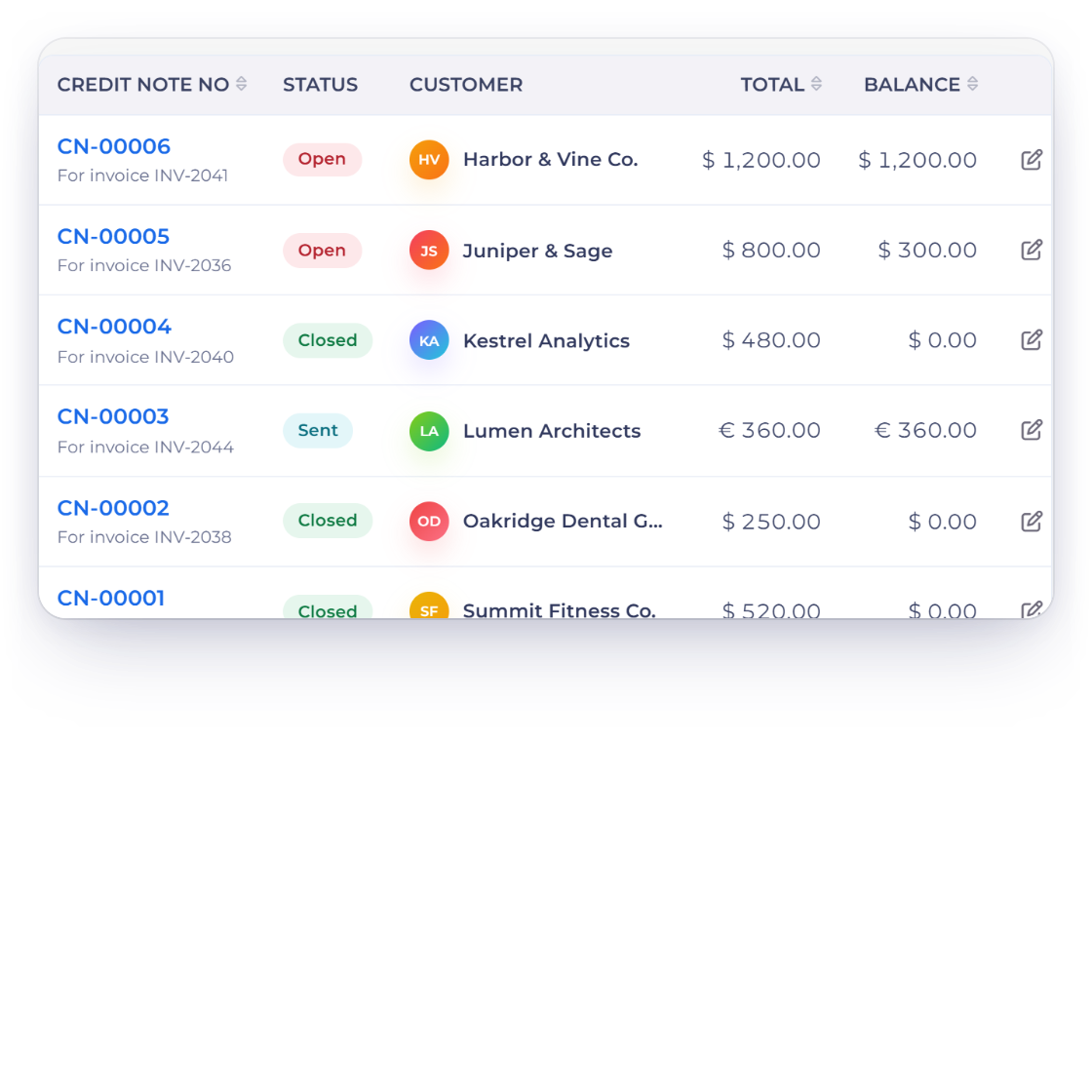
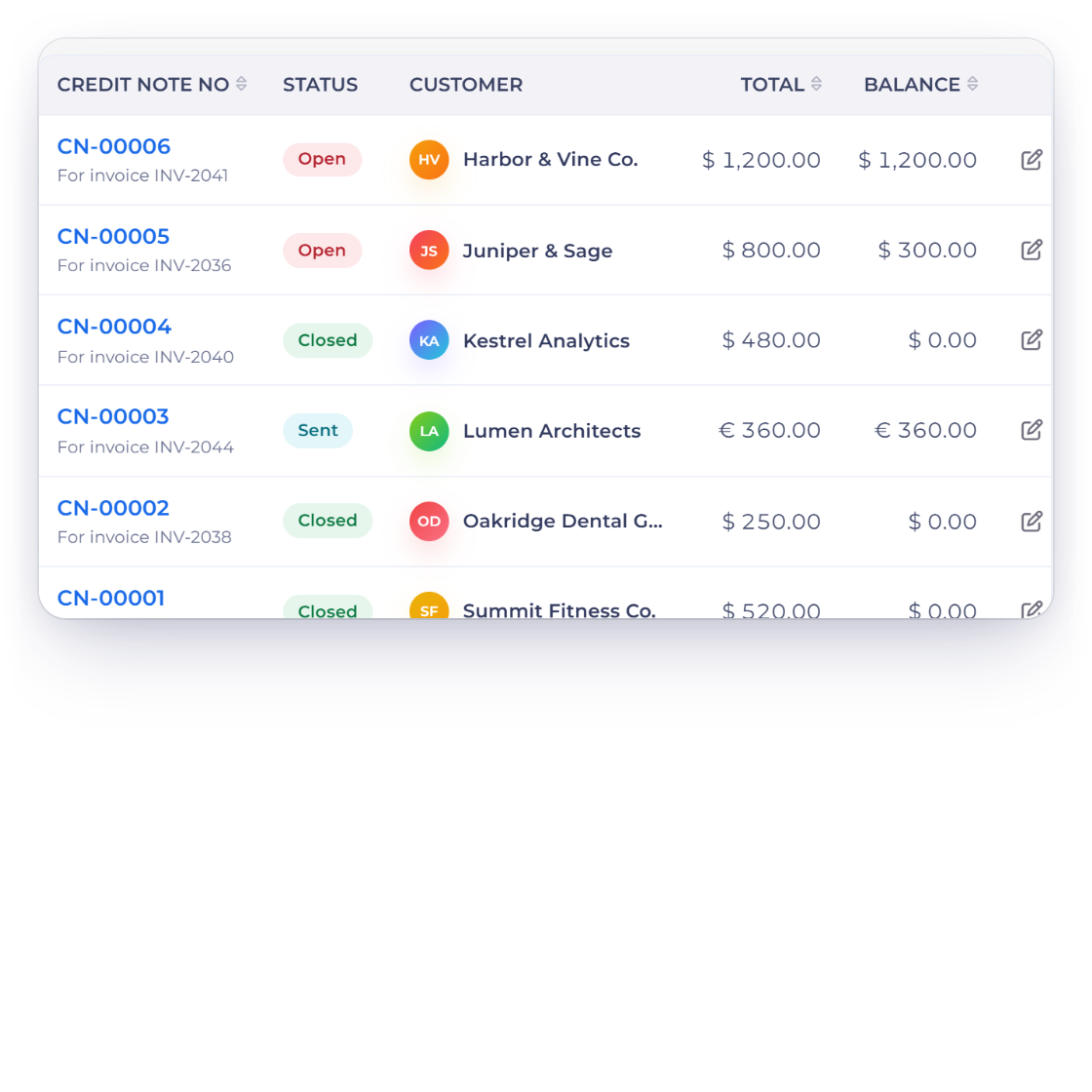
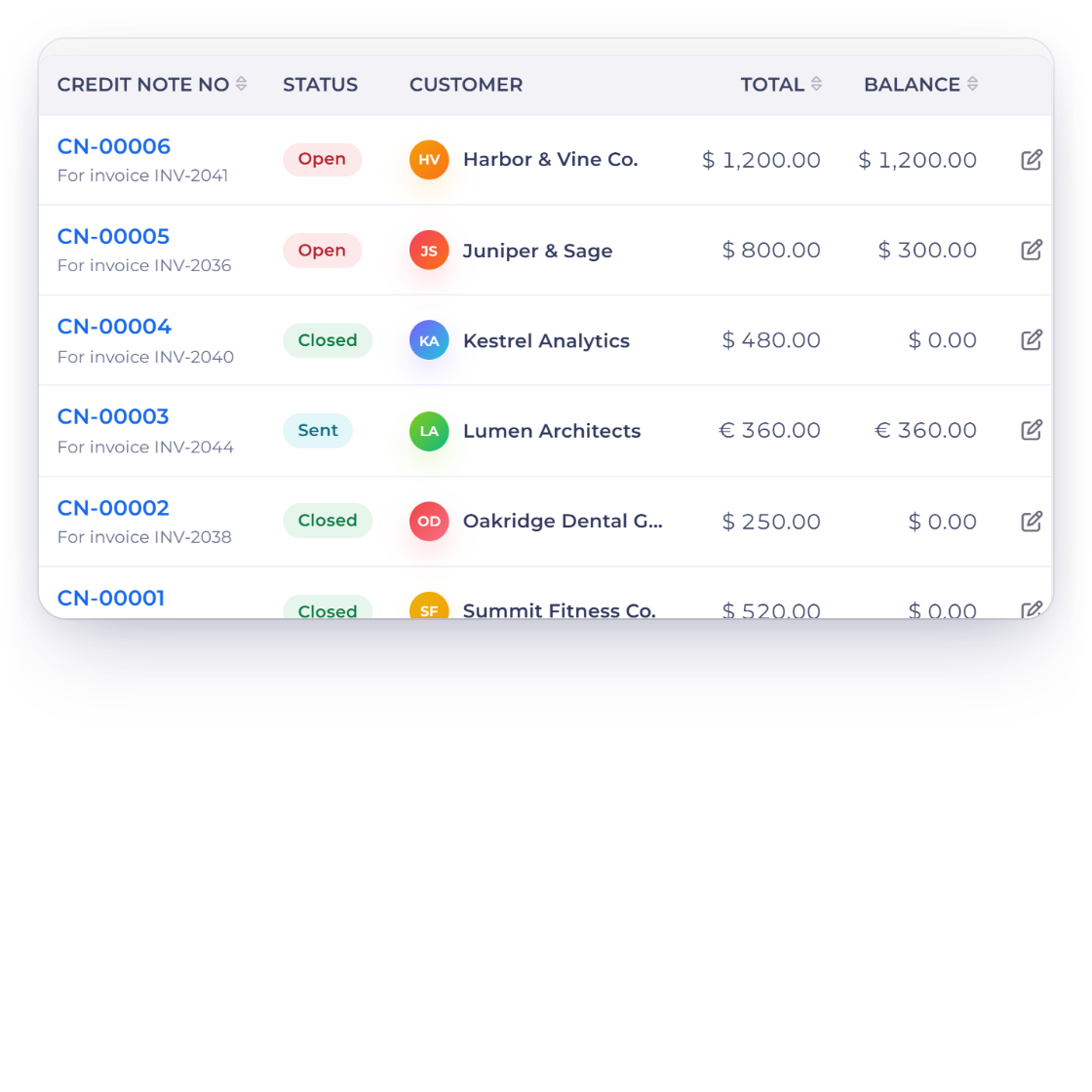
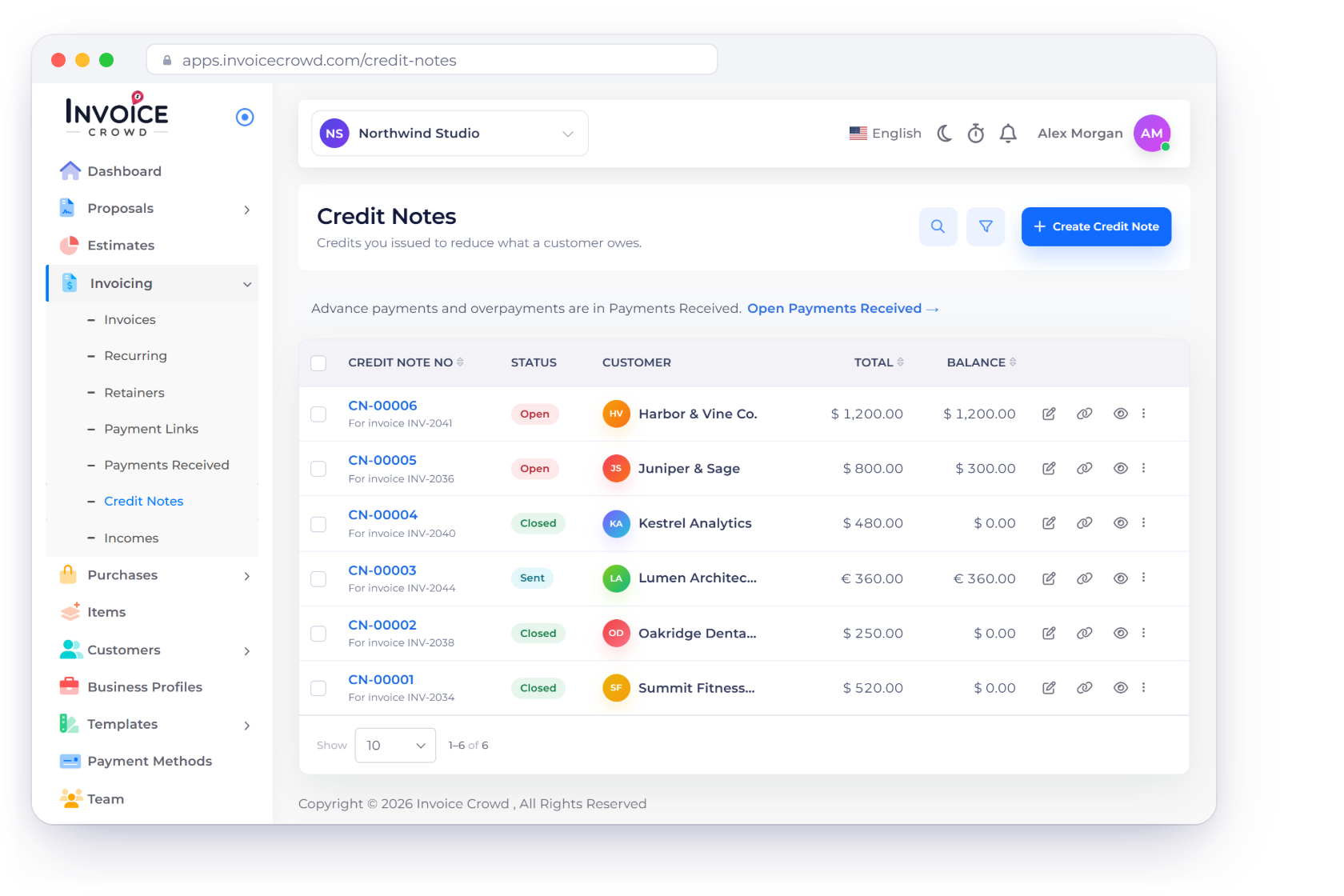
The Credit Notes list in Invoice Crowd, showing each note's total alongside the credit balance still available to apply or refund.

What is inside

Raise the credit, then decide where it goes

A credit note is money you owe back to a customer. Invoice Crowd gives it its own number and its own balance, then lets you spend that balance against an open invoice or refund it, with the ledger following either way.

Raising it

Blank, or from the invoice

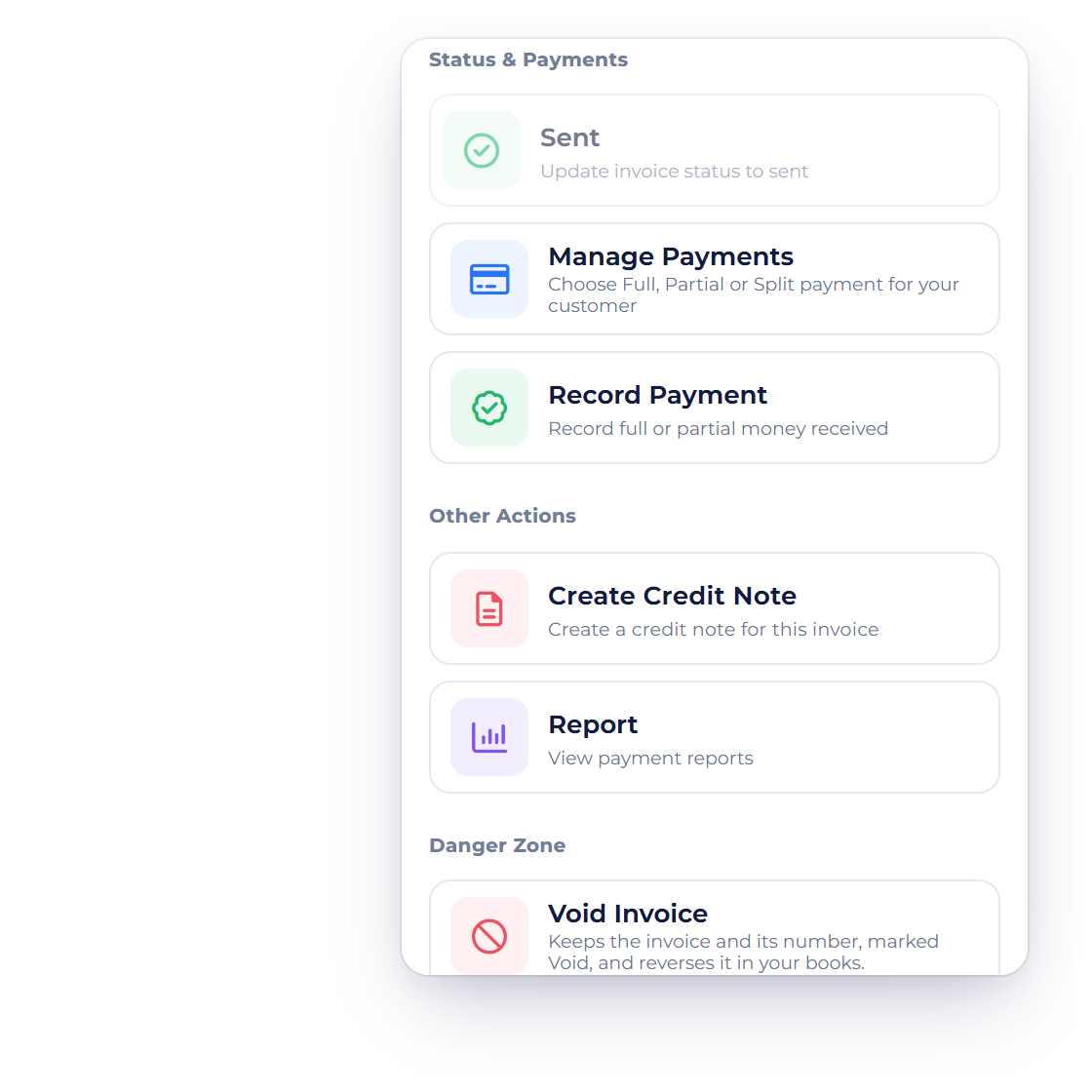
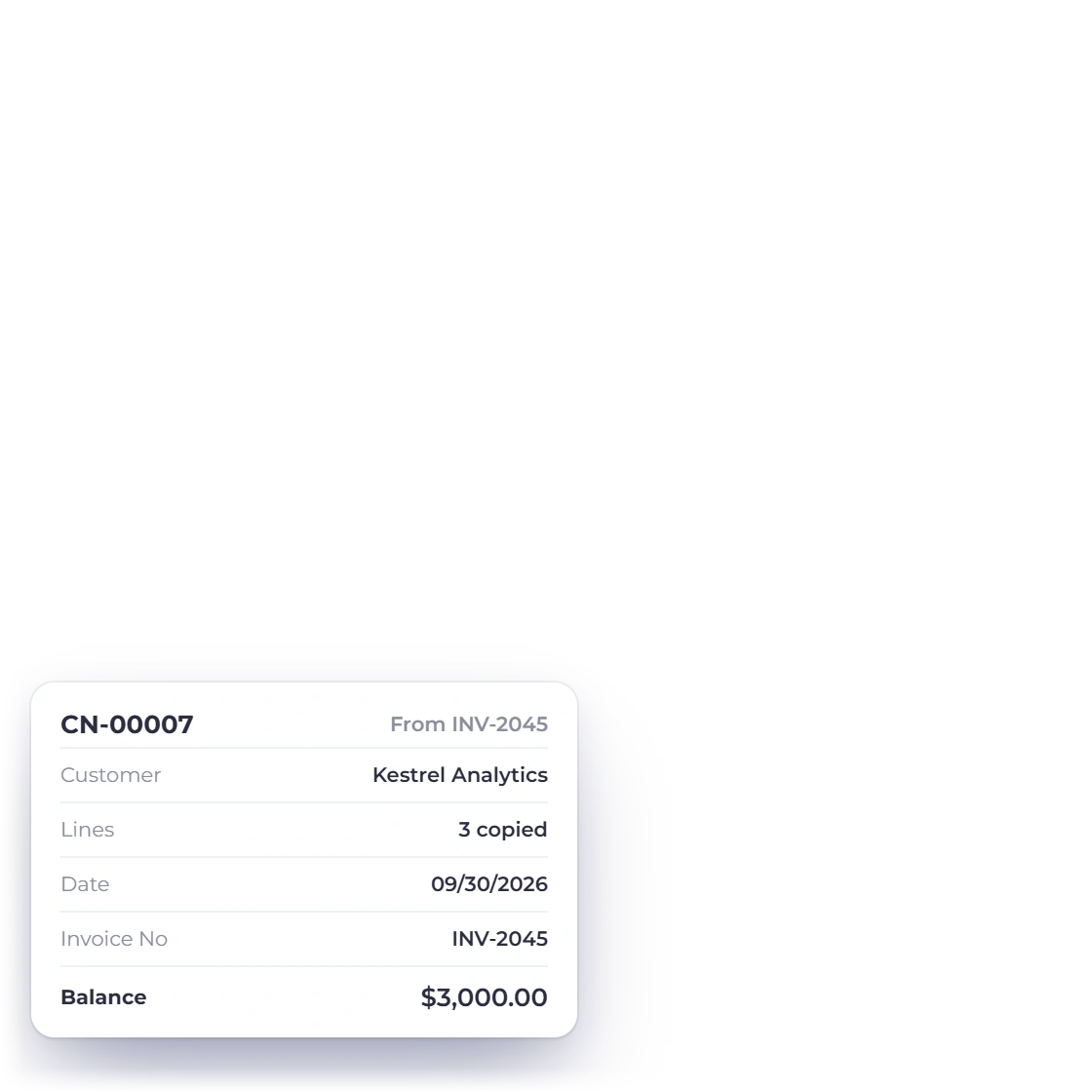
Raising a credit note from an invoice in Invoice Crowd, with its own CN number and the source invoice recorded on it.

Two routes into a credit note

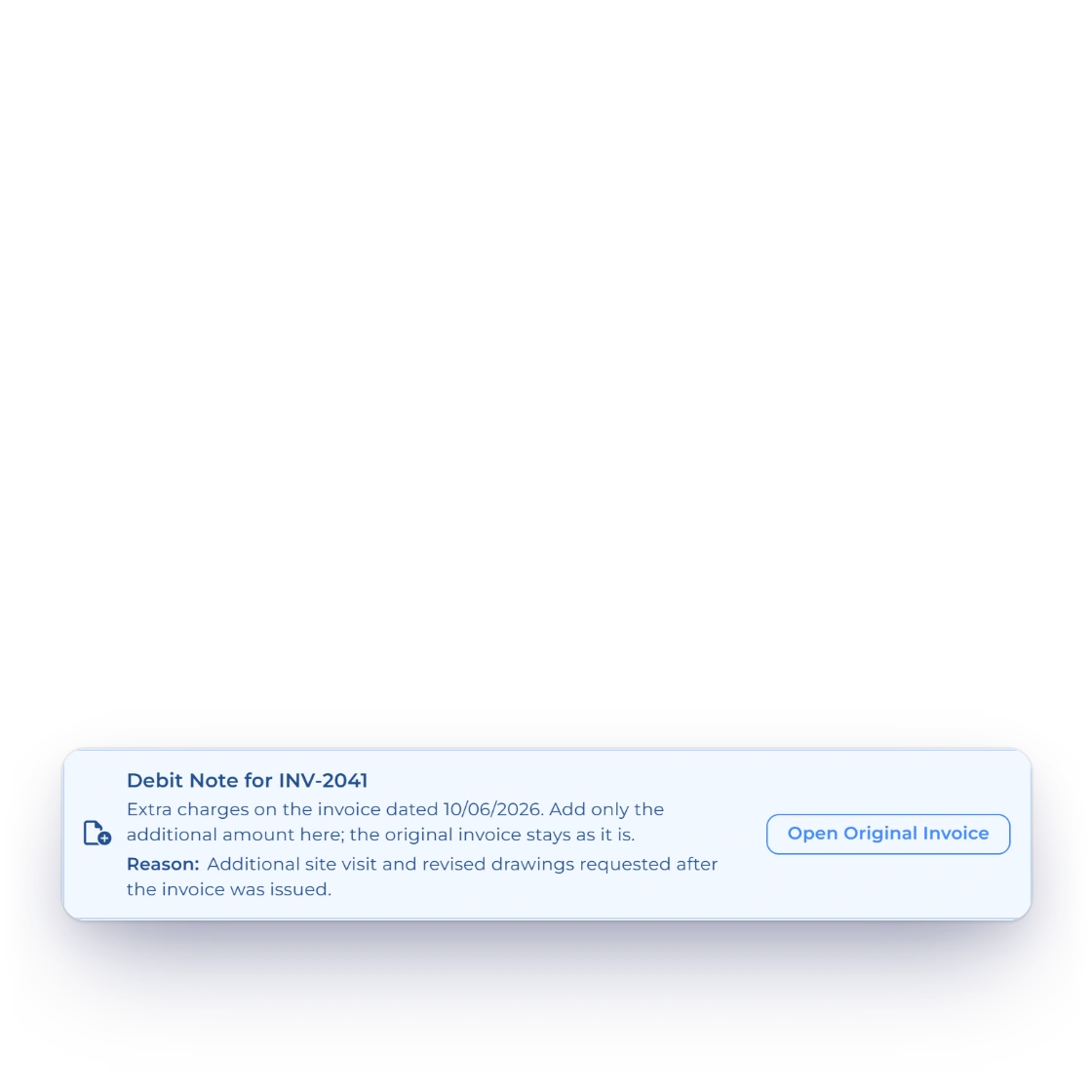
Start a blank credit note from the plus button on the Credit Notes list, or open the invoice you over-billed and choose Create Credit Note. That second route copies the customer, the lines and the totals into a credit for the full amount, dates it today, and fills the Invoice No. column with the invoice it came from. Neither route emails the customer anything, so use the editor's send actions when they should have a copy.

  • A blank note opens on your default template
  • Opening balance set to the invoice total
  • Source must be a plain customer invoice

Its own number, its own balance

Credit notes use the same editor as invoices, with the same customer picker, line items, taxes, templates, preview and PDF, but they number on an independent five-digit sequence such as CN-00001, so your invoice prefix never carries into the credit series. Each note carries a Balance, which is the credit not yet used, and that figure is what the status and every later action read from.

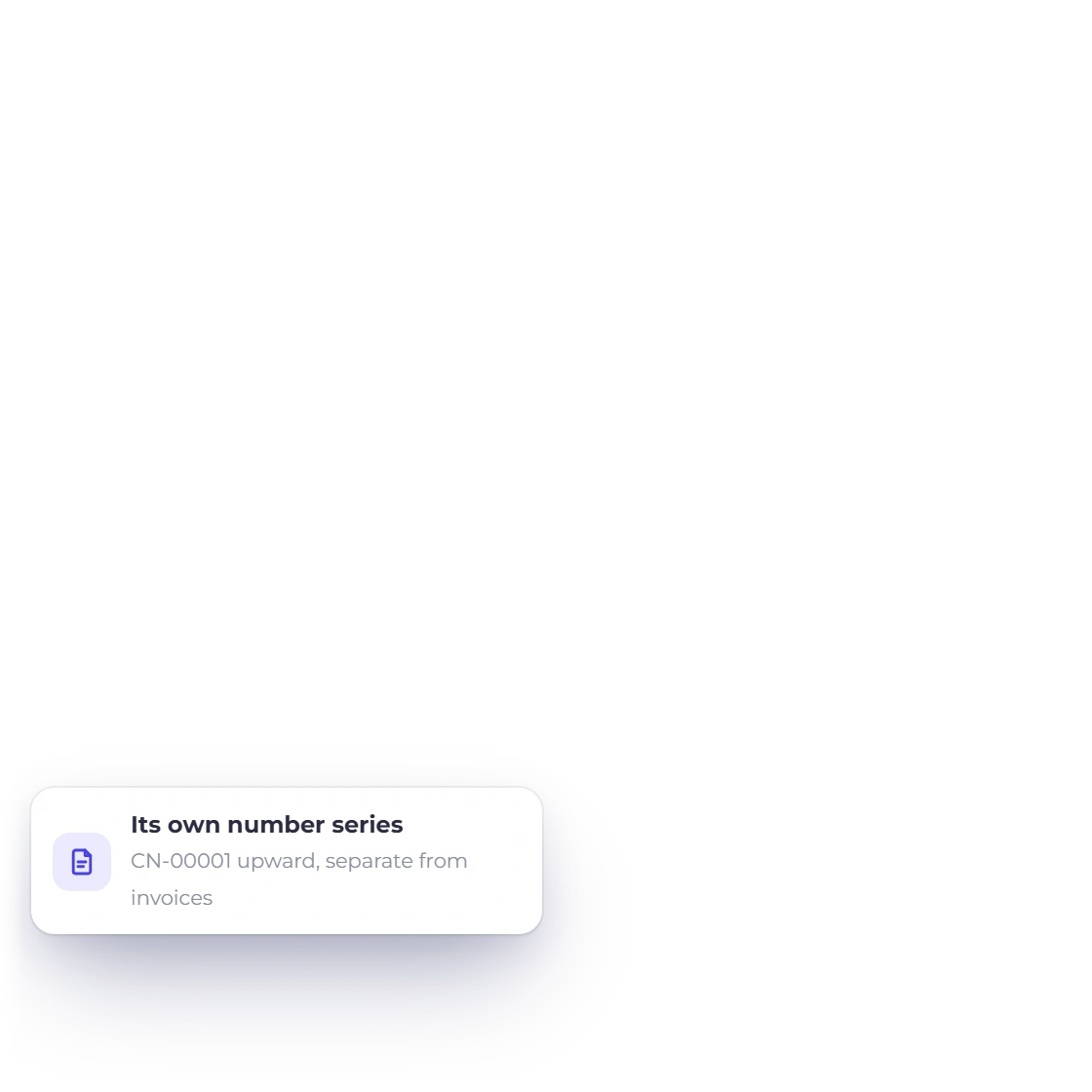
  • Numbered CN-00001 upward, separate from invoices
  • Total and Balance sit side by side on the list
  • Not included in the Lifetime Free tier

Applying it

Capped at both balances

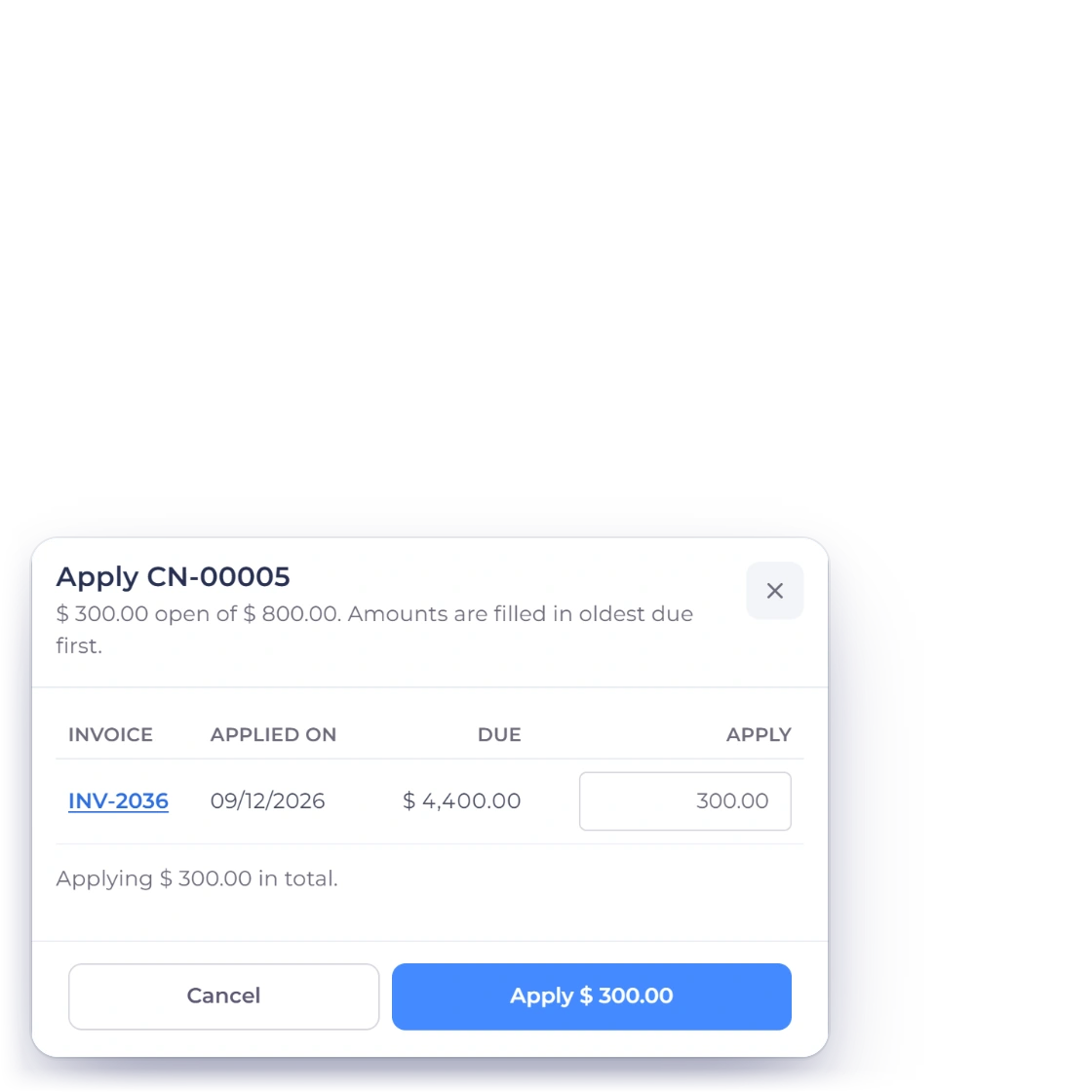
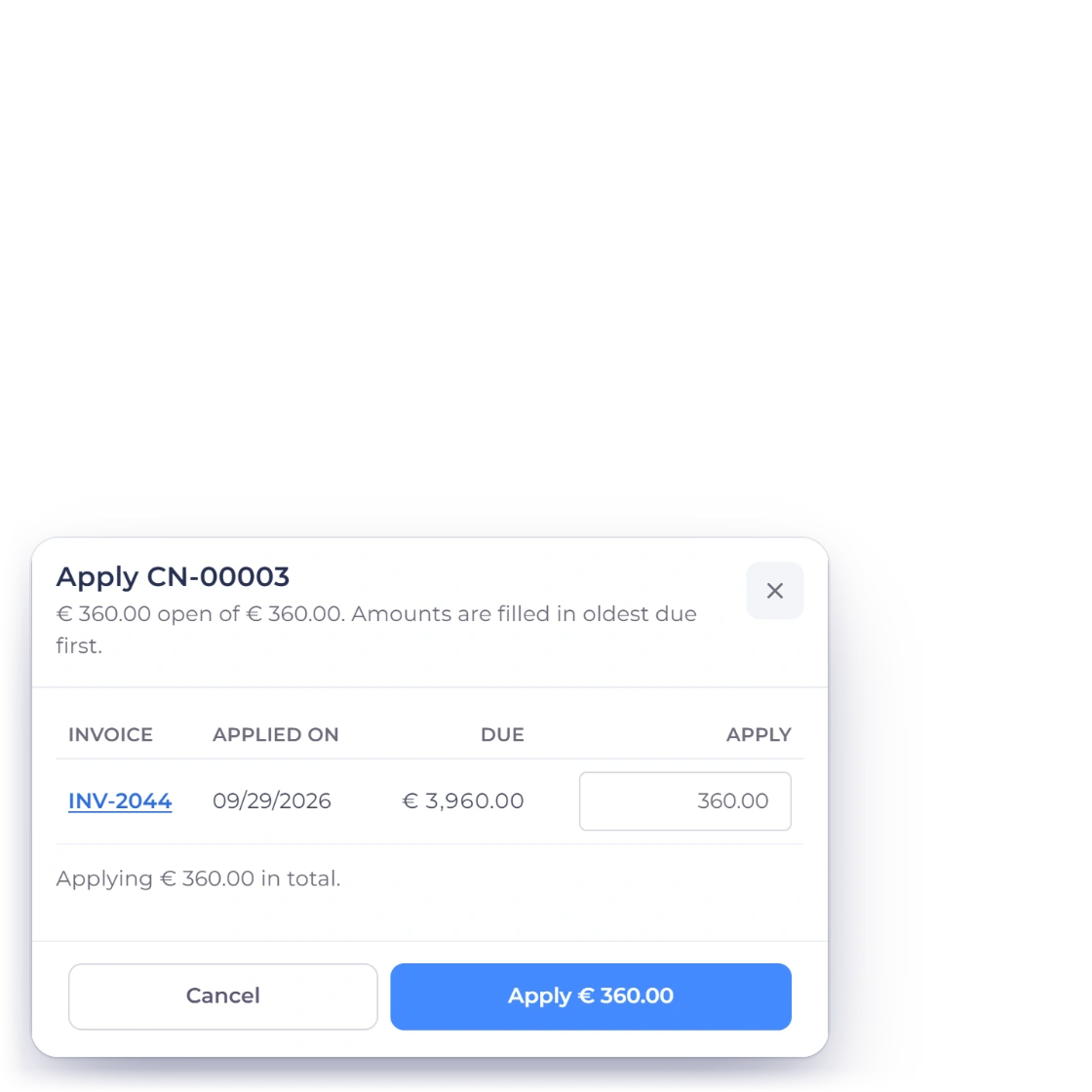
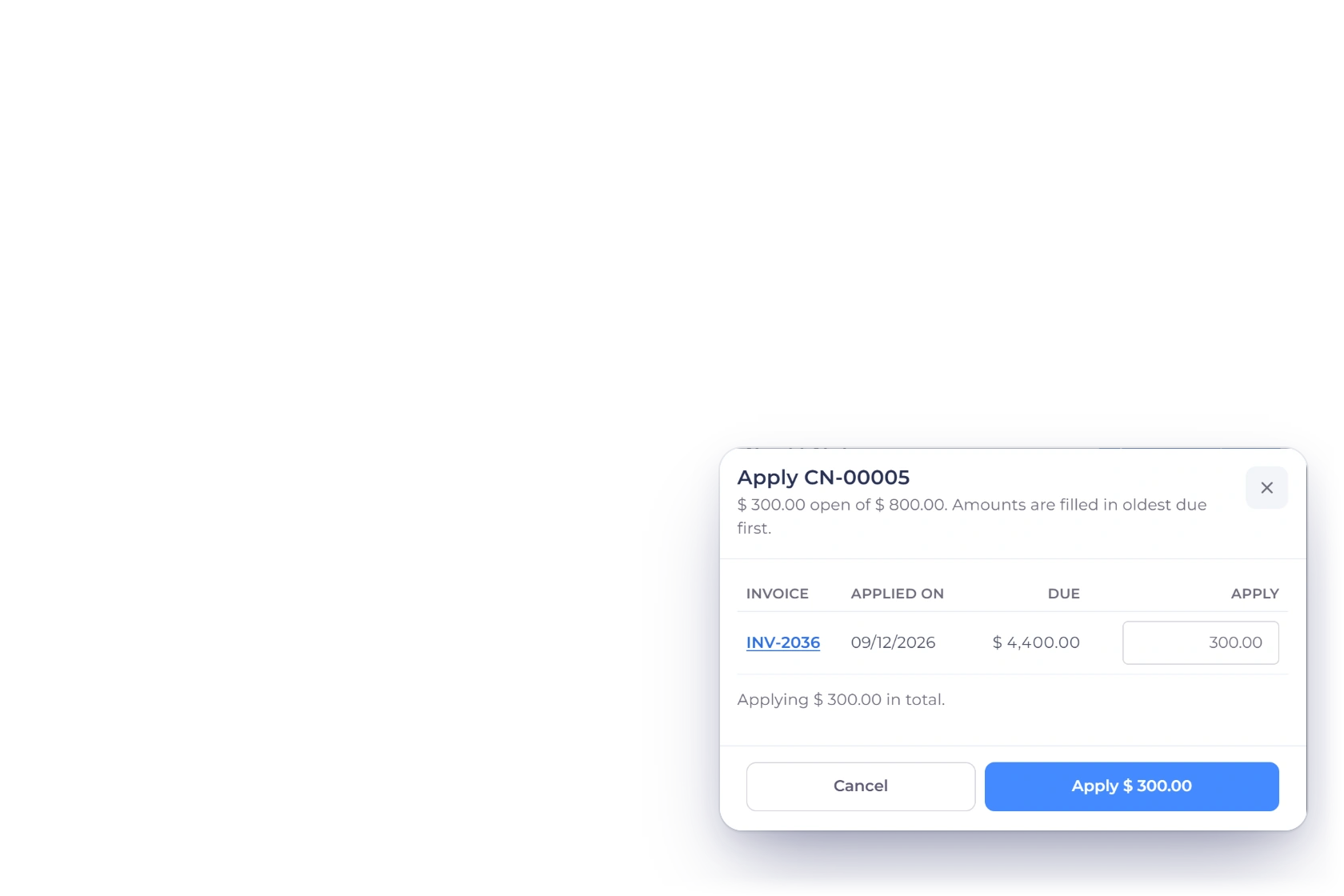
Applying a credit note to an open customer invoice in Invoice Crowd, with the amount capped at the smaller of the two balances.

Apply it to an open invoice

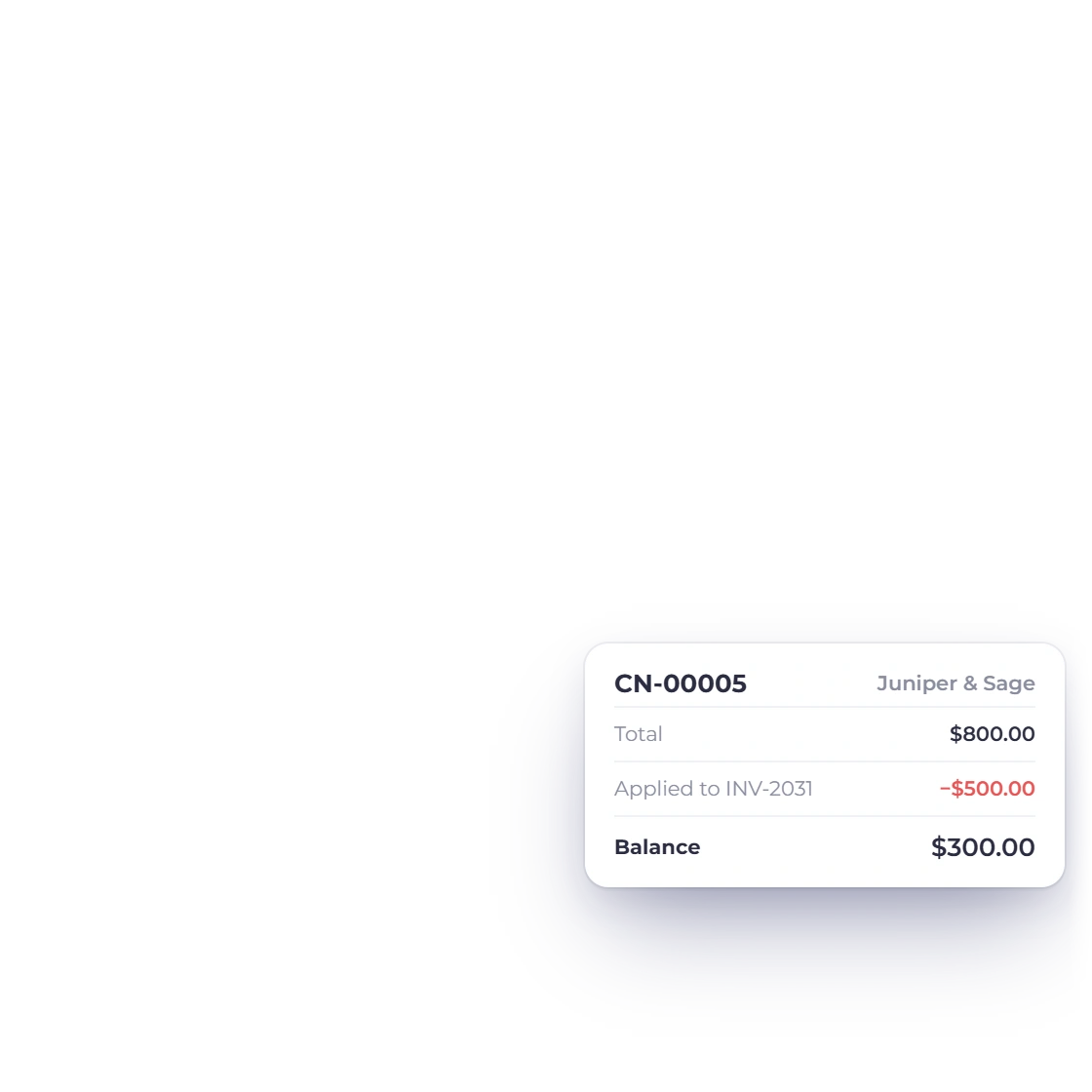
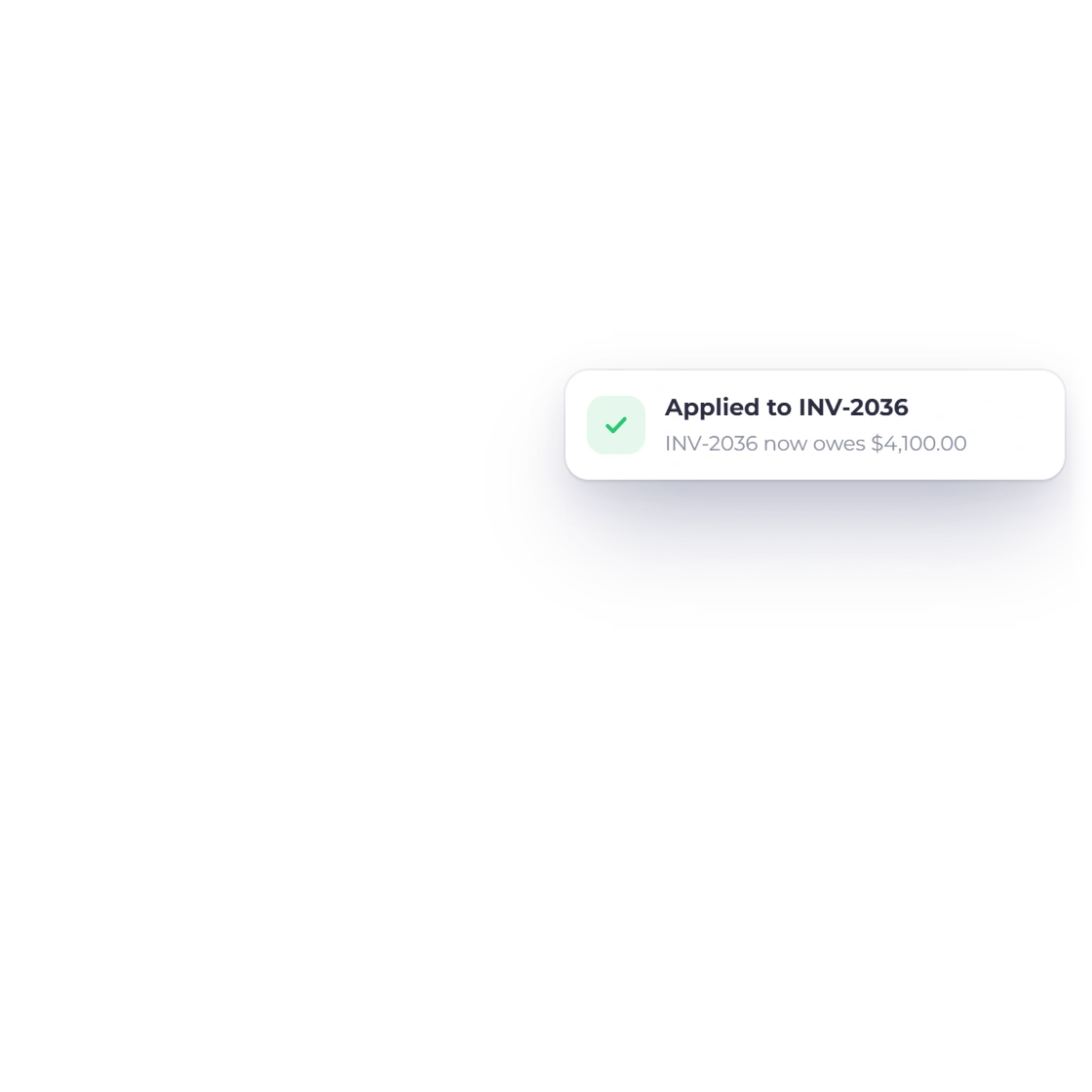
Open the credit note, choose Apply to Invoice, pick one of that customer's open invoices and enter an amount. The invoice's due falls by that amount, the credit's balance falls by the same amount, and both commit in one transaction. If the amount clears the invoice, the invoice closes as paid. Save any open edits first, because Apply to Invoice is blocked while the editor has unsaved changes.

  • Only invoices that can take the credit are offered
  • Amount capped at the smaller of the two balances
  • One credit can be applied more than once

Guardrails you cannot type past

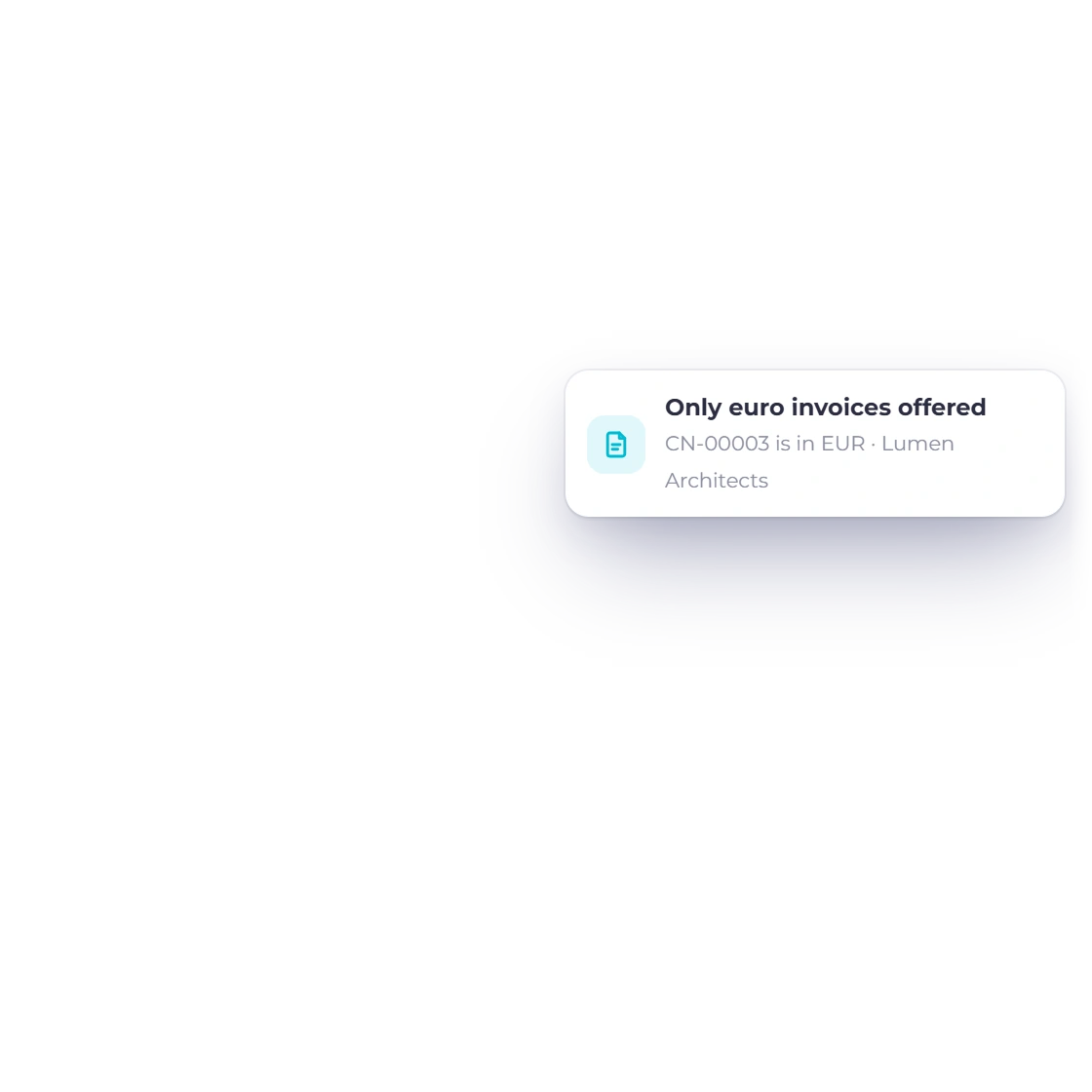
The cap is checked once in the form and again on the server against both live balances, so over-applying is rejected rather than allowed to push either balance below zero. Credit and invoice must also share a currency, because Invoice Crowd will not convert during application and the amount you typed cannot be read in two currencies at once. Rounding follows that currency's ISO precision.

  • Same customer, same currency, same business profile
  • Zero-decimal currencies in whole units, three-decimal to three places
  • Notes from another business profile are not found

Closing it out

Refunded and posted

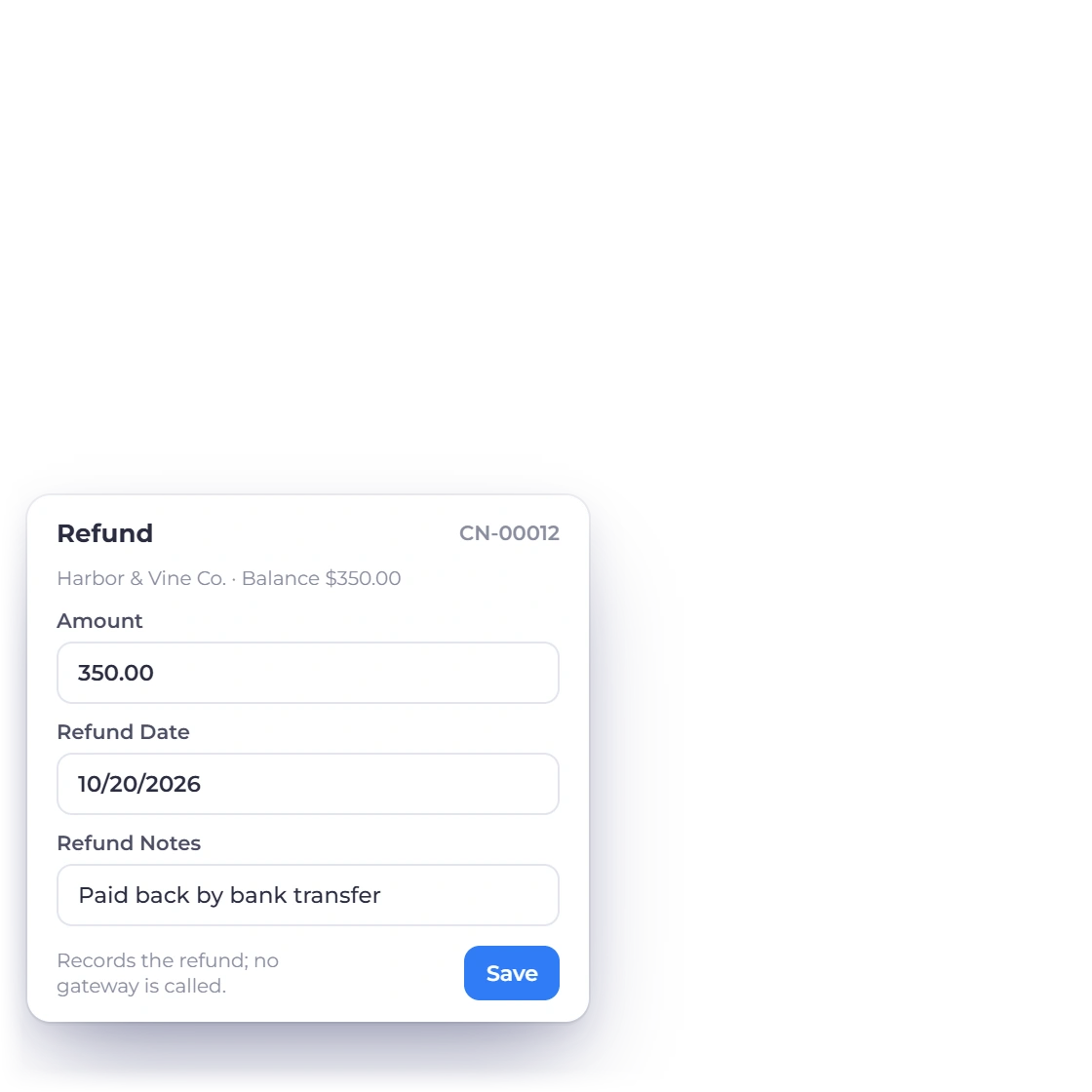
Recording a refund against a credit note in Invoice Crowd with the amount, the refund date and a note.

Or refund the balance instead

Refunding records that you paid the customer back in cash rather than against an invoice. Choose Refund, enter an amount up to the remaining balance, set the refund date, add a note if it helps, and save. The balance drops and a payment record is written against the credit with the mode Refund Credit Notes. No gateway is called, so send the money through your bank and record it here.

  • Amount ceiling is the credit's remaining balance
  • A used-up credit shows no refund form at all
  • Amounts over the balance are refused by the server

Posted to the ledger as it moves

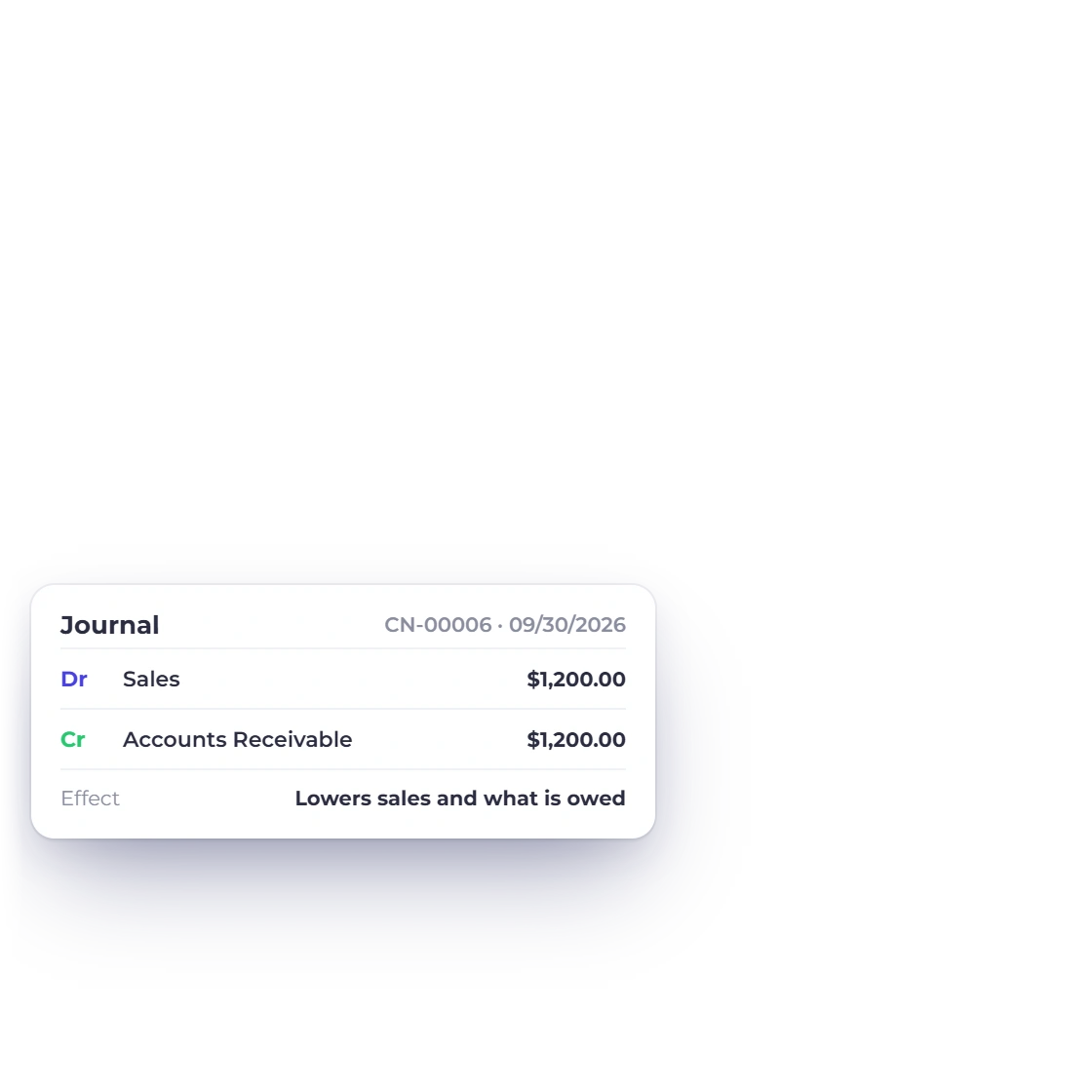
Issuing a credit note reduces what the customer owes and records the reversal against the chart of accounts and the general ledger. Applying the balance to an invoice or recording a refund updates the customer balance and the related ledger trail together, without a separate export or second entry for the user to make.

  • Entries land in the ledger your reports already read
  • Open until the balance reaches zero, then Closed
  • Balances and entries commit together or roll back together

Built in

The rest of what a credit note carries

Credit notes sit in the same account as your invoices, payments and accounting, so the list, the permissions and the entries behind them behave the way the rest of the system does.

  • Filters that stick

    Filter the credit note list by status, by customer or by date range, and lock a filter so it survives a reload.

  • Actions on every row

    Edit, preview, download the PDF, copy a link, duplicate or delete a credit note without leaving the list.

  • Read-only in the portal

    Customers can view their credit notes in the customer portal, subject to the portal permissions you set for them.

  • Delete while unused

    Delete stays available while any balance remains, one at a time or in bulk. Once the balance reaches zero the note reads Closed and delete disappears.

  • No payment methods

    The editor hides the Payment Methods tab on a credit note, because a credit is not a document you collect money on.

  • Vendor credits are separate

    A credit from a supplier is a vendor credit with its own screens. The credit note refund action will not act on one.

  • No version check

    The editor does not check whether someone else has saved the same credit note since you opened it.

  • One dropdown of invoices

    The apply form lists all of that customer's open invoices in a single dropdown, with no paging to step through.

  • Safe to retry

    Each apply or refund carries a one-time key, so sending it again after a dropped connection replays the finished result instead of posting twice.

  • Partial payments respected

    Where an invoice is on partial or split payments, the settlement covers exactly the portion the credit pays for and leaves the remainder alone.

  • Sent, Opened and Viewed

    These badges show what an emailed credit note has done since it left. They are display-only and never change the balance.

  • Permissions per action

    Team members need create, edit or delete permission for credit notes. Applying also requires accounting post, and refunding requires accounting reverse.

Questions

Credit Notes, answered

How do I create a credit note from an existing invoice?

Open the invoice in Invoice Crowd and choose Create Credit Note from its action menu. The invoice is replicated as a credit note under a new CN number, with the customer, the line items and the totals copied across, an opening balance equal to the invoice total, and today's date. The credit note records which invoice it came from, and that link appears in the Invoice No. column of the Credit Notes list.

Can one credit note be applied to more than one invoice?

Yes. Applying a credit note draws down its balance by the amount used rather than consuming the whole note, so a credit can be applied repeatedly across several of that customer's open invoices. Each application is capped at the smaller of the remaining credit and the invoice's remaining due. The note stays Open until the balance reaches zero, at which point it reads Closed.

Can a credit note be applied to an invoice in a different currency?

No. A credit note and the invoice it is applied to must use the same currency in Invoice Crowd, and no conversion is performed during application. The restriction exists so an amount typed into the apply form can never be interpreted in two currencies at once. Issue the credit in the currency the original invoice was billed in, and rounding follows that currency's ISO precision.

Does refunding a credit note send money back to the customer's card?

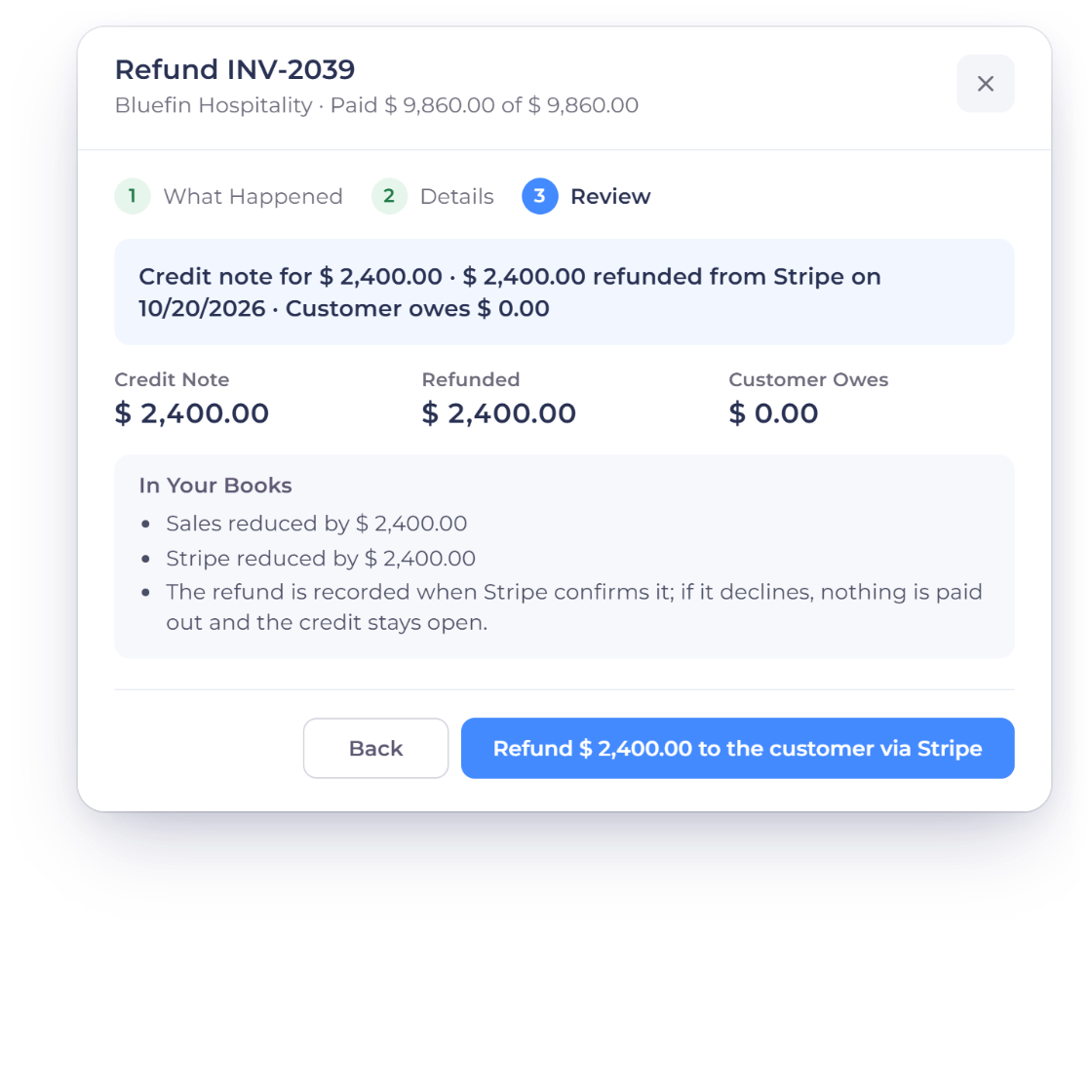
No. Refunding a credit note in Invoice Crowd records the refund; it does not move the funds. No payment gateway is called by the refund action. Pay the customer through your bank or your payment provider's own dashboard, then record the amount, the refund date and any note against the credit. The credit's balance drops and a payment record is written with the mode Refund Credit Notes.

Can a credit note be deleted after it has been used?

Yes, as long as some of its balance is still unused. Invoice Crowd keeps the delete action on a credit note for as long as it has a balance left to apply or refund, including one that has already been partly applied or partly refunded. Once the balance reaches zero the note reads Closed, and delete is withdrawn from both the row menu and the bulk-delete selection, so the document and the entries behind it stay in the books. Credit notes that still carry a balance can be deleted individually or in bulk.

Which Invoice Crowd plans include credit notes?

Credit notes are not included in the Lifetime Free tier. Opening the Credit Notes list from that tier redirects to billing. They are included with eligible paid plans alongside invoicing, payments and accounting, with no separate credit-note add-on. Check the pricing page for the current plan details.

Put the over-billing right in one document

Raise the credit note, apply it to the invoice or record the refund, and keep the invoice due, the credit balance and the ledger trail together.

  • No card required to start
  • Your data stays yours
  • Cancel anytime