Skip to content

Features

Vendor bills that post straight to Accounts Payable

Record what your vendors charge in the same editor you use for invoices. Add the vendor's invoice number and a due date, and the total posts to Accounts Payable and the expense category you choose. Convert an approved purchase order and the vendor, lines and totals come with it.

  • Posts to Accounts Payable
  • Converts approved purchase orders
  • Vendor payments, credits and portal
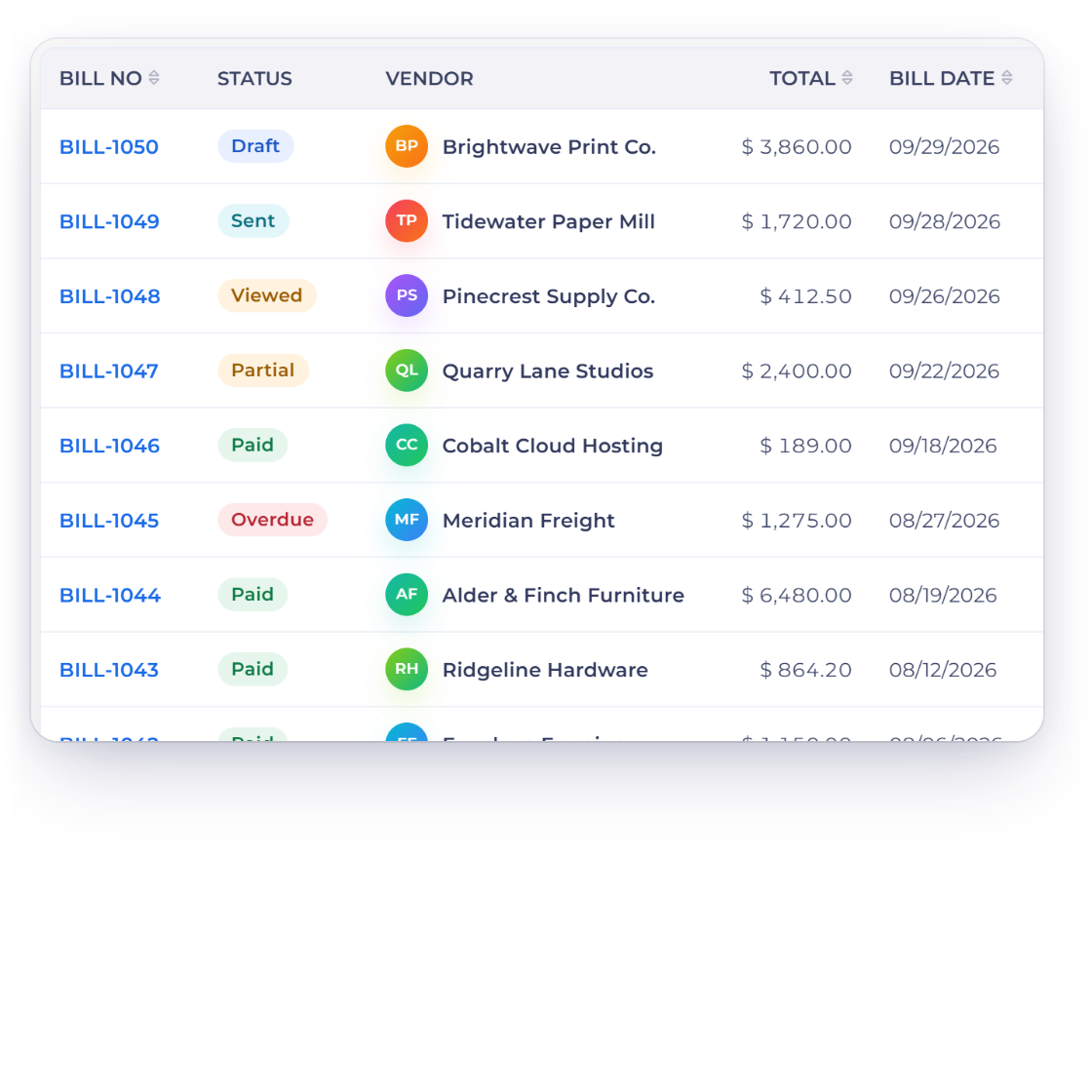
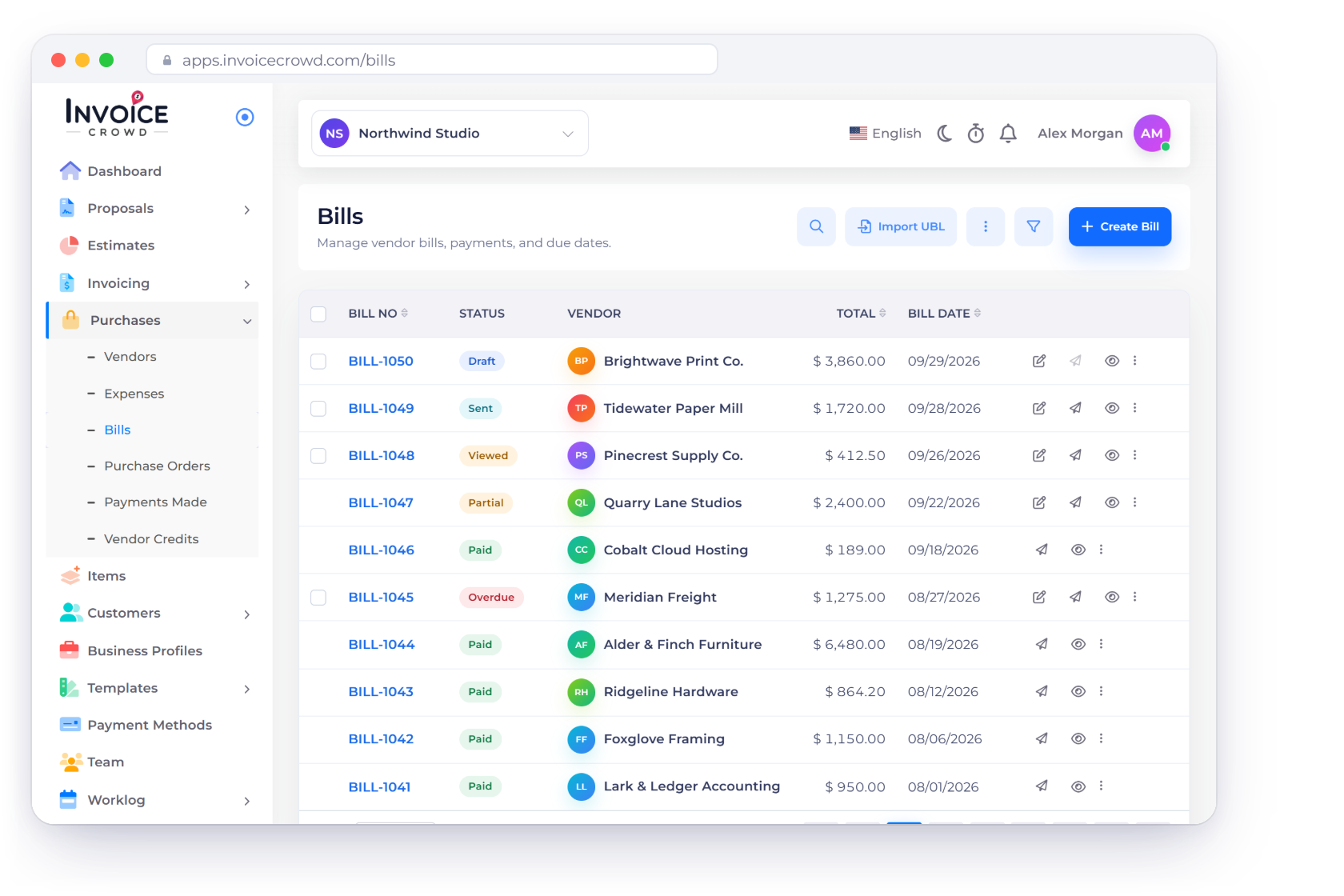
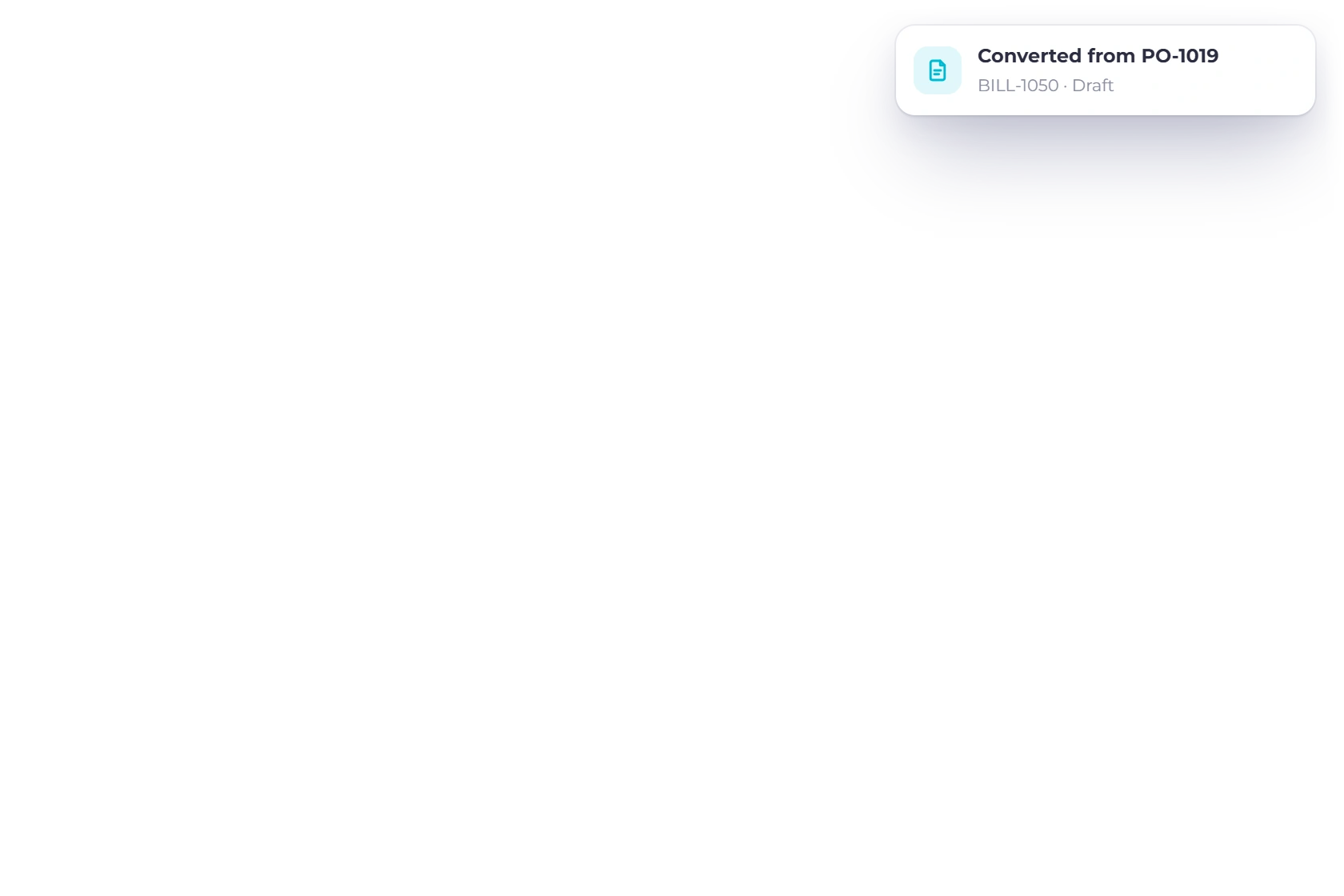
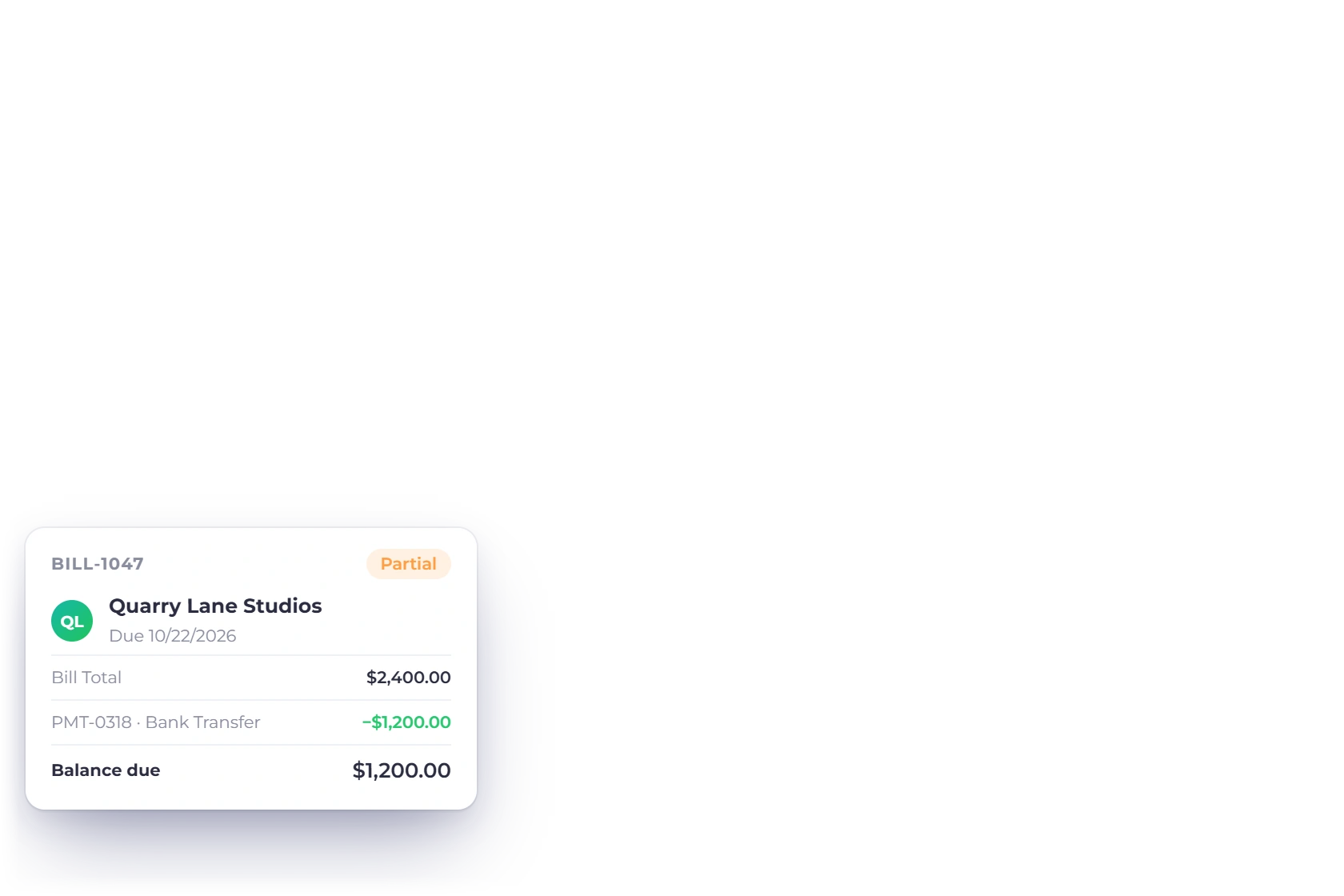
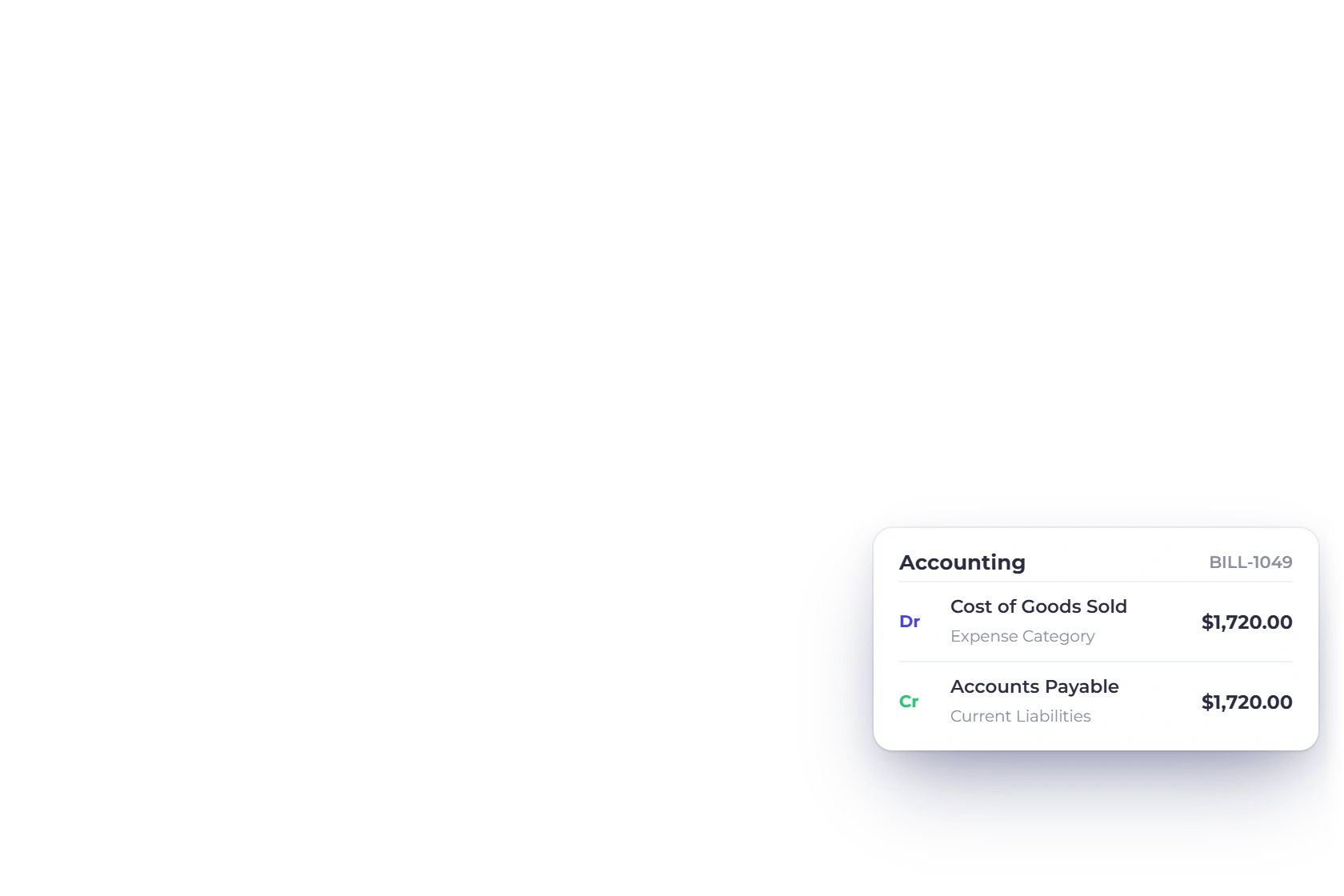
The Bills screen in Invoice Crowd listing vendor bills by status, vendor, total and bill date, with a bill converted from a purchase order, a part-paid bill and the Accounts Payable posting for a bill

What is inside

Enter the bill once, and the rest of the account keeps up

Bills run the purchase side from end to end: entering what a vendor charged you, posting it to Accounts Payable and the expense category you picked, recording what you paid against it, and showing the vendor their own read-only copy.

Entering it

From scratch or from a PO

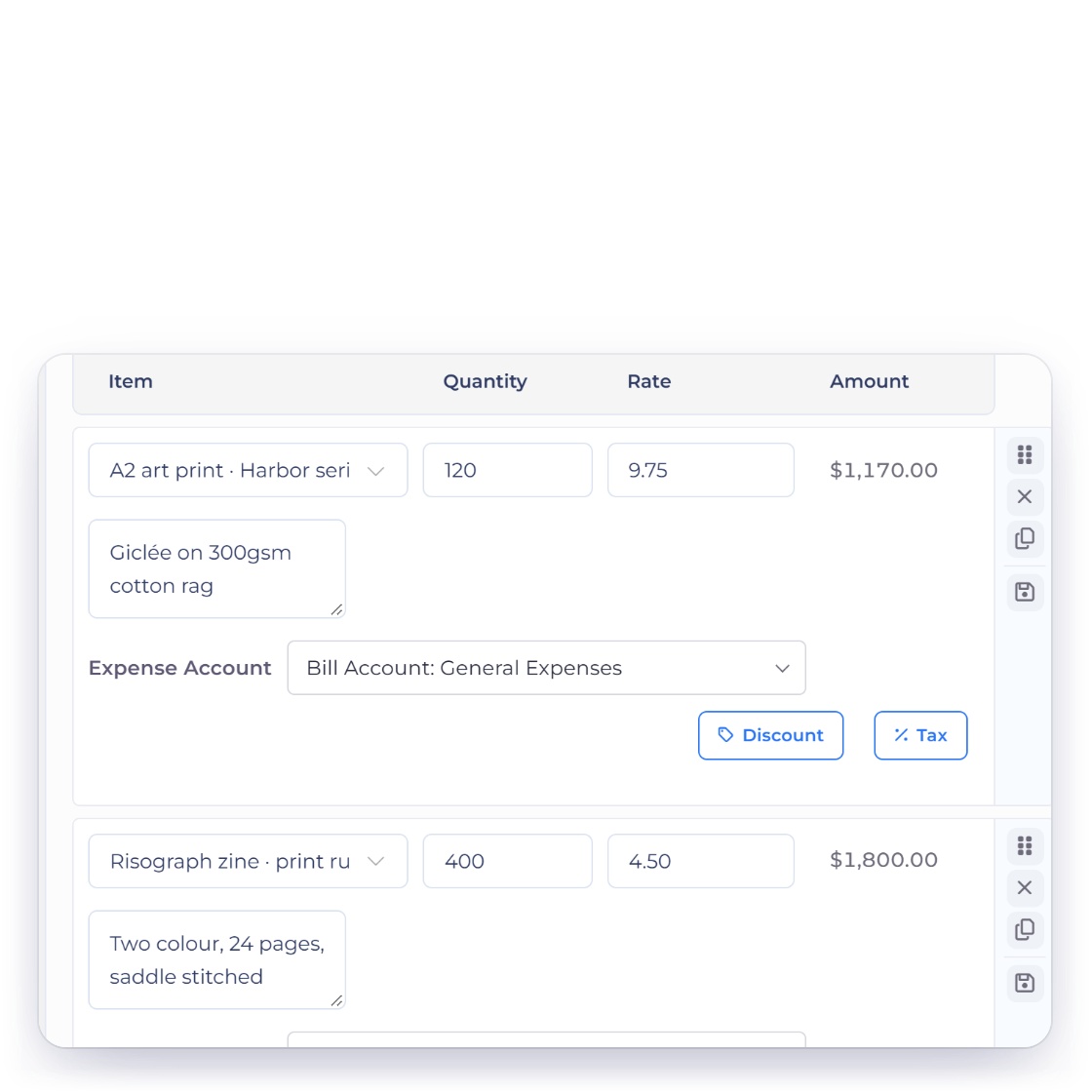
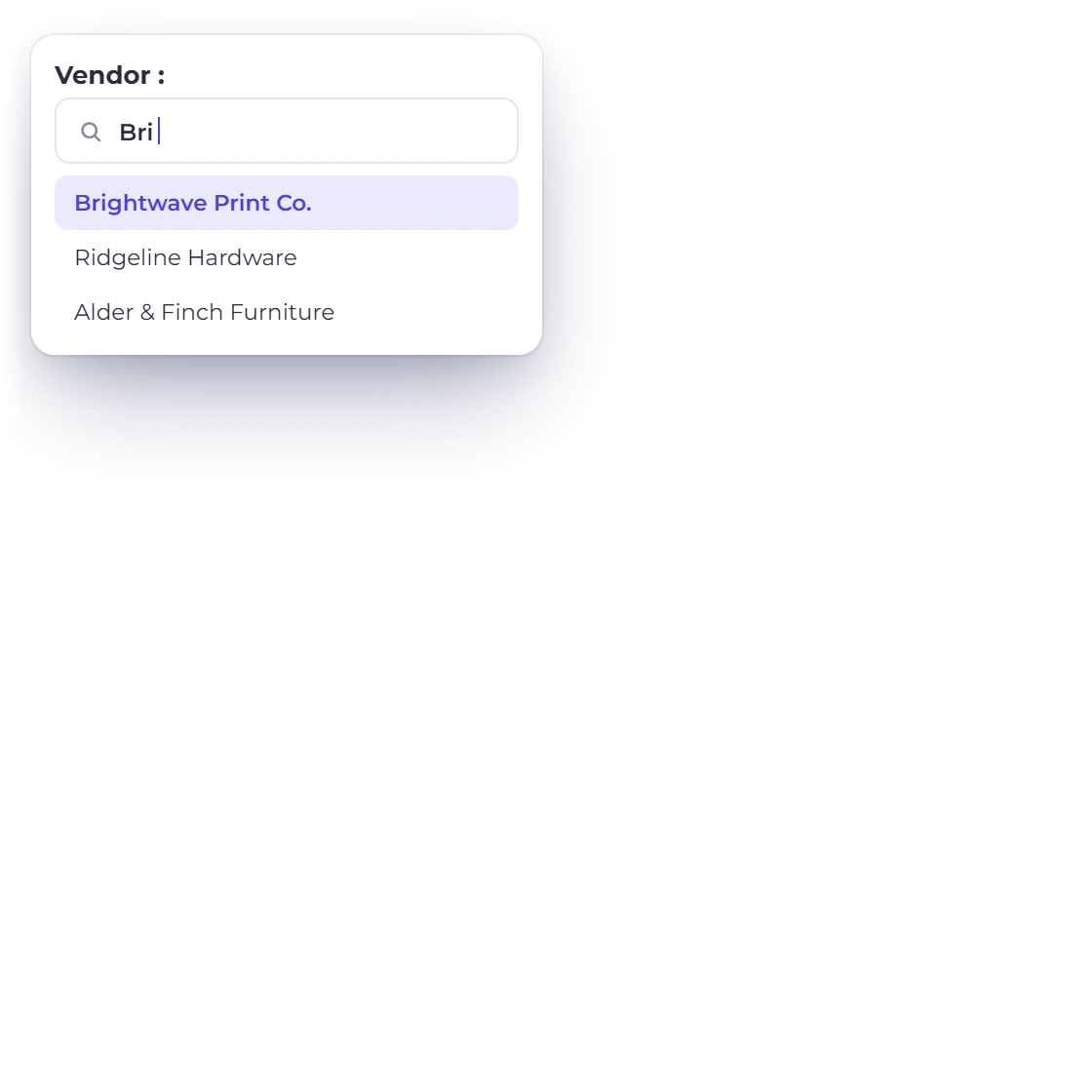
Invoice Crowd bill editor with a vendor picked from the vendor list and four line items with quantities, rates and amounts

The purchase side of the same editor

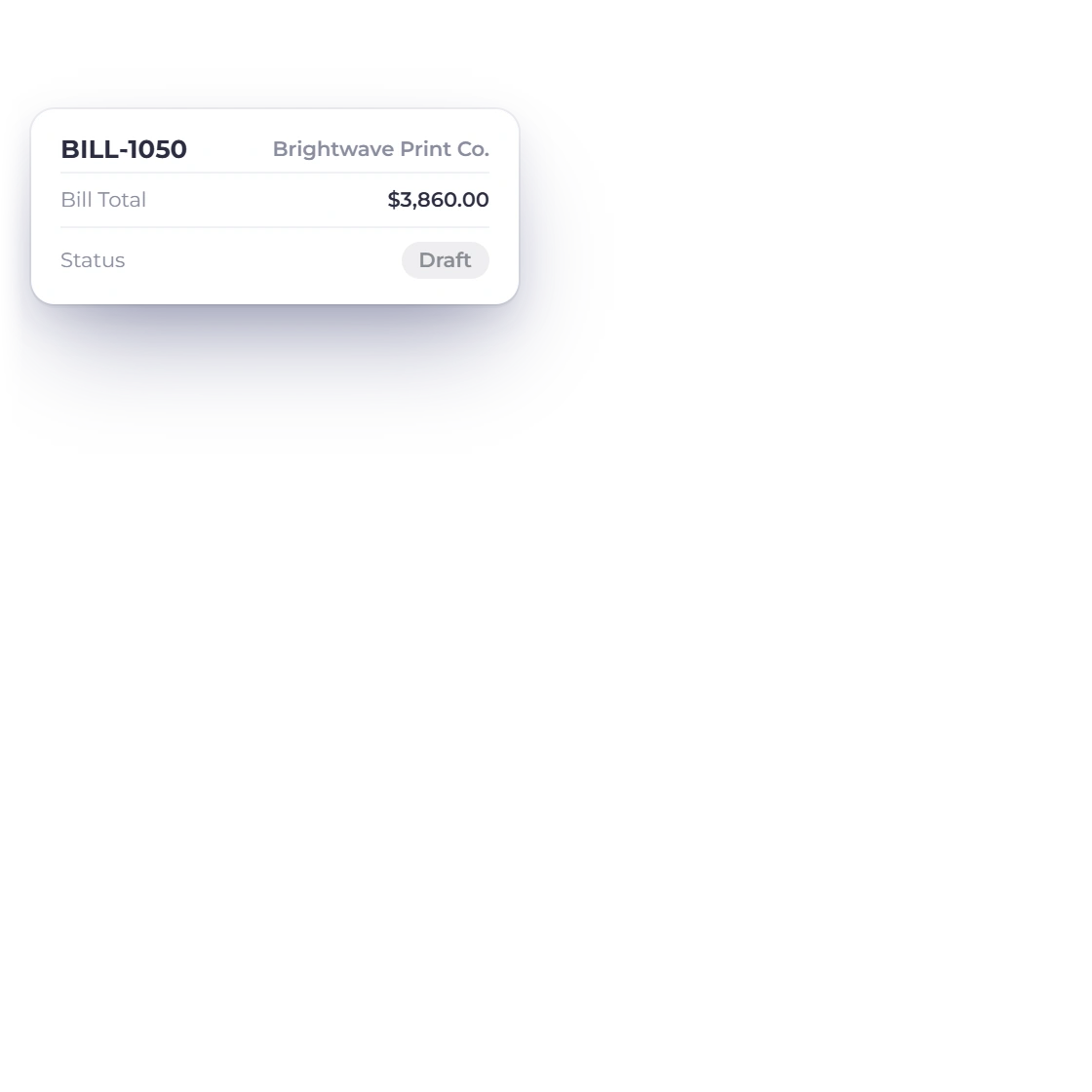
A bill is the mirror of an invoice, built in the same document editor with the same line items, taxes and discounts. Where the Customer picker sits on an invoice, a bill has a Vendor picker, and the document prints BILL and Bill Total. Bill numbers run on their own BILL- series. The vendor's own number goes in Vendor's Invoice #, with a warning if that vendor already has a bill with the same number, and you can save a bill before you have picked a vendor. A supplier's Peppol UBL file can also be brought in with Import UBL, which creates a draft bill for you to review.

  • A Vendor picker where the Customer sits
  • The document prints BILL and Bill Total
  • Import UBL for supplier e-invoices
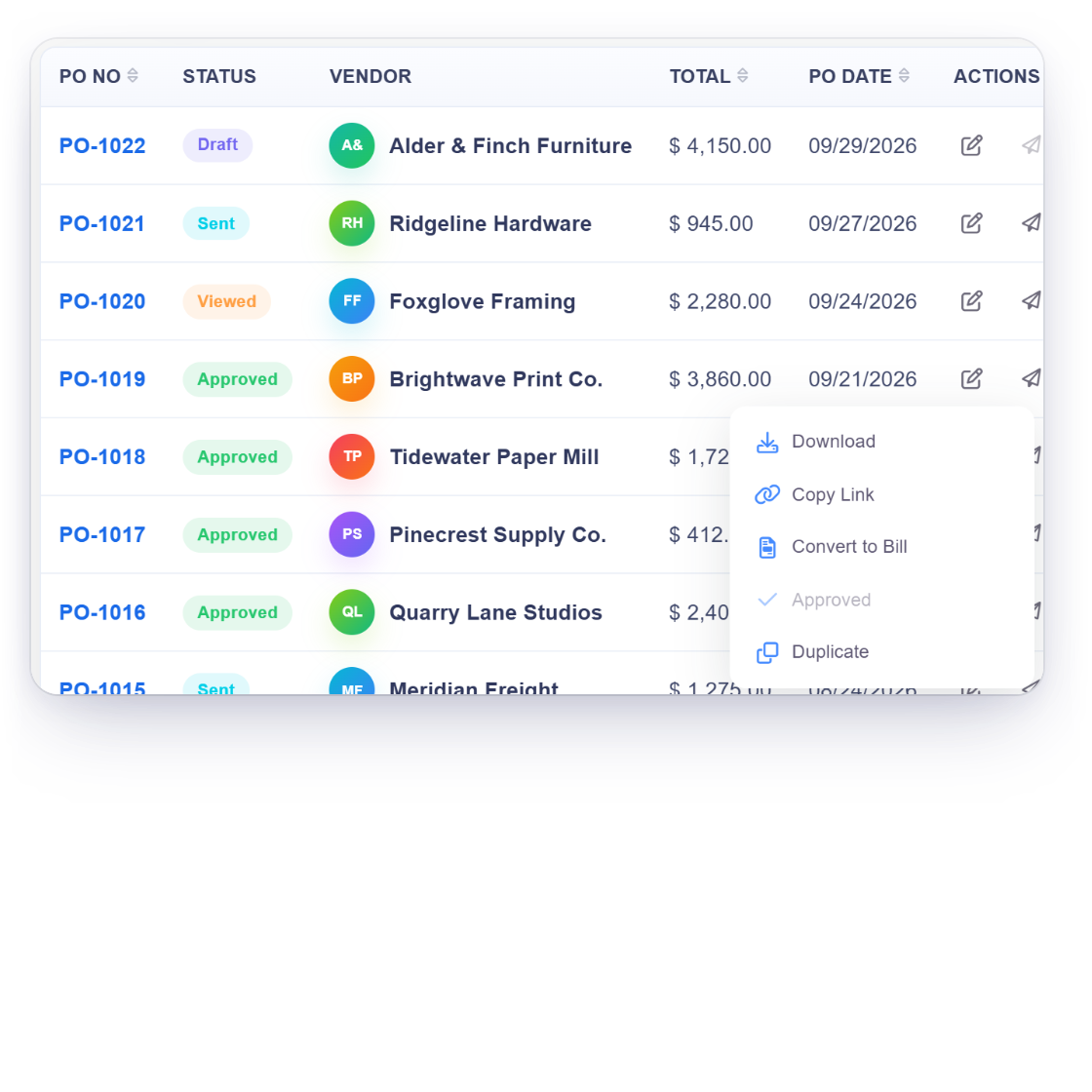
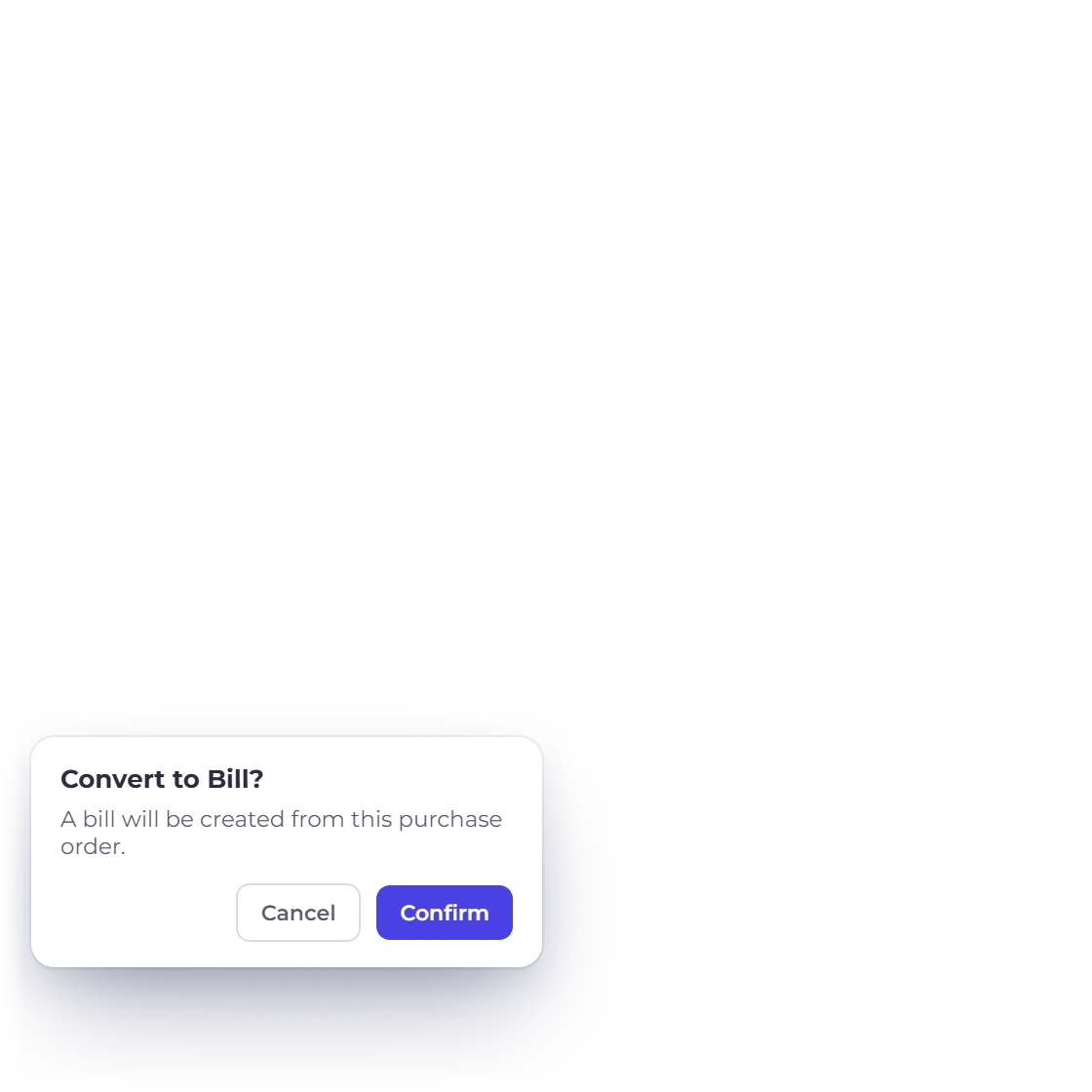
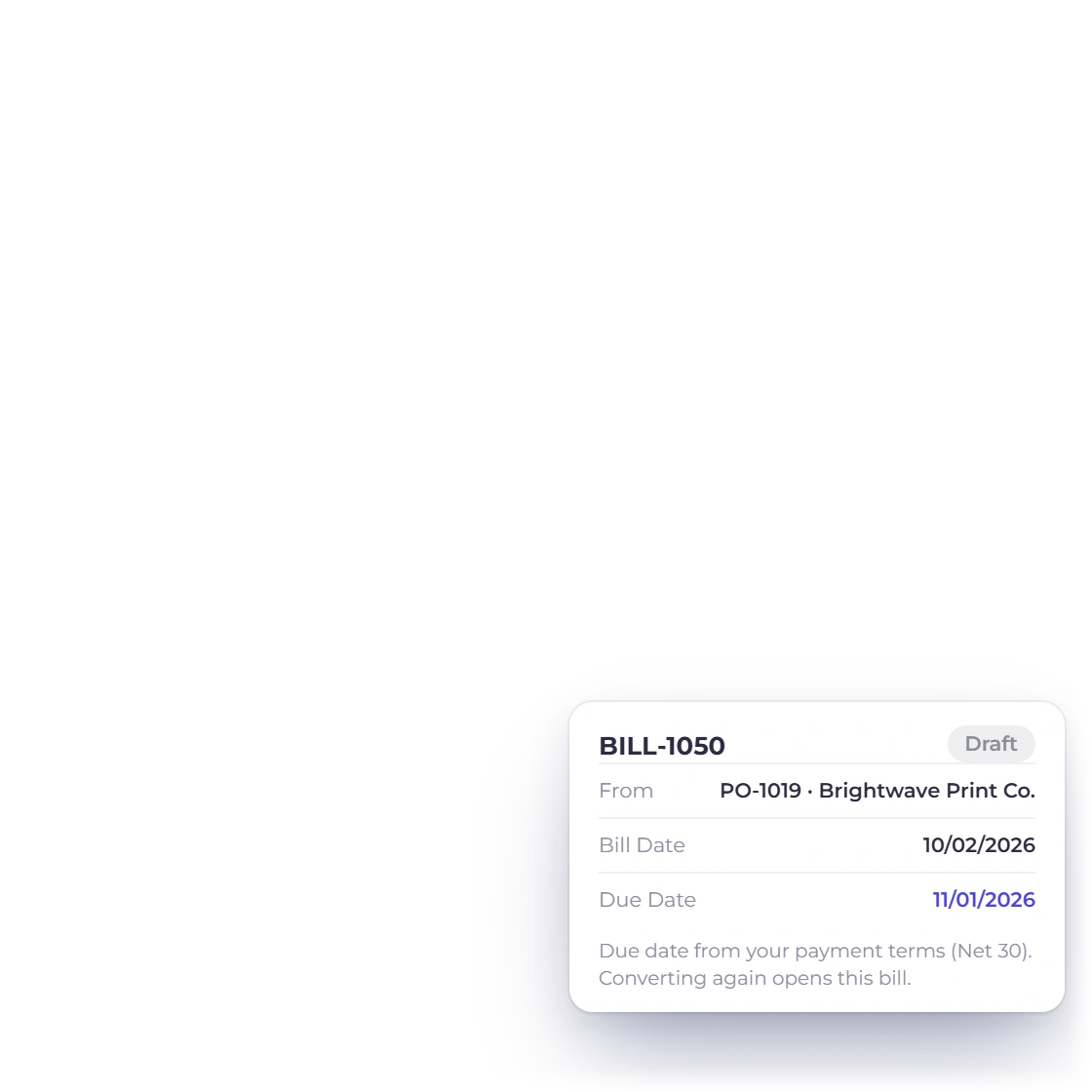
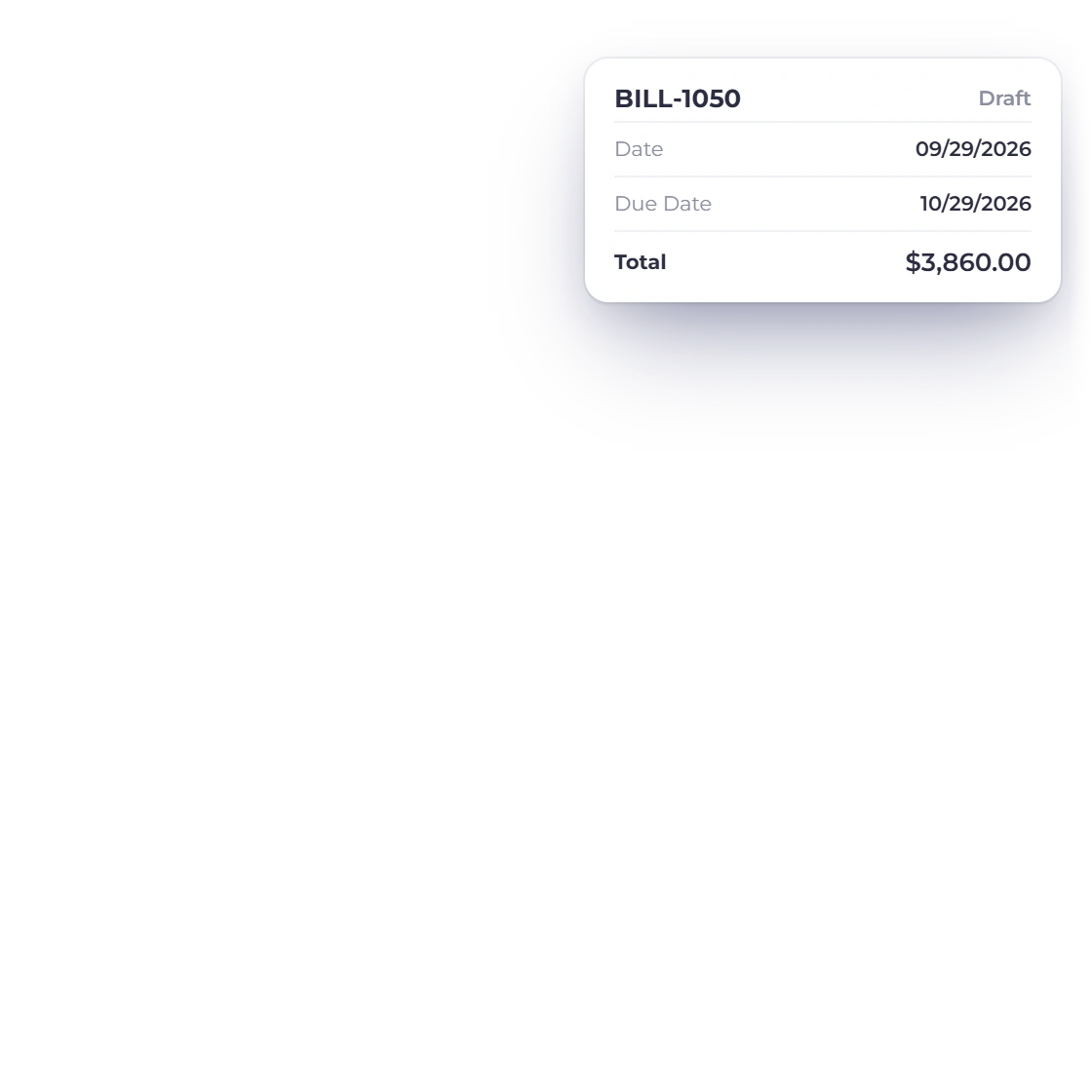
Invoice Crowd purchase orders list with the row menu of approved order PO-1019 open on Convert to Bill, the Convert to Bill confirmation, and the draft bill it creates with its due date set from the business payment terms

Convert an approved purchase order

Mark a purchase order Approved and you can convert it into a bill. The vendor, the line items and the totals come across, and the new bill gets a fresh BILL- number, today's bill date, a due date from your default payment terms and a balance equal to the total. Each order converts once, and running Convert to Bill again simply opens its bill.

  • Converts from Approved orders
  • A link back to the order under the bill number
  • The order stays Approved

Posting it

One save, both sides

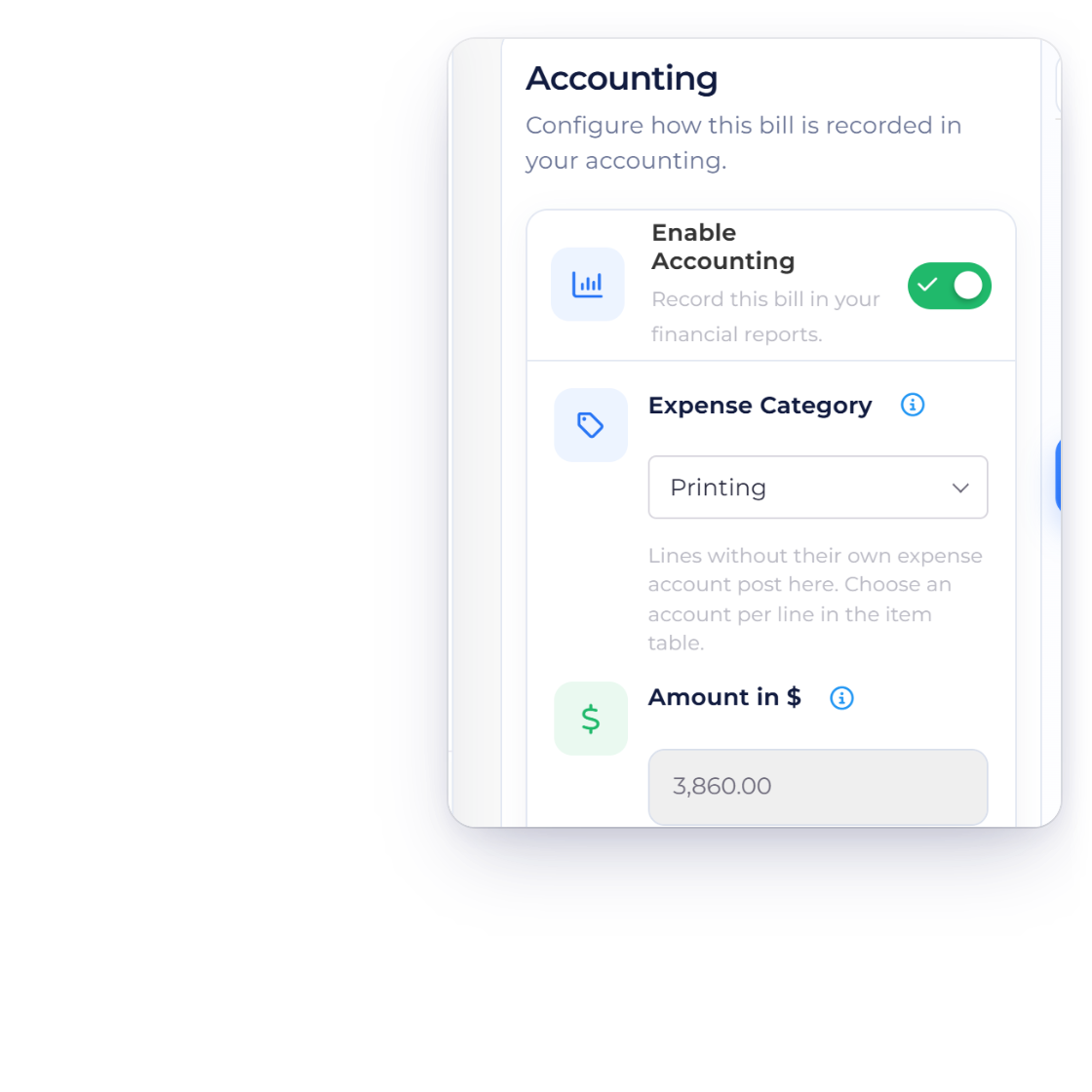
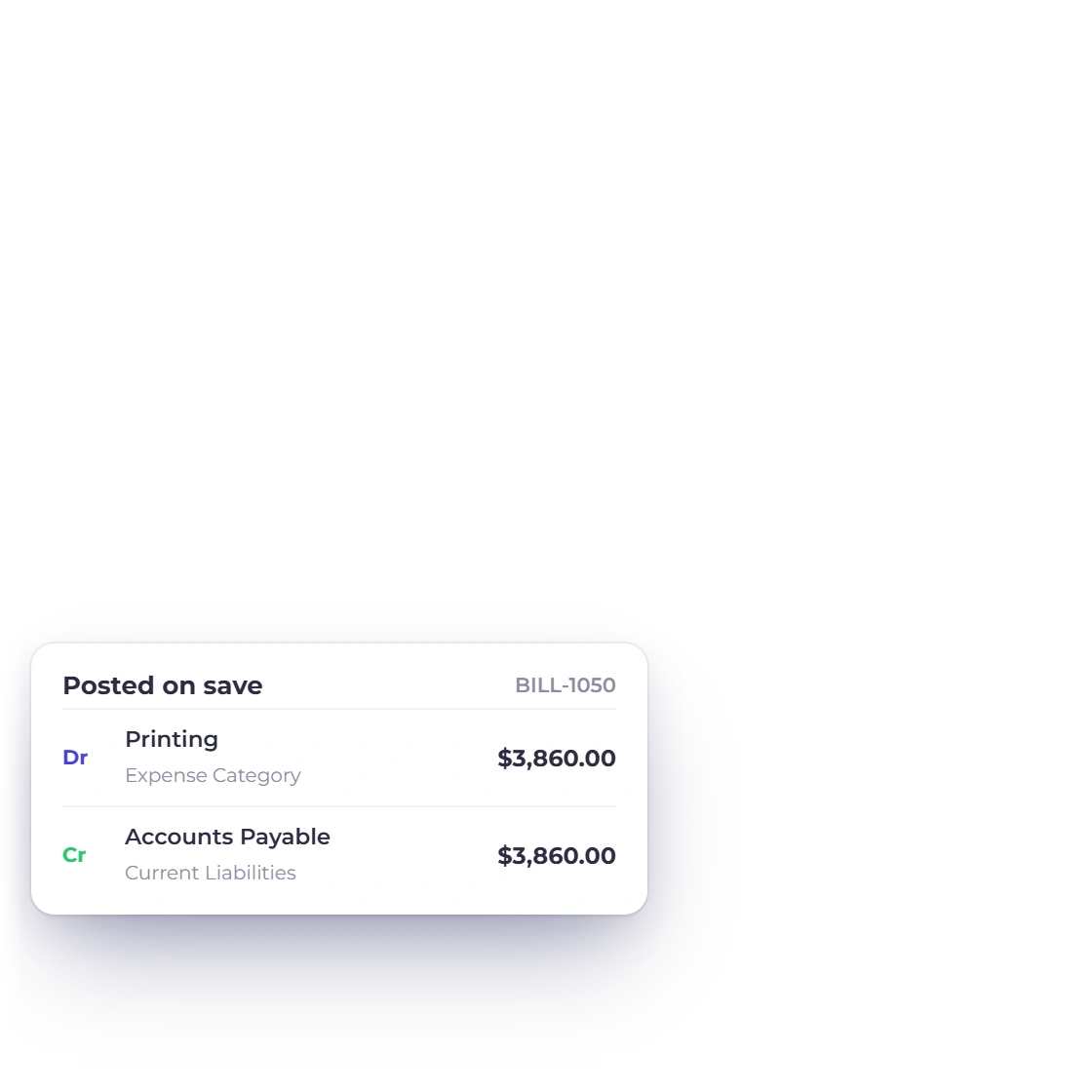
The Accounting tab of an Invoice Crowd bill with accounting enabled, the expense category set to Printing and the resulting Accounts Payable posting

Accounts Payable and the category you pick

Saving a bill posts its total to the chart of accounts and the general ledger, with no export step. Accounting is a switch on the bill's Accounting tab, carried over from your business profile. With it on, the bill reaches Accounts Payable under Current Liabilities and the account named in the Expense Category field, or Cost of Goods Sold by default.

  • Accounts Payable under Current Liabilities
  • Expense Category chosen per bill
  • Cost of Goods Sold by default
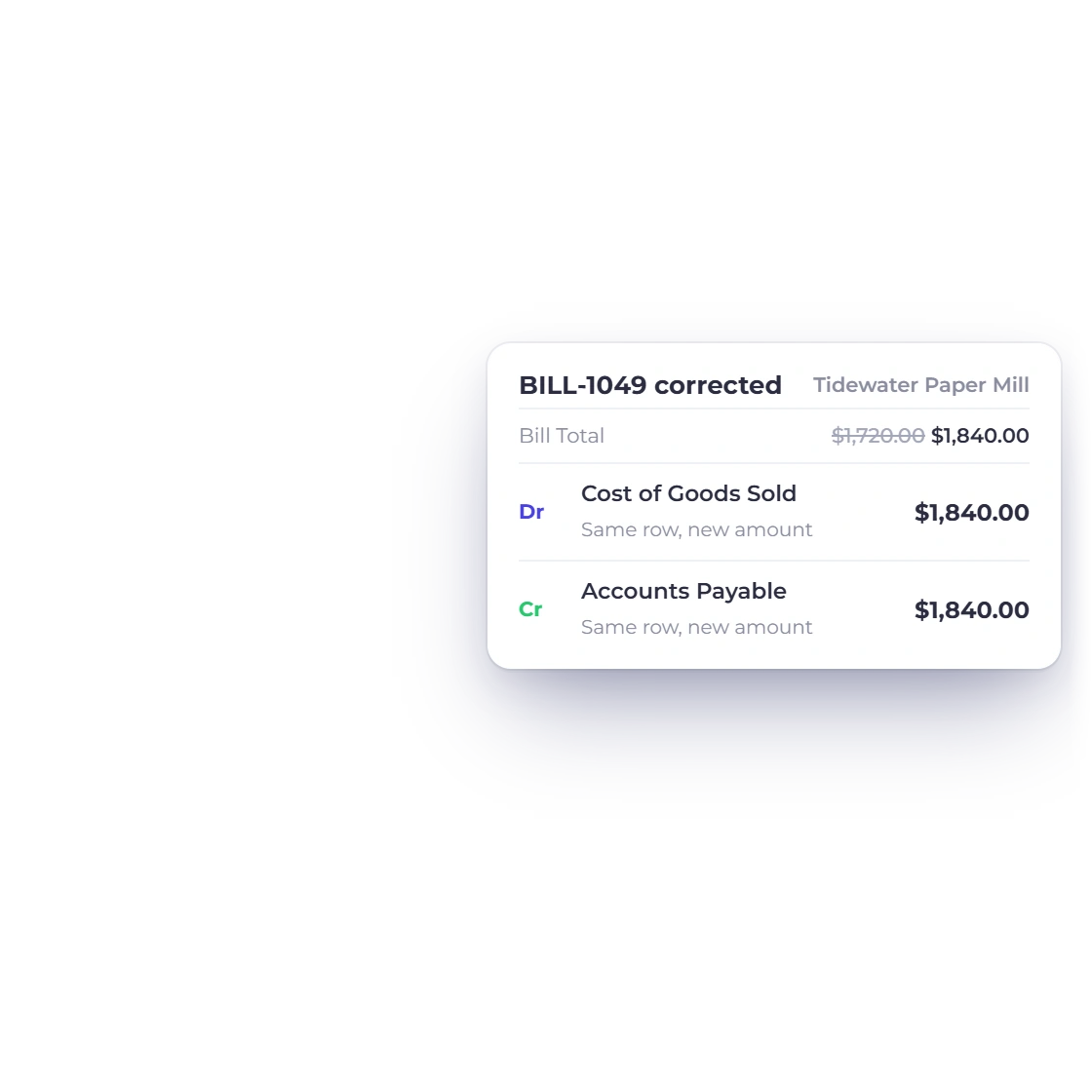
Invoice Crowd bills list next to the ledger rows for a corrected bill, updated in place instead of being posted a second time

Correct a bill, and the ledger follows

Edit a saved bill and its ledger entries update in place, so a correction always leaves one clean set of figures. From there they flow into the general ledger, the profit and loss statement and the reports you run at period end.

  • Entries updated in place
  • Visible in the general ledger
  • Reads into the profit and loss statement

Settling it

Every payment on record

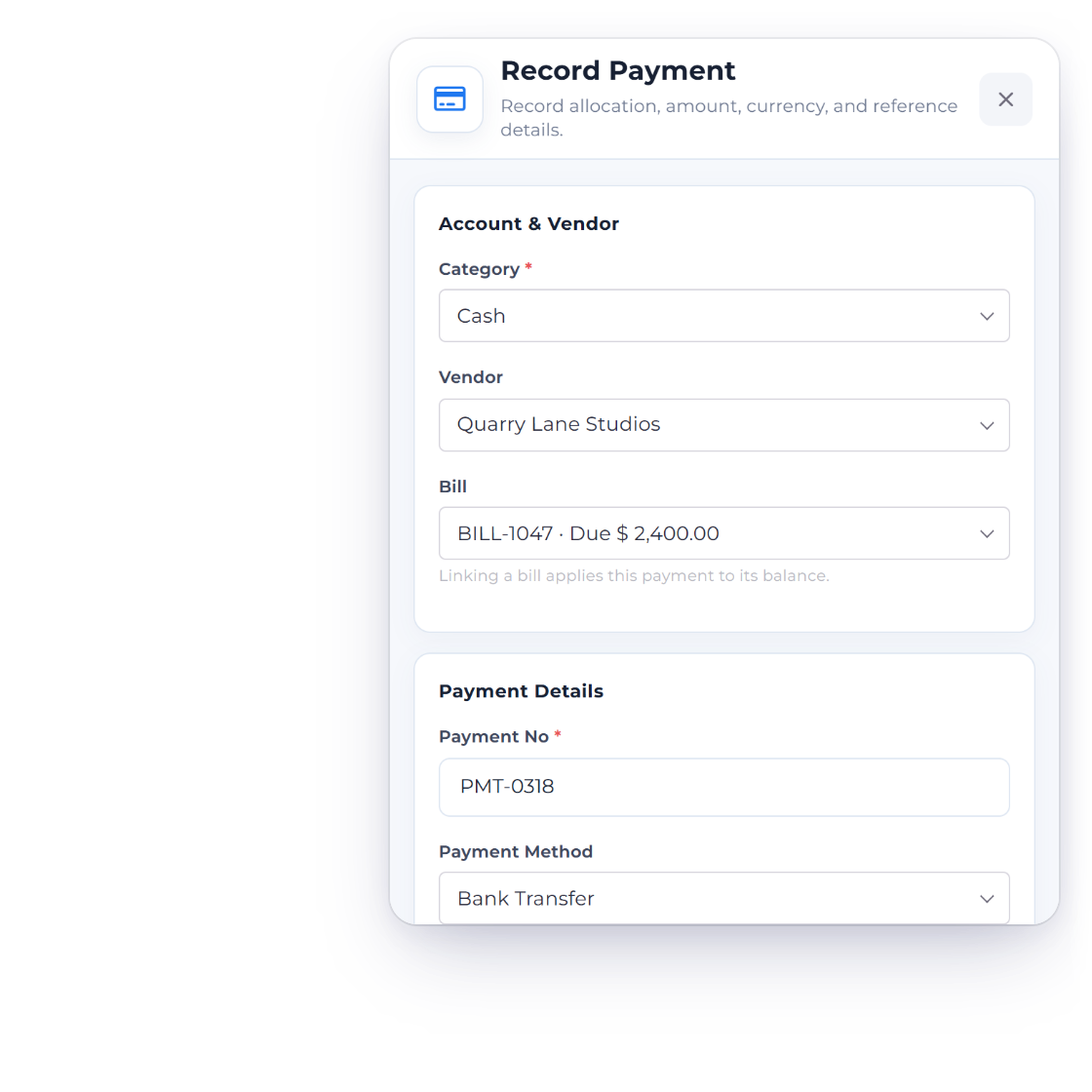
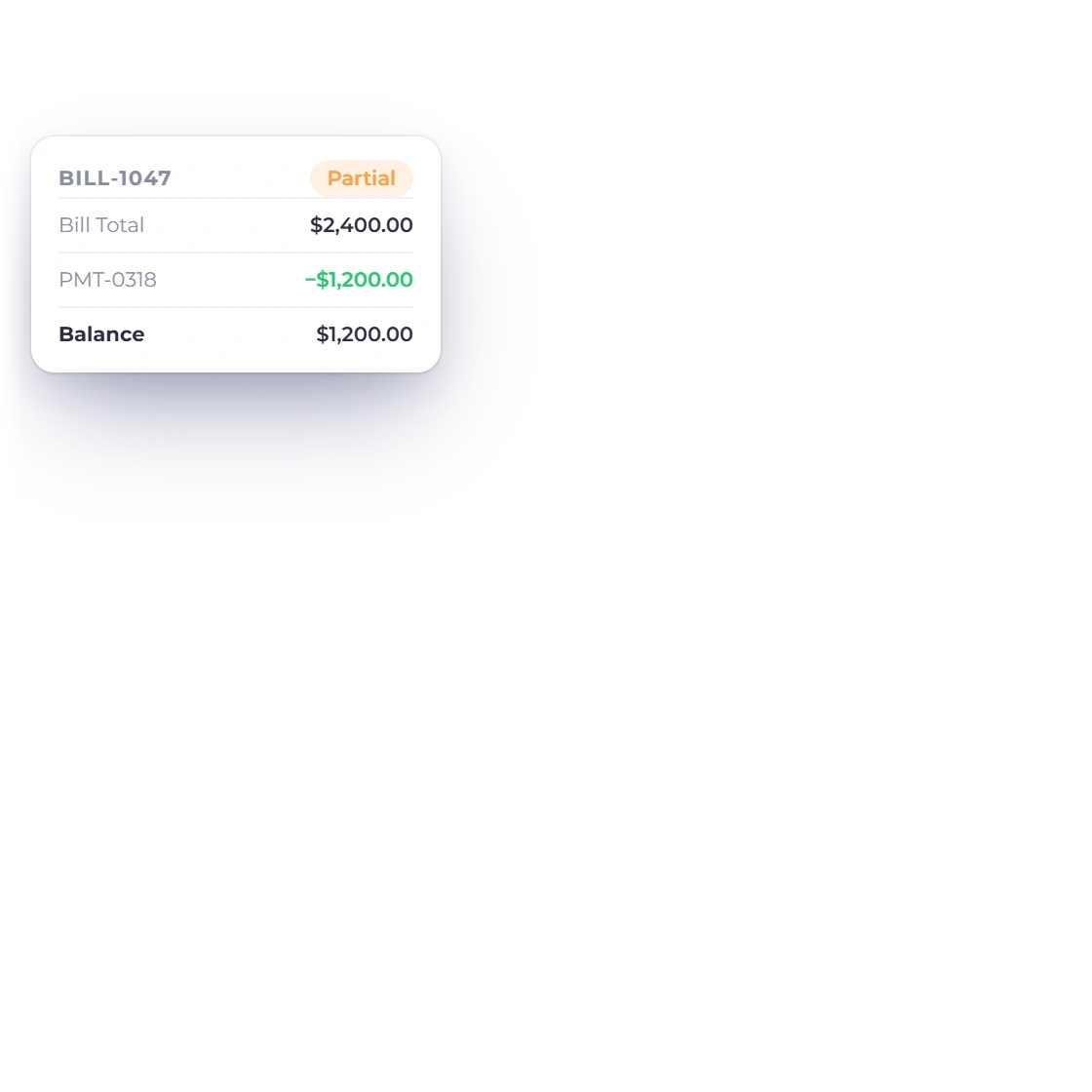
The Record Payment panel in Invoice Crowd with a vendor, one of that vendor's open bills, the amount, method, date and reference, and the bill moving to Partial

Record the payment against the bill

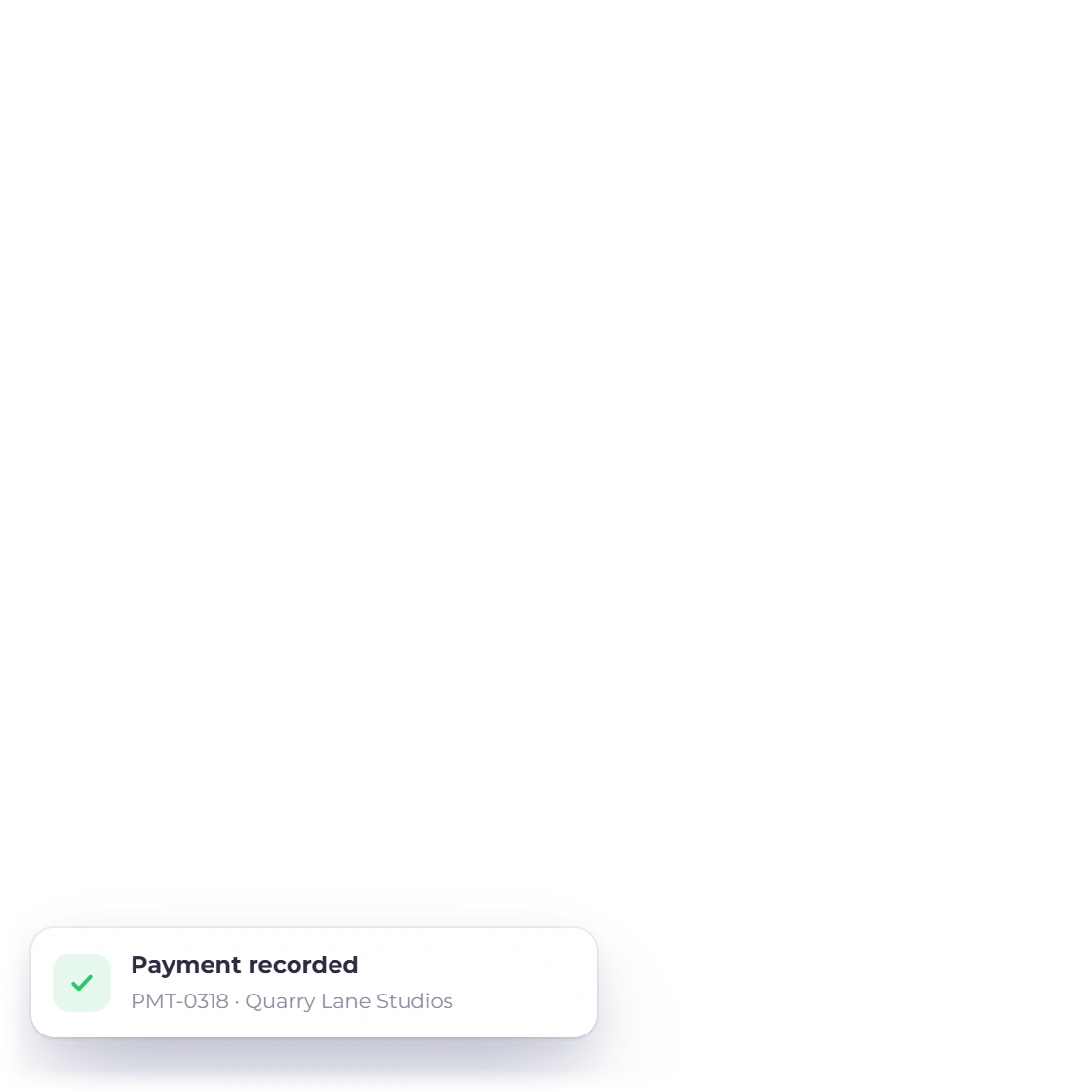
Record a vendor payment with Record Payment on the bill's row, or on the Payments Made screen: pick the vendor, pick one of that vendor's open bills, and the amount pre-fills from what is still owed. Each payment carries a method, a date, a reference number and notes. Saving reduces the balance and moves the bill to Partial or Paid, and each payment is recorded exactly once, even on a double-click.

  • A reference number and notes on every payment
  • Undo from the bill when needed
  • Or use Record Payment straight from the list row
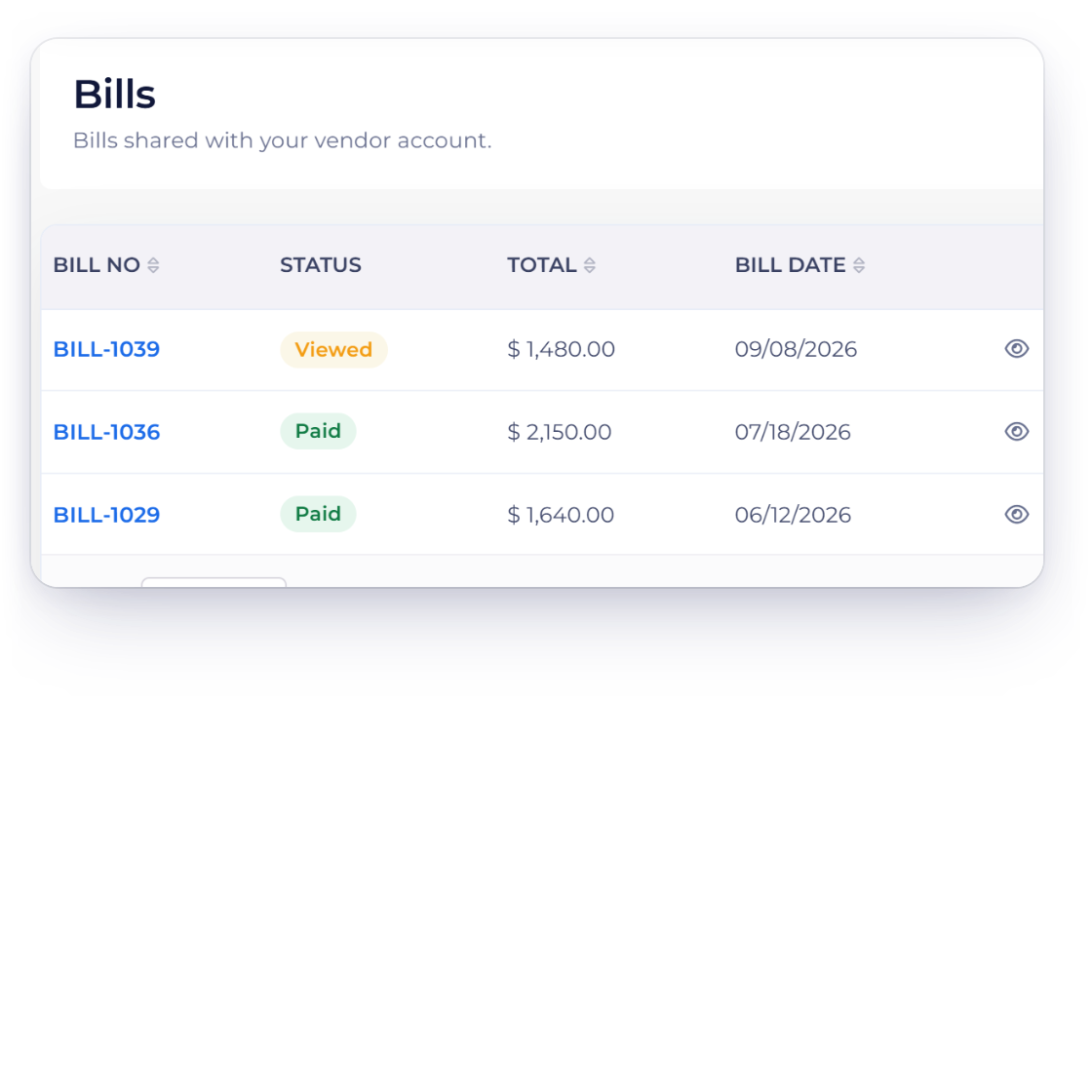
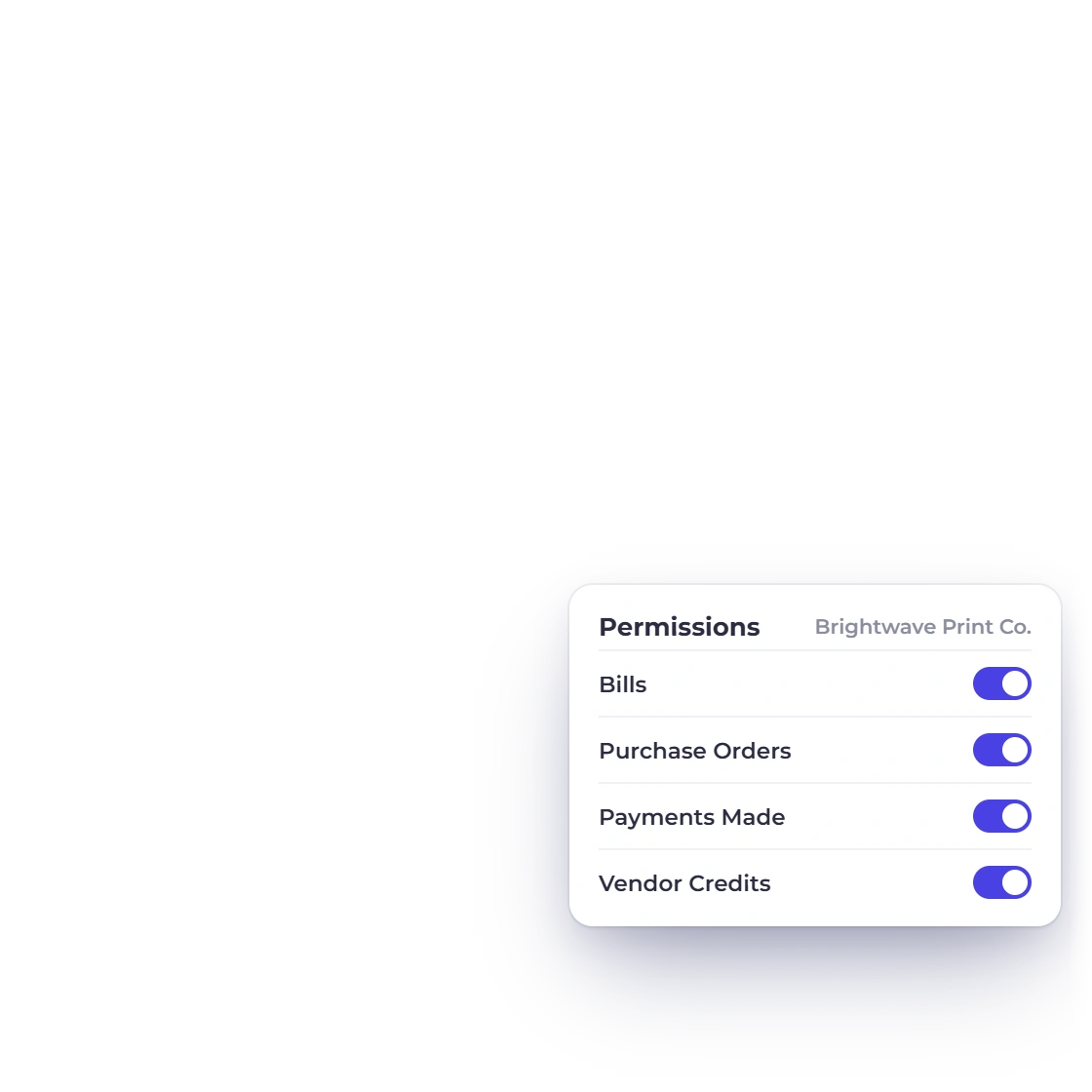
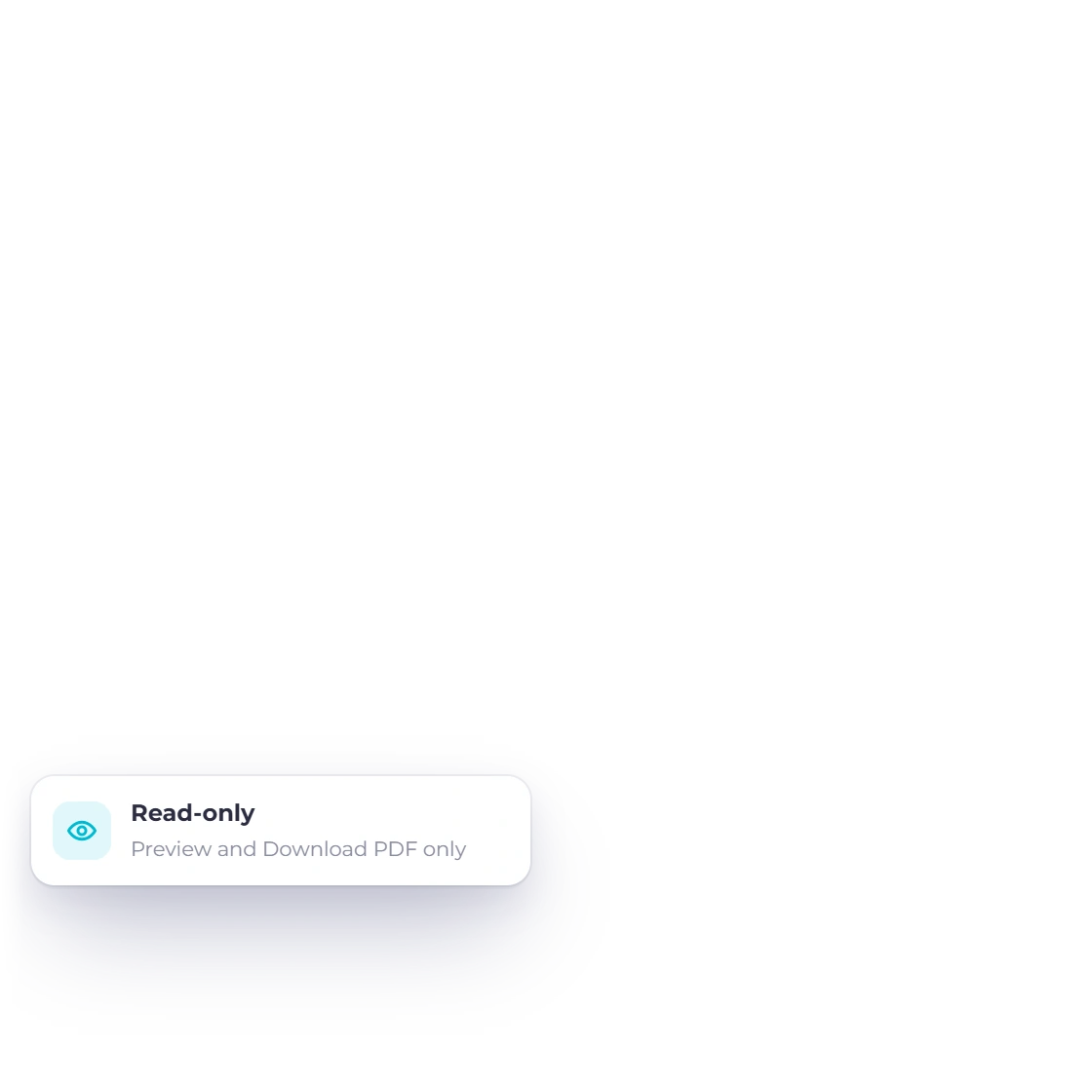
The Bills list in the Invoice Crowd vendor portal, as a supplier sees it, with Preview and Download on each bill and the portal permissions chosen for that vendor

A portal for your vendors

Invite a vendor and they get a read-only portal with up to four lists: bills, purchase orders, vendor credits and the payments you have made. You choose per vendor which lists appear, every saved bill shows there, and every row opens or downloads as a PDF.

  • Read-only for vendors
  • Per-vendor control of the four lists
  • Filter the Bills list by vendor to see what you owe

Built in

The rest of the purchase side

Bills sit next to purchase orders, vendor credits, vendors and payments made, so a cost you enter once carries through to the ledger, your stock on hand and the reports you run at period end.

  • Payment recorded, payable cleared

    Each payment clears the payable against Cash & Bank, or against the account linked to the gateway named on the payment.

  • Overpayments handled

    Anything paid beyond the balance is held in Prepaid Expenses and shows in the list as Unused Amount.

  • Vendor credits

    Raise a credit from the bill and apply it against that bill or record it as a cash refund.

  • Status updates itself

    Badges update automatically: a sent bill turns Overdue on its own once its due date passes.

  • Stock in on save

    With inventory tracking on, saving a bill raises stock on hand for tracked items. Goods that arrive before the bill can be received against the purchase order on the Inventory screen, and the bill then clears that receipt.

  • Terms or a date

    Set the due date on the bill directly, or pick a payment term and let the due date recalculate from it.

  • Your saved items

    The same line editor as your invoices: item, quantity, rate, tax and discount per line, drawn from your saved items.

  • Send from the list

    Send a bill to the vendor from the Bills list or the editor's Actions tab once it's out of draft.

  • Paid in another currency

    When you pay in another currency, the converted amount is calculated from the exchange rate automatically.

  • Clean payment history

    Unpaid bills can be deleted; once paid, a bill keeps its ledger entries and payment history intact.

  • Payment methods on record

    Label each vendor payment with the method you used, so your records show exactly how every bill was settled.

  • Recurring costs made easy

    For a fee that arrives on the same date every month, a recurring expense records it for you automatically.

Questions

Bills & Accounts Payable, answered

Does Invoice Crowd do accounts payable?

Yes. Invoice Crowd handles accounts payable through Bills, the purchase-side mirror of an invoice. A bill records what a vendor has charged you, with line items, taxes, a bill date and a due date, and posts the total to Accounts Payable under Current Liabilities. Purchase orders, vendor credits, vendors and vendor payments sit alongside bills on the purchase side of the app.

How do I turn a purchase order into a bill?

Mark the purchase order Approved, then use Convert to Bill. Conversion copies the order into a new draft bill with a fresh BILL- number, today's bill date, a due date from your default payment terms and a balance equal to the total, and links the bill back to the order it came from. Converting the same order again opens the existing bill, so each order has exactly one.

Which accounts does a vendor bill post to?

With accounting switched on for the bill, saving it puts the total on Accounts Payable, under Current Liabilities, and the same amount on the account named in the Expense Category field on the bill's Accounting tab. When no account is chosen there, bills default to Cost of Goods Sold. Recording a payment on the bill posts a settlement pair that clears the payable against Cash, under Cash & Bank, or against the account attached to the gateway named on the payment.

How do I correct a bill that's already been paid?

Raise a vendor credit against it. A paid bill keeps its ledger entries and payment history intact, while a bill that's still unpaid can simply be deleted from its row.

Can a vendor see the bills I have entered for them?

Yes, when you invite that vendor into the vendor portal. The portal shows up to four lists (bills, purchase orders, vendor credits and the payments you have made) and you decide per vendor which of the four appear. Every saved bill shows there, since a saved bill is money you owe, and each one can be opened or downloaded as a PDF. The portal is read-only, so your records stay exactly as you entered them.

Which Invoice Crowd plans include bills?

Bills are included on paid plans, together with purchase orders, vendor credits and payments made. See the pricing page for plan details and the 30-day free trial.

Do bills handle GST input tax credit in India?

Yes, for businesses in India. A bill records the vendor's GSTIN, the place of supply, whether the input tax credit is eligible and whether reverse charge applies, and those figures feed GSTR-3B Table 4 in the GST Filing report, ready for you to file on the GST portal.

Put your vendor bills where the ledger can see them

Enter what a vendor has billed you, or convert the purchase order behind it, and the total lands on Accounts Payable and the expense category you chose in the same save.

  • No card required to start
  • Your data stays yours
  • Cancel anytime