


Skip to content

Features

An AI assistant that reads your books and never writes without you

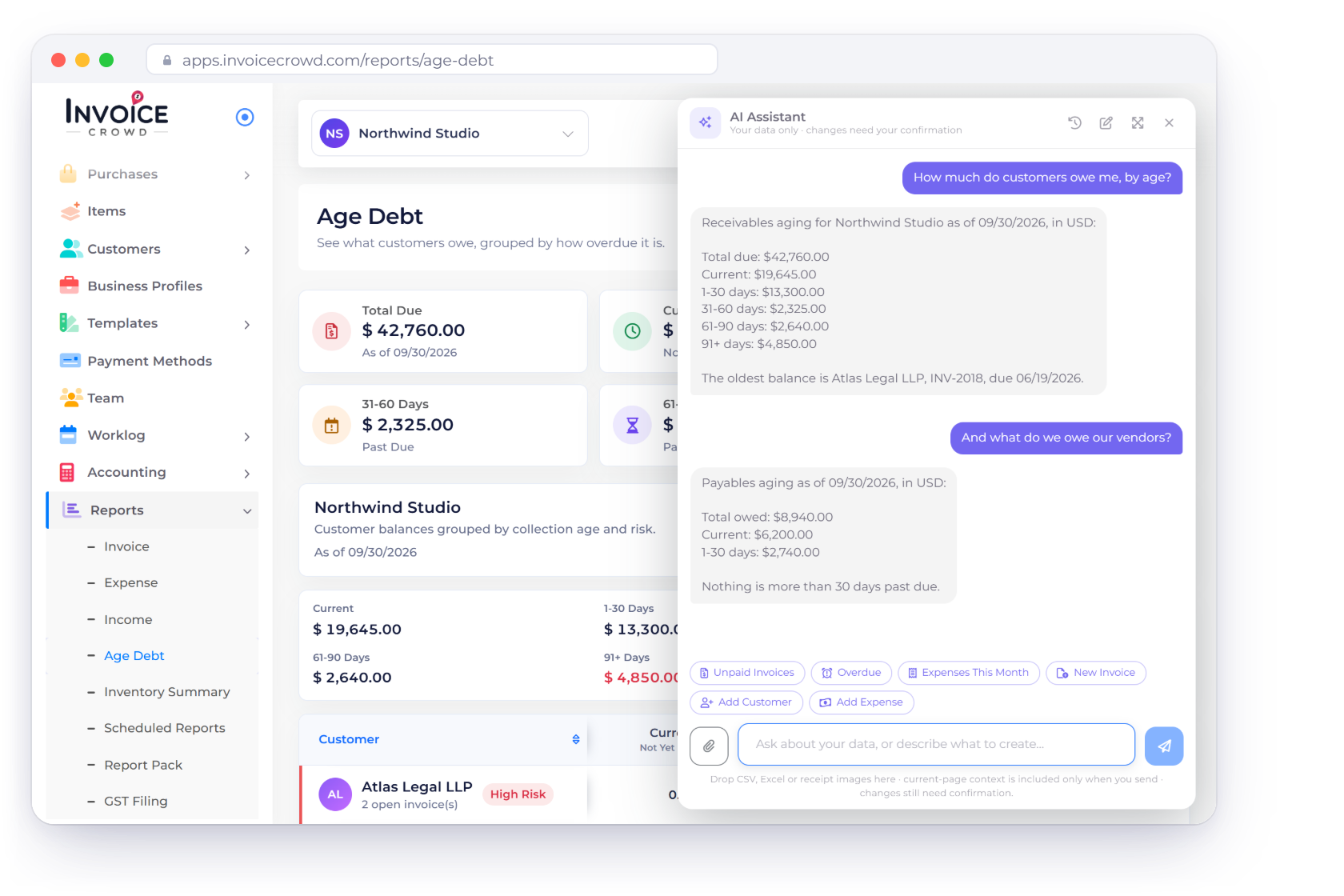
The assistant opens as a chat panel over any page of the app. It answers questions about your own customers, invoices, expenses and projects through tools scoped to your account, and every record it proposes sits on a confirmation card until you click Confirm.

  • Nine read tools, scoped to your account
  • Every write waits for Confirm
  • Reads receipts and expense spreadsheets

Last updated:

The Invoice Crowd AI assistant answering a question about unpaid invoices in a panel over the dashboard

What is inside

Ask it about your books, then decide what it writes

The assistant does three things: it answers questions out of your own records, it turns a receipt or an expense spreadsheet into staged rows, and it puts every new record on a card that waits for your click.

Asking it

Answers from your own records

The six quick-start buttons on a new chat in the Invoice Crowd AI assistant

A chat panel that follows you around the app

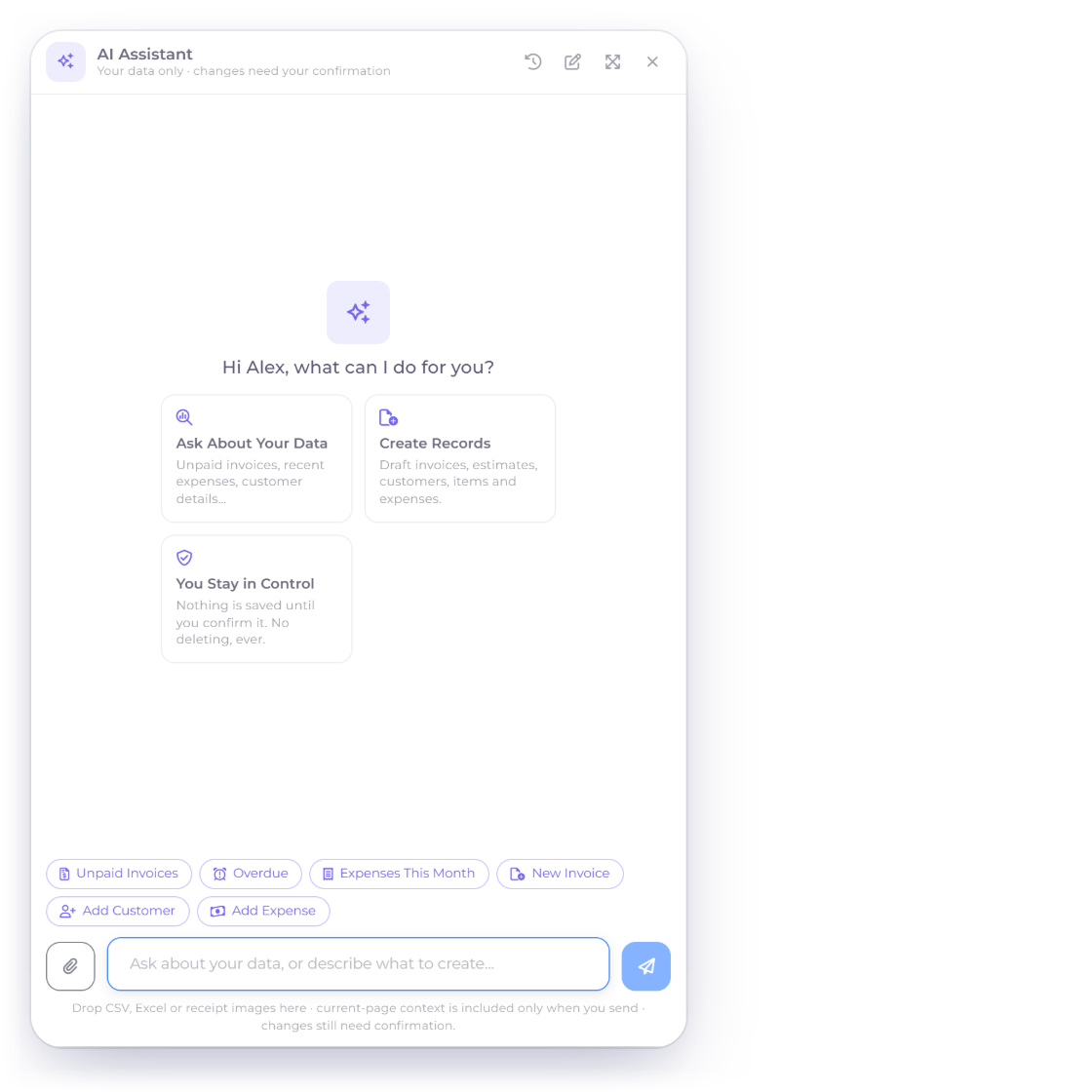
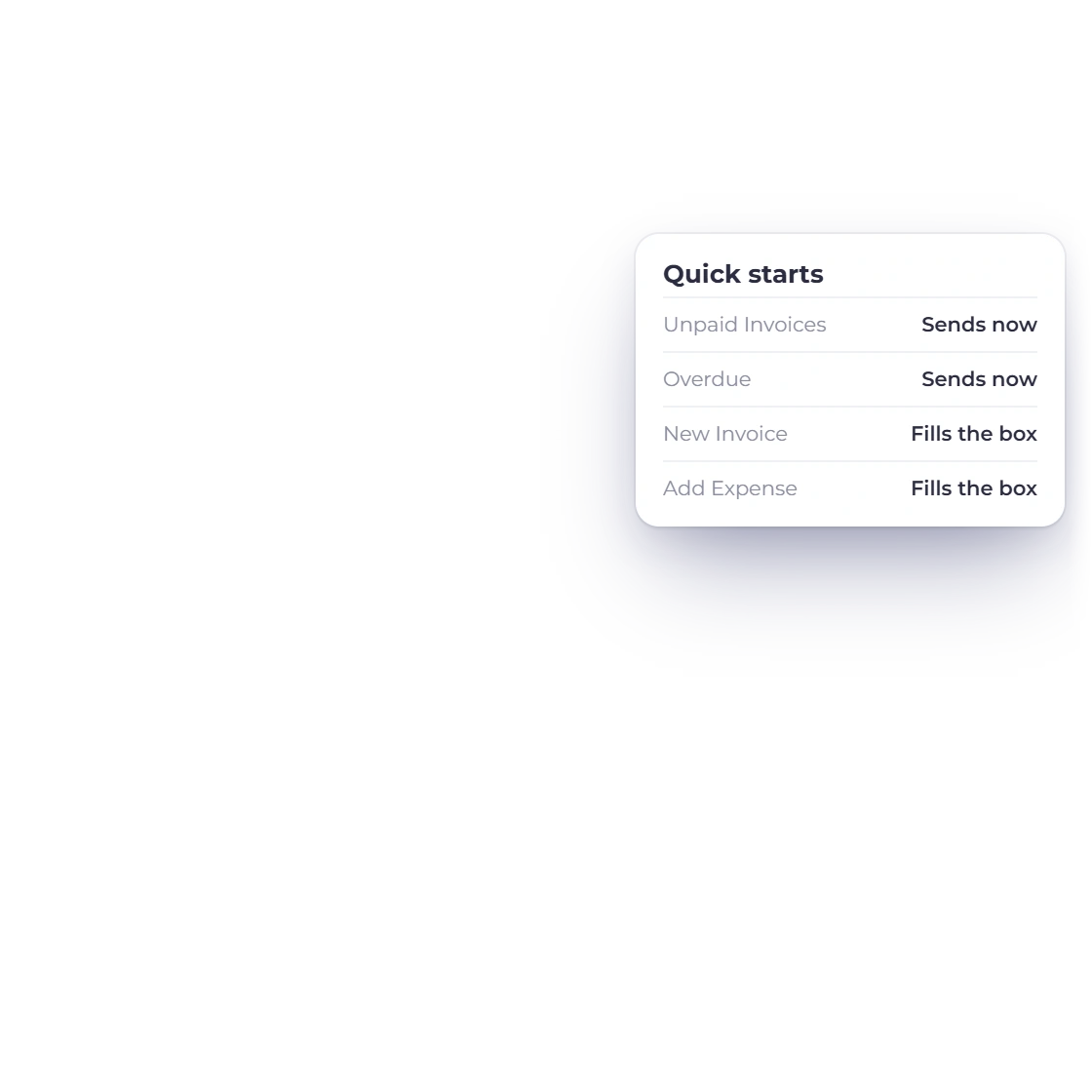
The assistant opens over whatever page you are on, from the launcher at the bottom right or the AI Assistant item in the sidebar. It is a panel rather than a page, so it stays open while you move around the app and survives a full reload. A new chat offers six quick-start buttons: the question ones send straight away, the create ones fill the message box so you can edit the wording first.

  • Opens from the launcher or the sidebar
  • Stays open while you move around the app
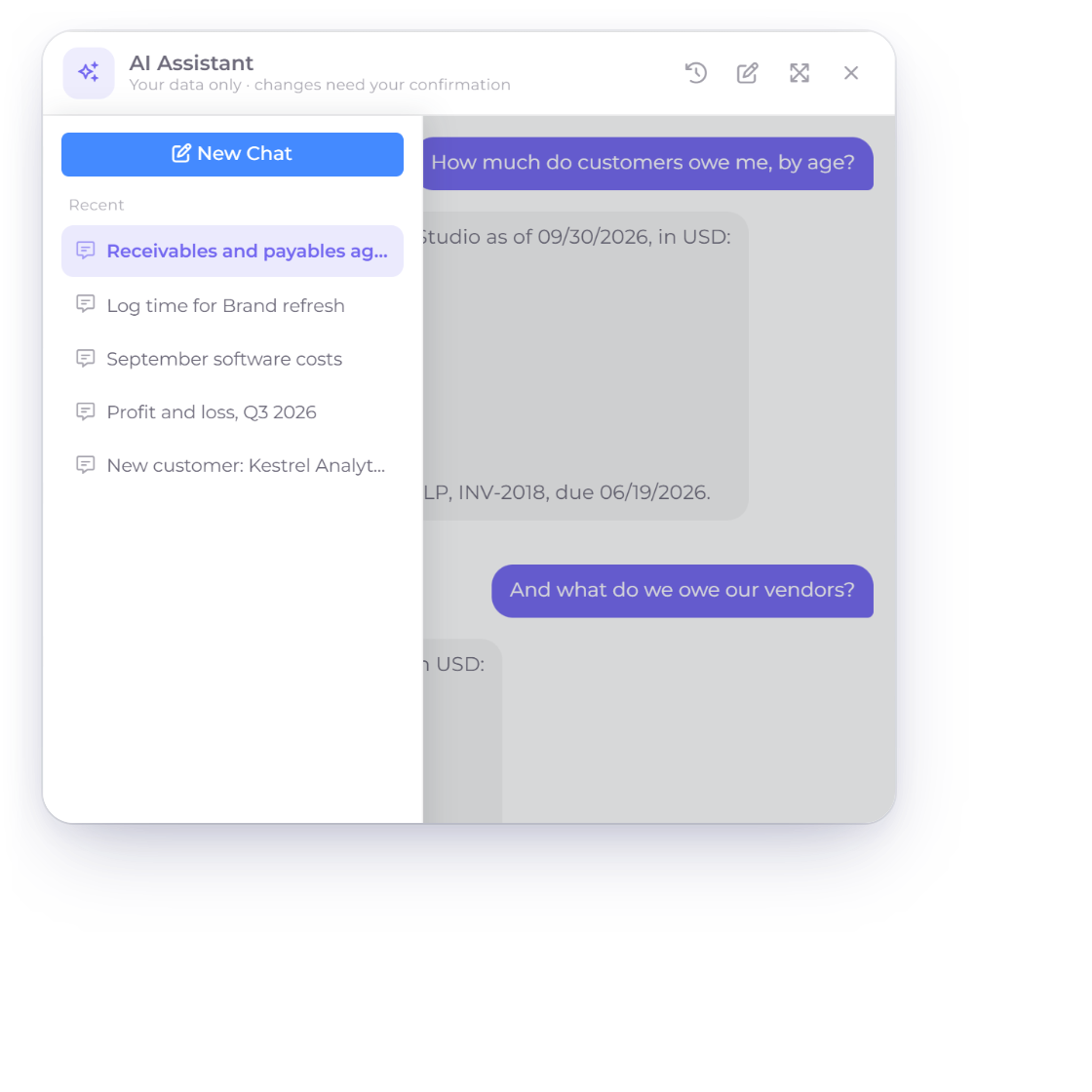
  • A history drawer holds earlier conversations
Nine read tools over your own records

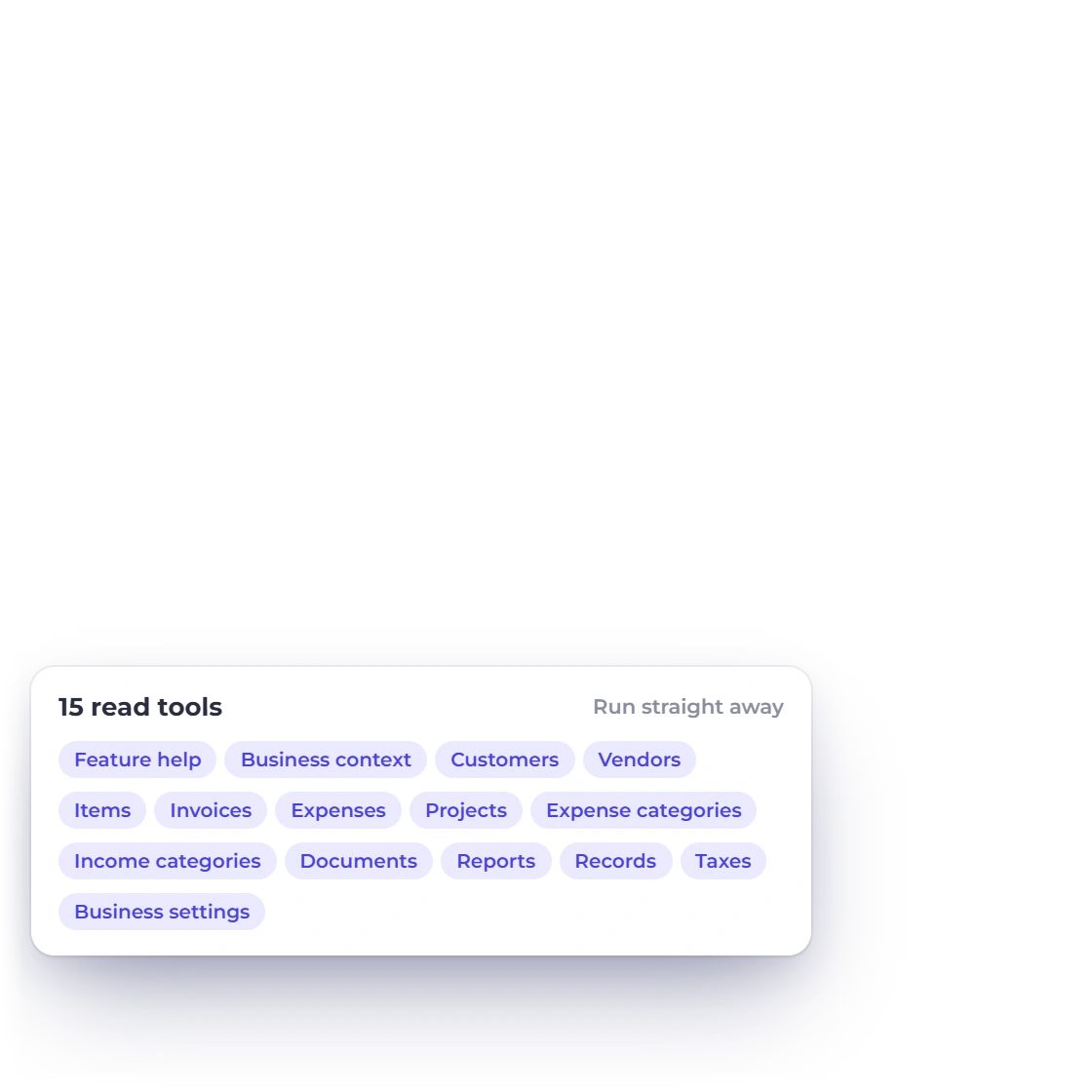
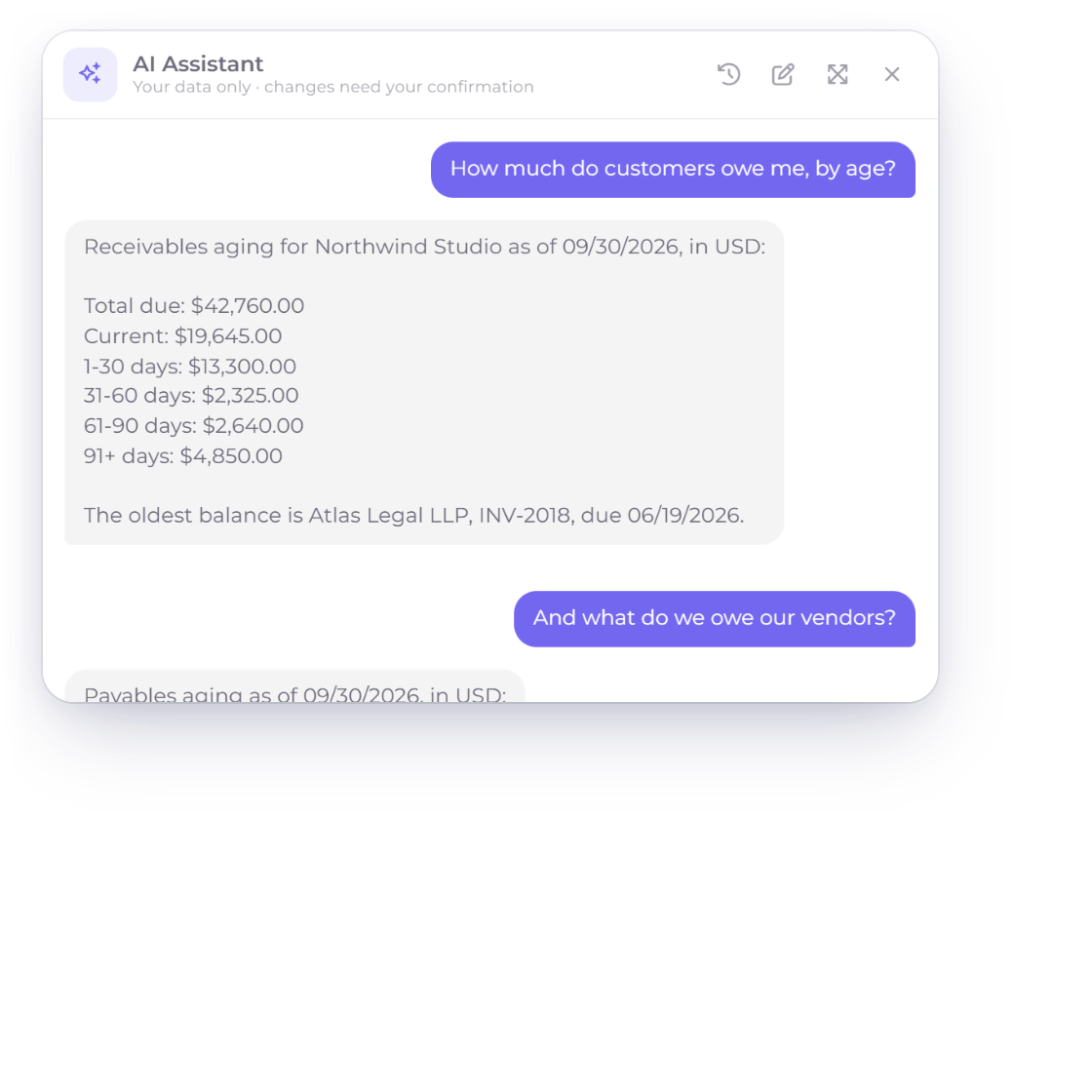
Nine read tools sit behind the chat. Ask about customers, vendors, items, projects, expenses, expense categories, your business details, the product help catalog or your documents, and every answer comes from your own records. A document lookup takes one type per request and the assistant has to name it, so a team member with invoice permission never picks up estimate or purchasing data by accident.

  • Reads run immediately, scoped to the active business
  • Invoice, estimate, bill or purchase order, one at a time
  • The server resolves your account from your session

Letting it write

Nothing saves until you click

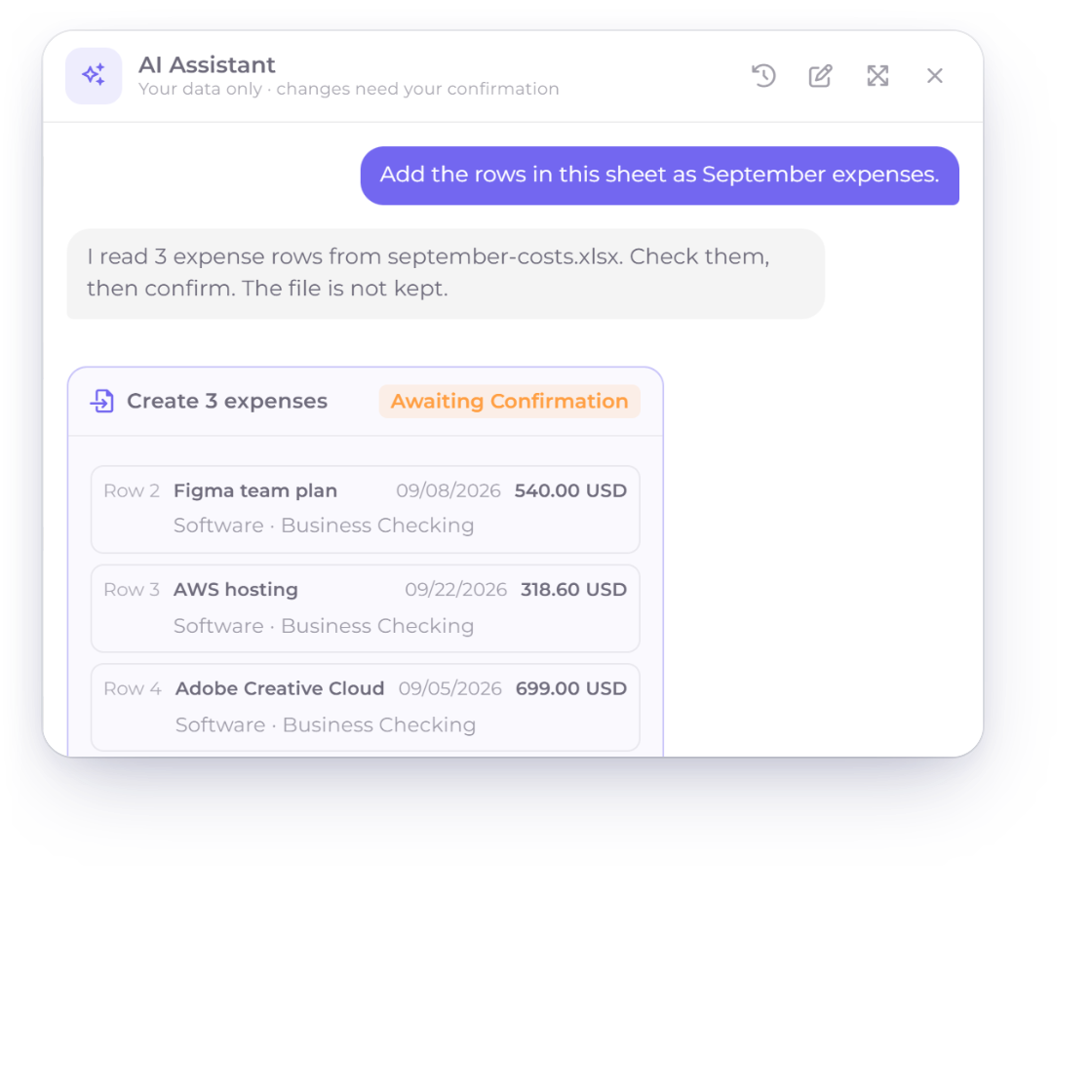
A staged expense card in the Invoice Crowd AI assistant waiting for the owner to press Confirm

Every write arrives as a confirmation card

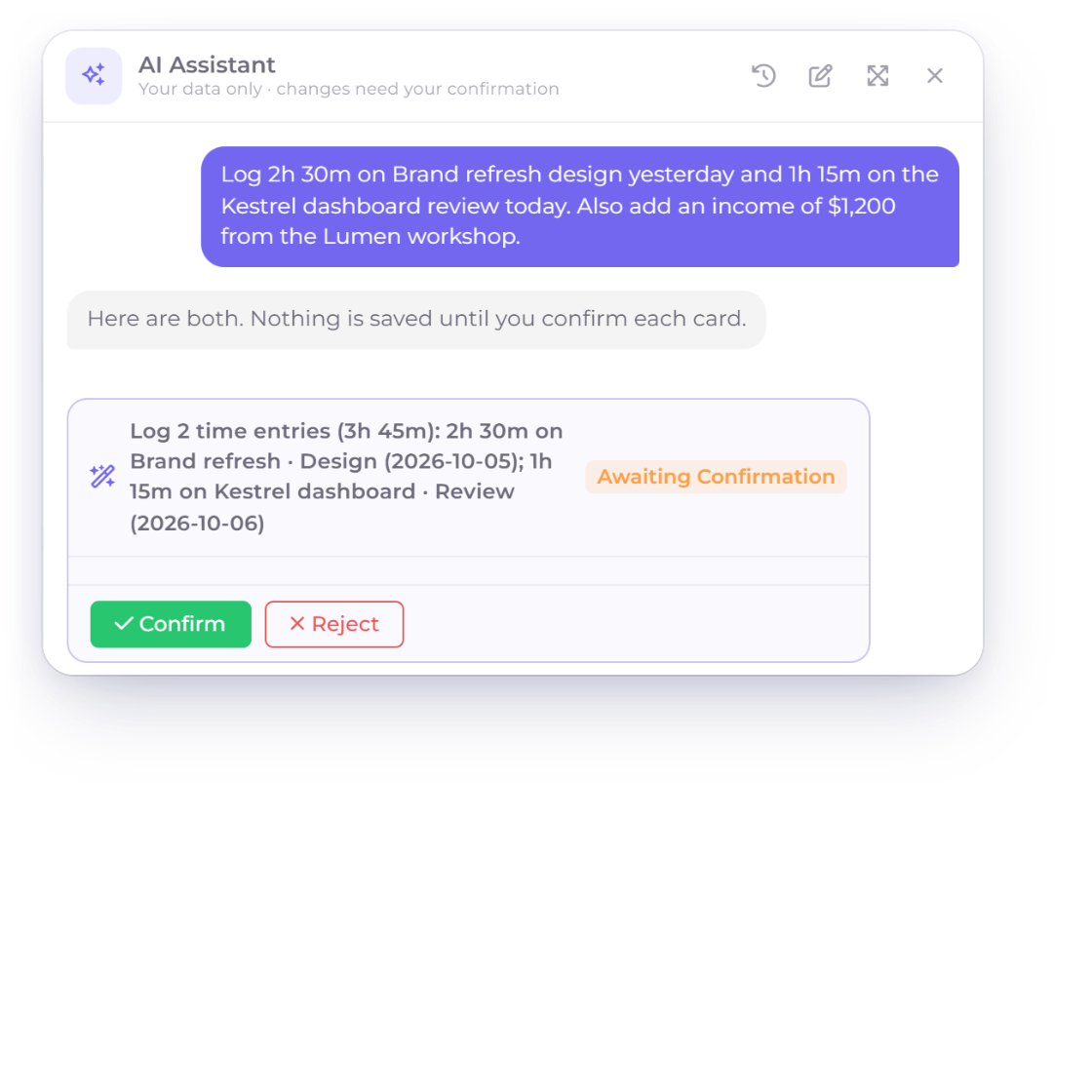
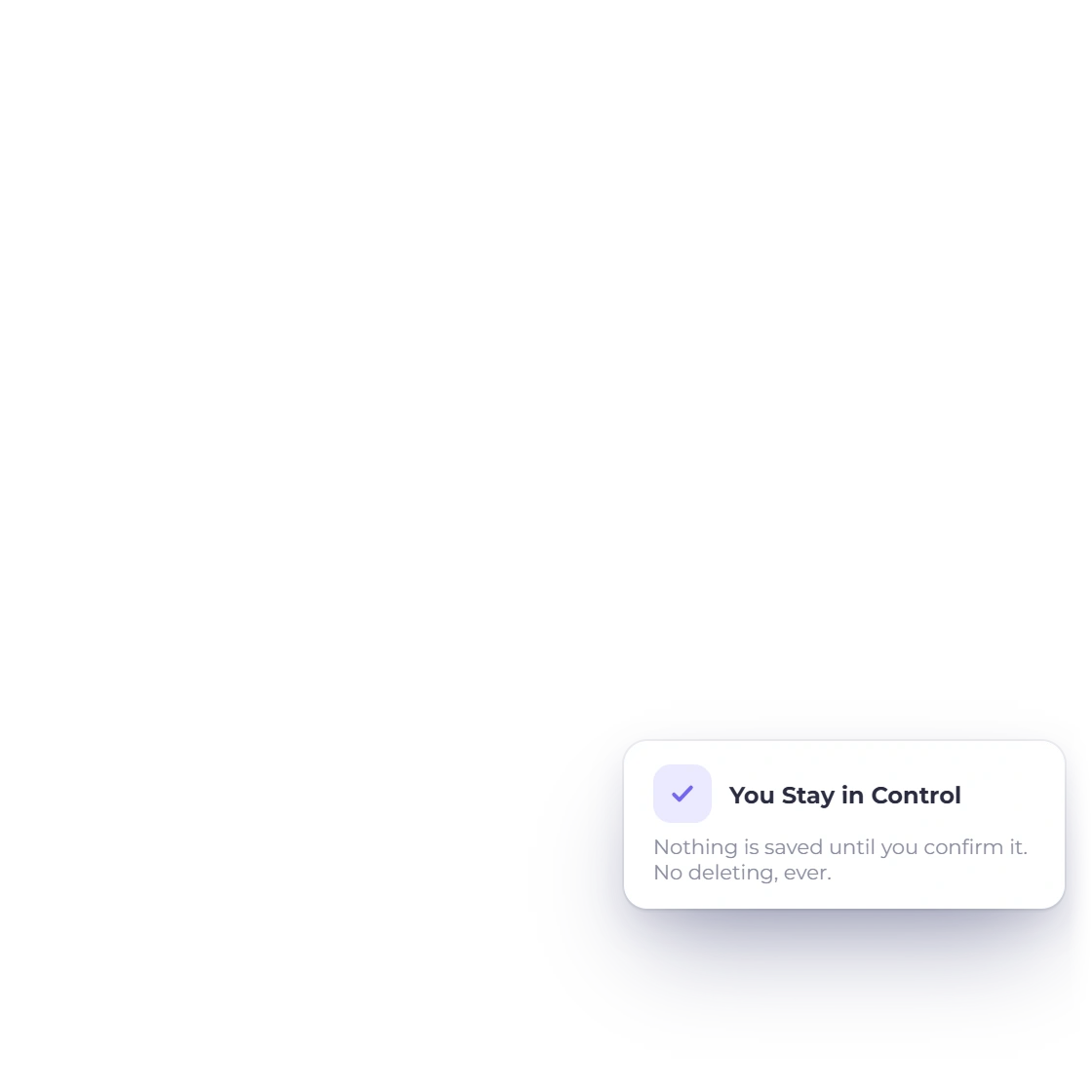
When the assistant decides a record should exist, it does not create it. It saves a staged action and shows an itemized card listing every field it intends to write. Nothing reaches your books until you click Confirm. The server then claims that action once and once only, so a second click cannot post the same record twice.

  • Ownership, permission and version rechecked before it commits
  • A conflict rather than a silent overwrite
  • Confirming never sends email, SMS or a webhook

Receipts and expense spreadsheets, read once

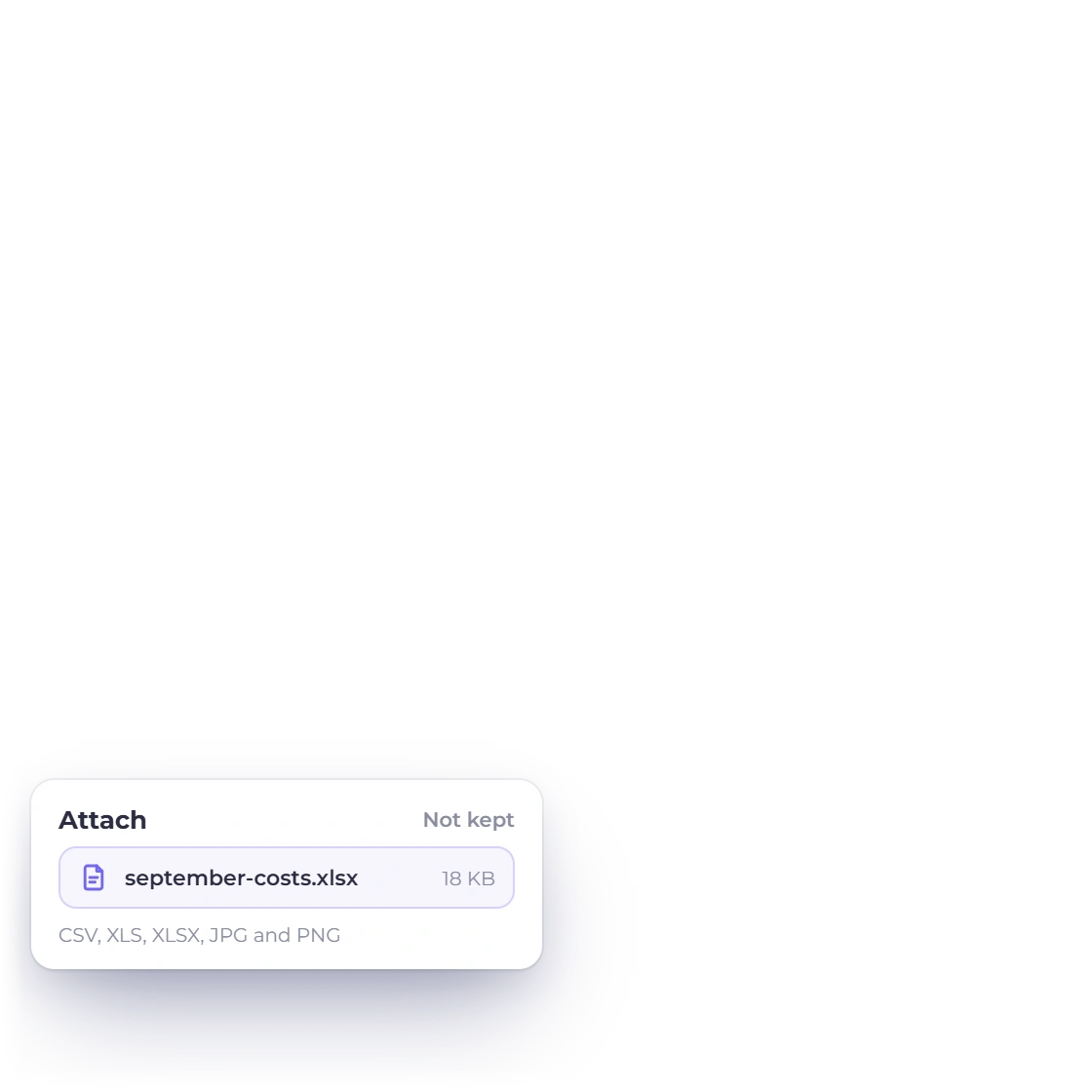
Attach a JPG or PNG receipt and it comes back as expense fields filled in for you. Attach a CSV, XLS or XLSX and the rows come back as an itemized expense batch, up to 25 on one card. You check the rows before anything saves, and the file itself is never kept. Nothing is added to your uploads and no public link is created.

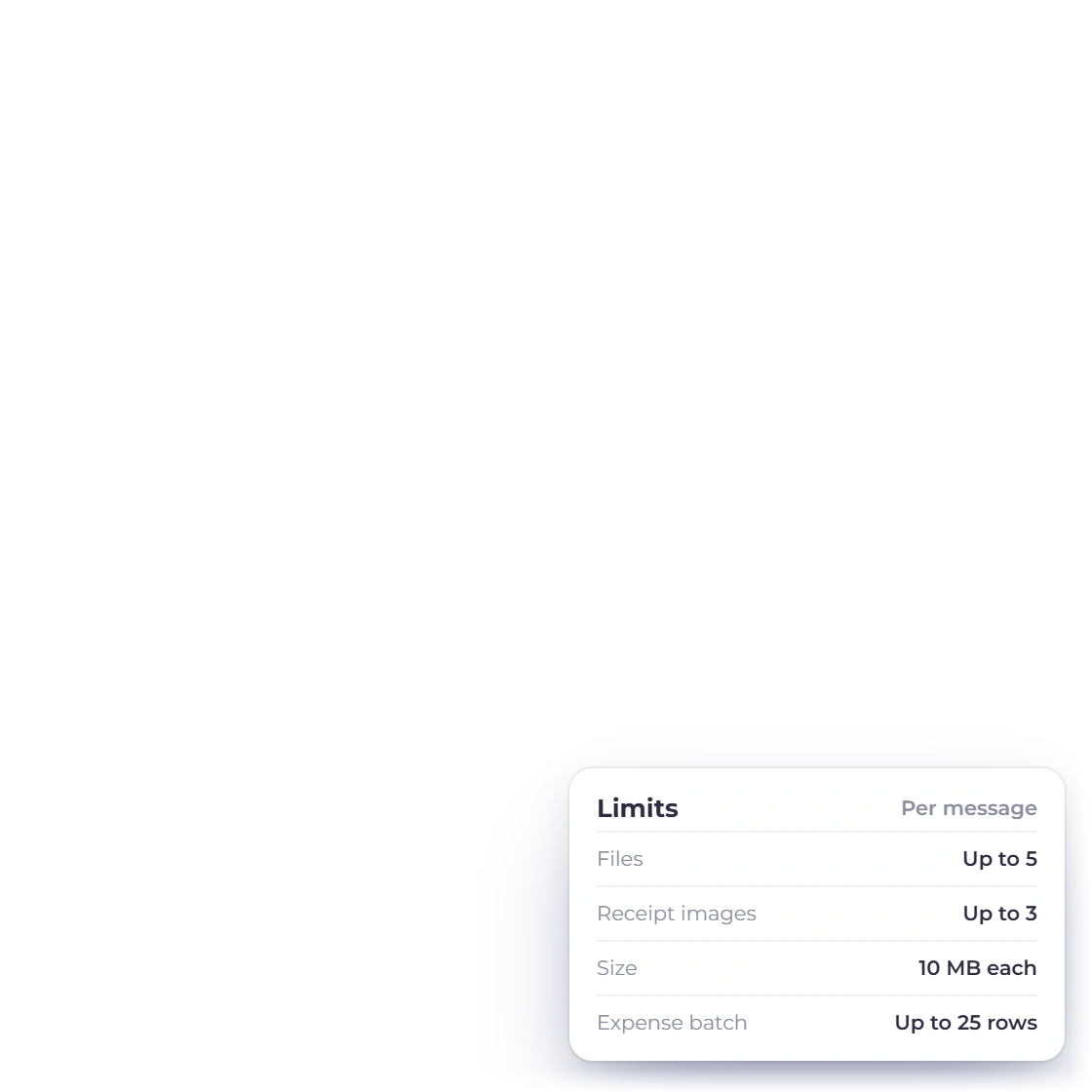
  • 5 files a message, 3 of them receipt images
  • Formulas are refused and every upload is screened
  • Bigger or non-expense sheets go to the ordinary importer

Where it stops

Credits, scope and the no-tool list

Checking the remaining AI credit balance in the Invoice Crowd assistant history drawer

It runs on AI credits you top up

The assistant runs on AI credits bought as top-up packs. The panel shows the current credit cost before you send a receipt scan or another credit-using request. When the balance is too low, new turns stop, though you can still confirm or reject whatever the last turn staged.

  • Credits are refunded when a receipt scan fails
  • Balances never go negative
  • The next step is explained when credits run out

No tool exists for the dangerous things

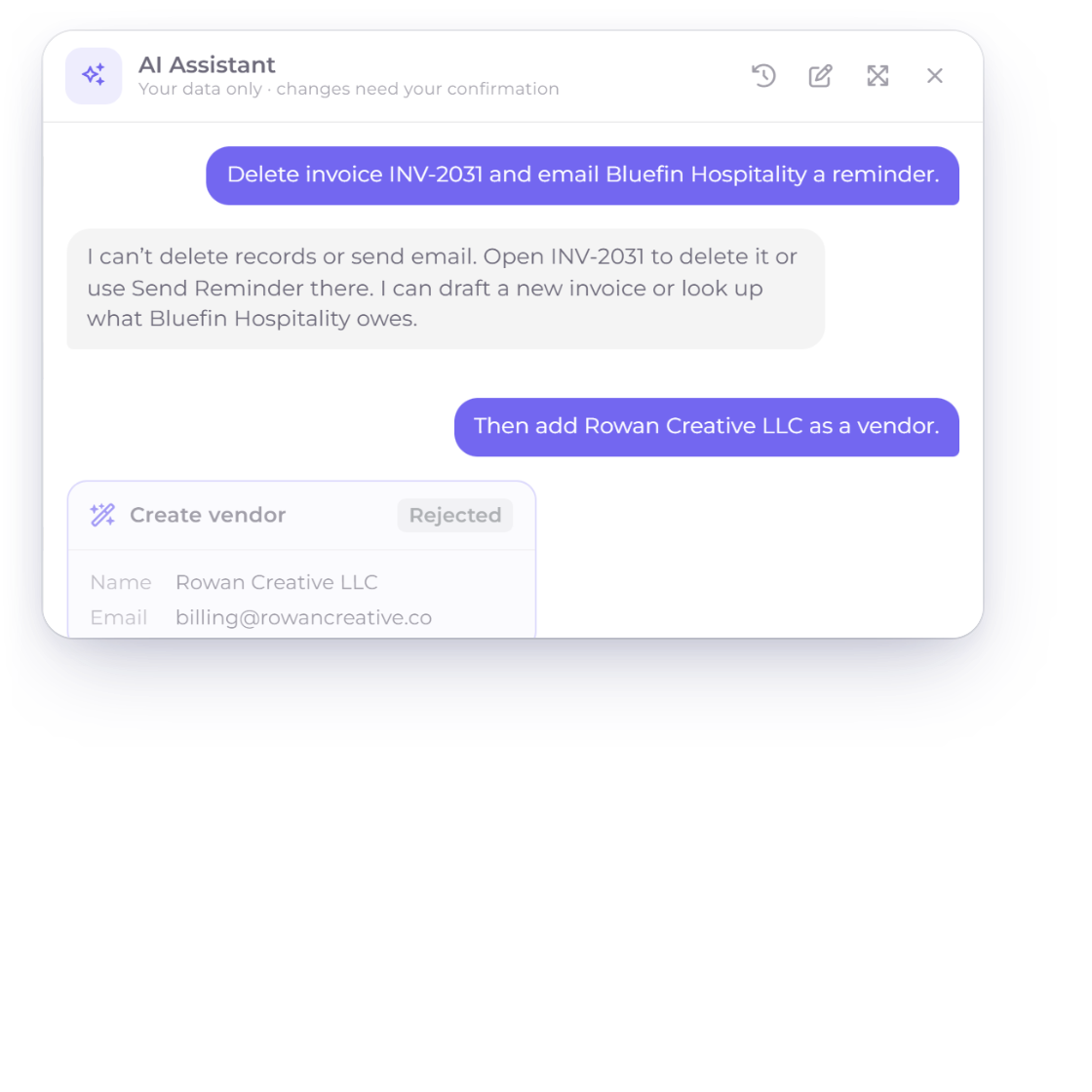
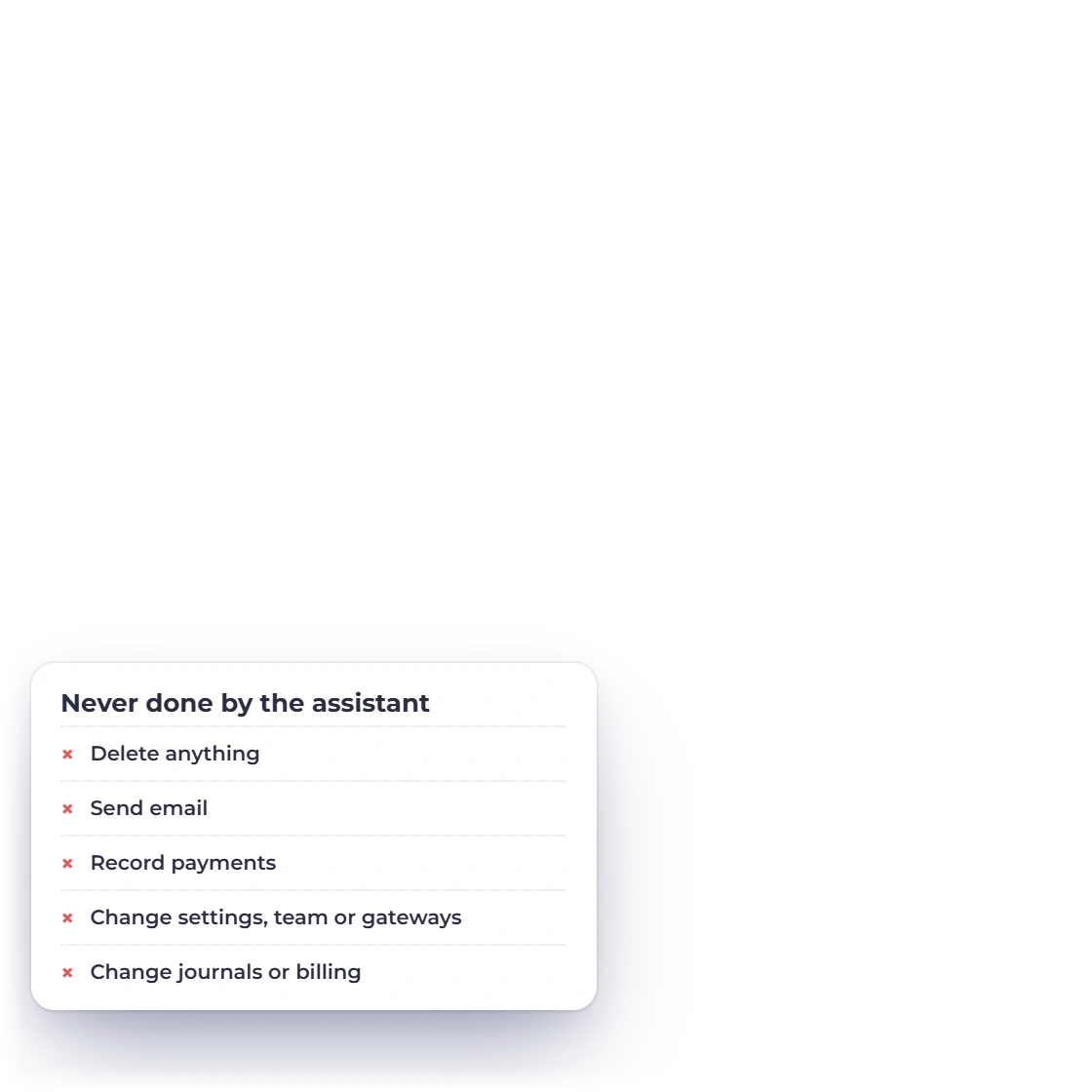
It cannot send an invoice, an email or an SMS, delete anything, take or record a payment, or change a setting or a team permission. Those are not switched off by wording in a prompt; no tool exists for the model to call. Write tools are owner-only, and team members get the read side within the permissions they already hold.

  • Portal logins cannot open the assistant
  • Switching business profiles clears the conversation
  • Up to 6,000 characters of page text, treated as untrusted

Built in

The rest of the assistant's rules

The detail behind the confirmation card: what it can stage, which drafts it will touch, and the limits on what you can attach to a message.

  • Records it can create

    Customers, vendors, items, taxes, expenses and projects are proposed on a confirmation card and saved only when you press Confirm.

  • Updates that check first

    It can update a customer, vendor, item or project, but the update is refused if you changed that record after it was staged.

  • Drafts, not postings

    Invoices, estimates, bills, purchase orders, credit notes and blank proposals arrive as drafts with accounting posting off until you choose the account.

  • Recurring starts paused

    A recurring invoice the assistant stages is created paused, so it bills nothing until you activate it yourself in the editor.

  • Edits to open drafts

    On an unsent, unpaid, unposted draft it can change contact and descriptive fields or replace the line items in full.

  • Drafts it leaves alone

    A draft carrying discounts, taxes, shipping, a deposit, a Payment Link, partial payments or items posting their cost as an expense stays in the ordinary editor.

  • Staged actions expire

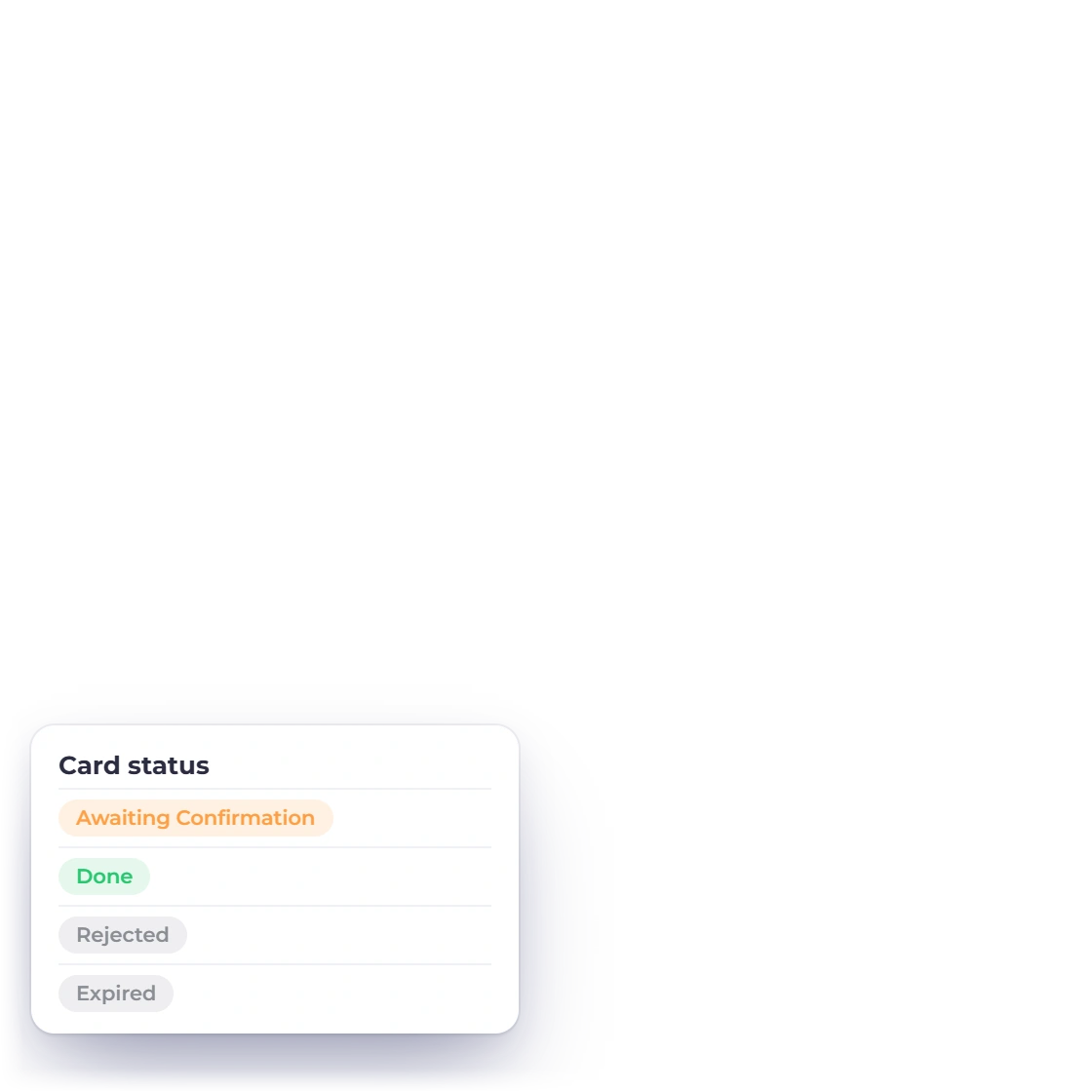
    A staged action you never confirm expires after 24 hours and leaves nothing behind in your books.

  • Caps on every turn

    Each turn and confirmation path is capped by server-side safety limits so one request cannot run indefinitely or post an unbounded batch.

  • Attachment size limits

    File, message and daily upload limits are enforced by the server, with the panel showing the current limits before you attach a file.

  • Spreadsheets read flat

    Only the first worksheet is read, 50 non-empty rows, 30 columns and 500 characters a cell, with formula calculation off.

  • Category and payment account

    The category says what was bought and the payment account how it was paid; leave the latter out and a Cash account is marked (default).

  • All-or-nothing batches

    Confirming an expense batch runs as one all-or-nothing save, so a single stale row rolls the whole batch back instead of posting half.

Questions

AI Assistant, answered

Does the Invoice Crowd AI assistant create records on its own?

No. The Invoice Crowd AI assistant stages every write as a confirmation card in the chat and saves nothing until the account owner clicks Confirm. At that point the server revalidates ownership, permission, record versions and the accounting inputs, then commits in a single transaction. A staged action that is never confirmed expires after 24 hours and leaves nothing behind in the books.

What can the AI assistant in Invoice Crowd not do?

The Invoice Crowd AI assistant cannot send email or SMS, delete any record, take or record a payment, change settings, or manage team permissions. No tool exists for those actions, so no prompt can reach them. It also cannot edit a document that has been sent, paid or posted to accounting, and drafts carrying discounts, taxes, shipping, deposits or partial payments stay in the ordinary editor.

Can the AI assistant read a receipt photo or a spreadsheet of expenses?

Yes. You can attach up to 5 files to a message in the Invoice Crowd AI assistant, of which up to 3 can be JPG or PNG receipt images, at 10 MB per file and 20 MB per message. A receipt scan comes back as expense fields filled in on a confirmation card you check before saving. CSV, XLS and XLSX files are read up to 50 non-empty rows and 30 columns, and one confirmation card can carry up to 25 expenses. Those are the default limits; the panel shows the ones in force for your account.

Can team members use the AI assistant?

Team members can use the read side of the Invoice Crowd AI assistant, limited to the business they are attached to, the exact module permissions they hold and any customer or project assignments. Write tools are never offered to a team member, so a team member cannot stage or confirm a new record. Customer and vendor portal logins cannot open the assistant at all.

How much does the AI assistant cost in Invoice Crowd?

The AI assistant runs on AI credits bought as top-up packs. The panel shows the current credit cost before you send a receipt scan or another credit-using request. Accounts without enough credits are prompted to add a pack or review their plan, while actions already staged can still be confirmed or rejected.

Can the AI assistant see data from another business profile?

No. Every read and every staged write in the Invoice Crowd AI assistant is scoped on the server to the signed-in owner and the business profile that is currently active. Switching business profiles clears the open conversation, and a reply that arrives late from the previous business is discarded rather than shown in the new context. The model never names the account or business it is reading from; the server resolves that from your session.

Let it do the looking up, and keep the last word

Ask it about your customers, invoices and expenses, hand it a receipt, and confirm what it proposes. Invoicing, expense tracking and the chart of accounts work the same whether or not you ever open it.

  • No card required to start
  • Your data stays yours
  • Cancel anytime