
Skip to content

Features

Timesheets your team submits, you approve, and you bill

Timesheets in Invoice Crowd show every hour your team logs in four views: List, Week, Approvals and Utilisation. Team members submit their week, you approve it or send it back with a comment, and unbilled hours go to an invoice with Invoice These.

  • Submit and approve weeks
  • Client approval in the portal
  • Import up to 1,000 rows by CSV

Last updated:

Invoice Crowd Timesheet list with List, Week, Approvals and Utilisation views, filters, logged, billable and unbilled totals with Invoice These, a submitted-week notification and a week waiting for approval

What is inside

From the week grid to an approved, billed week

The Timesheet is where the team's hours meet your billing: entered in a list or a week grid, checked week by week, approved by you and, where you want it, by the client, then sent to an invoice.

Logging the hours

List, week grid or CSV

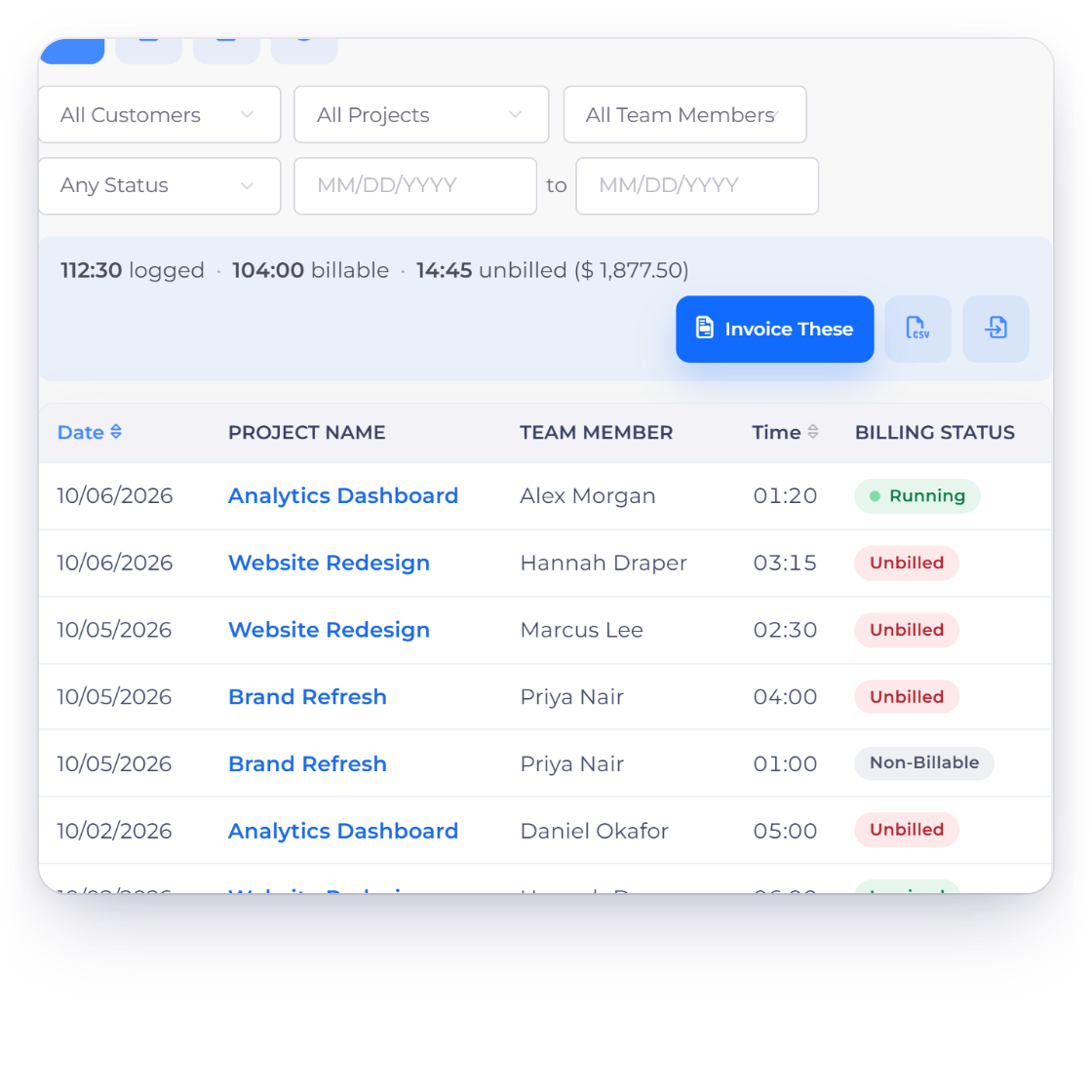
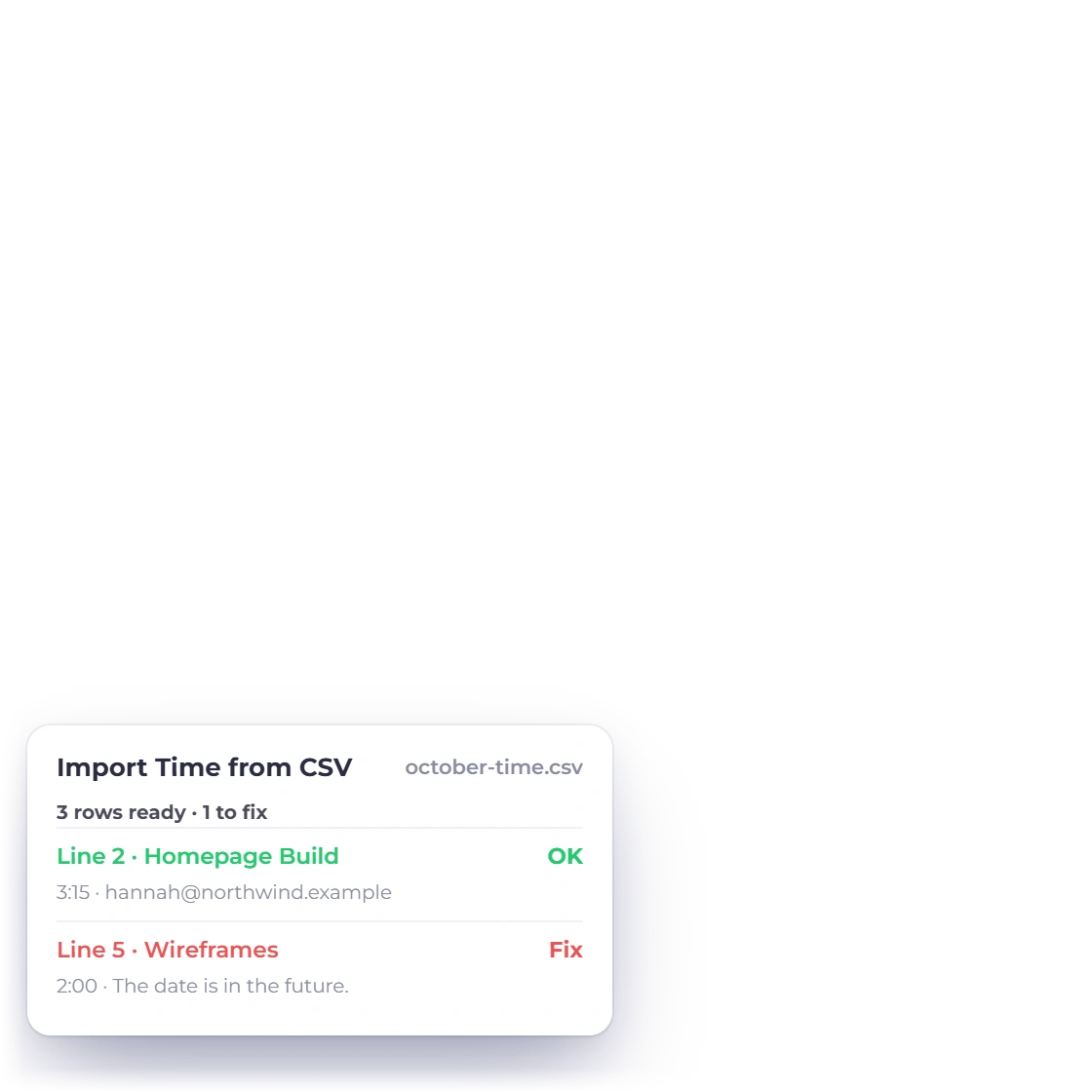
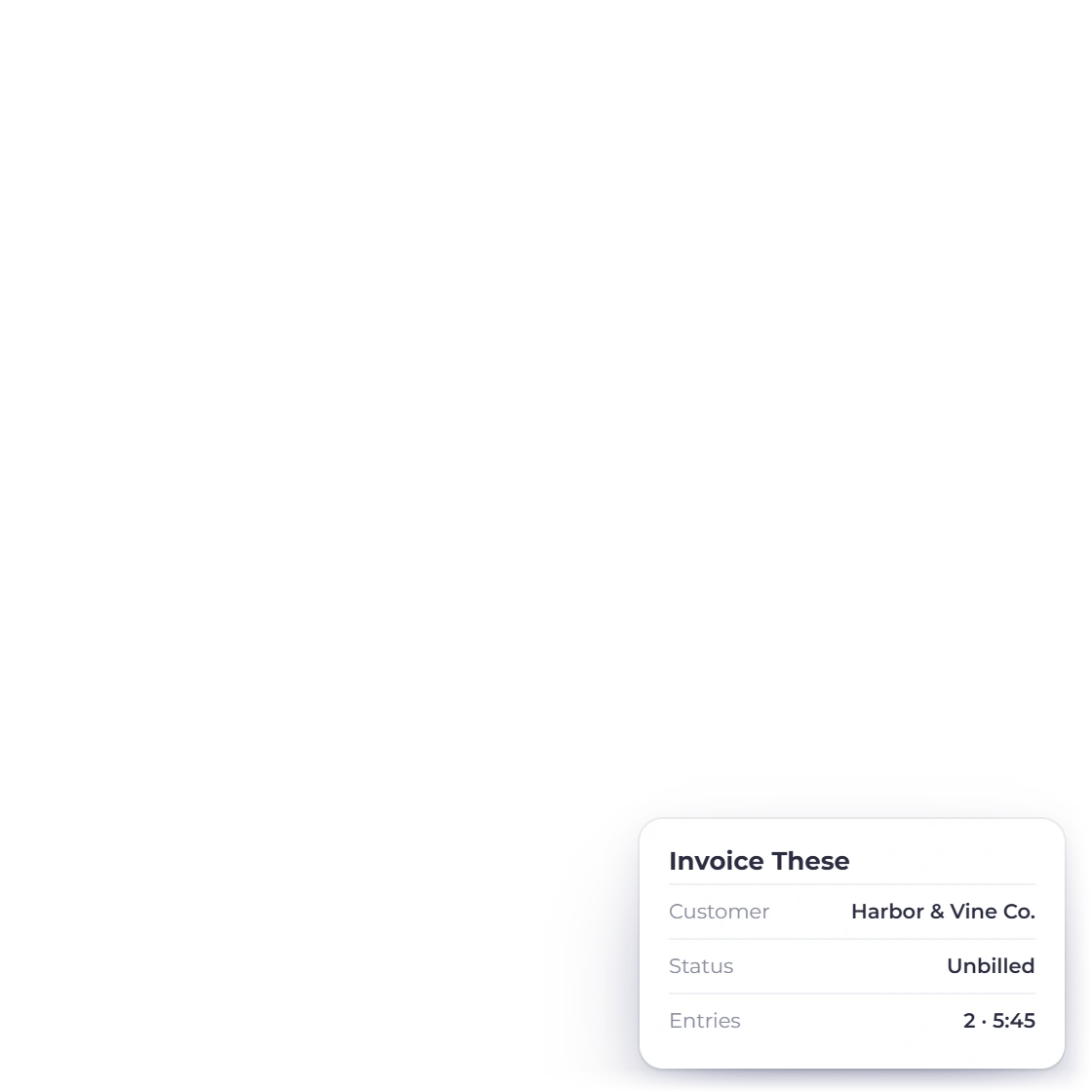
Invoice Crowd Timesheet list with customer, project, team member, status and date filters, logged, billable and unbilled totals, Invoice These, Export CSV and Import CSV, and a CSV import with one row to fix

Filter the list, then Invoice These

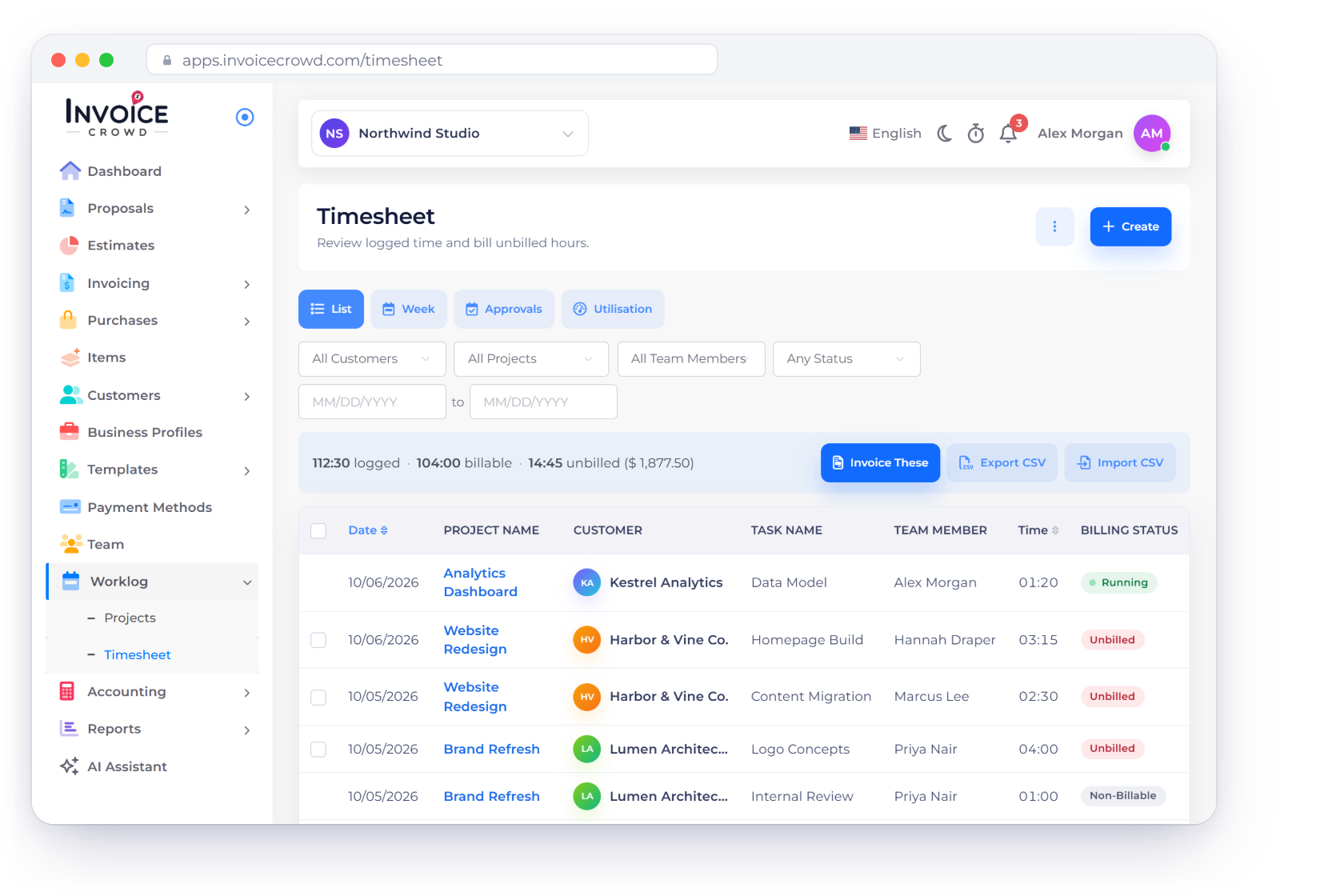
The List view filters time by customer, project, team member, billing status and dates, and totals what is logged, billable and unbilled, with the unbilled value. Invoice These sends every unbilled entry that matches the filters to the invoice wizard. Export CSV downloads the filtered rows, and Import CSV checks a file before anything is saved.

  • Import CSV takes up to 1,000 rows and 1 MB
  • A file with a problem row imports nothing
  • Billing Status reads Unbilled, Invoiced or Non-Billable
Time tracking
Invoice Crowd Timesheet Week view with a row per project and task, hours for each day and totals for the week, a Fill your week reminder and Copy Rows from Last Week

Fill in the week, a row per task

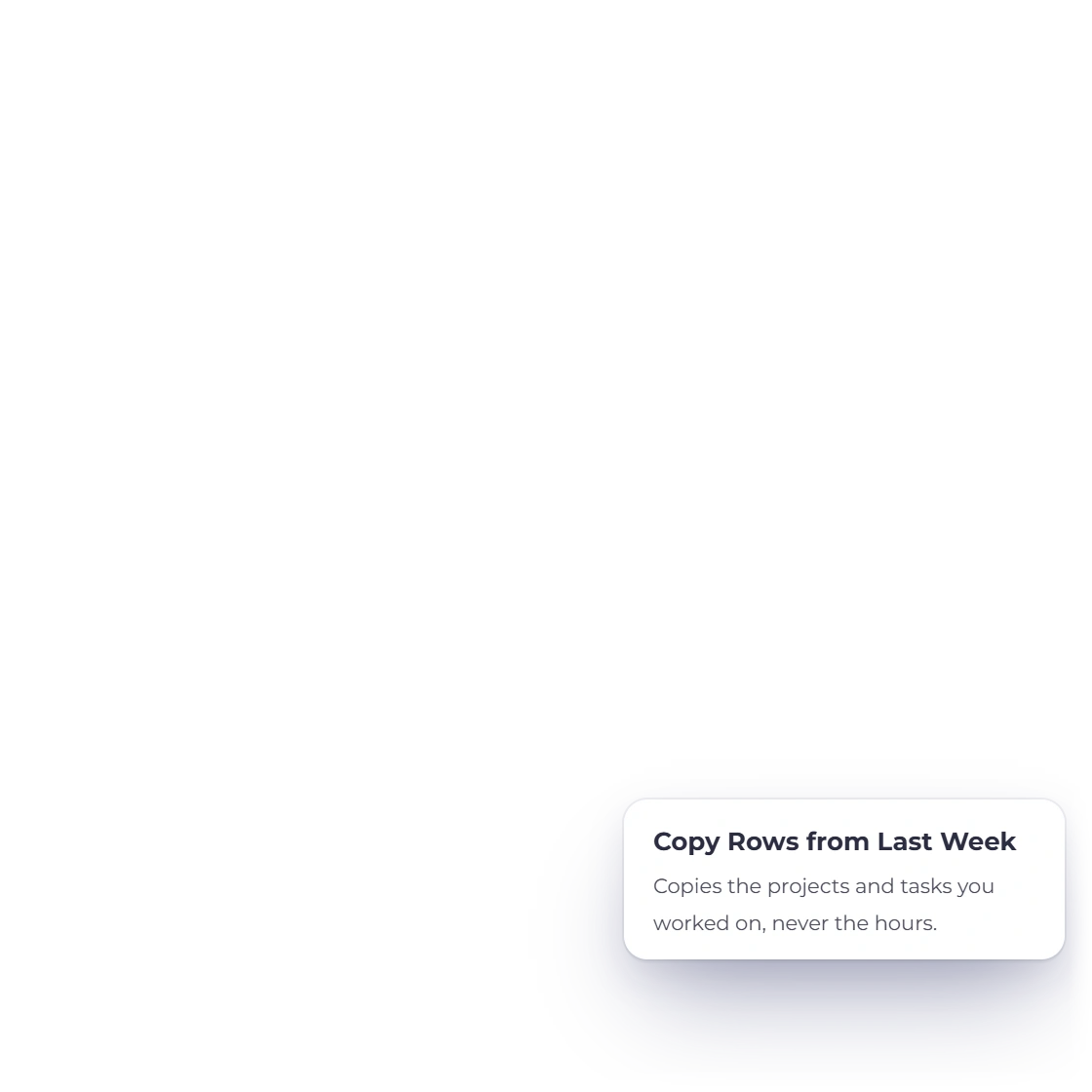
The Week view is a grid with a row per project and task and a cell per day. Type the hours in a cell and it saves. Copy Rows from Last Week brings back last week's projects and tasks without their hours, and future days stay closed. A day with several entries, or with invoiced time, is edited in the list.

  • Weeks run Sunday to Saturday
  • Managers can open each team member's week
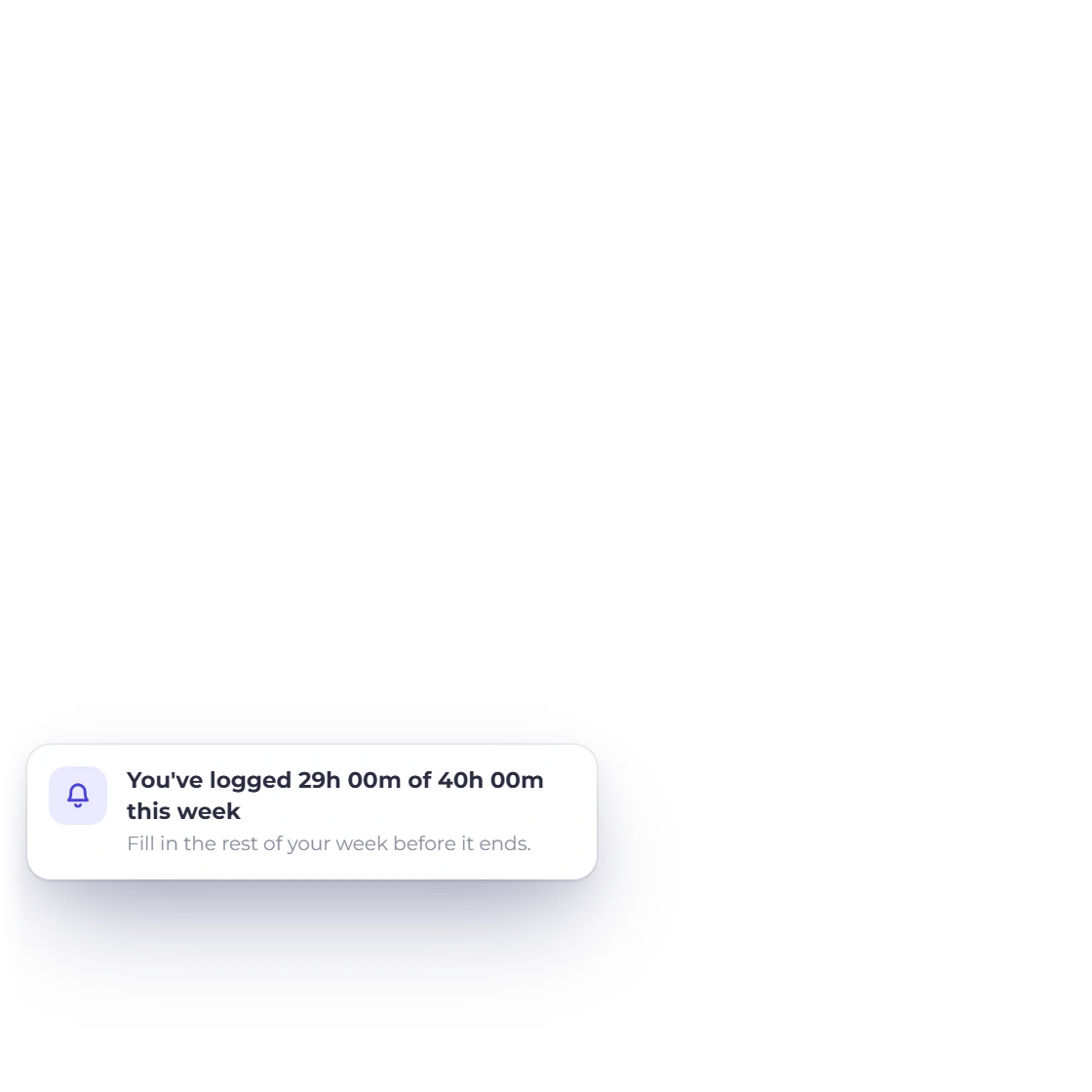
  • Fill Your Week reminds anyone short of their hours

Approving the week

Submit, approve or send back

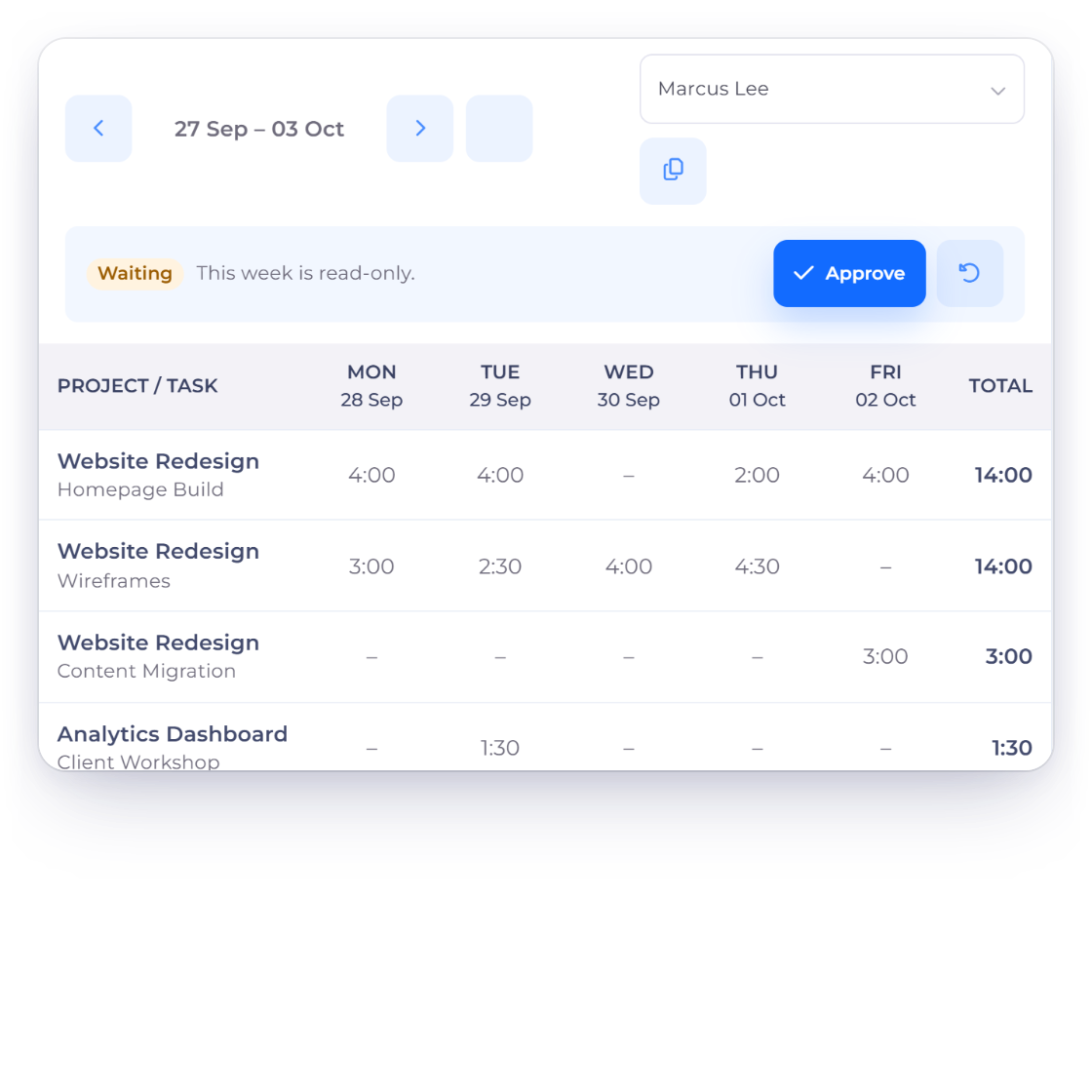
Invoice Crowd Timesheet Week view of a submitted week marked Waiting and read-only with Approve and Send Back, the submitted-week notification and the comment asked for when a week is sent back

Team members submit their week

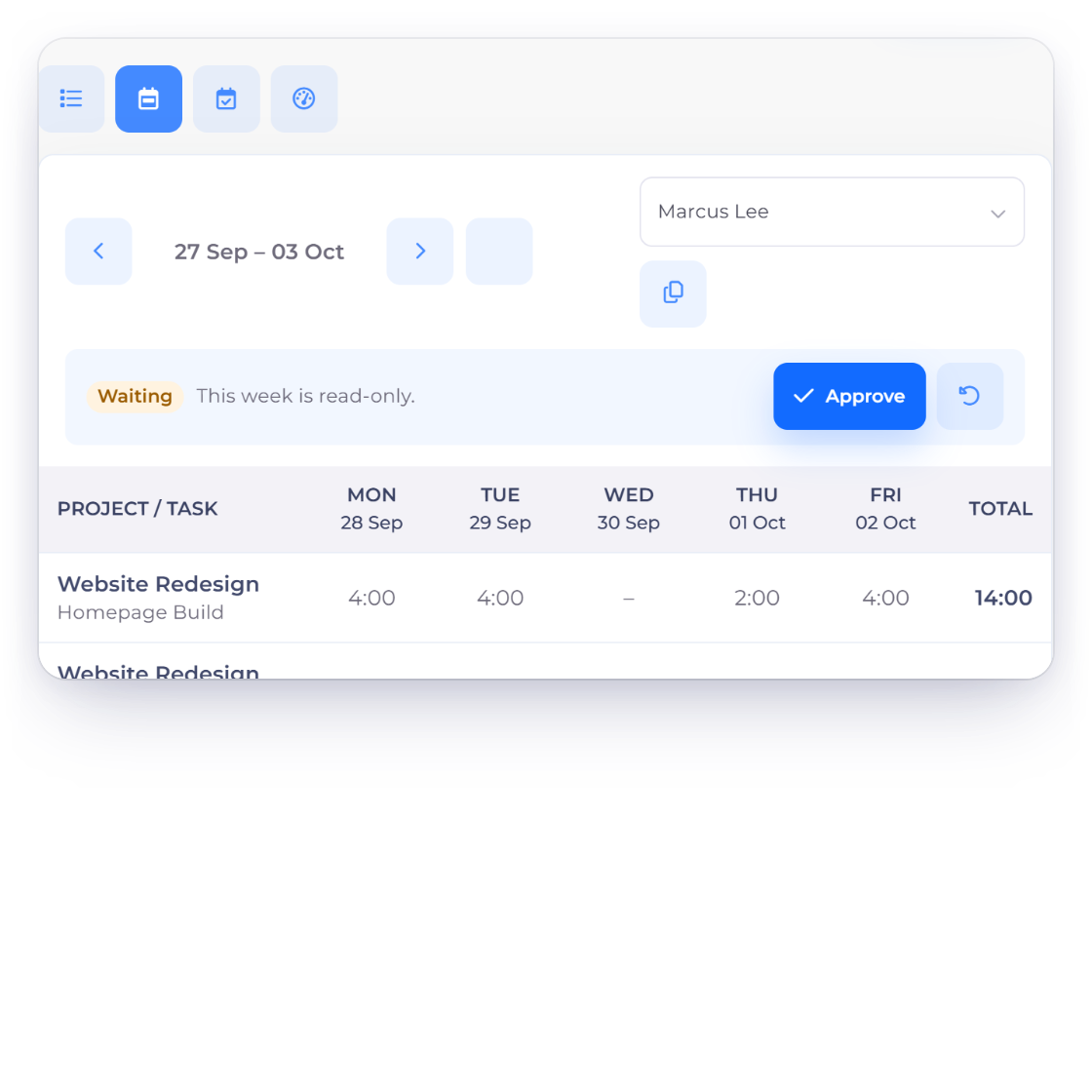
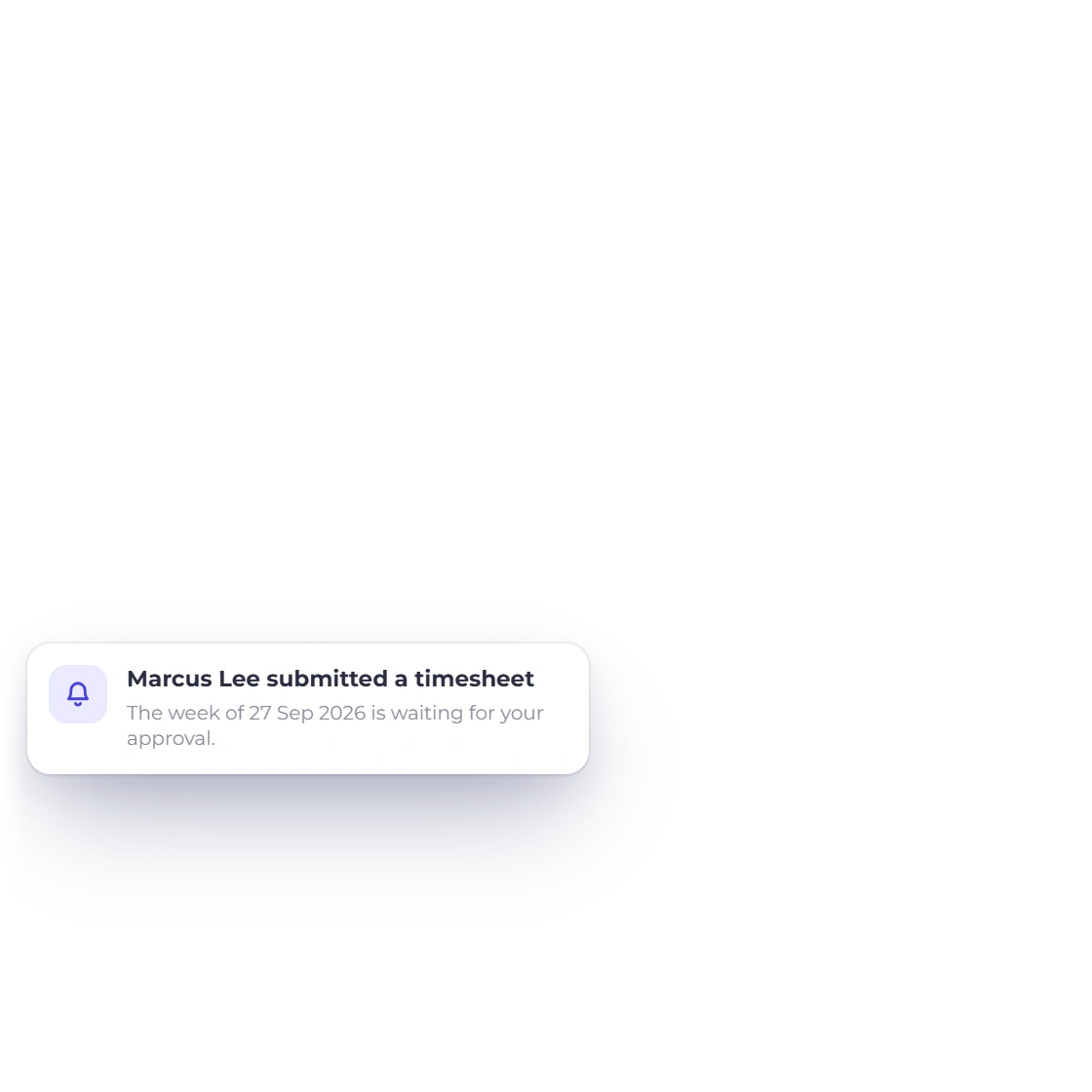
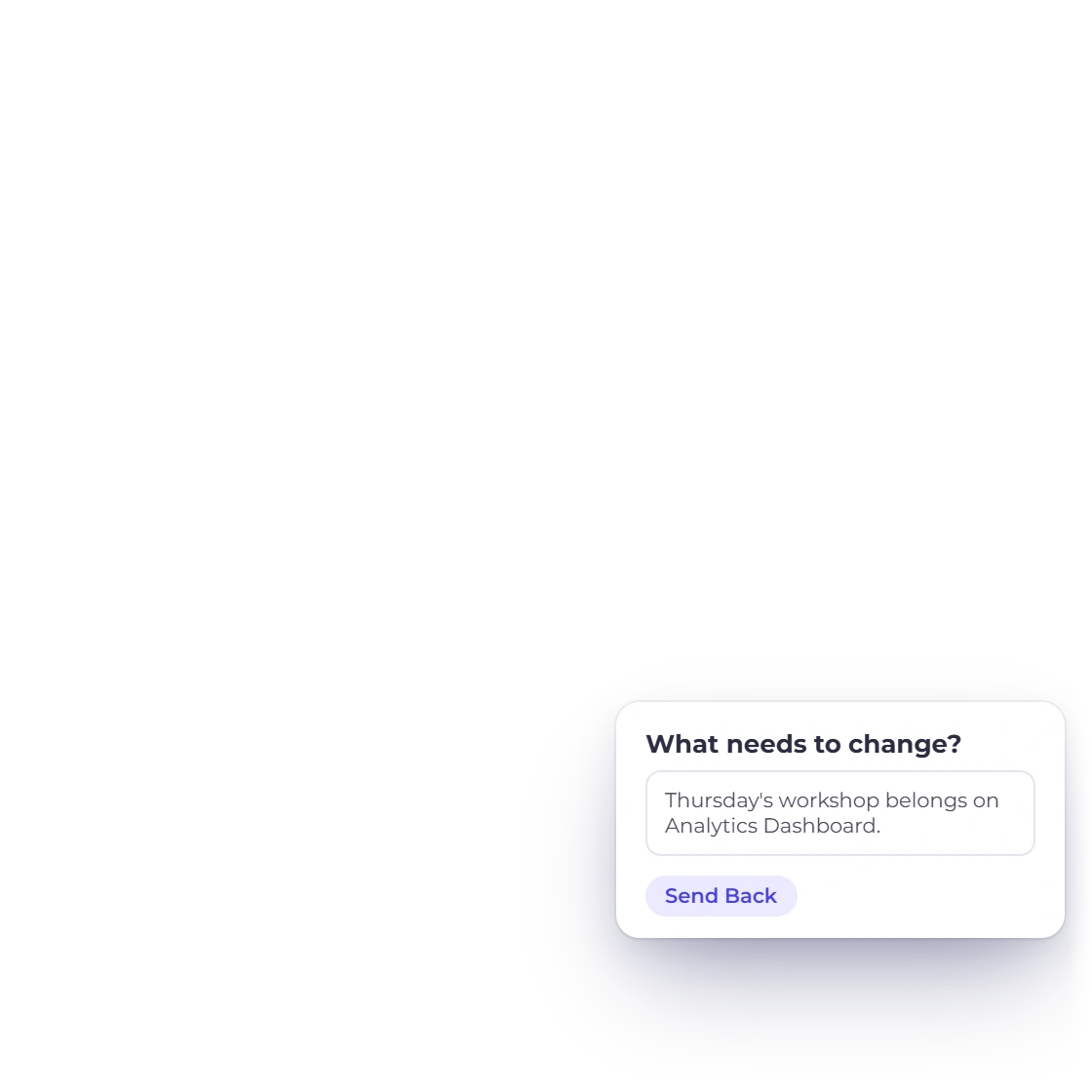
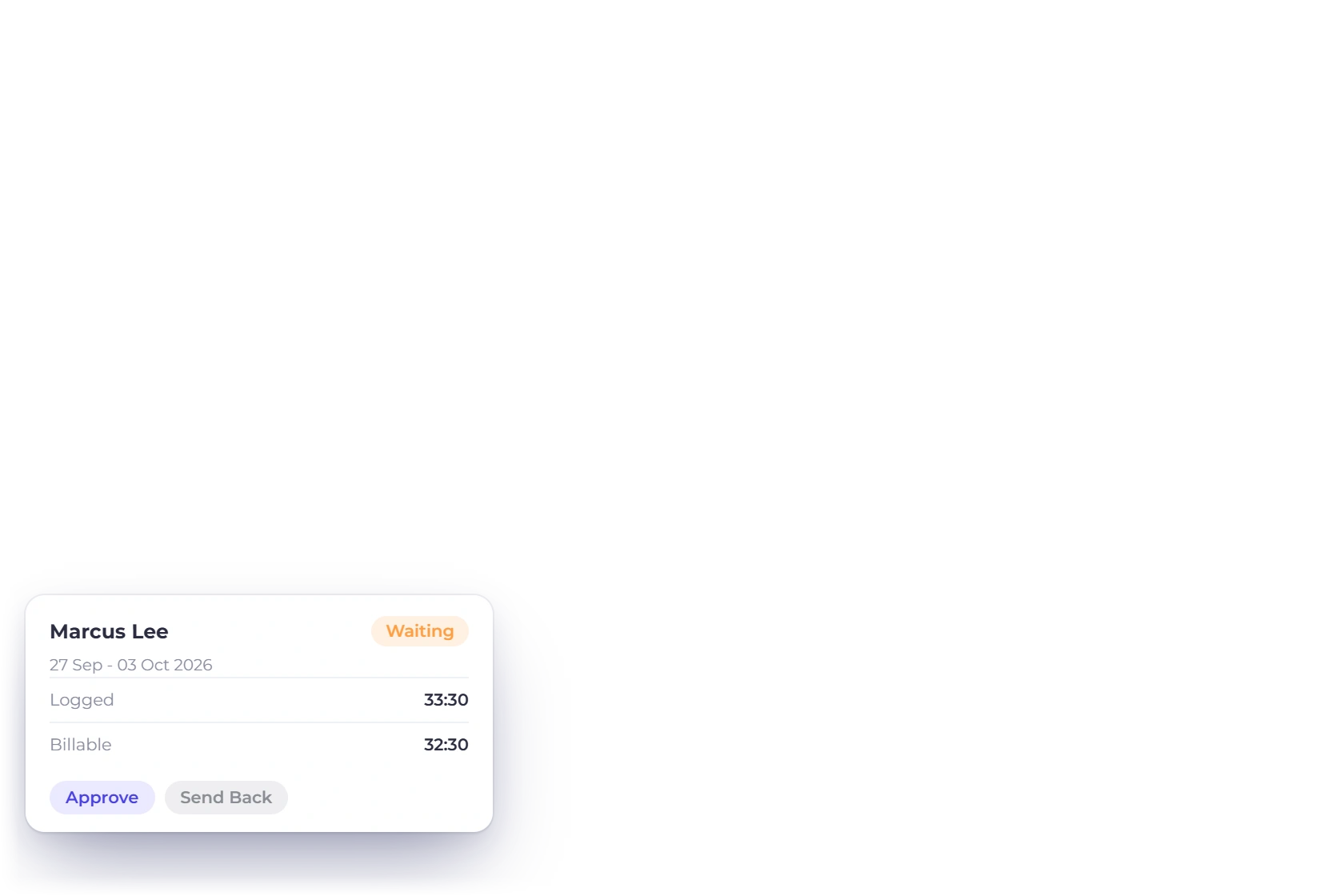
When a week is complete, a team member submits it from the Week view. You get a Timesheet Submitted notice in the bell, open the week, and Approve it or Send Back with a note of what needs to change. A submitted or approved week is read-only everywhere, including the timer and imports, until it is sent back.

  • Stop a running timer before submitting
  • Send Back always carries a comment
  • Timesheet managers can't approve their own week
Teams
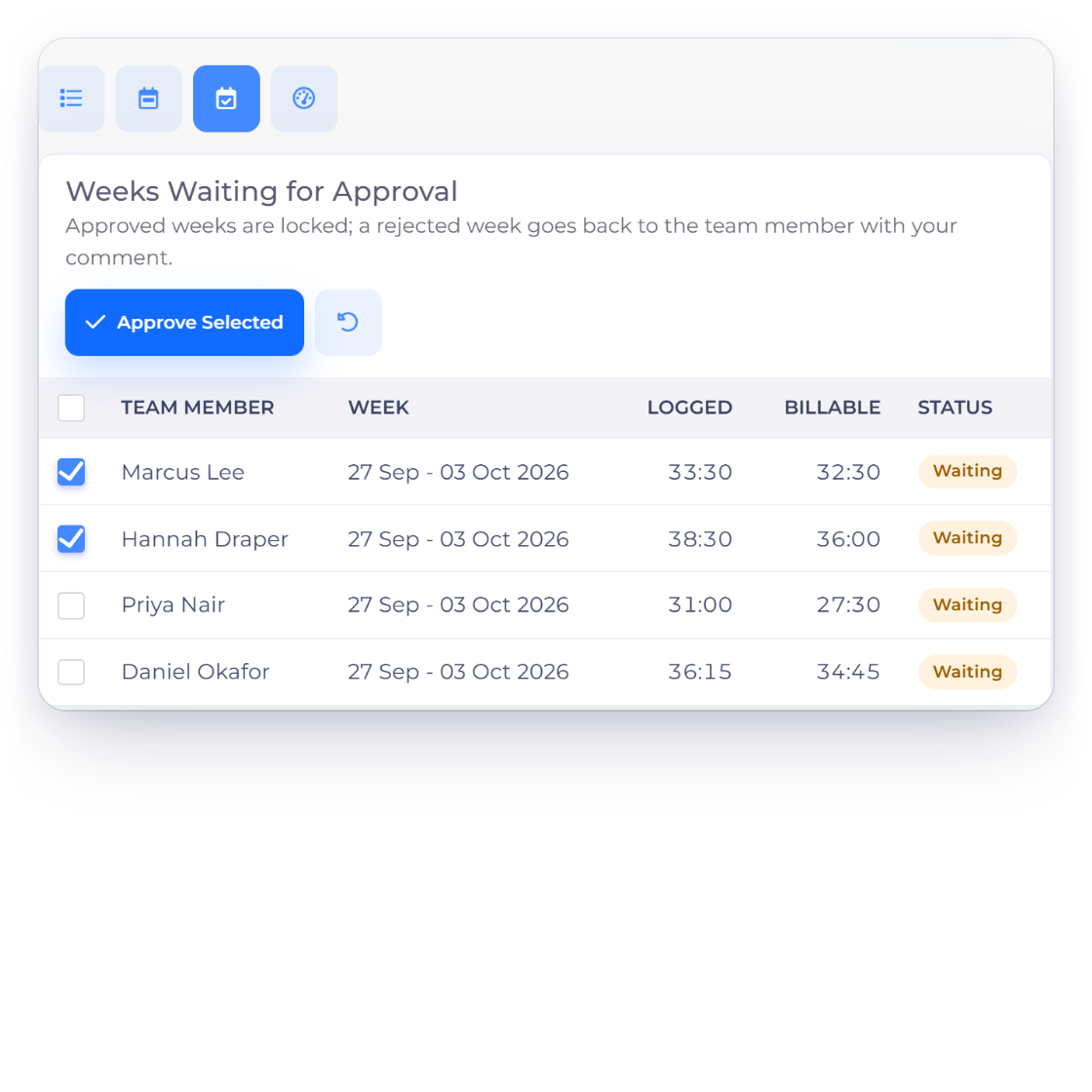
Invoice Crowd Timesheet Approvals view listing weeks waiting for approval with logged and billable hours and Approve Selected, a project set to invoice only approved time and an approved-week notification

Approve weeks in one queue

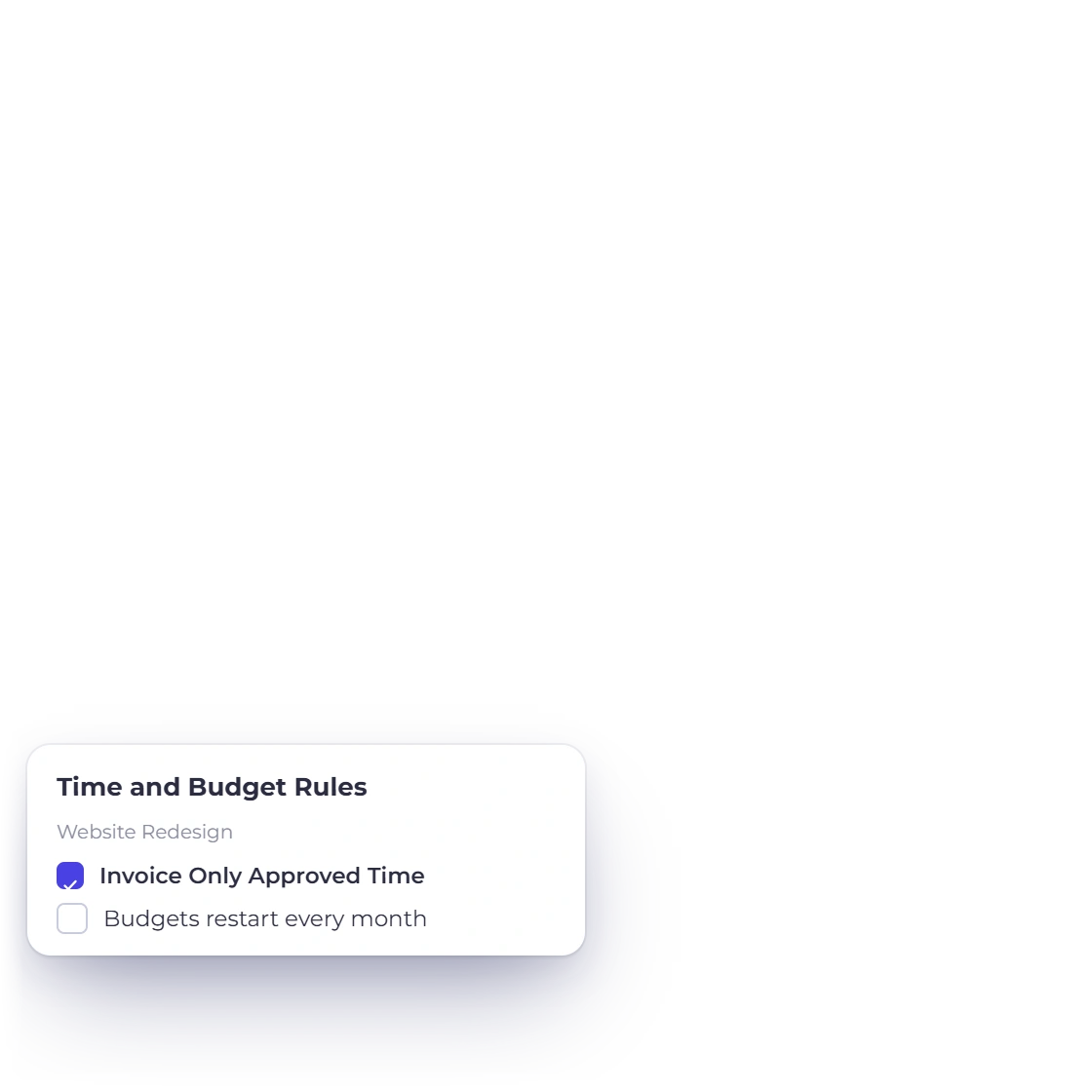
The Approvals view lists every week waiting, with each person's logged and billable hours. Tick weeks and Approve Selected, or send them back with one comment. On any project you can turn on Invoice Only Approved Time, so hours from weeks not yet approved stay off its invoices.

  • The owner or a timesheet manager approves
  • Approved weeks lock their time
  • Reopening an approved week needs a comment

Clients and capacity

Hours only for clients

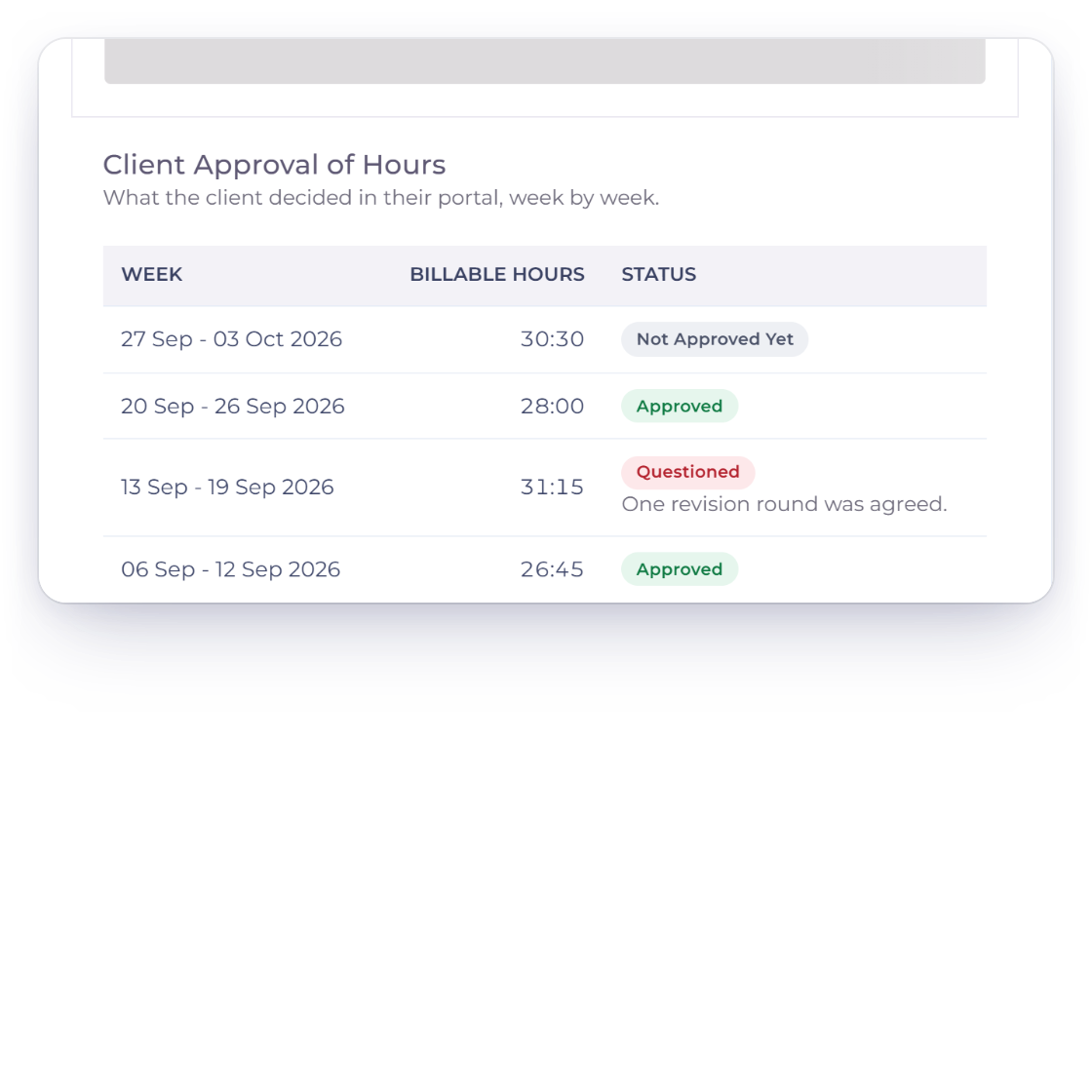
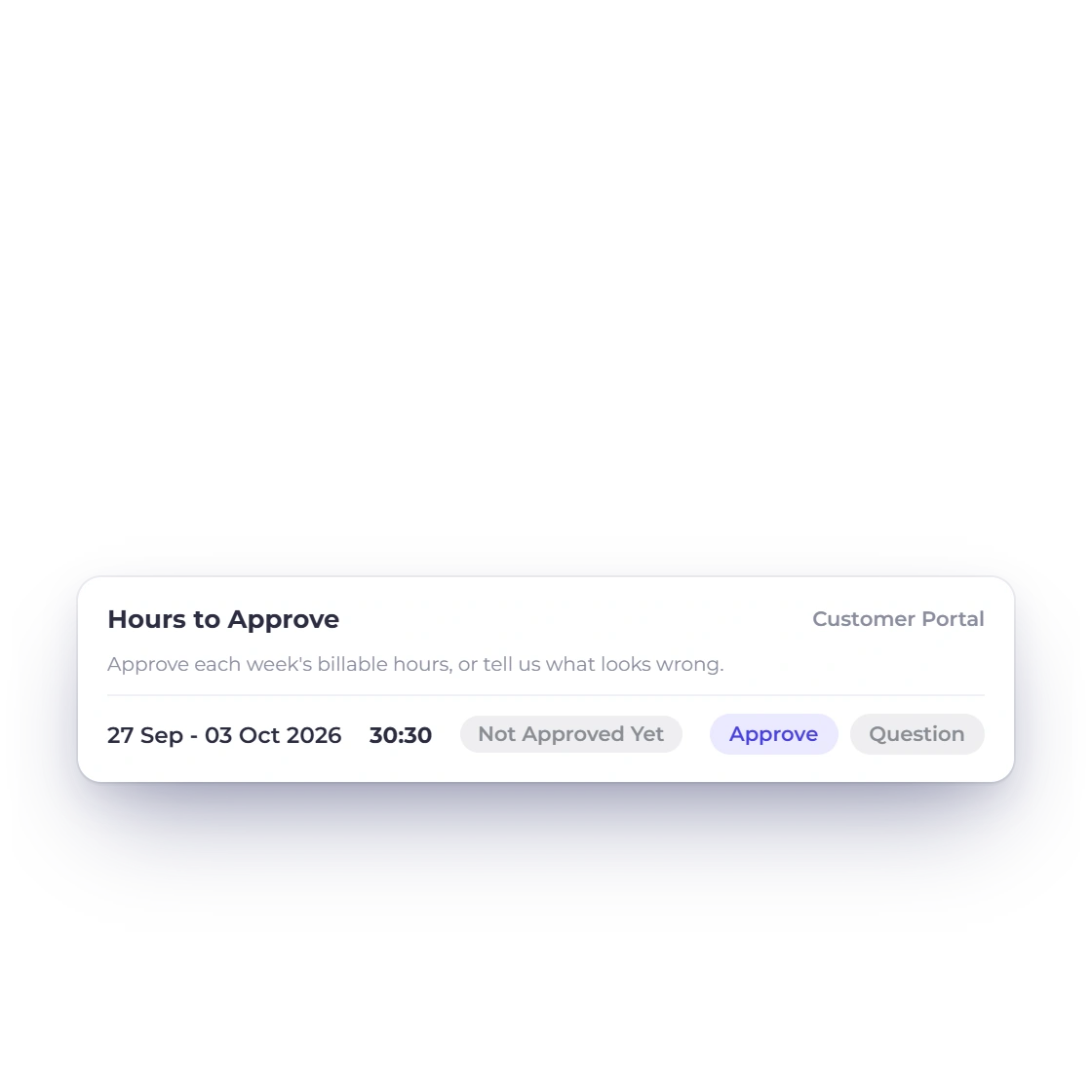
Invoice Crowd project overview with the client's decisions on each week's billable hours, and the customer portal card where the client approves or questions a week

Clients approve their hours in the portal

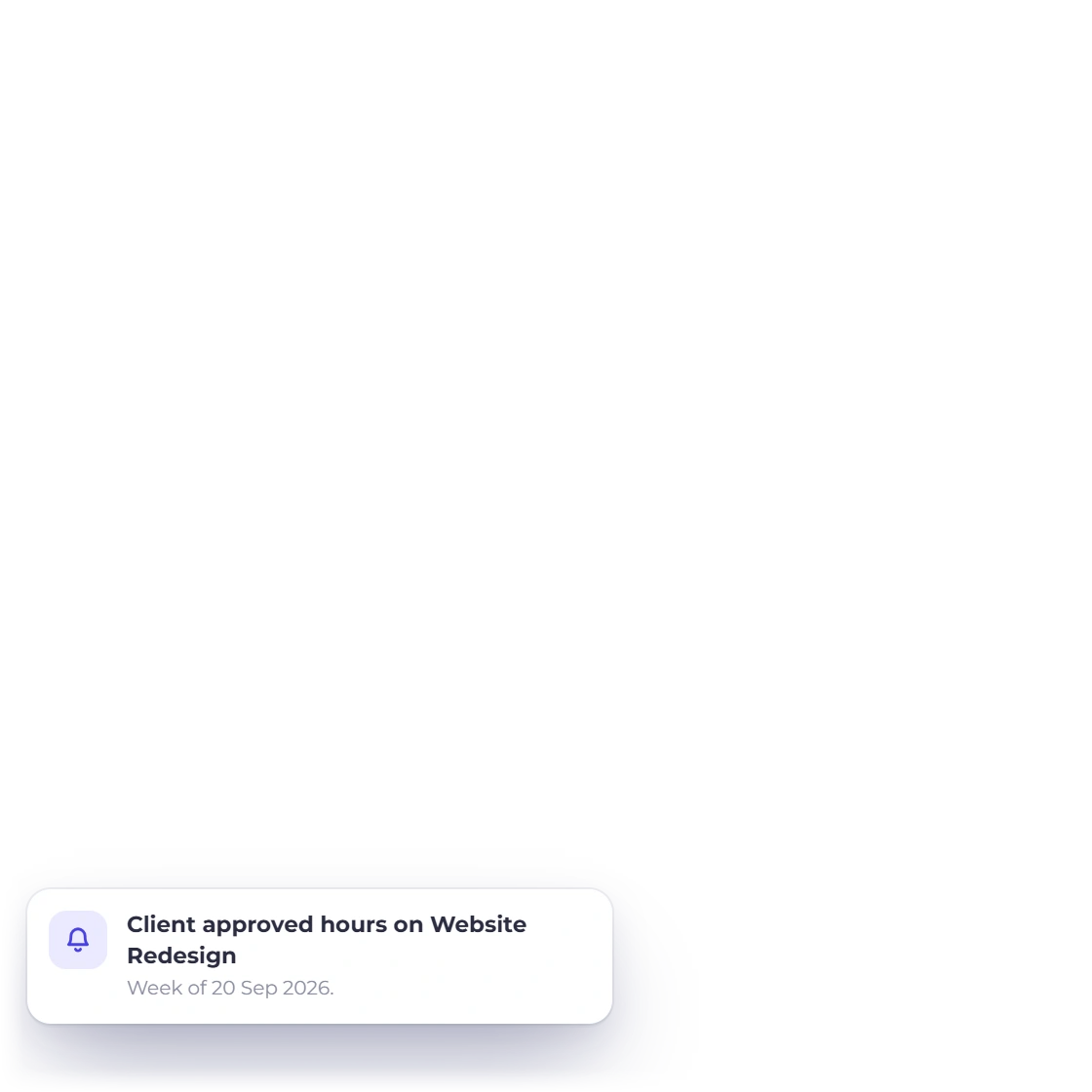
On a project's overview in the customer portal, your client sees each week's billable hours and can Approve them or Question them with a comment. They see hours, never rates. You get a bell notice, the project overview lists every decision, and the invoice wizard shows how many weeks the client approved.

  • Not Approved Yet, Approved or Questioned
  • Changed Since Approval if the hours change later
  • For portal customers with access to the project
Customer portal
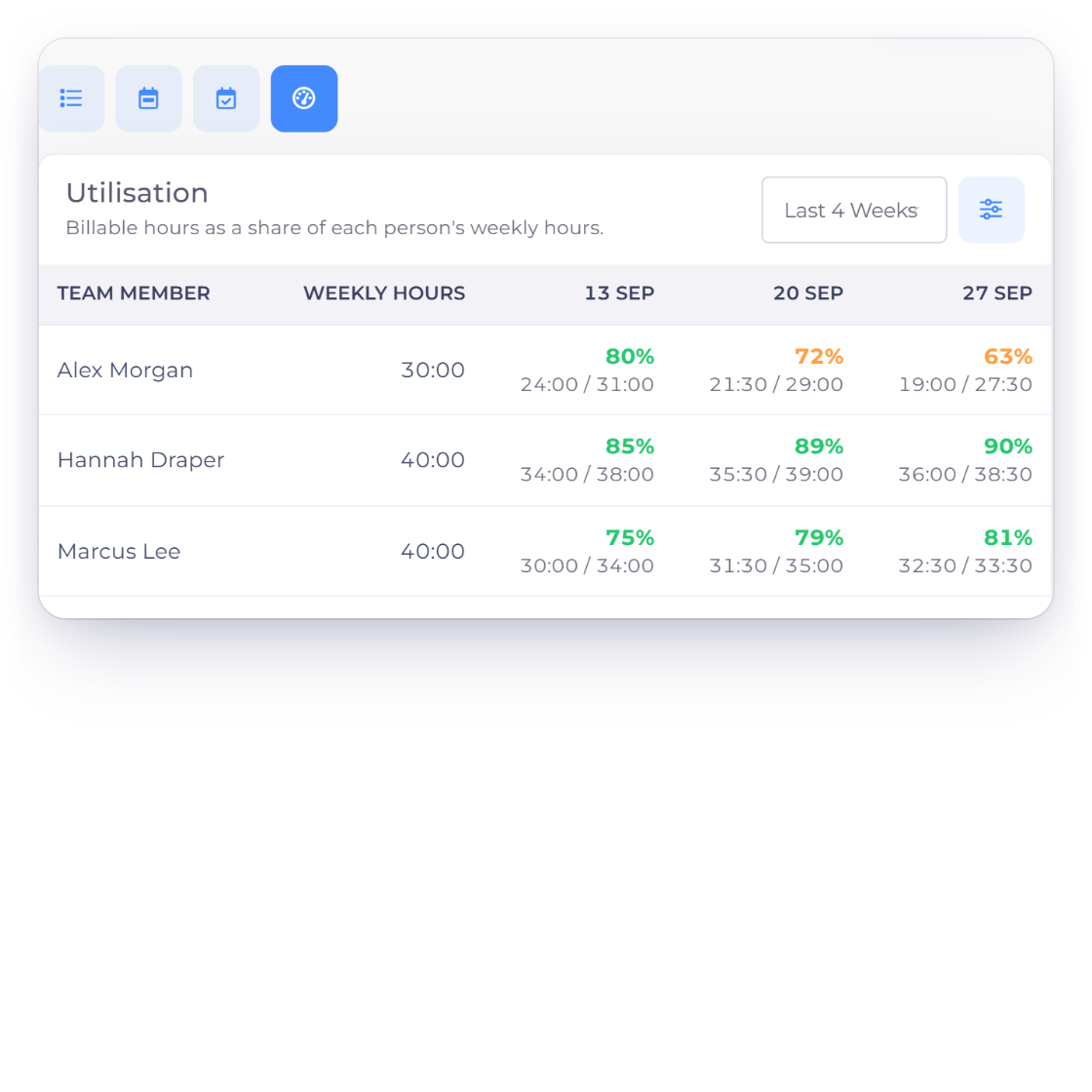
Invoice Crowd Timesheet Utilisation view with each person's weekly hours and billable share per week, and the cost per hour and weekly hours set for the team

Utilisation against each person's weekly hours

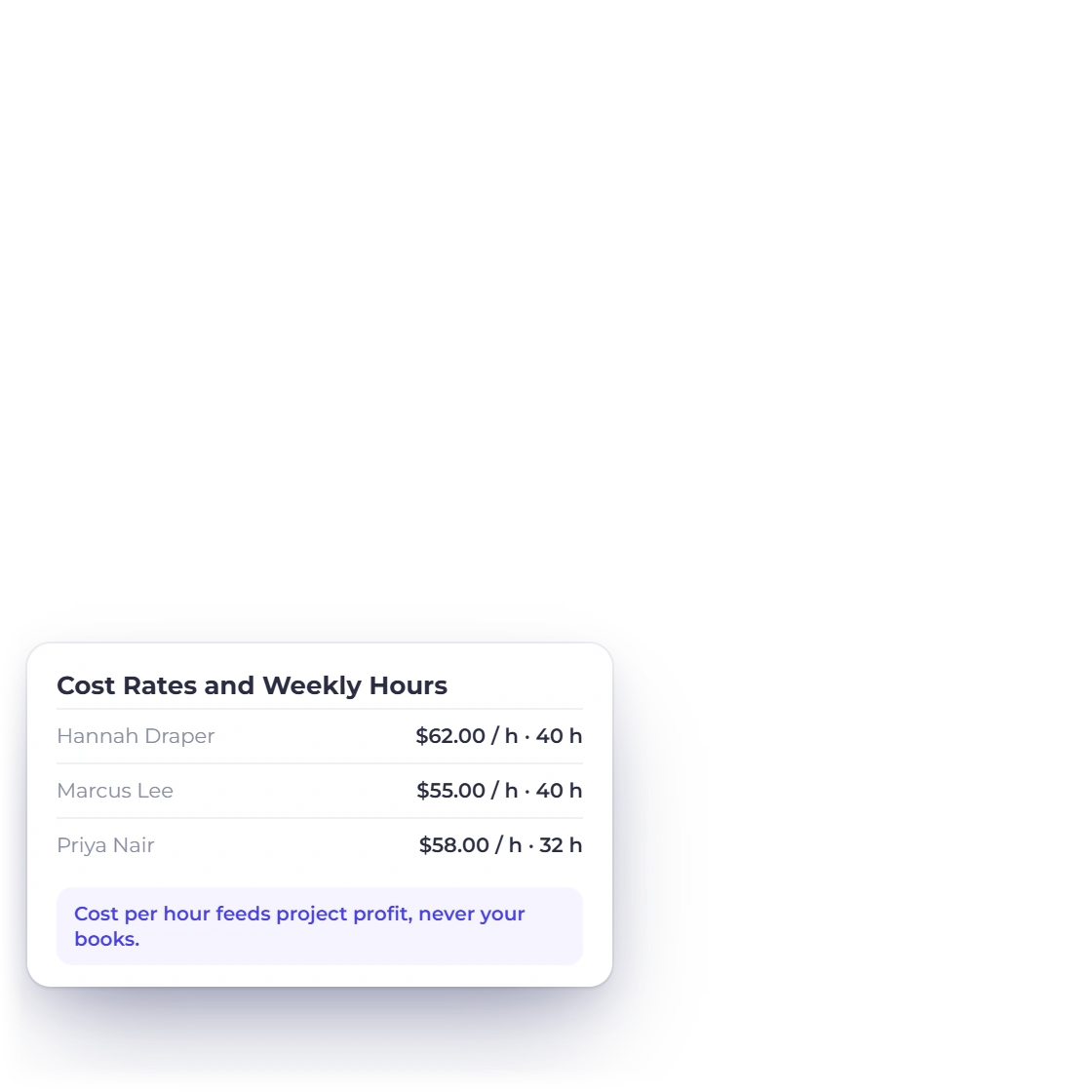
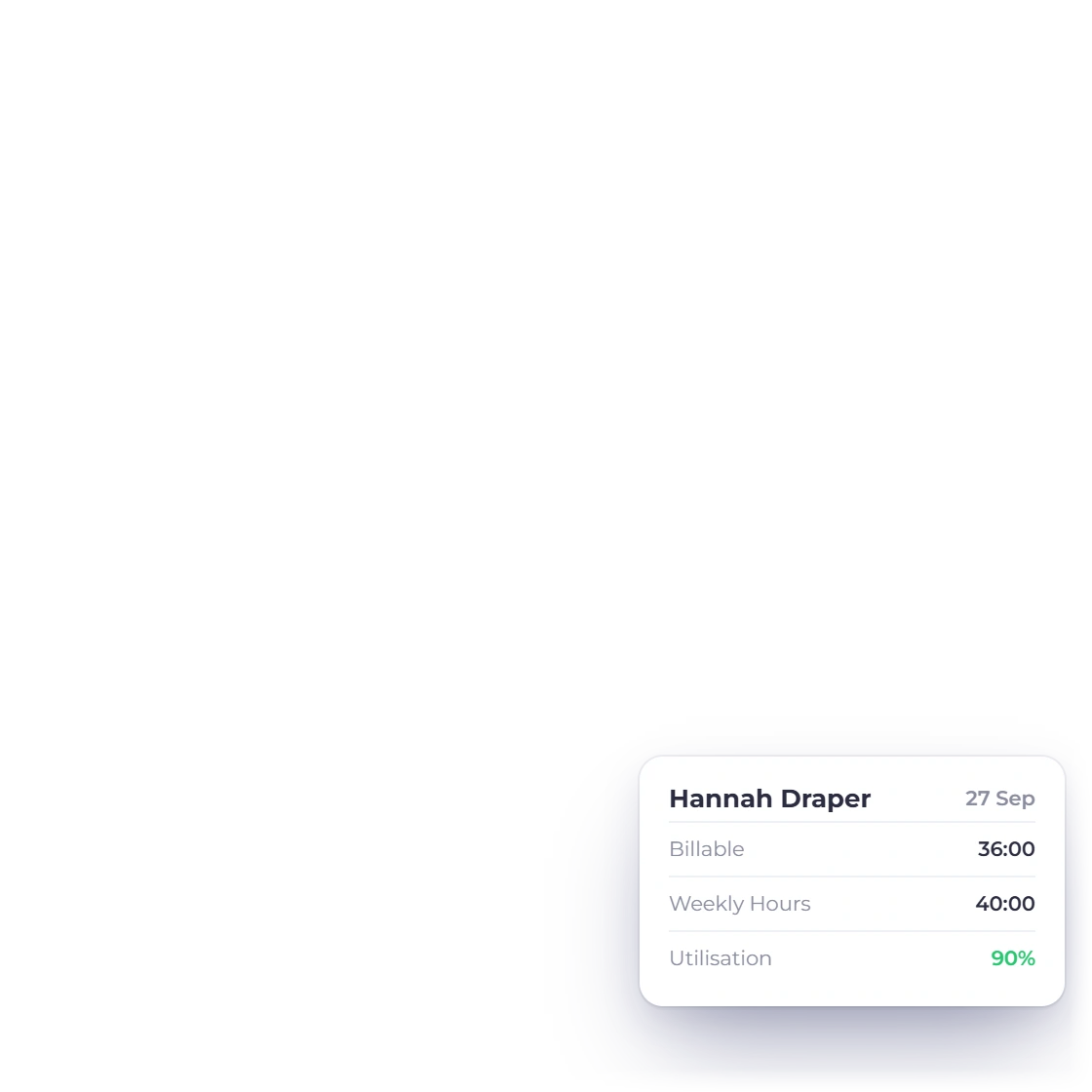
The Utilisation view shows each person's billable hours as a share of their weekly hours, week by week, over the last 4, 8 or 12 weeks. In Cost Rates and Weekly Hours you set each person's weekly hours and cost per hour; the cost feeds project profitability and is never posted to your books.

  • Weekly hours start at 40
  • Team members see only their own row
  • Cost rates are for the owner and timesheet managers
Project profitability

Built in

The rest of the Timesheet

Filters, files, reminders and the header timer that feeds it all.

  • Four views

    List, Week, Approvals and Utilisation sit on one Timesheet screen, which opens on the view you used last.

  • Filters and totals

    Filter by customer, project, member, billing status and dates. The bar above the list totals logged, billable and unbilled time.

  • Invoice These

    Sends every unbilled entry that matches your filters to the invoice wizard, up to 1,000 entries at a time.

  • Export CSV

    Downloads the filtered rows as a CSV file, with spreadsheet formulas neutralised for safety.

  • Import CSV

    Date, project, task and hours, plus member email, billable and notes. Every row is checked first; at most 1,000 rows.

  • Idle detection

    Back after 10 minutes or more with the timer running? Choose Keep the Time, Remove Idle Time, or stop at the time you left.

  • Forgotten timers stop

    A timer left running stops automatically and saves only the time allowed. The bell warns you first, then links to the entry.

  • Bell notices

    Timesheet Submitted, Approved or Sent Back, Fill Your Week, and Client Approved or Disputed Hours arrive in the bell.

  • Approved time only

    Turn on Invoice Only Approved Time on a project and its invoices bill only time from approved weeks.

  • Needs Decision

    A billable entry on a non-billable task waits for you to decide, with Decide Now above the list, before it can be billed.

  • Continue a timer

    The play icon on a row starts a new timer on the same project and task, with the same notes.

  • Paid plans

    Timesheets, the header timer and approvals are part of Worklog on paid plans. The Free plan does not include Worklog.

Questions

Timesheets, answered

Can I approve my team's timesheets in Invoice Crowd?

Yes. Team members submit each week from the Week view of the Timesheet, and the account owner or a timesheet manager approves it or sends it back with a comment. Approved weeks are read-only, and a project can be set to invoice only approved time. Timesheet approval is part of Worklog on paid plans.

Who can approve a timesheet?

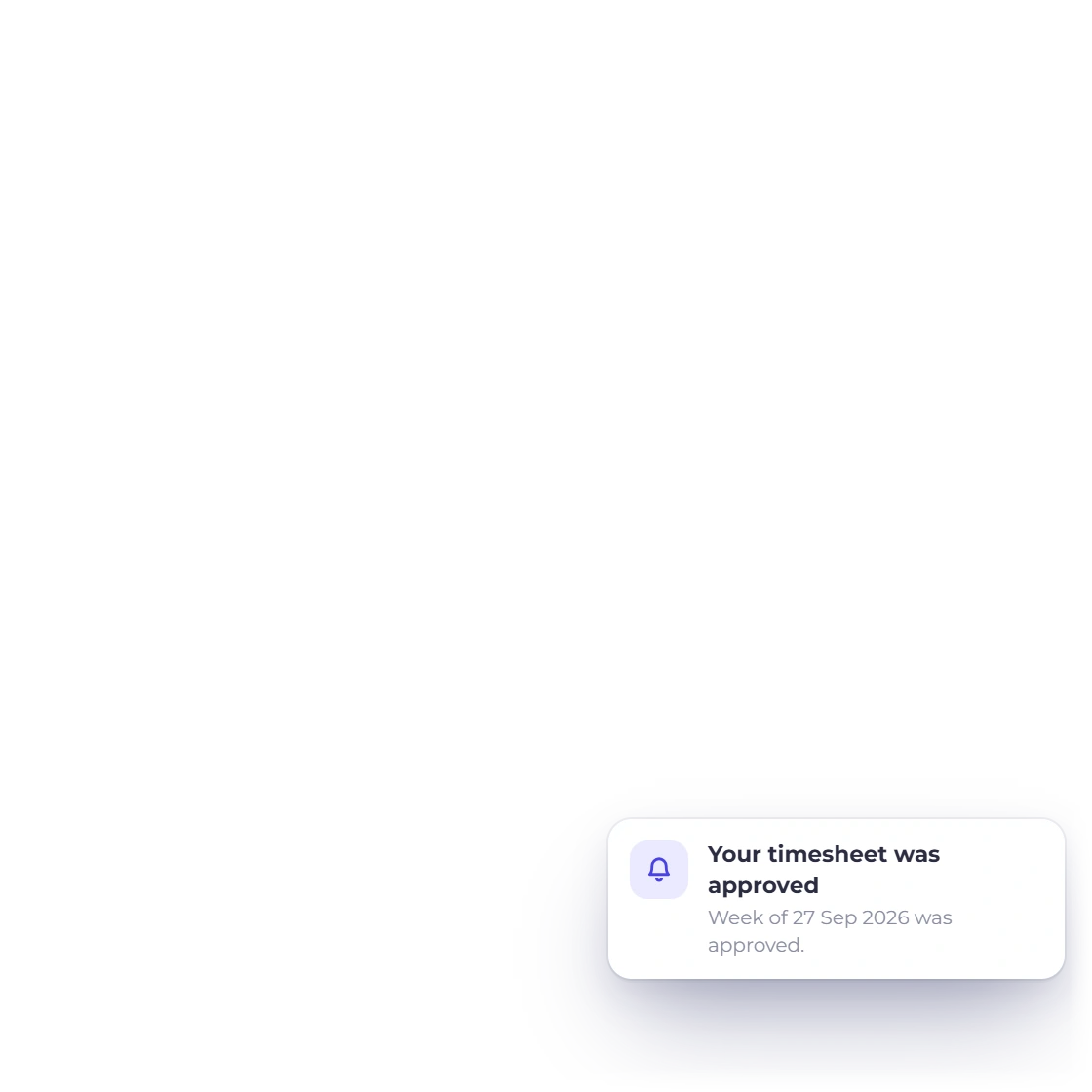
The account owner, or a team member whose role has full access to Timesheet, called a timesheet manager here. A timesheet manager can't approve or send back their own week; the owner or another manager decides it. The team member gets a bell notice when their week is approved or sent back.

Can clients approve hours before I invoice them?

Yes. In the customer portal, a client with access to a project sees each week's billable hours on the project overview and can approve them or question them with a comment. They see hours only, never your rates. You get a bell notice, and the invoice wizard shows how many weeks the client approved before you bill.

How do I import time from a spreadsheet?

Use Import CSV on the Timesheet. The file needs Date, Project, Task and Hours columns, and can add the team member's email, Billable and Notes; hours can be 2:30 or 2.5. Invoice Crowd checks every row and lists what needs fixing, and imports only when every row is valid, all in one go. A file can hold up to 1,000 rows and 1 MB.

Does the timer notice when I step away?

Yes. If the header timer is running and you come back after 10 minutes or more without activity in the app, it asks whether to Keep the Time, Remove Idle Time, or stop the timer at the time you left. It only uses activity in your own browser: there are no screenshots and no tracking of what you did.

What happens if I forget to stop the timer?

It stops by itself. A timer left running is stopped automatically and saves only the time one timer is allowed to record. You get a warning in the bell before it stops, and a notice when it does, with a link to correct the entry.

Which plans include timesheets?

Timesheets are part of Worklog, which comes with paid plans together with projects, the header timer and the invoice wizard. The Free plan does not include Worklog.

Approve this week's hours, then bill them

Let the team fill in the week grid and submit it, approve it in one queue, and send the unbilled hours to an invoice with Invoice These.

  • No card required to start
  • Your data stays yours
  • Cancel anytime