

Skip to content

Features

Every payment your customers make, in one list

Payments Received is the Invoice Crowd list of money your customers have paid you: invoice payments, advance payments taken before an invoice exists, and overpayments kept as credit. Record one receipt against several open invoices at once, see what is still unused, and decide what happens to online payments that could not be applied on their own.

  • One receipt, several invoices
  • Advance payments with a receipt
  • Unused credit at a glance

Last updated:

The Invoice Crowd Payments Received list with the Received, Unused Advances, Unused Overpayments and Needs Review tiles and rows tagged Payment, Advance and Overpayment, next to one receipt applied to two open invoices oldest first with the rest kept as credit

What is inside

Money in, from the receipt to the invoice it pays

Payments Received sits under Invoicing, between Payment Links and Credit Notes. It is the money-in side of the app: every receipt, what it paid, and what is still waiting to be used or refunded.

One list for money in

Payments, advances, overpayments

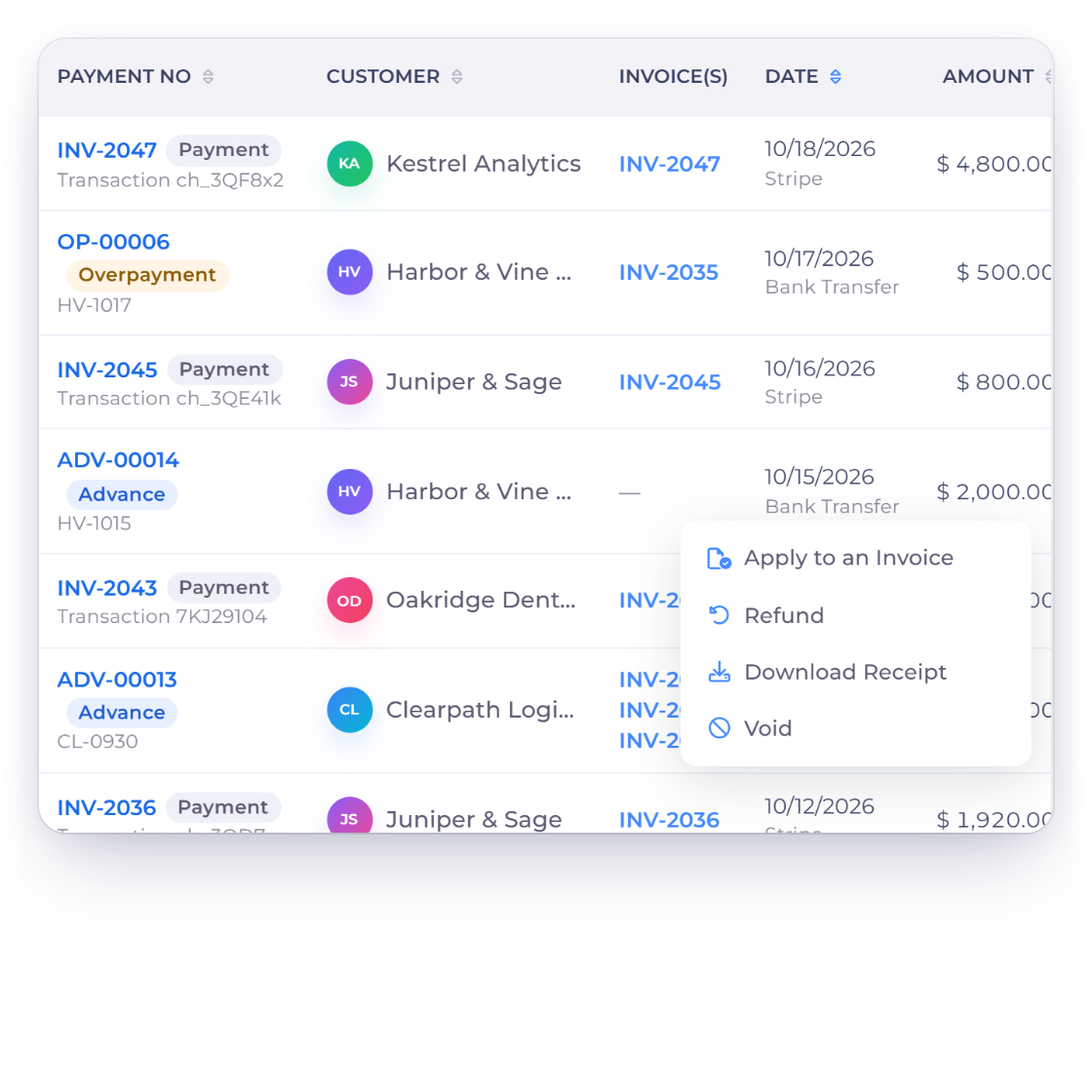
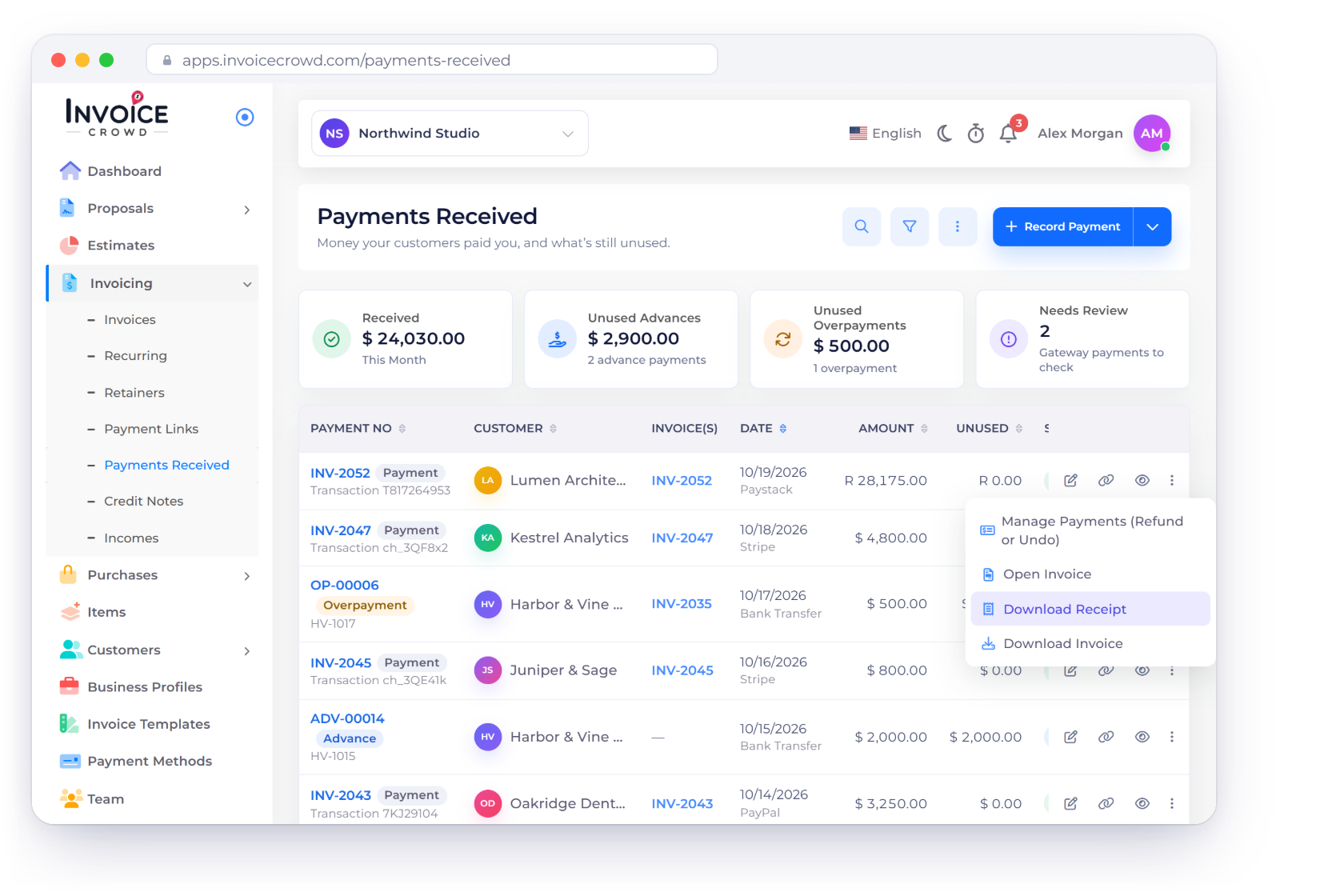
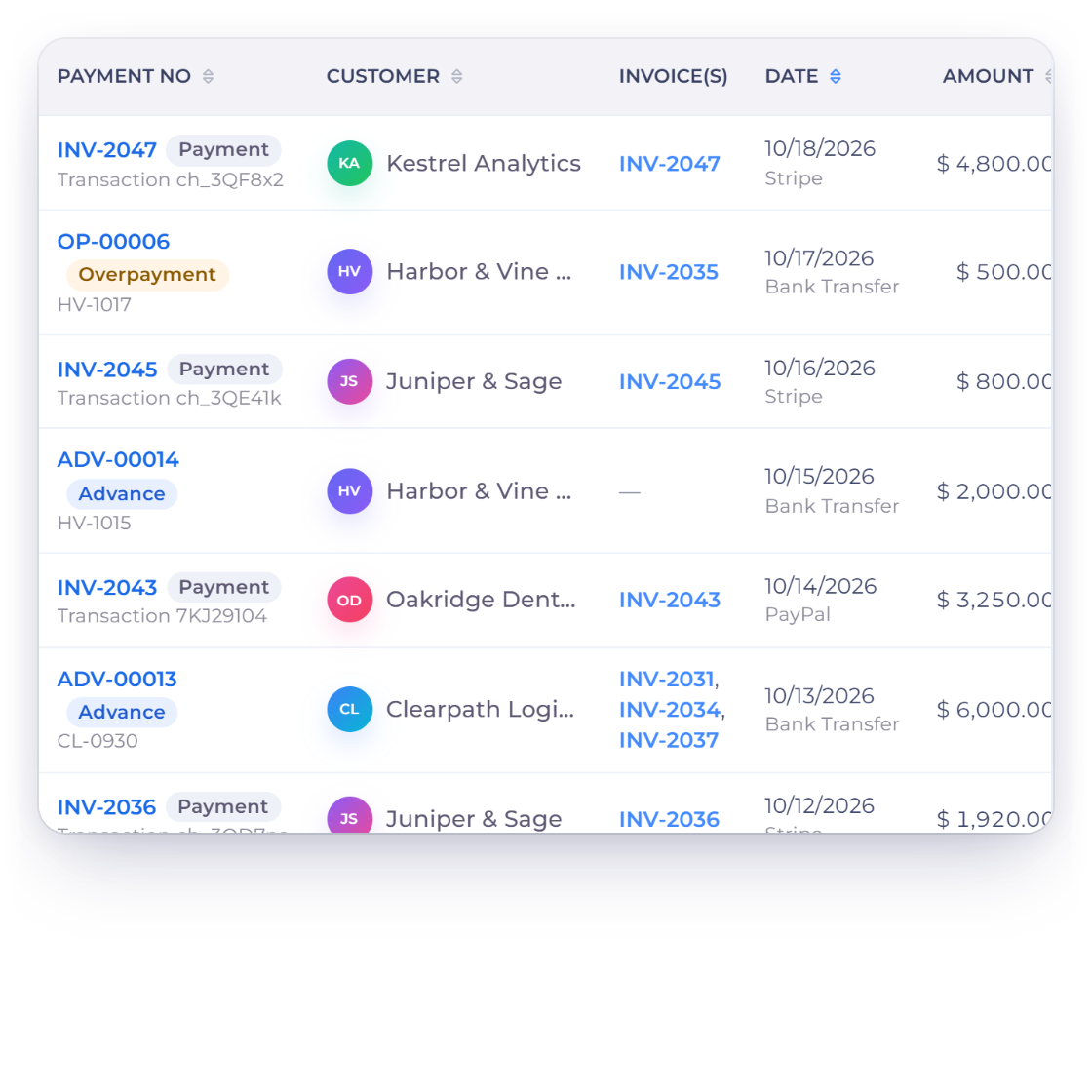
Invoice Crowd Payments Received list with invoice payments tagged Payment, ADV advances and OP overpayment credits, each with customer, invoices, method, date, amount and the unused amount

Every receipt in one list

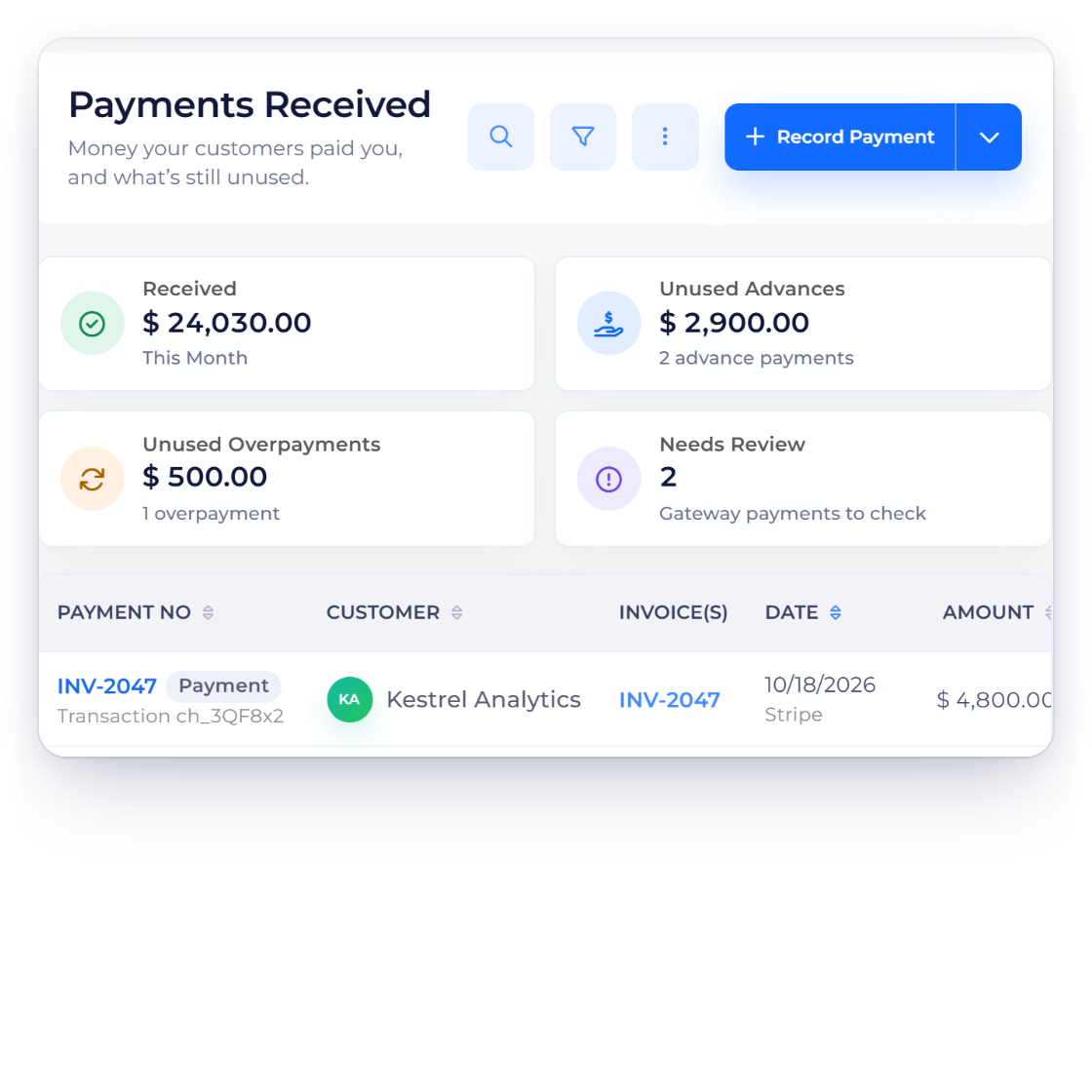
Each row is one receipt: an invoice payment tagged Payment, an ADV- advance or an OP- overpayment credit. You see the customer, the invoices it paid, the method, the date, the amount and what is still unused. Search, filter by customer, type, status or date range, and sort by date, amount or the Unused column.

  • Payment, Advance and Overpayment tags
  • Method shows the provider or how it was paid
  • Unused column for money not yet applied
How invoices get paid
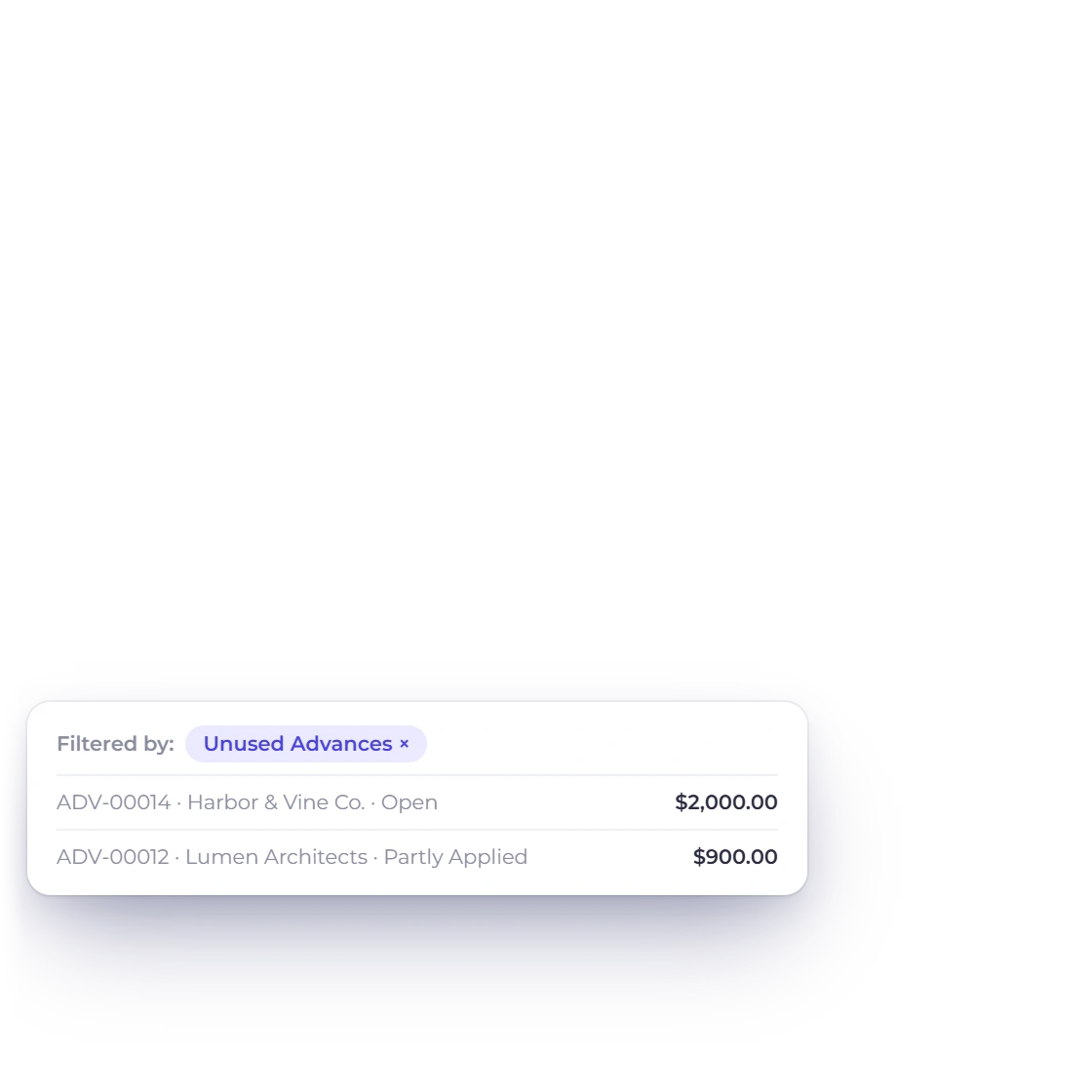
Invoice Crowd Payments Received tiles for money received this month, unused advances, unused overpayments and payments needing review, and the list filtered to unused advances

Tiles that filter the list

Above the list, tiles show what was Received this month and the Unused Advances and Unused Overpayments you are holding. Click one to filter the list to those receipts; the filter shows as a chip you can remove. A Needs Review tile counts gateway payments to check and opens Payments Needing Review; it appears for users who can review payments, the owner included.

  • Received, for this month
  • Unused Advances and Unused Overpayments
  • Needs Review opens the review page

One receipt, several invoices

Applied oldest first

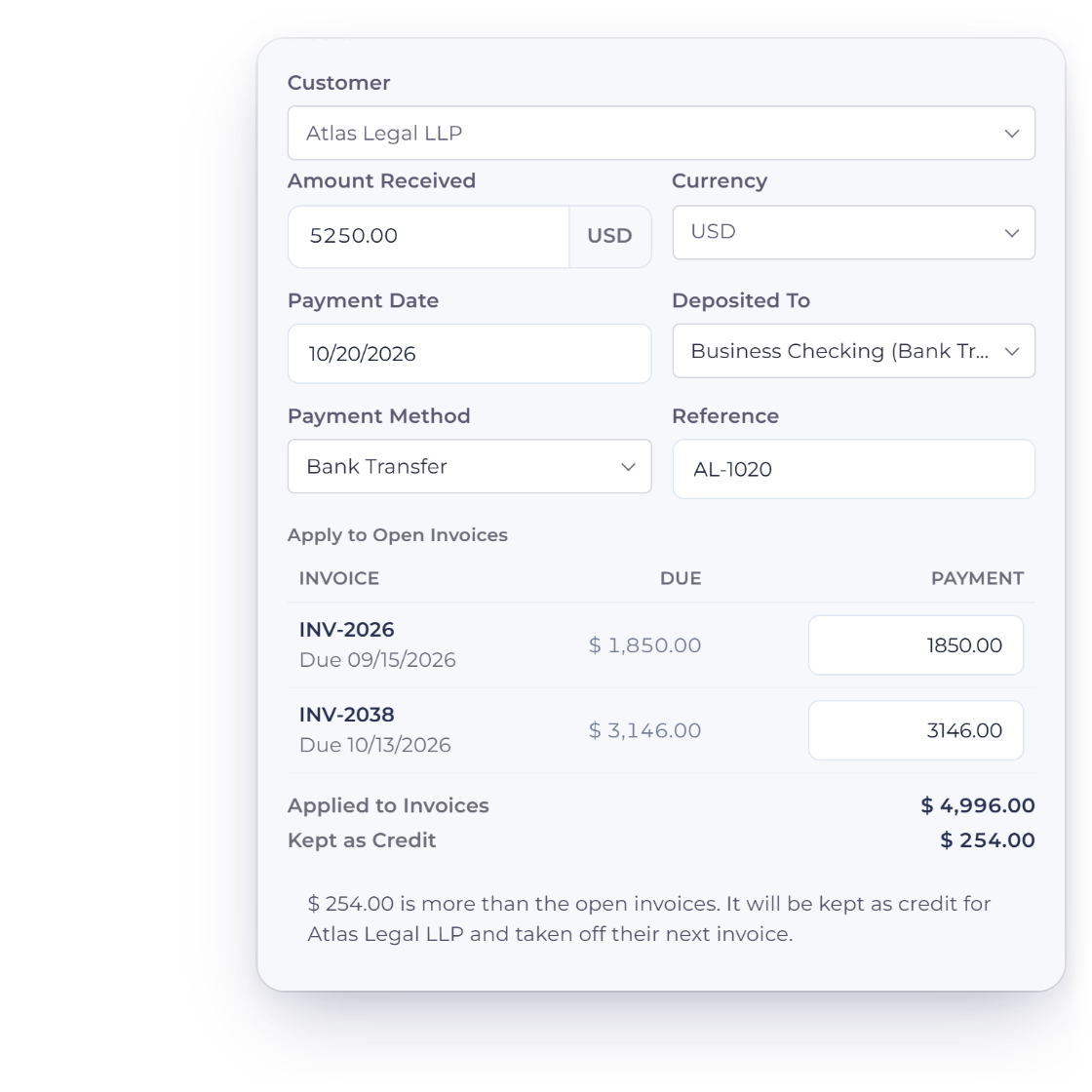
The Invoice Crowd Record Payment drawer for Atlas Legal LLP: 5,250 dollars received by bank transfer, applied to the two open invoices oldest due first, and the 254 dollars left over kept as credit

One payment across several invoices

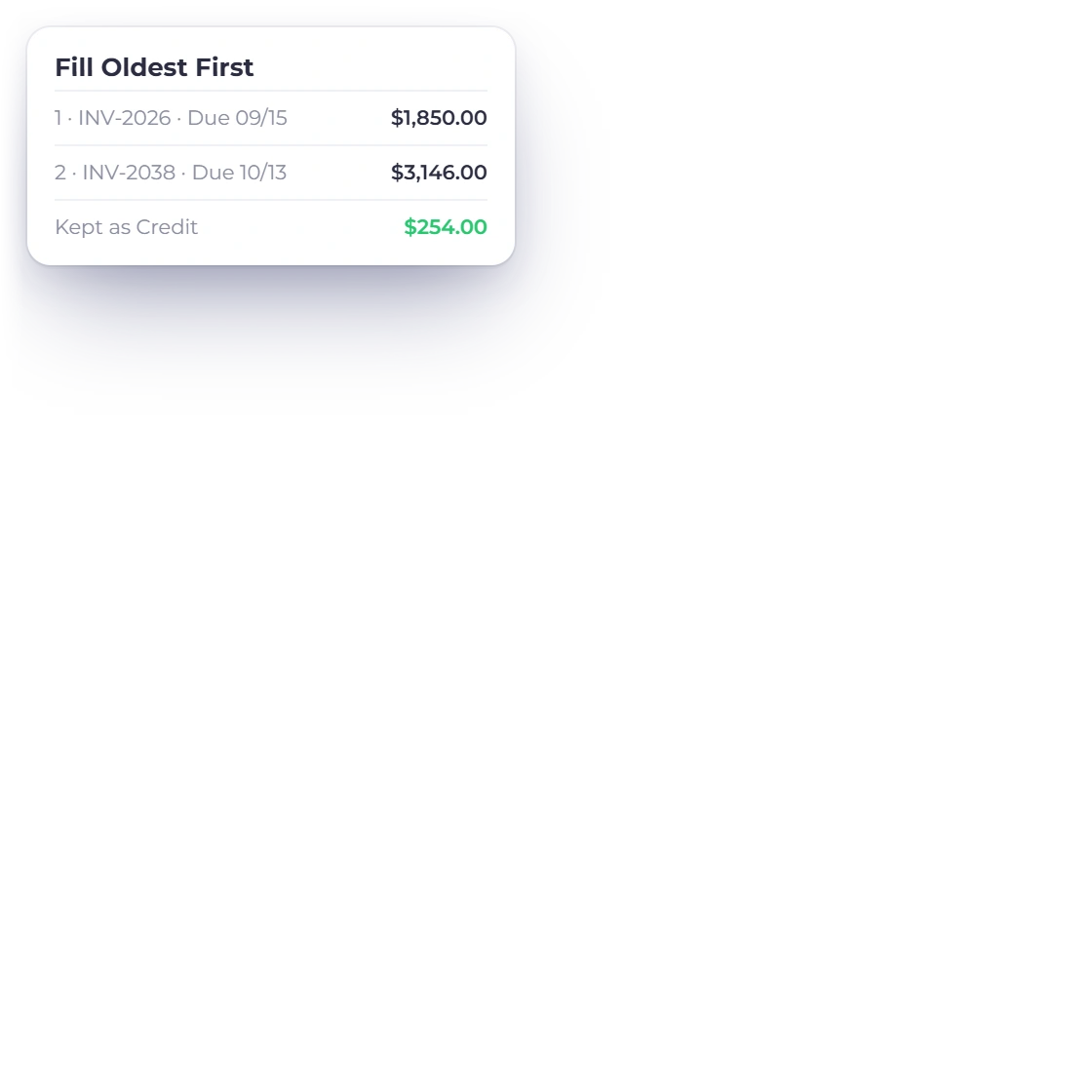
A customer sends one bank transfer for two invoices. Click + Record Payment, choose Record Invoice Payment and pick the customer: their open invoices in that currency are listed under Apply to Open Invoices and filled oldest due first. Change any line before you save, or press Fill Oldest First to start over. Every invoice is paid in the same save, and an invoice on instalments takes exactly its next instalment.

  • Open invoices in the payment's currency
  • Fill Oldest First, or edit each line
  • Deposited To, Payment Method and Reference
Split and partial payments
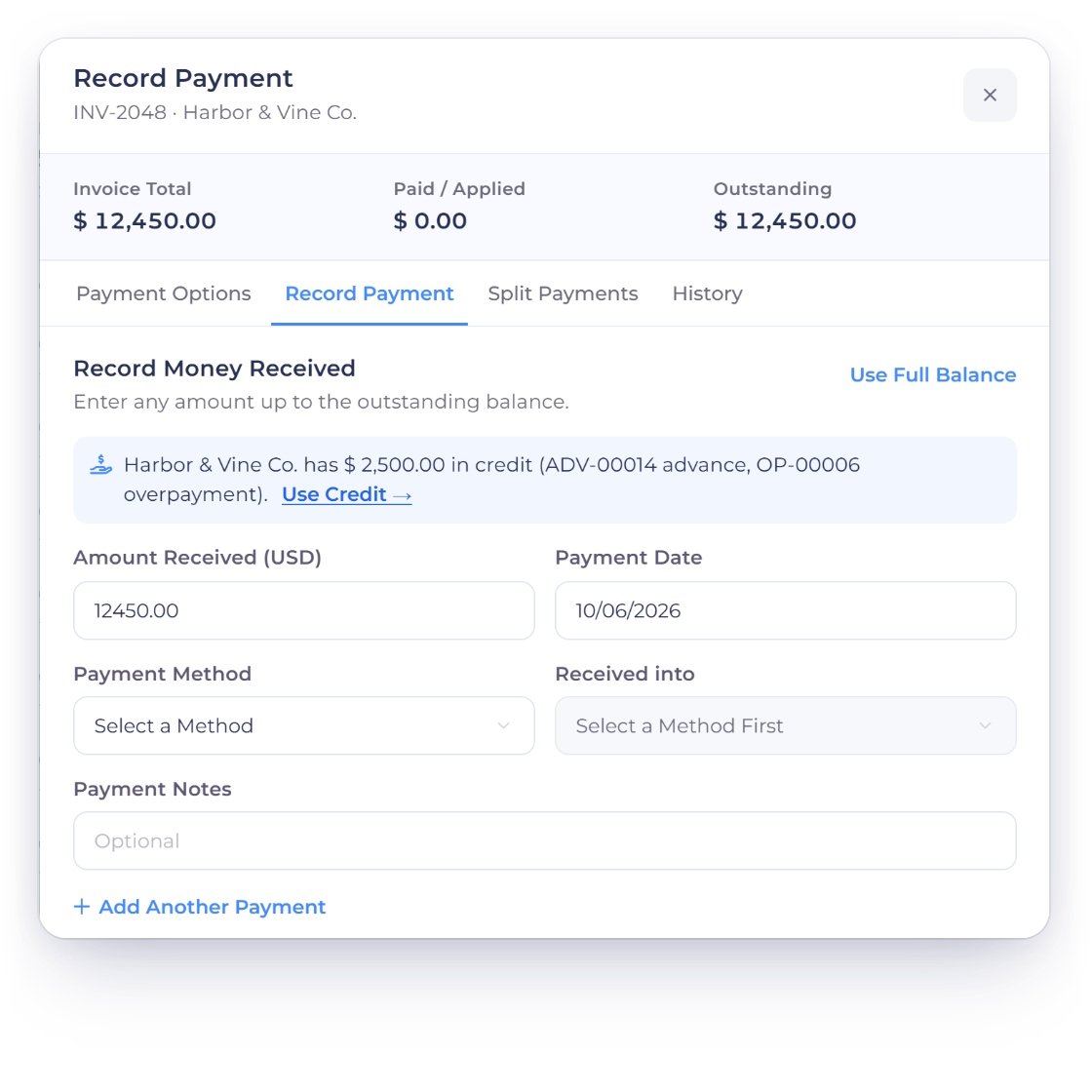
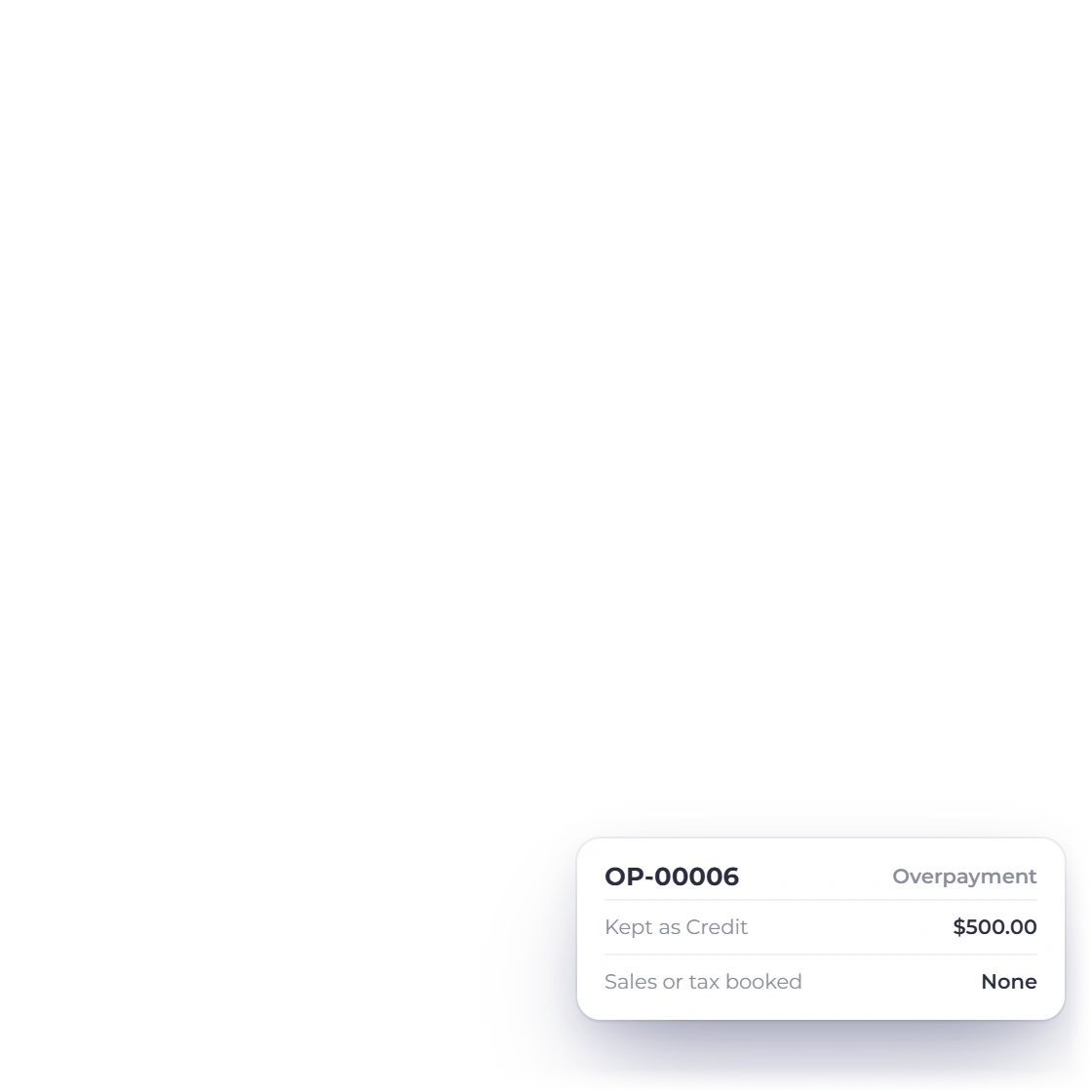
Invoice Crowd Record Payment for INV-2048 showing that Harbor and Vine Co. has 2,500 dollars in credit from ADV-00014 and OP-00006 with Use Credit, and an overpayment kept as an OP numbered credit

Overpayments kept as credit

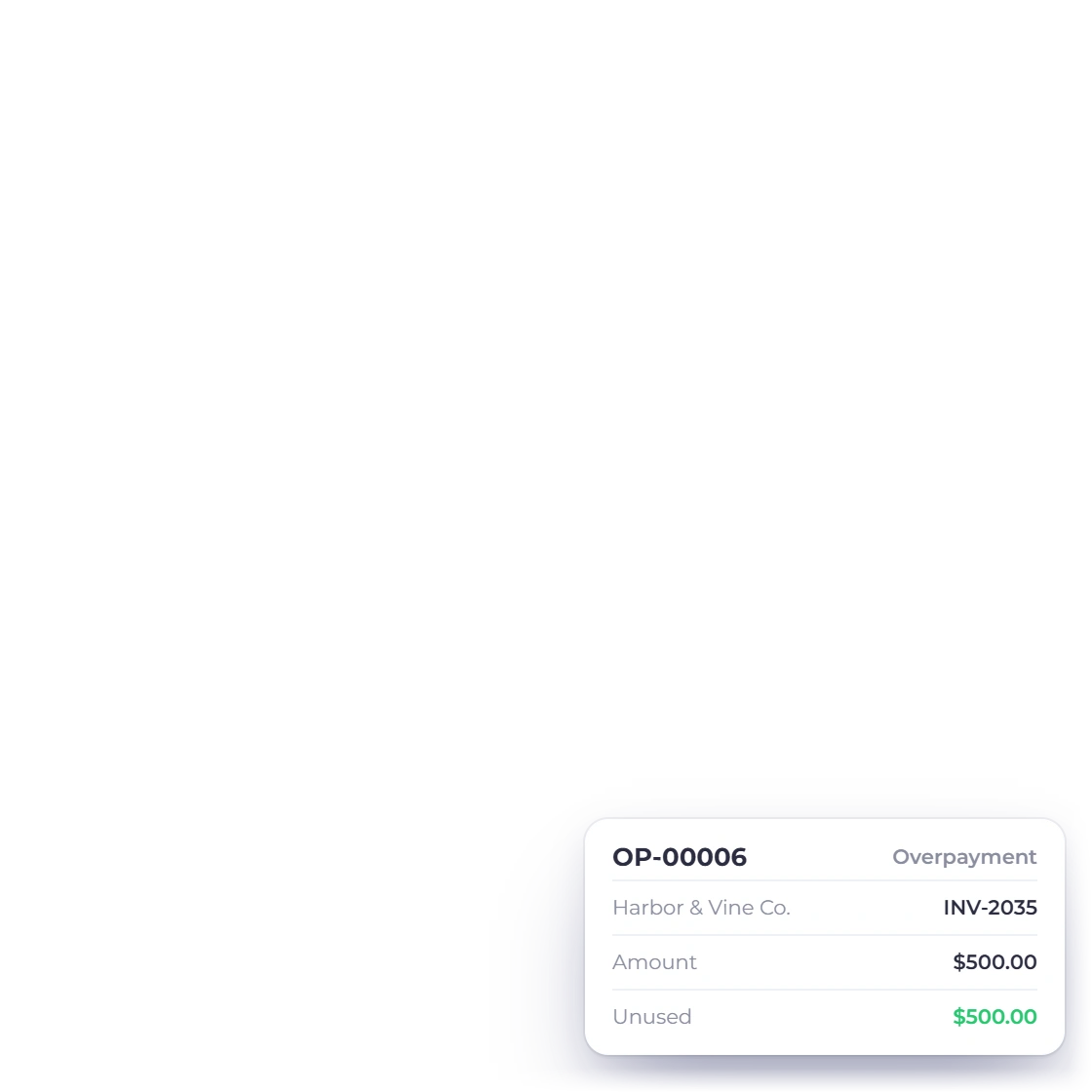
When the money is more than the open invoices, the drawer shows the extra as Kept as Credit before you save. It becomes an overpayment credit with its own OP- number, held for that customer instead of being booked as sales. When their next invoice is due, Use Credit in Manage Payments, on the Record Payment tab, applies their advances, overpayments and credit notes to it.

  • OP- numbered customer credit
  • No sales or tax booked on the extra
  • Use Credit applies it to a later invoice
Credit notes and customer credit

Before and around the invoice

Advances and review

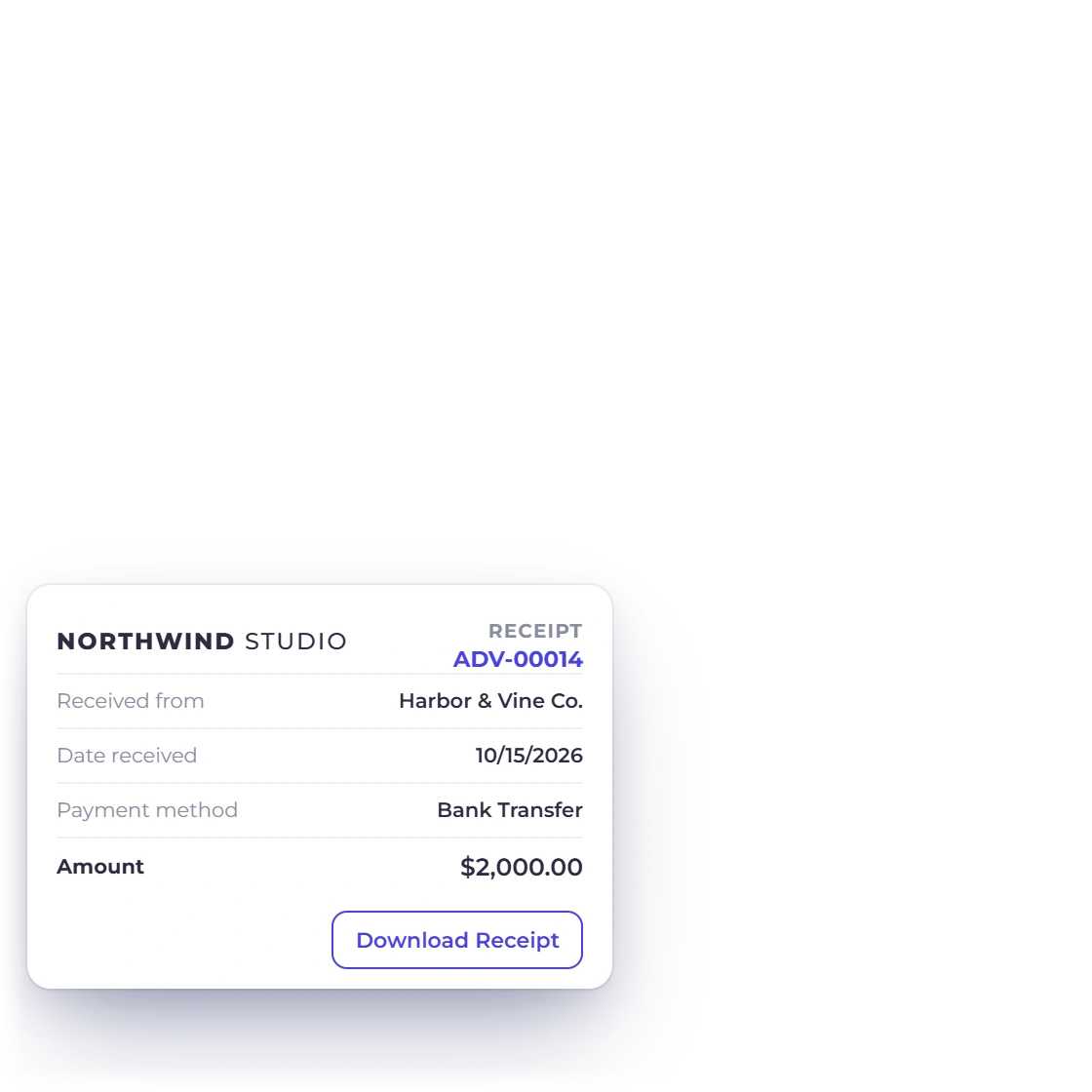
Invoice Crowd Payments Received with the menu of advance ADV-00014 open: Apply to an Invoice, Refund, Download Receipt and Void, and the advance receipt for 2,000 dollars from Harbor and Vine Co.

Advance payments with their own receipt

Money that arrives before you have invoiced, such as a deposit to book a project, goes in with Record Advance Payment. It gets an ADV- number and a receipt PDF from Download Receipt; the receipt's title follows your country, for example Receipt Voucher in India. The advance is held under Customer Advances, a liability, until you Apply to an Invoice, Refund it or Void it.

  • ADV- numbered receipt PDF
  • Held under Customer Advances
  • Apply to an Invoice when you bill
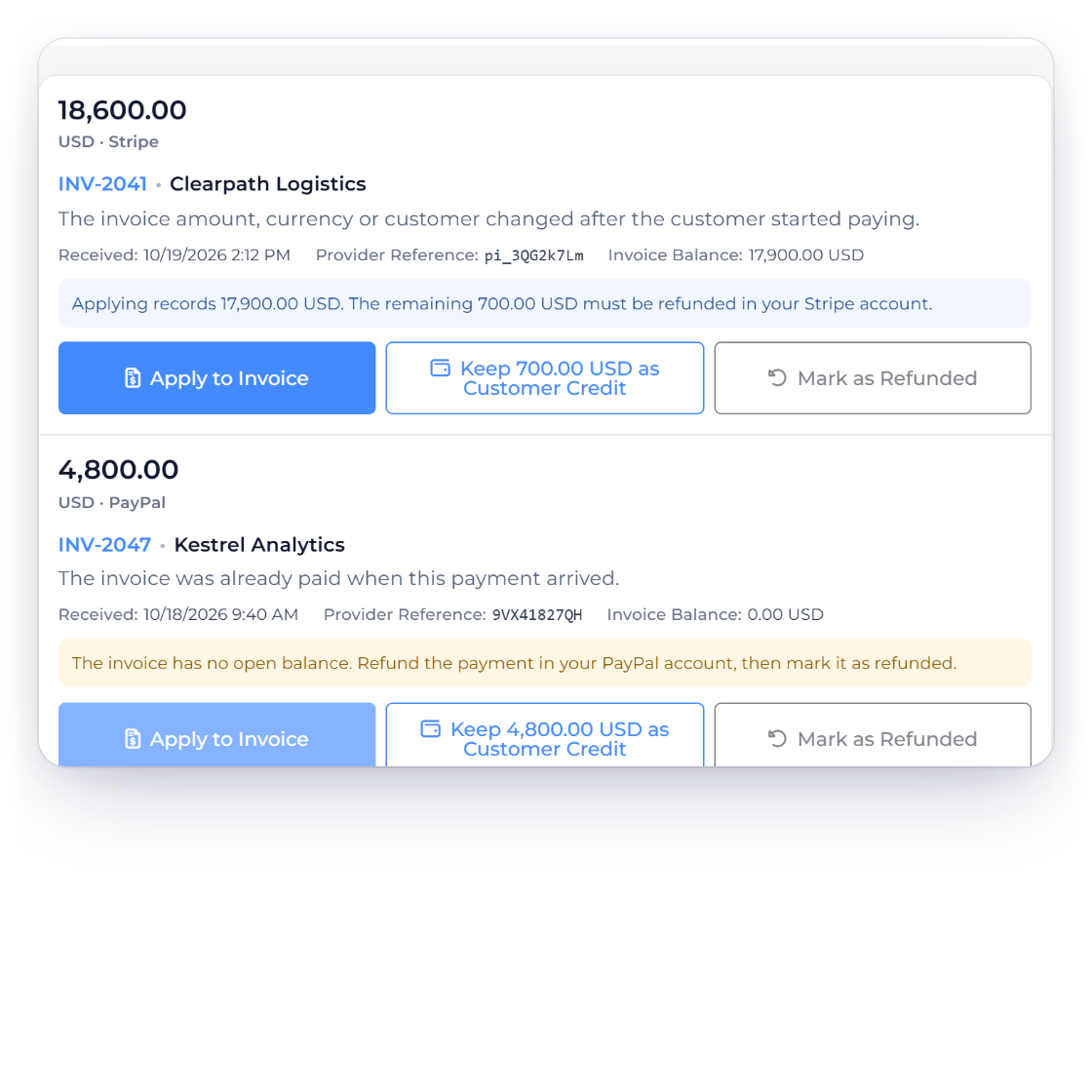
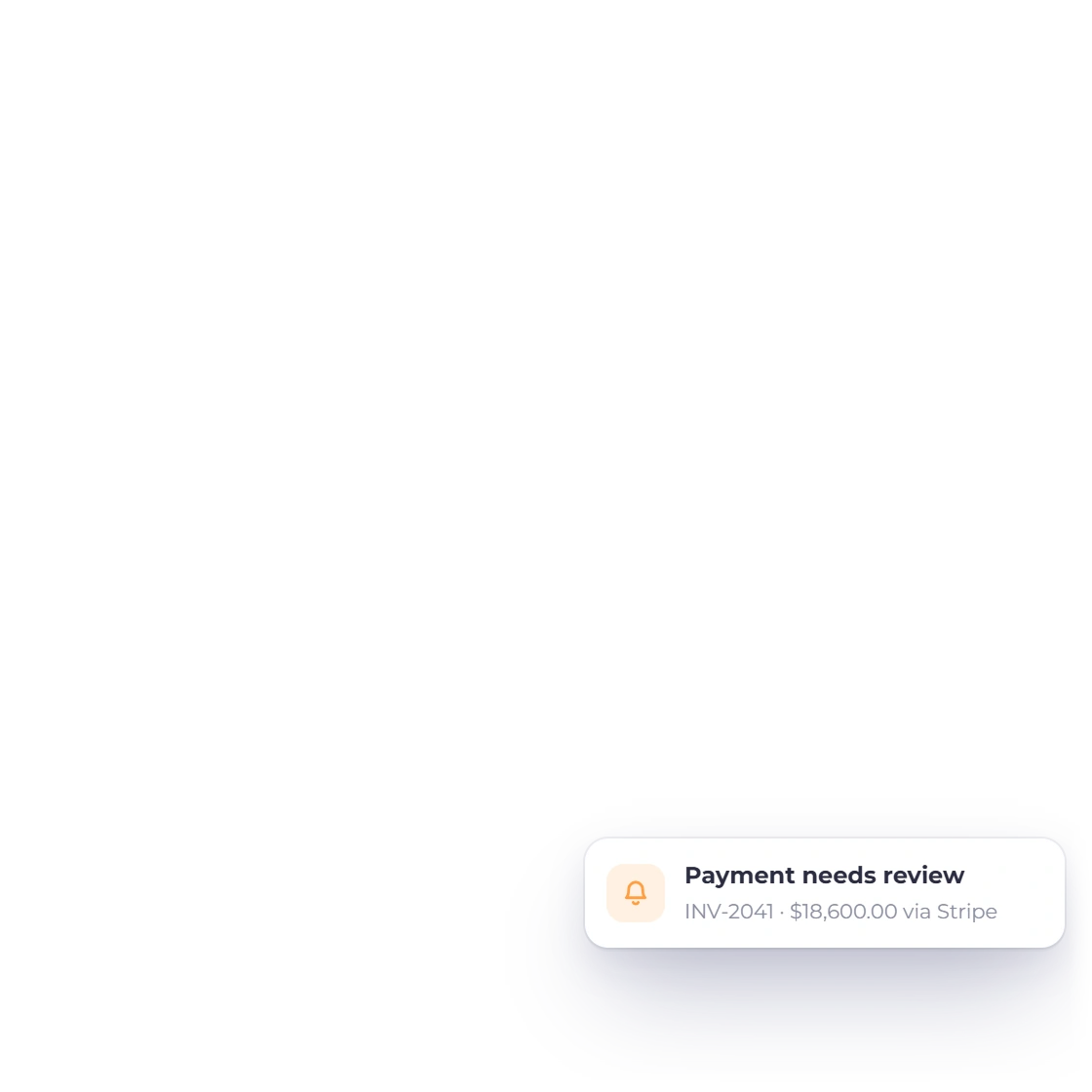
Invoice Crowd Payments Needing Review with a Stripe payment for INV-2041 that arrived after the invoice changed, with Apply to Invoice, Keep 700.00 USD as Customer Credit and Mark as Refunded, and the bell event that flags it

Payments Needing Review

When a gateway collects money that cannot be applied to its invoice automatically, it waits on Payments Needing Review instead of being applied blindly. For each one, choose Apply to Invoice, keep it as customer credit, or Mark as Refunded once you have handled it at the provider. Refunds made in the Stripe, PayPal, Razorpay or Square dashboard land here too, with Record This Refund.

  • Reached from the tile, the Invoices list or the bell
  • Nothing is recorded until you decide
  • Record This Refund for dashboard refunds
Refunds

Built in

The details that keep money in straight

Payments Received works with Manage Payments, credit notes and the invoice editor, so a receipt recorded once shows up on the invoice, the customer's credit and the books.

  • Search and filter

    Search Payments..., then filter by customer, type, status or date range. The filters stay in the page address, so a view can be bookmarked.

  • Status on every credit

    Advances and overpayments show Open, Partly Applied, Applied, Partly Refunded, Refunded or Void, so you see what became of the money.

  • This month at a glance

    Received counts this month's receipts on your business clock; the Unused tiles total the open credit you hold, with a count.

  • Use Credit on the next invoice

    When a customer has credit, Manage Payments says so. Use Credit applies it oldest first, up to the invoice's balance.

  • Treat as Advance for Future Work

    An unused overpayment can become an advance from a date you choose, held under Customer Advances until the work is billed.

  • Apply an advance to several invoices

    Apply to an Invoice lists the customer's open invoices in the advance's currency, oldest due first, and settles several at once.

  • Less Advance Received

    The final invoice shows each advance it used under Less Advance Received, with the date the advance came in.

  • Refund an unused advance

    Refund pays an unused advance back from Cash, a payment account or the bank account it went into.

  • Kept as Credit, shown first

    When a receipt is more than the open invoices, the drawer says how much will be kept as credit before anything is saved.

  • No open invoice? Record an advance

    If a customer has no open invoices in that currency, one click moves you to the Advance Payment tab with the amount carried over.

  • A bell when a payment needs review

    A gateway payment that couldn't be applied raises the bell event Payment needs review.

  • Copy Link and Preview

    Every row has Copy Link and Preview next to its edit icon, so the document behind a payment is one click away.

Questions

Payments Received, answered

Does Invoice Crowd have a list of payments received?

Yes. Invoice Crowd lists every payment your customers make on Payments Received, under Invoicing in the sidebar. Invoice payments, advance payments and overpayment credits sit in one list with the customer, the invoices paid, the method, the amount and what is still unused, and tiles show what was received this month and the unused credit you hold.

Can one customer payment cover several invoices?

Yes. Use + Record Payment, then Record Invoice Payment, and pick the customer. Their open invoices in the payment's currency are listed under Apply to Open Invoices and filled oldest due first; you can change any line, or press Fill Oldest First to reset. Each invoice is paid in the same save, and an invoice on instalments takes exactly its next instalment.

What happens when a customer pays too much?

The invoice is paid in full and the extra becomes an overpayment credit for that customer, with its own OP- number. No sales or tax are booked on it. You can apply it to a later invoice with Use Credit, refund it from the invoice's Refund window by choosing The customer paid too much, or use Treat as Advance for Future Work.

How do I record a deposit before I've sent an invoice?

Choose Record Advance Payment. The advance gets an ADV- number and a receipt PDF you can download, titled to suit your country (for example Receipt Voucher in India), and is held under Customer Advances until you apply it to an invoice, refund it or void it. Whether tax is due on the advance follows your country's rule; the final invoice shows it under Less Advance Received.

Do invoice payments get their own receipt PDF?

Not a separate one. When you record an invoice payment you can tick Email Payment Confirmation to Client, which sends the customer the updated invoice PDF. Only advance payments have their own numbered receipt, from Download Receipt.

What is Payments Needing Review?

It is where online money waits when it can't be applied to its invoice automatically. For each payment you choose Apply to Invoice, keep it as customer credit, or Mark as Refunded once you've handled it at the provider. Refunds made directly in the Stripe, PayPal, Razorpay or Square dashboard also appear there with Record This Refund. It has no sidebar item: open it from the Needs Review tile, the Invoices list button that appears while payments are waiting, or the bell.

Are payments imported from my bank?

No. Invoice Crowd has no bank feeds. Payments a customer makes through a connected gateway on the invoice page are recorded on the invoice for you; bank transfers, cash and cheques you record yourself with Record Payment.

Which plans include Payments Received?

Every plan, including the free Basic plan. What differs is the online gateways: on Basic, PayPal is the gateway you can switch on, and the others are on paid plans. Team members need Invoicing access to see the list and accounting post permission to record payments; Team is on paid plans.

See every payment, and what is still unused

Record one receipt against several invoices, take advances with a numbered receipt, and keep overpayments as customer credit, all from one list.

  • No card required to start
  • Your data stays yours
  • Cancel anytime