Rich event presentation
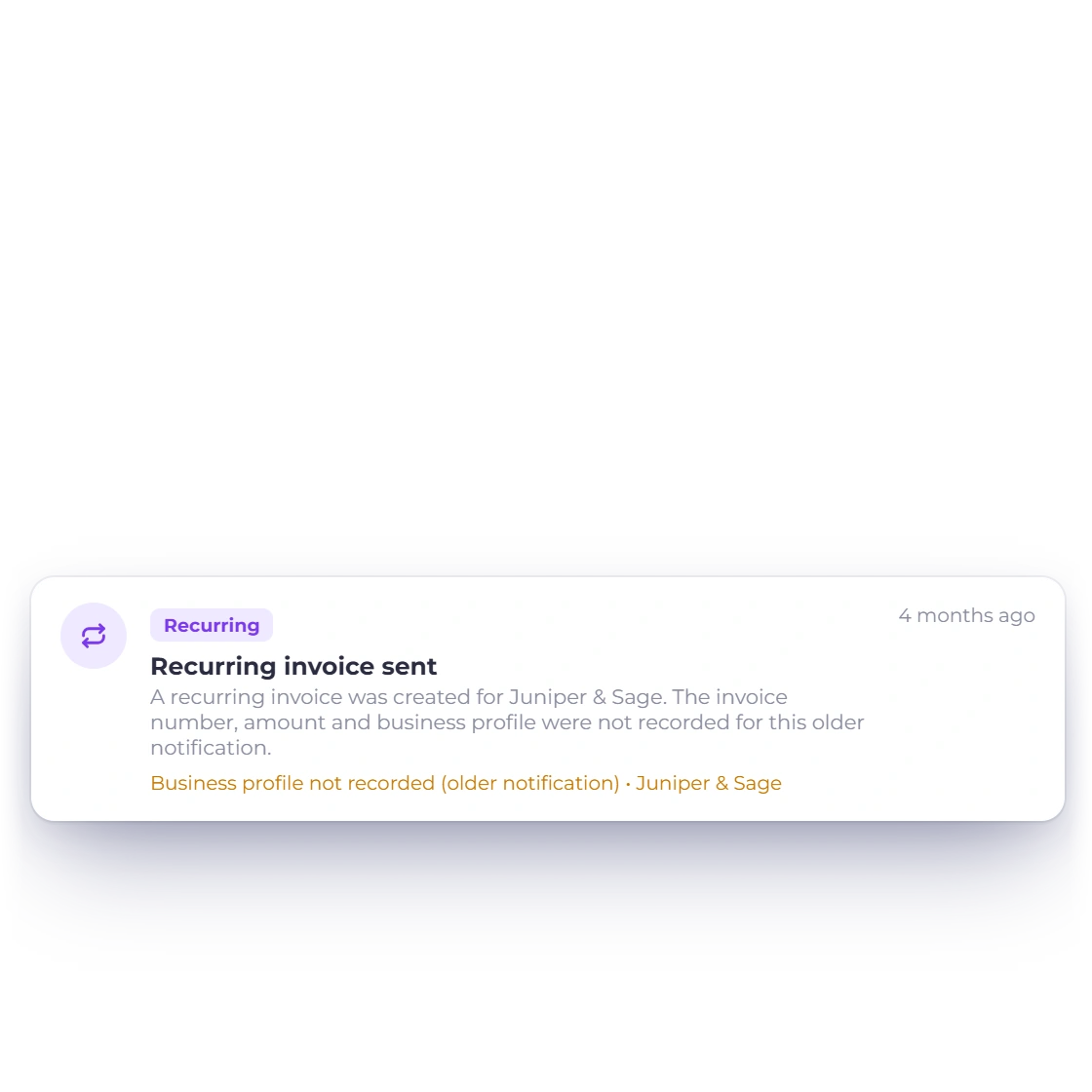
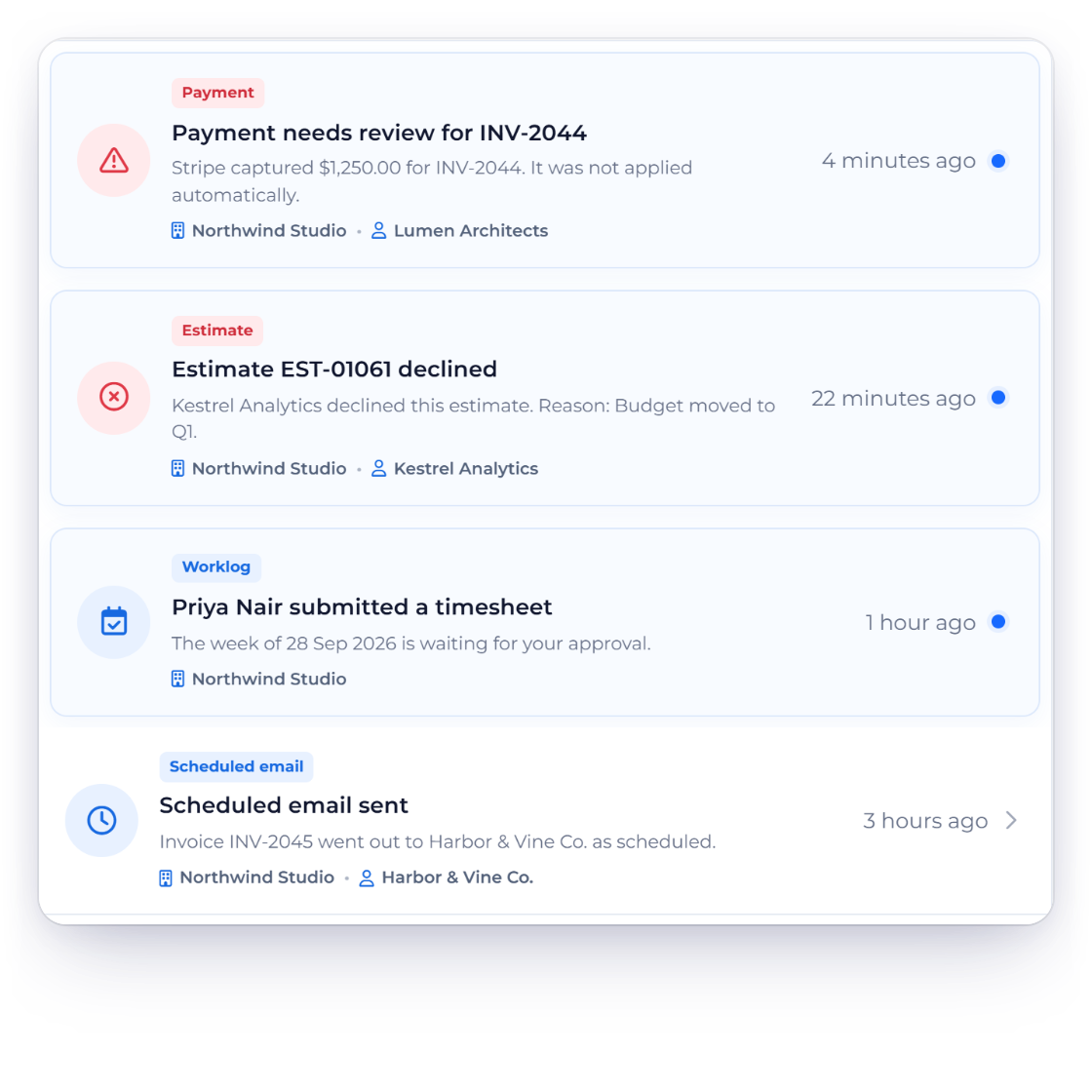
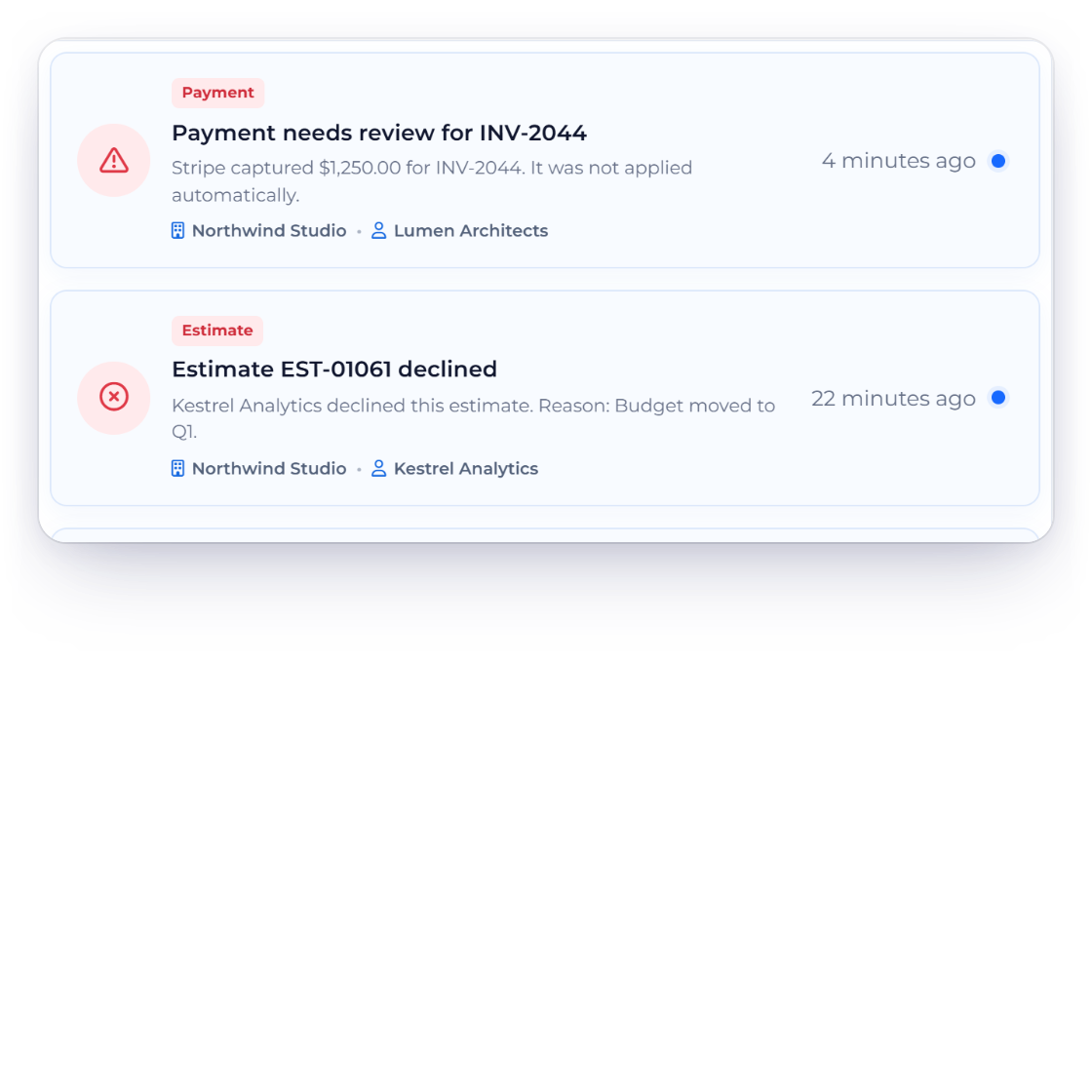
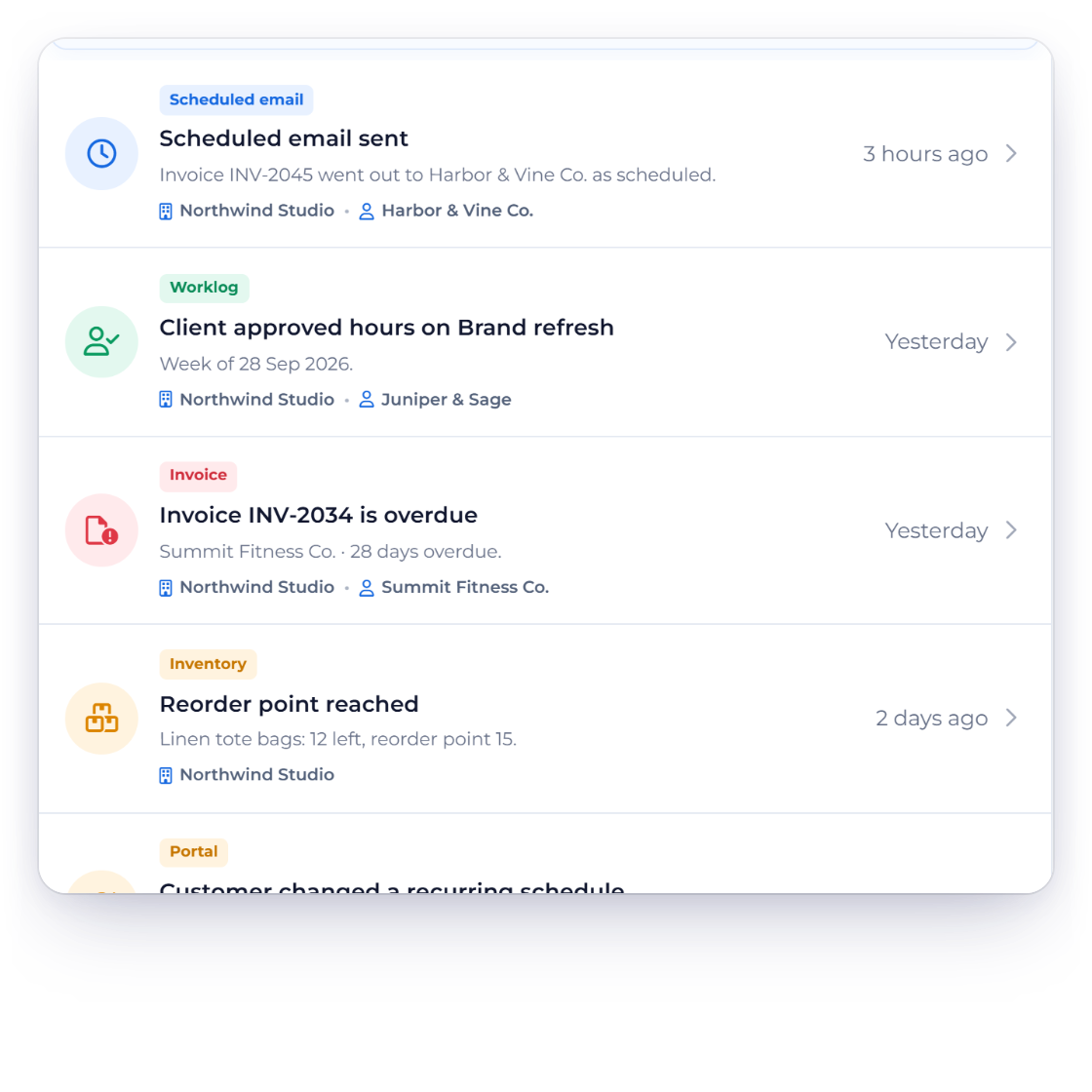
Each item uses an event-specific icon, tone and category plus the recorded business, document or workflow detail available at creation time.
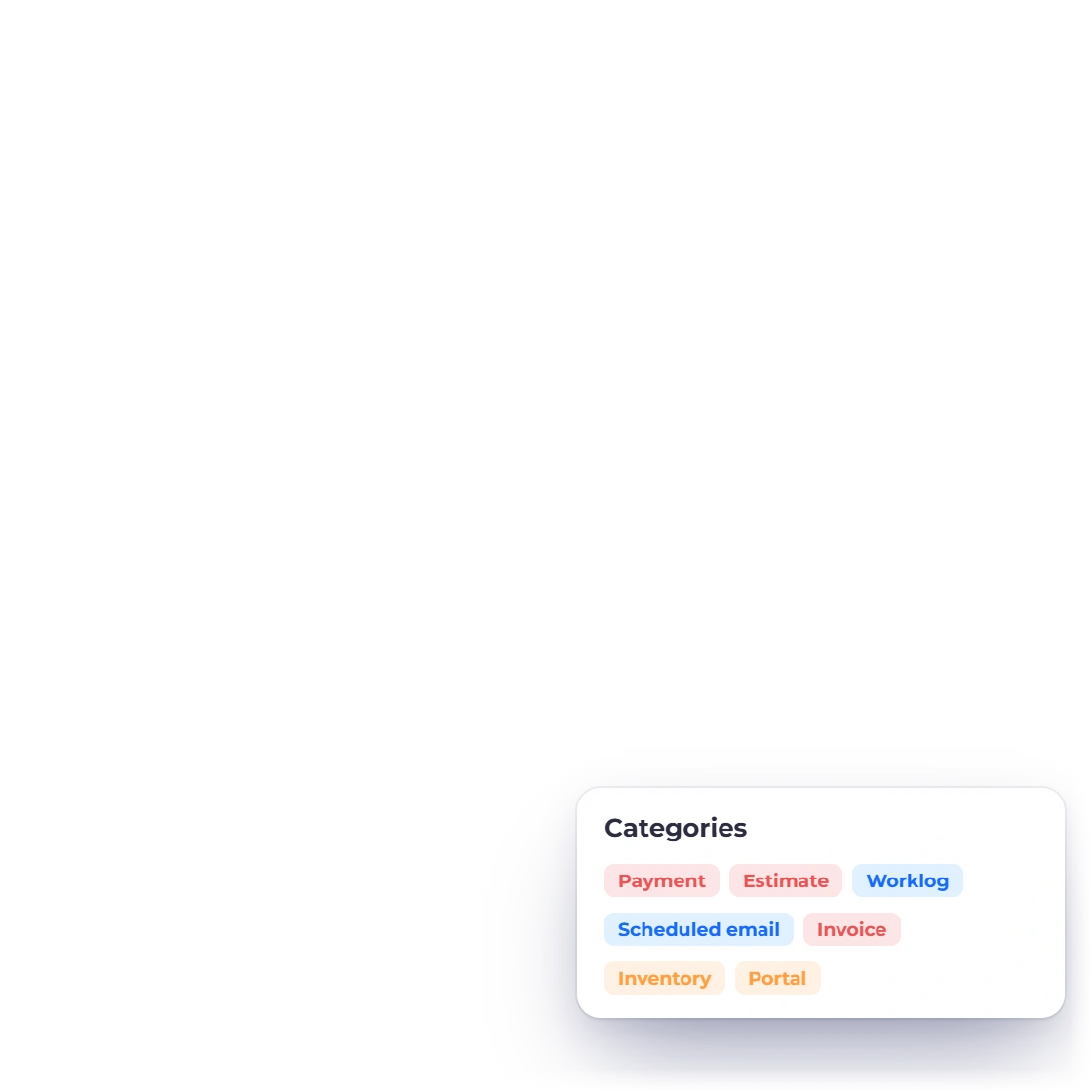
- Category and title
- Business identity snapshot
- Relative time and unread state
Workflow awareness
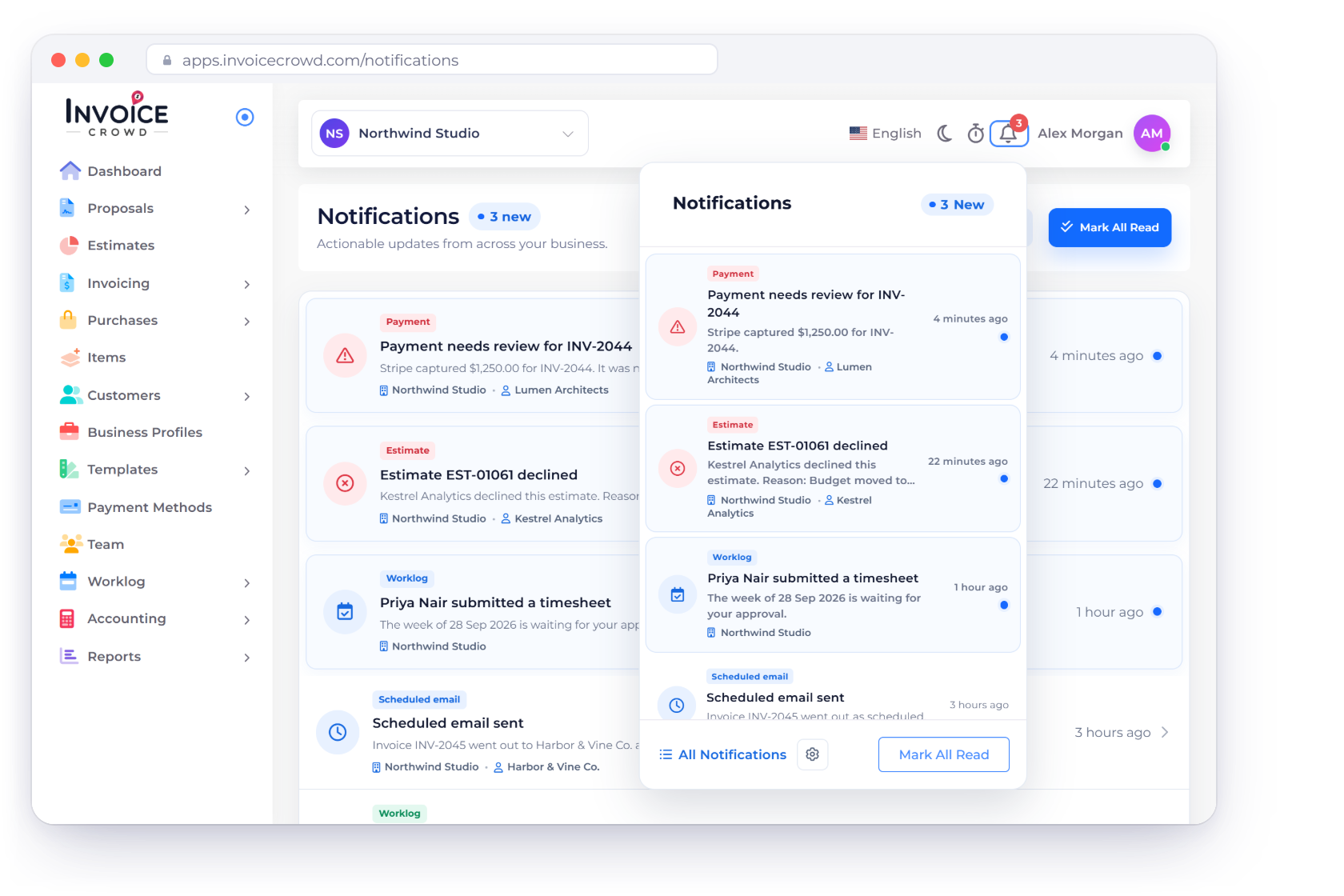
Invoice Crowd notifications appear in the bell in the top bar and in a full notification center, each with its business, a link to the record and an unread marker you can clear with Mark All Read. Choose which events reach the bell, and have overdue invoices and expired estimates emailed to you as well.
How it works
The current presenter carries category, title, supporting text, business identity, relative time, unread state and the safest available action across both the bell and notification center.
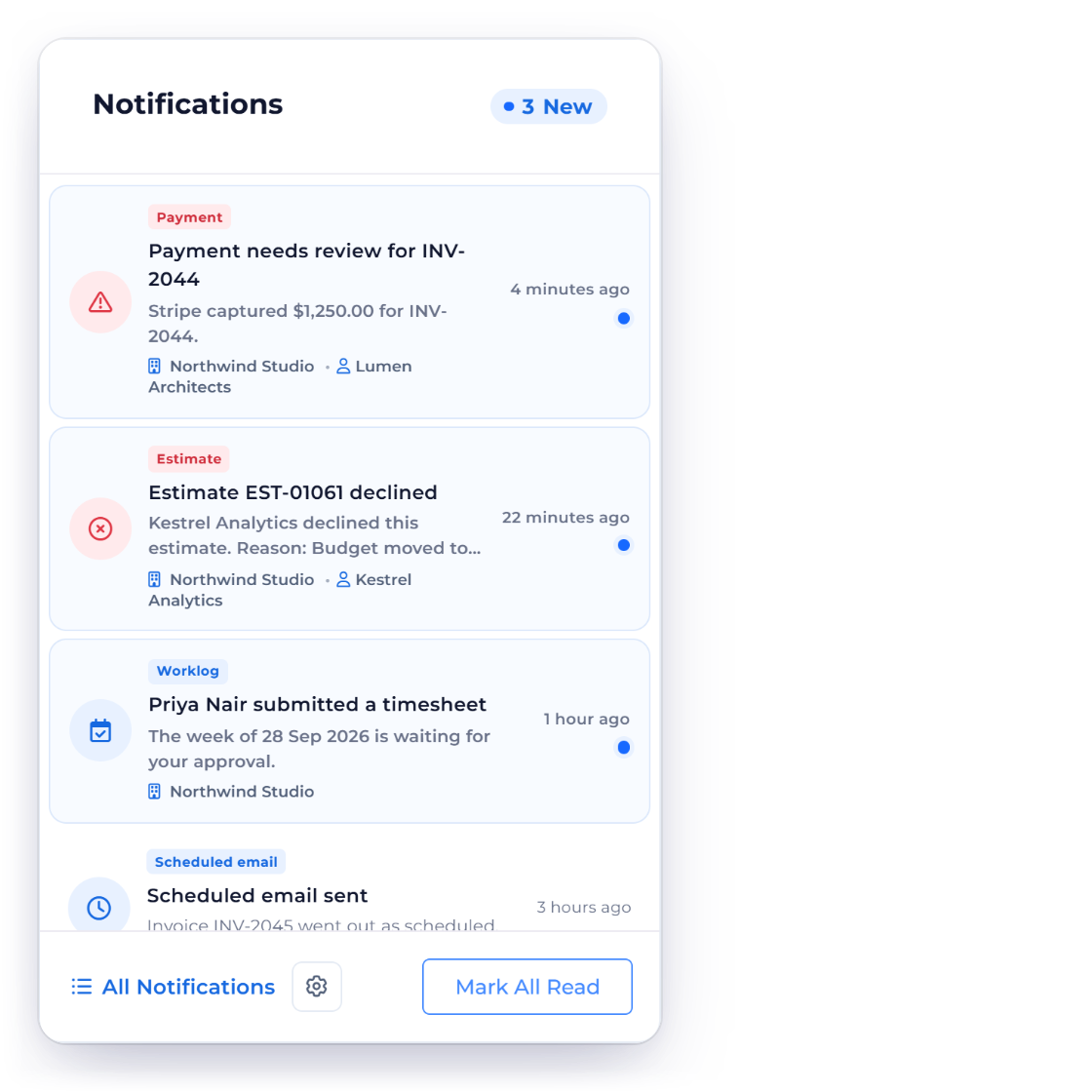
Recent history appears in the header; the full center keeps a paginated record.
Each item uses an event-specific icon, tone and category plus the recorded business, document or workflow detail available at creation time.
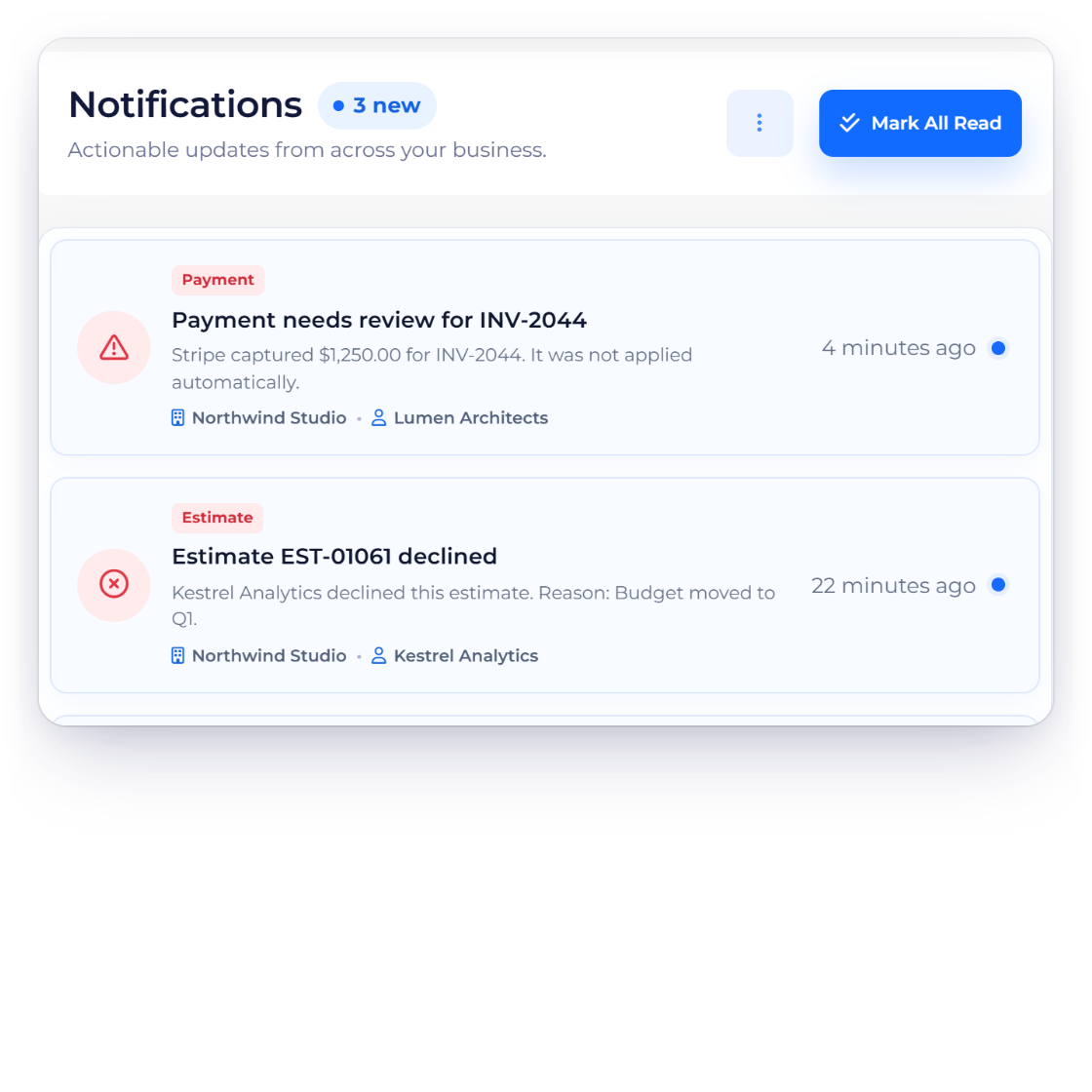
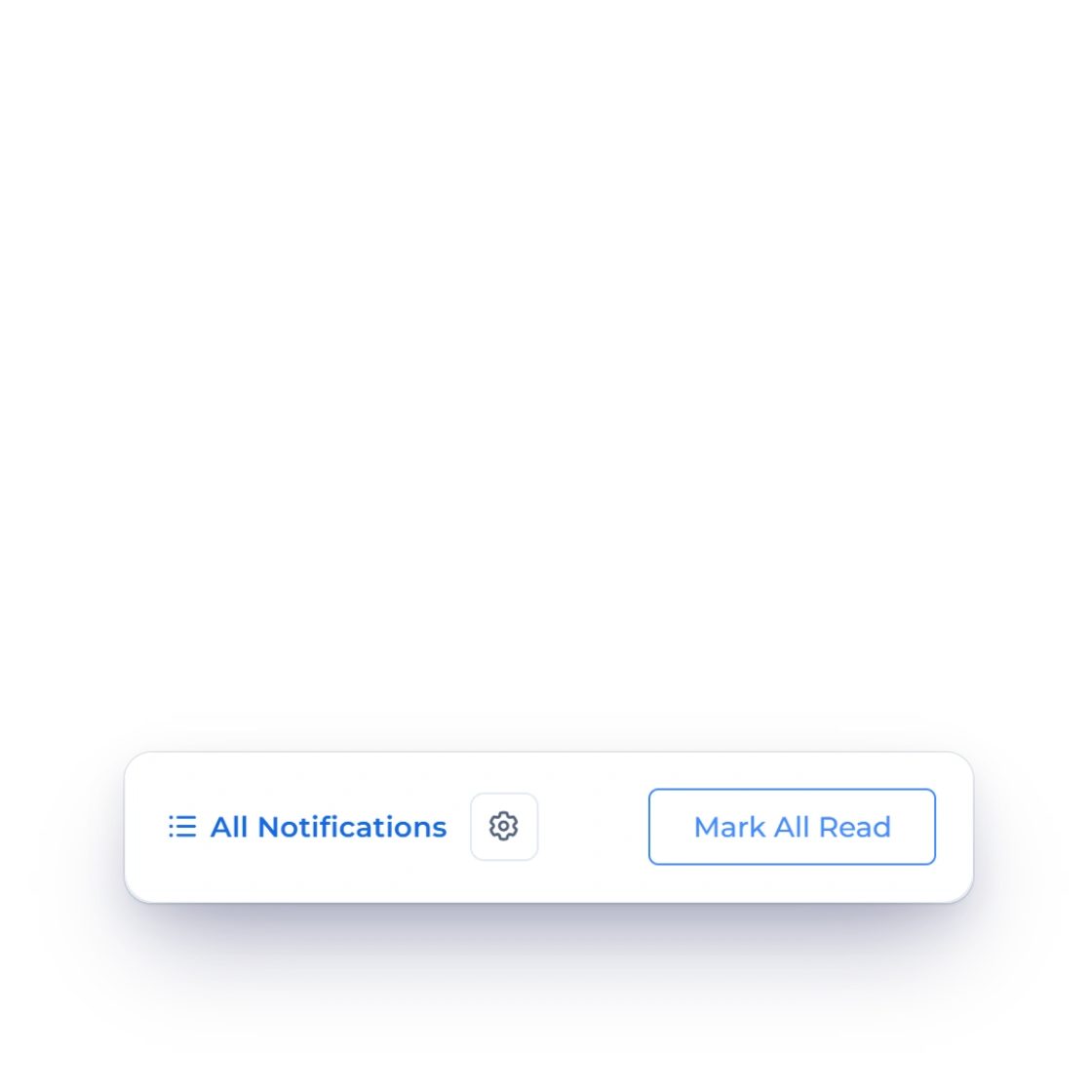
The notification center shows how many items are new, marks each unread item with a dot, and lets you mark one item or use Mark All Read. The bell panel's footer links to All Notifications and to Notification Settings.
Actions remain inside the application and are checked before navigation.
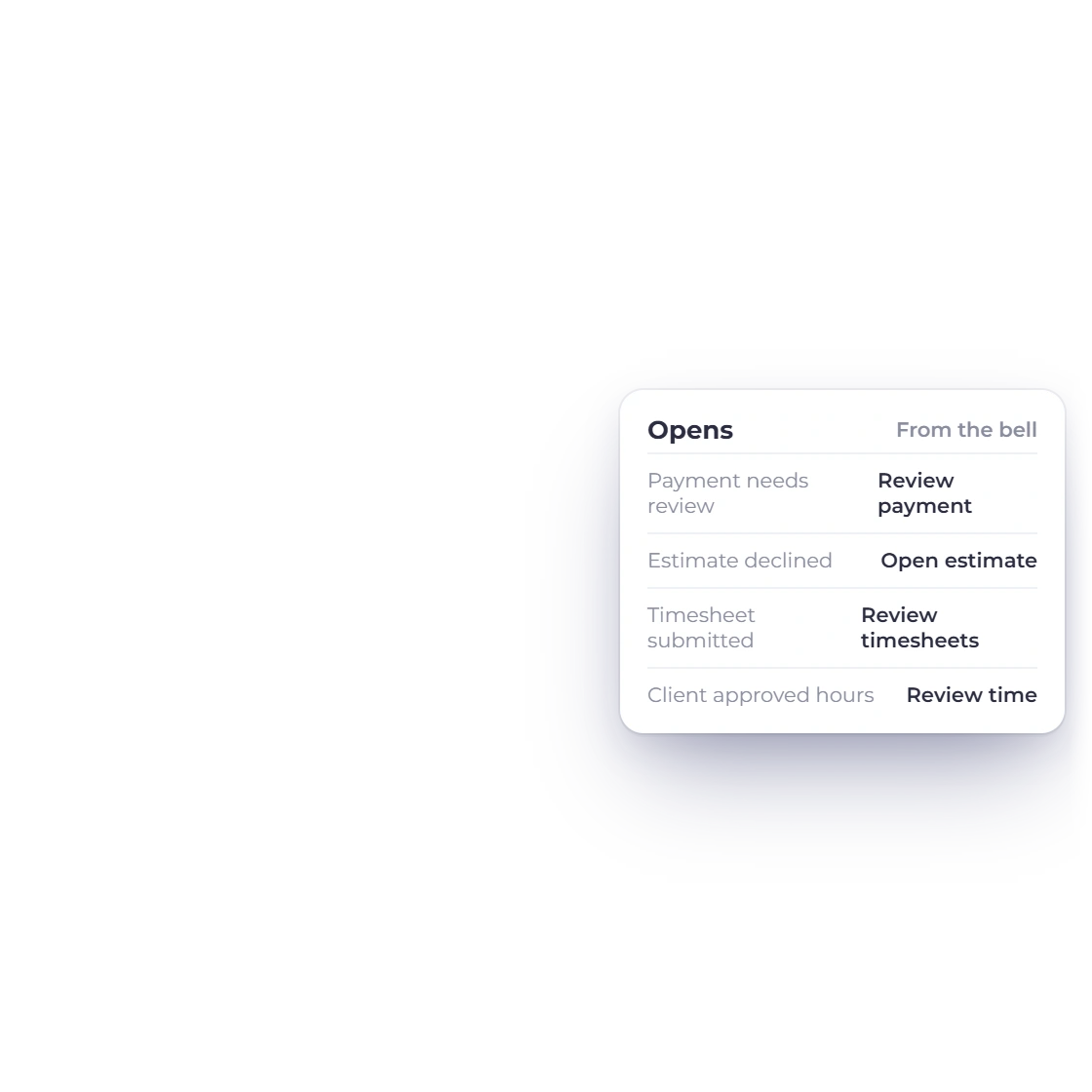
Supported events can lead to the relevant invoice, estimate, proposal, project, worklog, expense, inventory, import, subscription or AI-credit surface.
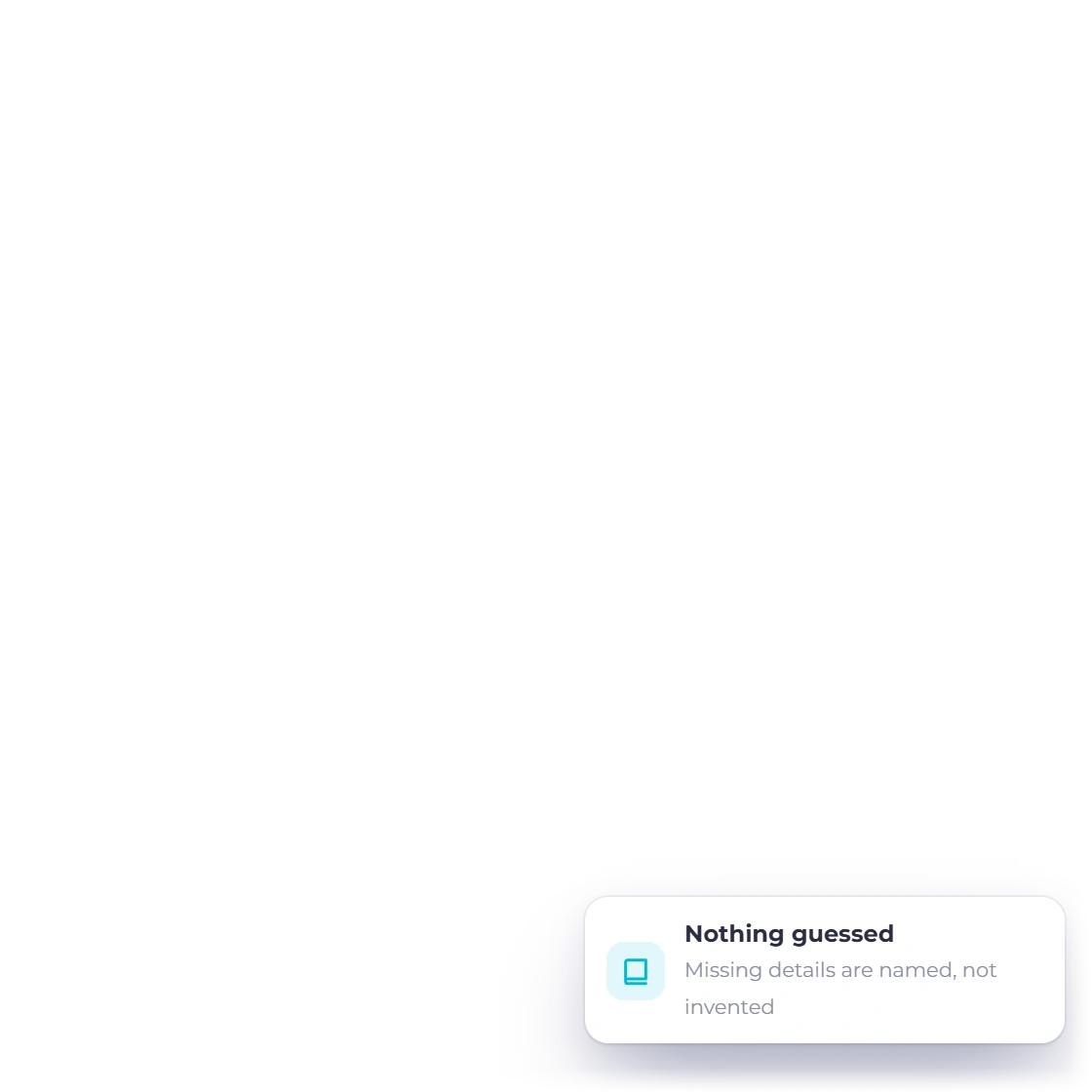
Older rows are enriched from available facts. When an old event never recorded a unique document, amount or profile, the interface says so instead of guessing.
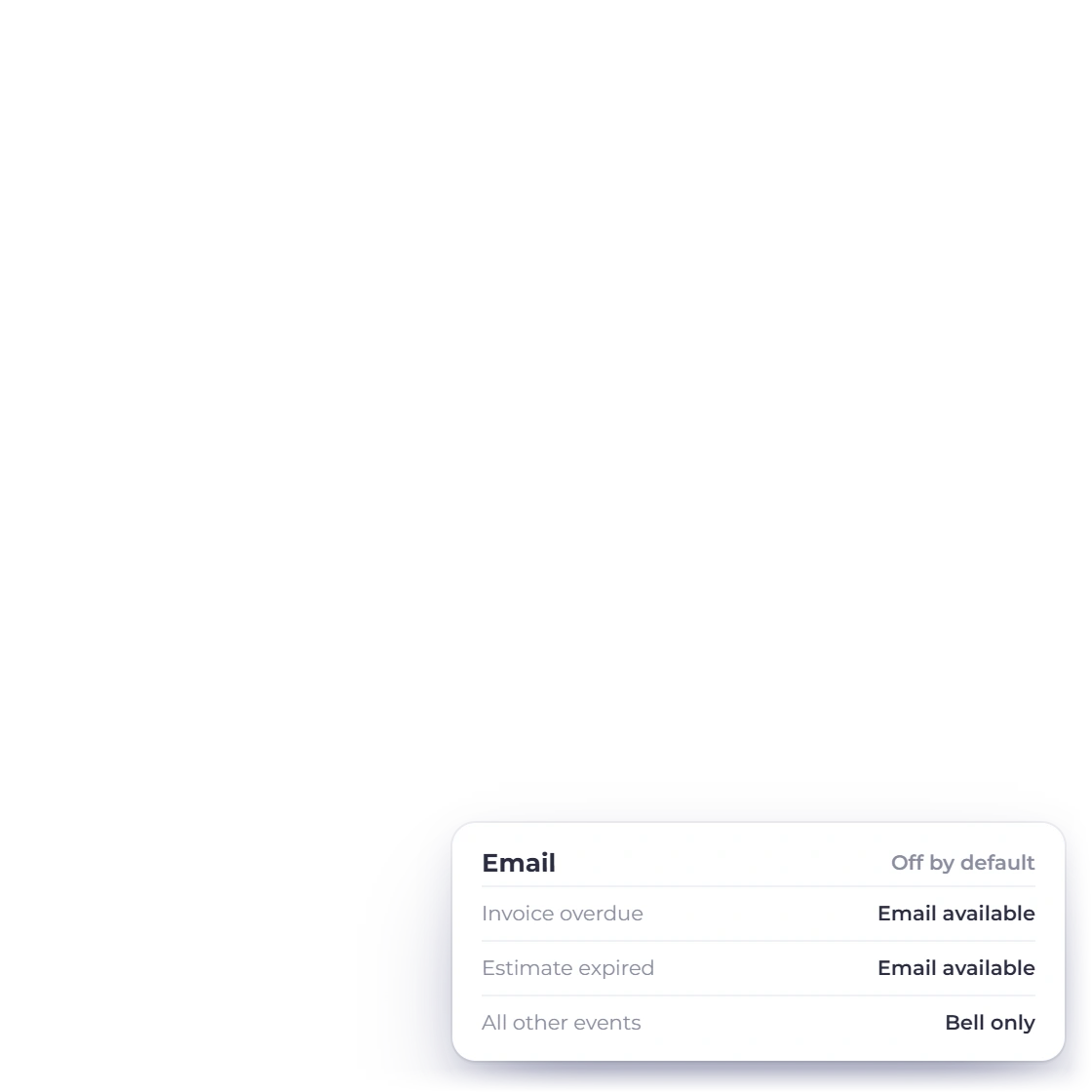
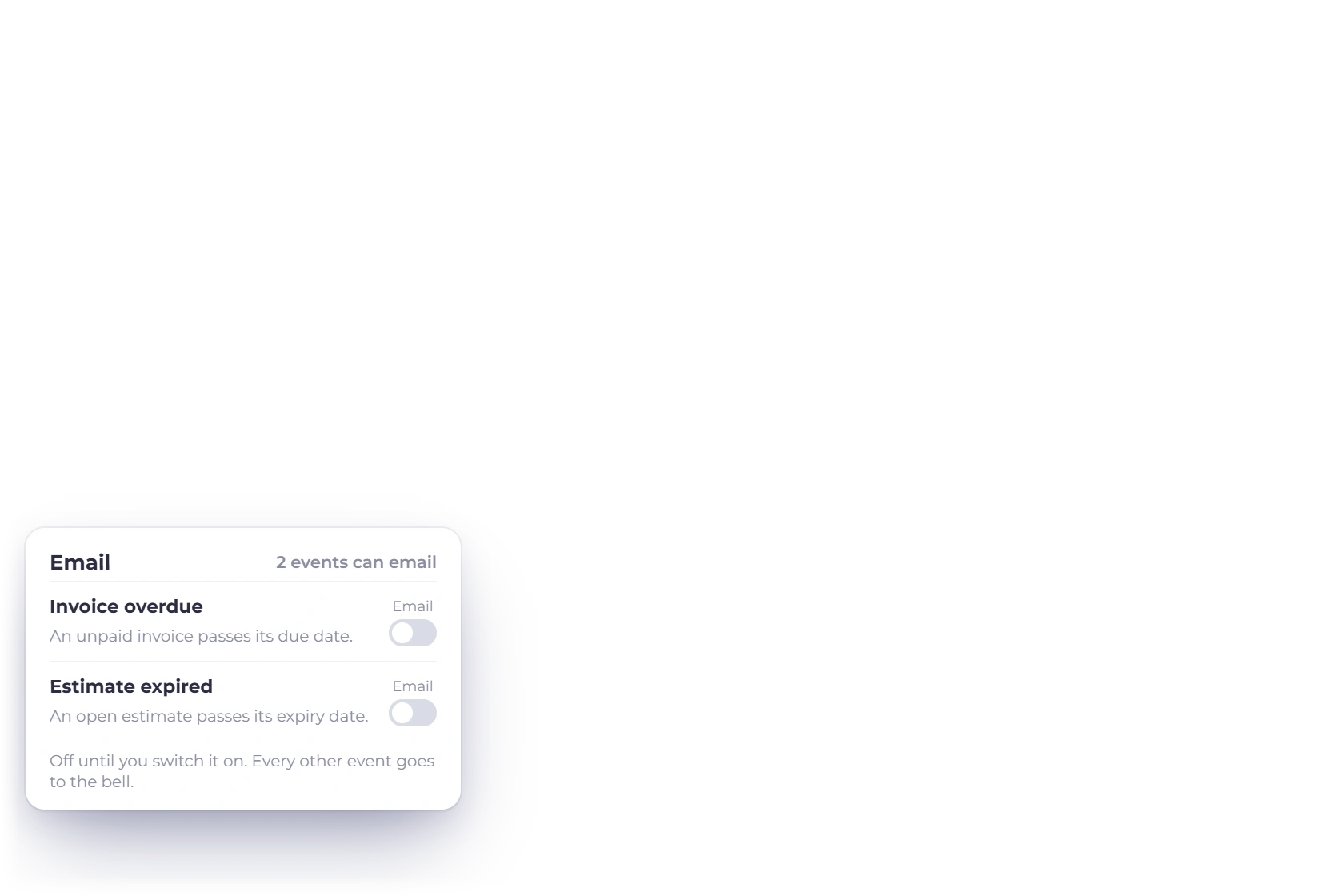
Every event can be switched on or off for the bell; two can also be emailed to you.
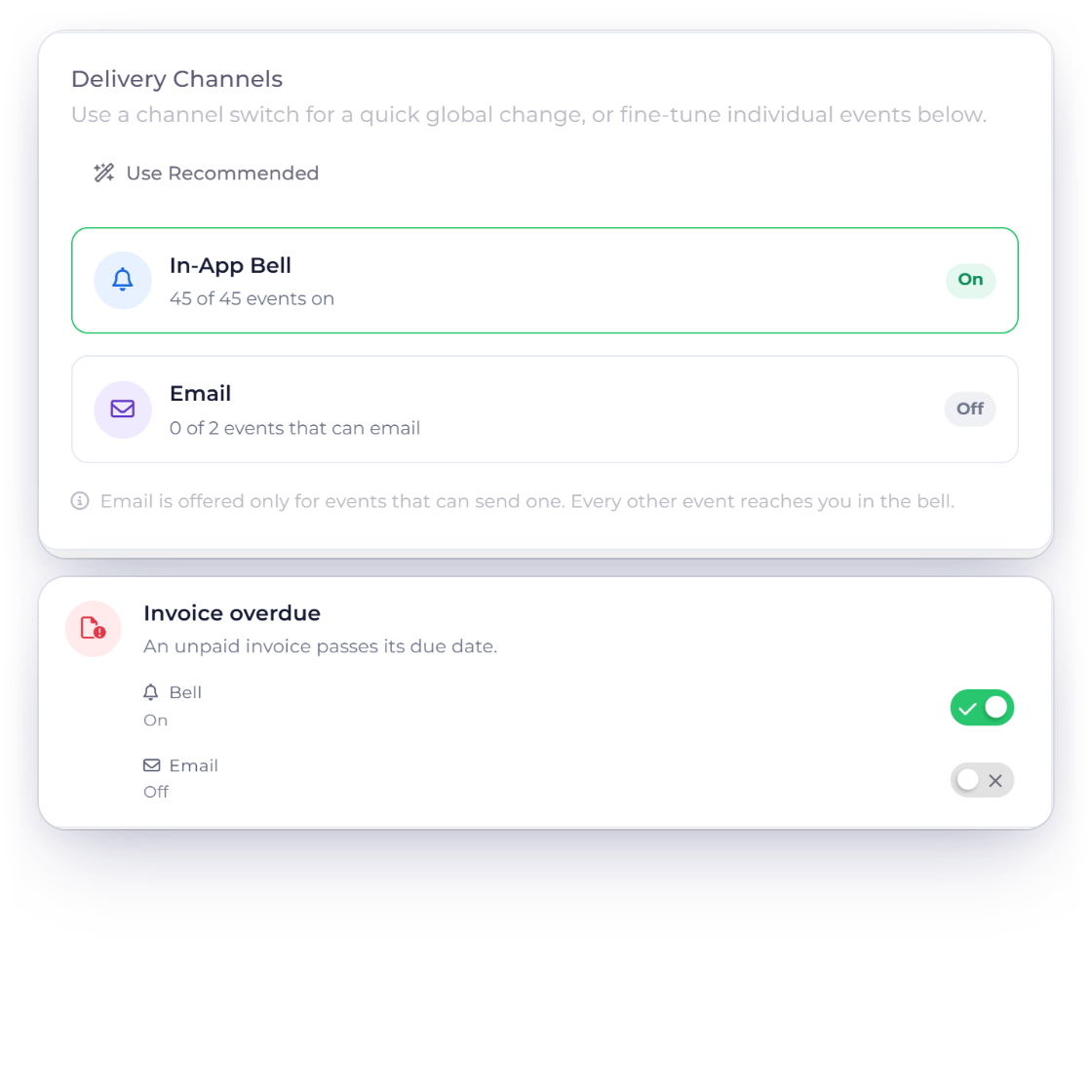
Events you haven't set yet use sensible defaults. Saving writes a clear On or Off choice for each event's bell, and for email on Invoice overdue and Estimate expired, the two events that offer it. Both emails start switched off.
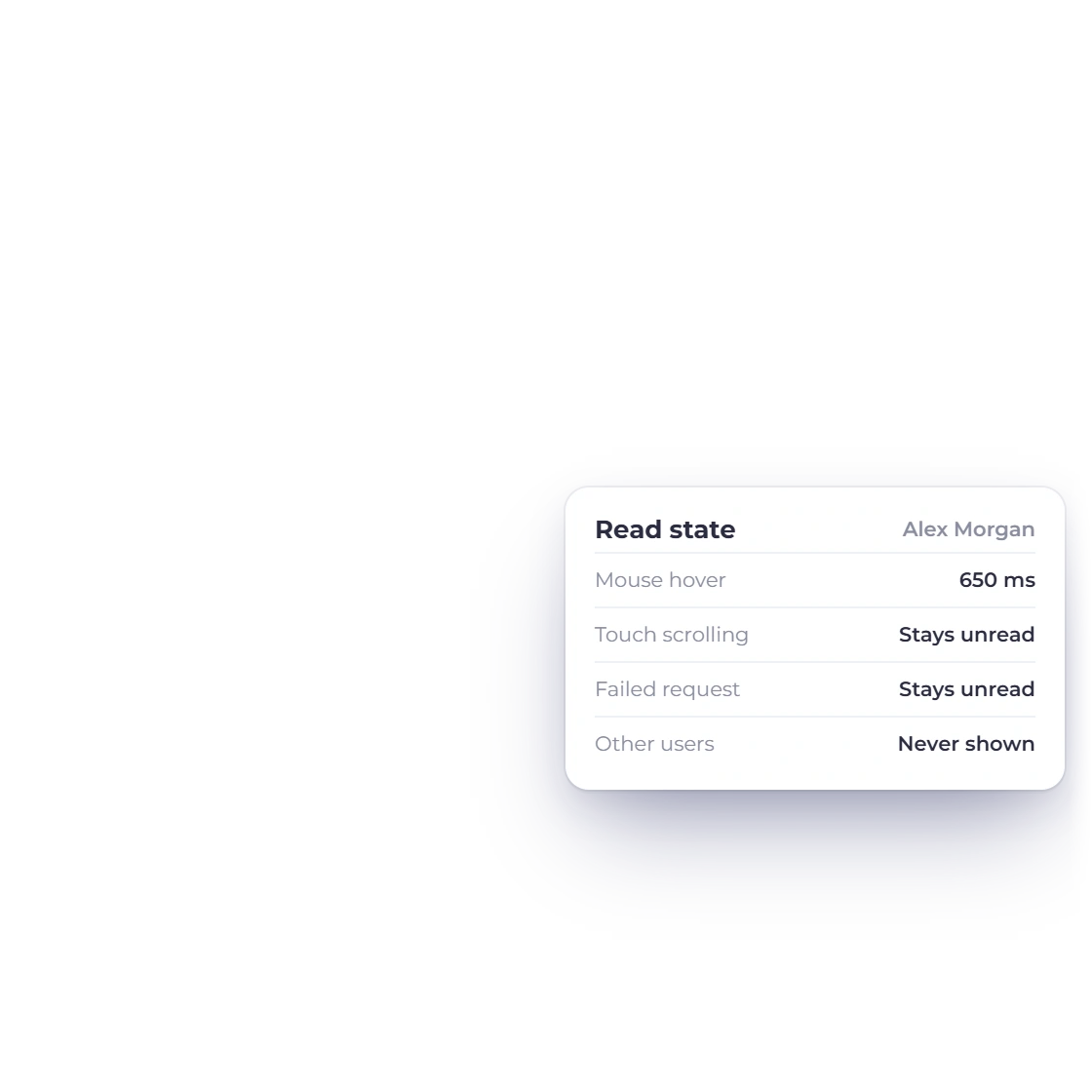
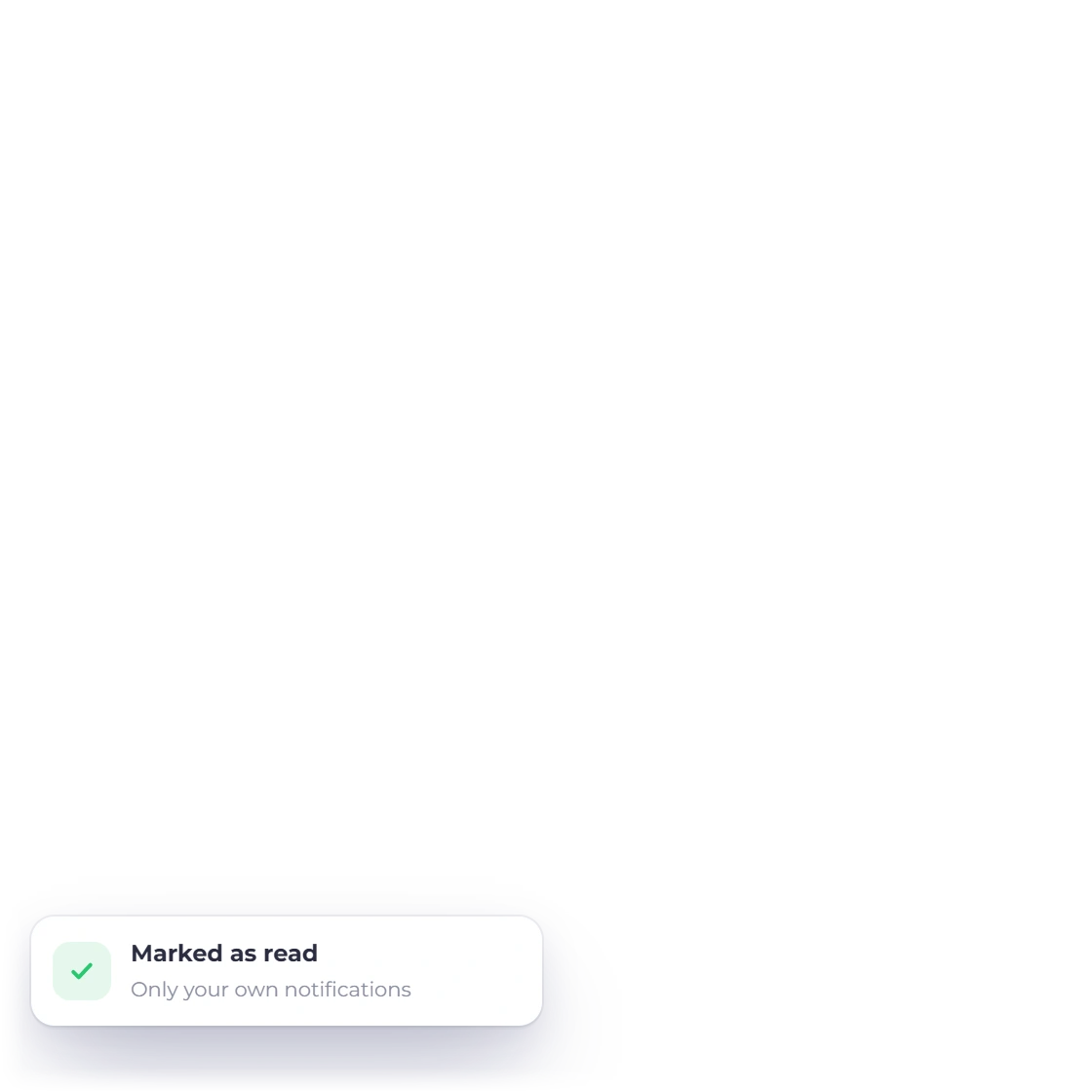
Lists and read actions are scoped to the authenticated user. Brief hover, touch traversal and failed requests should preserve unread state; only the intentional read interaction commits it.
Capability map
The supported event families and the controls that prevent notification history from becoming an unscoped or misleading activity feed.
Sent, first viewed, paid, overdue, recurring-created, payment-needs-review and scheduled-email-sent events.
Sent, viewed, accepted, declined and expired events.
Sent, viewed, accepted, declined and expiring events.
Assignments, time entries, budgets, long-running timers, submitted and approved timesheets, and hours a client approved or disputed.
Invoice or estimate creation from selected work.
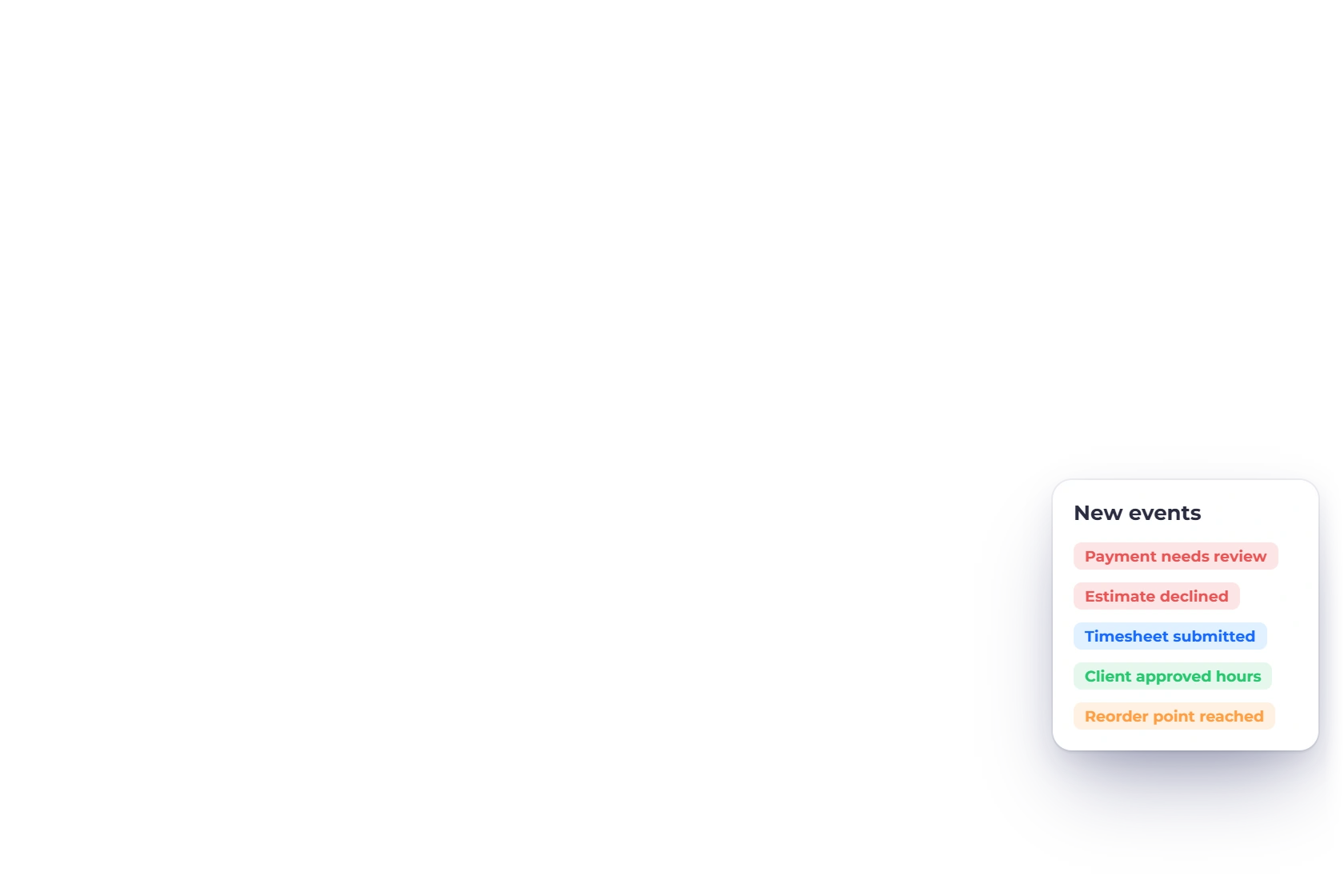
Reorder point reached arrives in the bell once you switch on the reorder alert in your inventory settings. Stock alerts are never emailed.
Recurring income and expense events.
Team, customer-portal and vendor-portal join events, and a customer stopping or restarting a recurring schedule.
Import completion and failure events with relevant action context.
Upcoming renewal awareness within the configured event policy.
Low-credit events for the assistant workflow.
Read history is kept through the bounded notification retention path.
Questions
In the bell at the top of every page. It shows recent activity, and its footer links to All Notifications, the full notification center where new items are marked, and to Notification Settings through the gear. Mark All Read clears the unread markers.
Yes, when authoritative action metadata exists. The action must be application-relative and is validated before the interface navigates to the relevant record or list.
For two events. Invoice overdue and Estimate expired can also be emailed to you, and both emails start switched off. Every other event arrives in the bell only, and Notification Settings, opened from the gear in the bell panel, lets you choose which ones.
The presenter maps older rows to the safest known category, icon and destination. It states when historical details were not recorded instead of inventing a specific profile, amount or document.
No. Notification lists and read actions are scoped to the authenticated user; a public identifier from another account is not sufficient authority.
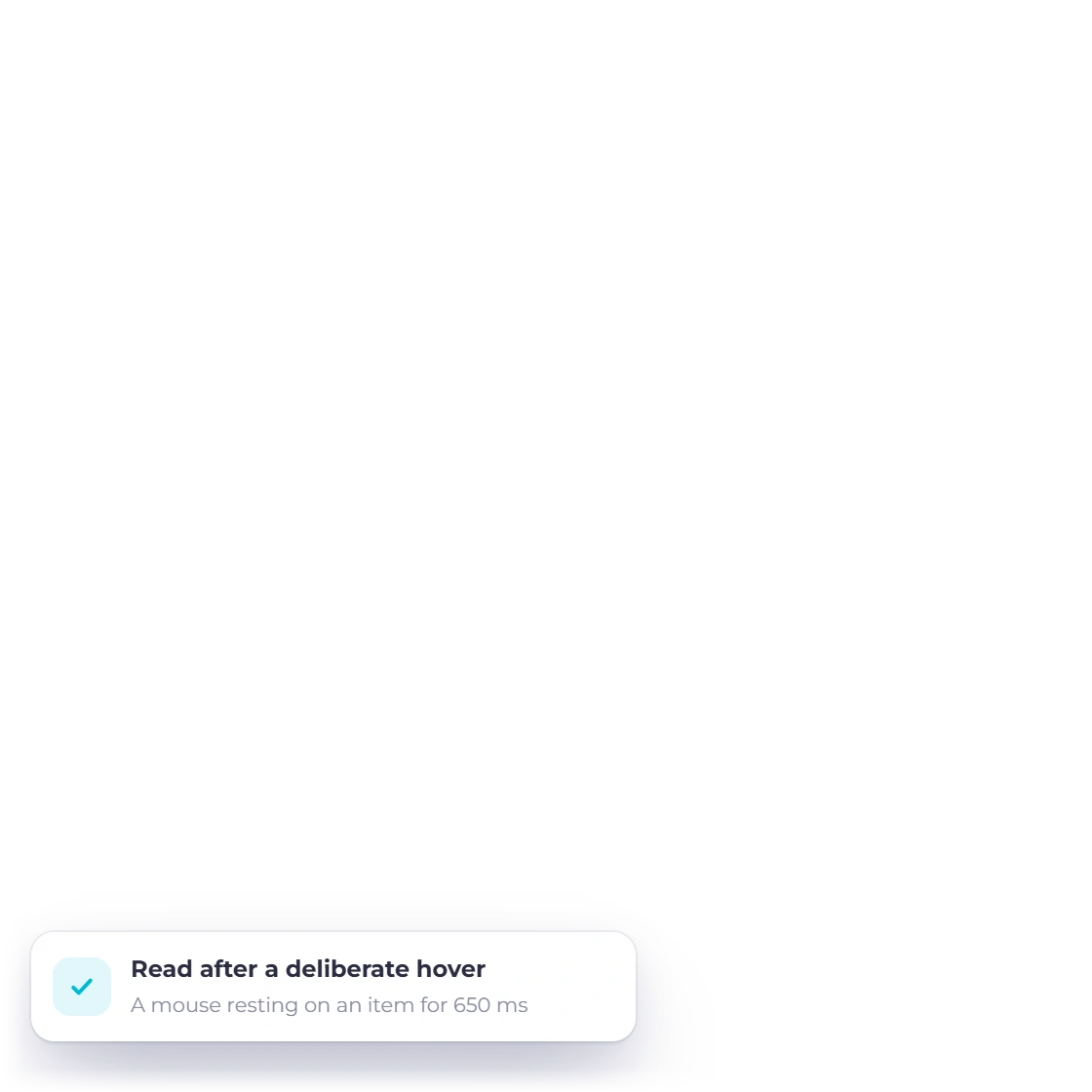
No. The deliberate hover interaction requires a continuous 650 milliseconds with a mouse. Brief hover, touch traversal and failed read requests preserve the unread state.
Start with Bell alerts, review the recommended defaults, and switch on email for overdue invoices or expired estimates if you want them away from the workspace.