Skip to content

Features

Payment reminders that go out on the days you pick, and stop when the invoice is paid

Payment reminders are emails Invoice Crowd sends your customer about an unpaid invoice, on the days you choose before, on or after the due date. Pick up to five per invoice, write the wording once for your business, send a reminder by hand from the list or the editor, and see who has been reminded and how often.

  • Up to 5 reminders per invoice
  • Send Reminder from the list or editor
  • Per-customer opt-out
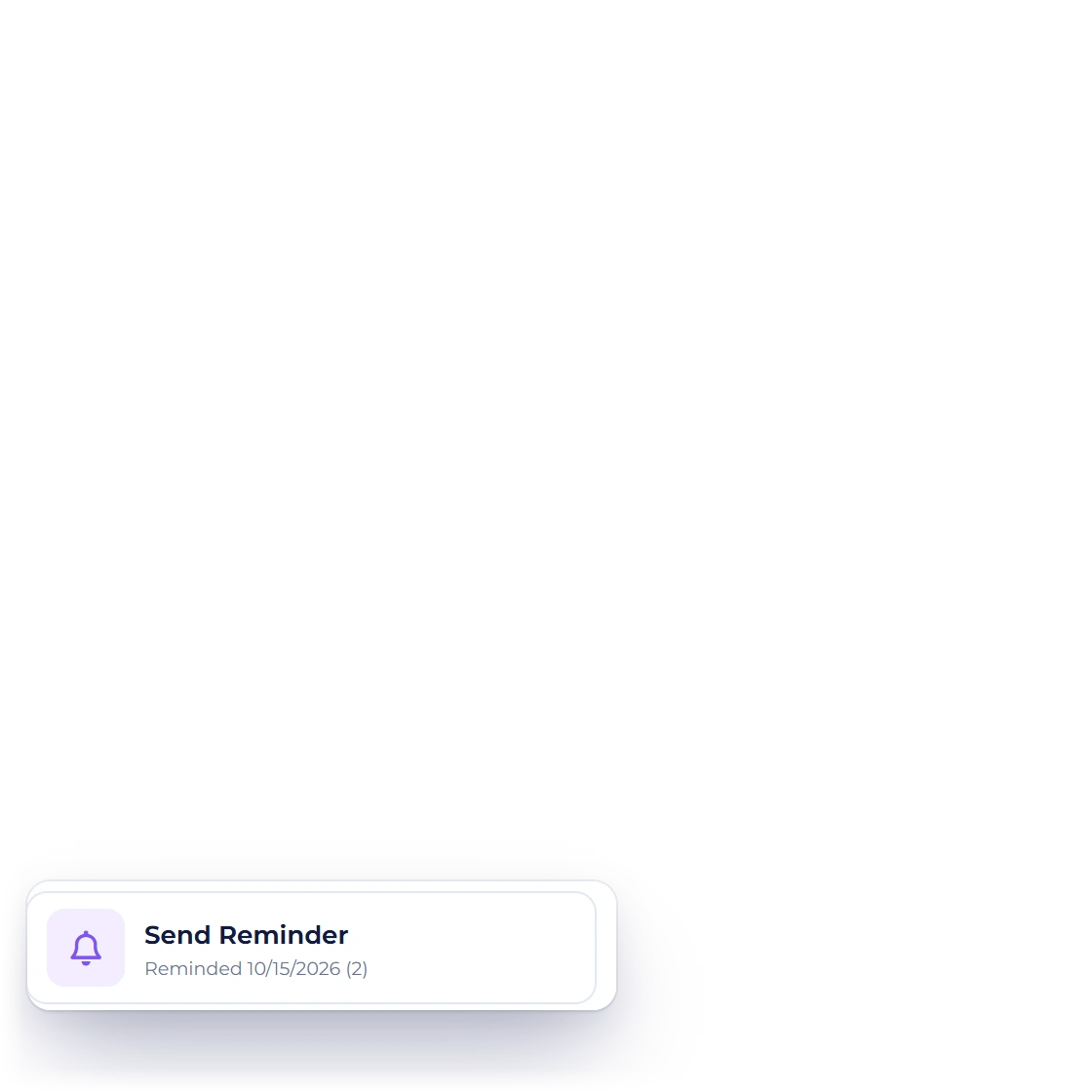
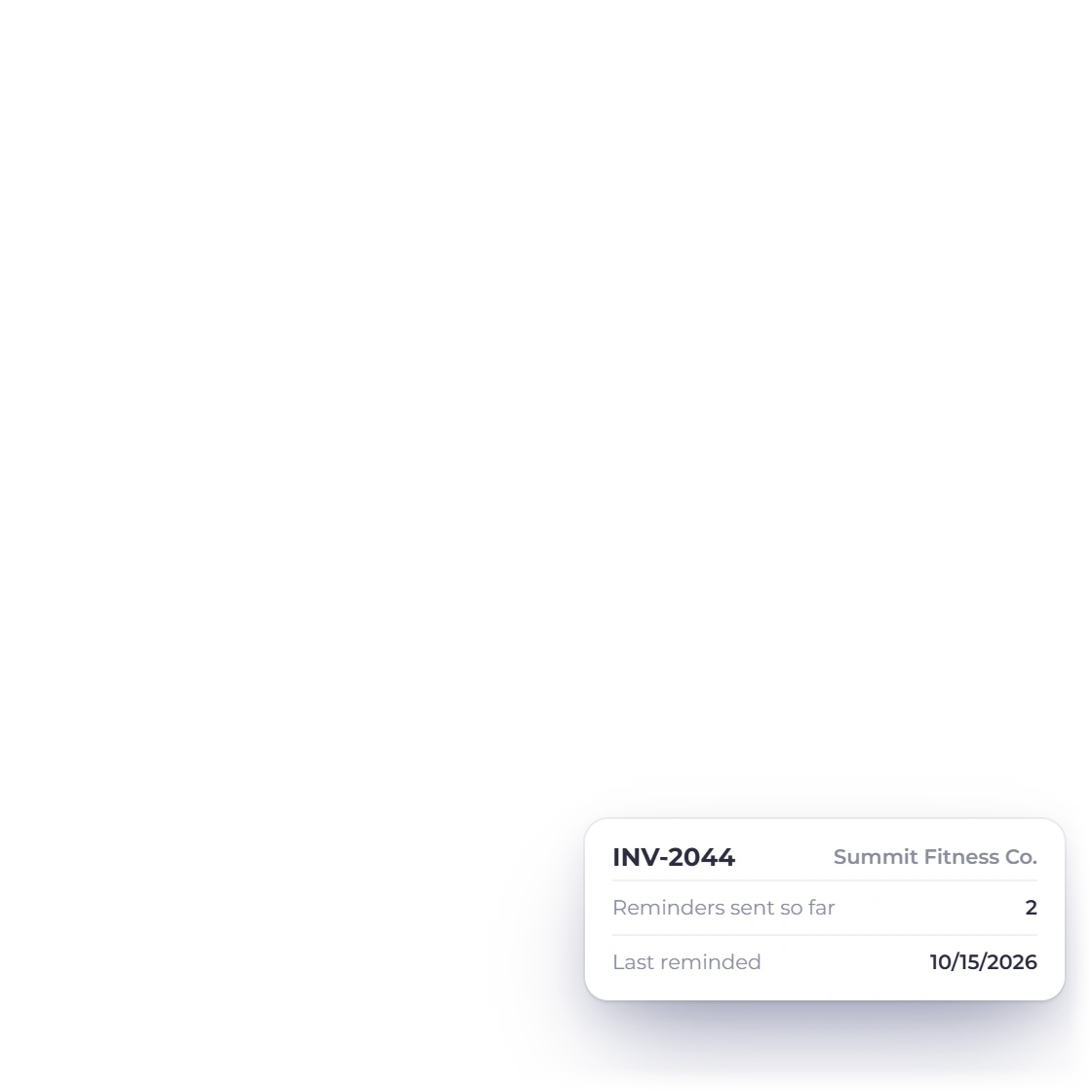
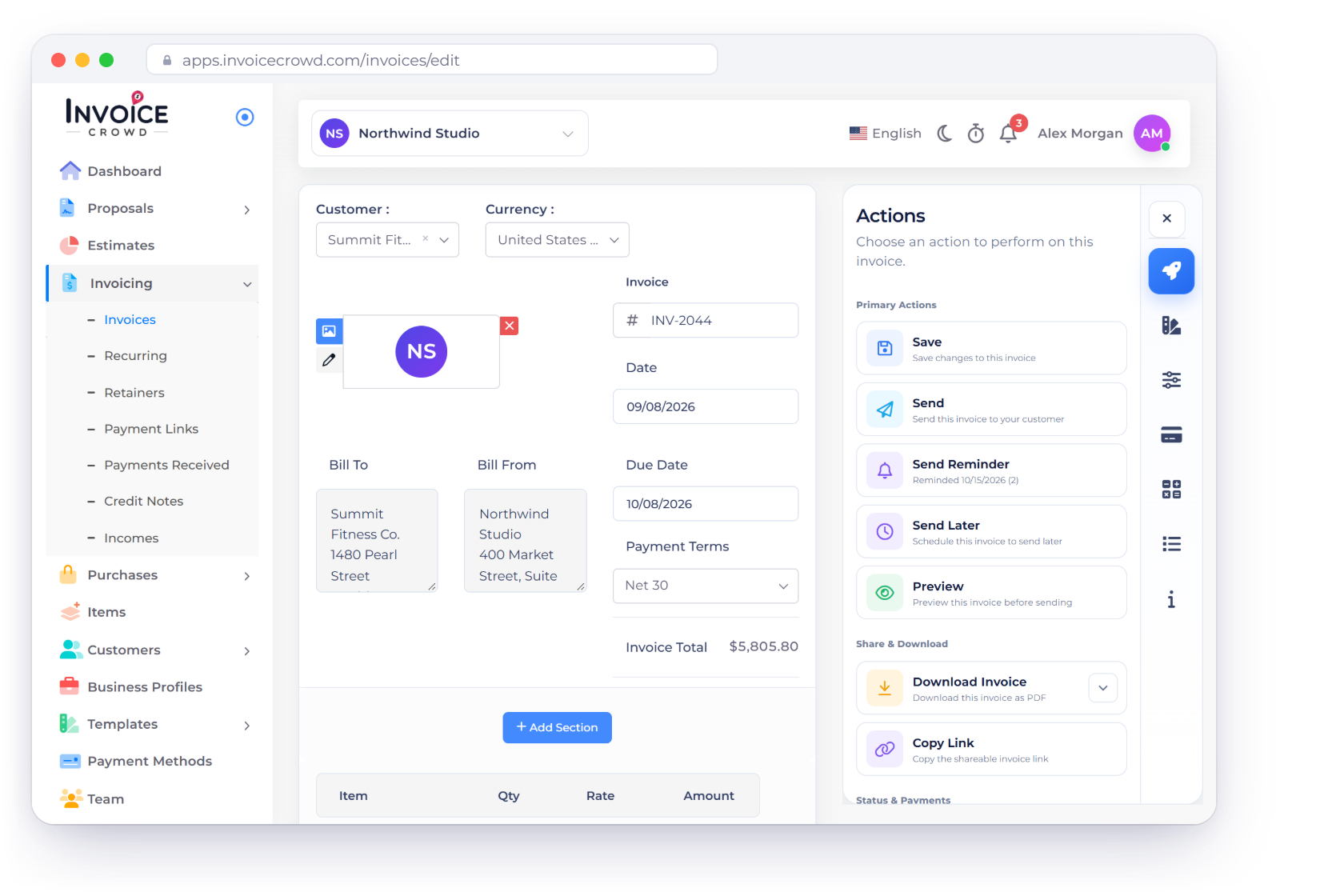
The Invoice Crowd invoice editor for INV-2044 on the Actions tab with Send Reminder and Reminded 10/15/2026 (2), next to the Reminder Option days on the invoice and the reminder email ready to send

What is inside

Reminders that run on their own, and one you can send now

Scheduled reminders follow the days you tick on each invoice. Manual reminders use the same send window as your invoices. Both are logged, counted and shown on your lists.

Scheduled reminders

Set on each invoice

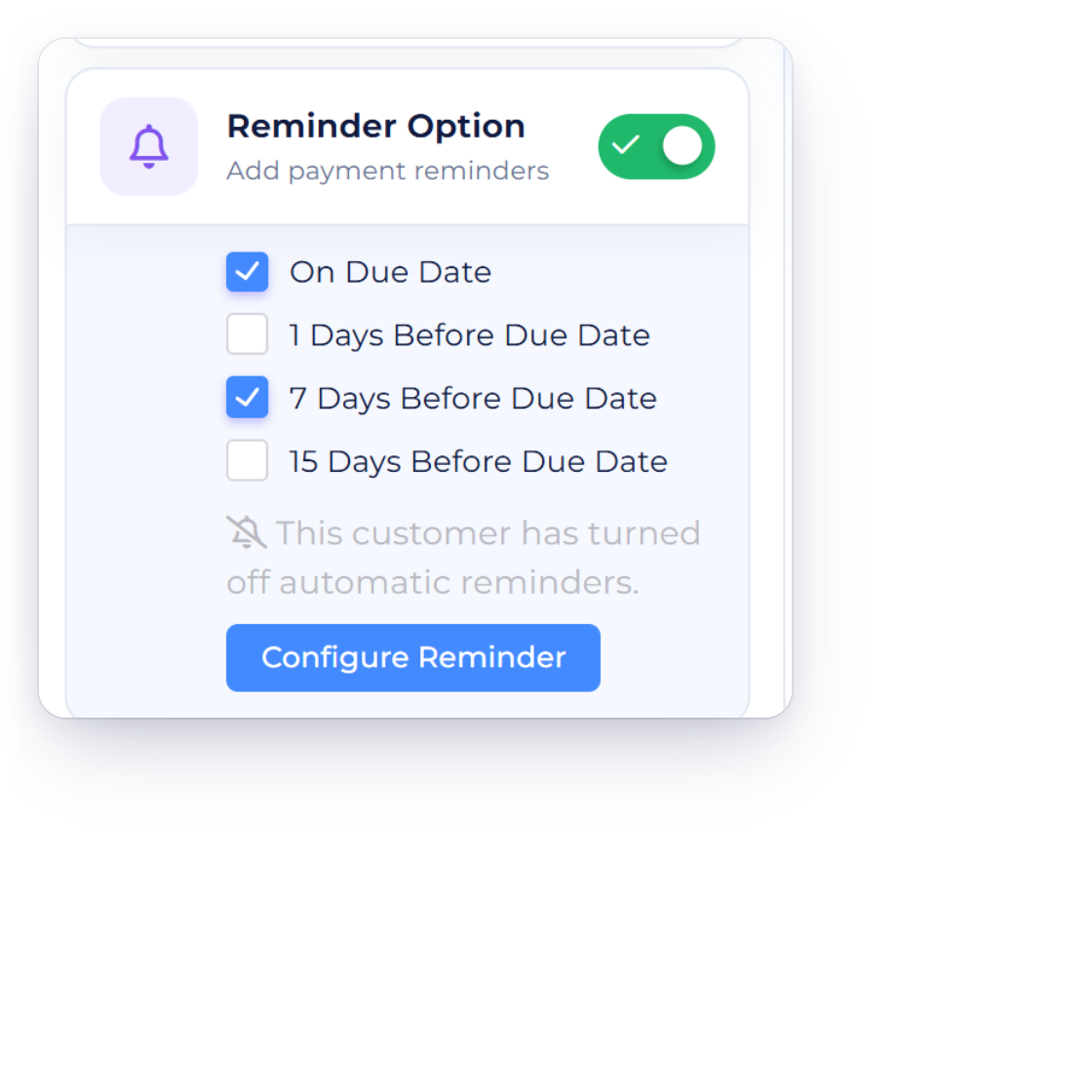
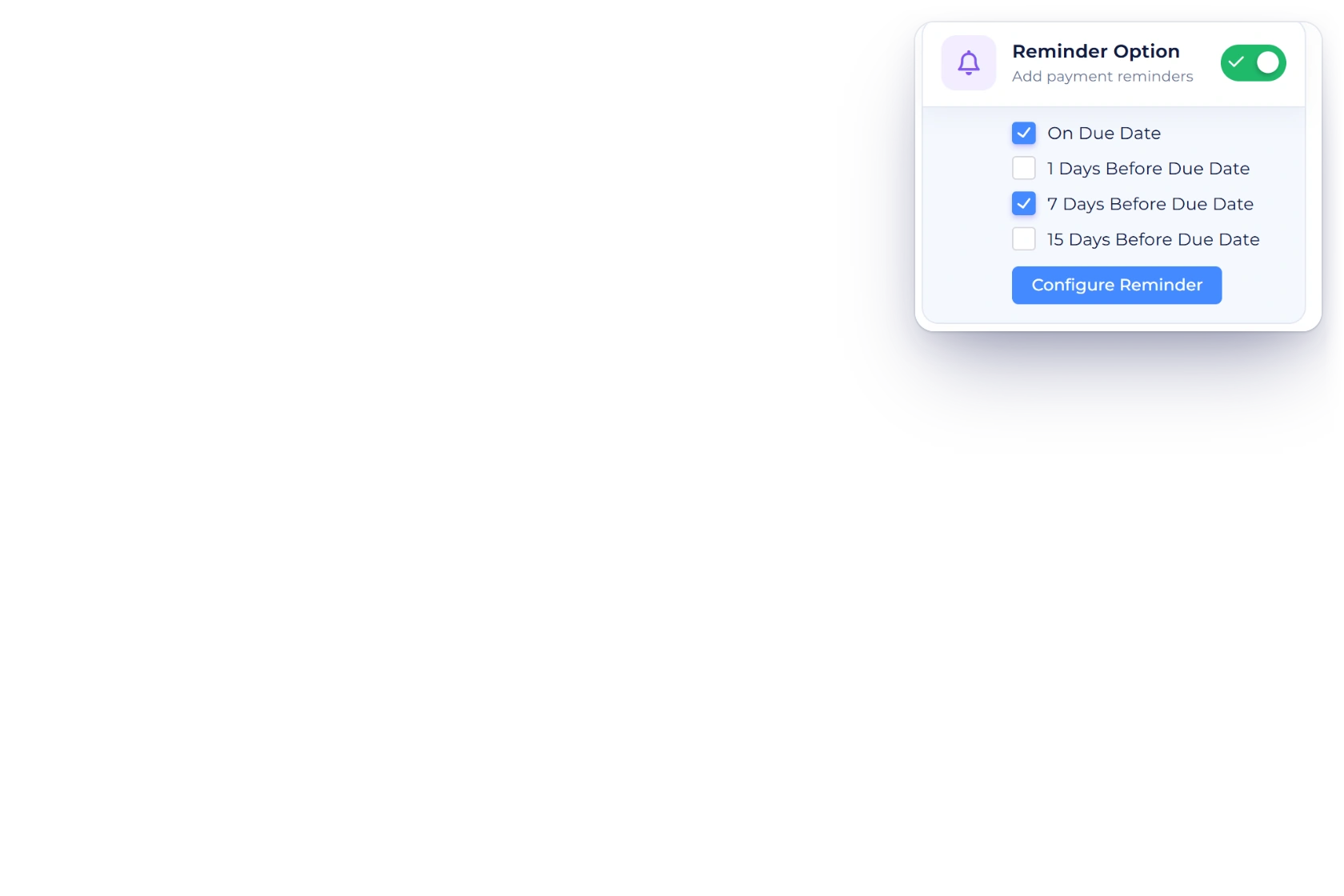
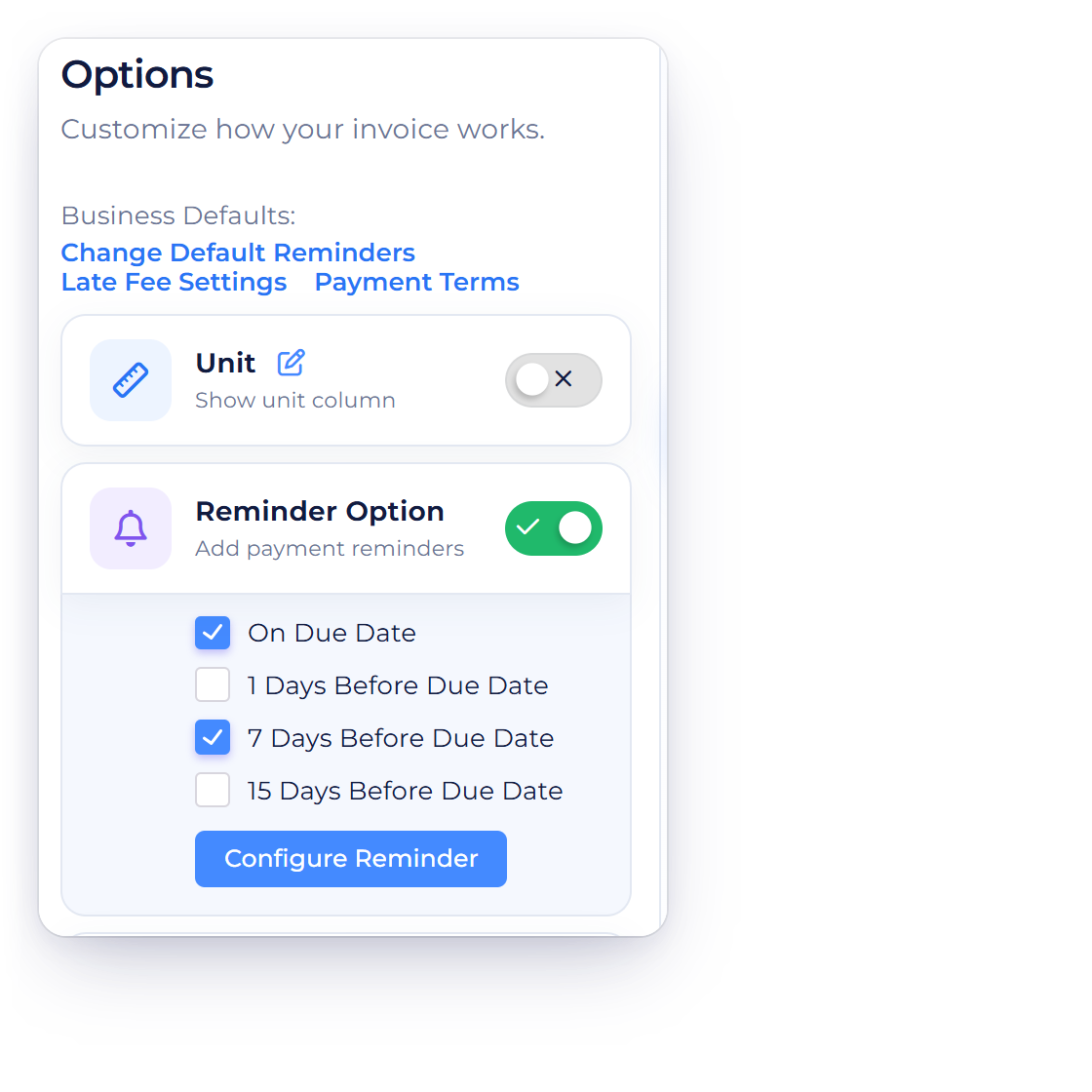
Invoice Crowd invoice Options with Reminder Option on and On Due Date and 7 Days Before Due Date ticked from the business reminder list, with up to five reminders per invoice

Pick the days, up to five

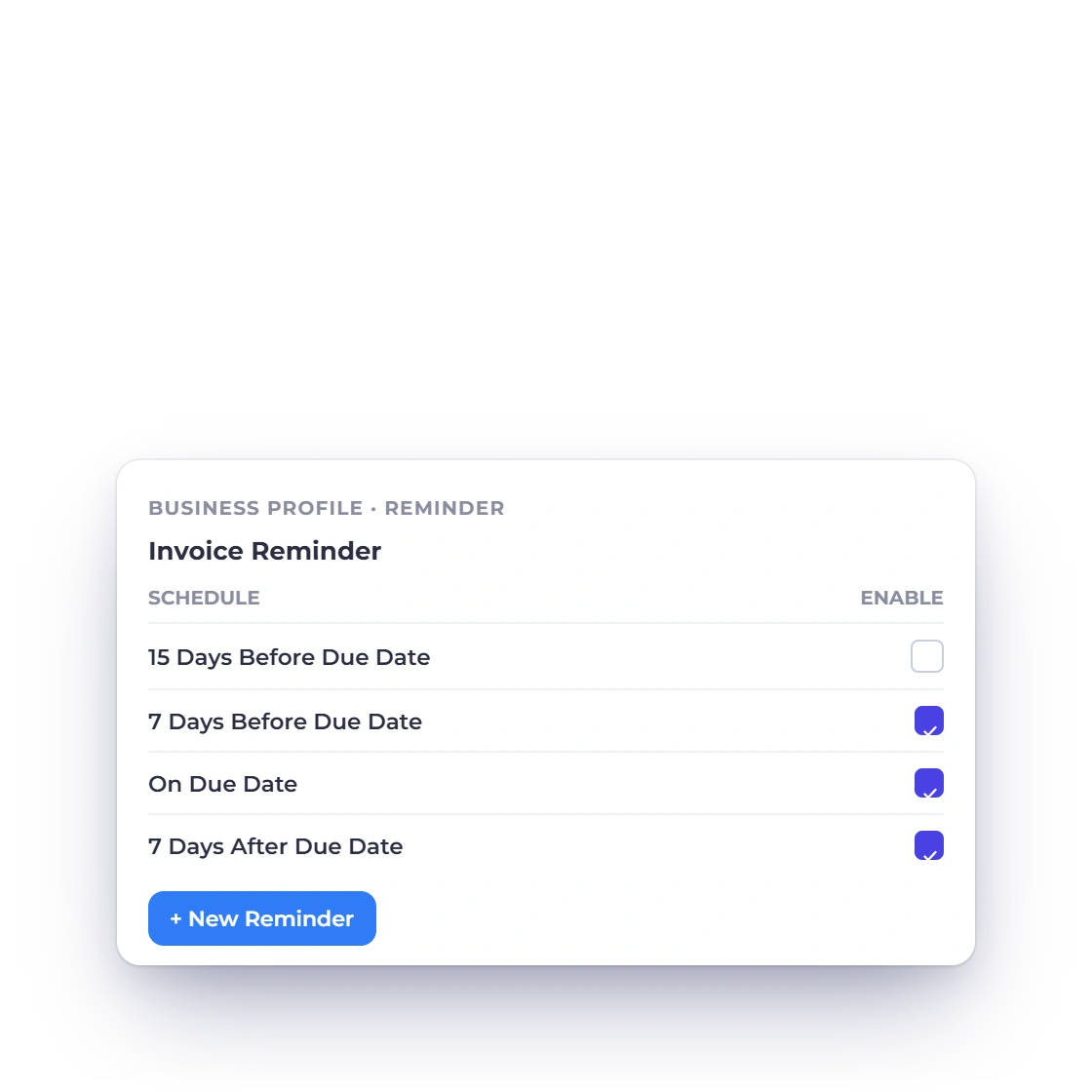
Switch on Reminder Option in the invoice editor's Options tab and tick the reminders you want. The standard list has On Due Date, 7 Days Before Due Date and 15 Days Before Due Date among its choices, and any you add yourself, such as 7 Days After Due Date, appear beside them. Each reminder goes out on its exact day, at most one a day, while the invoice is sent and still has a balance.

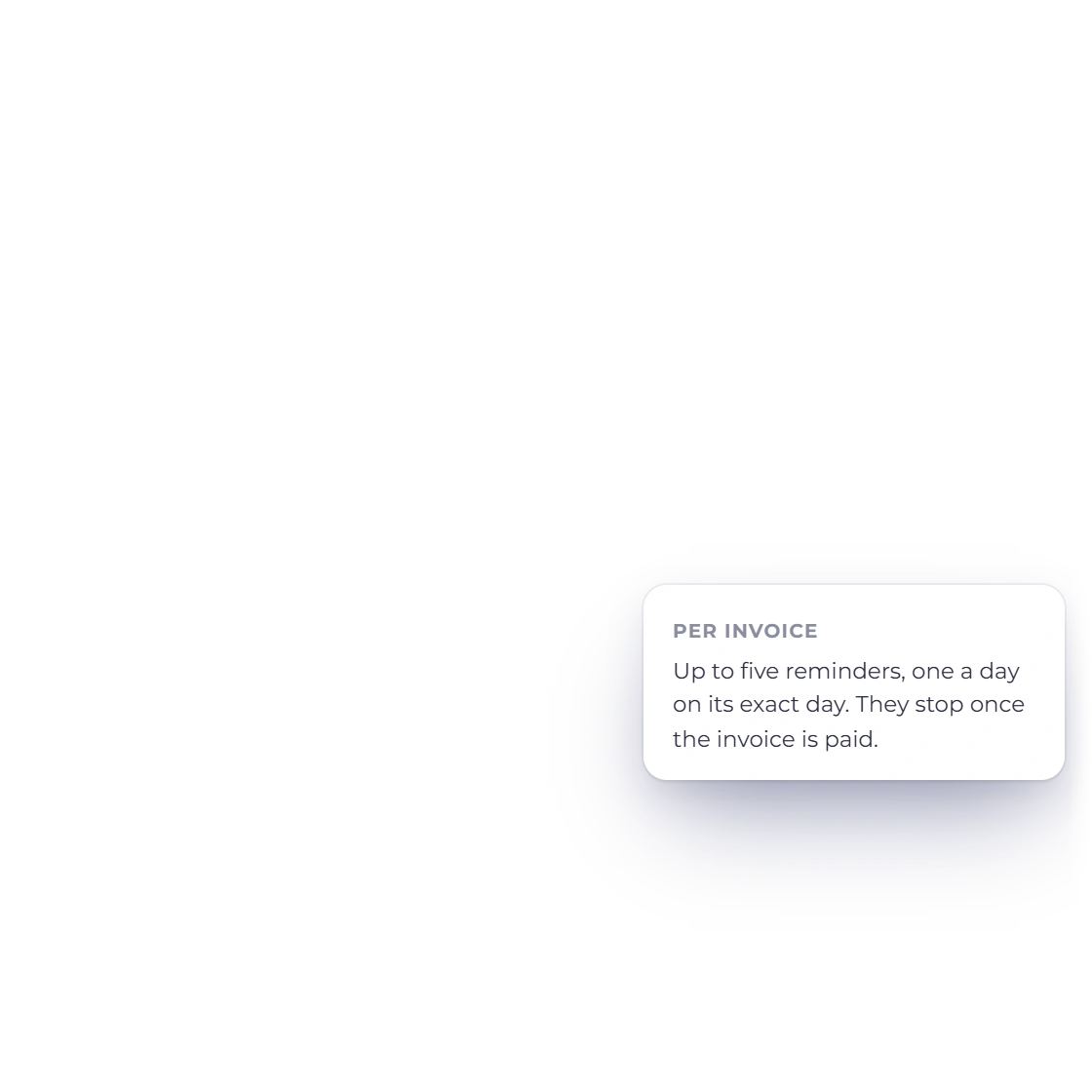
  • Up to five reminders per invoice
  • One a day, on its exact day
  • They stop once the invoice is paid
Late fees
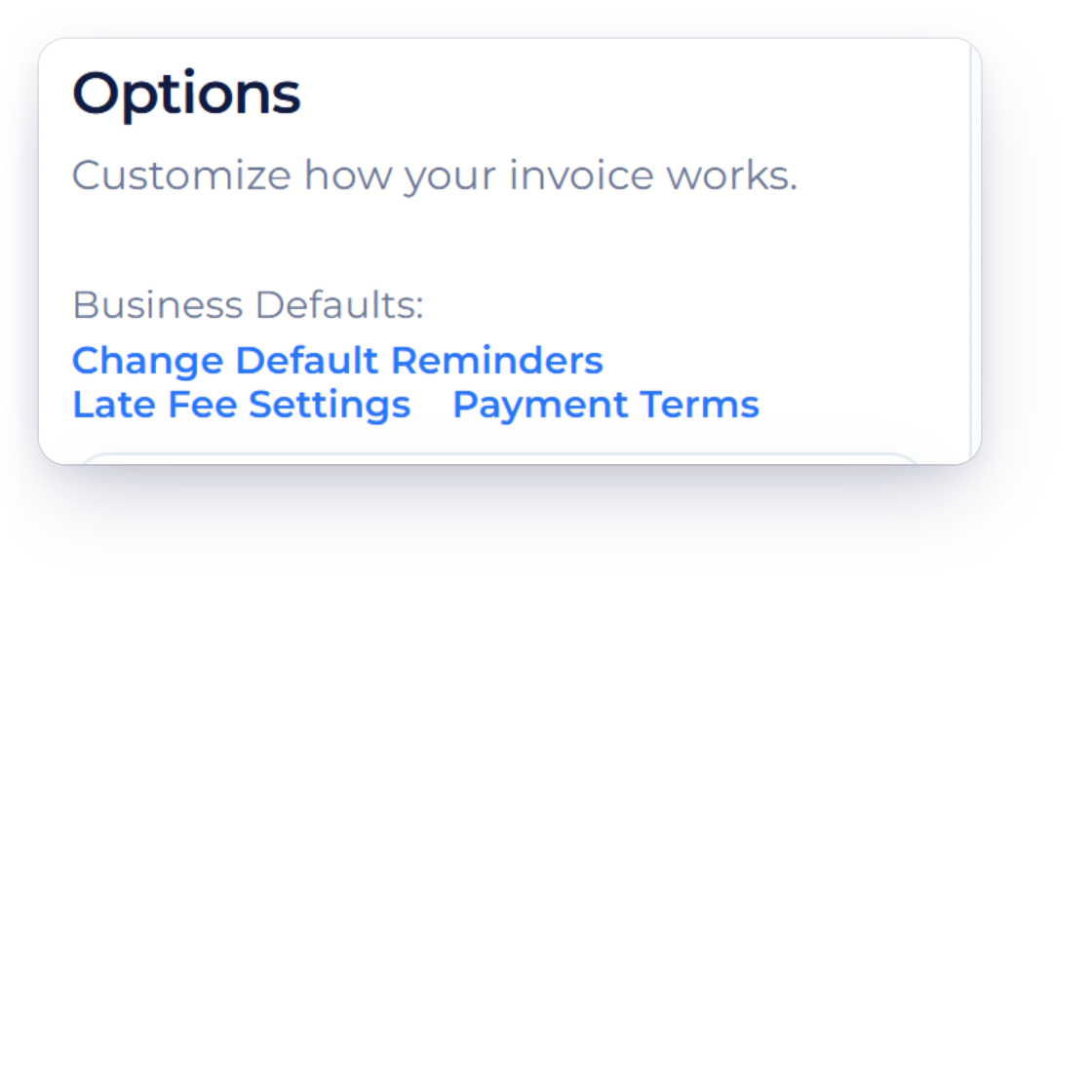
Invoice Crowd invoice Options with the Business Defaults links Change Default Reminders, Late Fee Settings and Payment Terms, and the business Invoice Reminder list with its schedule

Business-wide reminder settings

Your reminder list lives in Business Profile, under Email → Reminders, and the editor's Business Defaults: Change Default Reminders link opens it. Add a reminder as a number of days before or after the due date, switch it on or off, and choose whether to Attach the PDF; every reminder links to the invoice either way. Write each reminder's subject and message per language, with a preview that updates as you type.

  • Days before or after the due date
  • Attach the PDF, or send the link only
  • Your own subject and message

Send one now

Invoices, estimates, proposals

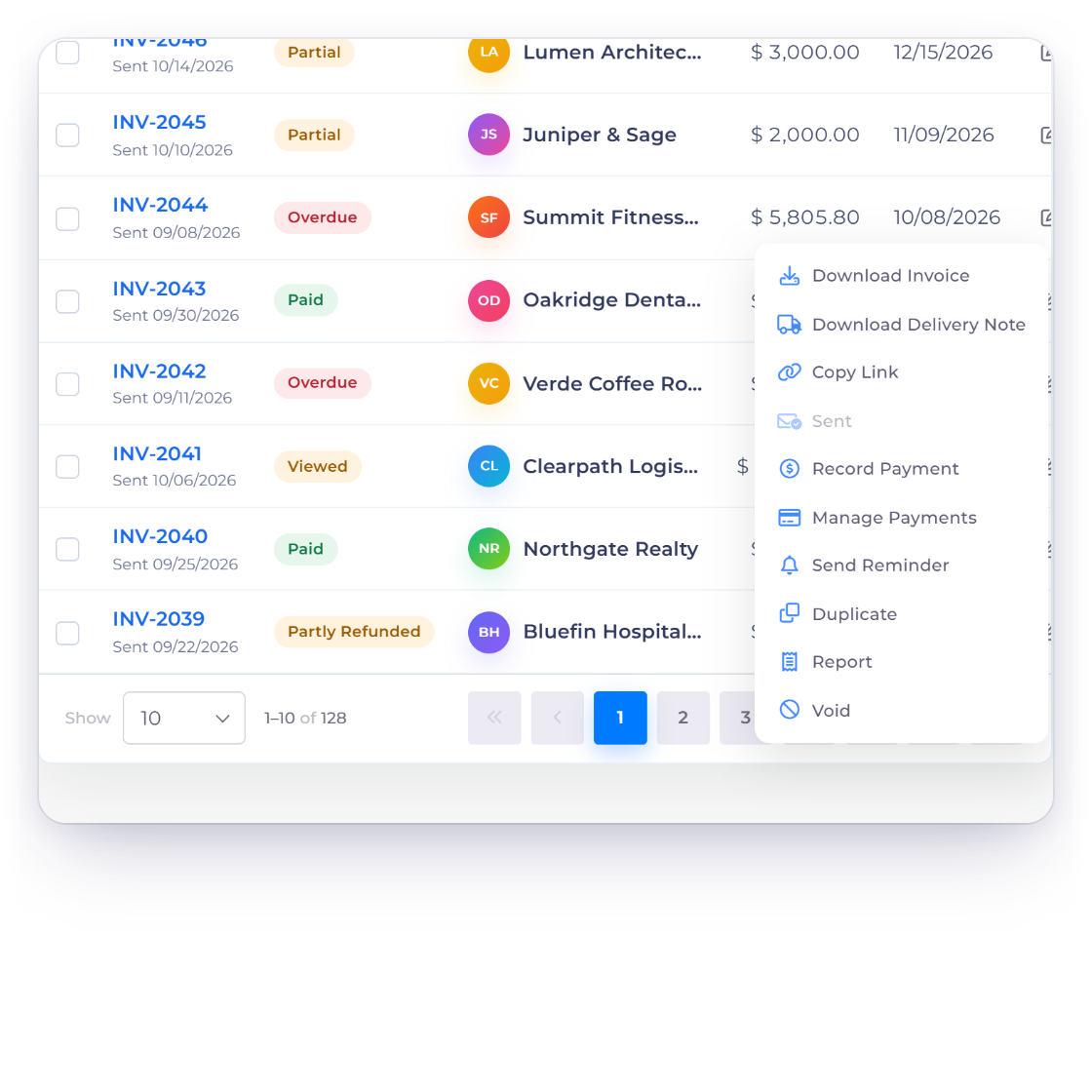
Invoice Crowd invoices list with the row menu of INV-2044 open on Send Reminder, and the editor Actions tab with Send Reminder and Reminded 10/15/2026 (2)

Send Reminder from the list or the editor

For a one-off nudge, choose Send Reminder in the row menu of the Invoices or Estimates list, or in the editor's Actions tab; proposals have it in their list menu and editor too. It is offered only on documents that are sent and still waiting: an invoice with a balance, an estimate that hasn't expired or been converted, a proposal still open. Sending one doesn't change the document's status.

  • Invoices, estimates and proposals
  • Only on sent documents still waiting
  • Status and sent date stay as they were
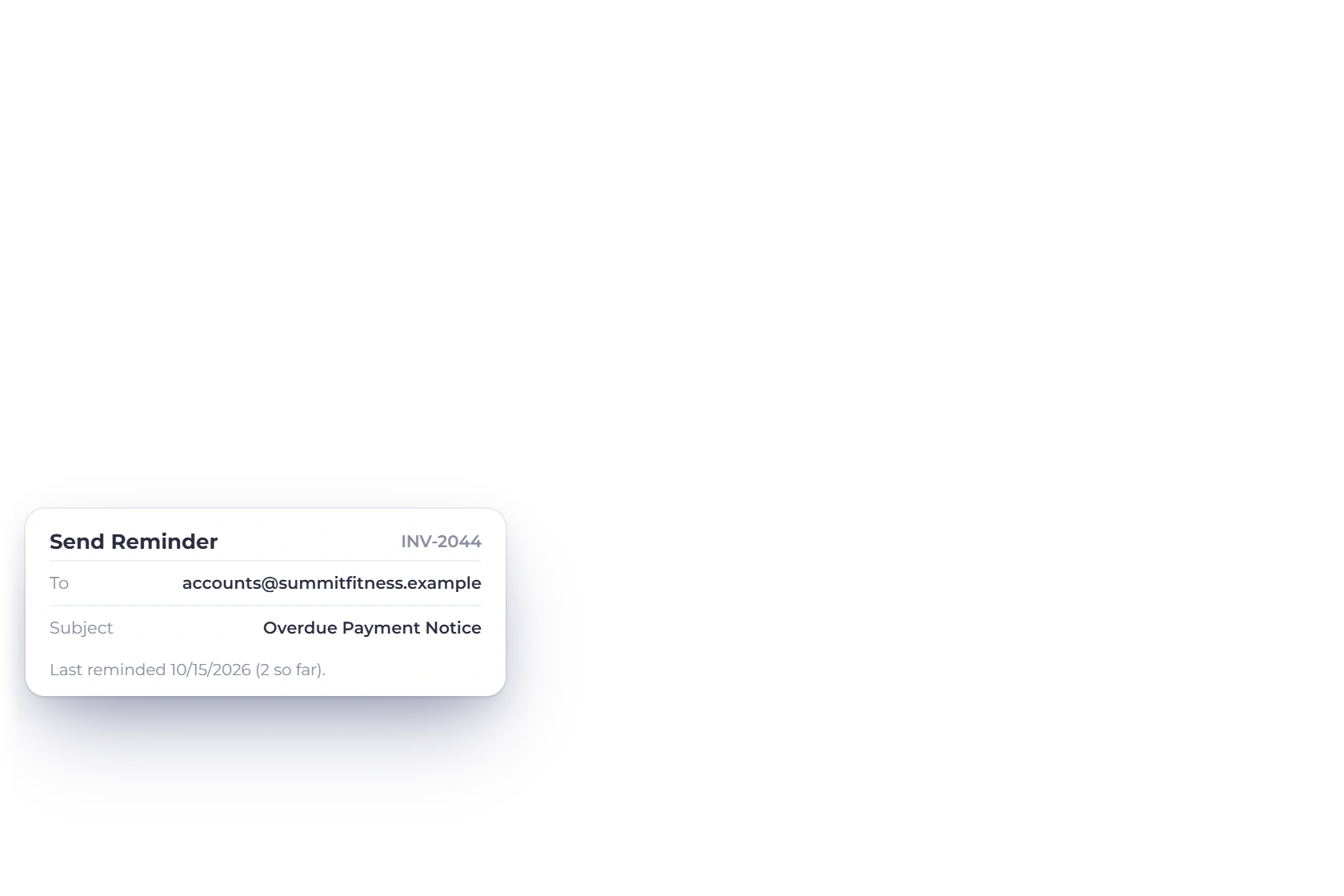
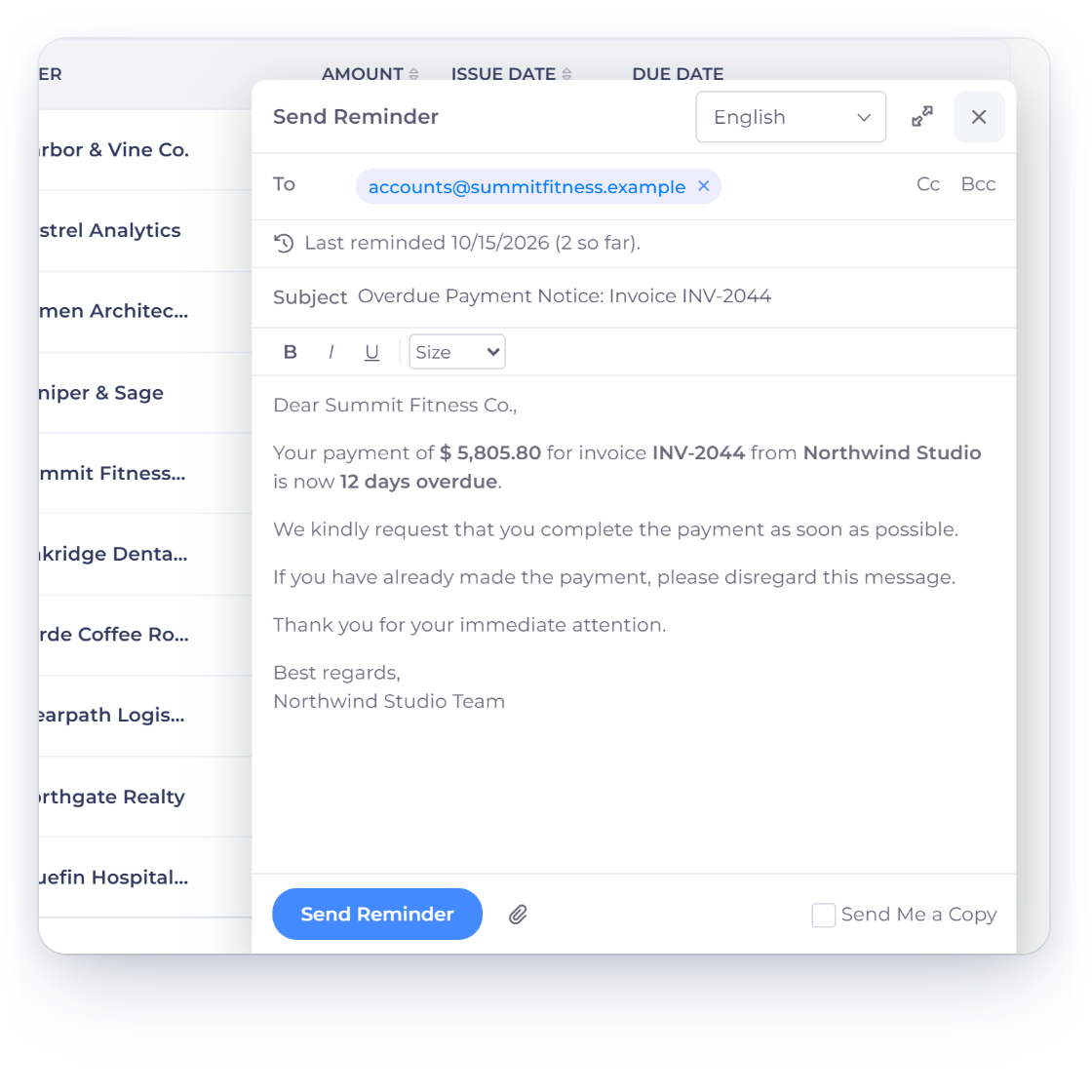
The Invoice Crowd send window in reminder mode for INV-2044 with the recipient, Last reminded 10/15/2026 (2 so far), the Overdue Payment Notice subject and message and the Send Reminder button

The send window, in reminder mode

Send Reminder opens the same window you send invoices from, titled Send Reminder and filled with your reminder wording. Edit the recipients, subject and message, attach files, tick Send Me a Copy, or switch the email language. A note at the top says when the document was last reminded and how many reminders have gone so far. A reminder sends straight away: Send Later is not offered in reminder mode.

  • Prefilled with your reminder wording
  • Last reminded date and count shown
  • Sent now; no Send Later for reminders

Keeping track and keeping it polite

History and opt-out

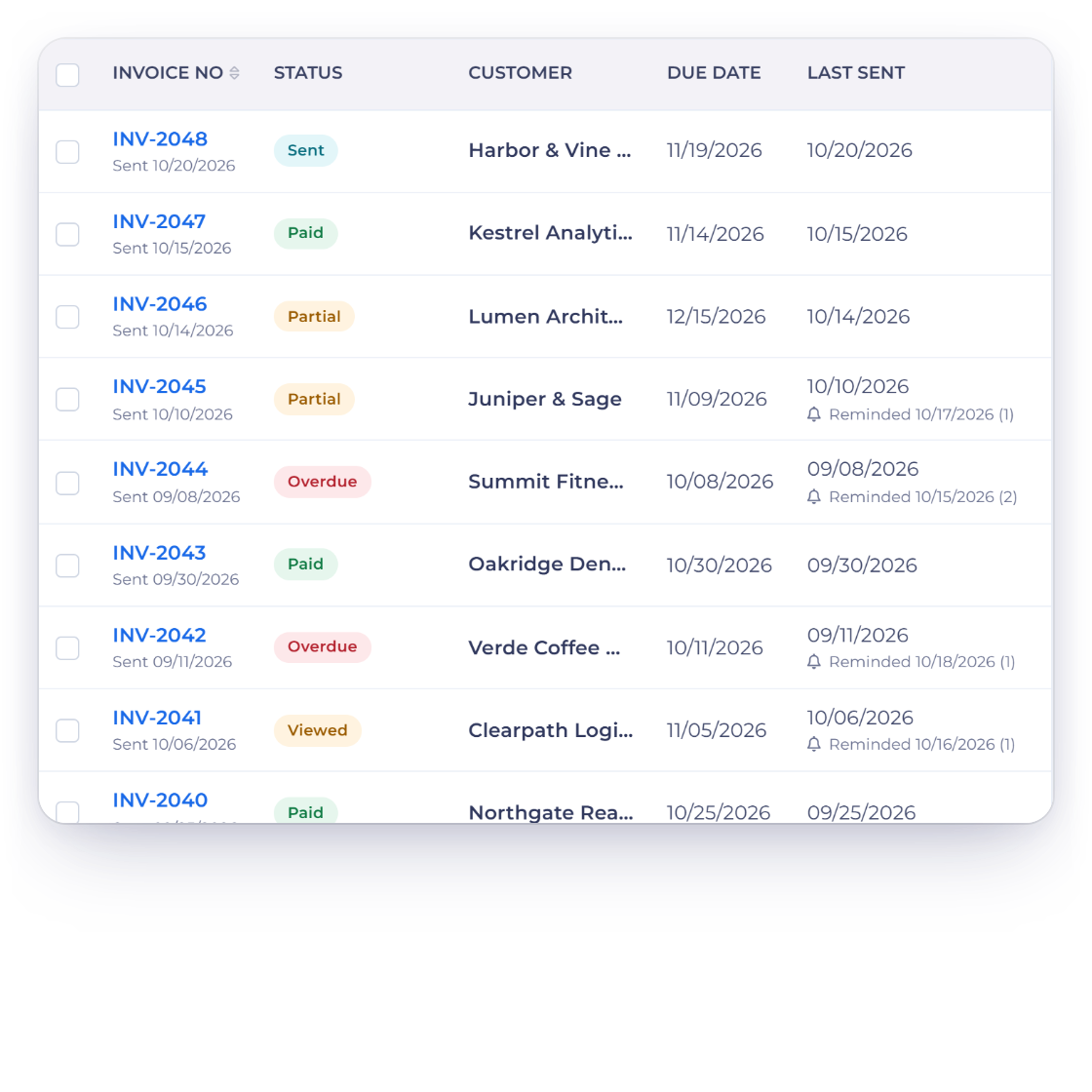
Invoice Crowd invoices list with the Last Sent column showing Reminded with the date and the number of reminders sent for each invoice still waiting to be paid

See who was reminded, and how often

Under Last Sent, the Invoices and Estimates lists show Reminded with the date and, in brackets, how many reminders have gone, counting scheduled and manual ones together. The editor's Send Reminder action shows the same line, proposals show it under their expiry date, and the document's History tab logs every reminder.

  • Reminded, with date and count, on lists
  • Scheduled and manual reminders both count
  • Logged in the History tab
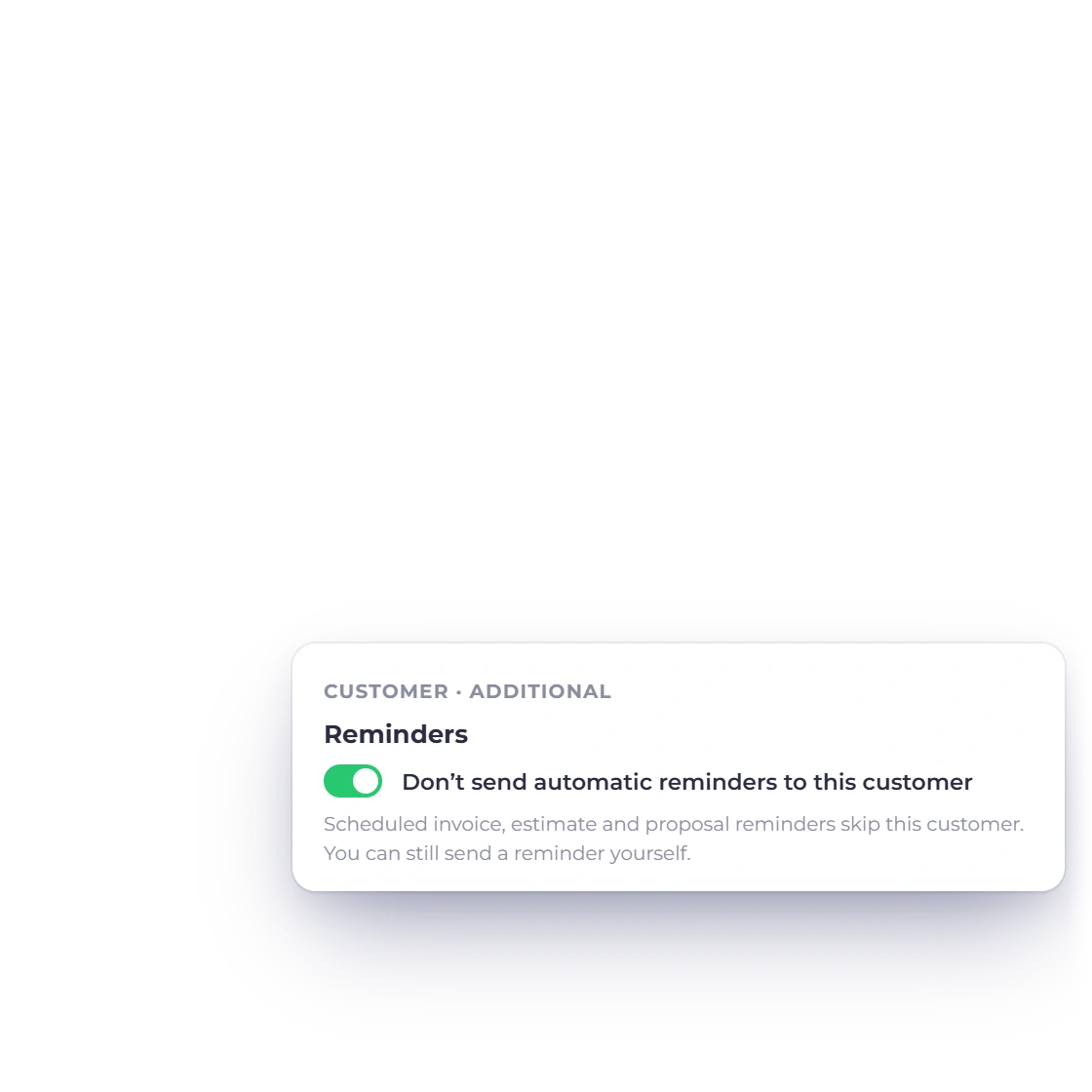
Invoice Crowd customer setting Don’t send automatic reminders to this customer, and the invoice Reminder Option noting that this customer has turned off automatic reminders

Customers who shouldn't get automatic reminders

On a customer's record, Additional → Reminders has the switch Don't send automatic reminders to this customer. Scheduled invoice, estimate, proposal and instalment reminders then skip them, and the editor and send window show a note so you know. You can still send them a reminder yourself. The switch is yours to set: customers don't get an unsubscribe link.

  • Set by you, per customer
  • Skips scheduled reminders only
  • Send Reminder still works

Built in

The rules reminders follow

Reminders are email only, sent on their day and never late, and they stop as soon as there is nothing left to chase.

  • Stops when paid

    Reminders go only to sent invoices with a balance. Once the invoice is paid, the rest are skipped.

  • Instalments reminded on their dates

    With Reminder Option on, each unpaid split or deposit on a split invoice gets a reminder on its own due date.

  • On the day, never late

    Each reminder goes out on its day or not at all. Turn reminders on after a date has passed and that one is skipped.

  • Every reminder in History

    The History tab logs each one: a reminder you sent by hand, or an automatic reminder Invoice Crowd sent, and to whom.

  • Up to five per document

    Tick up to five reminders on an invoice; once five are chosen, the rest of the list can't be ticked.

  • Before or after the due date

    Add your own reminders as days before or after the due date, for example 7 days after for an overdue nudge.

  • Attach the PDF, or not

    Each reminder can attach the PDF or send only the link; every reminder links to the document either way.

  • Your wording, with variables

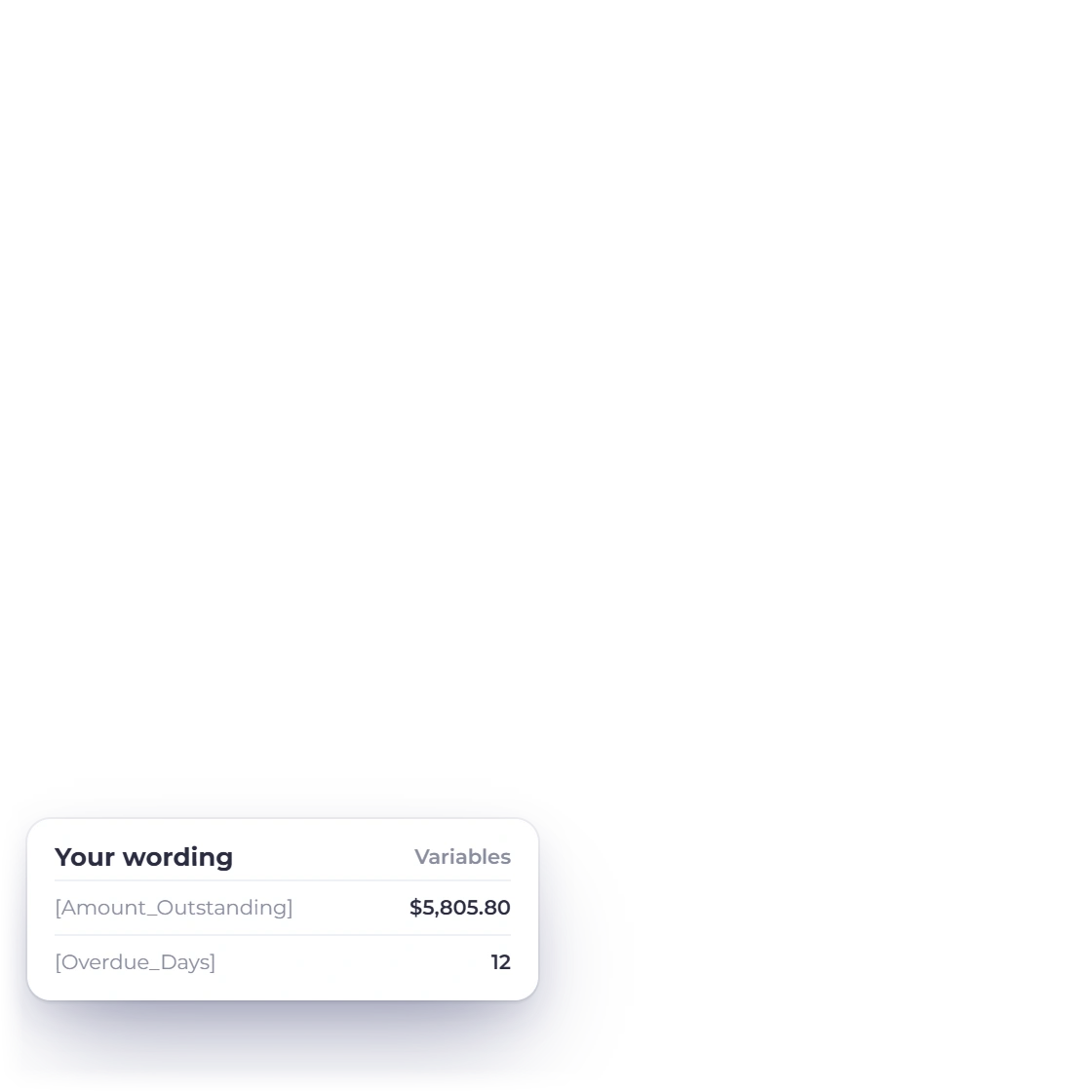
    Edit each reminder's subject and message, insert variables such as the amount outstanding, and preview it as you type.

  • Manual reminders count too

    A reminder you send by hand is logged and counted with the scheduled ones, without changing the invoice's status.

  • Opted-out customers

    Customers you've opted out are skipped by scheduled reminders. You can still send them one yourself.

  • On every plan

    Reminders work on every plan, Basic included. If a paid plan ends, they pause after a 3-day grace period until you renew.

  • Late fees, set separately

    Late fees are their own option: one fee line the day after the due date, while reminders keep to their own days.

Questions

Payment reminders, answered

Does Invoice Crowd send automatic payment reminders?

Yes. Invoice Crowd emails your customer about an unpaid invoice on the days you choose, before, on or after the due date, with up to five reminders per invoice. Switch on Reminder Option in the invoice's Options tab and tick the reminders you want; they stop once the invoice is paid.

Which reminder timings can I choose?

The standard list offers On Due Date and 1, 7 and 15 days before the due date. In Business Profile, under Email → Reminders, you can add your own as a number of days before or after the due date, for example 7 days after. Each reminder has its own subject, message and PDF choice.

Can I send a reminder right now?

Yes. Send Reminder is in the row menu of the Invoices and Estimates lists, in the proposals list, and in the editor's Actions tab. It opens the send window with your reminder wording so you can edit it first. It sends immediately; Send Later isn't offered for reminders.

Do estimates and proposals get reminders?

You can send a reminder by hand for any sent estimate or proposal that is still waiting. Proposals can also carry scheduled reminders before their expiry date. Automatic estimate reminders are not being sent at the moment, so remind customers about an estimate with Send Reminder.

Can a customer unsubscribe from reminders?

Not themselves; there is no unsubscribe link. You can switch on Don't send automatic reminders to this customer on their record, under Additional → Reminders. Scheduled reminders then skip that customer, and you can still send one by hand.

Are reminders sent by text message, or at a set hour?

No. Reminders are sent by email only; there are no SMS or WhatsApp reminders. Each one goes out on its scheduled day, without a send hour you choose and not in the customer's time zone.

Which plans include payment reminders?

Every plan, including the free Basic plan. If a paid plan ends, reminders pause after a 3-day grace period and start again once you renew; reminders for days missed while paused are not sent later. Free and lifetime plans never pause.

Will I know when an invoice becomes overdue?

Yes. Invoice Crowd raises an Invoice overdue notification in the bell, and you can choose to get it by email as well in Notification Settings; the email is off until you switch it on.

Let the reminders do the chasing

Tick the days once on each invoice, keep the wording in one place, and send a reminder by hand when a customer needs a nudge today.

  • No card required to start
  • Your data stays yours
  • Cancel anytime