

Skip to content

Estimates detailed enough for the client to say yes

Price the job line by line, apply the tax and discount rates you actually use, add the context a client needs to understand the scope, and let an approved estimate become an invoice on its own.

  • Plan-based estimate access
  • Custom tax and discount rates
  • Converts on approval
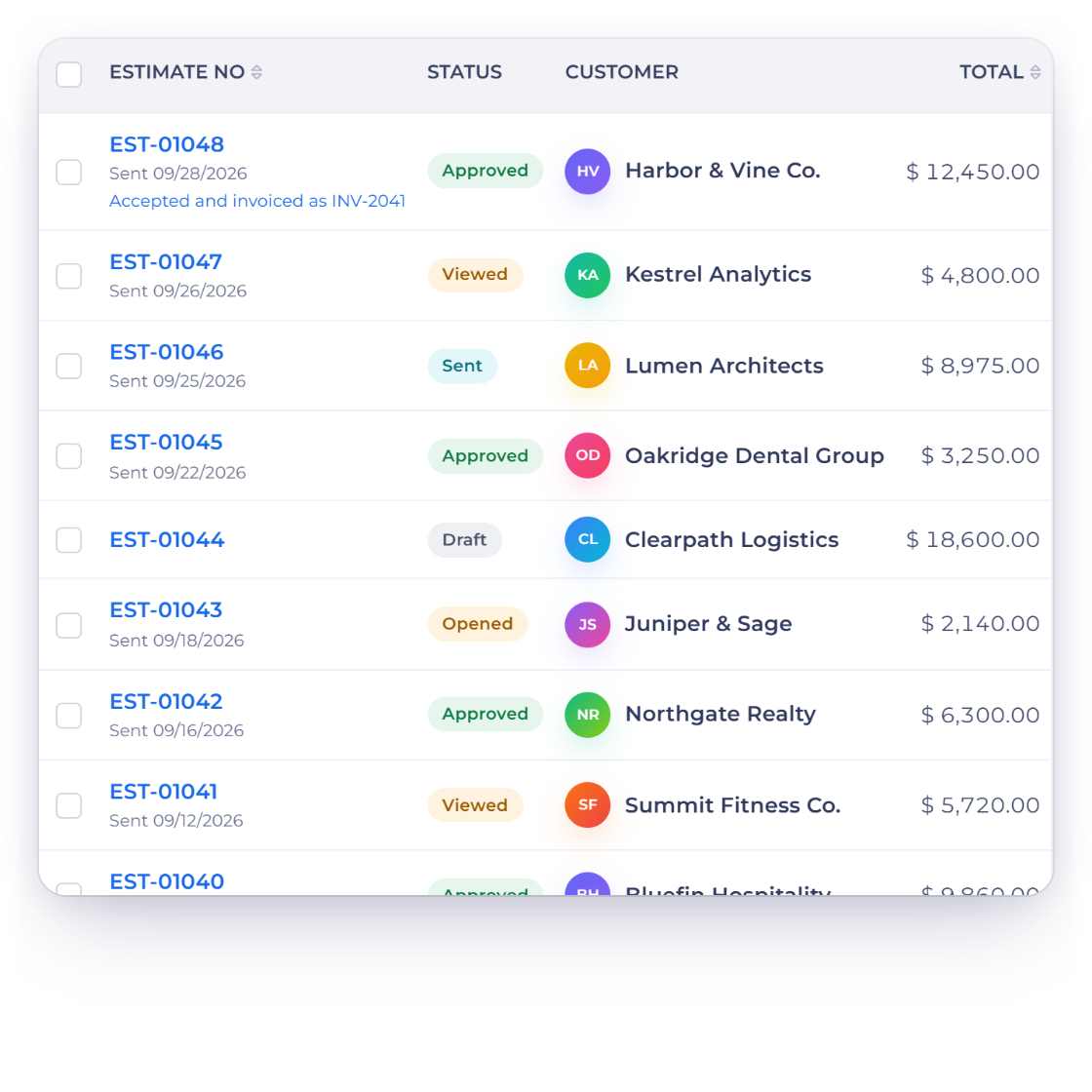
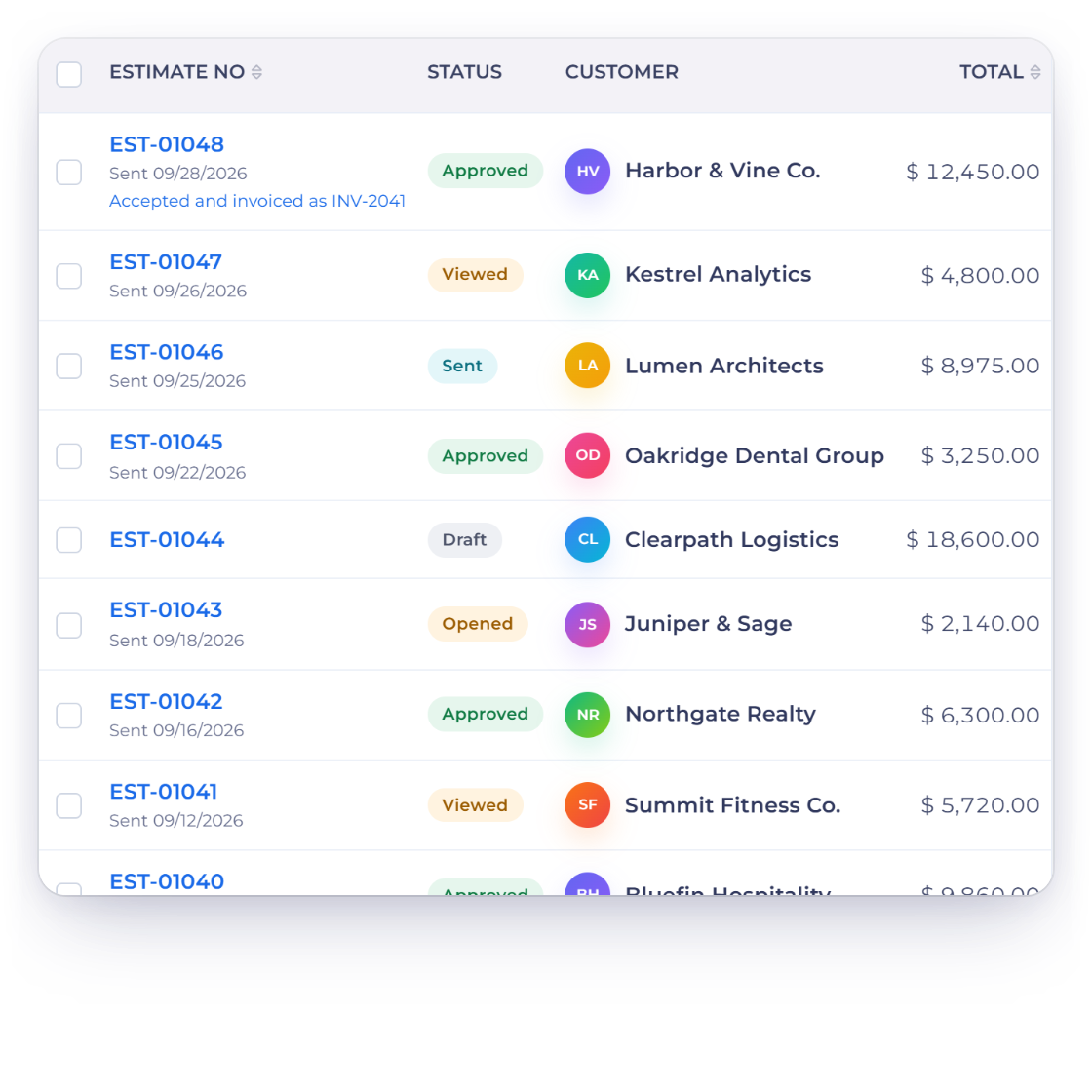
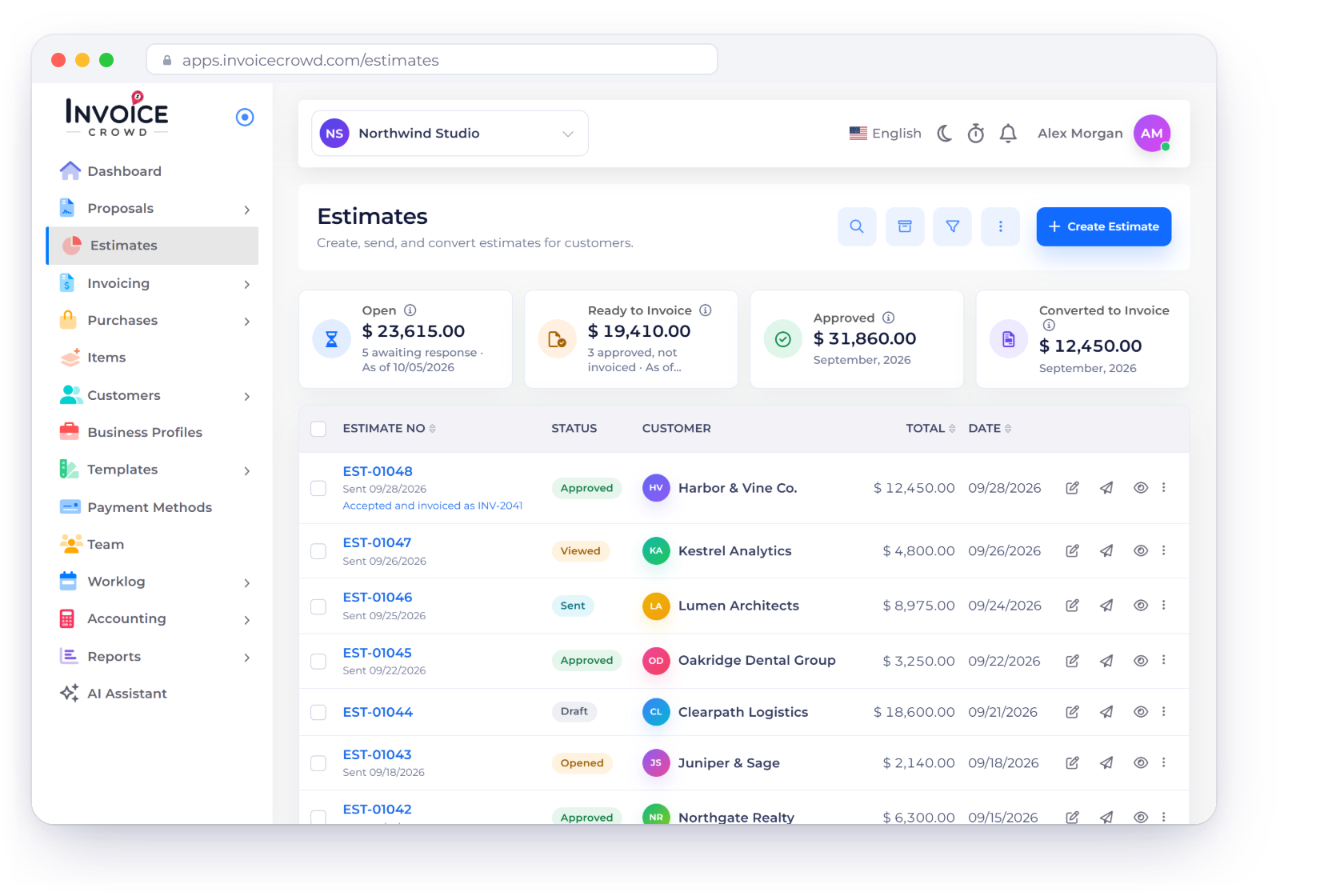
The Estimates screen in Invoice Crowd, showing draft, sent and approved estimates

What is inside

What goes into an estimate before it goes out

An estimate is the first document a client judges you on. These are the parts you shape: the lines, the rates, the wording around them, and what happens once approval comes back.

Building the estimate

Items, tax, discount

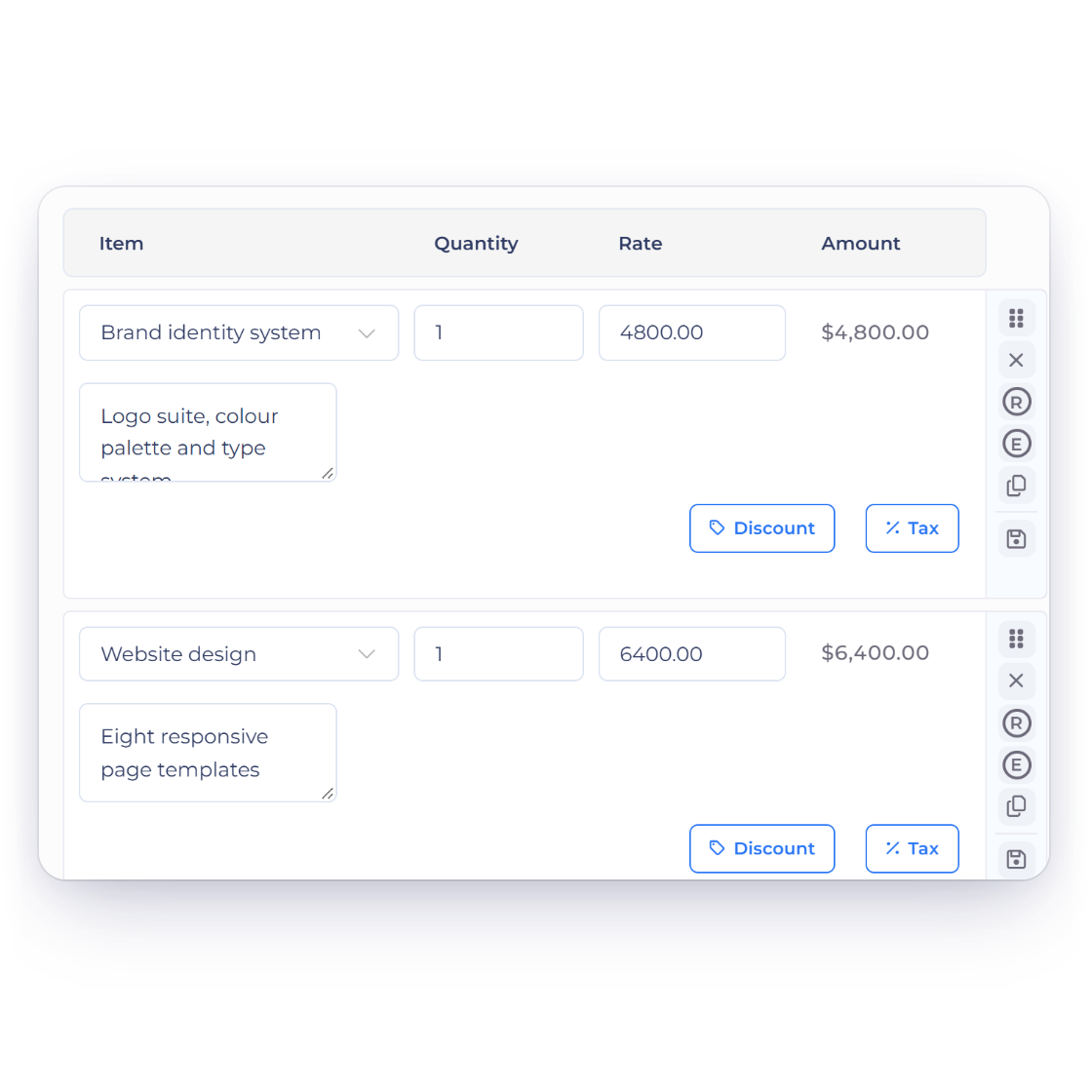
Adding line items to an estimate in Invoice Crowd, choosing a saved item or typing a new one

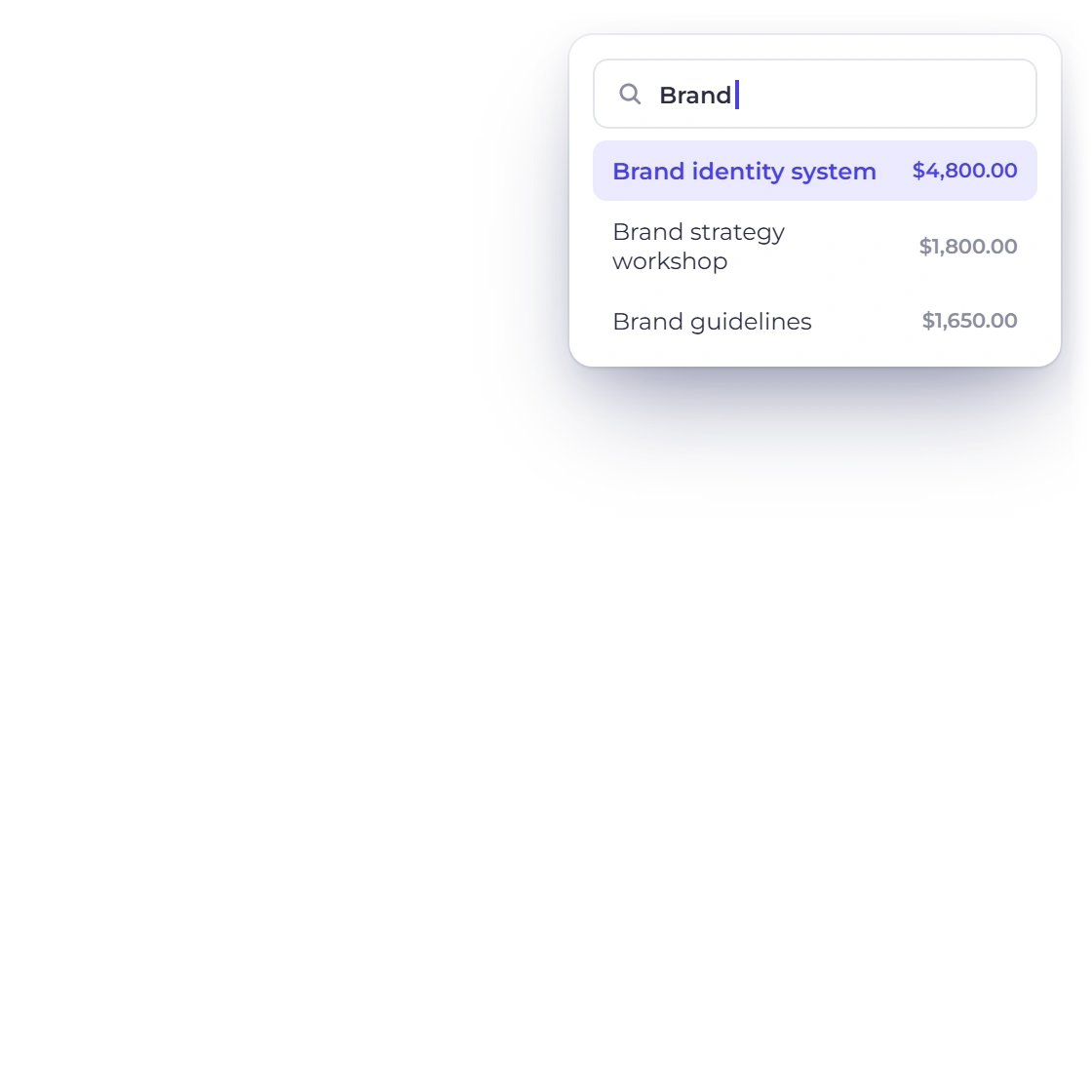
Create or pick items as you type

Add a line by choosing from the items you have already saved, or type a new one straight into the estimate and keep it for next time. Nothing has to be set up in advance, so a quote you need out this afternoon does not begin with an hour of catalog admin.

  • Saved items and one-off lines on the same estimate
  • A new item can be kept for reuse
  • Products and services quoted side by side
Custom tax and discount rates

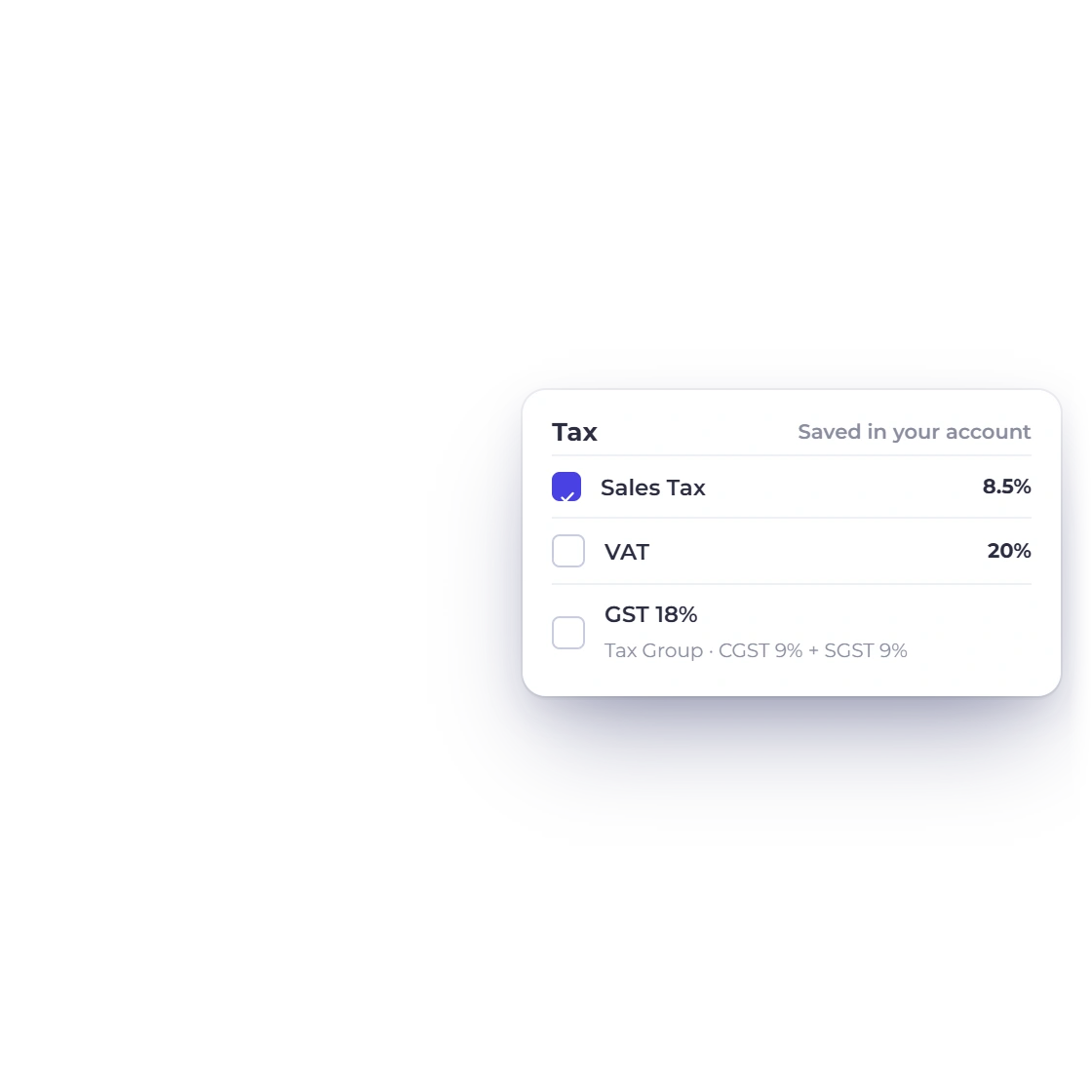
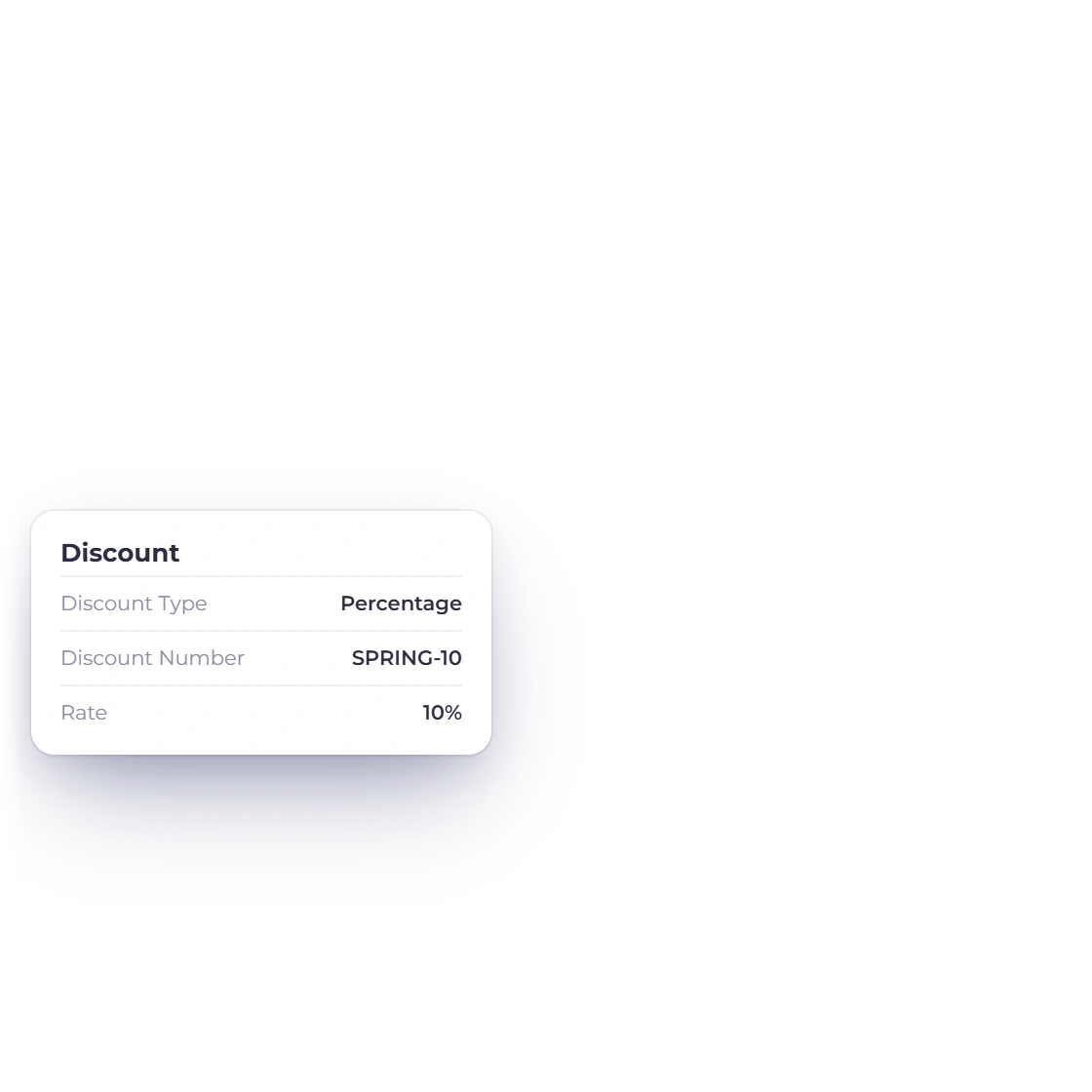
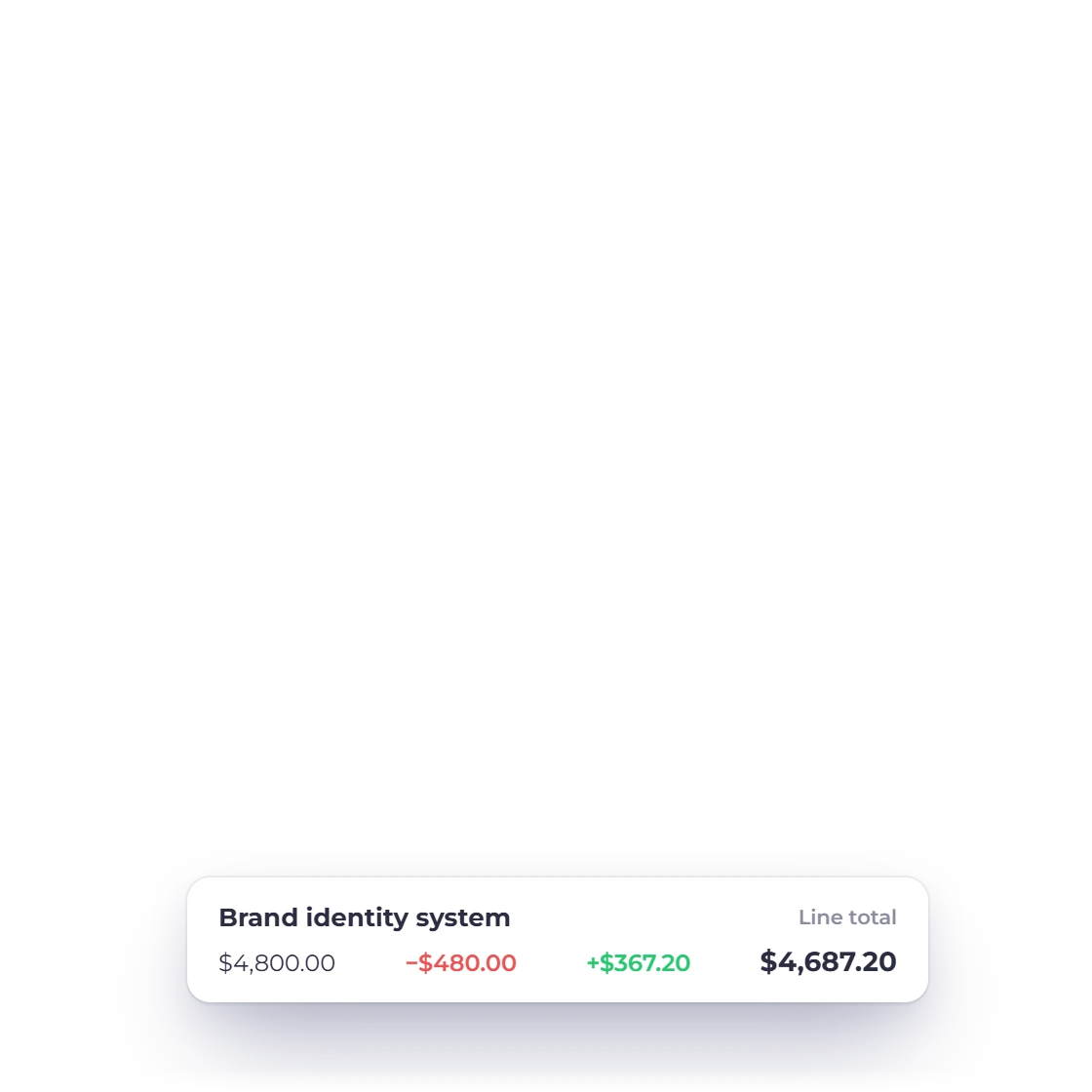
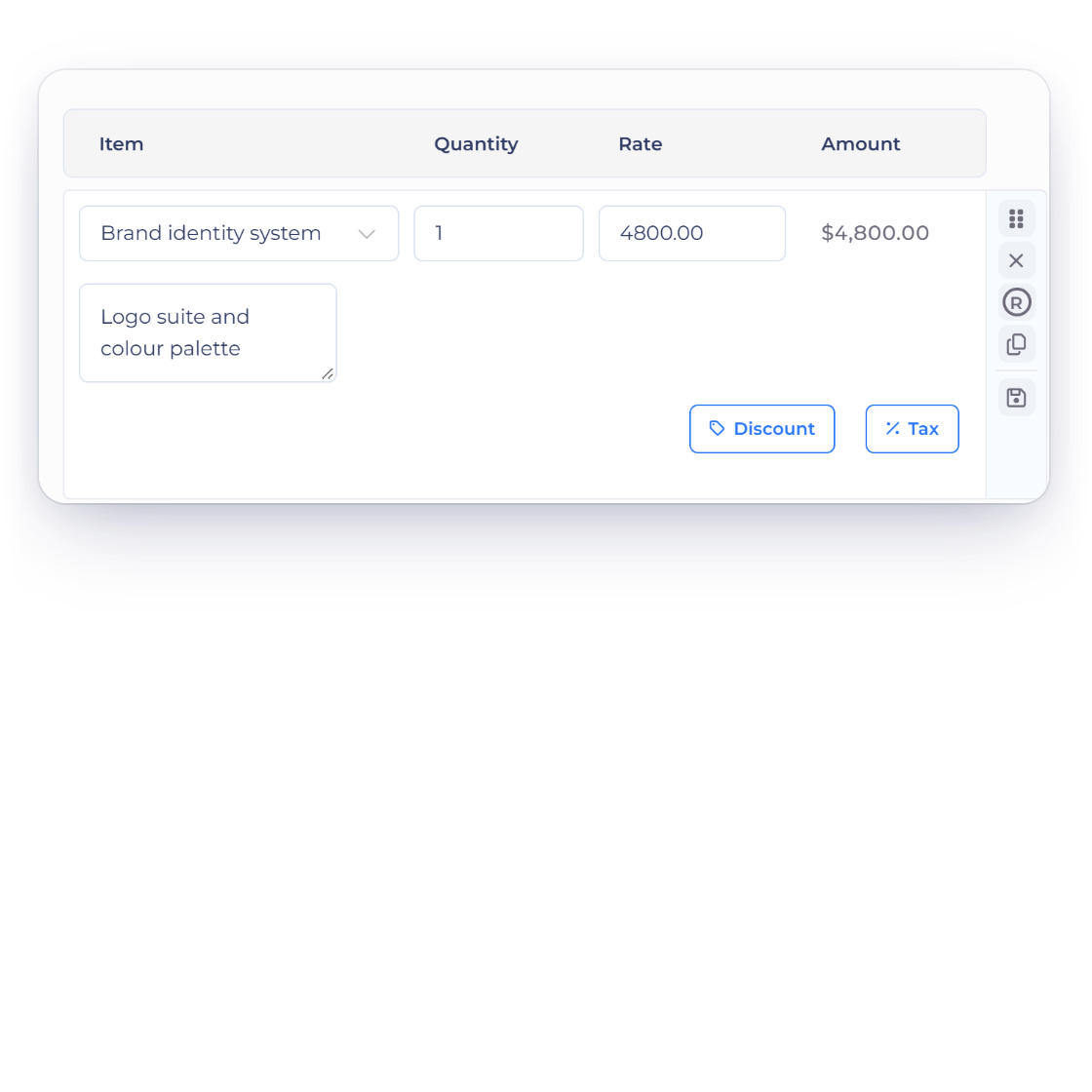
Set the tax rate that applies to this piece of work instead of picking from a fixed list, and apply a discount as a rate or as an amount. Totals recalculate as the lines change, so the figure the client reads is the figure you meant to quote.

  • Define your own rates once, then reuse them
  • Discounts by percentage or by fixed amount
  • Tax totals itself as lines are added

Saying more than a price

Detail and custom fields

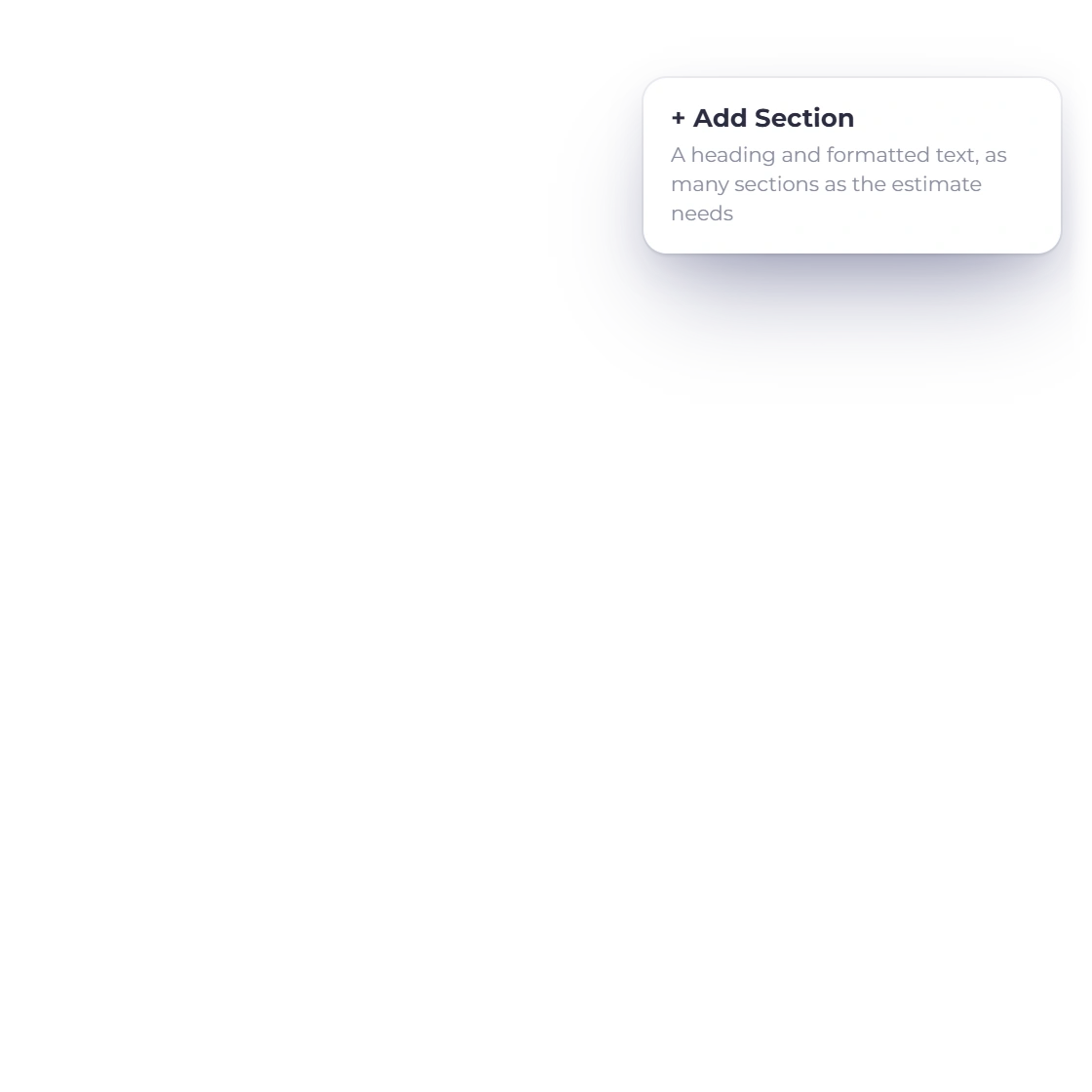
An extra section for the detail

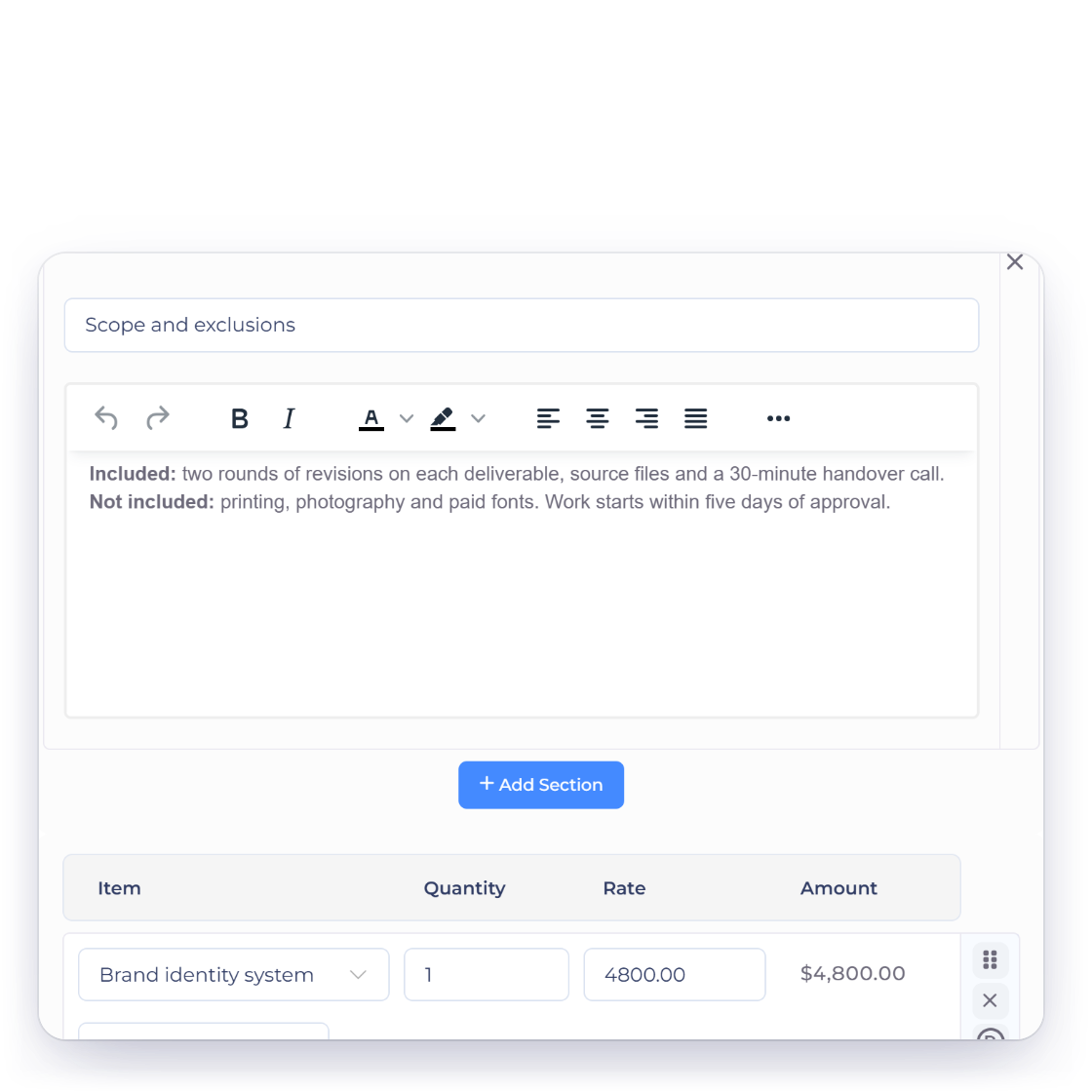
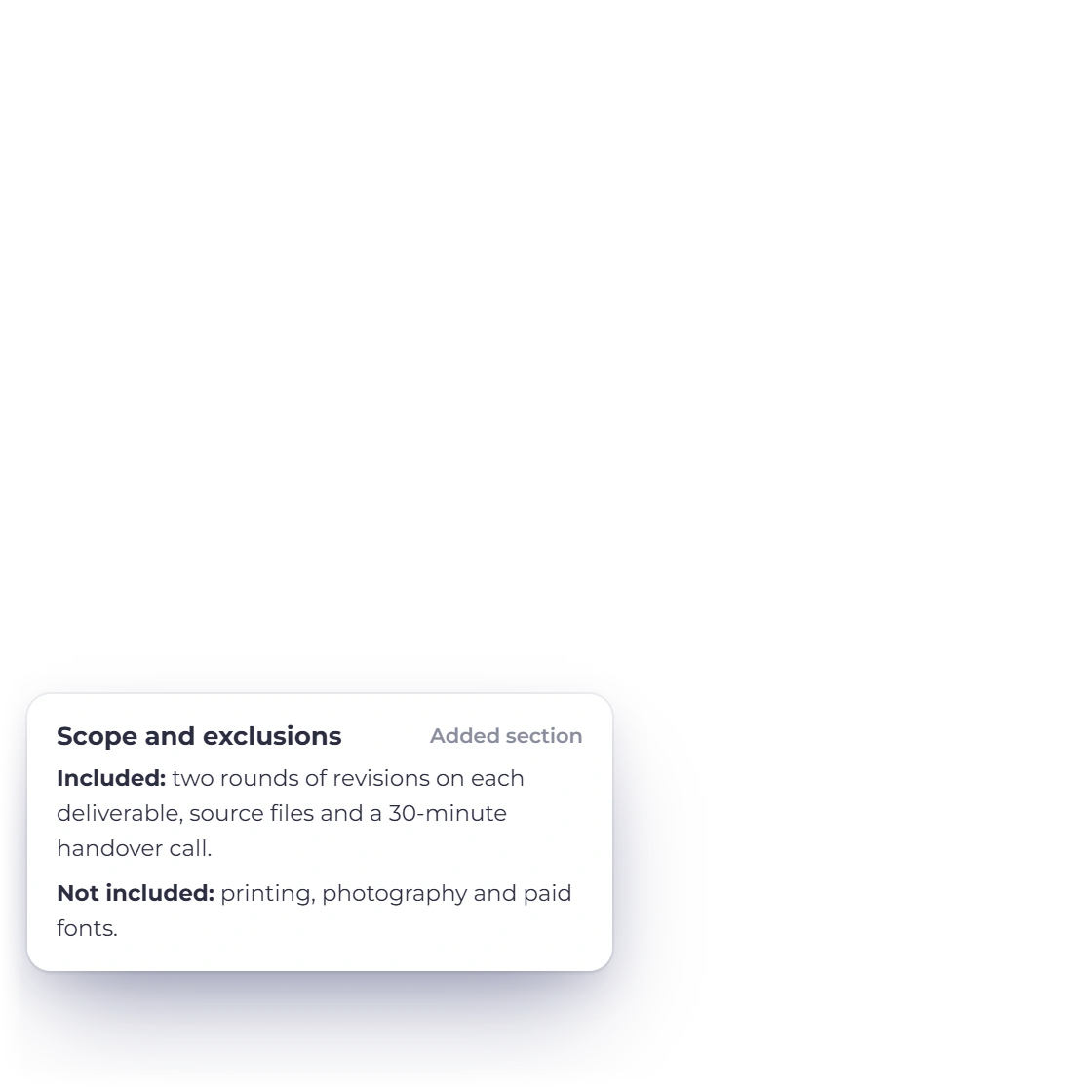
A line item rarely explains the scope on its own. The additional details section gives you room to set out what is included, what is not, and any conditions attached, so the client reads the terms in the document they are approving rather than in a covering email.

  • Scope, exclusions and conditions in one place
  • Sits with the priced lines, not beside them
  • Written per estimate, so nothing reads as boilerplate

Custom fields for what you track

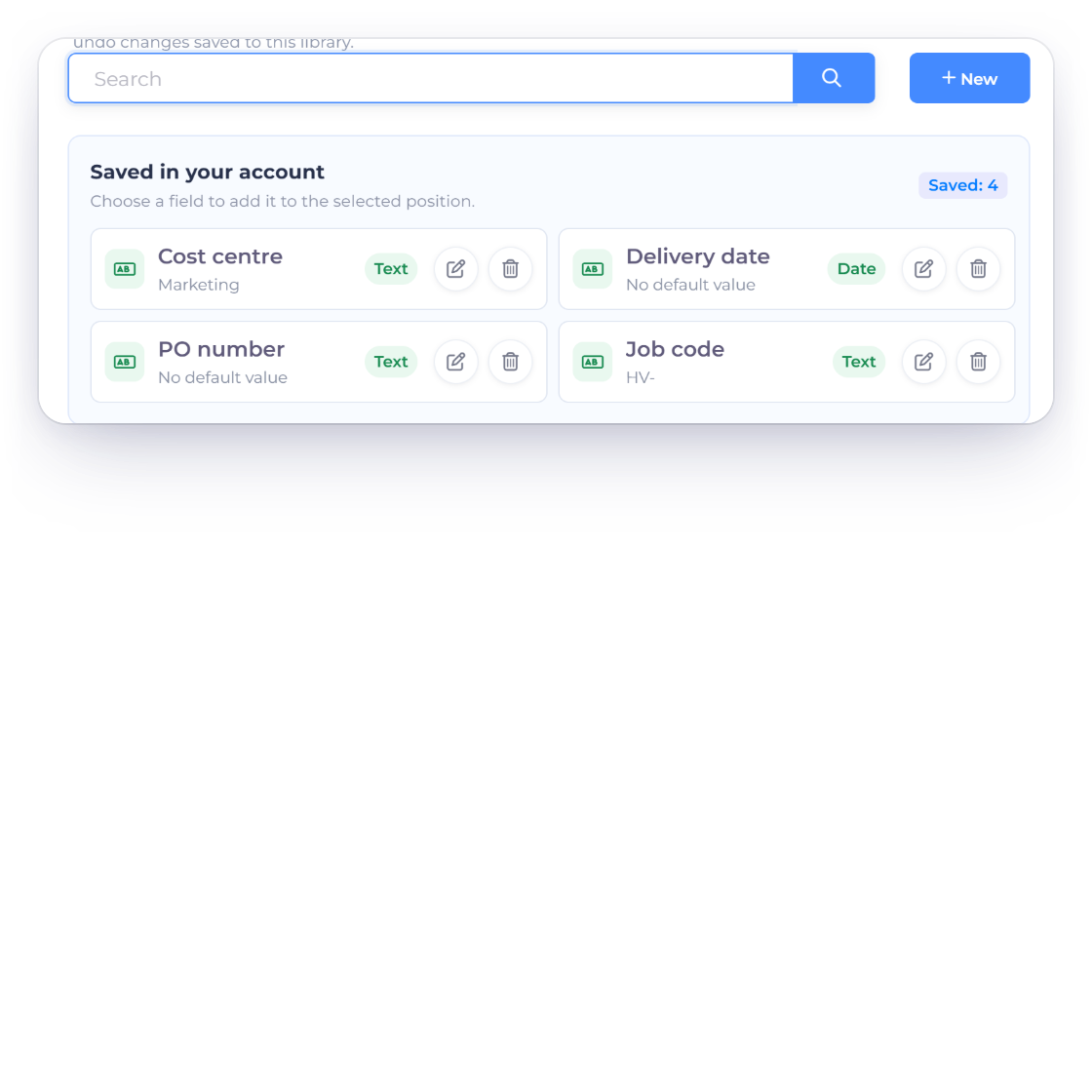
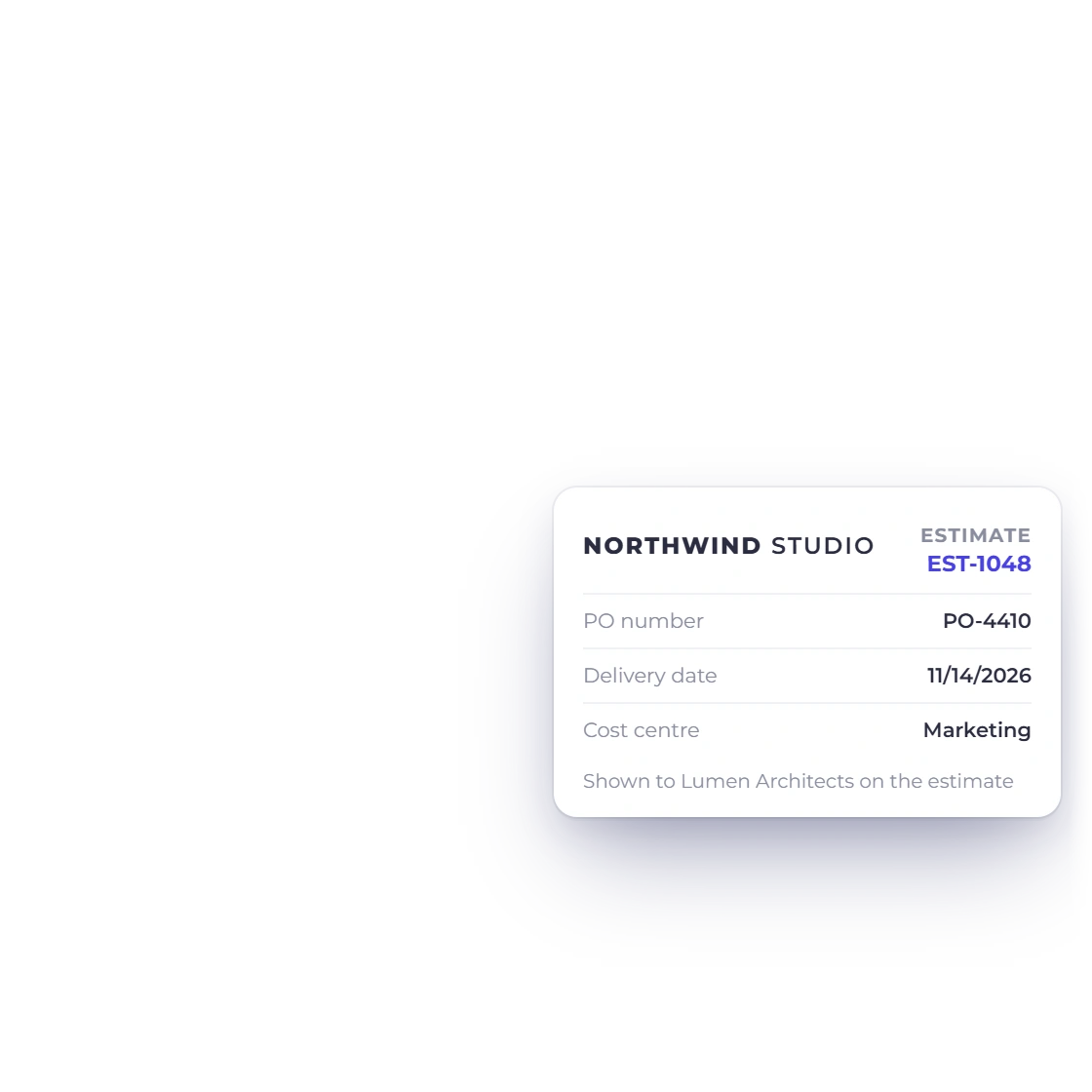
Add the fields your business works with, whether that is a project reference, a site address or a purchase order number, and they appear on the estimate next to the standard details. Information a client will quote back at you ends up on the document itself.

  • Fields you define, not a fixed set
  • Visible to the client on the estimate
  • Useful for references clients need on file

After you send it

Approval, then billing

An invoice in Invoice Crowd raised from an approved estimate

Approval turns it into an invoice

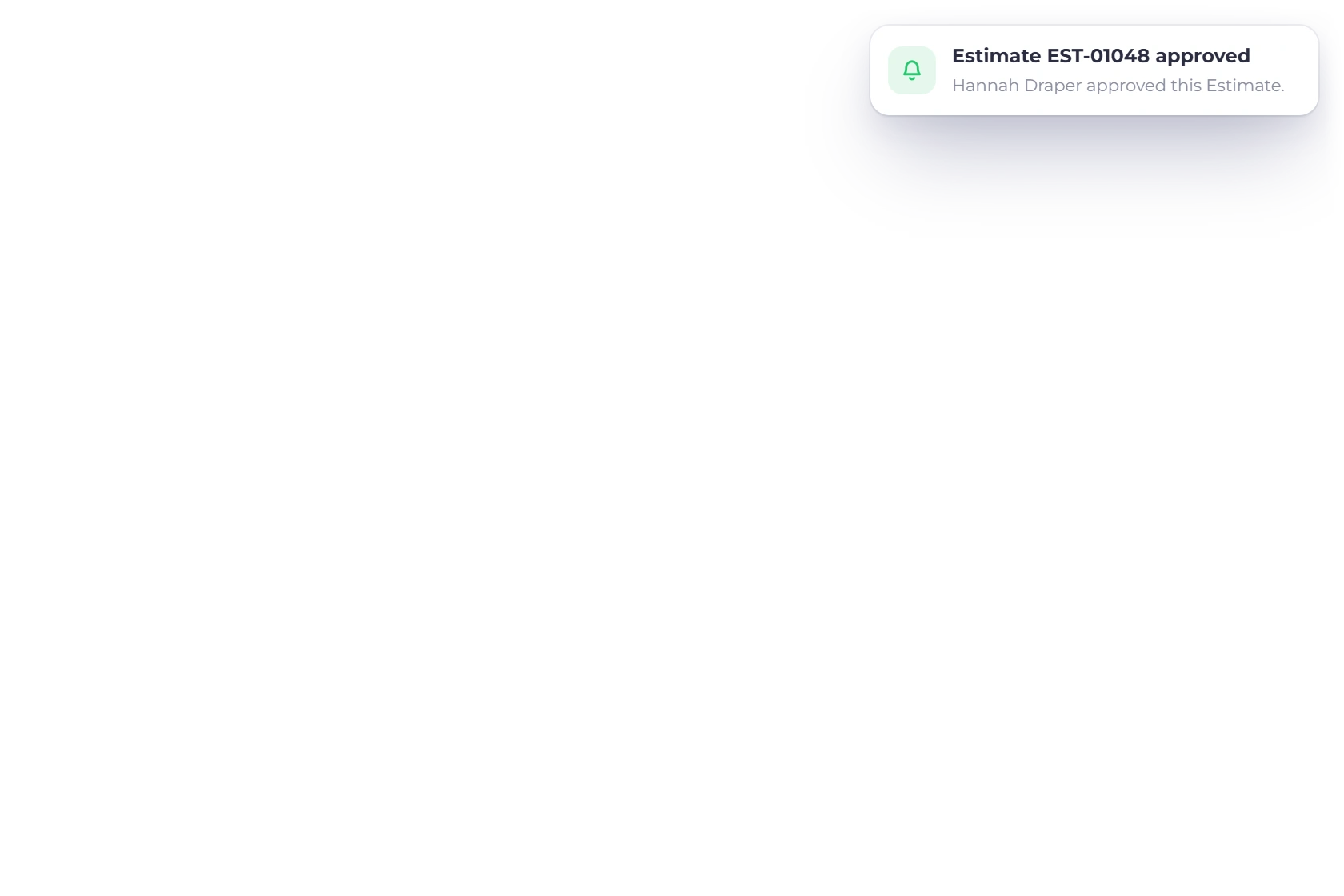
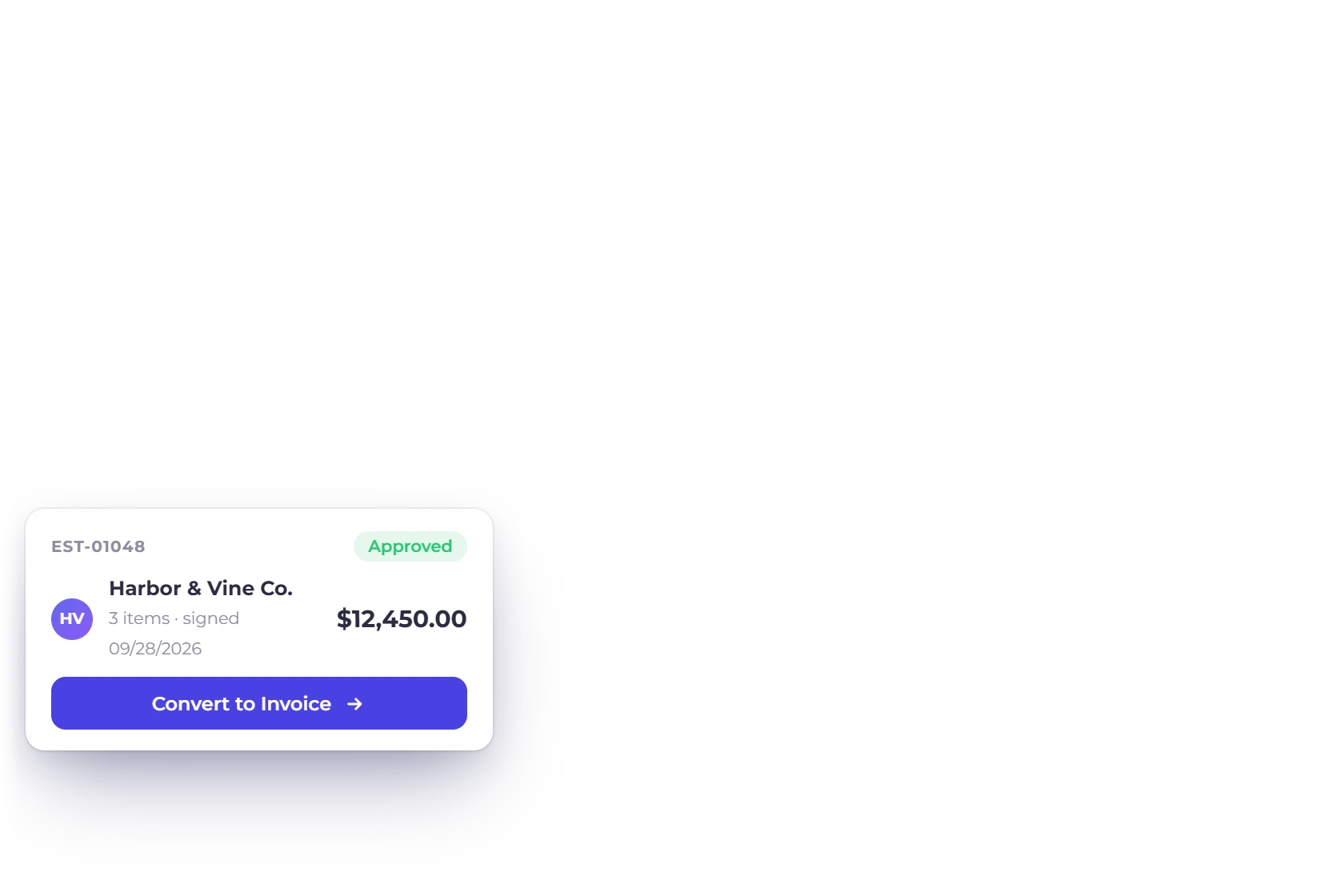
Once the client approves, the estimate can become an invoice without you rebuilding it, carrying the items, quantities and totals across. You bill from what was agreed, and the invoice reaches the client while the decision is still fresh in their mind.

  • Convert by hand when you want a last look
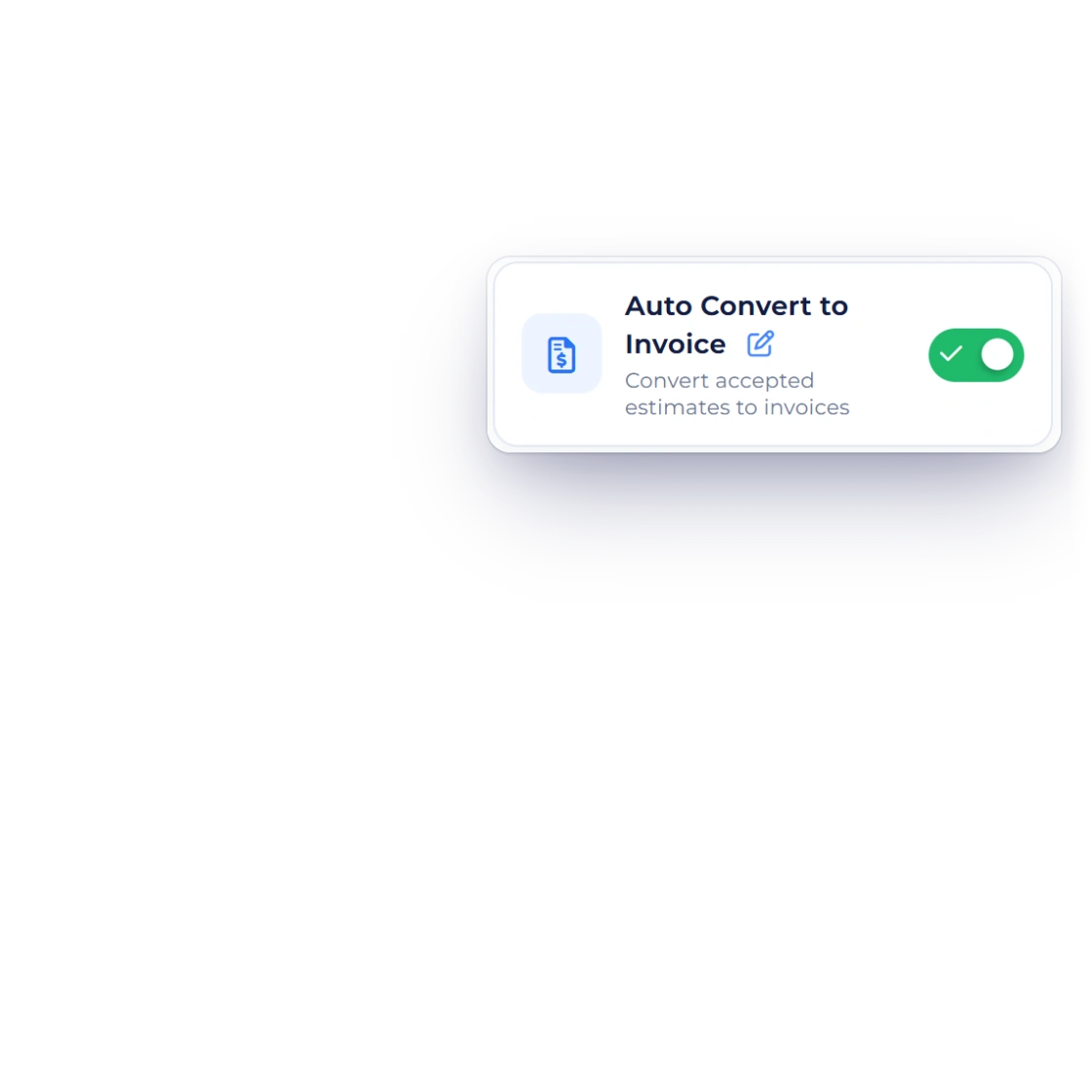
  • Or automatically, the moment approval lands
  • Nothing retyped between the two documents
How conversion works

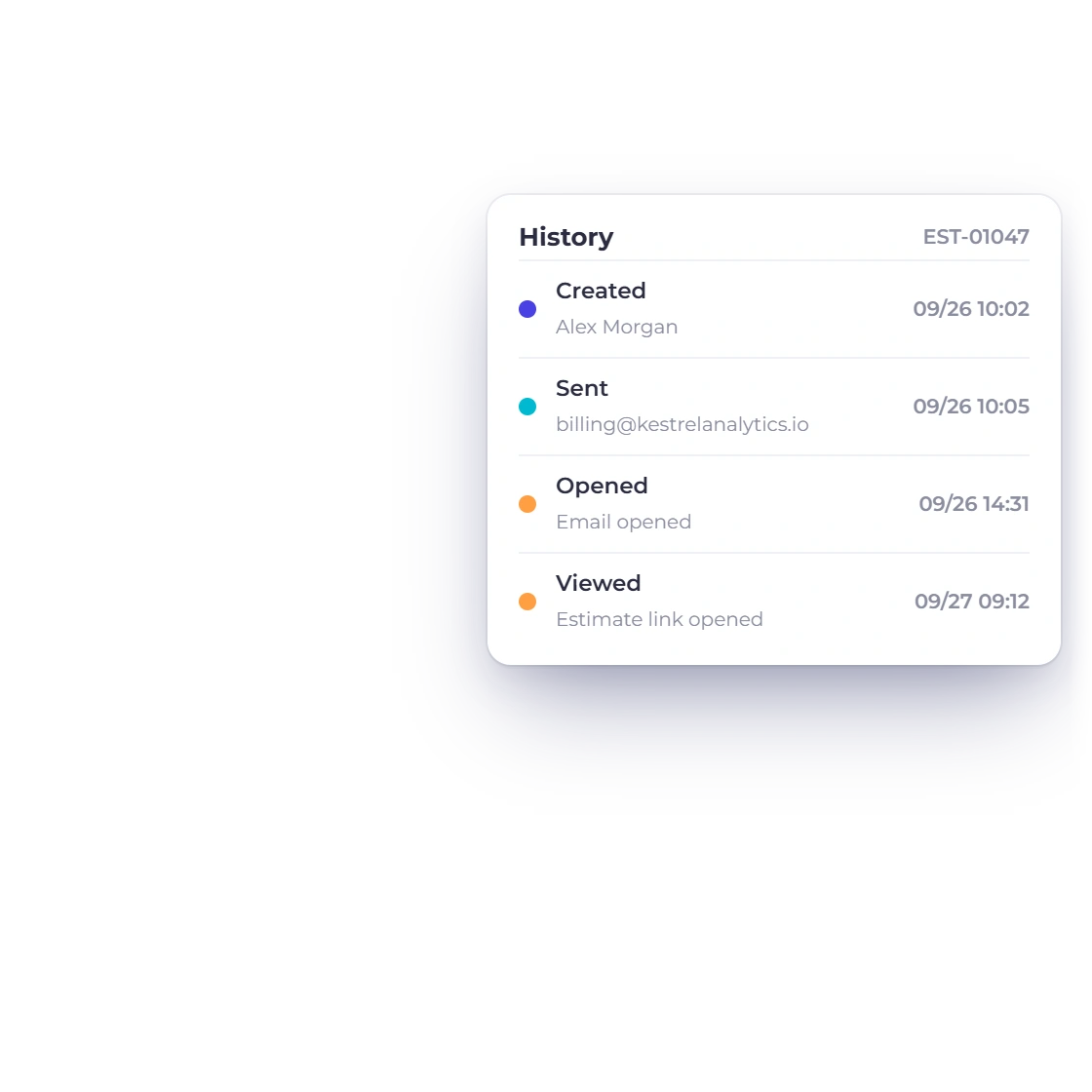
Every estimate keeps its history

Each estimate holds its own record: what you sent, when it went out and where it ended up. Open quotes stay visible instead of disappearing into a sent folder, and an approved one can be pulled up months later when a client asks what was agreed.

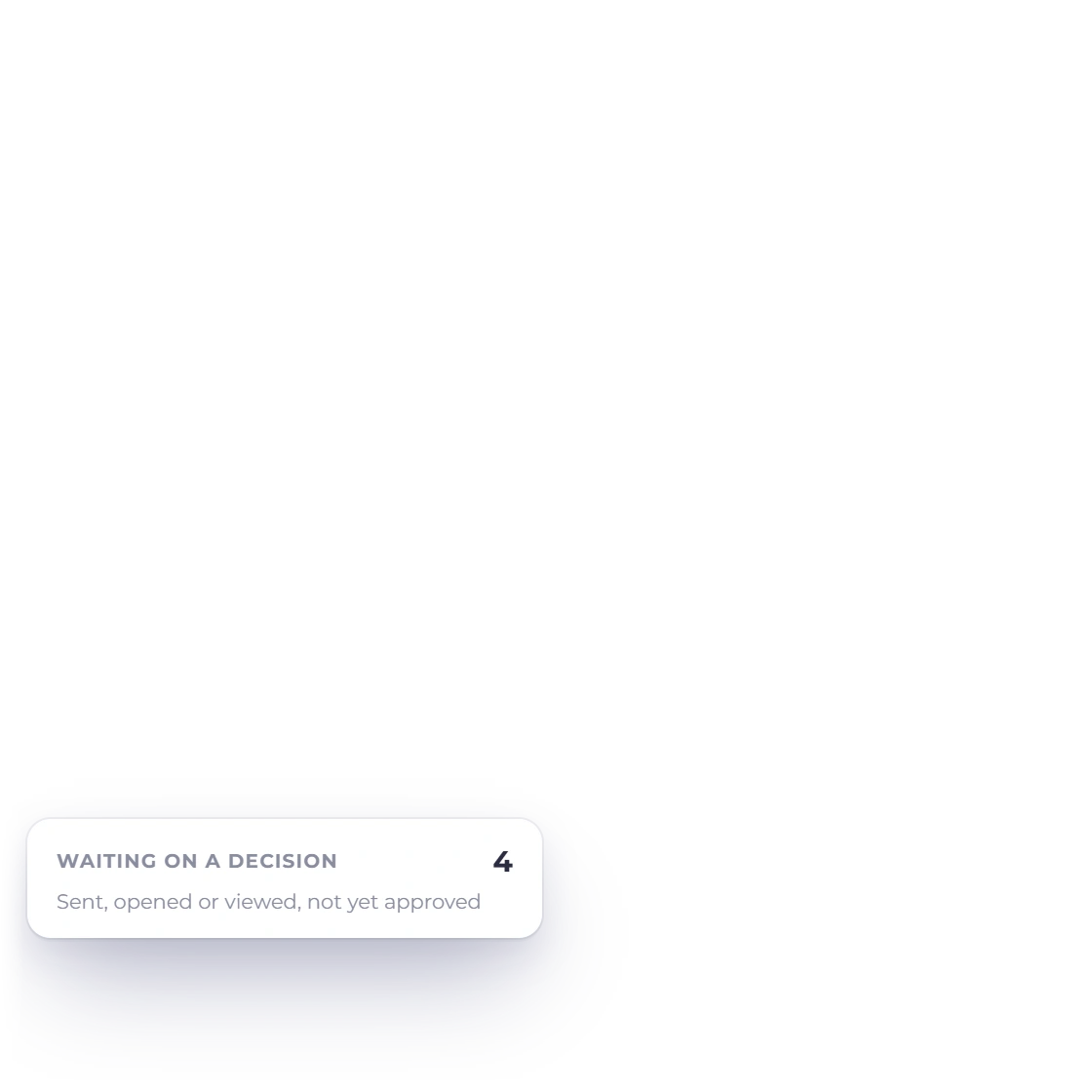
  • See which quotes are still waiting on a decision
  • Approved and declined estimates stay on file
  • Filed against the customer they belong to
Customer records

Also included

The rest of what estimating covers

Estimates sit in the same account as your invoices, customers and reports, so none of this is a separate tool you have to keep in step.

  • GST-enabled documents

    Use configured tax fields, units and classifications where they apply, then have local tax requirements reviewed before filing or relying on the document for compliance.

  • Automatic tax totals

    Tax calculates against each line as you go, so a total never depends on a side spreadsheet.

  • Products and services

    Quote physical goods, billable time or a mix of the two on a single estimate.

  • Print and download

    Print an estimate or hand over a copy when a client wants the figures on paper.

  • client-removable line items

    Let the client keep or remove the extras before they approve the estimate.

  • Client-set quantities

    Clients adjust how many of each item they need before they sign the estimate.

  • Conversion on approval

    Turn an approved estimate into an invoice by hand or leave it to run automatically.

  • Client portal

    Customers view, approve and download the estimates you have sent them from one signed-in place.

  • Multiple currencies

    Quote in the client's currency while your own reporting stays in your base currency.

  • Saved customers

    Pull a client's details onto an estimate rather than retyping an address each time.

  • Proposals for bigger pitches

    When a quote needs a narrative, start from one of 40+ proposal templates with e-signature.

  • Try it free

    Current plan, signup and trial terms are shown on the live pricing page.

Questions

Estimates, answered

How many estimates can I send?

Estimate availability and account allowances follow the current plan. Review the pricing page for the terms that apply before signup.

Can I add an item that is not in my list yet?

Yes. Type the description, rate and quantity straight into the estimate and it prices like any other line. If it is something you expect to quote again, keep it as a saved item so the next estimate starts from it.

Can I use a different tax or discount rate on one estimate?

Yes. Tax and discount rates are yours to define rather than a fixed list, so a job with an unusual rate or an agreed reduction is quoted correctly. Totals recalculate as soon as the rate is applied to the lines.

How do I explain the scope on an estimate?

Use the additional details section. It gives you space beneath the priced lines for scope, exclusions and any conditions, so the client approves the terms and the figures together instead of finding half of it in a separate email.

What happens once a client approves an estimate?

The approved estimate can convert into an invoice, either when you decide to convert it or automatically on approval. Items, quantities and totals move across, so the invoice bills exactly what the client agreed to.

Can I see what happened to an estimate I sent?

Yes. Each estimate keeps its own history, so you can tell which quotes are still open, which were approved and which went nowhere. You can also print or hand over a copy whenever a client asks for one.

Quote the next job properly

Build an estimate from your own items, rates and fields, send it out for approval, and let it become the invoice when the client says yes.

  • current trial
  • No credit card required
  • Plan-based estimate access