




Skip to content

Features

Custom fields for the details your documents need

Add a PO number, a project code, a delivery date or your client's tax registration to invoices, estimates and purchase documents. Save a field once, place it above or below the items, and let Invoice Crowd fill some values in from your business, customer or vendor records. Custom fields are on every plan; Link fields need a paid plan.

  • Five field types
  • Four positions on the page
  • Values filled in from your records
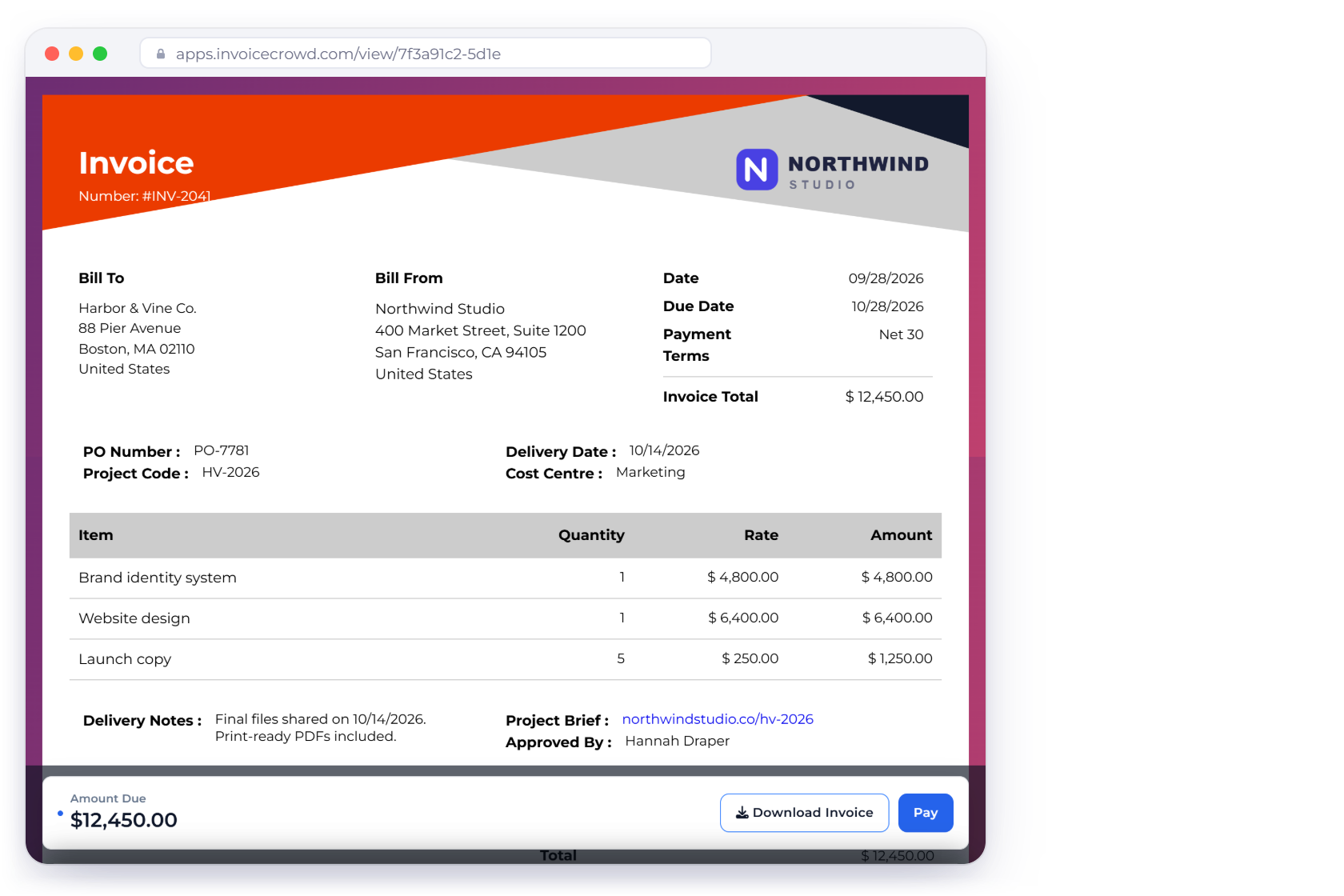
An Invoice Crowd invoice as the customer sees it, with custom fields above the items for PO number, project code, delivery date and cost centre and below the items for delivery notes, a project brief link and the approver

What is inside

Save a field once, use it on every document

A custom field is a label and a value printed on the document, such as PO number: PO-7781. You keep a library of saved fields, add them to a document where they belong, and each document keeps its own final values.

Create a field

Once, then reuse it

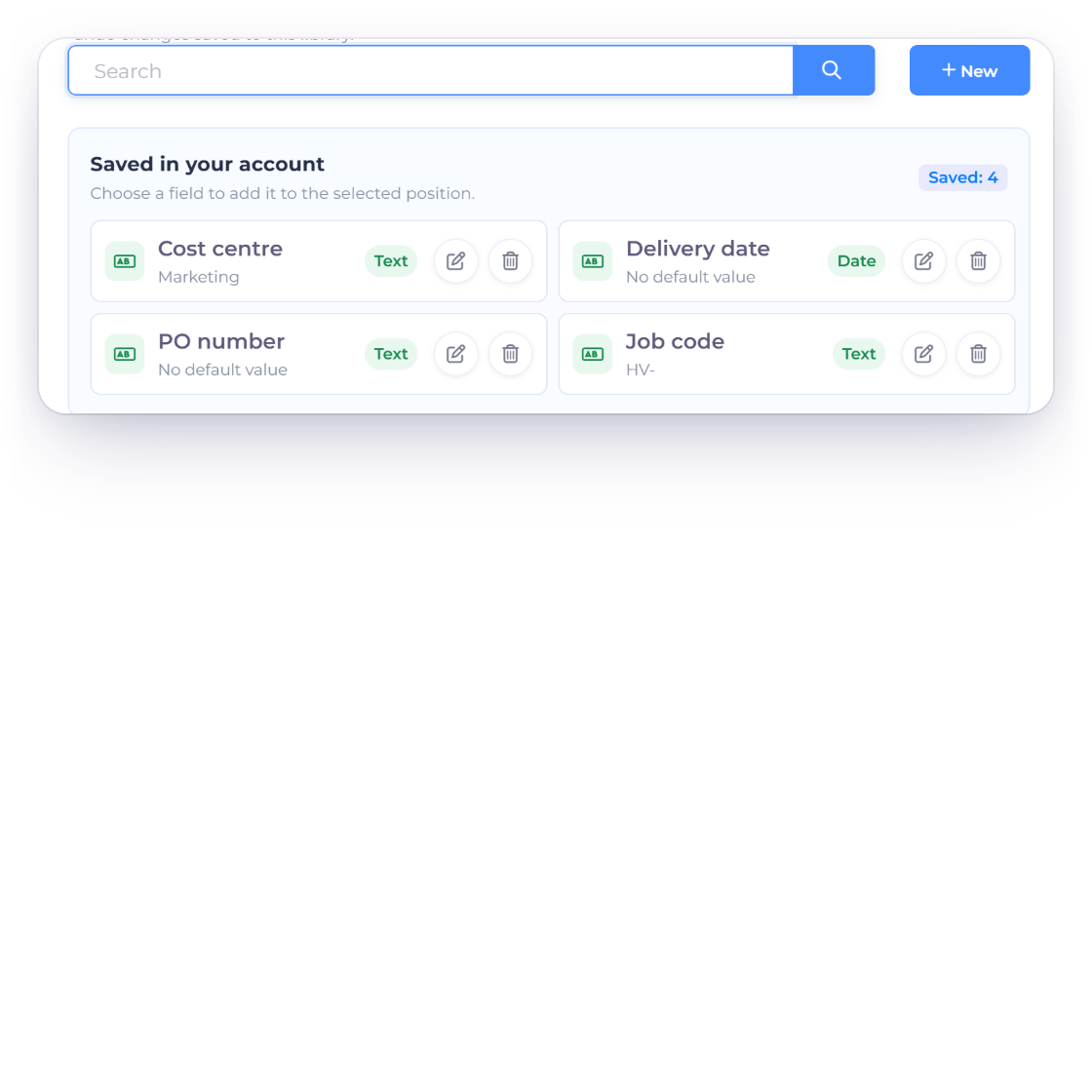
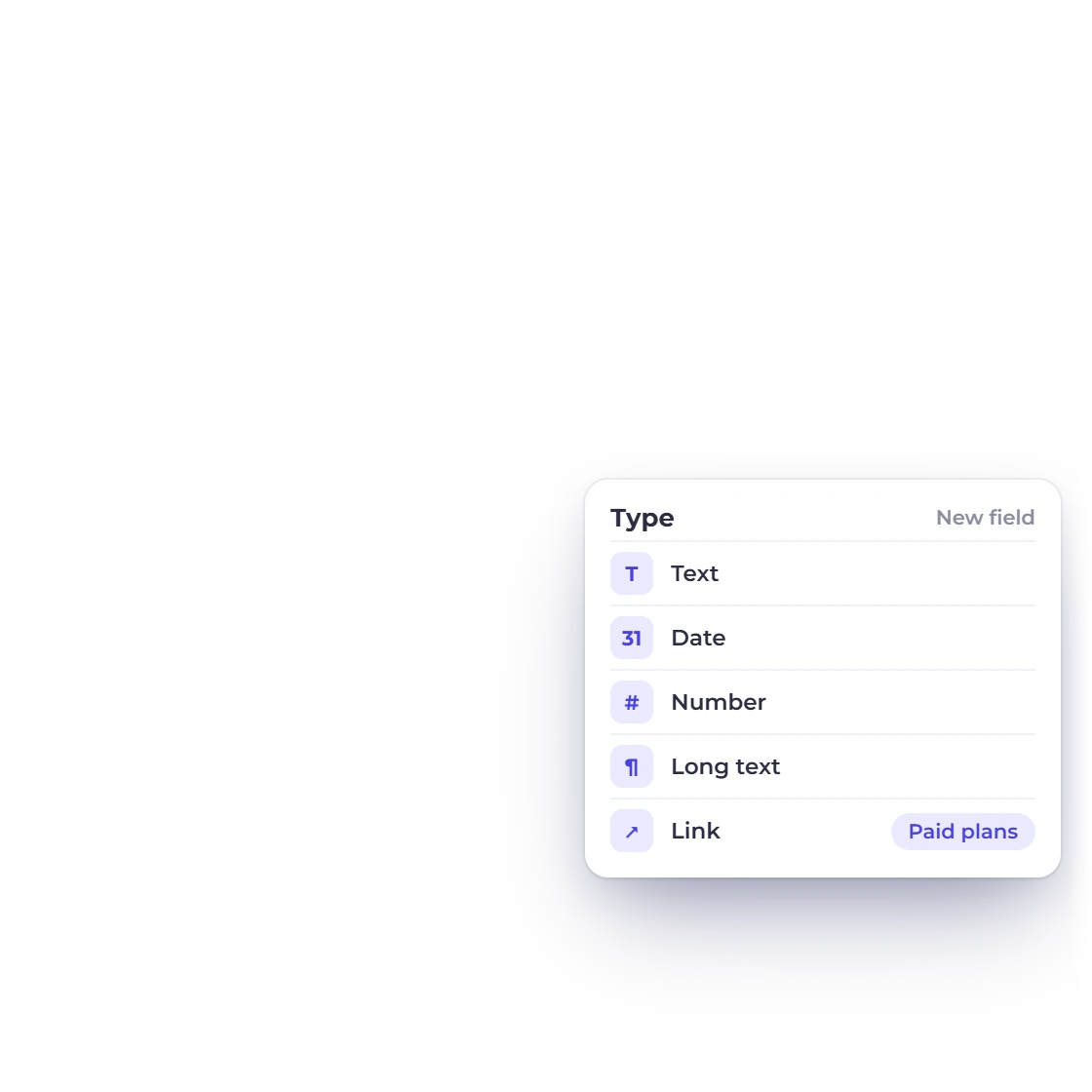
The Invoice Crowd custom-field picker on an invoice with search, New and four saved fields such as PO number, Delivery date and Cost centre with their types, next to the five field types Text, Date, Number, Long text and Link

A library of reusable fields

Add fields in Business Profile → Custom fields with Add Custom Field, or select New in the picker while you edit a document. Give each one a Field Title and a Type (Text, Date, Number, Long text or Link), an optional default value, and choose where it is saved: Saved for this business, or All businesses in this account.

  • Titles up to 100 characters
  • Long text up to 10,000 characters
  • Links: http, https, mailto and tel
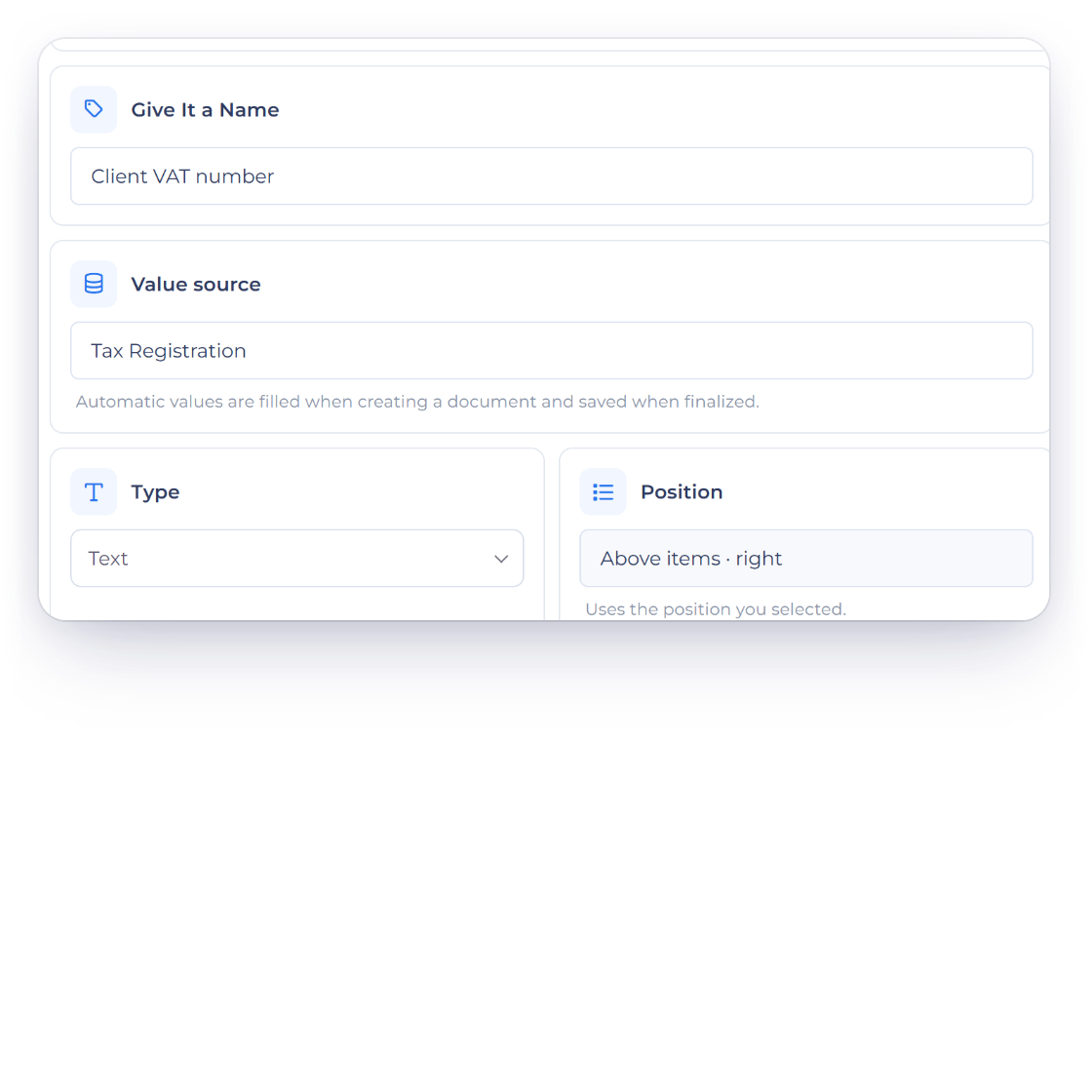
The new custom field form in Invoice Crowd for a Client VAT number field with Value source set to the customer Tax Registration, the Text type, its position, and the note that automatic values are filled when a document is created and saved when it is finalized

Values filled in from your records

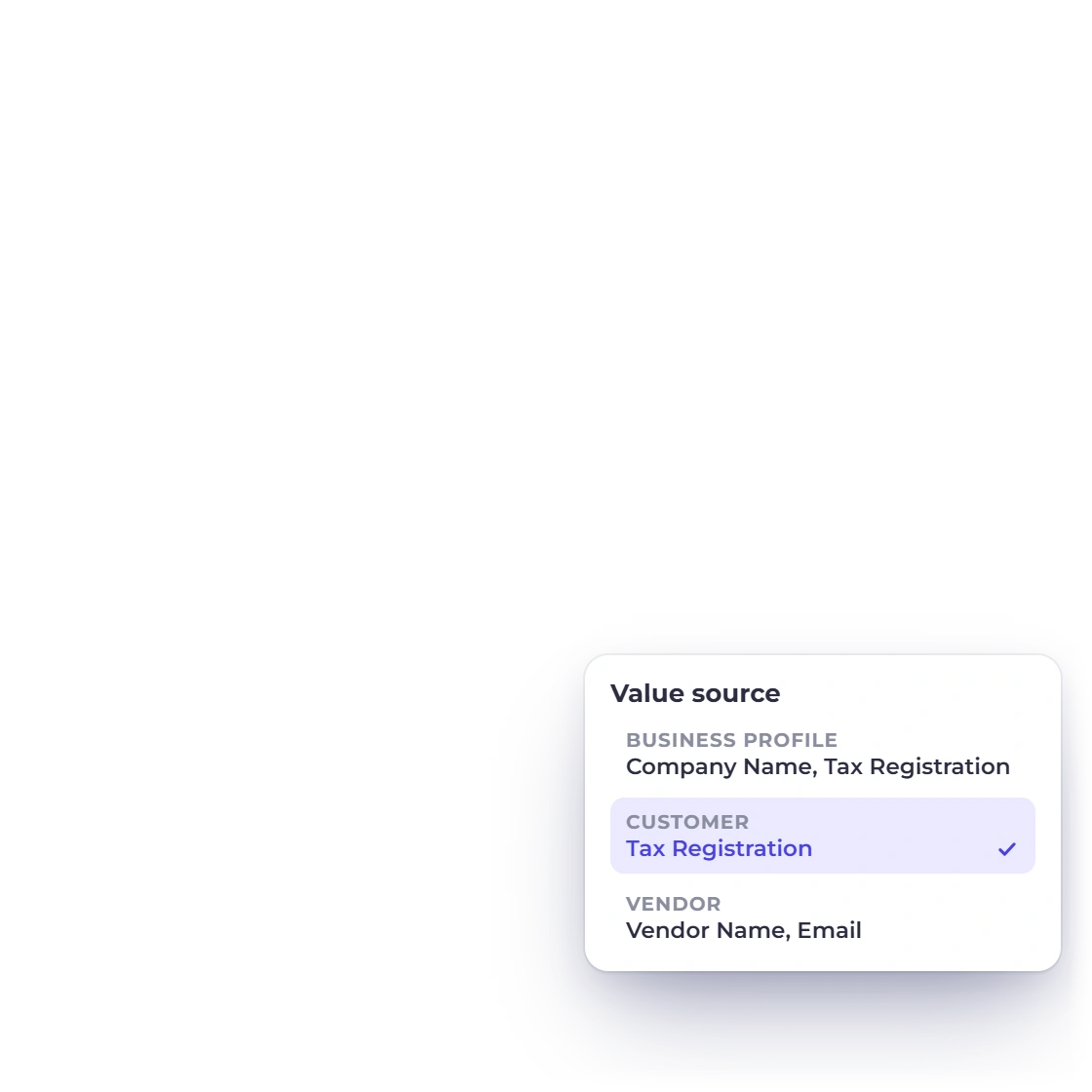
Give a Text field a Value source instead of a typed default, and it fills in from your Business Profile, the customer or the vendor: names, contact name, street, city, state, ZIP code, country, Tax Registration, email, phone, mobile or fax. Automatic values are filled when the document is created and saved when it is finalized, so later edits to a customer never rewrite an issued invoice.

  • Customer values on sales documents
  • Vendor values on bills, purchase orders and vendor credits
  • A missing value stays blank for you to review

Add it to a document

Above or below the items

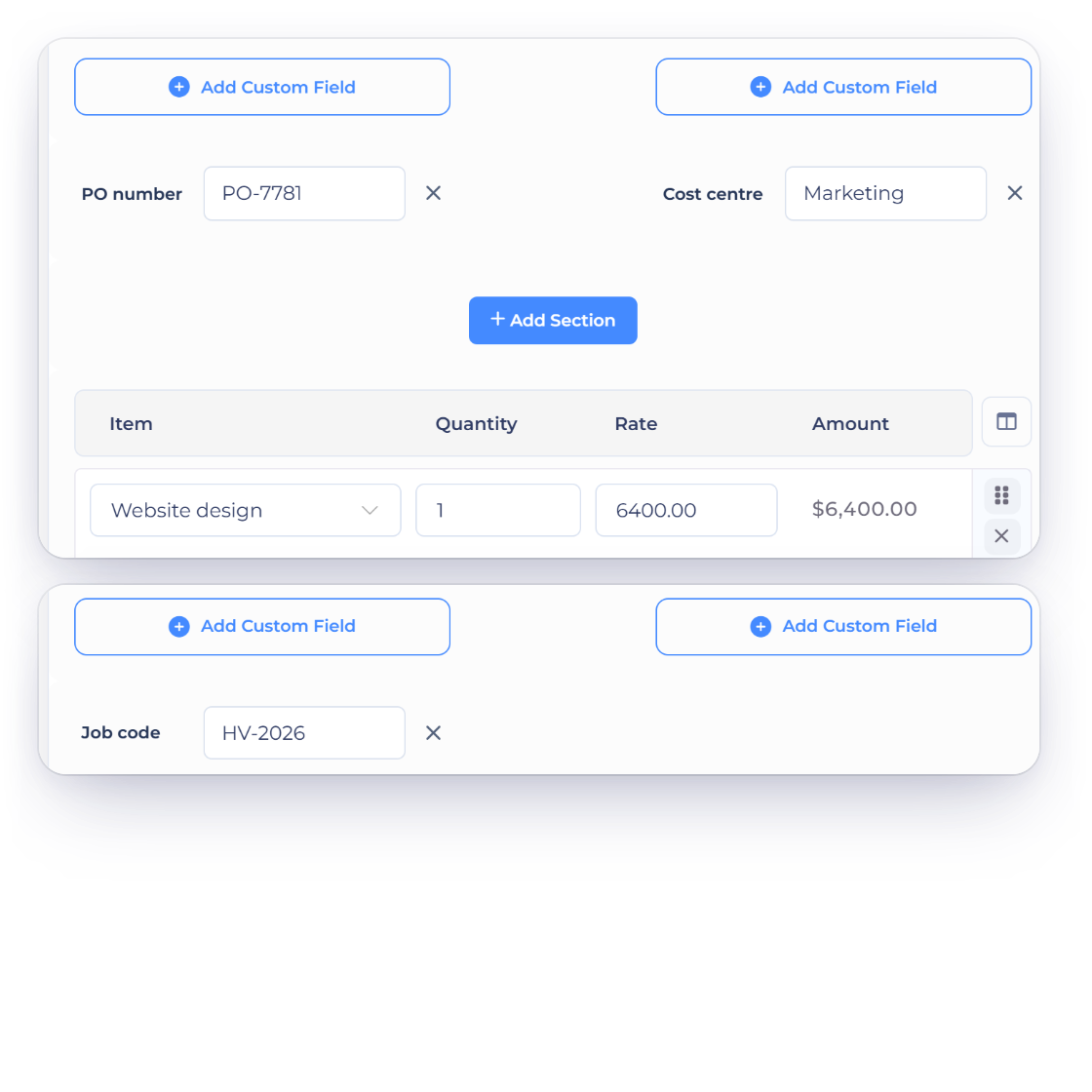
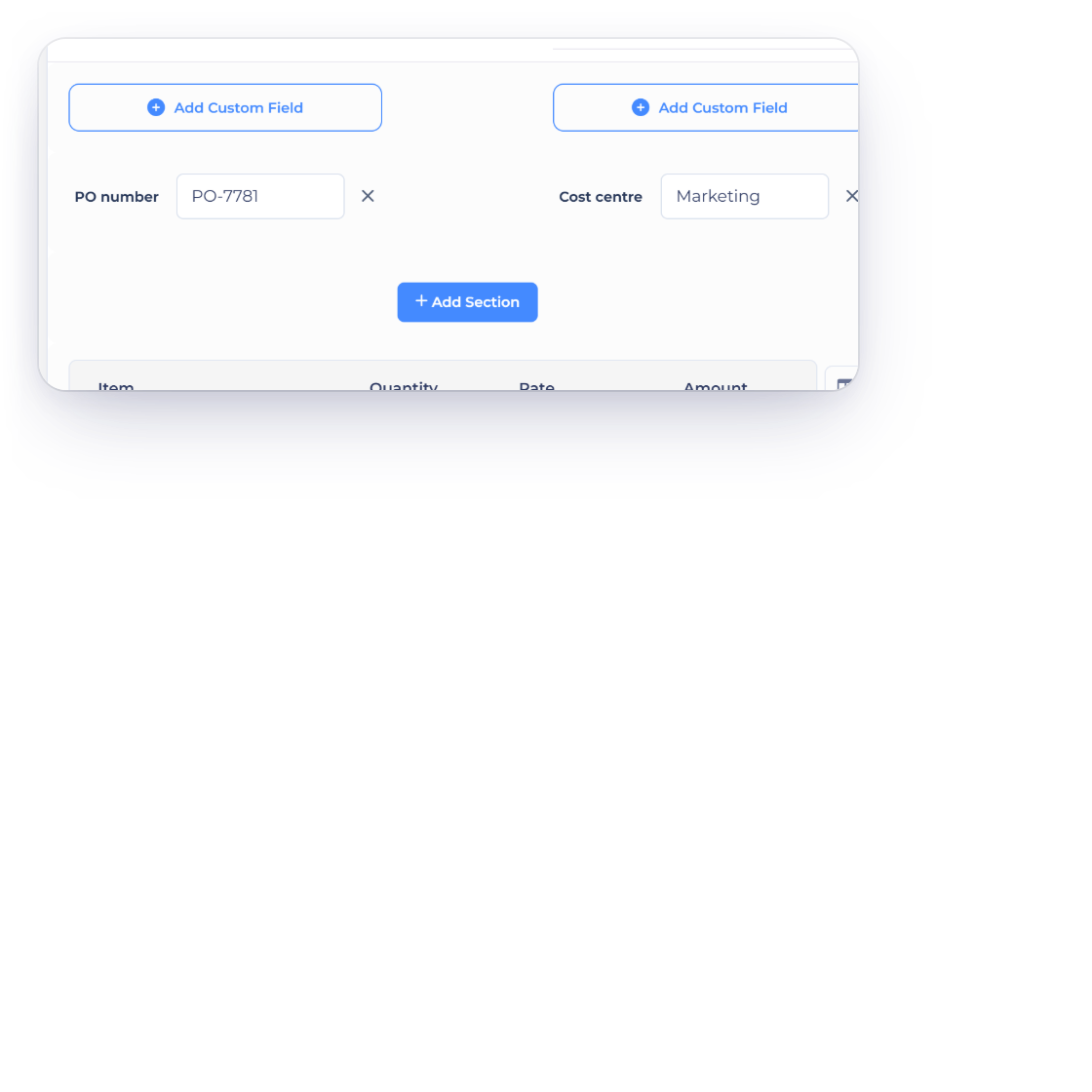
The Invoice Crowd invoice editor with Add Custom Field buttons above and below the items, a PO number and a cost centre above the line items and a job code below them

Four places on the page

Each field sits in one of four areas: Above items · left, Above items · right, Below items · left or Below items · right. Turn on Custom-field editing controls in the document's Options and an Add Custom Field button appears in each area. The picker lists your saved fields with a search; click one to add it, or use Edit field and Archive field to manage the library.

  • Shown on the customer page and the PDF
  • Edit or remove a field on one document only
  • Date fields use the date picker
Creating invoices
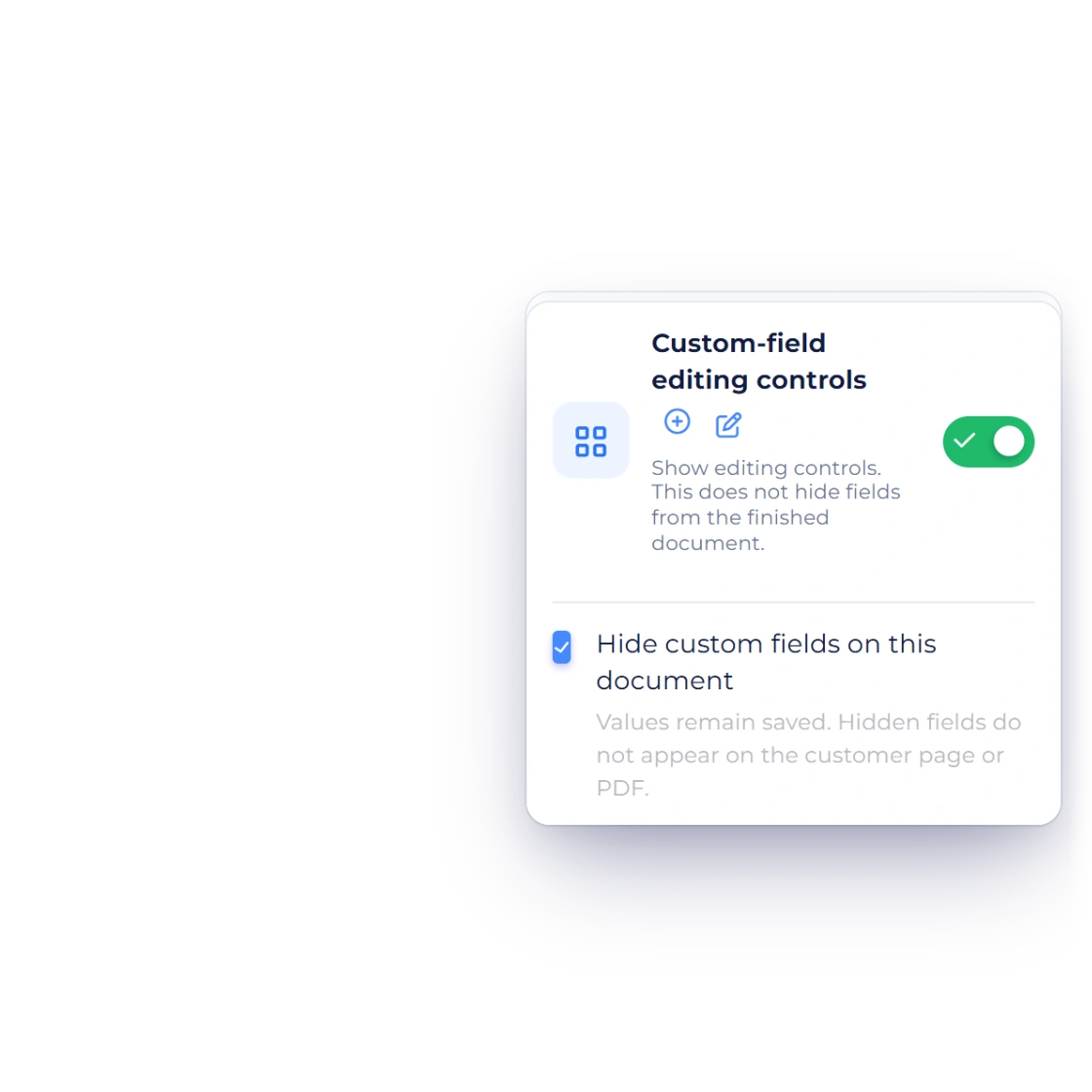
The Options tab of an Invoice Crowd invoice with Custom-field editing controls switched on and Hide custom fields on this document checked, next to the invoice with its PO number and cost centre fields

Hide fields on one document

Hide custom fields on this document keeps the values saved but leaves them off the customer page and the PDF. To drop a single field instead, remove it from that document; other documents and the saved field are not affected.

  • Values remain saved
  • Hidden from the customer page and PDF
  • Other documents unchanged

Build them into your design

Template builder and history

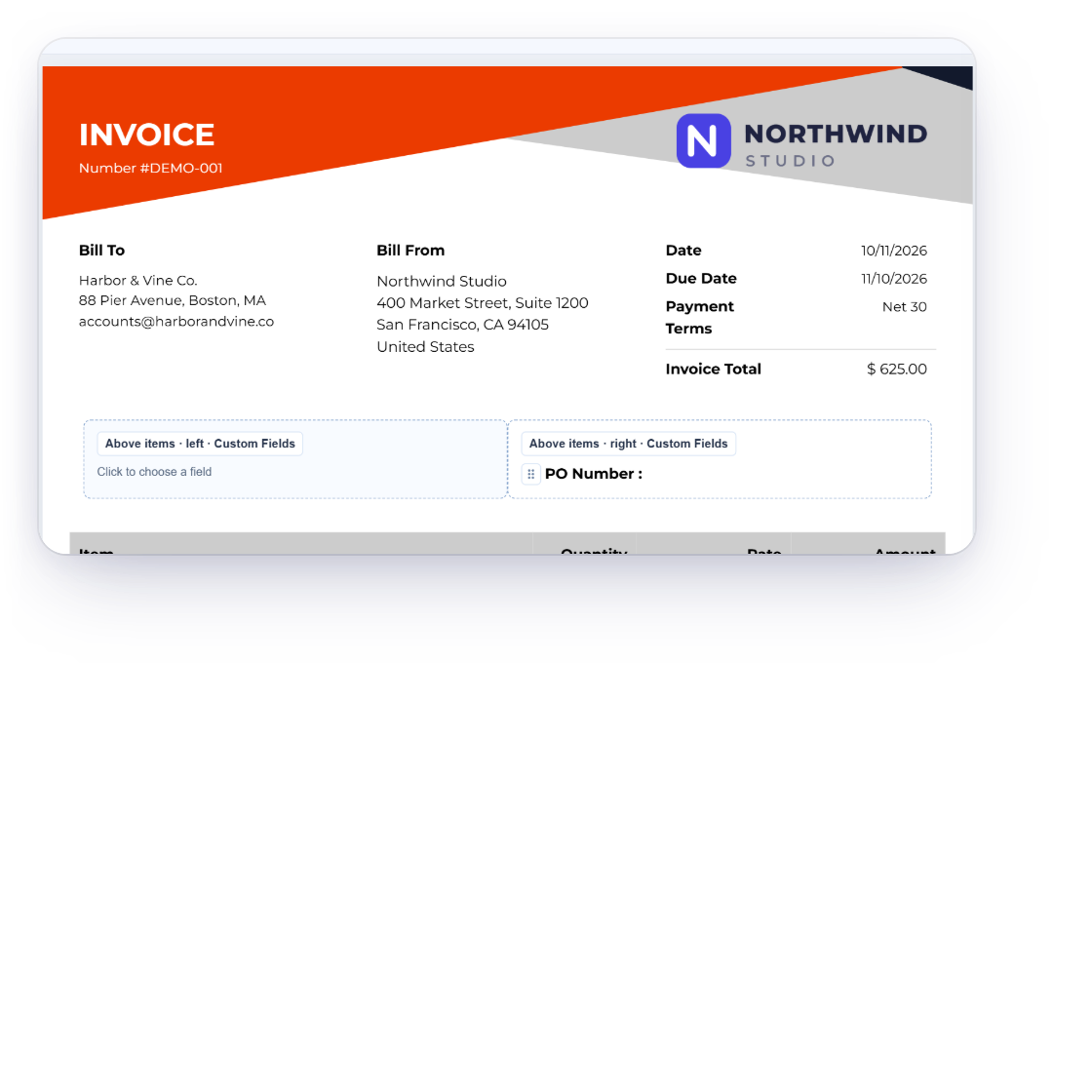
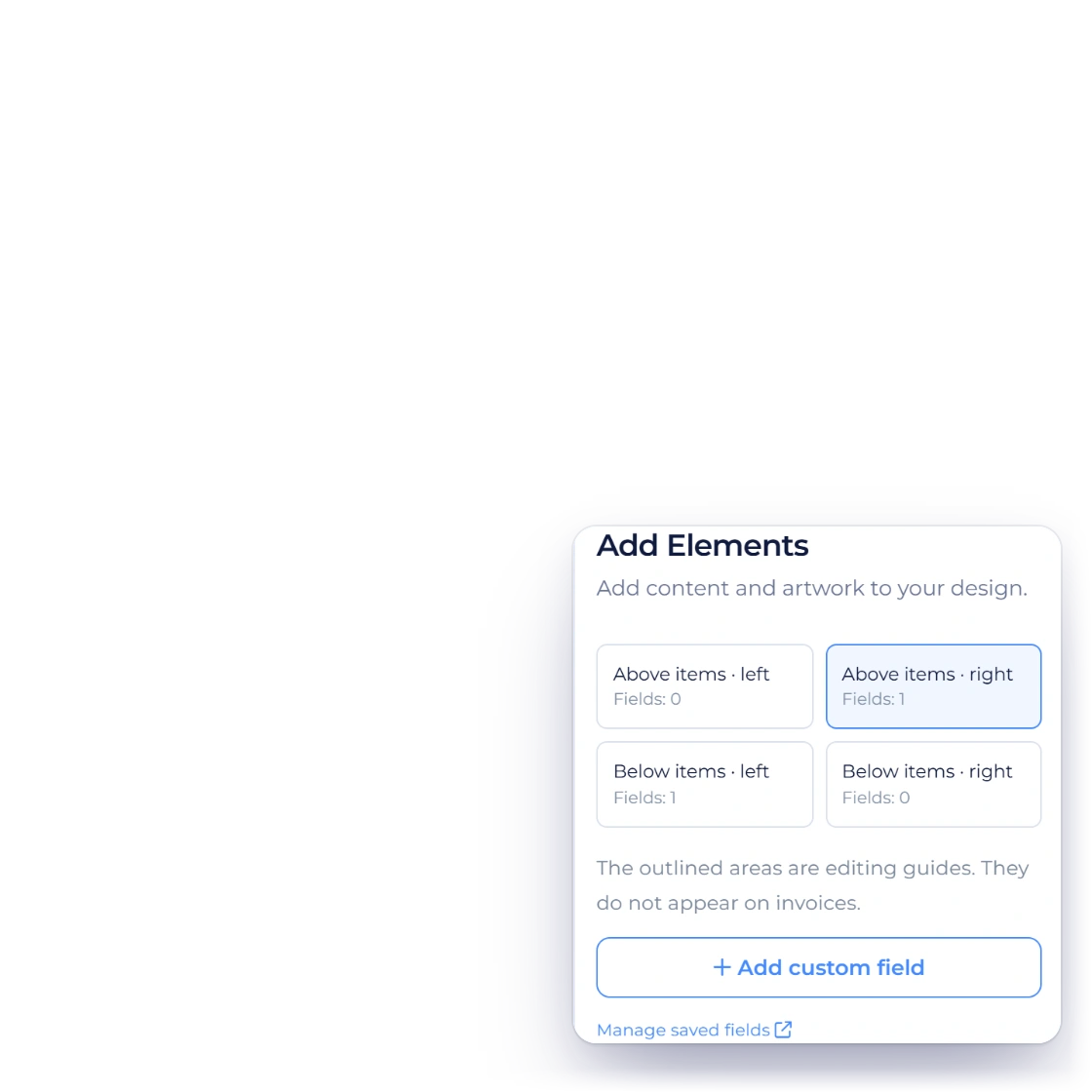
The Invoice Crowd template builder Add Elements panel with the four custom-field areas, Above items · right selected and Add custom field, and a PO number field placed above the items on Template 5

Place fields in a template

In the template builder, open Add Elements, choose one of the four areas and select Add custom field to pick from the same library. Drag a field between areas, or choose Hide in this design for the current business. New invoices made with that design start with its fields, and you enter the document values when you create the invoice.

  • Placement belongs to the design
  • Saved fields and defaults stay in Business Settings
  • Each invoice keeps its own final values
Invoice template builder
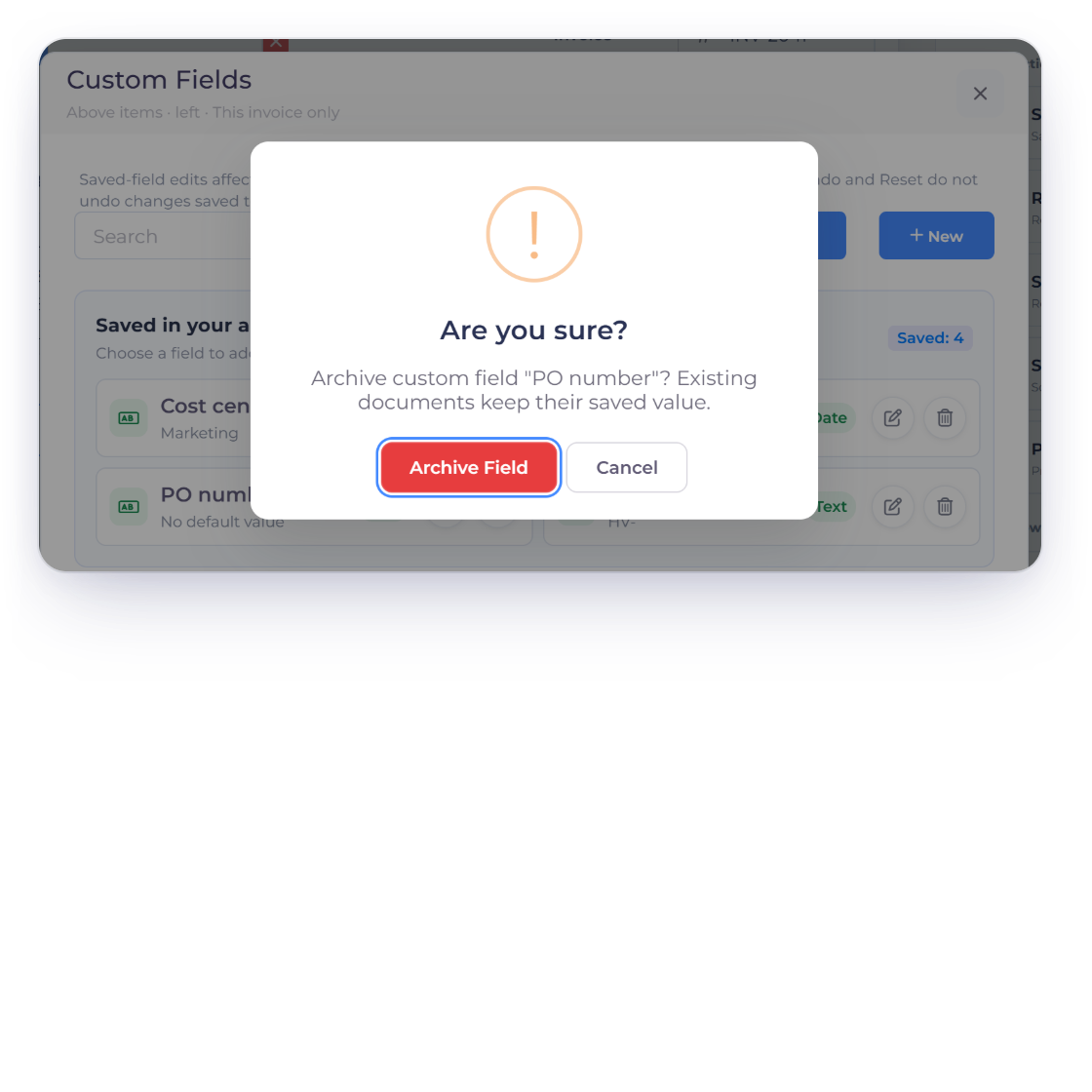
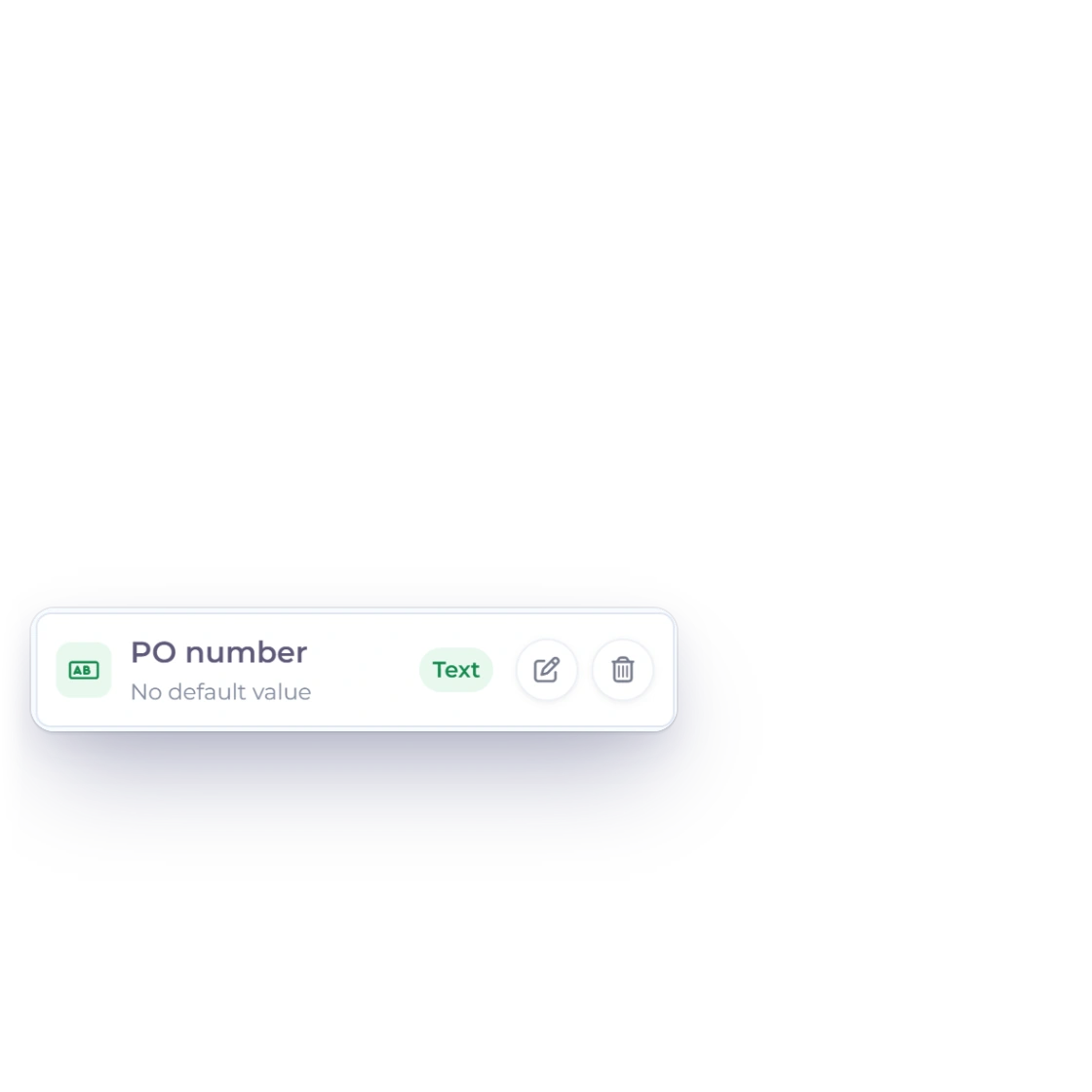
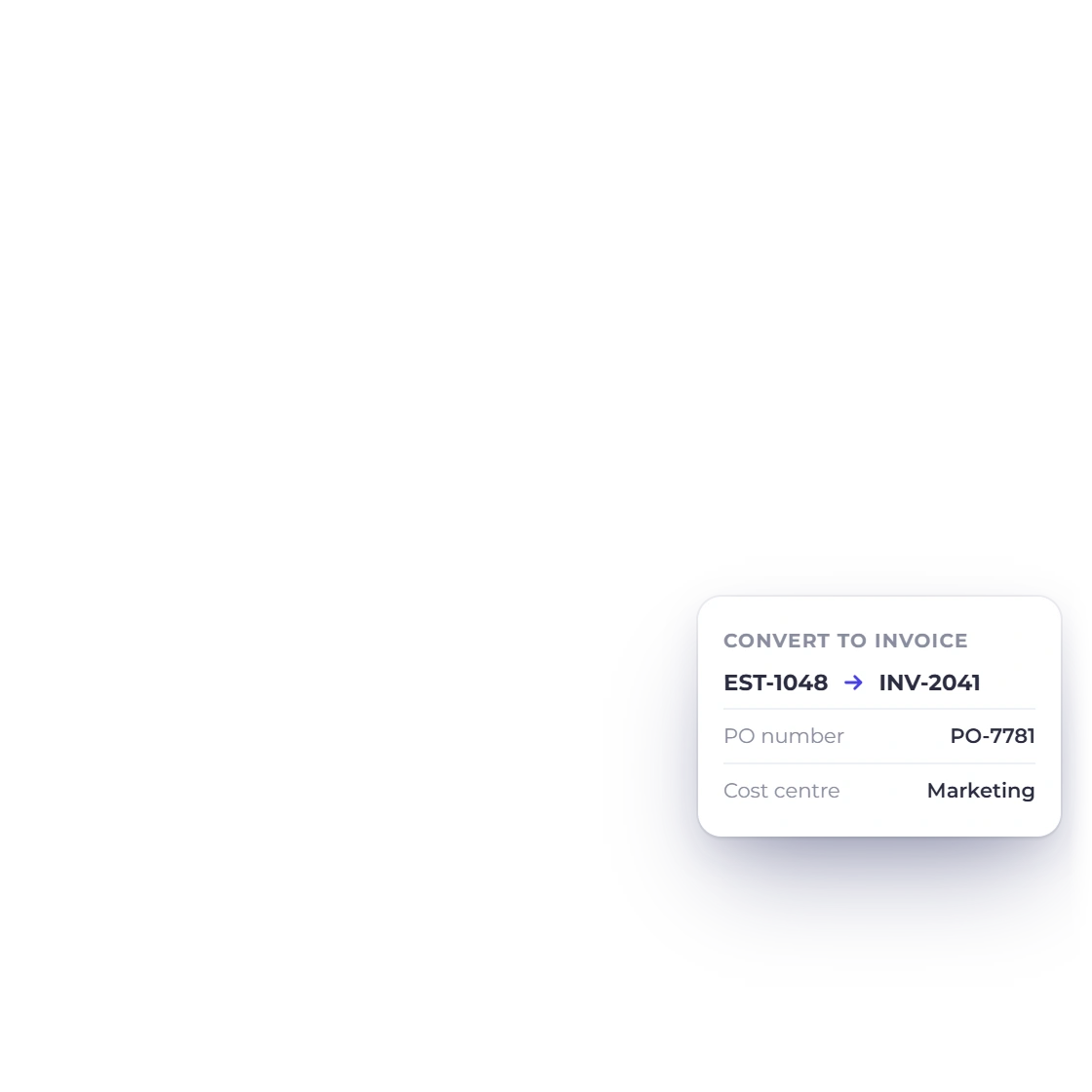
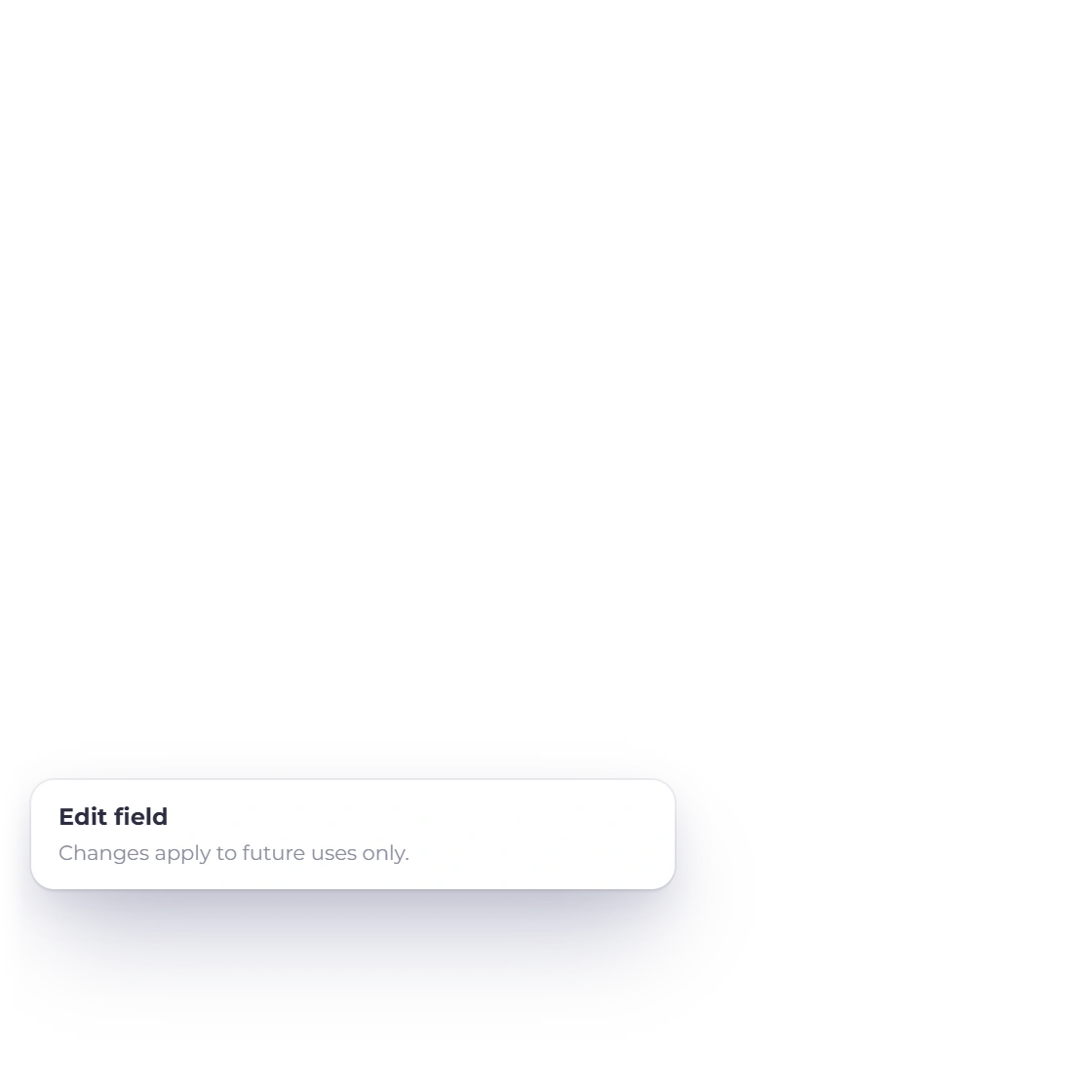
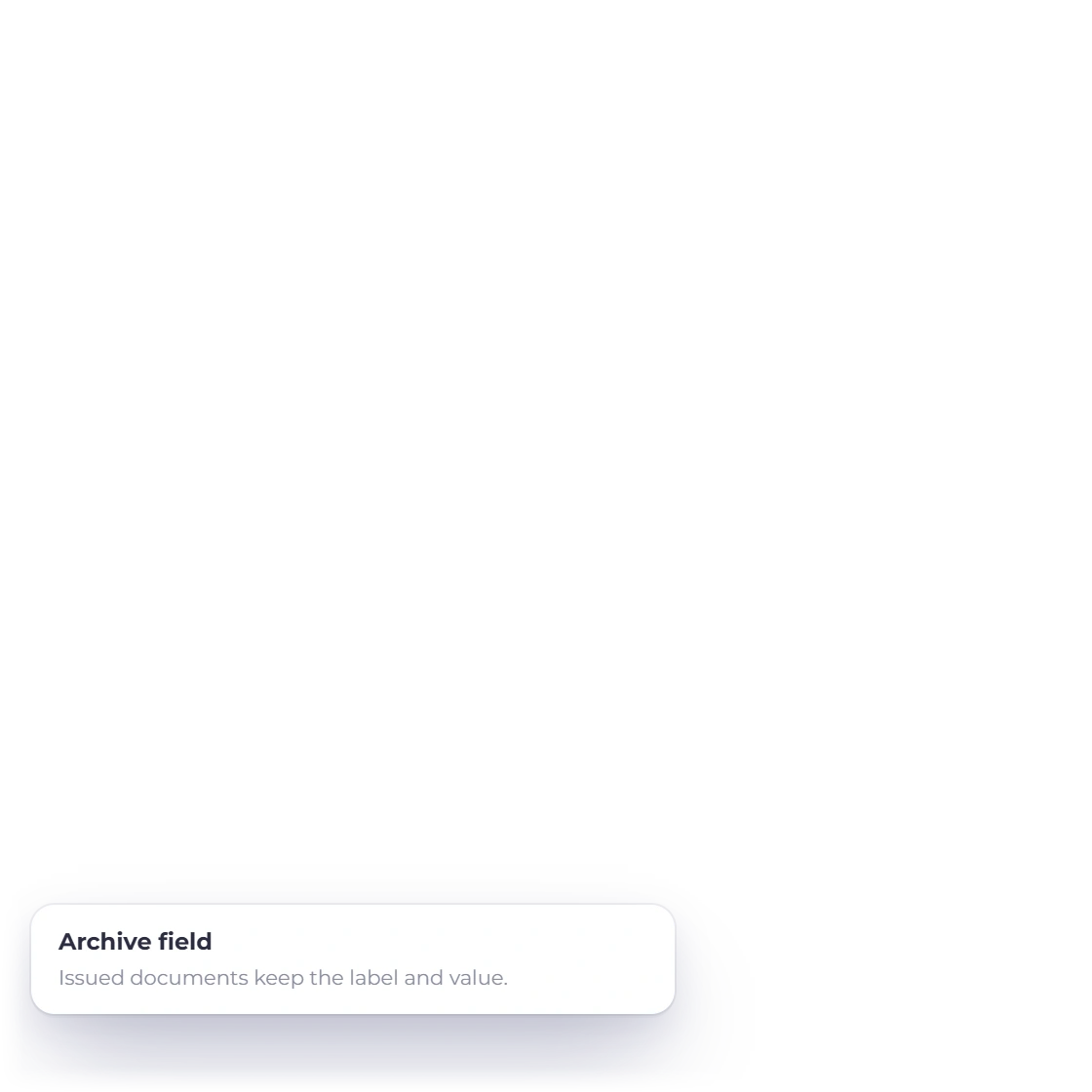
The Invoice Crowd custom-field picker asking to archive the PO number field while existing documents keep their saved value, the Edit field and Archive field actions on a saved field, and an estimate converted to an invoice with its custom fields copied

History that stays put

Archiving a field removes it from the picker, but documents that already use it keep their label and value. Editing a saved field affects its future uses only. When an approved estimate becomes an invoice, its custom fields are copied across with the lines.

  • Archive, never erase
  • Issued documents keep their values
  • Carried from estimate to invoice
Convert to invoice

Built in

The details of custom fields

Field types, where they appear, what fills them in and which plan you need.

  • Text, Date and Number

    Short references, dates from the date picker and numbers that are checked when you save the field.

  • Long text

    Room for site instructions, a scope note or delivery terms, up to 10,000 characters.

  • Link fields on paid plans

    Link fields need a paid plan and are not available during the free trial. A Link saved earlier stays editable after a downgrade.

  • Sales and purchase documents

    Invoices, recurring invoices, estimates, credit notes, payment links, purchase orders, bills and vendor credits.

  • On the PDF and customer page

    Every field prints in its area on the PDF and shows on the page your customer opens from the link.

  • Tax registration auto-fill

    Point a field at the customer's or vendor's Tax Registration and it fills in from their record.

  • Business or account scope

    Save a field for one business profile or for all businesses in the account.

  • Searchable library

    The picker groups fields saved in your account and saved for this business, each with its type and default.

  • Archive, never lose history

    Archived fields leave the picker. Documents that used them keep their labels and values.

  • Peppol e-invoices

    When you send an invoice through Peppol, its custom fields travel in the UBL file as supplemental data.

  • Estimate to invoice

    Converting an approved estimate copies its custom fields onto the new invoice.

  • Project fields in Worklog

    Worklog projects have their own custom fields, separate from the fields on your documents.

Questions

Custom fields, answered

Can I add custom fields to invoices in Invoice Crowd?

Yes. Save a field such as PO number or project code in Business Profile → Custom fields, or with New in the invoice editor's picker, then add it to any invoice, estimate, credit note, payment link, purchase order, bill or vendor credit. The label and value print on the PDF and show on the page your customer opens.

Which field types are available?

Text, Date, Number, Long text and Link. Number values are checked when you save, Long text holds up to 10,000 characters, and Link accepts http, https, mailto and tel addresses. Field titles can be up to 100 characters.

Where on the invoice do custom fields appear?

In one of four areas: Above items · left, Above items · right, Below items · left or Below items · right. You choose the area when you add the field to a document, and in the template builder you can place a design's fields in the same four areas.

Can a custom field fill itself in?

Yes, for Text fields. Choose a Value source such as the customer's Tax Registration, the business's address or the vendor's email, and the value is filled in when you create the document. It is saved when the document is finalized, so a later change to the customer record does not rewrite an issued invoice.

Are custom fields available on the Free plan?

Yes. Text, Date, Number and Long text fields are available on every plan, including Free. Link fields need a paid plan and are not available during the free trial.

Can I hide a custom field from the PDF?

You can hide all custom fields on a document with Hide custom fields on this document; the values stay saved but do not appear on the customer page or the PDF. There is no setting to hide one field only from the PDF, so remove that field from the document instead.

Can I add custom fields to customer records or items?

No. Custom fields belong to documents, not to customer or item records. To show a customer's details on a document, use a Value source such as Customer Name or Tax Registration. Worklog projects have their own custom fields.

What happens to old invoices if I edit or archive a field?

Nothing changes on them. Archiving removes the field from the picker, and edits to a saved field apply to its future uses. Documents that already carry the field keep their label and value.

Put the reference your client asks for on the invoice

Save the fields your work needs, add them above or below the items, and let Invoice Crowd fill in what it already knows.

  • No card required to start
  • Custom fields on every plan
  • Cancel anytime