


Skip to content

Features

Design your own invoice template, down to the logo size and column names

The Invoice Crowd template builder opens any of the eight provided designs on an editable page. Change fonts and colors, add shapes and images, resize your logo, rename and reorder the table columns, and print the standard labels in any of eight languages. Saving a customized design needs a paid plan, and the 30-day free trial counts.

  • 8 provided designs to start from
  • Same design on screen and in the PDF
  • Existing invoices keep their design
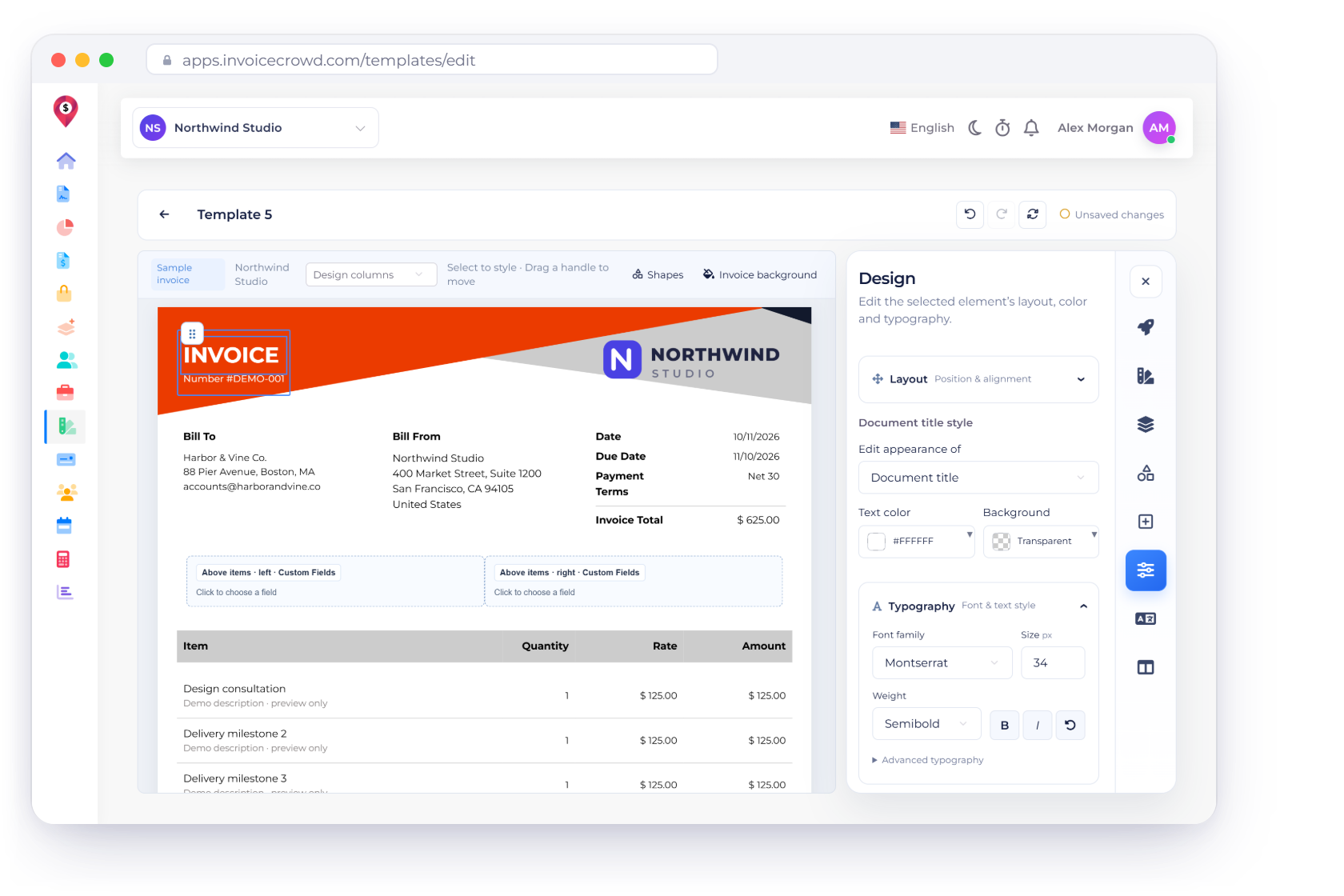
The Invoice Crowd template builder with Template 5 on the canvas, the document title selected and the Design tab open on Typography with Montserrat, next to the eight document languages and a design saved message

What is inside

A real editor for the document your client pays from

Open a design from Invoice Templates and edit it where it sits: click a heading to style it, drag a shape to move it, and preview the PDF before you save. Invoice data and totals stay connected while you work.

Start from a design

The gallery, then the canvas

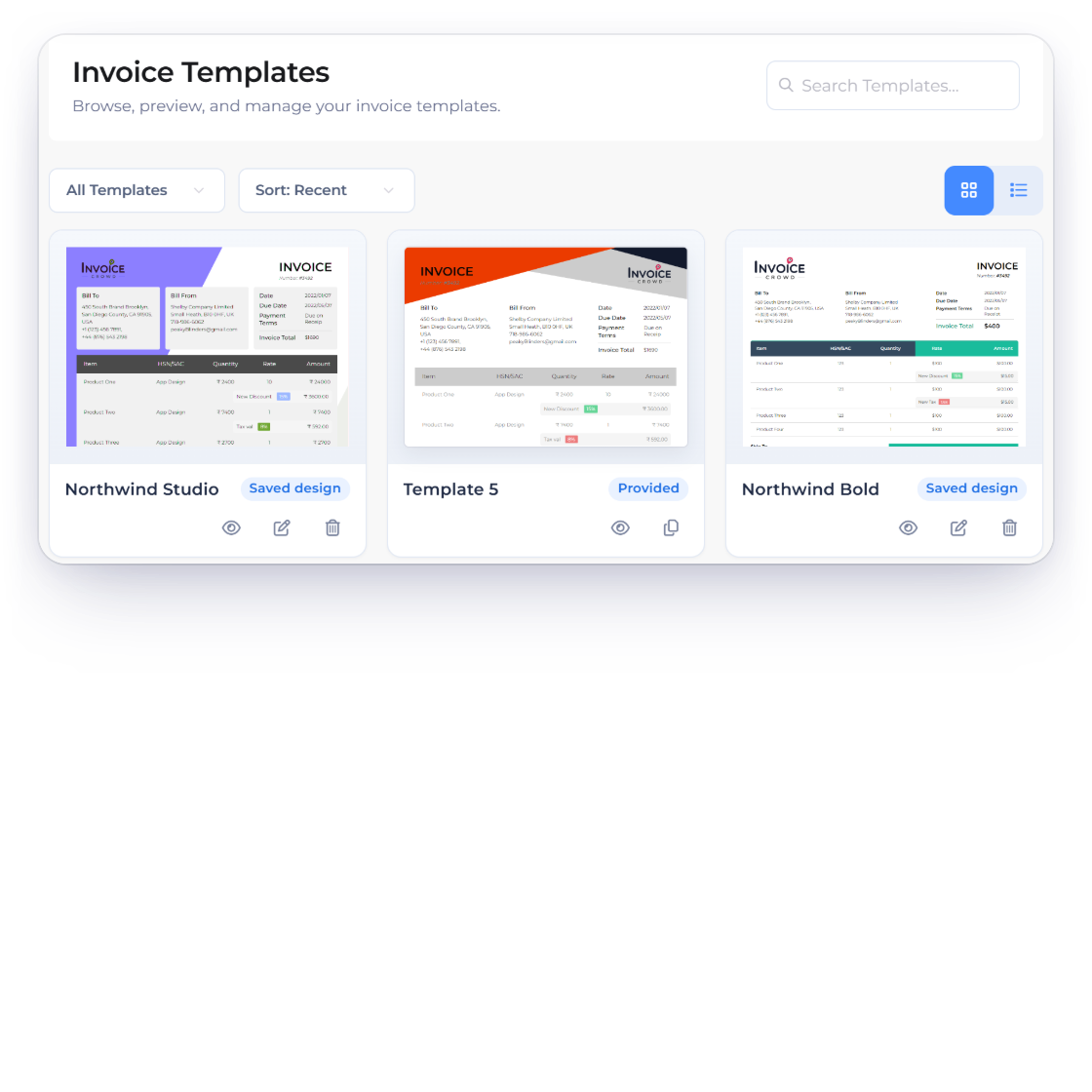
The Invoice Templates gallery in Invoice Crowd with saved designs marked Saved design and a provided design marked Provided, the All Templates filter and the Edit and Customize actions

Open a provided design or one you saved

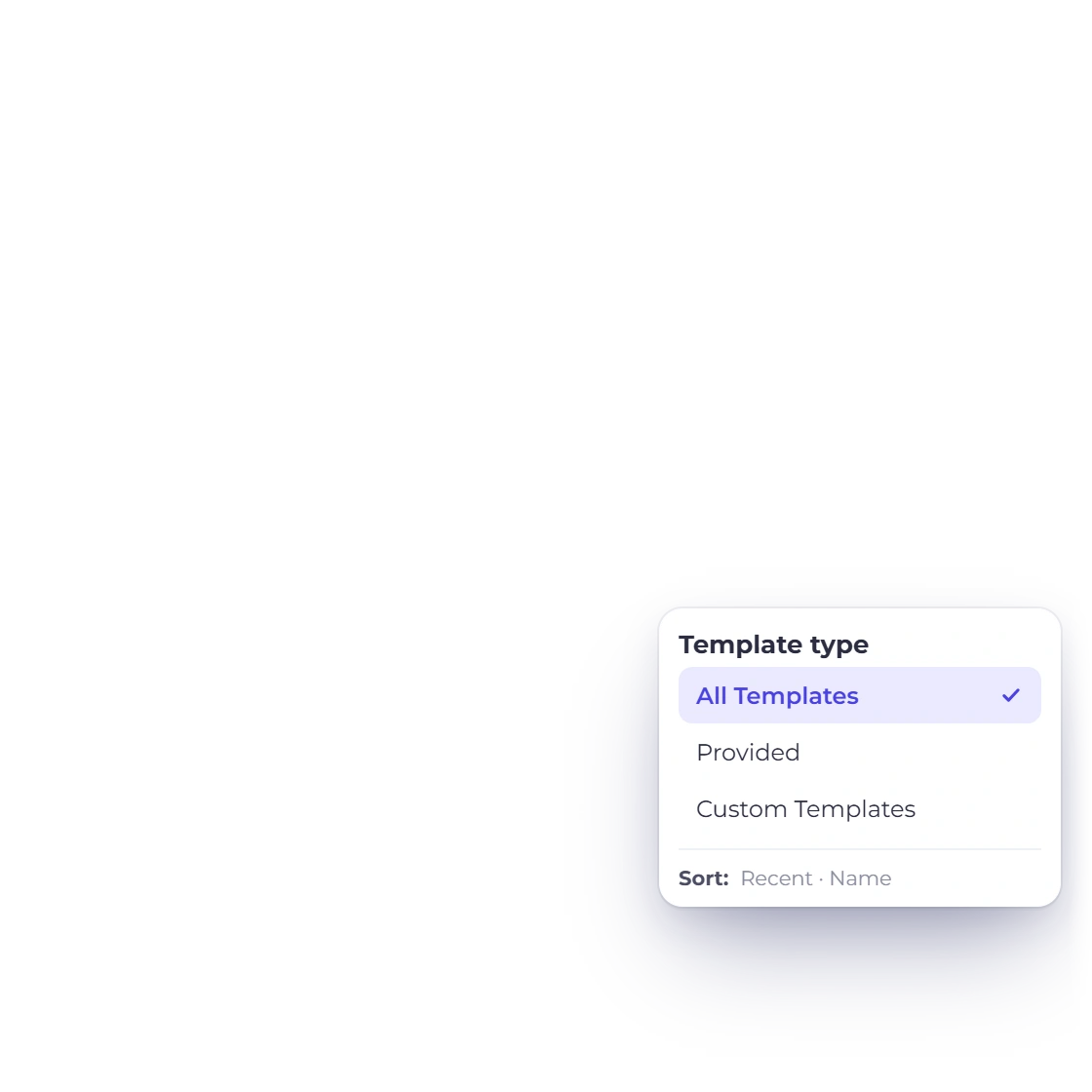
Invoice Templates in the main menu lists every design you can use. Provided designs carry a Provided badge and a Customize action; designs you have saved show Saved design and Edit. Search, filter by All Templates, Provided or Custom Templates, sort by recent or by name, and preview any design before you open it.

  • Grid or list view
  • Preview before you open it
  • Archive a design without touching old invoices
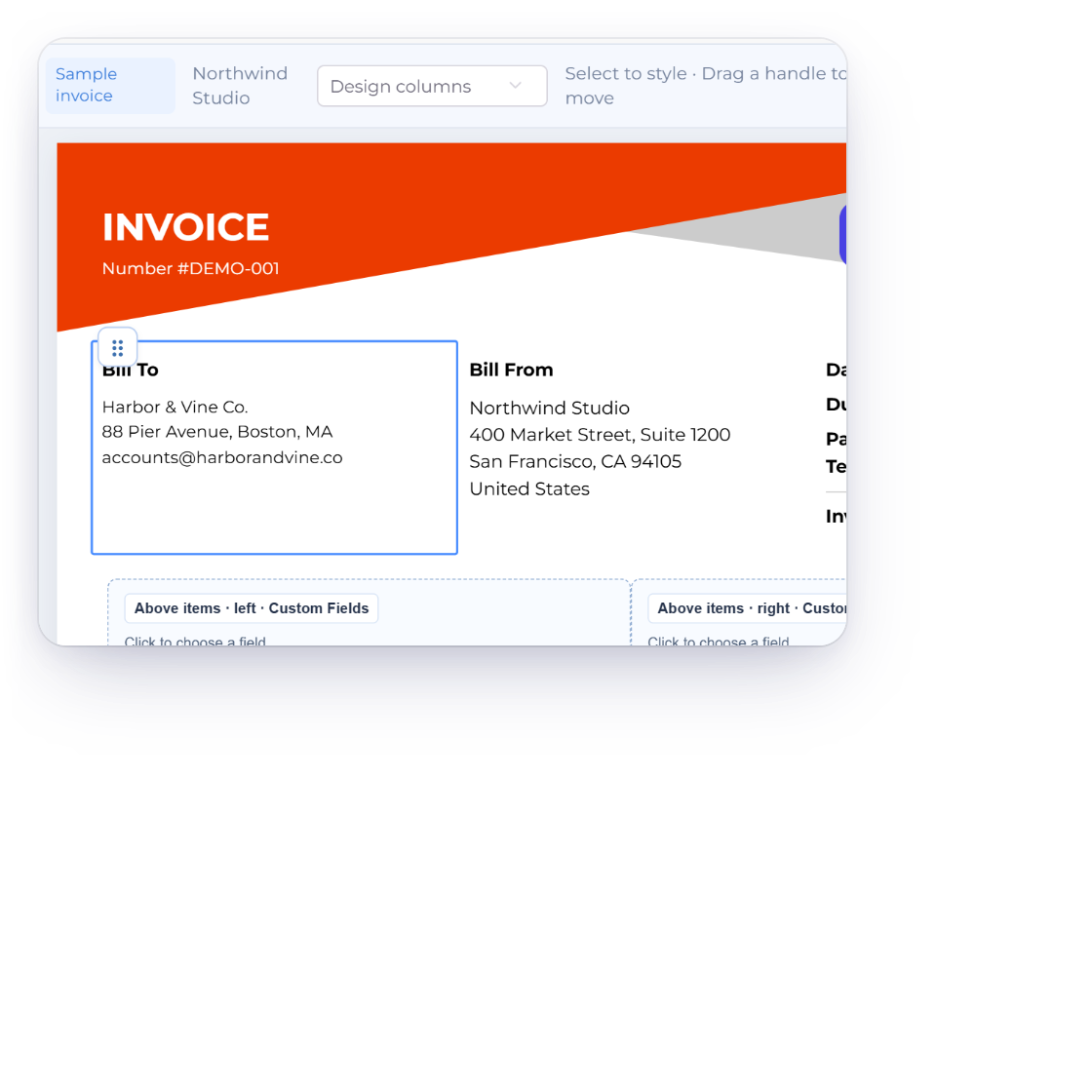
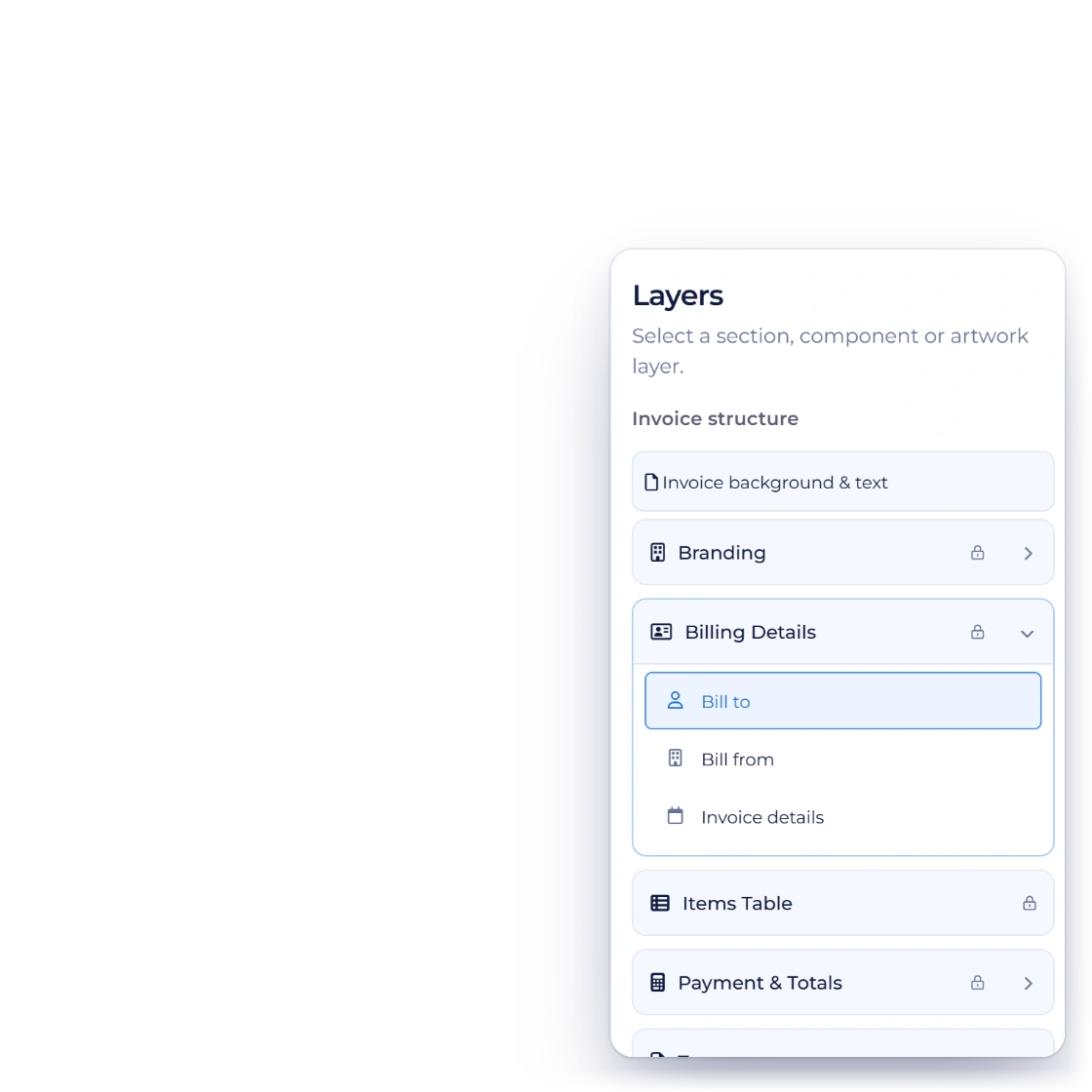
The Invoice Crowd template builder with the Bill To block selected on the canvas, the Layers panel listing the invoice structure with Bill to highlighted, and the Undo, Redo and Reset all changes buttons

Click anything on the page to edit it

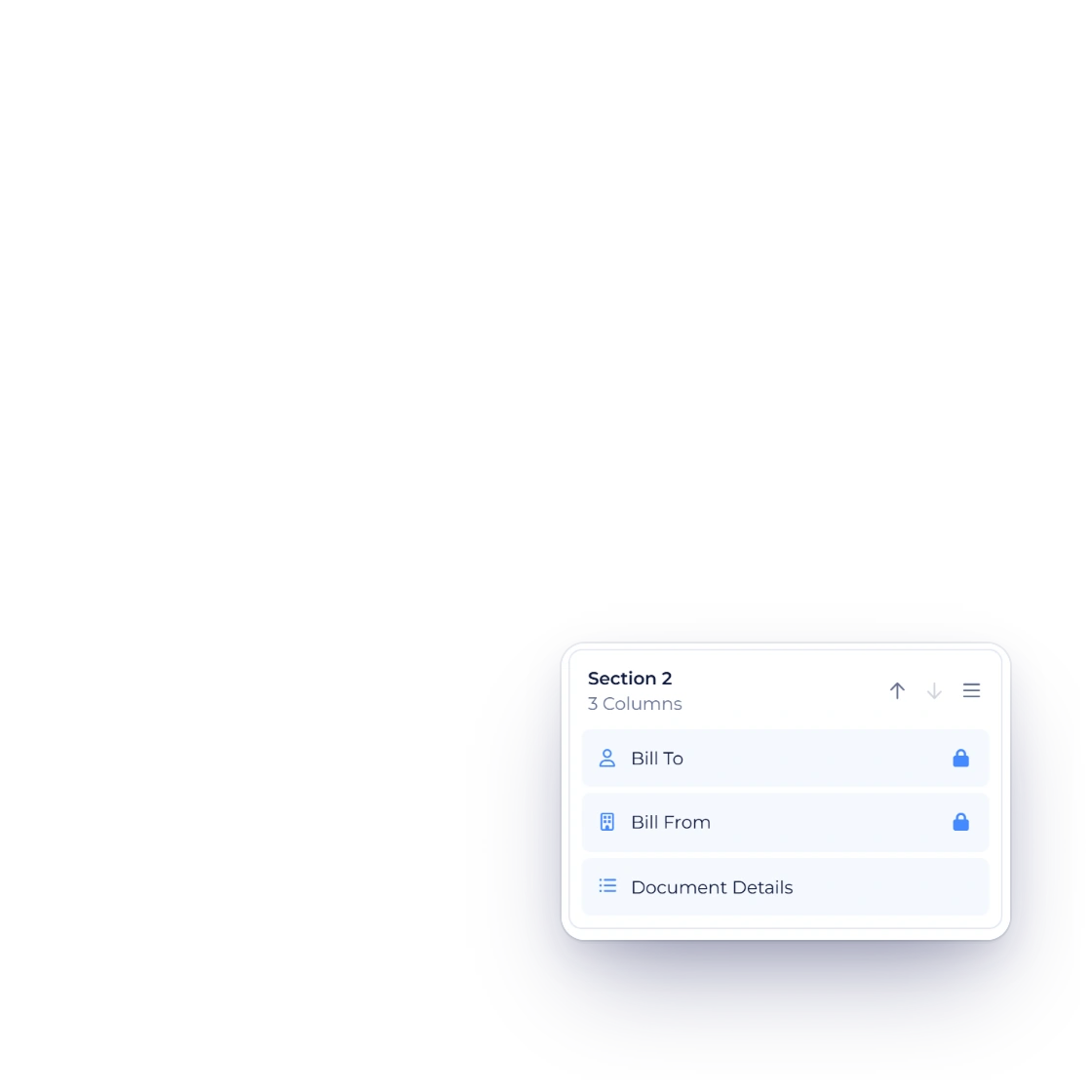
The builder shows the design filled with five sample lines, which are never saved as invoice data. Click text or a section to open its Design controls, or click the background artwork to select that shape. Layers lists the invoice structure and the artwork for anything that overlaps, and Undo, Redo and Reset all changes cover every edit.

  • Five sample lines to judge the layout
  • Layers for overlapping artwork
  • Undo, Redo and Reset all changes

Make it yours

Type, color, shape and logo

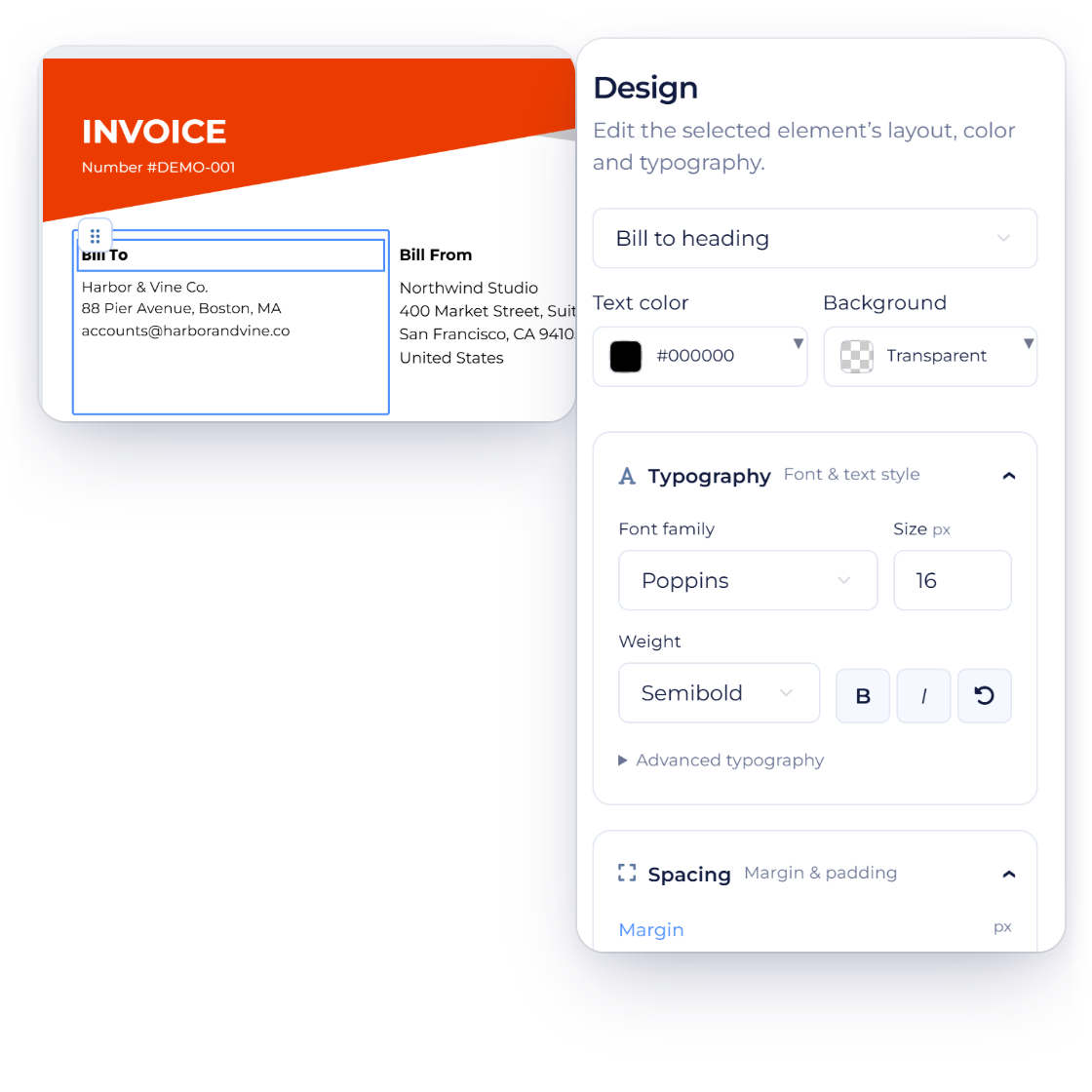
The Design tab of the Invoice Crowd template builder for the Bill To heading, with Text color, Background, Typography set to Poppins and the Spacing controls, beside the canvas

Fonts, colors and spacing

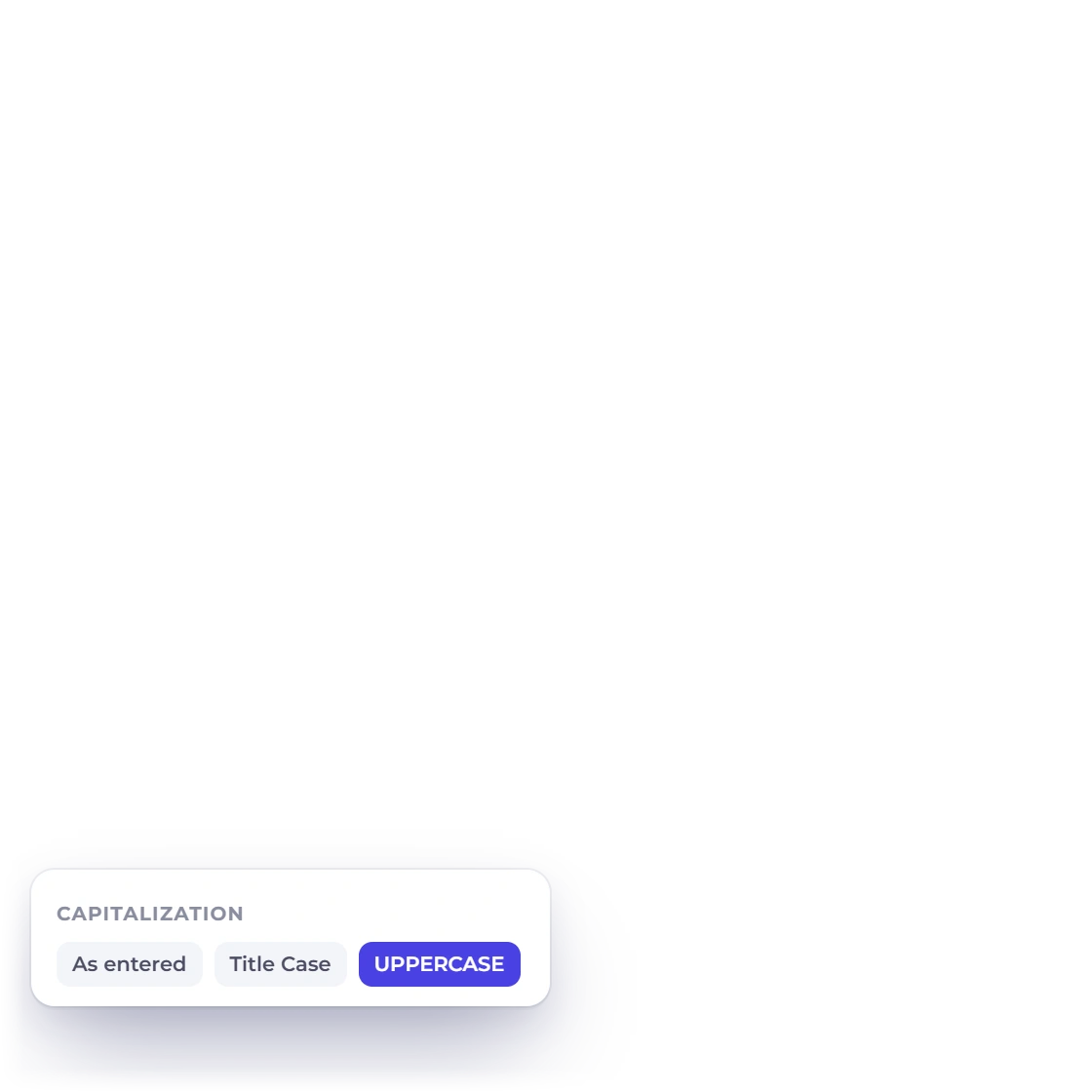
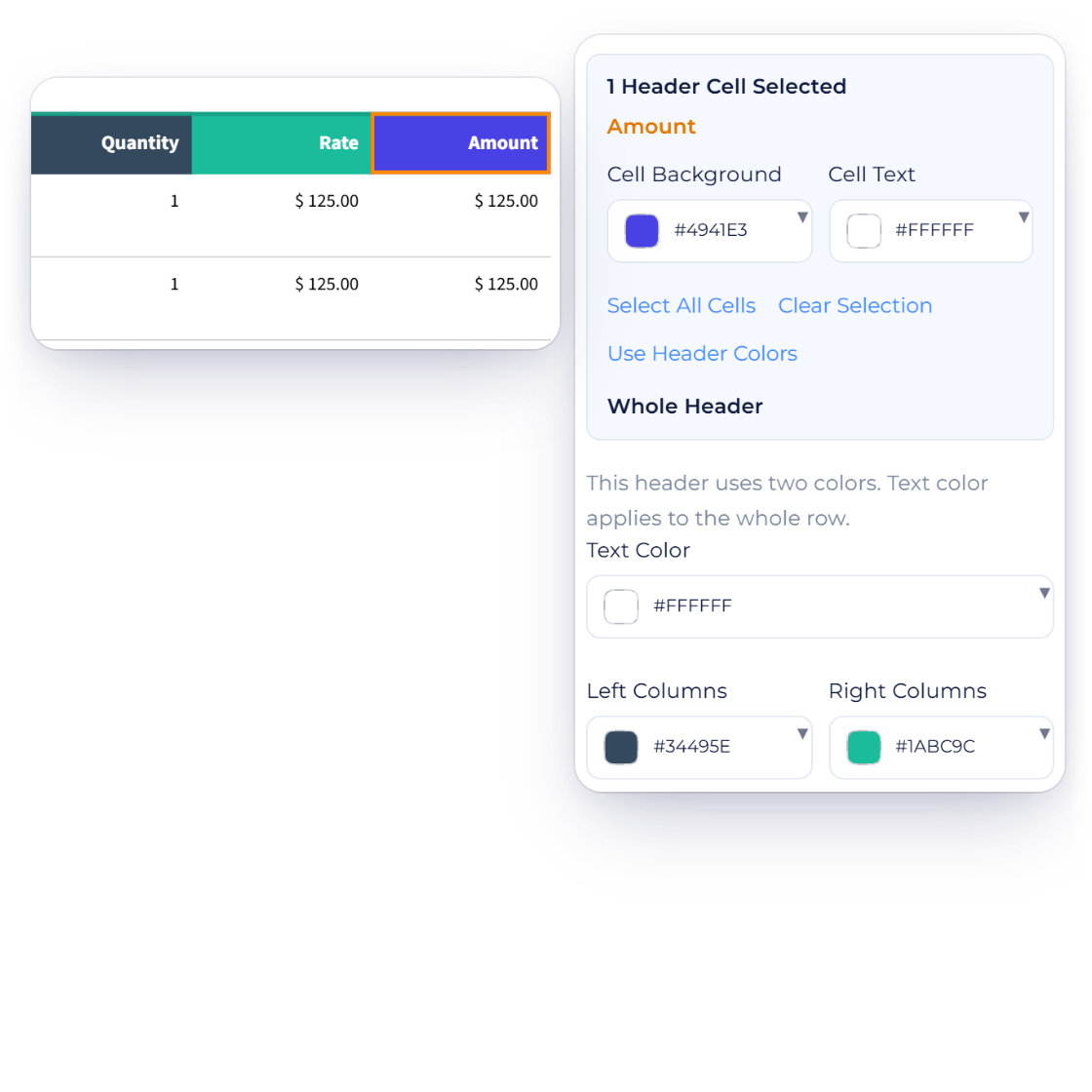
The Design tab styles the element you selected: Font family (the theme default or Lato, Montserrat, Nunito Sans, Open Sans, Oswald, Poppins, PT Sans, Raleway, Roboto or Source Sans 3), size, weight, line height, letter spacing and capitalization, plus text color, background, margin and padding, and borders. The table header has its own bottom margin for the gap above the first item.

  • Ten font families
  • Margin and padding per element
  • As entered, Title Case or UPPERCASE
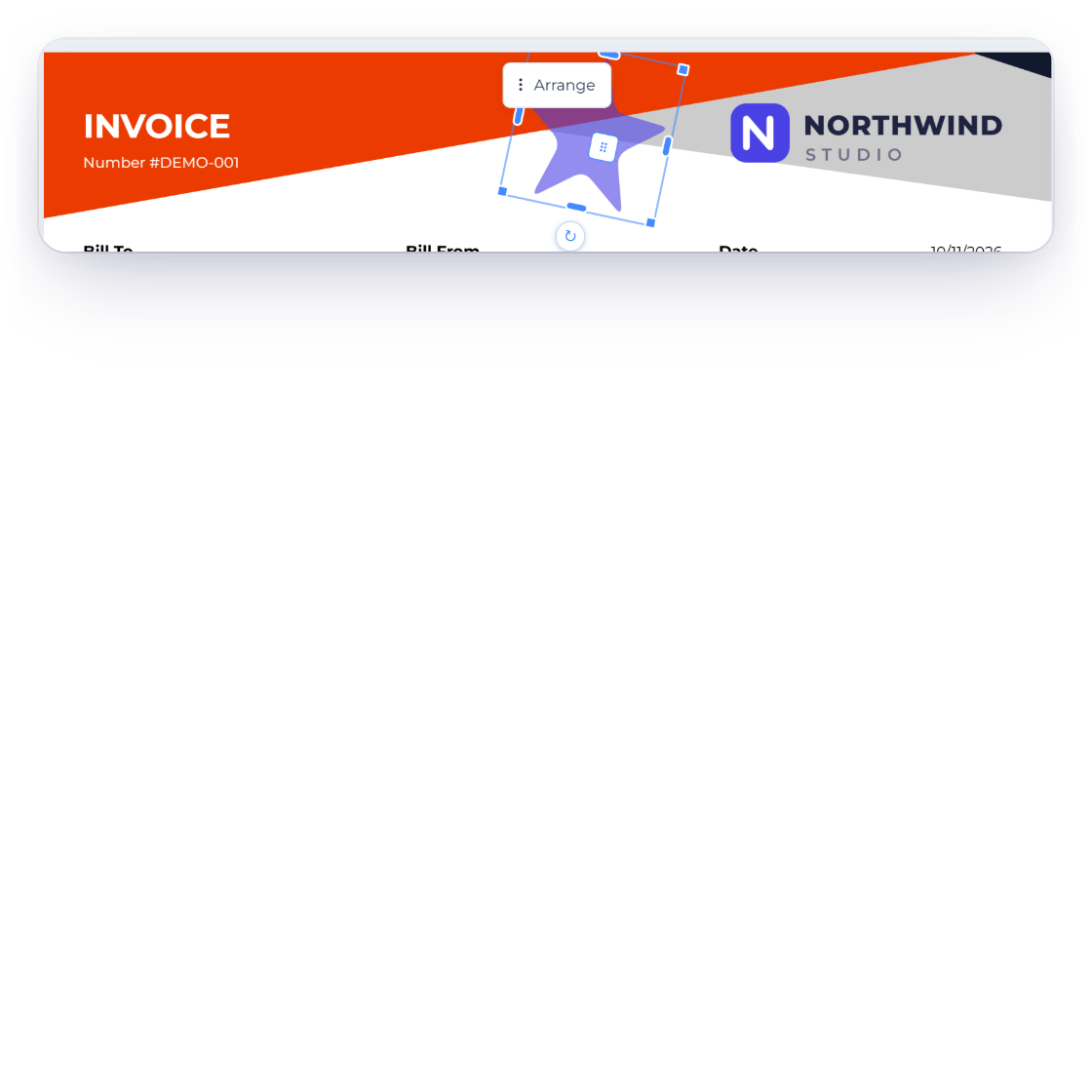
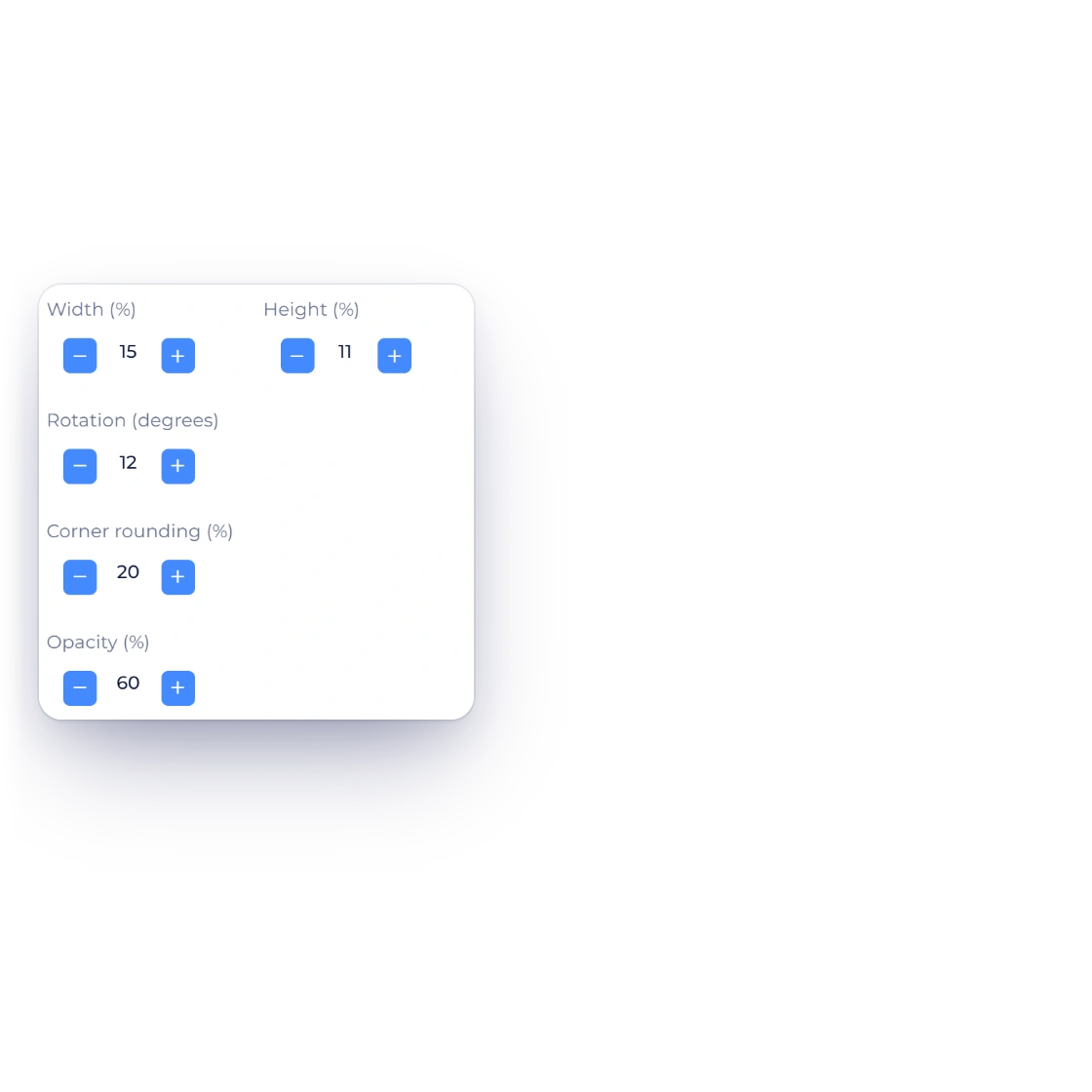
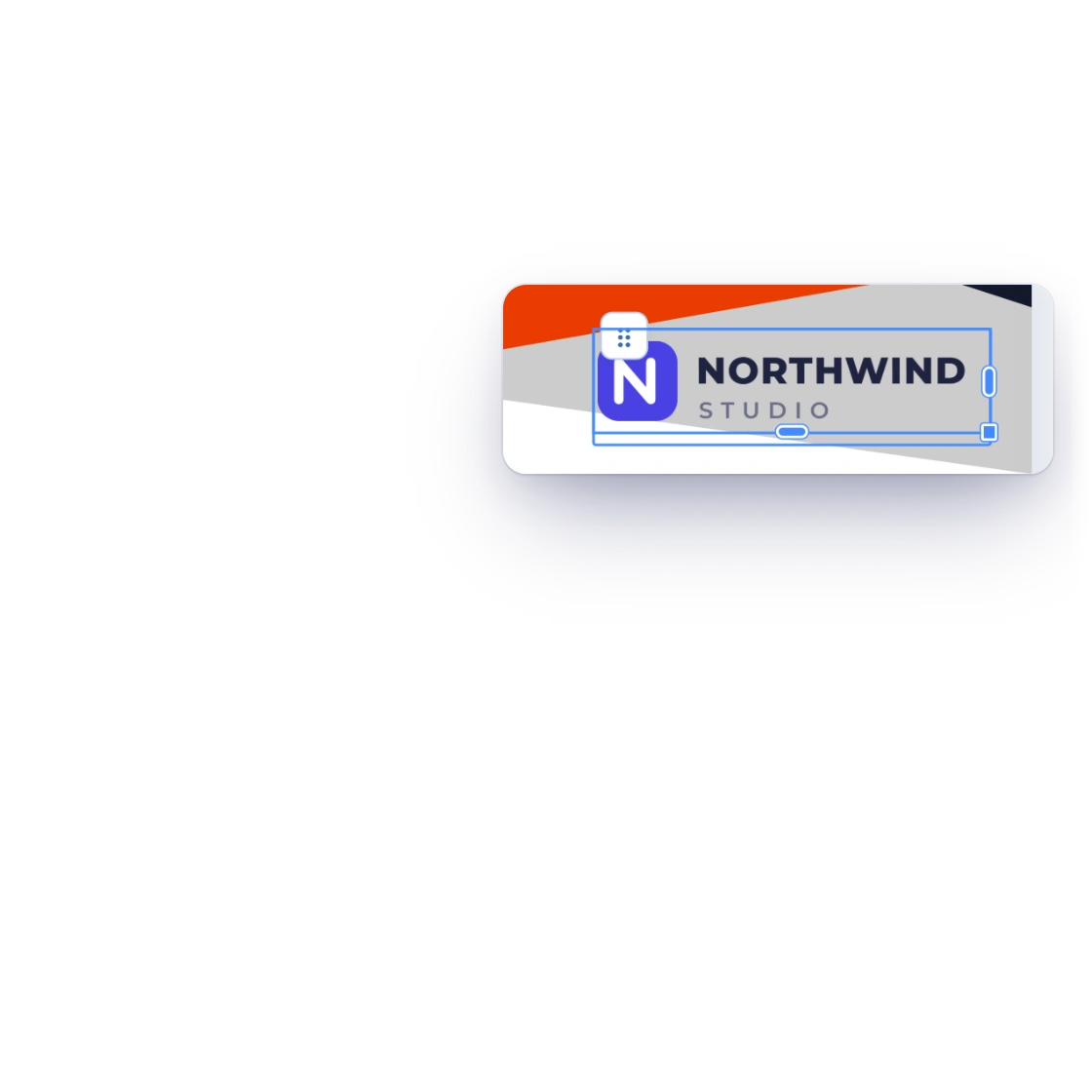
The Invoice Crowd template builder with a star shape added behind the invoice header and its Width, Height, Rotation, Corner rounding and Opacity controls, and the business logo selected with resize handles and Logo size

Shapes, images and your logo

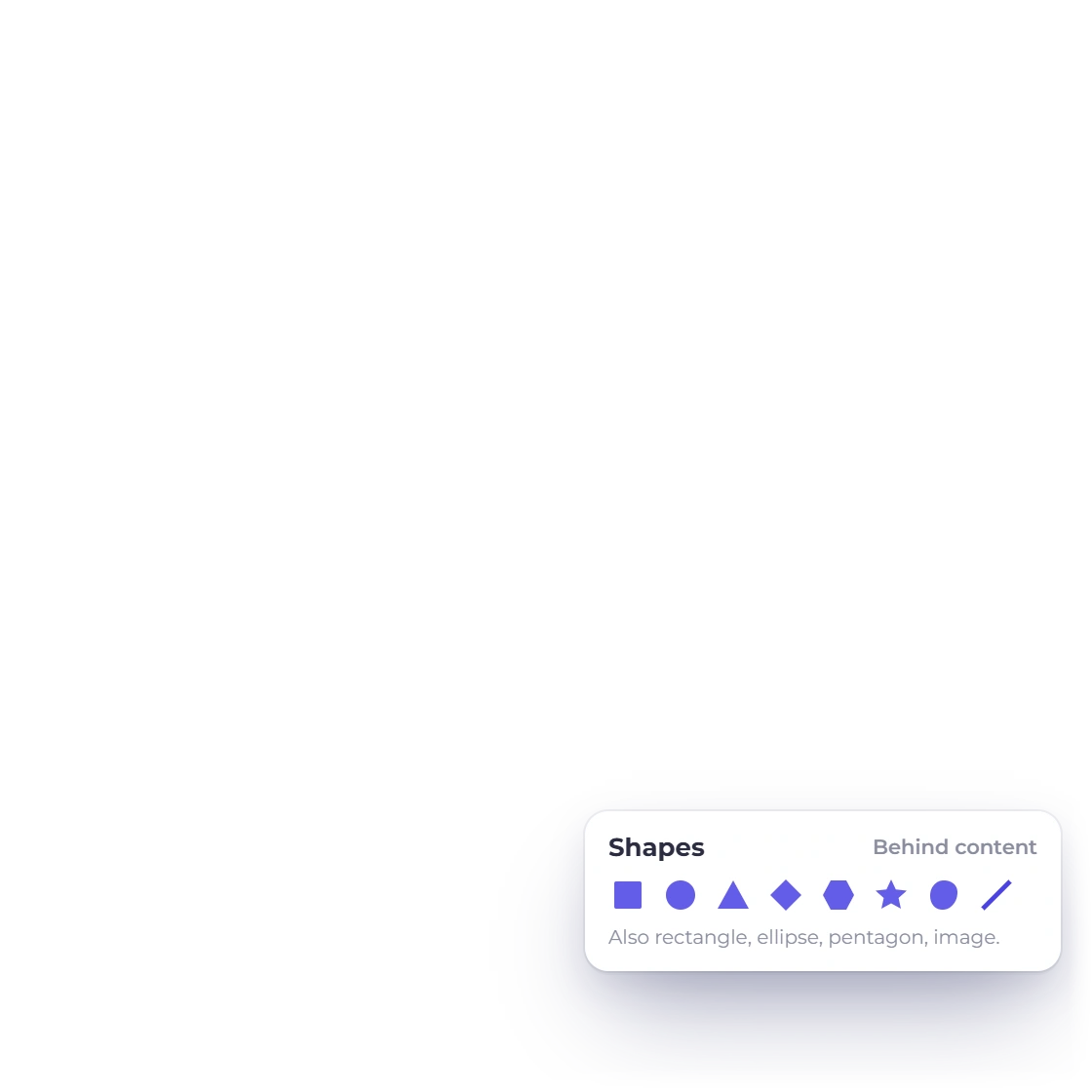
Decorate the page behind its content with a square, rectangle, circle, ellipse, triangle, diamond, pentagon, hexagon, star, line, blob or background image. Set each one's fill, opacity, rotation, size and position, send it to the front or back, round its corners, or edit the blob's points. Select your logo and drag a handle, or set Logo size, and its proportions stay unchanged.

  • Opacity carries into the PDF
  • Images from your media library
  • Logo uploaded once in Business Profile

Words, columns and language

Your content stays as you typed it

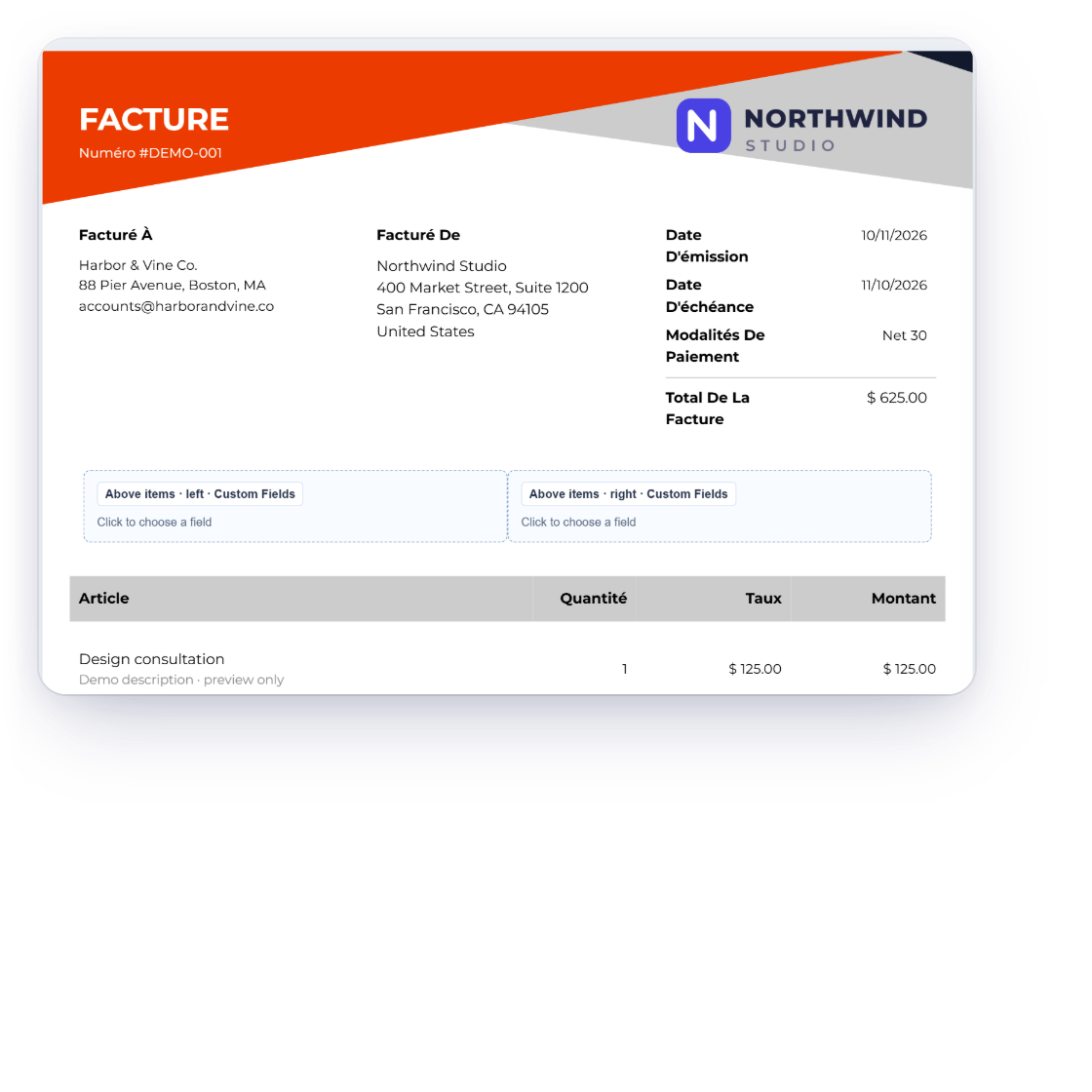
The Invoice Crowd template builder with Document language set to French and the labels applied, so the canvas reads Facture, Facturé à, Article, Quantité, Taux and Montant while the typed item names stay as entered

Labels, default text and eight languages

Labels & language lets you rename the standard captions, grouped as Document & billing, Totals & delivery, and Notes & signatures. Choose a Document language and Apply labels to print the headings and standard column names in English, French, German, Portuguese, Spanish, Japanese, Russian or Korean. Text you type and custom fields stay as entered, so save one design for each language you invoice in.

  • Eight document languages
  • Japanese and Korean print in the PDF
  • Notes and payment instructions from business defaults or fixed text
Localization
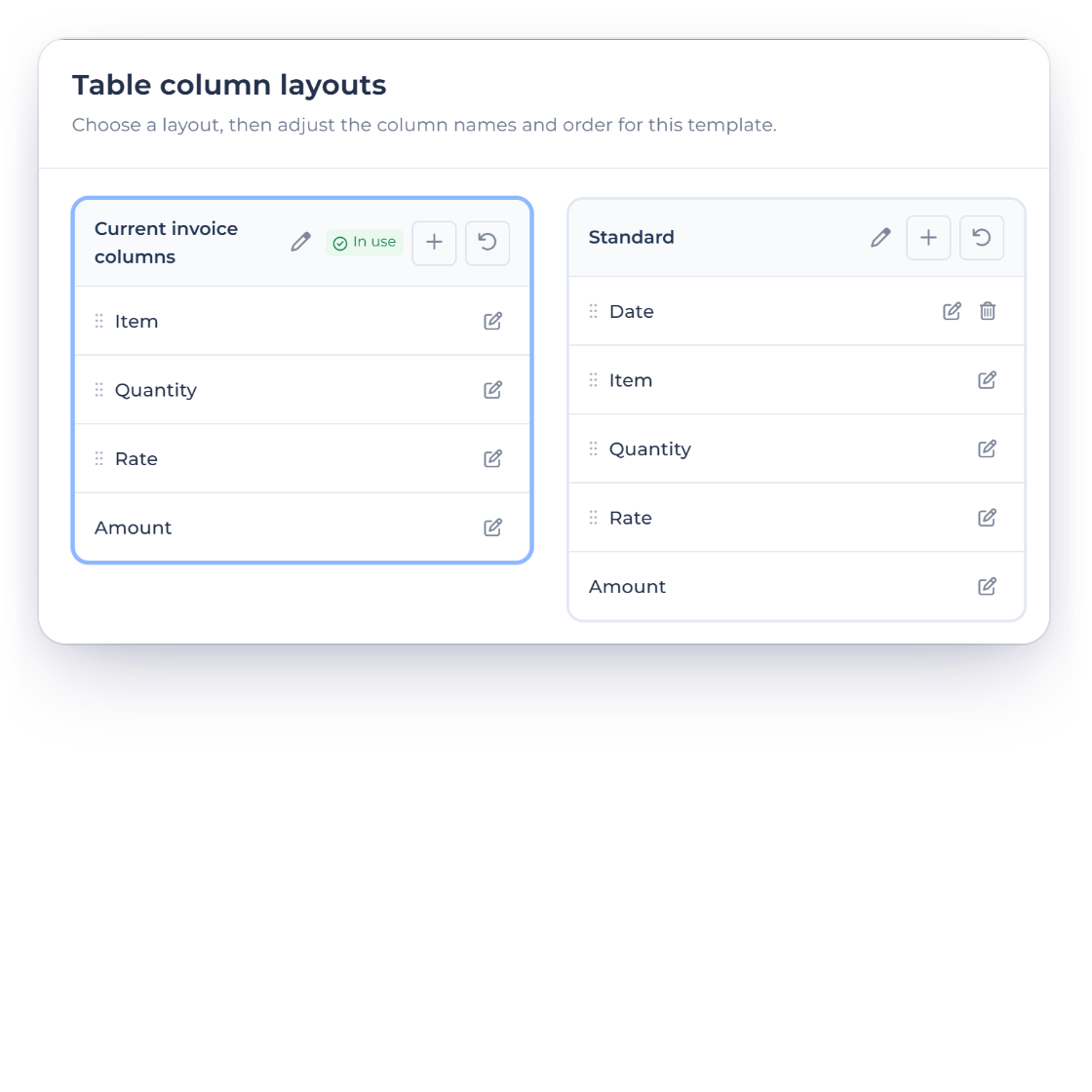
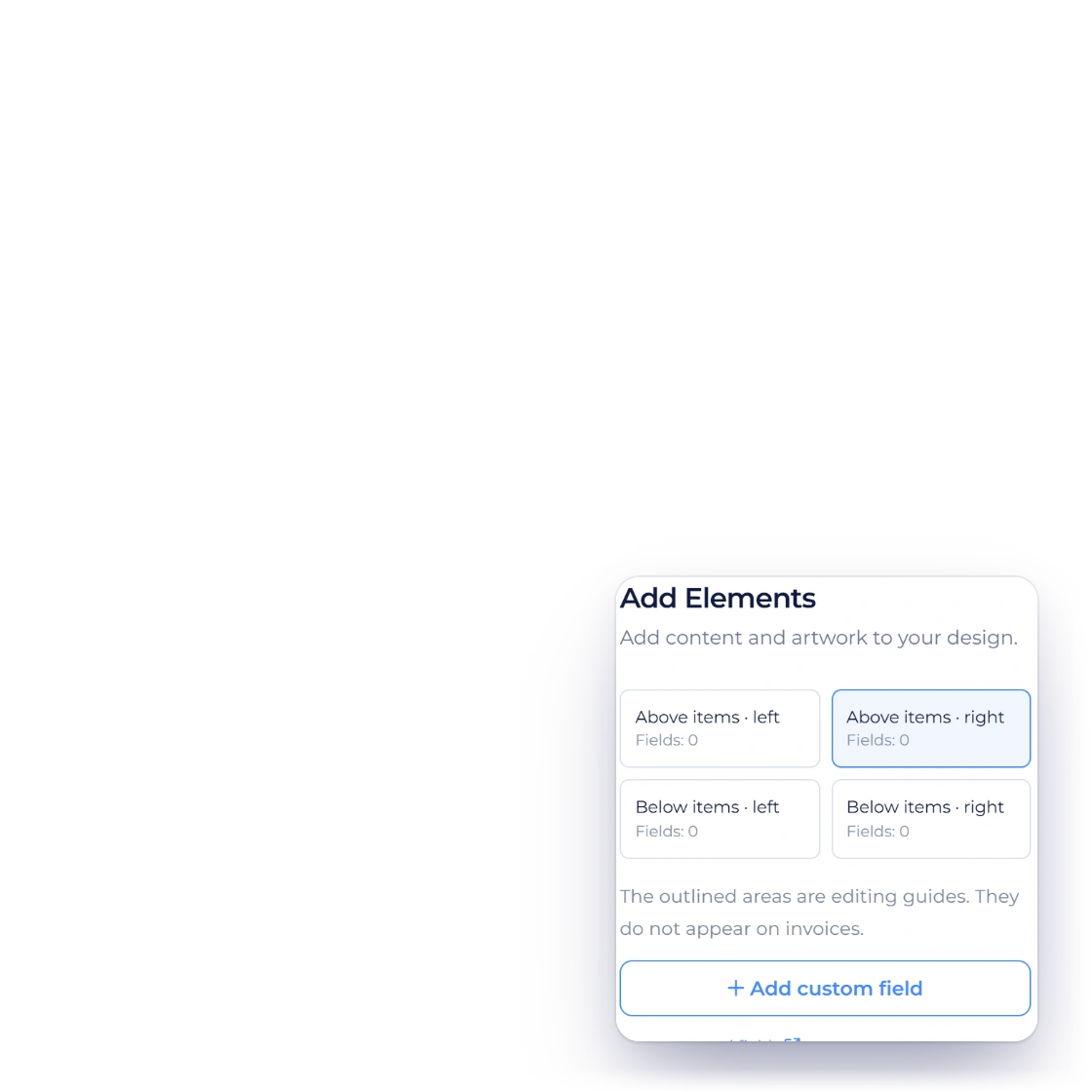
The Table column layouts chooser in the Invoice Crowd template builder with the current invoice columns and a Standard layout with a Date column, next to the Add Elements areas above and below the items and the Add custom field button

Table columns, custom fields and extra content

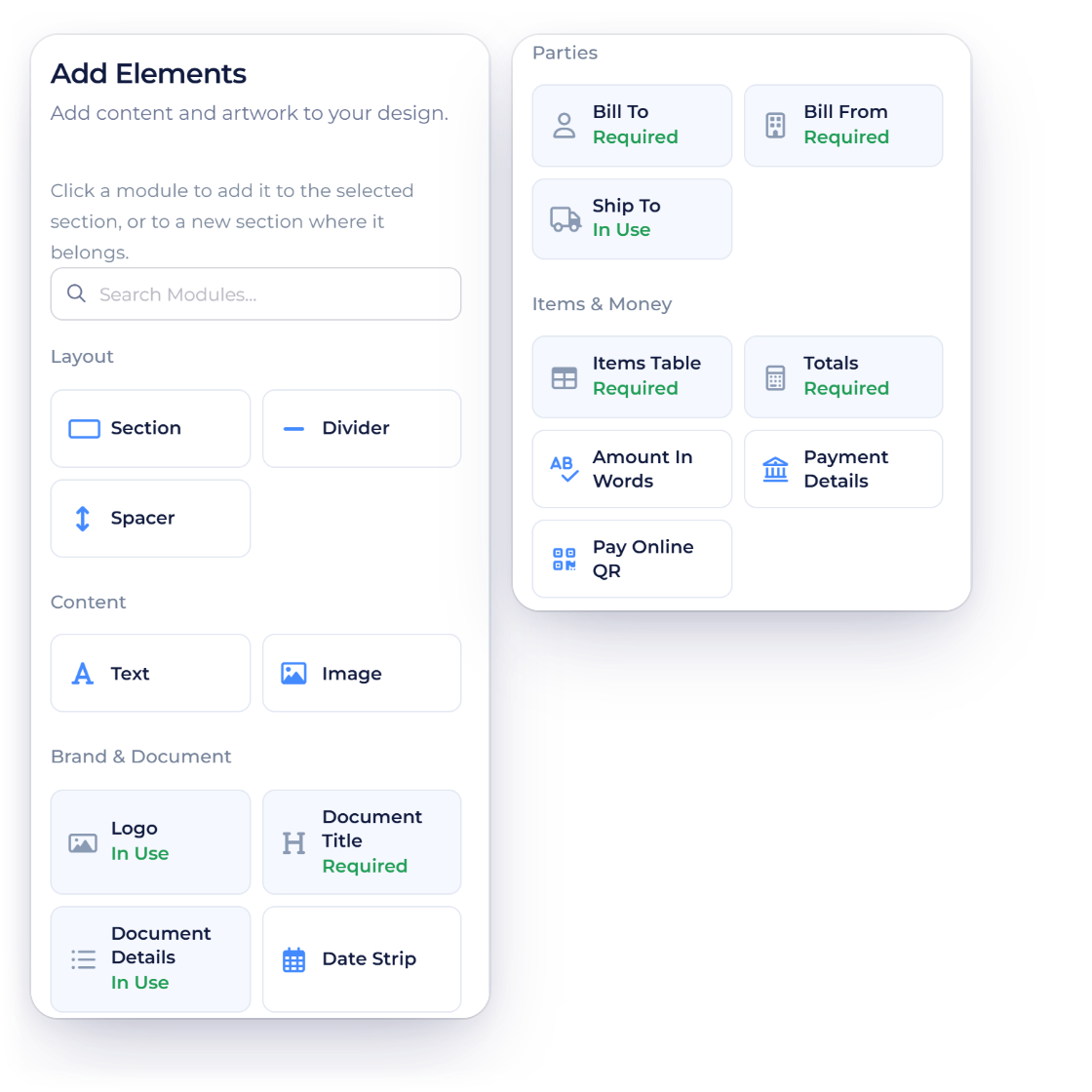
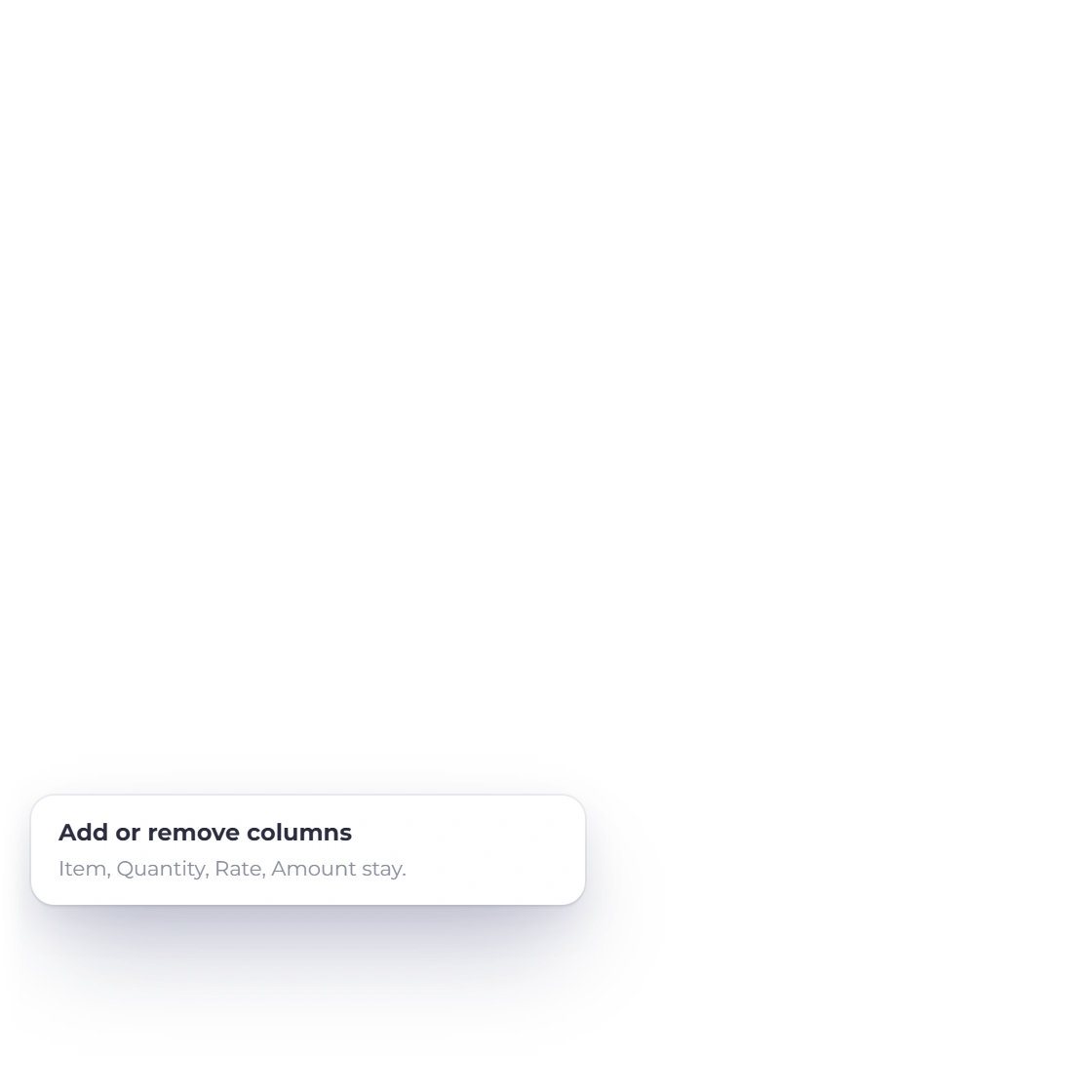
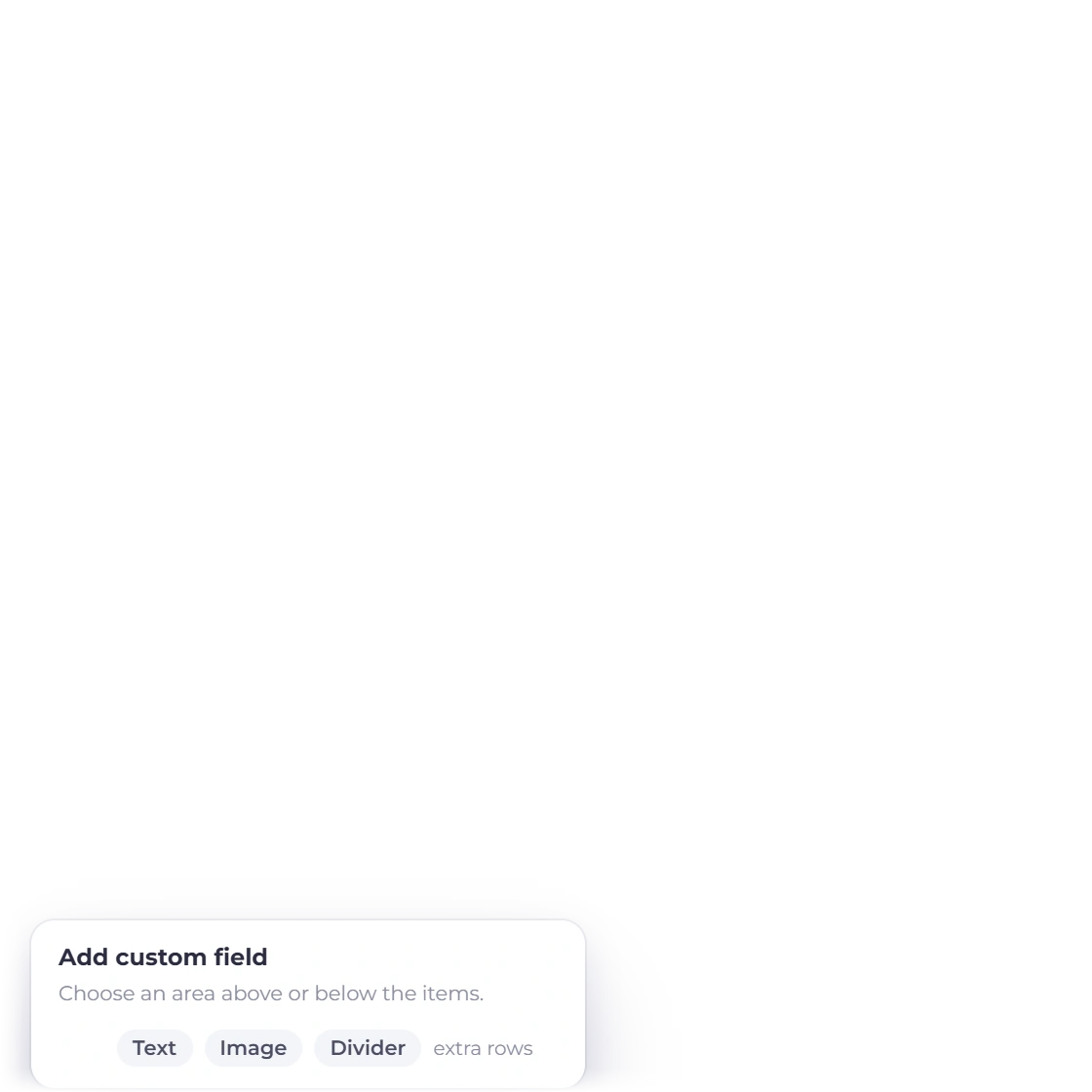
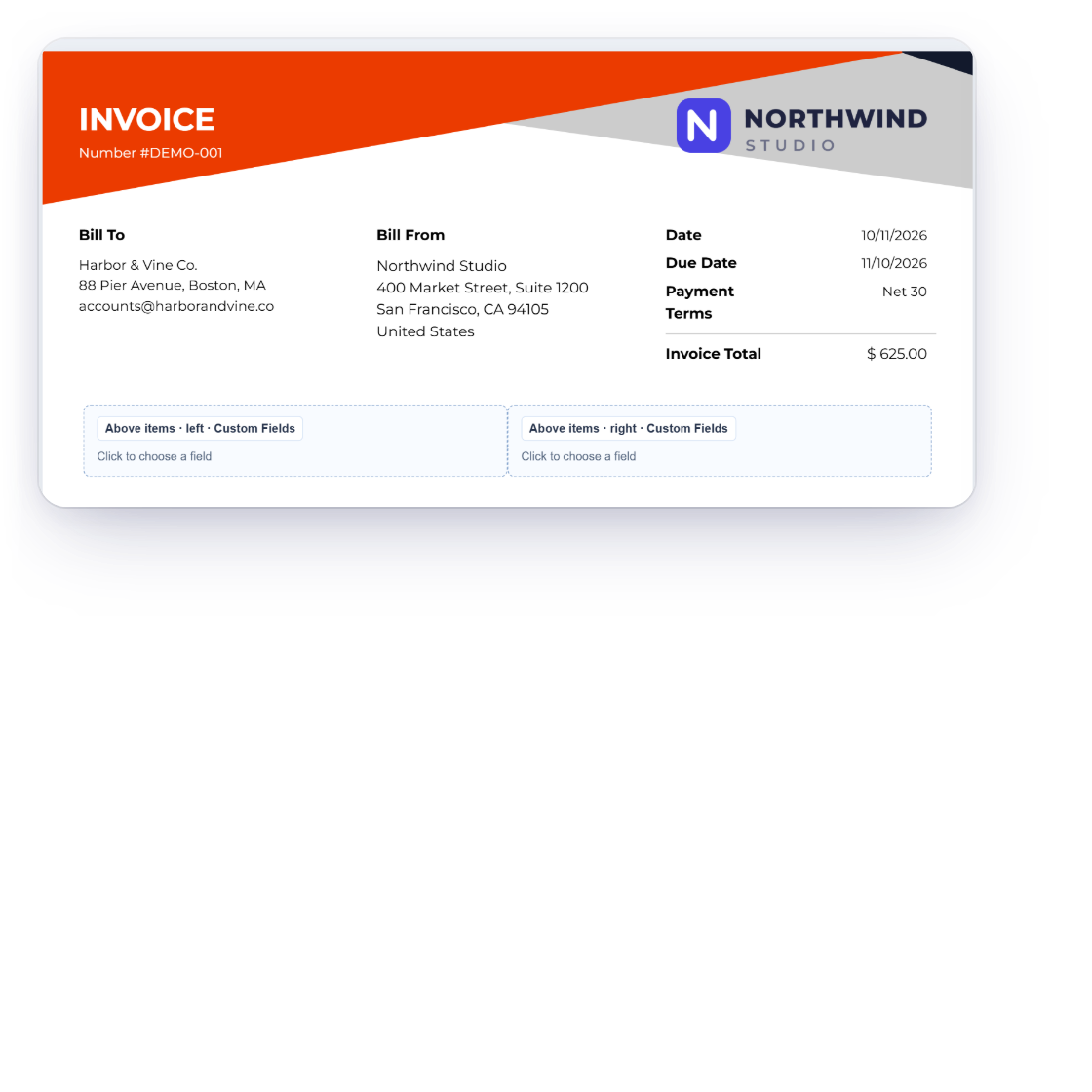
Table Columns renames and reorders the columns and adds or removes them; Amount stays last, and Item, Quantity, Rate and Amount stay on the table. In Add Elements, choose one of the four areas and Add custom field opens the same picker you use on an invoice. Text, Image and Divider rows add references, a stamp or a line, with their own width and position.

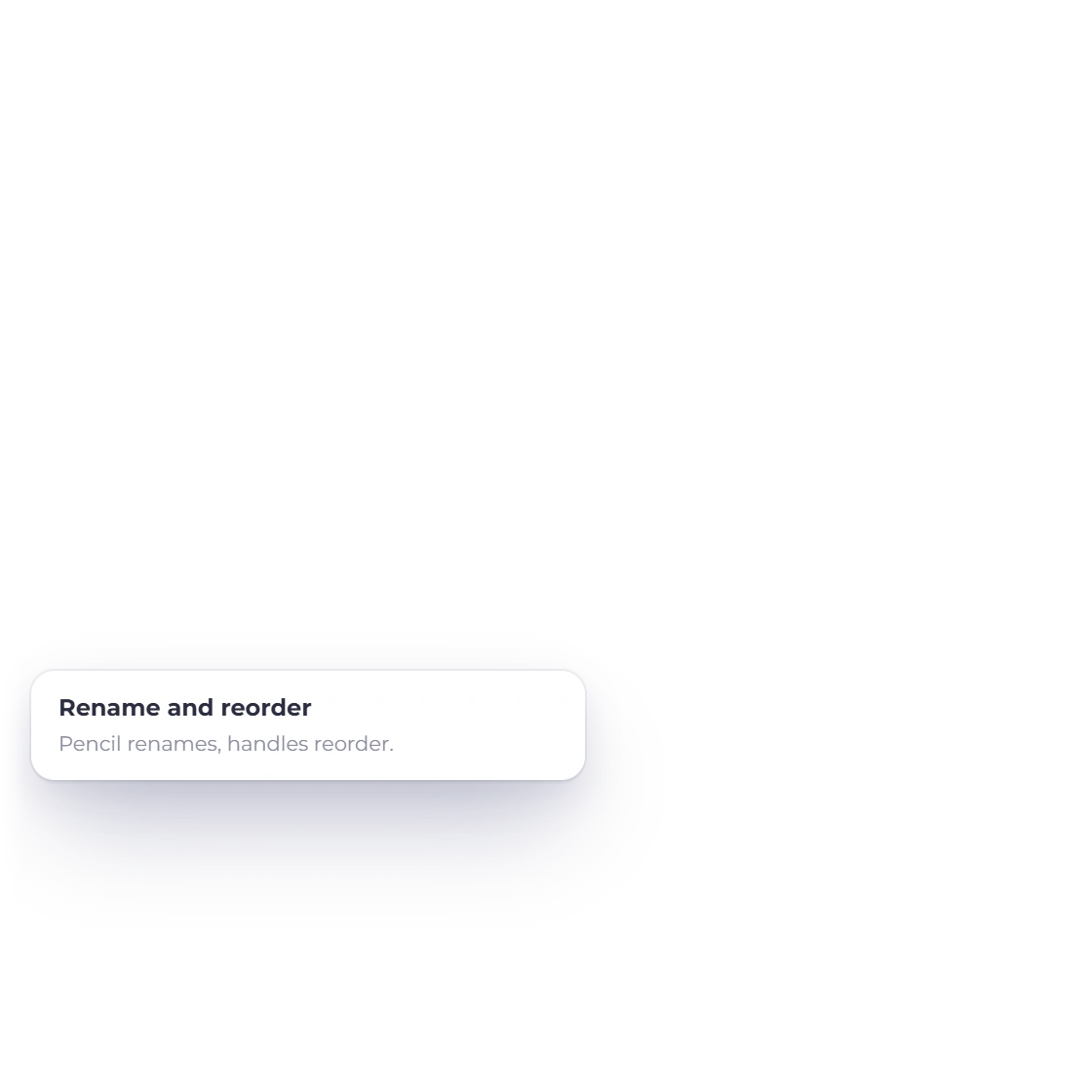
  • Columns renamed and reordered
  • Custom fields placed above or below the items
  • Text, Image and Divider rows
Custom fields

Put it to work

Defaults for every document

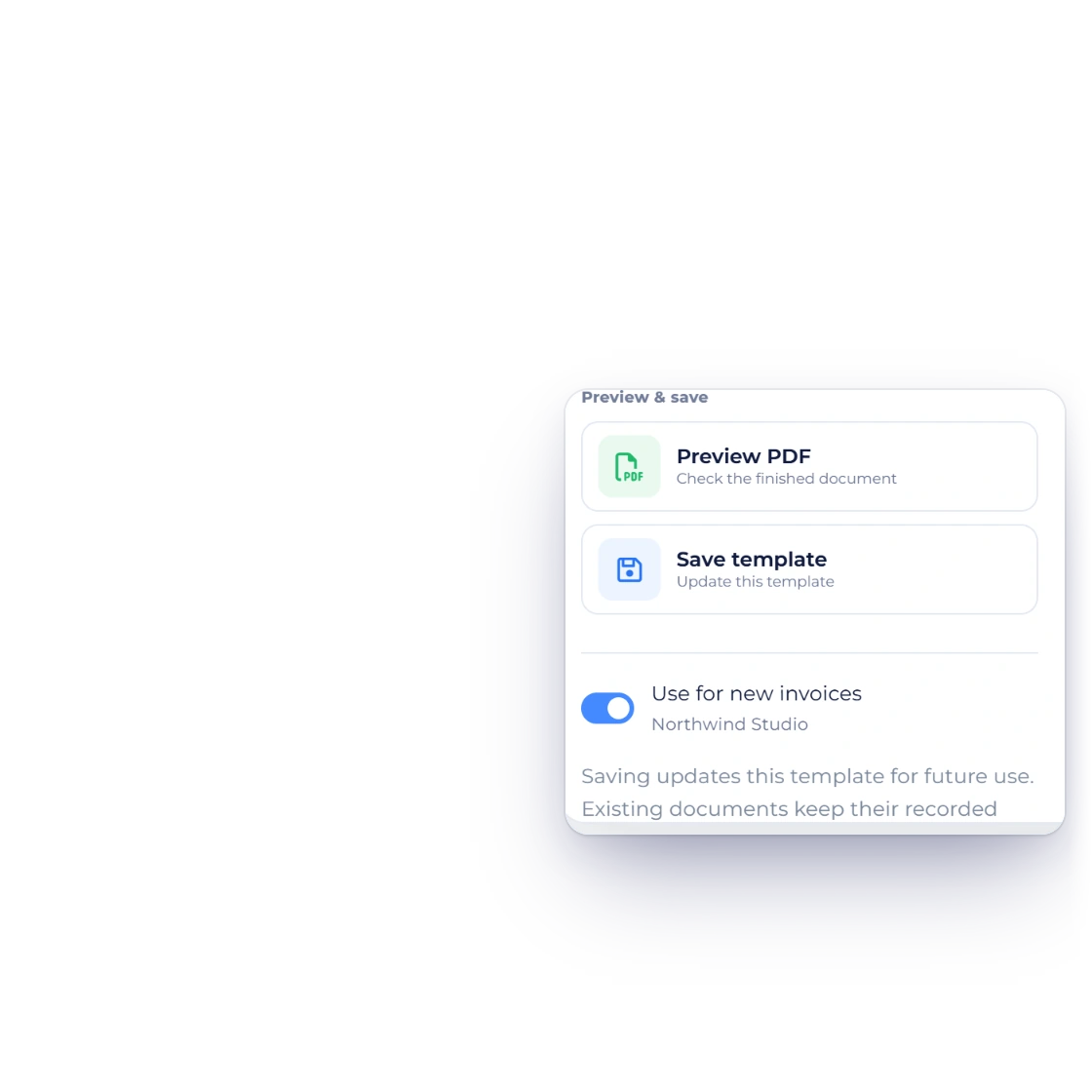
The Actions panel of the Invoice Crowd template builder with Preview PDF, Save template and the Use for new invoices switch turned on for Northwind Studio, beside the Template 5 design

Preview the PDF, then save

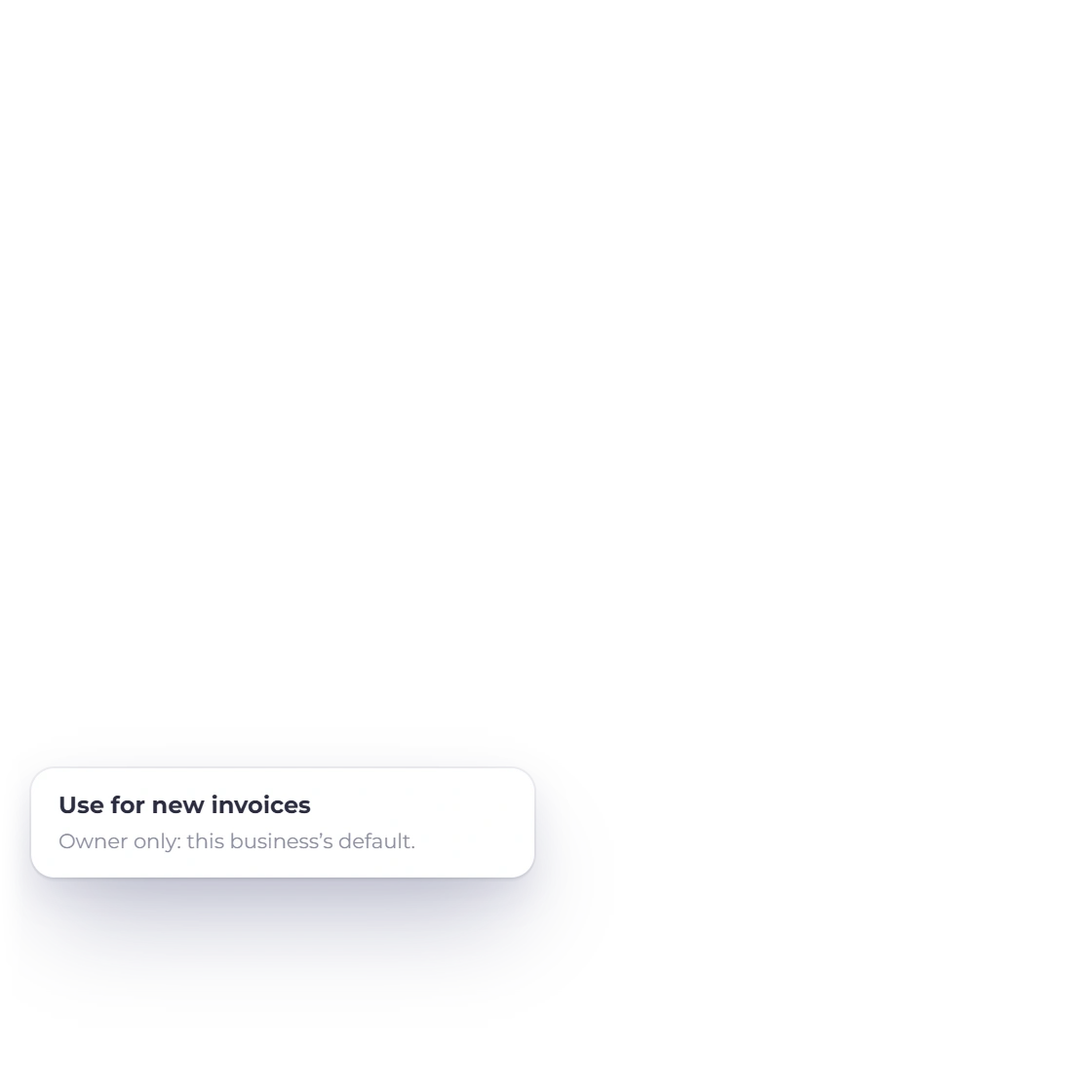
Preview PDF downloads the design exactly as it will print. Saving stores a new version of the design, and every invoice already created keeps the design it was made with. The account owner can switch on Use for new invoices to make the saved design the default for the current business.

  • Preview PDF before saving
  • Old invoices never restyled

  • One switch for the invoice default
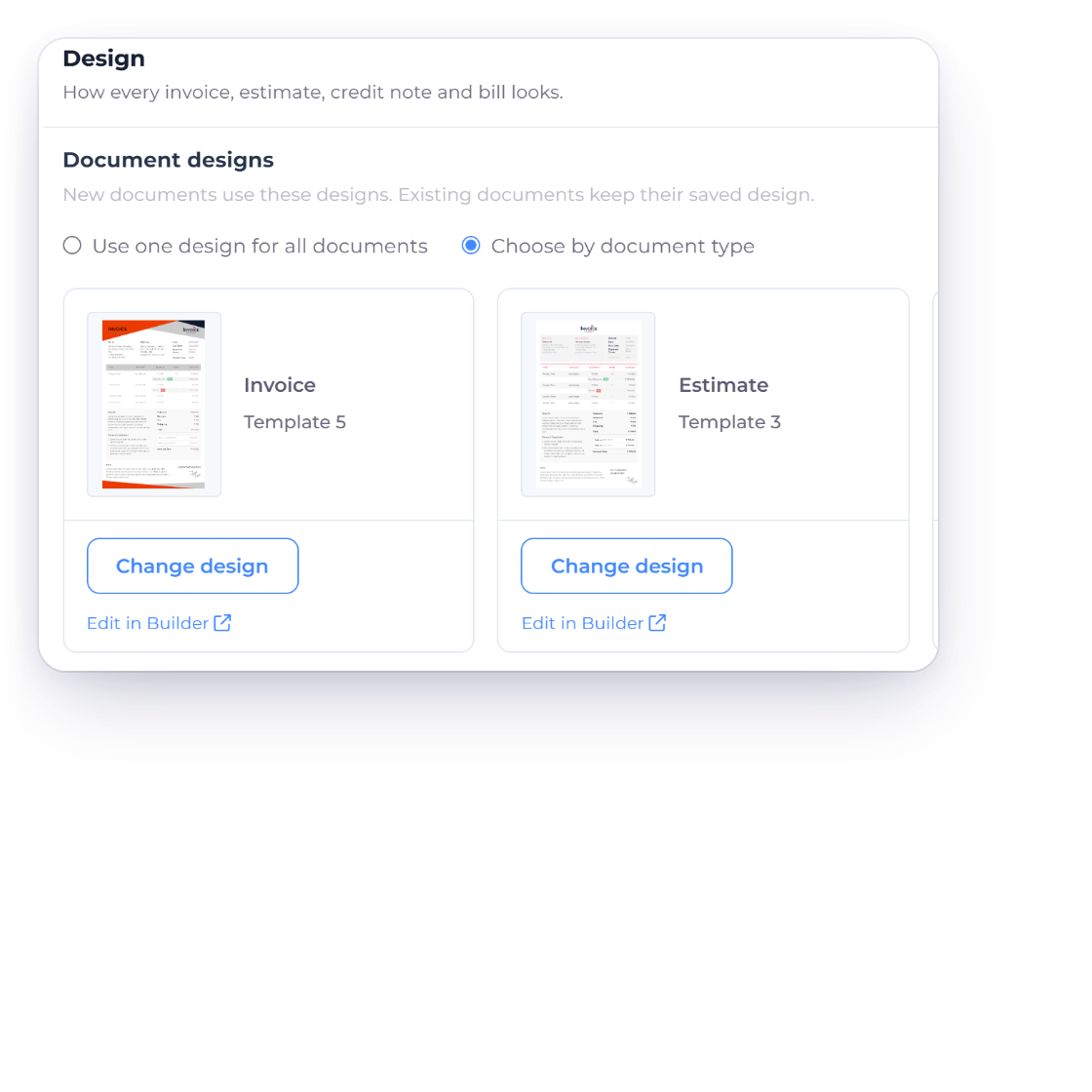
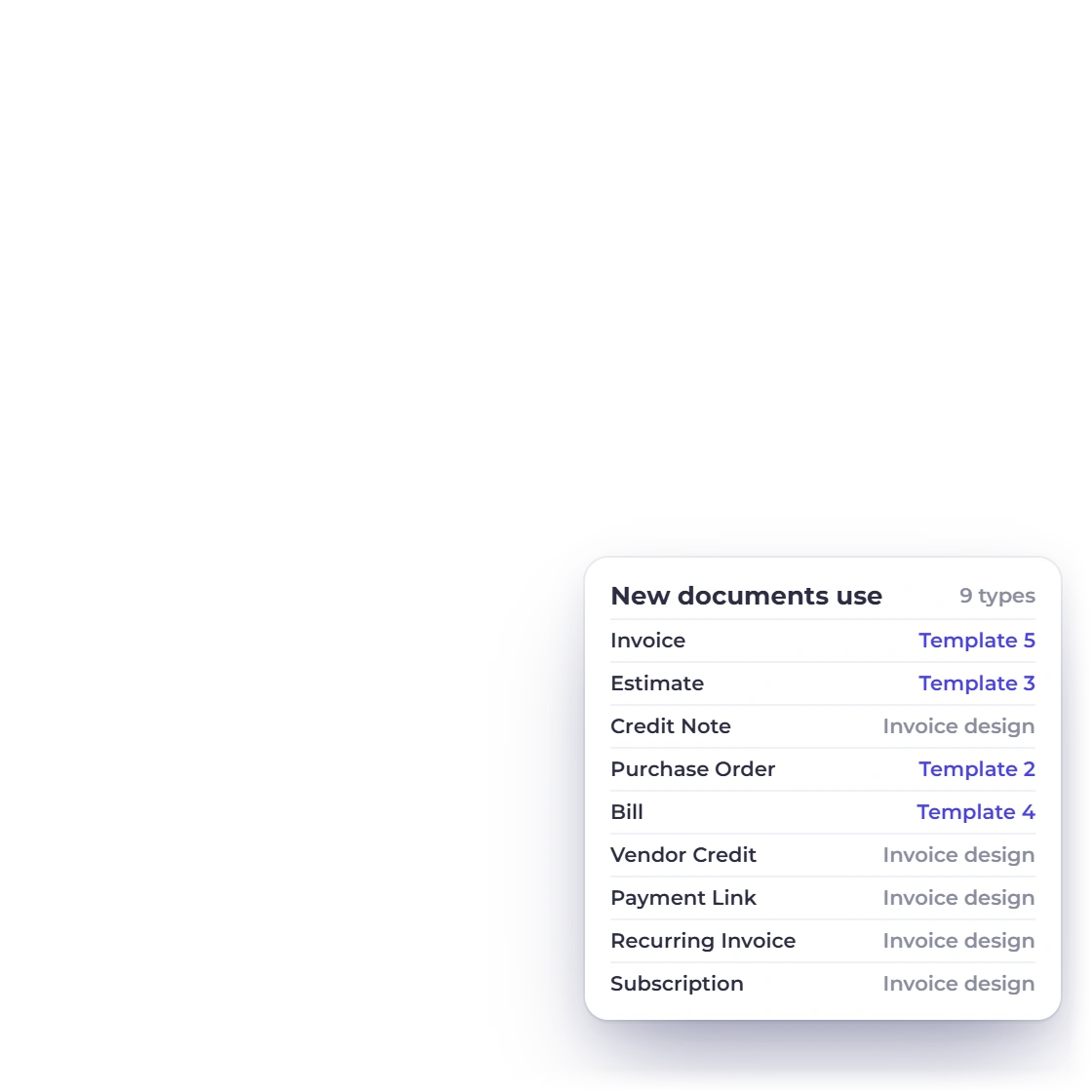
Business Settings Design in Invoice Crowd set to Choose by document type, with Template 5 for invoices and Template 3 for estimates, Change design and Edit in Builder, and the nine document types with the design each one uses

A default for each document type

Business Settings → Design sets the designs new documents use: Use one design for all documents, or Choose by document type for invoices, estimates, credit notes, purchase orders, bills, vendor credits, payment links, recurring invoices and subscriptions. Each business profile keeps its own choices, and delivery notes use their invoice's design.

  • Nine document types
  • Set per business profile
  • Edit in Builder from the same screen
Multiple businesses

Built in

The details of the template builder

What you can change, what stays protected, and who can save it.

  • Eight provided designs

    Template 1 to Template 8, each with its own colors, fonts and background artwork, and every part of it editable.

  • Saving needs a paid plan

    The Free plan includes two invoice templates. Saving a customized design needs a paid plan, and the 30-day free trial counts as paid.

  • Old invoices stay as they are

    Saving a new version or archiving a design never changes an invoice that was already created with it.

  • Every document type

    Designs work for invoices, estimates, credit notes, purchase orders, bills, vendor credits, payment links and recurring invoices.

  • Same look in the PDF

    The preview, the thumbnail and the PDF come from one design, including shape opacity and background color.

  • Japanese and Korean PDFs

    Documents in Japanese or Korean print with a font that carries their characters, so no glyph goes missing.

  • Table header spacing

    Set the gap between the column header and the first item. On longer invoices the column labels repeat on every page.
  • Totals stay connected

    Sections move by their handles within the document flow. Items and totals appear exactly once and stay linked to the invoice.

  • Change design on a document

    Select Template → Change design restyles an invoice and keeps its entered values, removed fields, columns and financial settings.

  • Team permissions

    The Templates permission decides who can edit, create and archive designs. Only the account owner can set Use for new invoices.

  • The page around the invoice

    The builder links to Customer Page settings for the background customers see around your document.

  • Branding off on paid plans

    On a monthly or yearly paid plan, Hide Invoice Crowd branding removes our branding from your customer document pages.

Questions

The invoice template builder, answered

Can I design my own invoice template in Invoice Crowd?

Yes. Open Invoice Templates, choose a provided design and select Customize, or open one of your saved designs with Edit. The builder lets you change fonts, colors, spacing and borders, add shapes and images, resize your logo, rename and reorder the table columns, and rename the standard labels. Preview the PDF, then save the design for new invoices.

Is the template builder included in the Free plan?

The Free plan includes two invoice templates, and you can open and preview a design in the builder. Saving a customized design needs a paid plan. The 30-day free trial counts as a paid plan, so you can design and save templates while you try Invoice Crowd.

Will editing a template change invoices I already sent?
No. Saving stores a new version of the design, and every invoice keeps the design it was created with. Archiving a design asks you to choose replacements for any defaults that use it, and existing documents stay unchanged.

Can estimates and credit notes use a different design from invoices?

Yes. In Business Settings → Design, choose Choose by document type and pick a design for each of invoices, estimates, credit notes, purchase orders, bills, vendor credits, payment links, recurring invoices and subscriptions. Any type without its own choice can use the invoice design. Each business profile keeps its own settings.
Can I send invoices in another language?
Yes. In Labels & language, set the Document language and select Apply labels. The headings, standard captions and column names then print in English, French, German, Portuguese, Spanish, Japanese, Russian or Korean, in the app and in the PDF. Item descriptions, notes and custom fields stay as you typed them, so save a separate design for each language.

How do I change the size of my logo on the invoice?

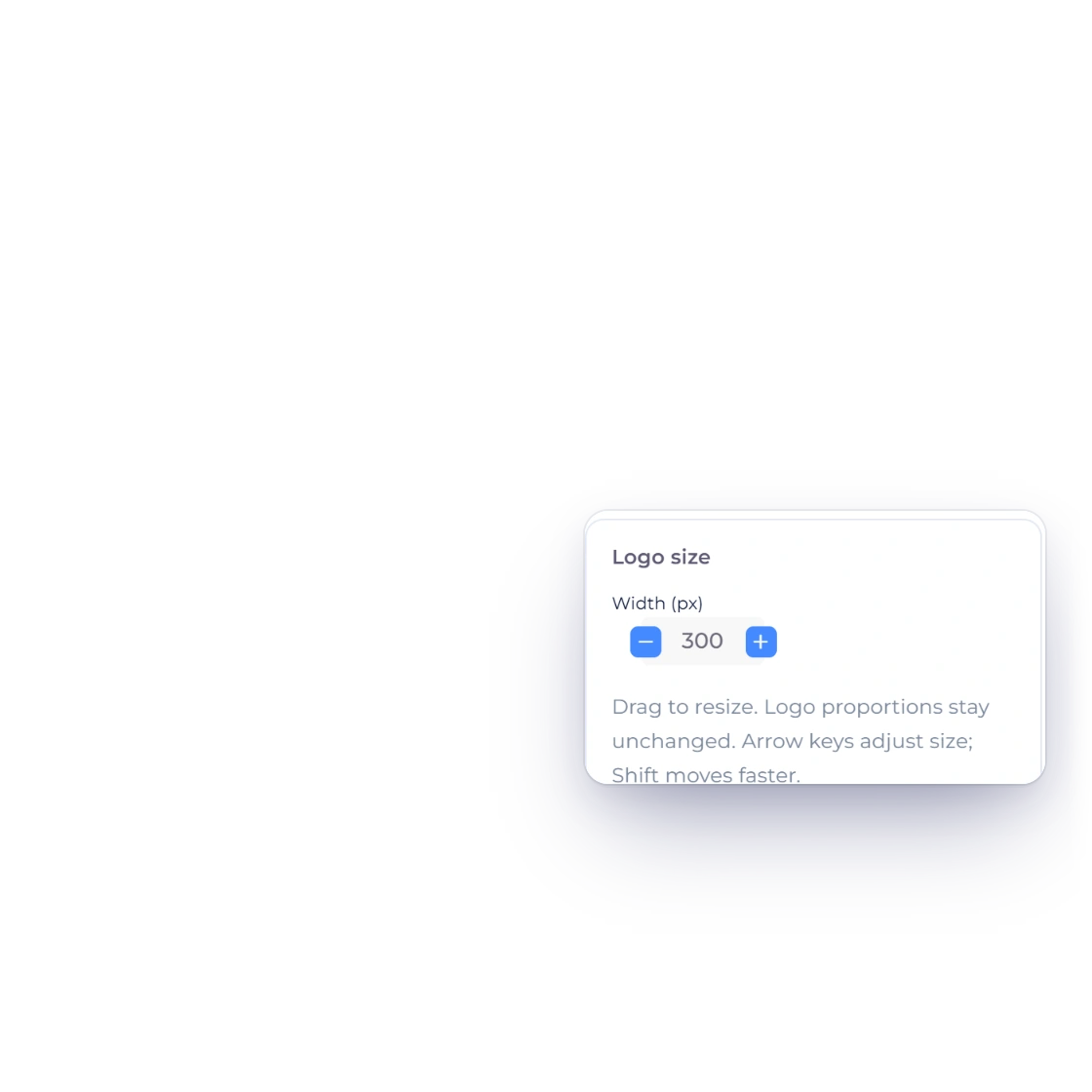
Select the logo in the builder and drag its right, bottom or corner handle, or set Logo size in the Design tab. Arrow keys make small adjustments and the proportions stay unchanged. You upload or replace the logo itself in your Business Profile, and Change business logo opens it from the builder.

Can I move or remove the totals and the item table?

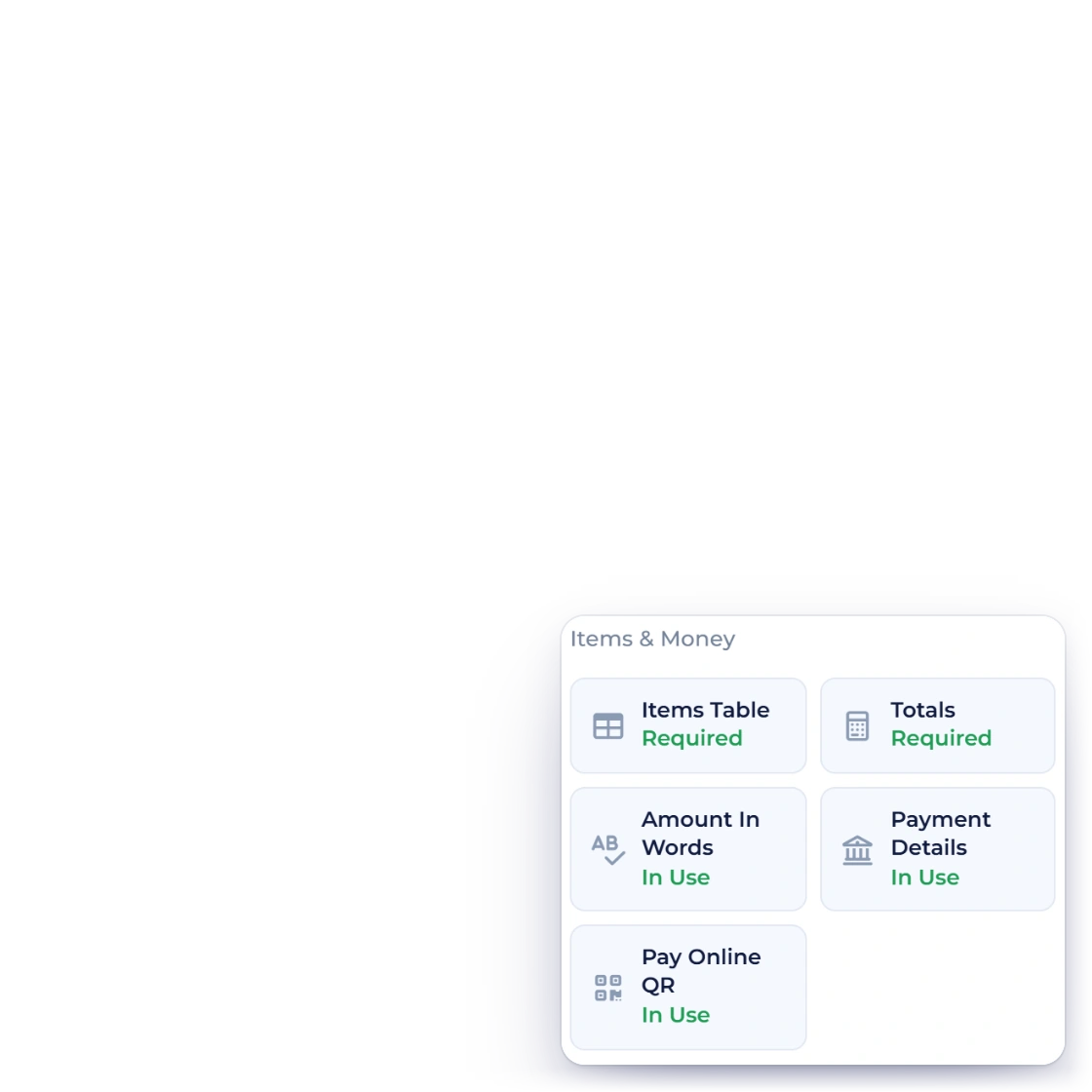
You can reorder the invoice's sections within the document flow and restyle all of them, but the items and the totals always appear exactly once and stay connected to the invoice's figures. In the table, Amount stays the last column, and Item, Quantity, Rate and Amount cannot be removed.

Can I remove Invoice Crowd branding from what my customers see?

Yes, on a monthly or yearly paid plan. Turn on Hide Invoice Crowd branding in Business Profile → Customer Page to remove our branding from your customer document pages, including invoice and estimate previews. The option is not available on the Free plan, during the free trial or on lifetime plans.

Send invoices that look like your business
Pick one of the eight designs, make it yours in the builder, preview the PDF and set it as the default for new invoices.

  • No card required to start
  • 30-day free trial
  • Cancel anytime