Skip to content

Accept payments online, directly from the invoice

Invoice Crowd Payments lets a client settle an invoice the moment they open it. Configure an eligible merchant connection and offer only the options supported for that invoice; settlement is recorded after the provider-specific verification succeeds.

  • Pay from the invoice itself
  • Set up in three steps
  • Verified settlements on record
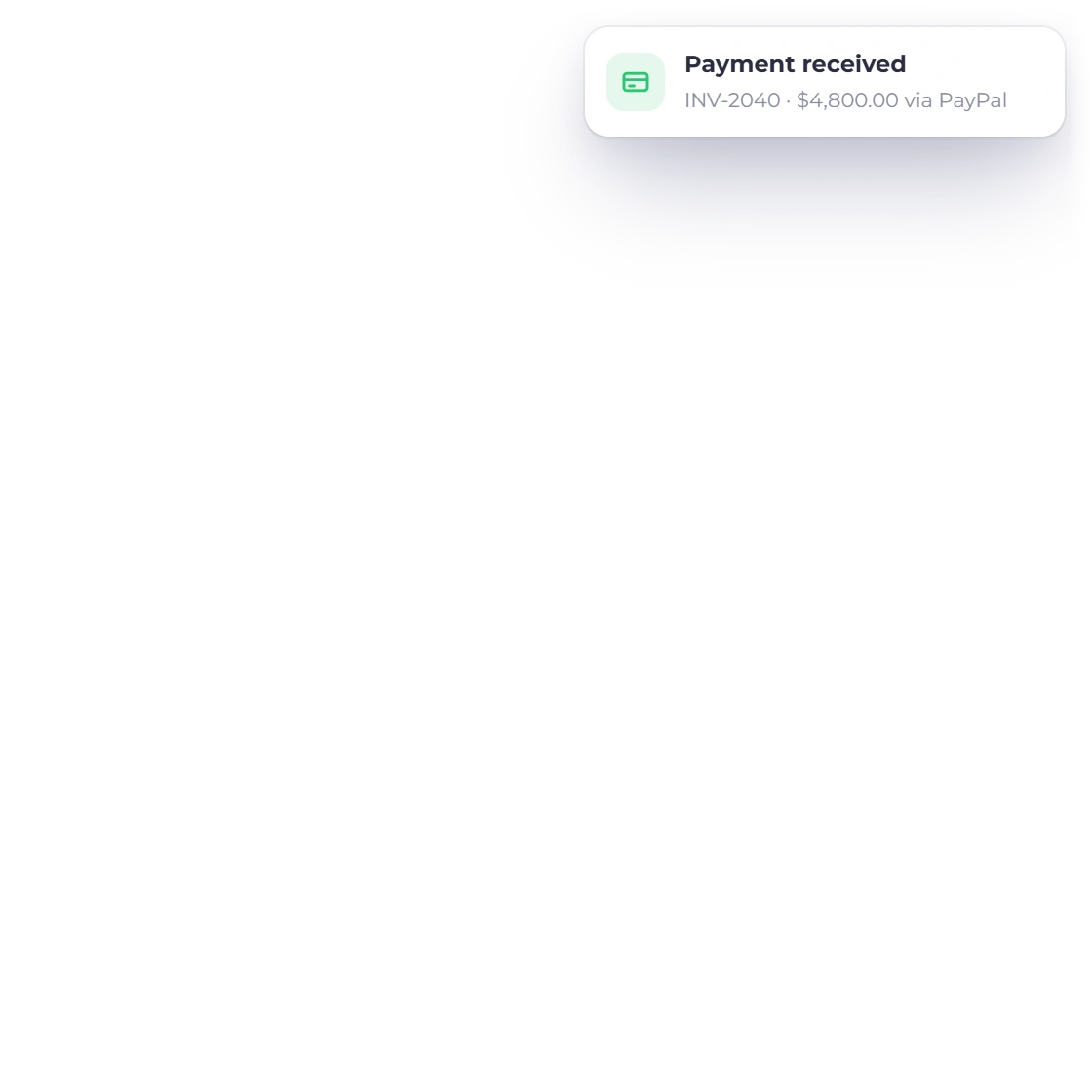
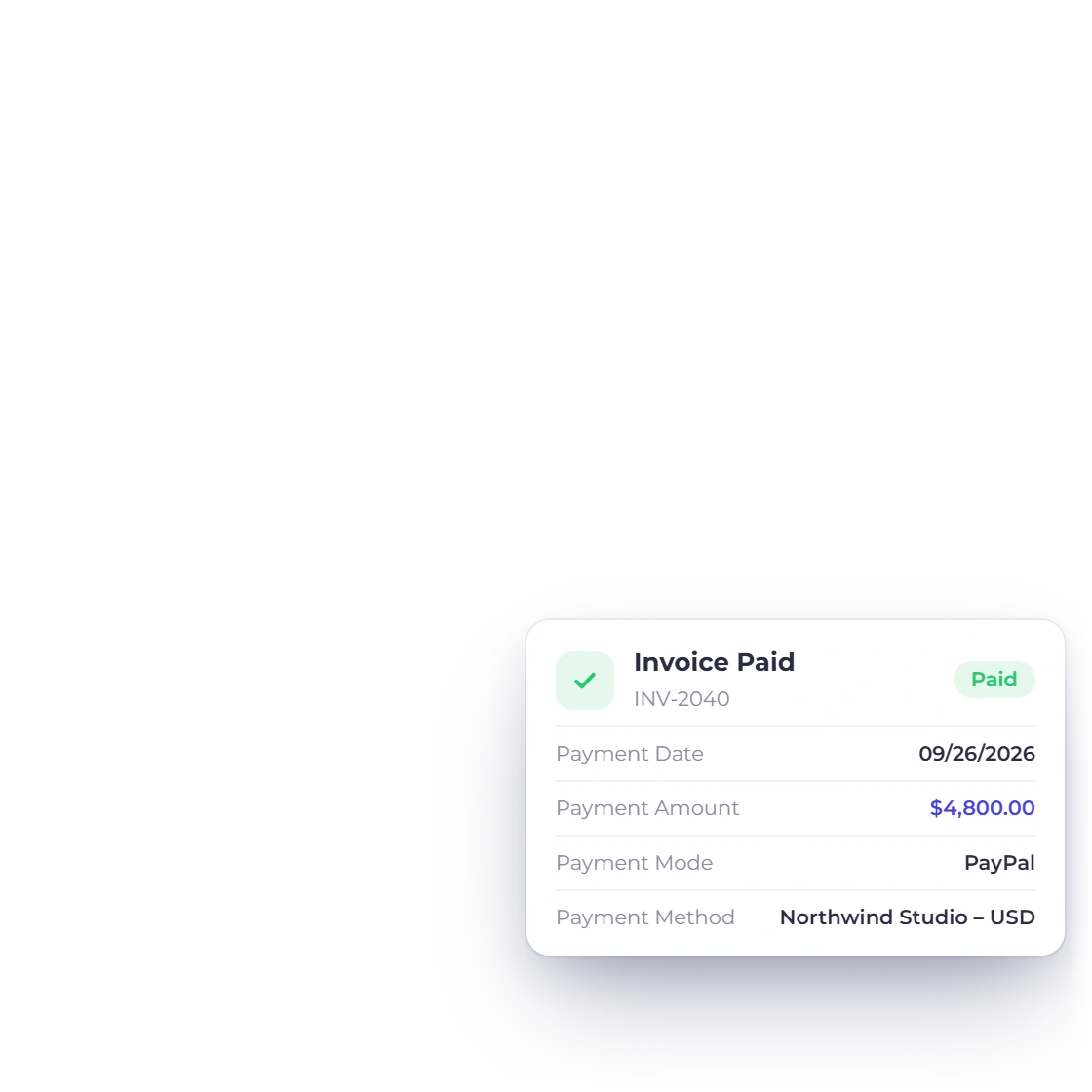
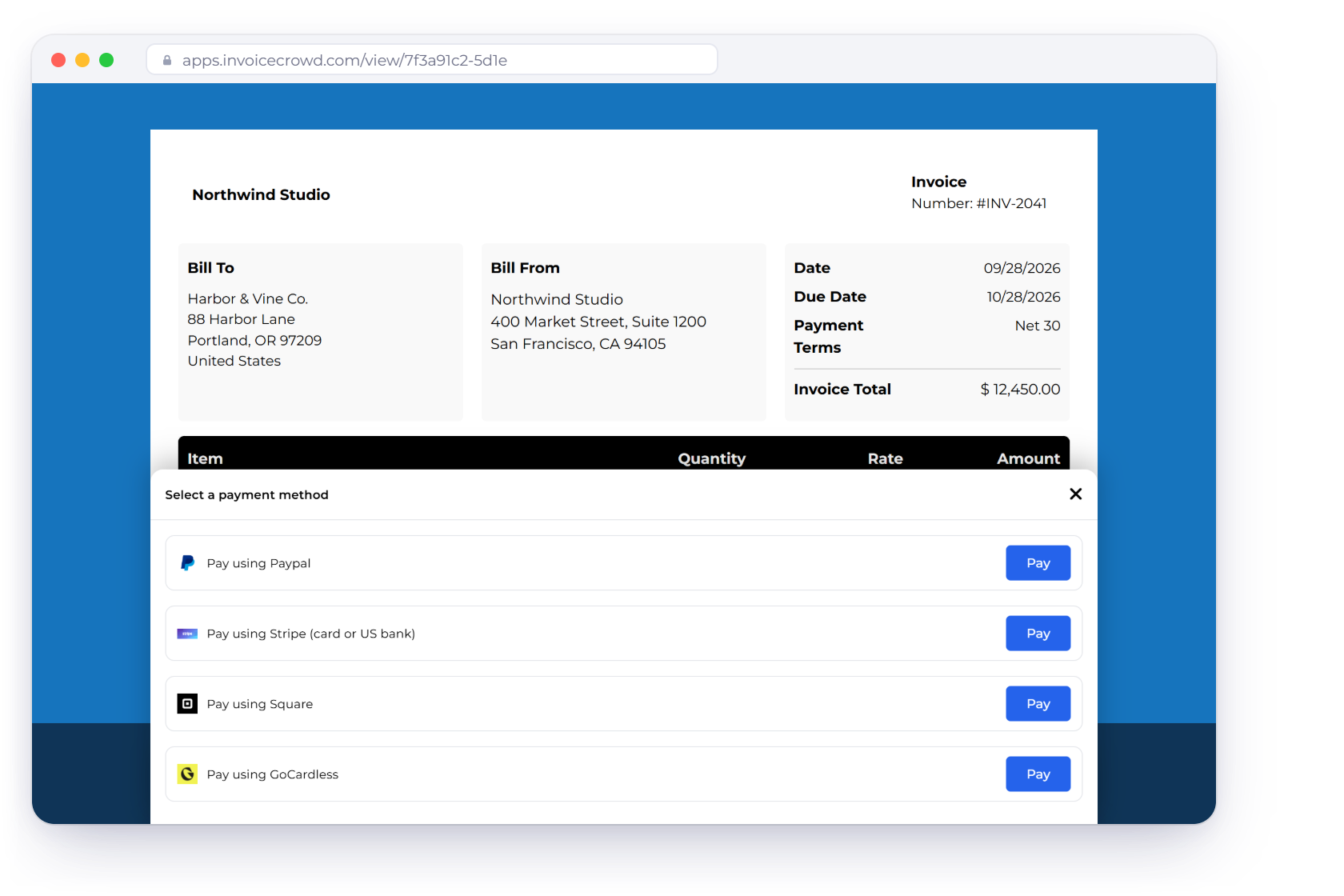
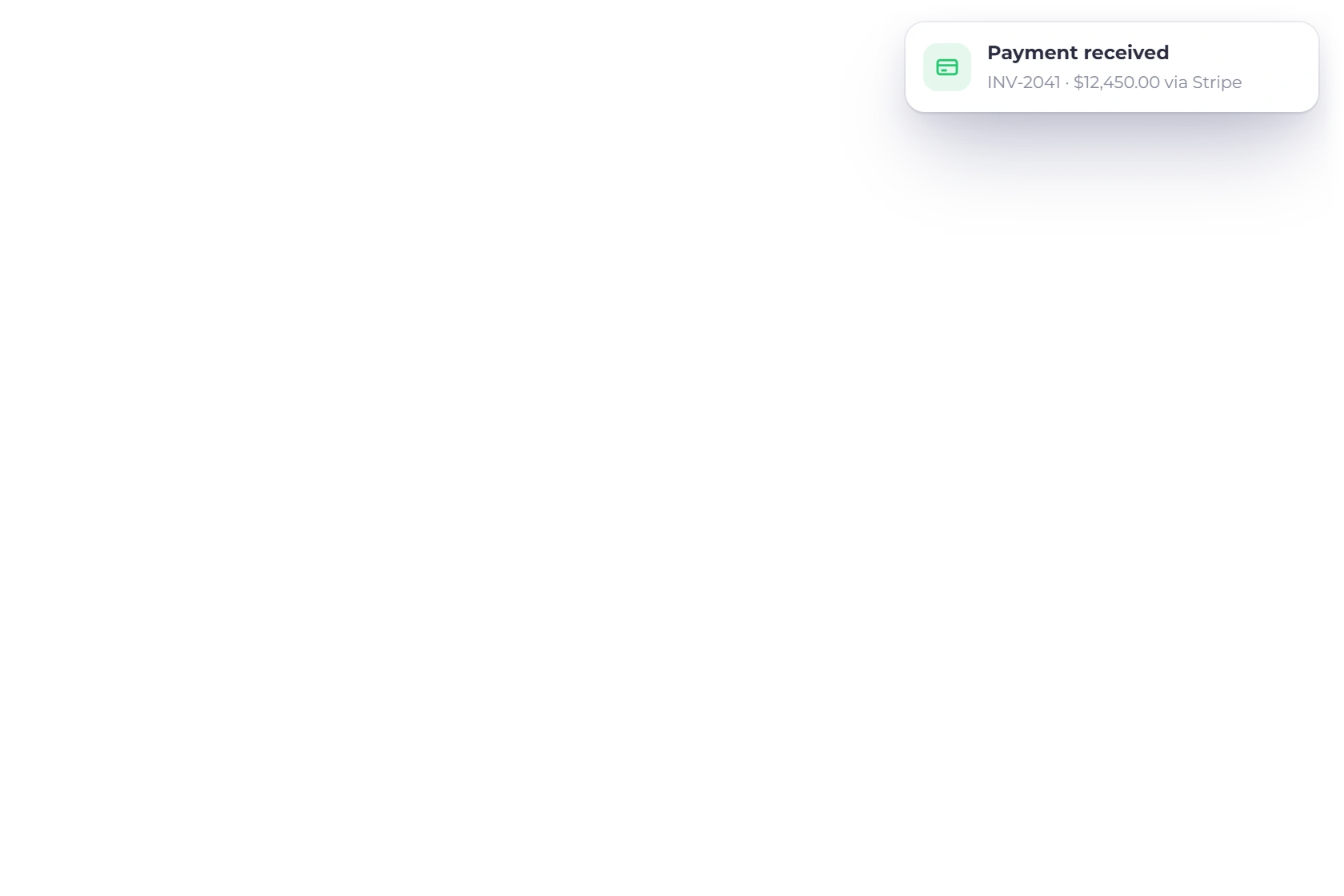
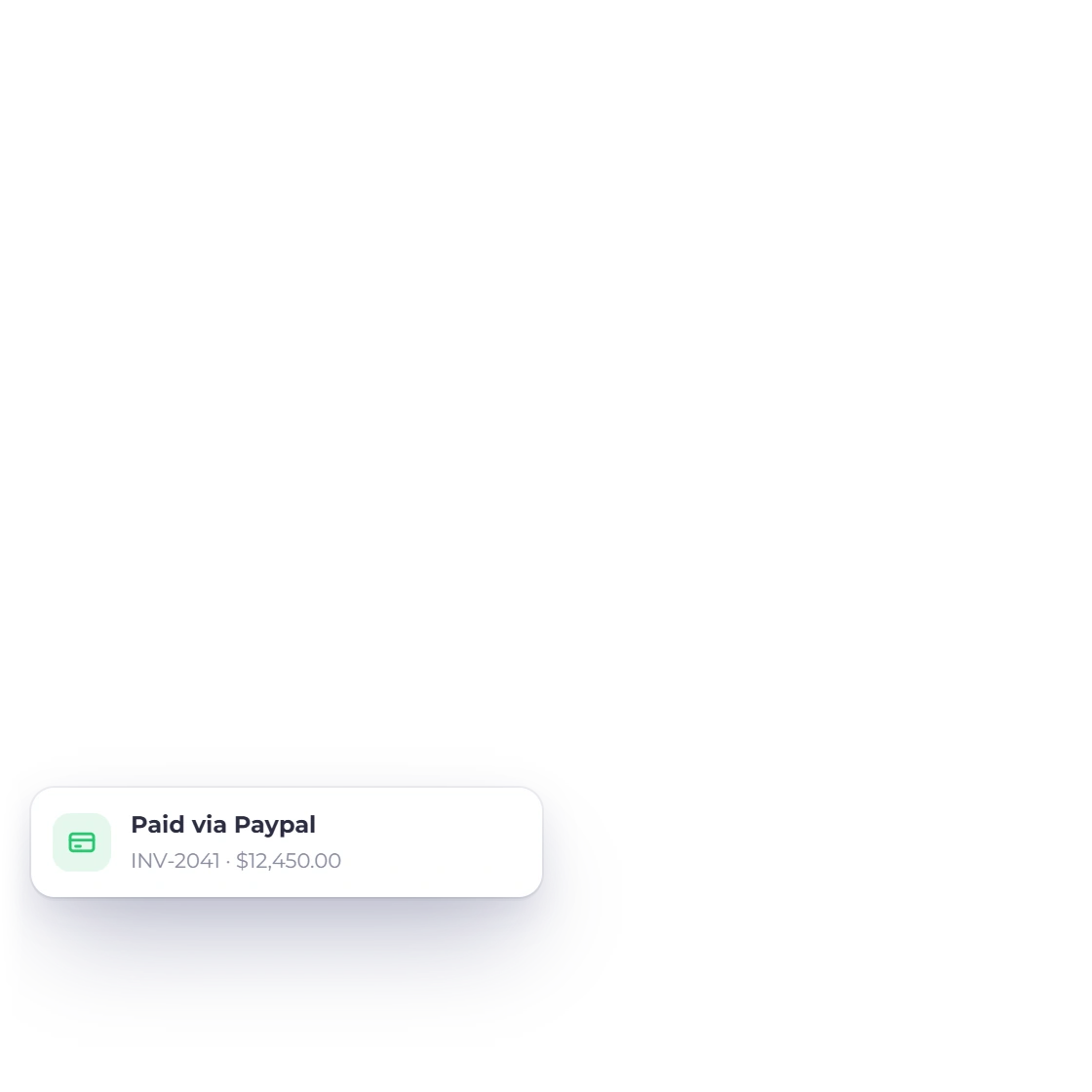
Invoice Crowd public invoice page with the client choosing between PayPal, Stripe, Square and GoCardless, the payment methods switched on for that invoice, and a payment received notification

What is inside

Setting it up once, then getting paid on every invoice

Online payment is a setting on your account rather than a separate service. Choose what you accept, connect it once, and the option appears on every invoice you send.

Three steps to getting paid

Choose, connect, collect

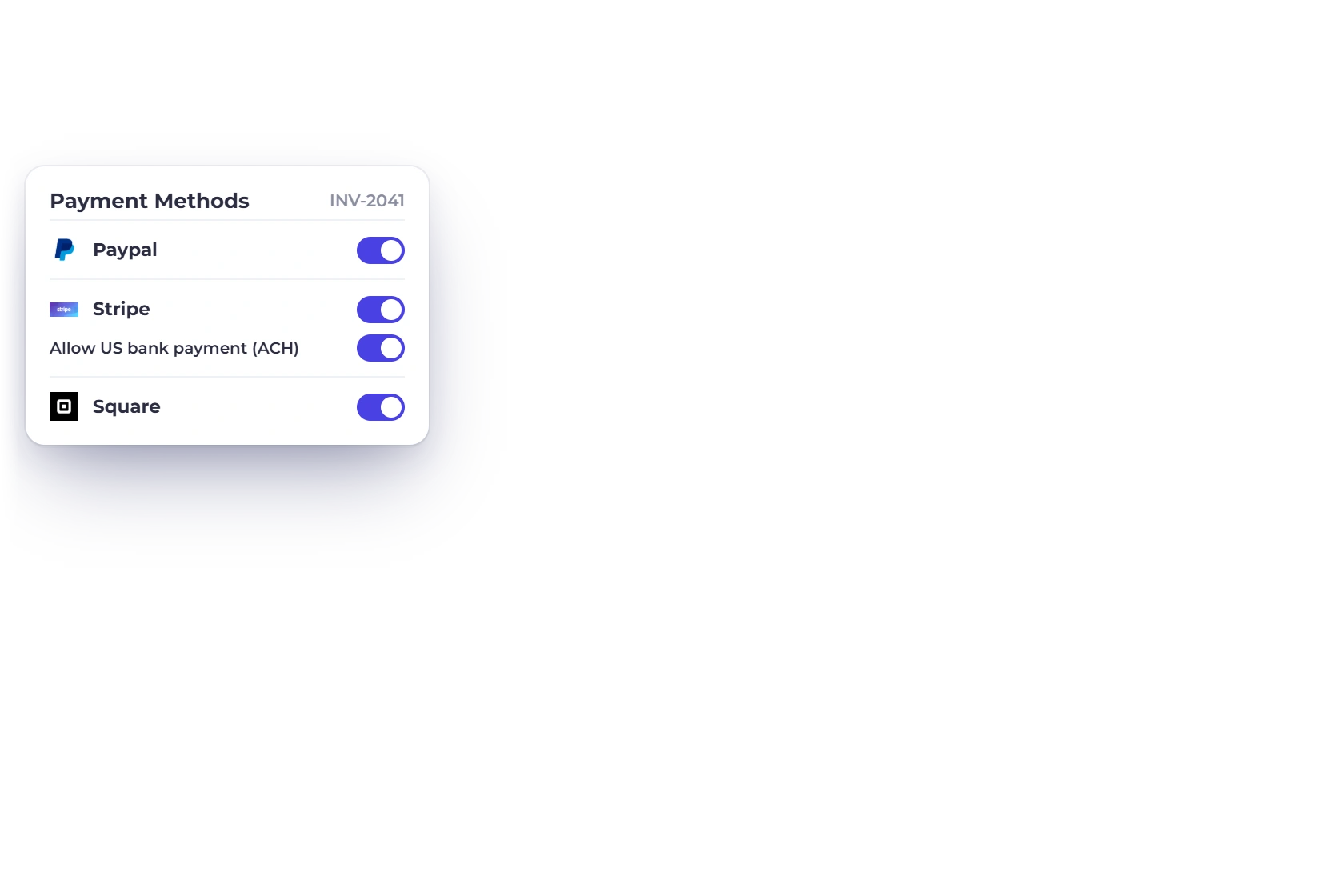
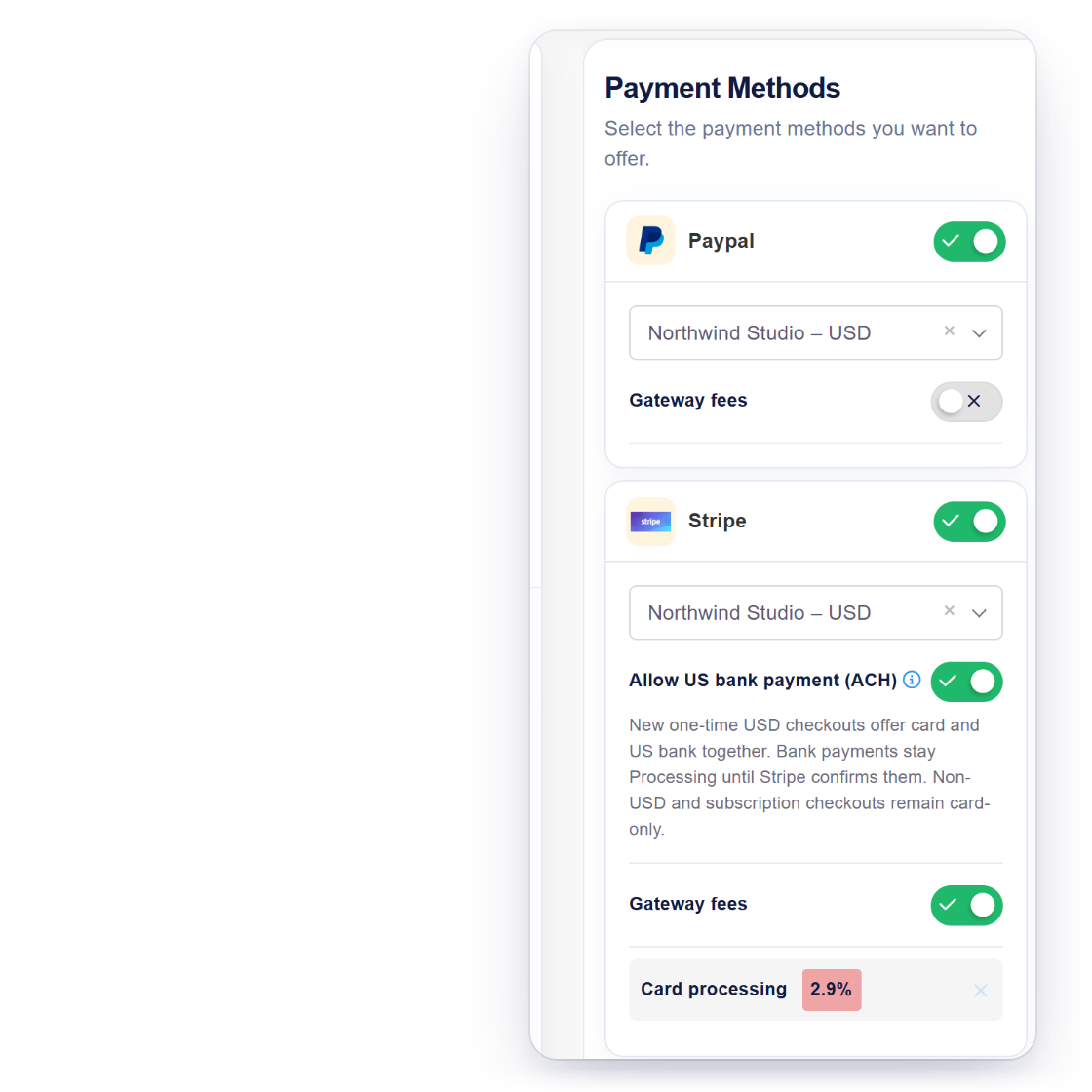
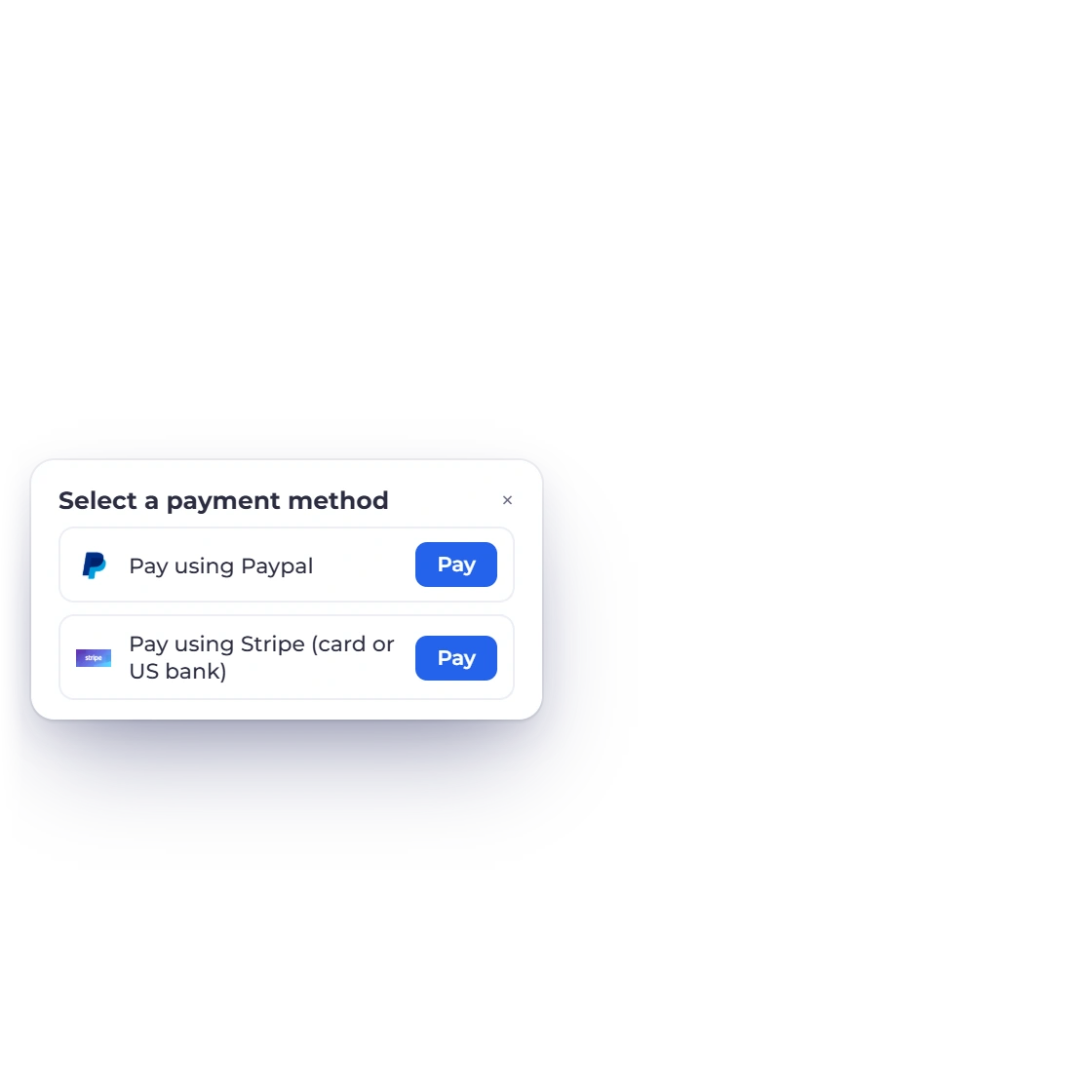
Invoice Crowd invoice editor with the Payment Methods panel, PayPal and Stripe switched on for the invoice, and the choice the client then sees

Choose the payment options you offer

Start by deciding how you want to be paid. PayPal, Stripe, Razorpay and Airwallex are all available, and you can offer one of them or several. Whatever you switch on is what a client sees when they open an invoice, so the choice stays yours rather than the processor's.

  • PayPal, Stripe, Razorpay and Airwallex
  • Offer one option or all of them
  • The same options across every invoice
The full gateway list
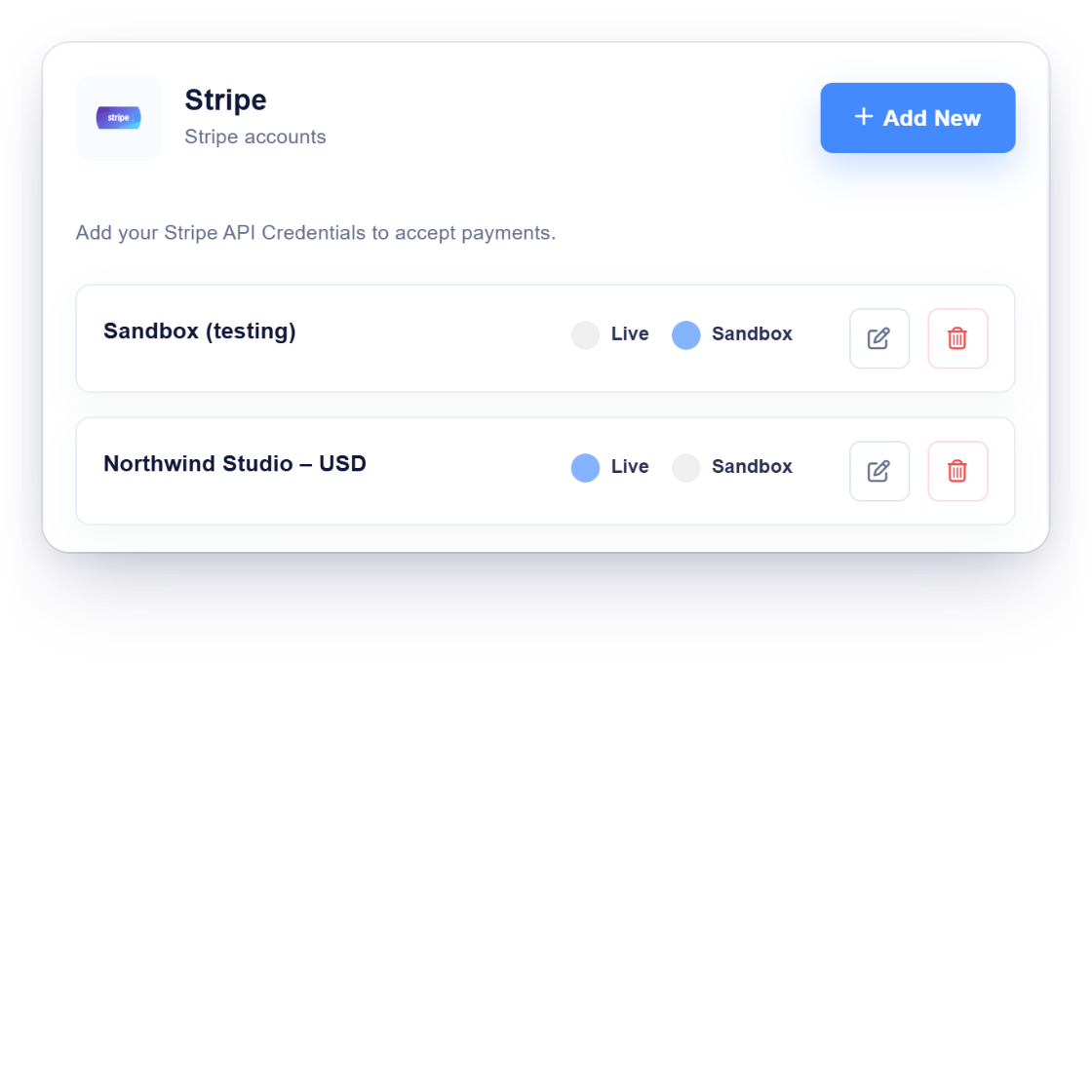
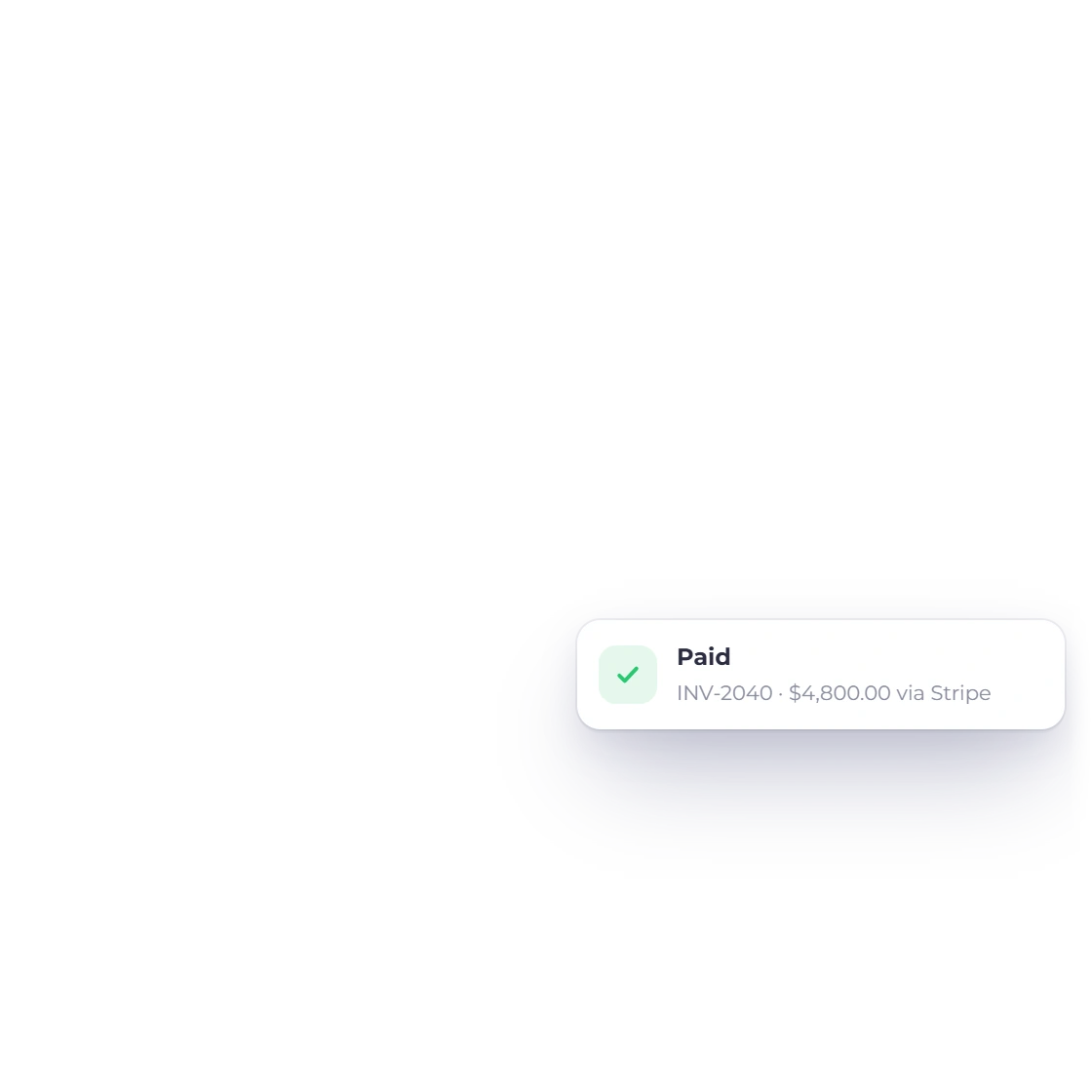
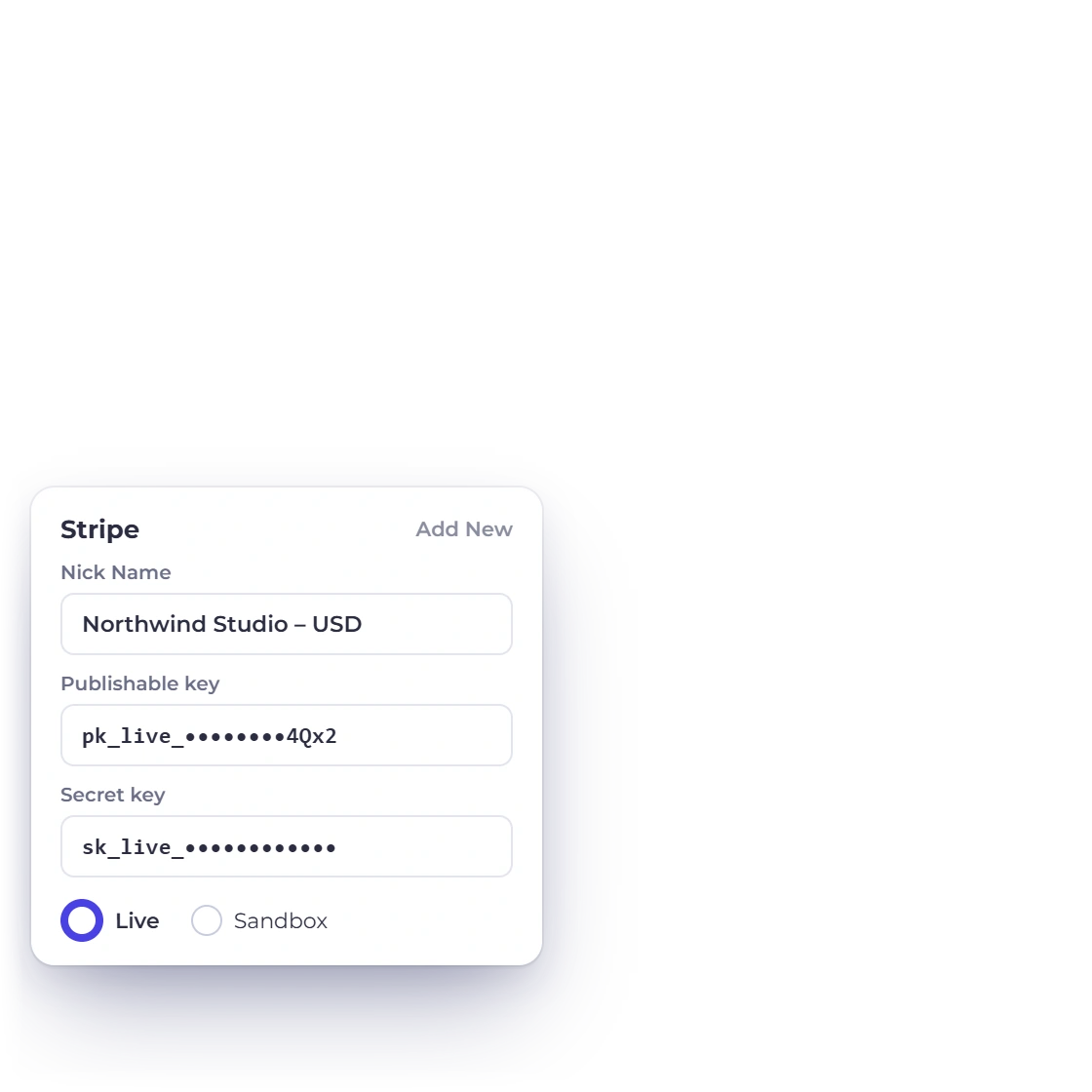
Invoice Crowd Stripe settings with a live and a sandbox account, the fields for your own Stripe keys, and an invoice marked paid via Stripe

Use the provider-hosted or tokenized path available for the selected gateway

Connecting a processor is a matter of adding your own account details in settings. From then on the money moves between your client and your merchant account; Invoice Crowd records the payment and marks the invoice as settled. Funds reach your bank on the processor's usual payout schedule.

  • Your own merchant account, your own rates
  • The invoice updates the moment it is paid
  • Deposits land on the processor's schedule

Paying from inside the invoice

Nothing for the client to install

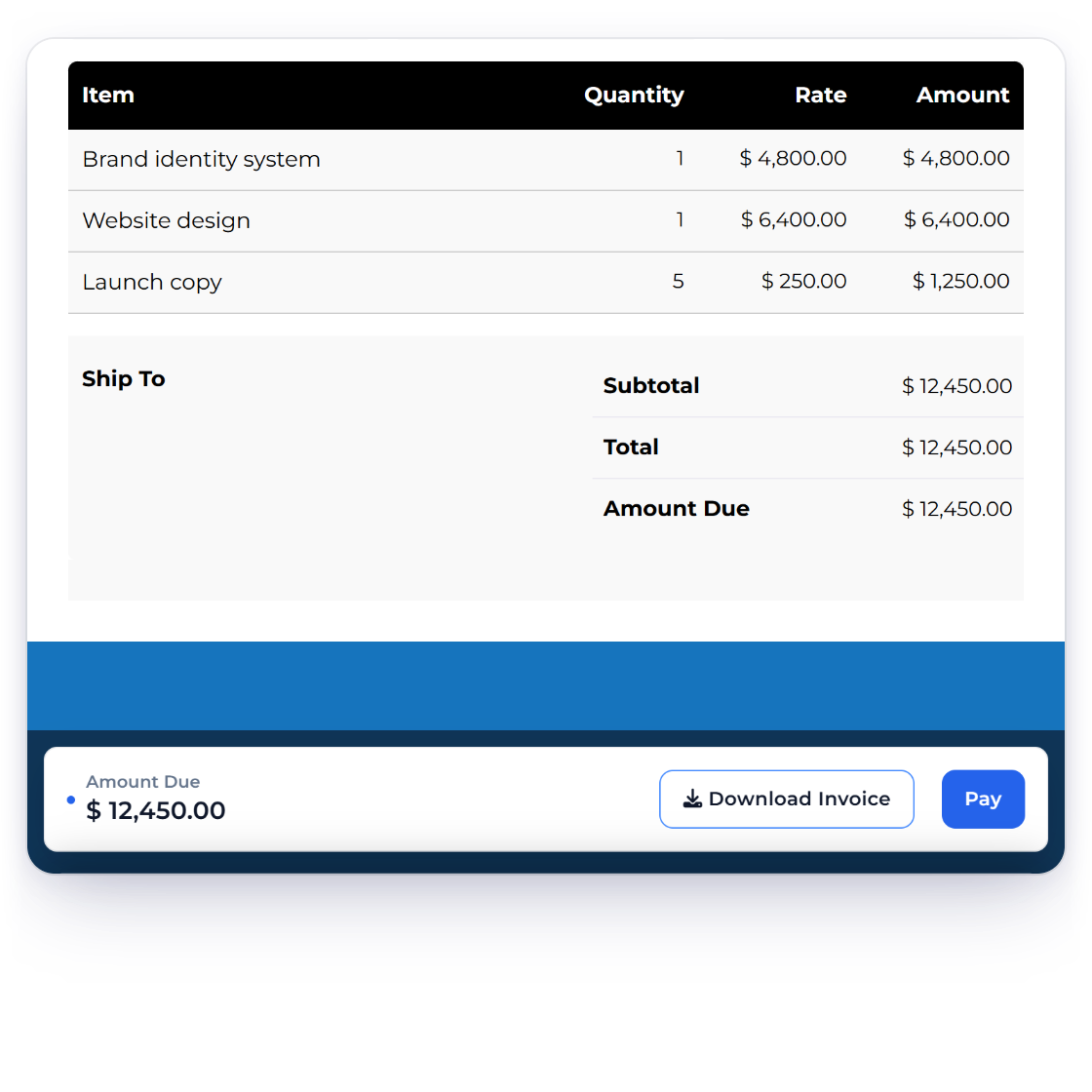
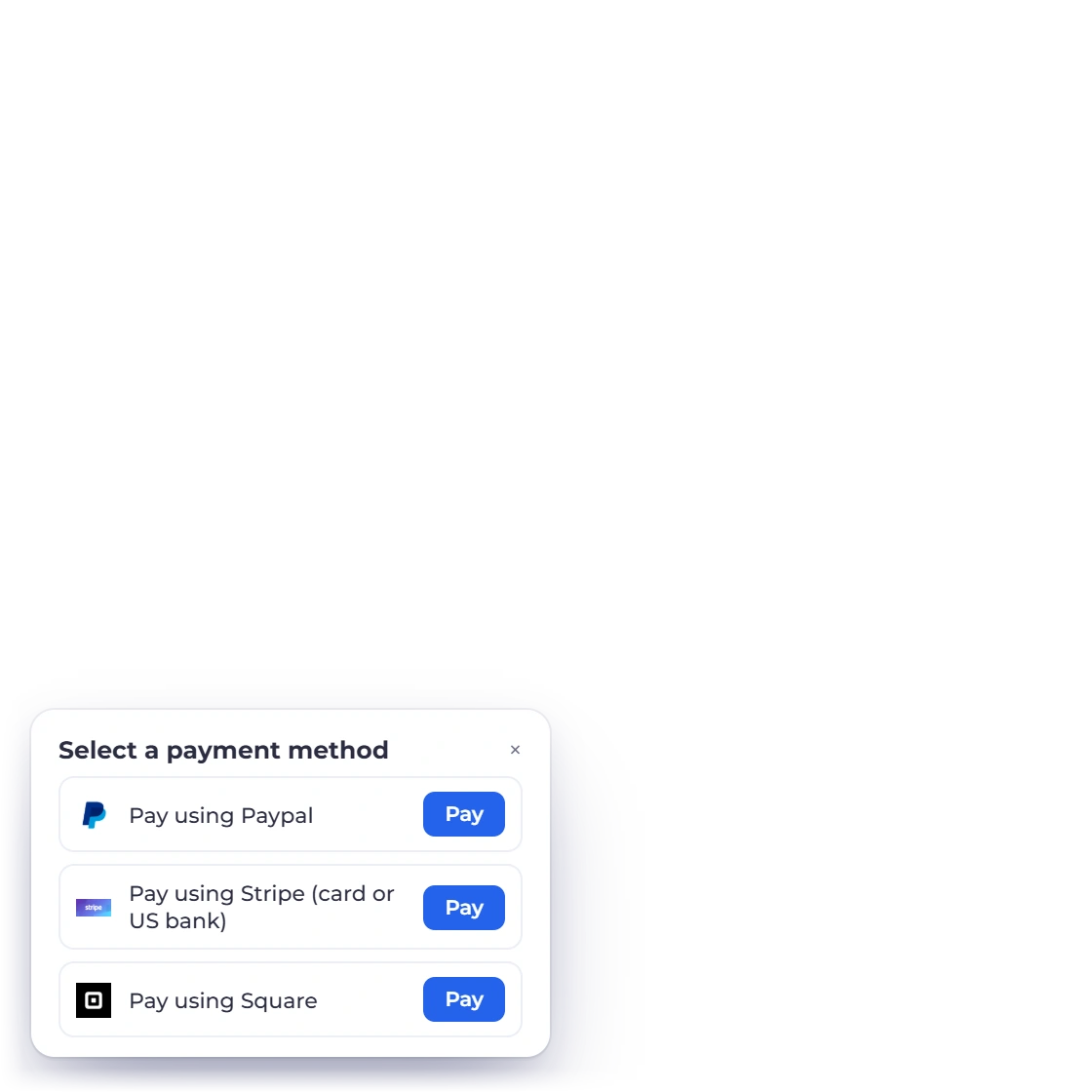
An Invoice Crowd invoice as the client sees it, with the amount due and a Pay button on the page and the payment methods it opens

Payment built into the document

The invoice the client receives carries its payment options on the page, so reading the bill and starting the payment happen in one place. Pay opens the processor's own secure checkout, so card details go to the processor, not to you, and never sit in your invoicing account.

  • A Pay button on the invoice itself
  • Card details handled by the processor
  • Works from the emailed invoice or the portal
The client portal
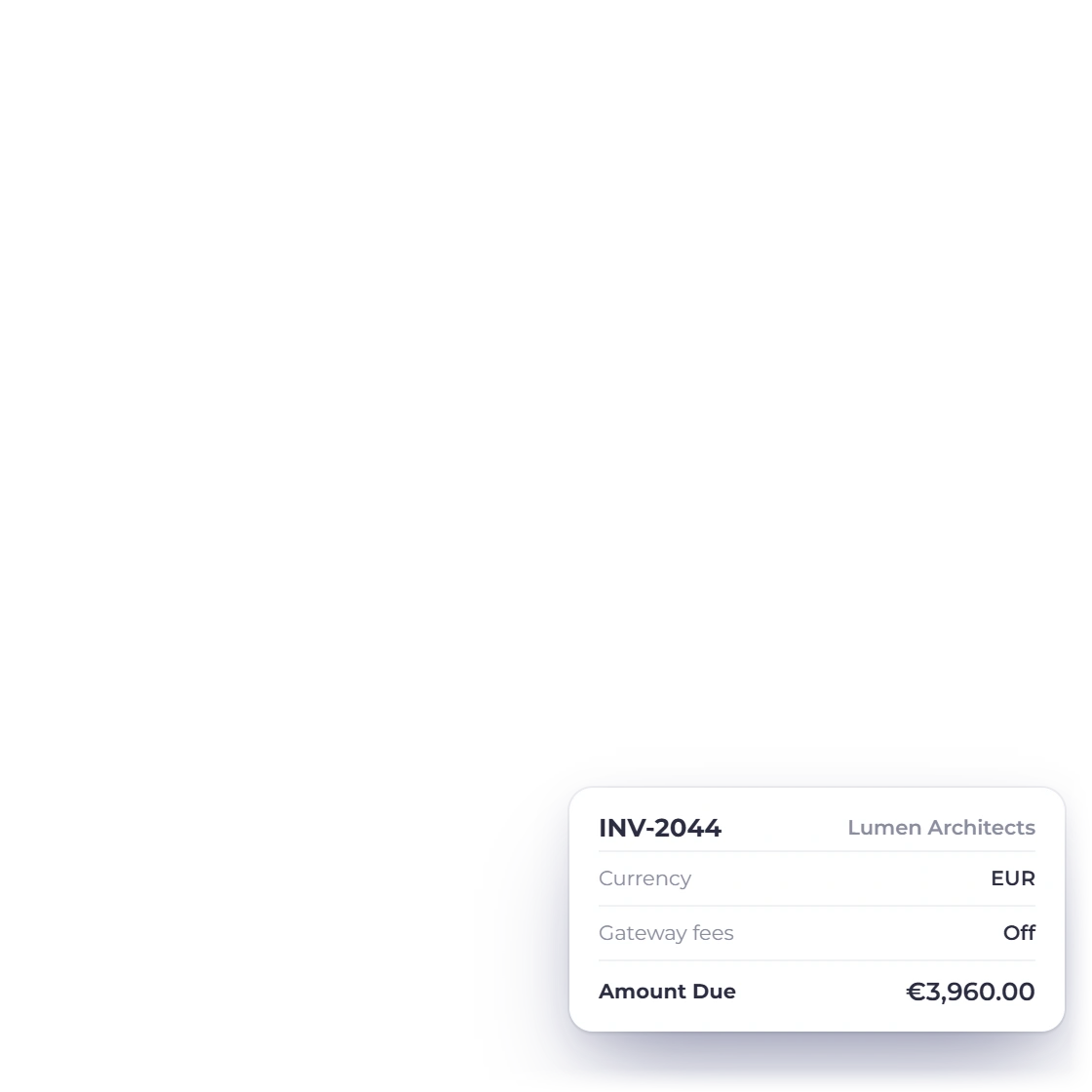
An Invoice Crowd invoice billed in euros with card payment through Stripe and the amount due unchanged, with no gateway fee added

Card brands your clients already carry

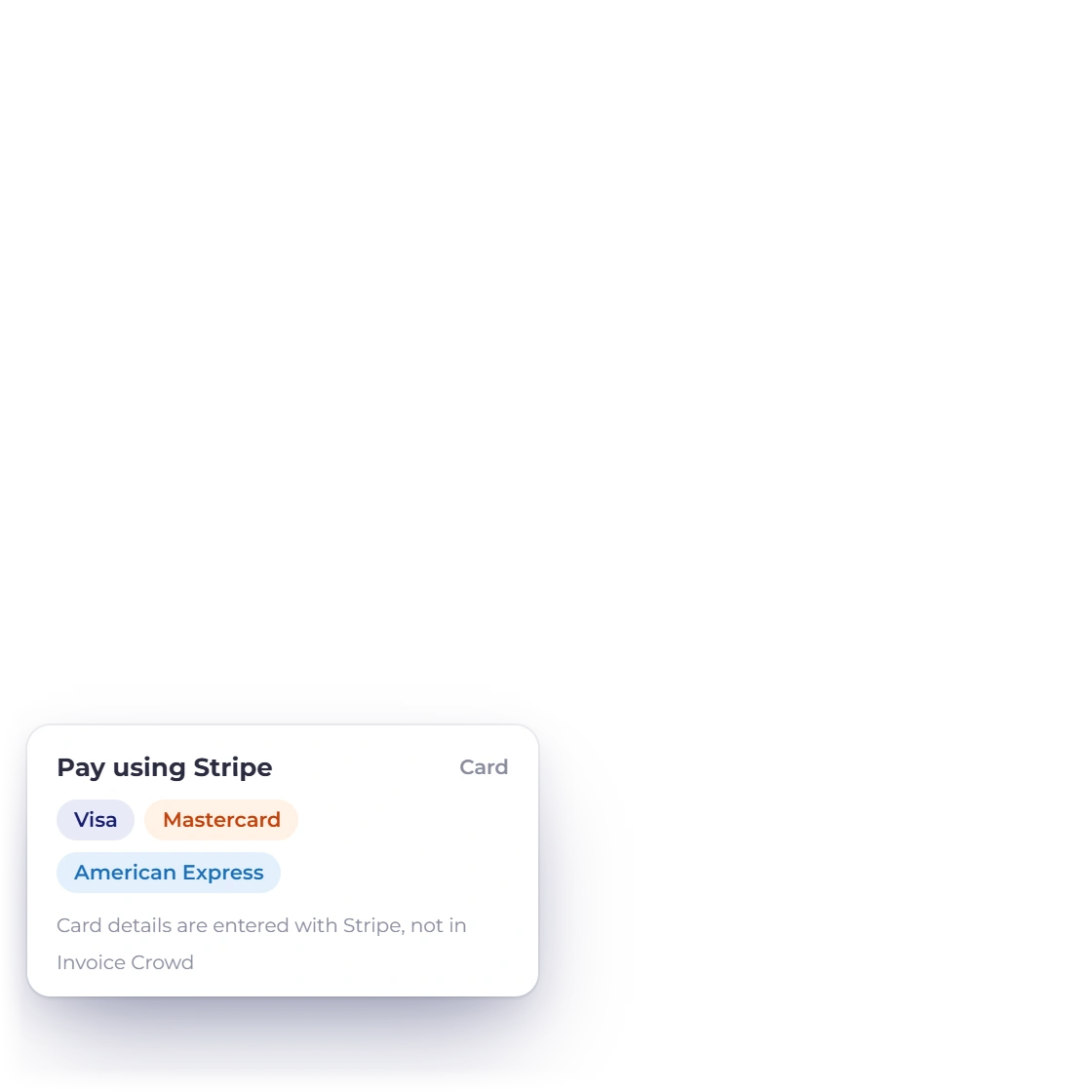
Behind the processors sit the cards people actually use, Visa and Mastercard among them. Invoice Crowd adds nothing on top of what your processor charges, so the fee you pay is the one you agreed with them and the amount on the invoice is the amount your client owes.

  • Visa and Mastercard through the processors
  • No charge added by Invoice Crowd
  • Multi-currency invoices for overseas clients

Once it is running

The chasing happens without you

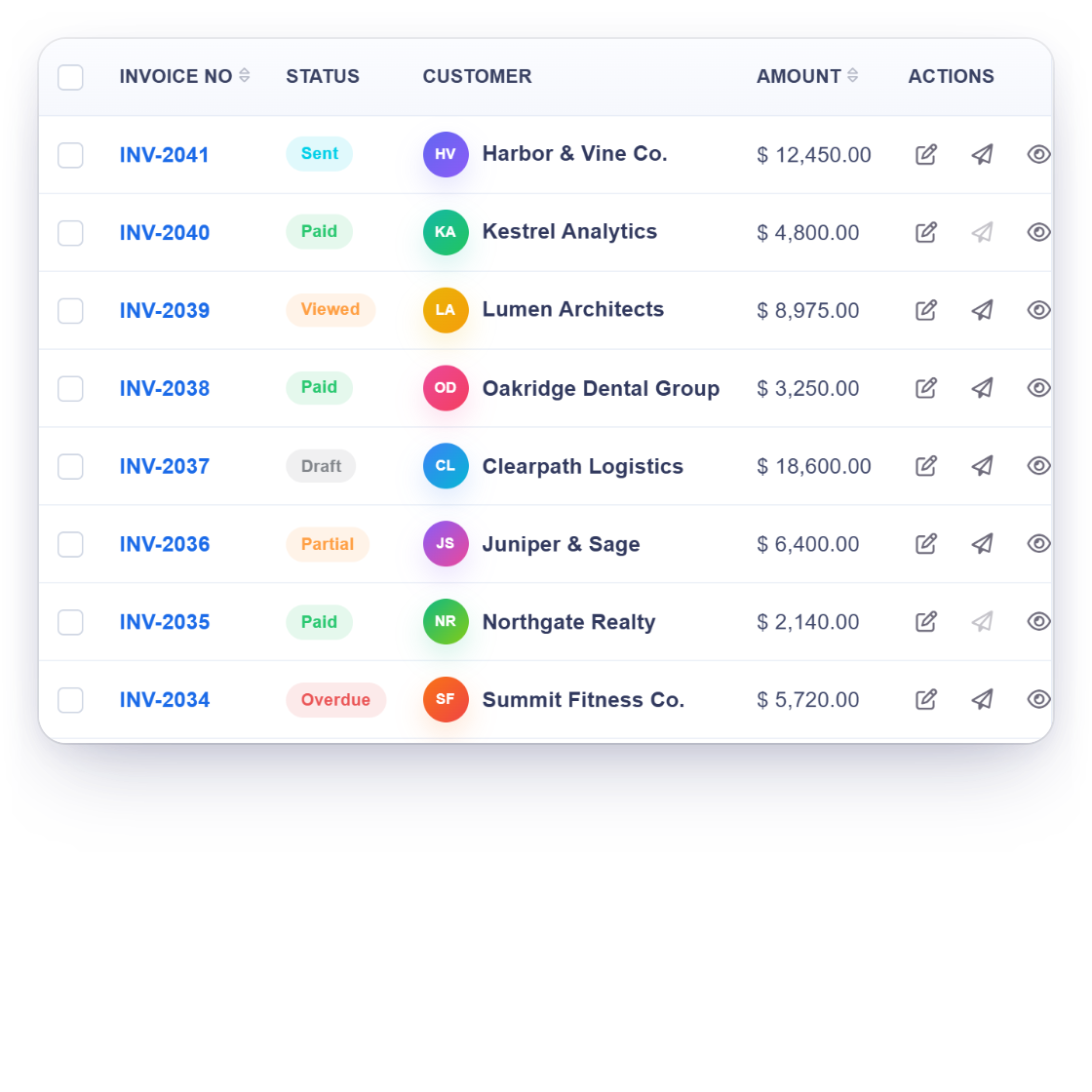
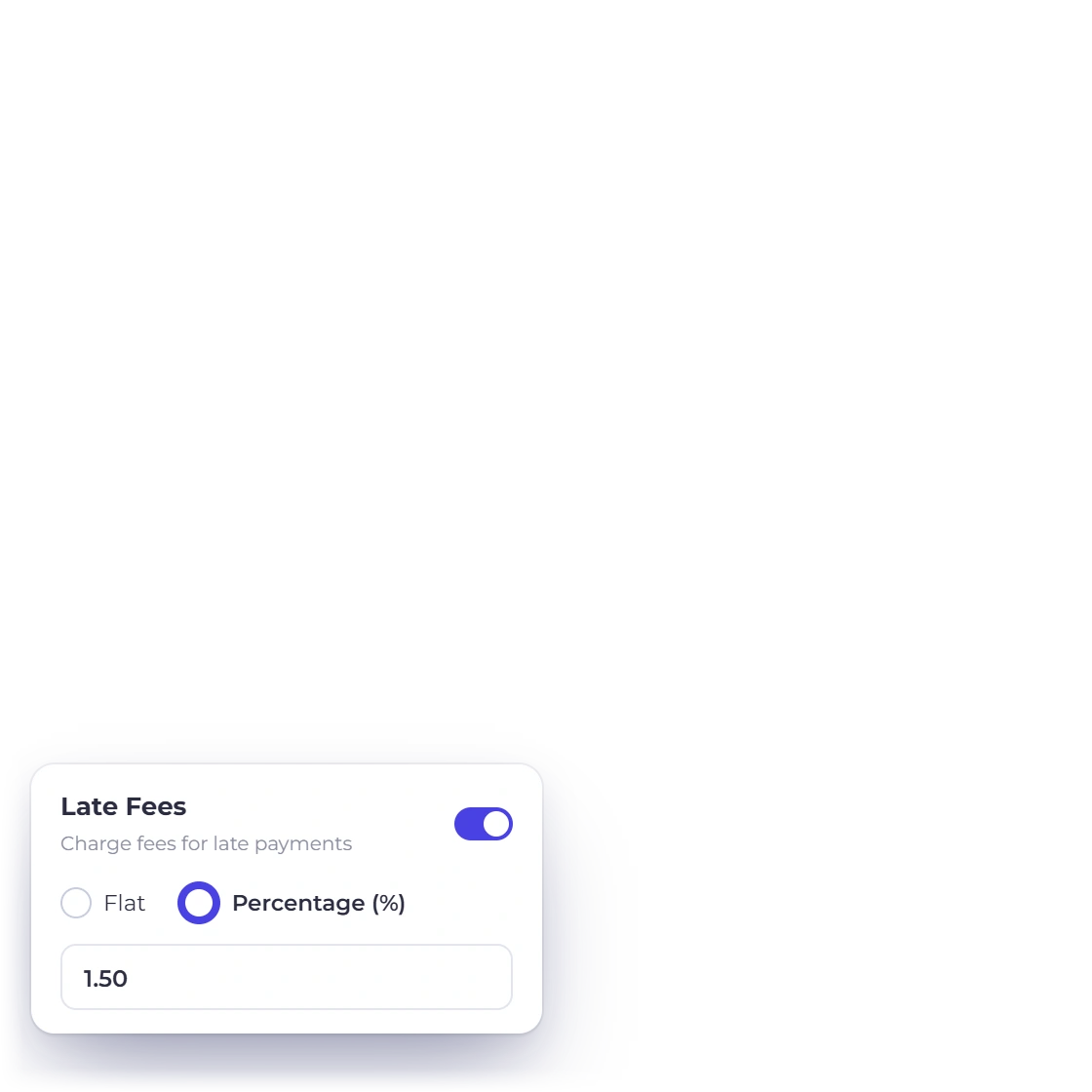
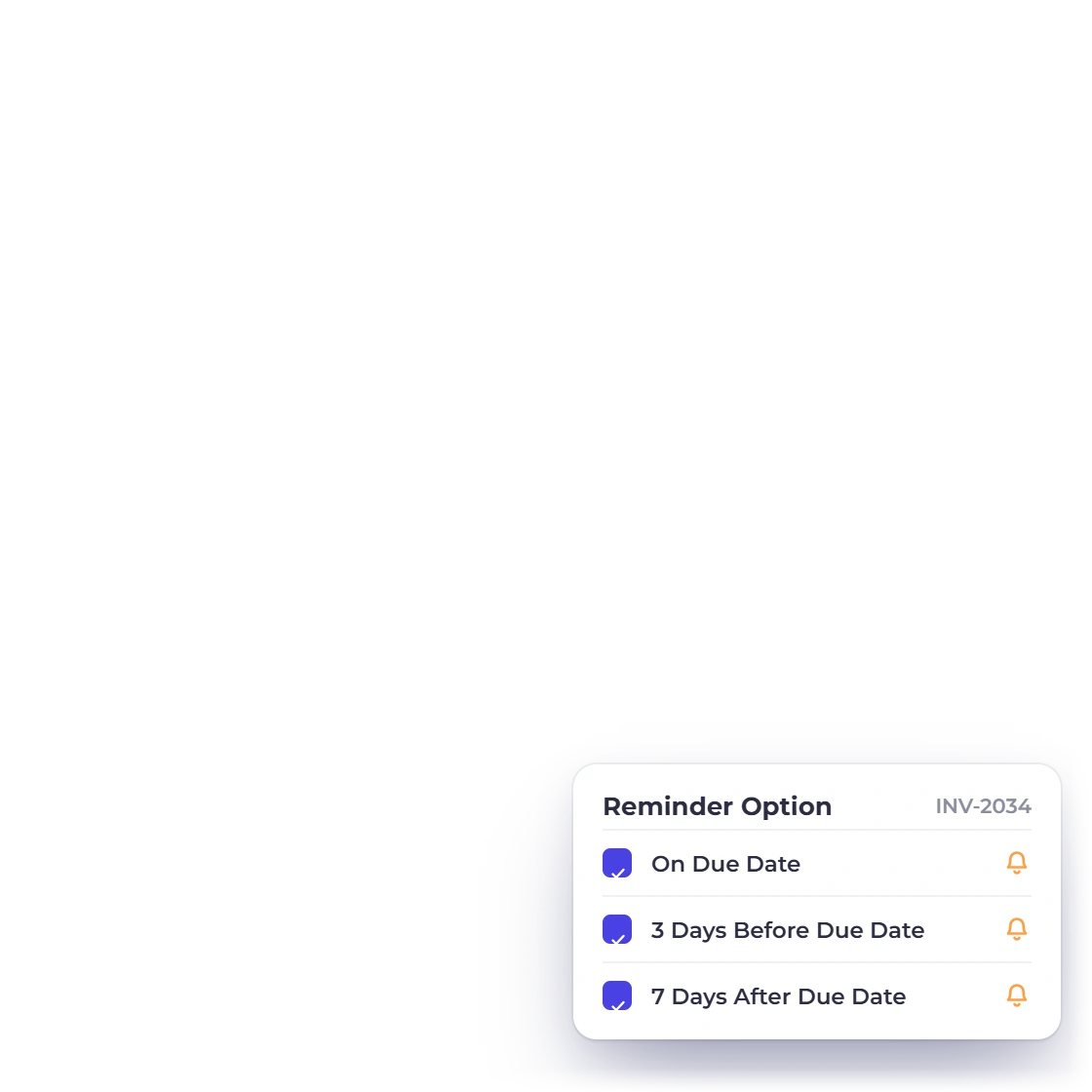
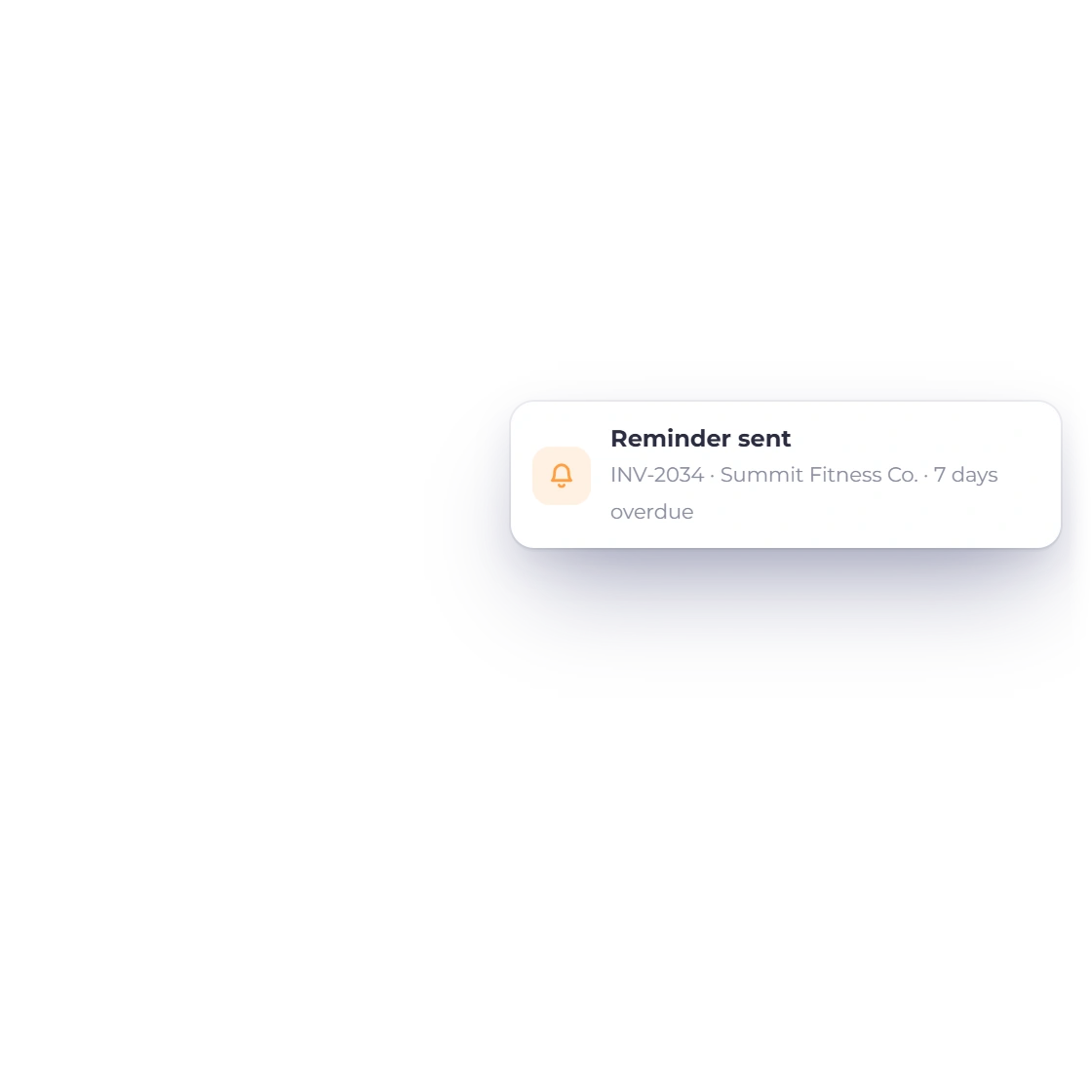
Invoice Crowd invoices list with an overdue invoice, the late fee option set to a percentage and payment reminders before and after the due date

Put the follow-up on auto pilot

Reminders go out on a schedule you set, before the due date and after it, and a late fee can be applied automatically when a bill goes past due. Recurring invoices raise and send themselves. You choose how much of this runs on its own and how much you do by hand.

  • Reminders before and after the due date
  • Late fees applied to overdue invoices
  • Recurring invoices sent on a schedule
Reminders and late fees
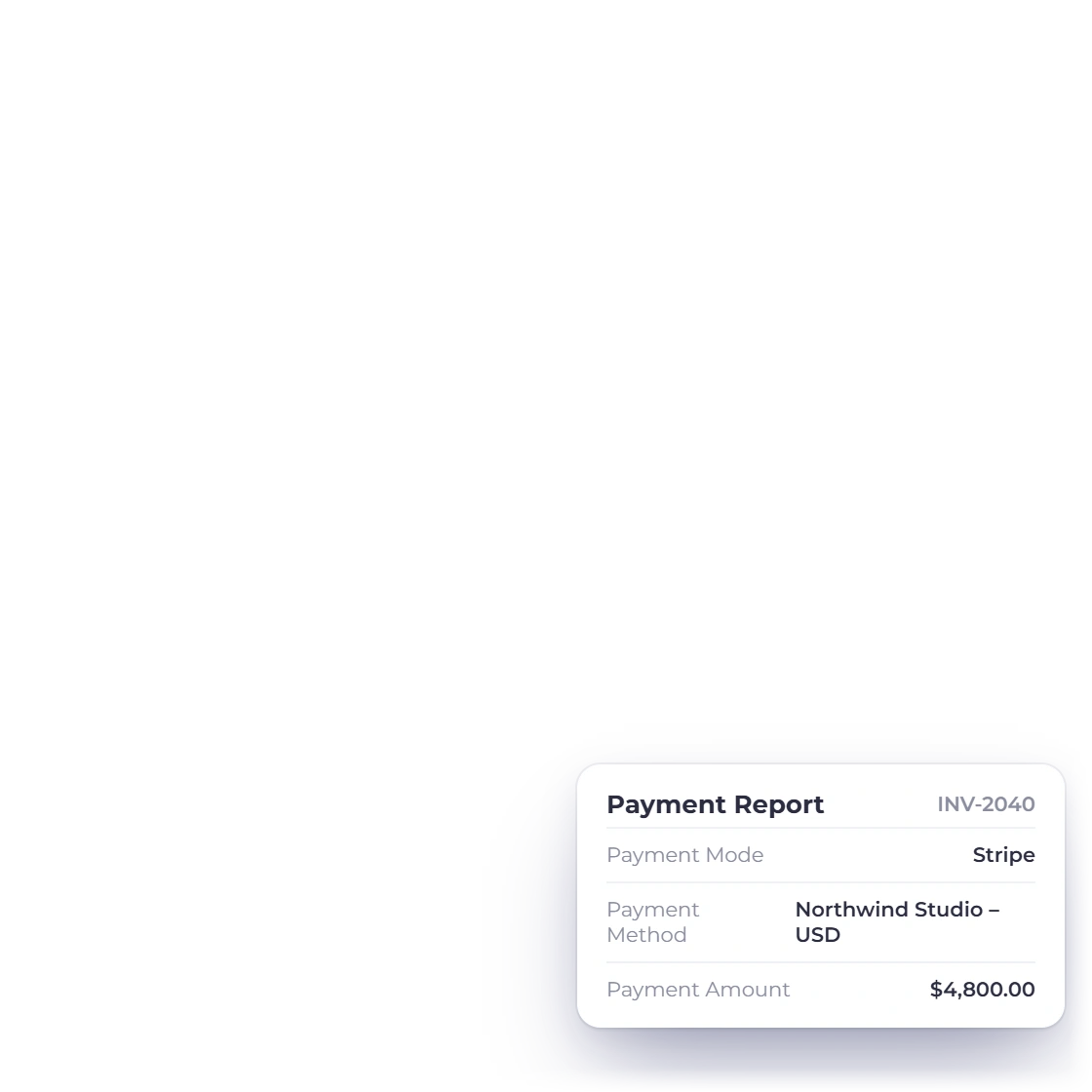
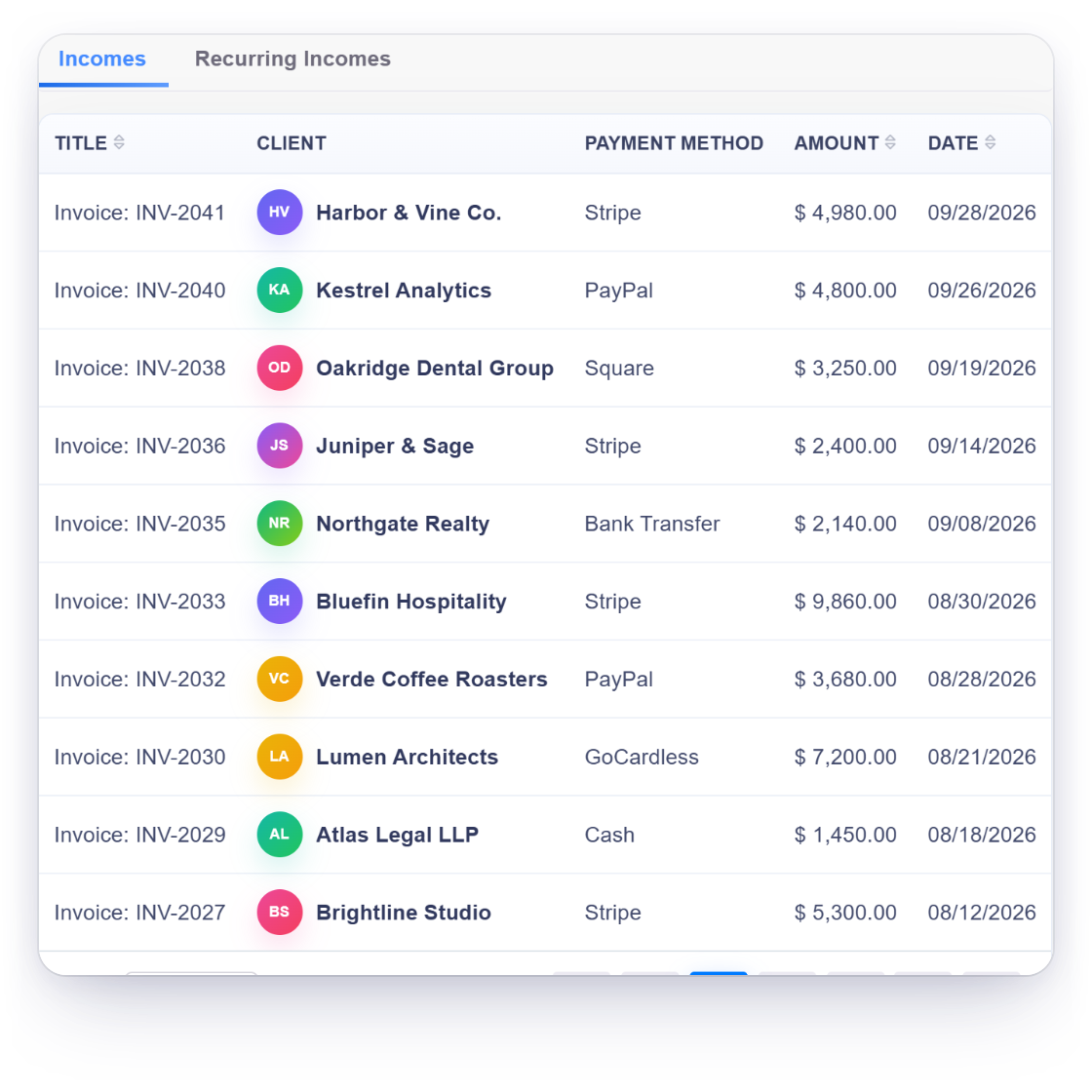
Invoice Crowd Incomes list with each invoice payment, its client, payment method, amount and date, and the payment report for one paid invoice

A record of verified settlements

Each payment is written against the invoice it settles and kept in the account, so the history of what was paid, when and through which processor is there months later. The same entries feed your income reports and your ledger, which means the books do not need a second pass.

  • Amount, date and method against each invoice
  • Feeds the income and aged debt reports
  • No re-keying into the accounts
Payments in the ledger

Also included

The rest of what comes with online payment

None of this is charged as an extra. It sits in the same account as the invoices, the clients and the books.

  • Payment scheduling

    Set when each amount falls due so a long job is billed in stages rather than one lump.

  • Bank deposits

    Money collected through your processor settles into your bank account on its normal payout cycle.

  • Visa and Mastercard

    The major card brands are accepted through the processors you connect to your account.

  • Multiple provider integrations

    Connect any of the supported configured processors, from PayPal and Stripe to Payoneer and Braintree.

  • Recurring billing

    Invoices that repeat on a cycle collect payment the same way a one-off invoice does.

  • Automatic reminders

    Nudges go to the client before a due date and again once an invoice is overdue.

  • Multiple currencies

    Bill a client in their currency while your own reporting stays in your base currency.

  • Client portal

    Clients sign in to see what they owe, what they paid and download their invoices.

  • Payment links

    Sell a product from a shareable link when there is no invoice to attach it to.

  • Income reporting

    Payments received feed the income and aged debt reports without any re-keying.

  • Handled by the processor

    Card data goes to the payment processor; your invoicing account never stores it.

  • Invoice history

    Every invoice keeps the payments made against it, so the balance is never in doubt.

Questions

Online payments, answered

How do my clients pay an invoice online?

They open the invoice you sent and press Pay. The payment options you switched on are listed on the invoice itself, and they do not need an Invoice Crowd account to pay.

Which payment methods can I accept?

PayPal, Stripe, Razorpay and Airwallex are the ones most accounts start with, and Square, Payoneer, Braintree, Authorize.net, GoCardless, PayFast, PayTabs, Telr and M-Pesa are supported too. Between them they cover the major card brands, including Visa and Mastercard. You decide which of them appear on an invoice. The free plan includes PayPal and Payment note; the other gateways need a paid plan.

Does Invoice Crowd take a cut of the payment?

You connect your own eligible merchant account. Processor fees, Invoice Crowd plan charges and any other applicable terms should be confirmed from the current provider and pricing pages before use.

What happens to the invoice once a client pays?

The payment is recorded against that invoice straight away and the outstanding balance drops by the amount received. You are notified, the client gets confirmation, and the entry carries through to your income reports and ledger without being typed again.

Can I automate the chasing?

Yes. Reminders can be scheduled before and after the due date, late fees can be applied to overdue invoices at a rate you set, and recurring invoices go out on their own cycle. Turn on as much or as little of it as suits you.

How safe is paying an invoice this way?

The transaction is handled by the processor you connected, not by Invoice Crowd, so card numbers are entered on their side and are never stored in your invoicing account. What comes back is the record of the payment: amount, date and method.

Give every invoice a way to be paid

Connect a processor once and the option travels with every invoice you send, along with the reminders, the payment confirmations and the record in your books.

  • current trial
  • No card needed to try it
  • Your own merchant account