
Skip to content

Customer management

Manage your customers in one place

Invoice Crowd keeps every client on one record: contact details, CC and BCC emails, billing and shipping addresses, currency, tax number and business profiles. Each customer also has a Client Workspace that brings their proposals, estimates, projects, retainers and invoices together, with what is outstanding and overdue in each currency.

  • Every detail in one drawer
  • A workspace for each client
  • Search, filter and export
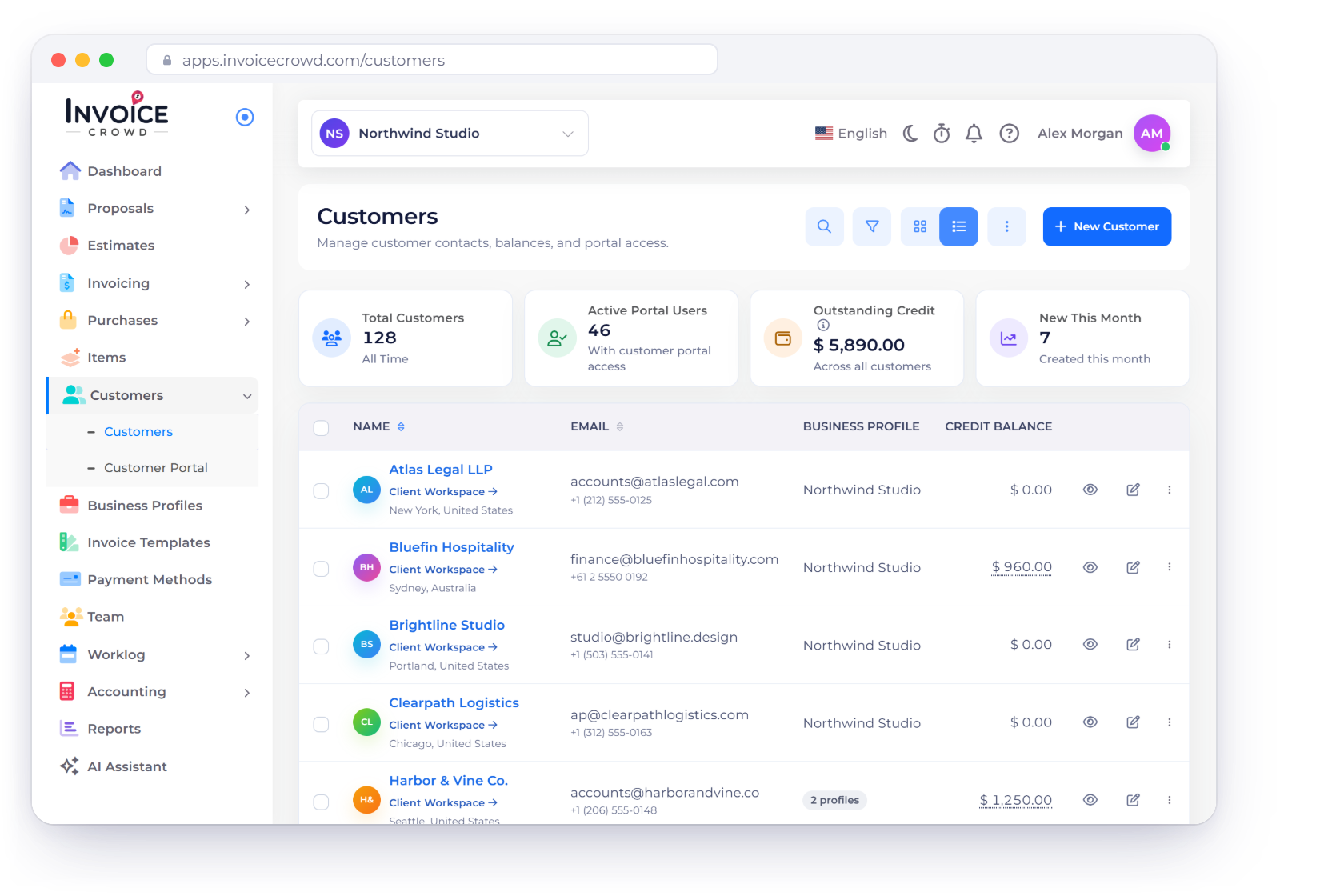
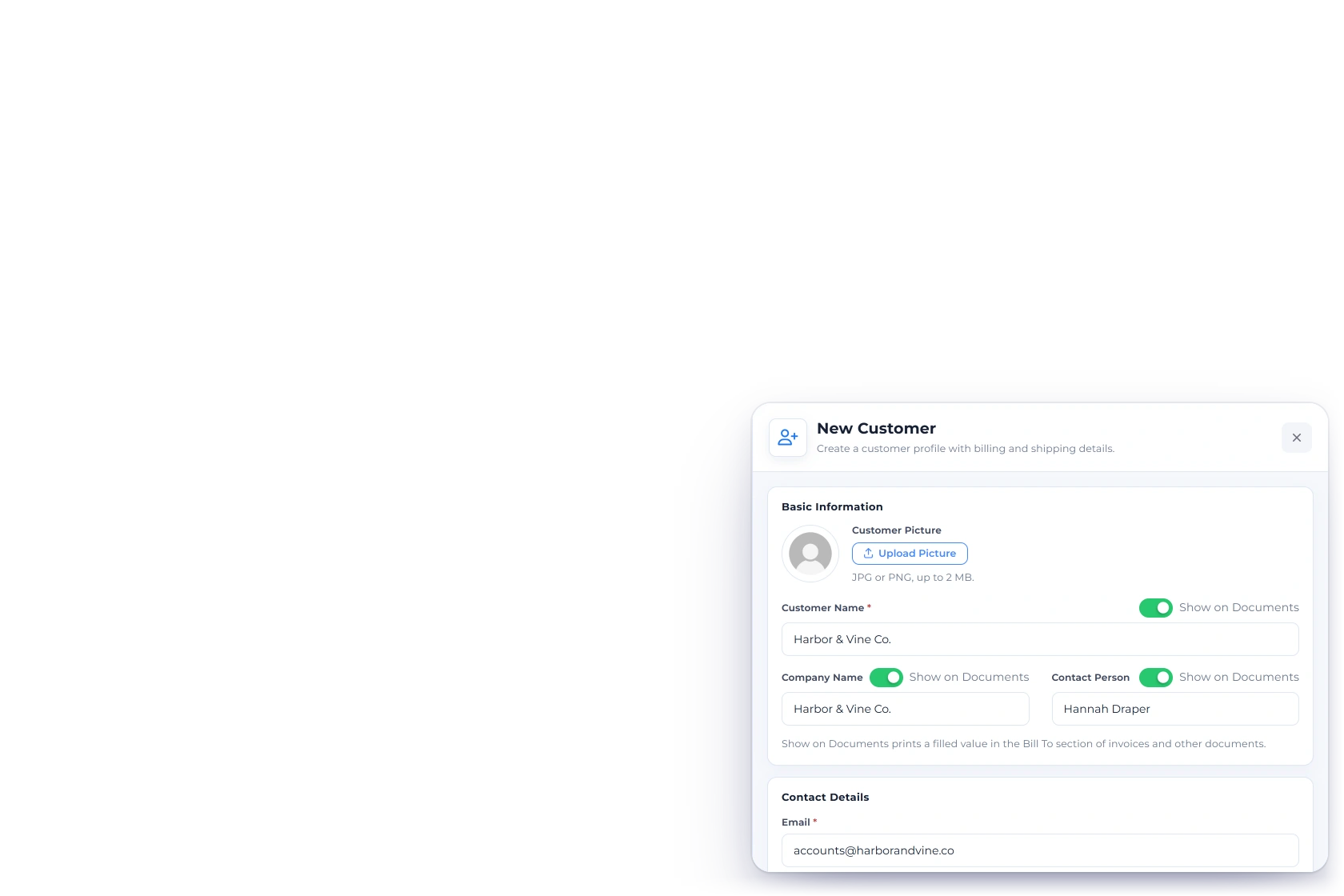
The Invoice Crowd Customers screen with Total Customers, Active Portal Users, Outstanding Credit and New This Month, the customer list with a Client Workspace link and credit balance on every row, and the New Customer drawer open at Basic Information

What is inside

Everything about one client, on one screen

The customer section is where contact details, invoice history and attachments meet. It exists so that a question about one client can be answered from one screen instead of four.

The record itself

Who they are and what they bought

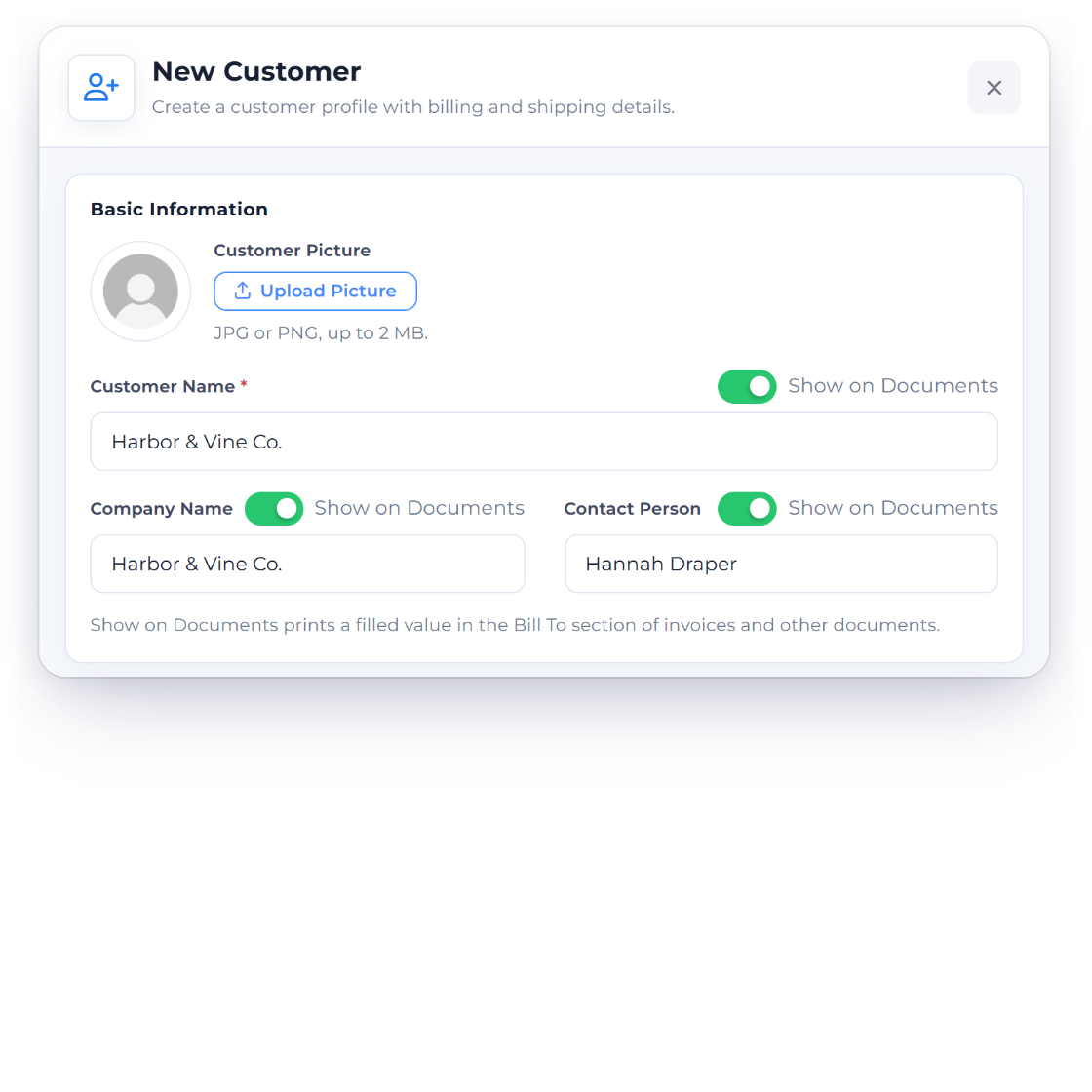
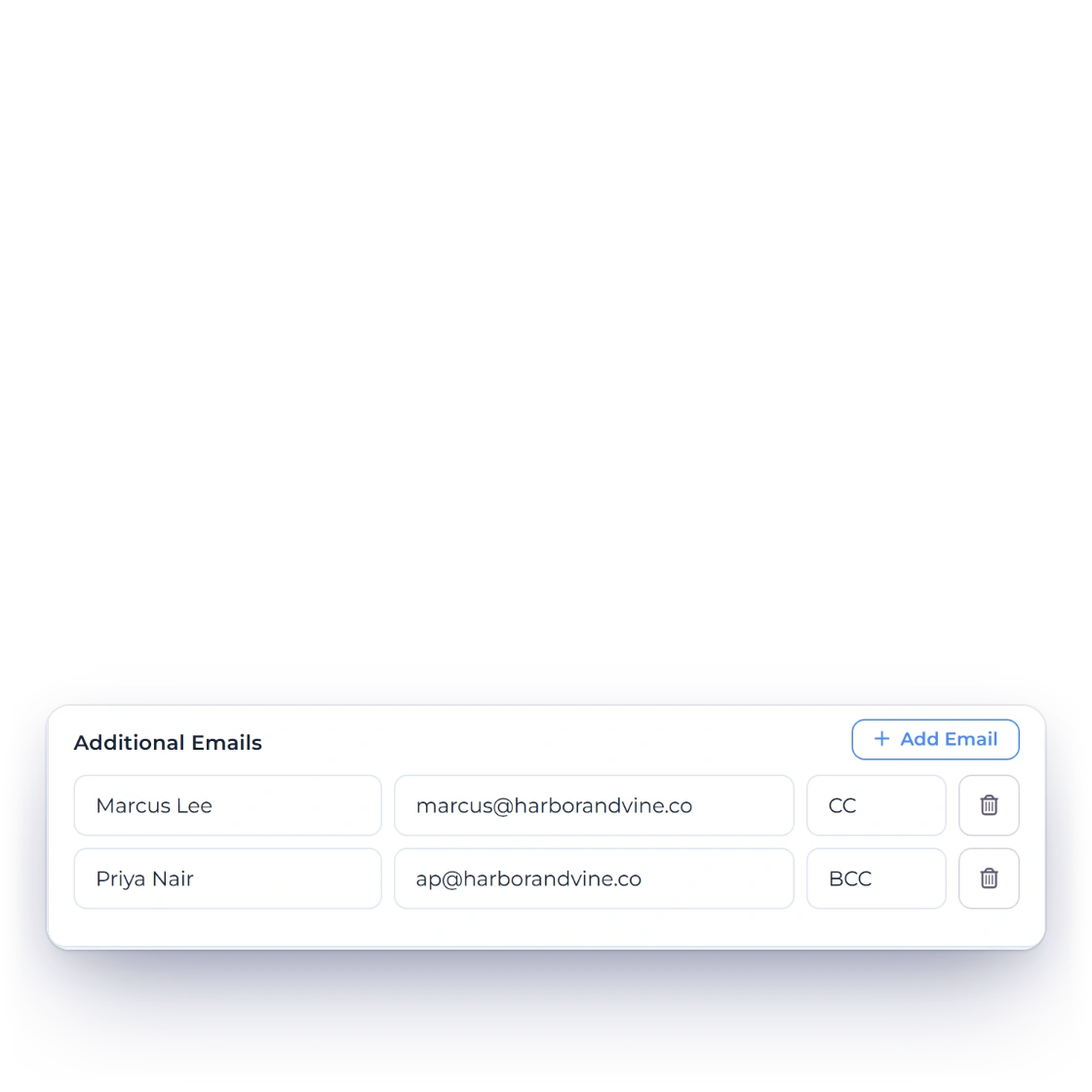
The Invoice Crowd New Customer drawer with Basic Information for Harbor & Vine Co.: Customer Name, Company Name and Contact Person, each with its own Show on Documents switch, and Contact Details with two additional emails, one on CC and one on BCC

A single profile for each customer

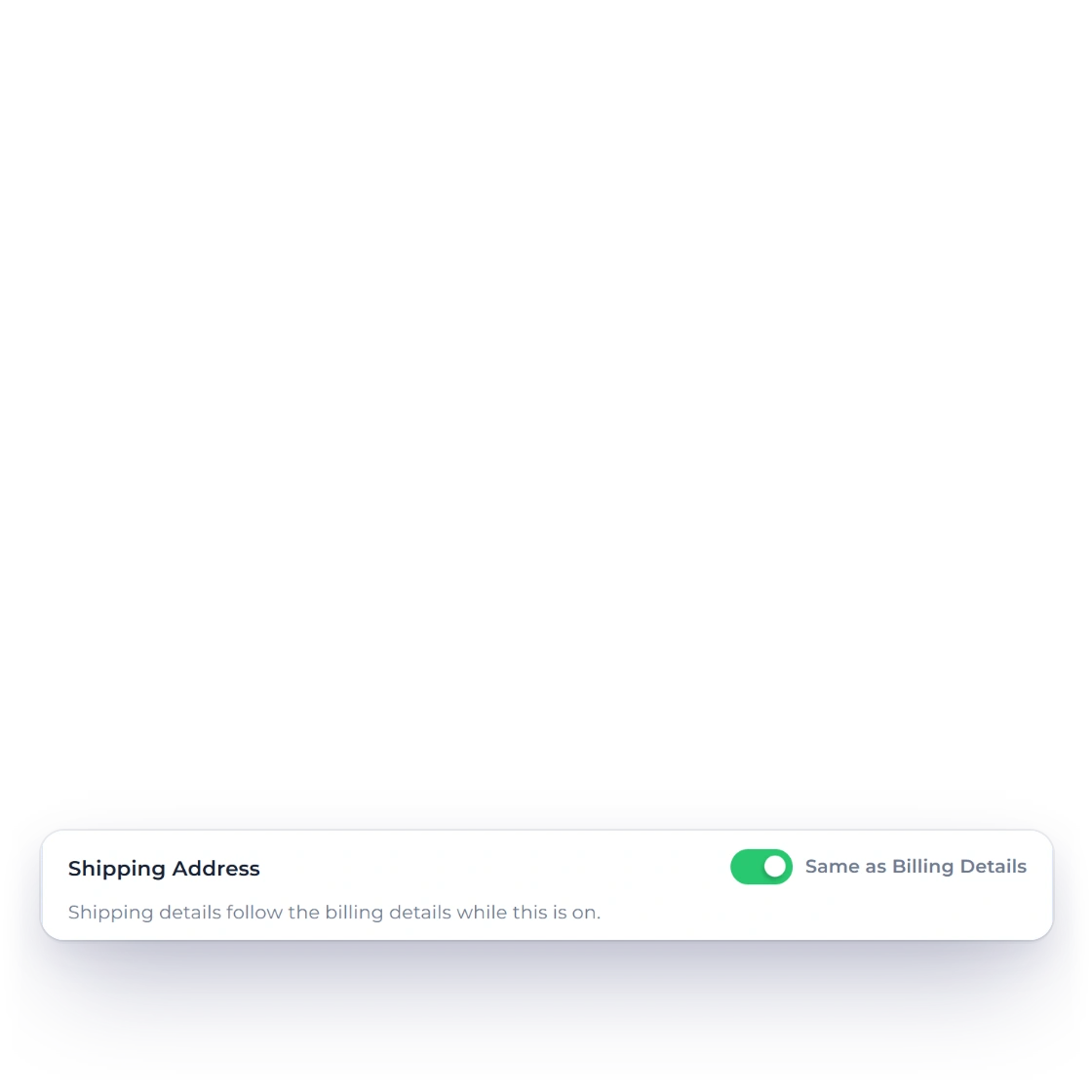
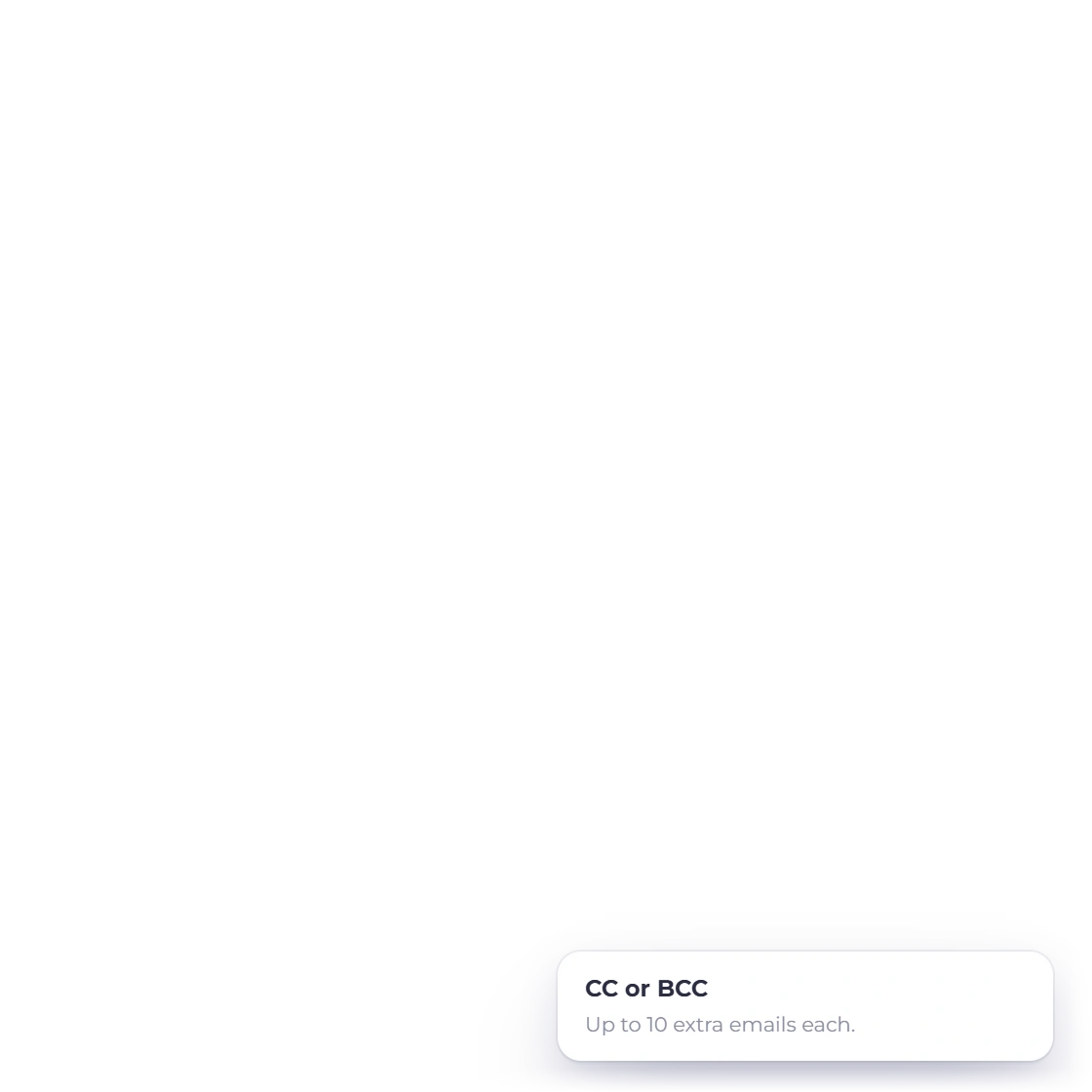
New Customer opens one drawer with everything your documents use: Basic Information, Contact Details with up to 10 extra emails on CC or BCC, billing and shipping Addresses, Tax & Compliance, Preferences and Customer Portal. Customer Name and Email are all it needs to start, and Show on Documents decides which names print.

  • Customer Name and Email to start
  • Up to 10 extra emails on CC or BCC
  • Shipping that follows billing
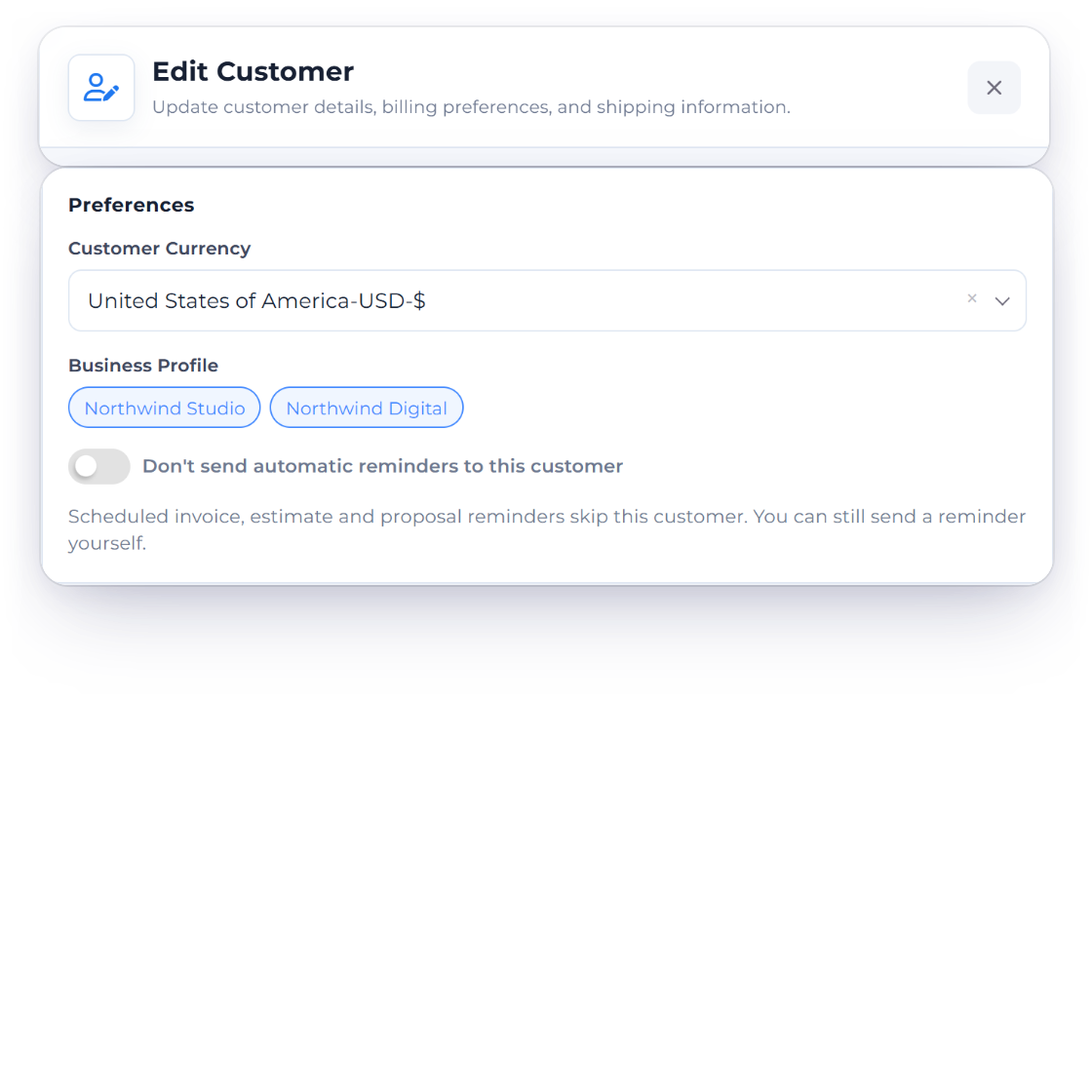
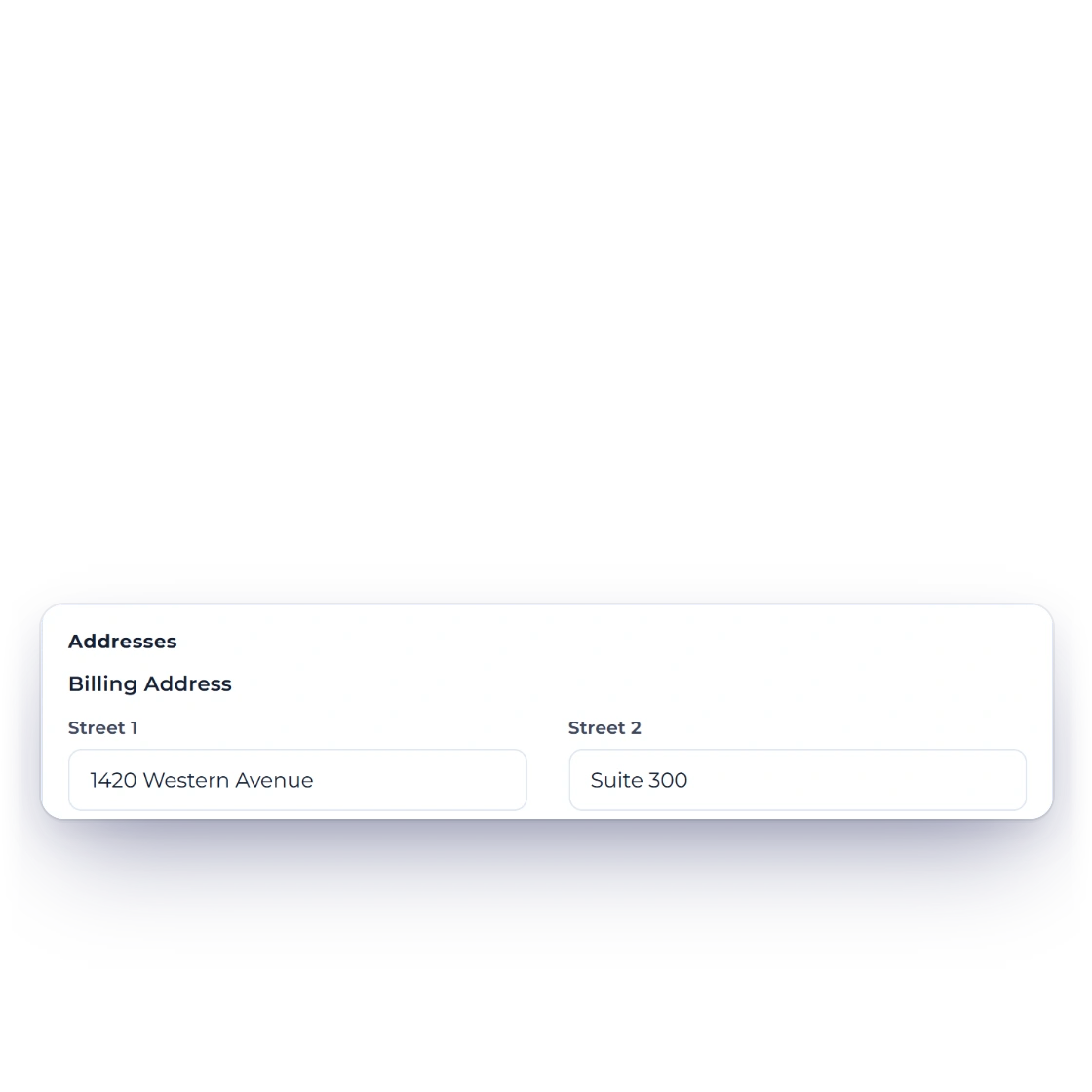
The Invoice Crowd Edit Customer drawer for Harbor & Vine Co. at Preferences, with Customer Currency set to US Dollars, the Northwind Studio and Northwind Digital business profile chips and the automatic reminders switch, above the billing address at 1420 Western Avenue, the shipping address set to Same as Billing Details, and Save Changes

Details corrected in place

People change roles, companies move and inboxes change. Edit Customer opens the same drawer, and the correction carries to the next document you send, so a detail is fixed once. Preferences keep the customer's currency, their business profiles and the switch for automatic reminders together.

  • Edit any field in the same drawer
  • Corrections carry to the next document
  • Currency and reminders per customer

Their work with you

Every document and balance, client by client

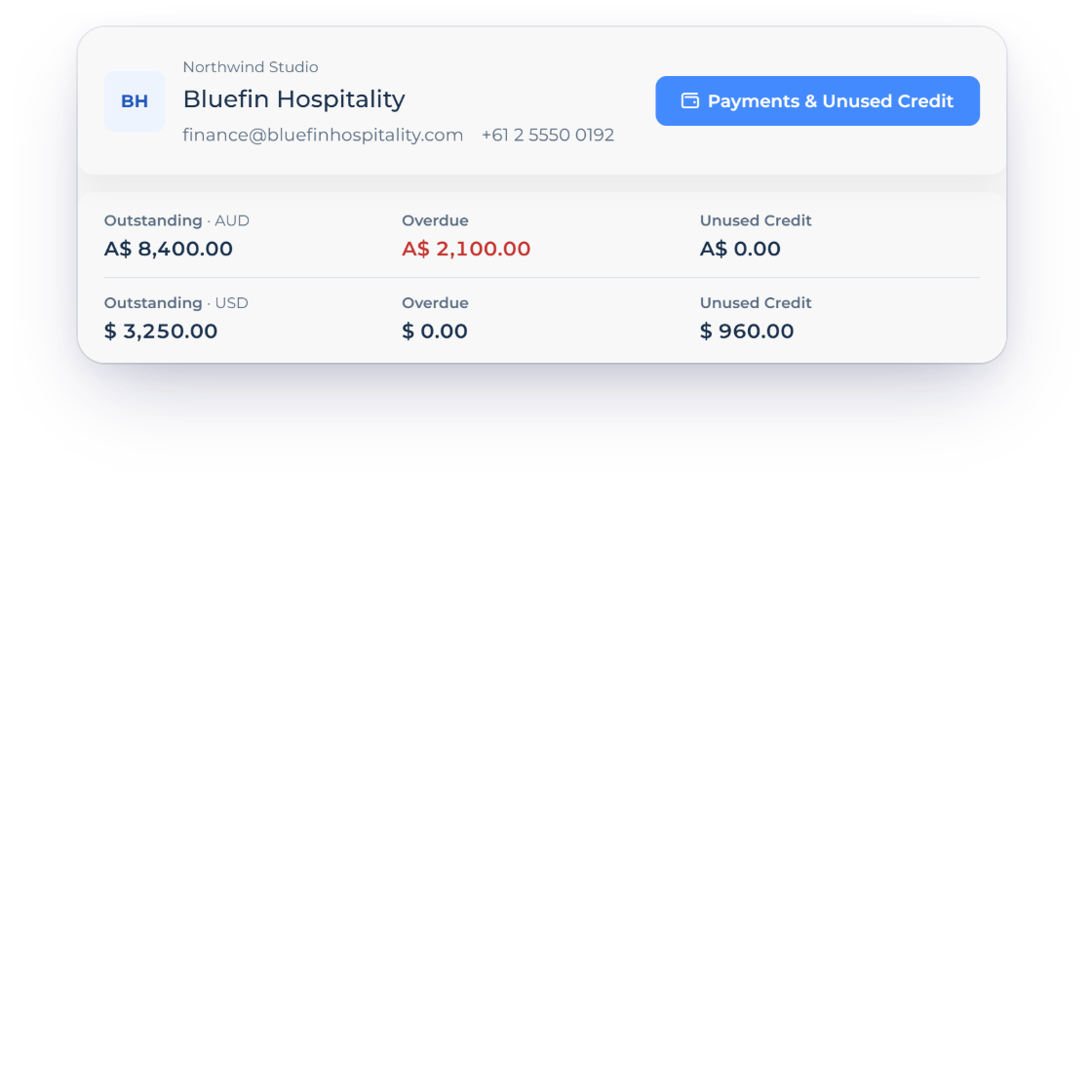
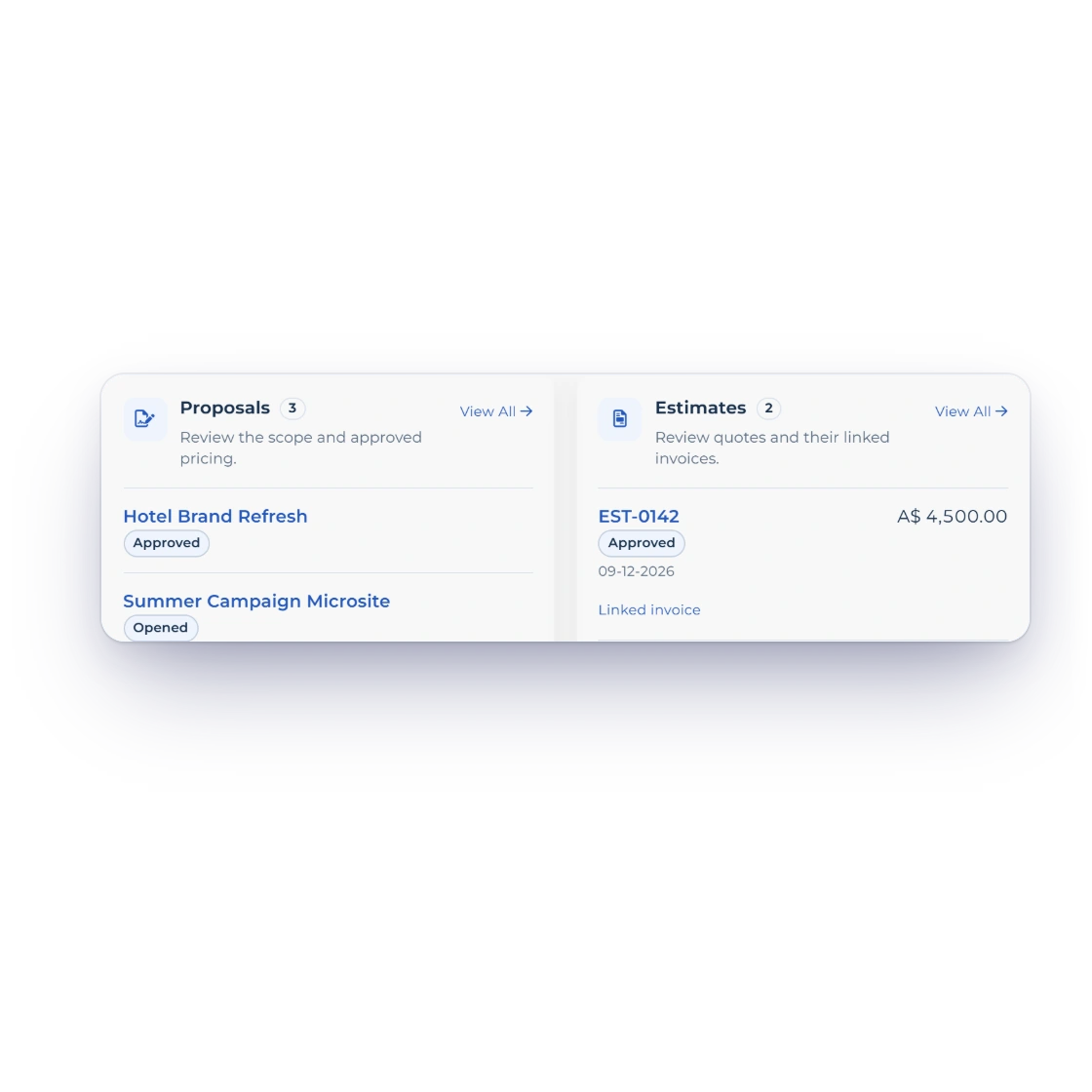
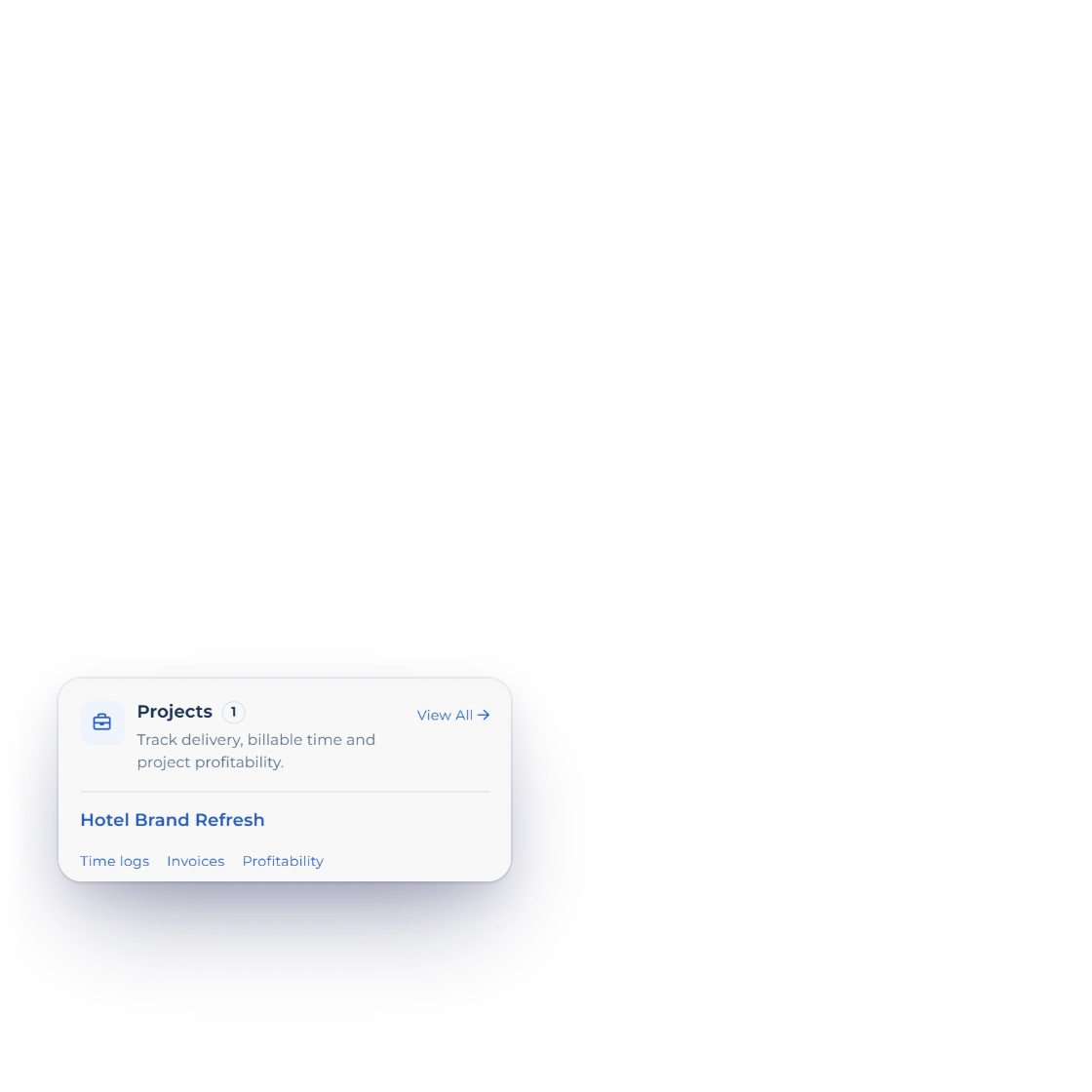
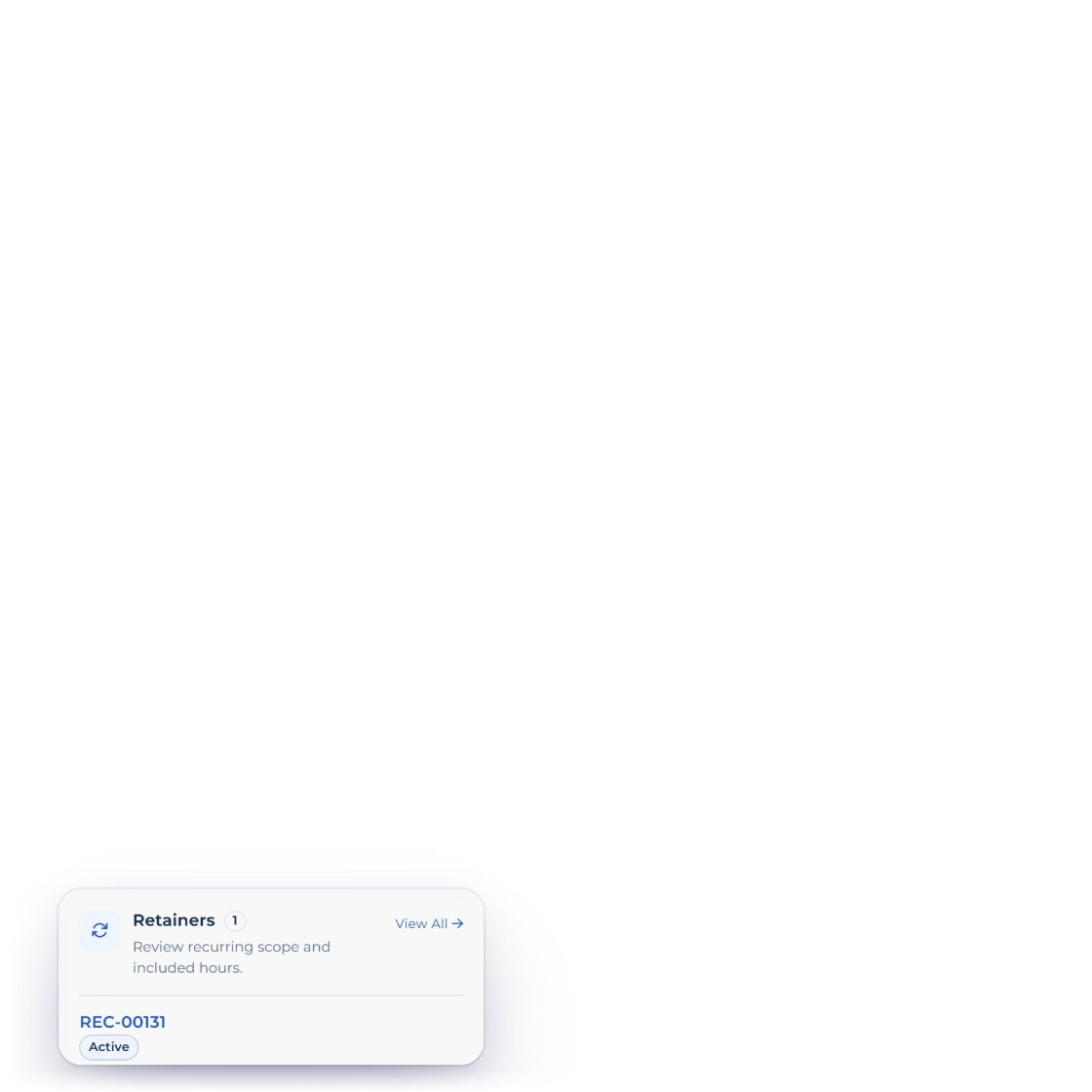
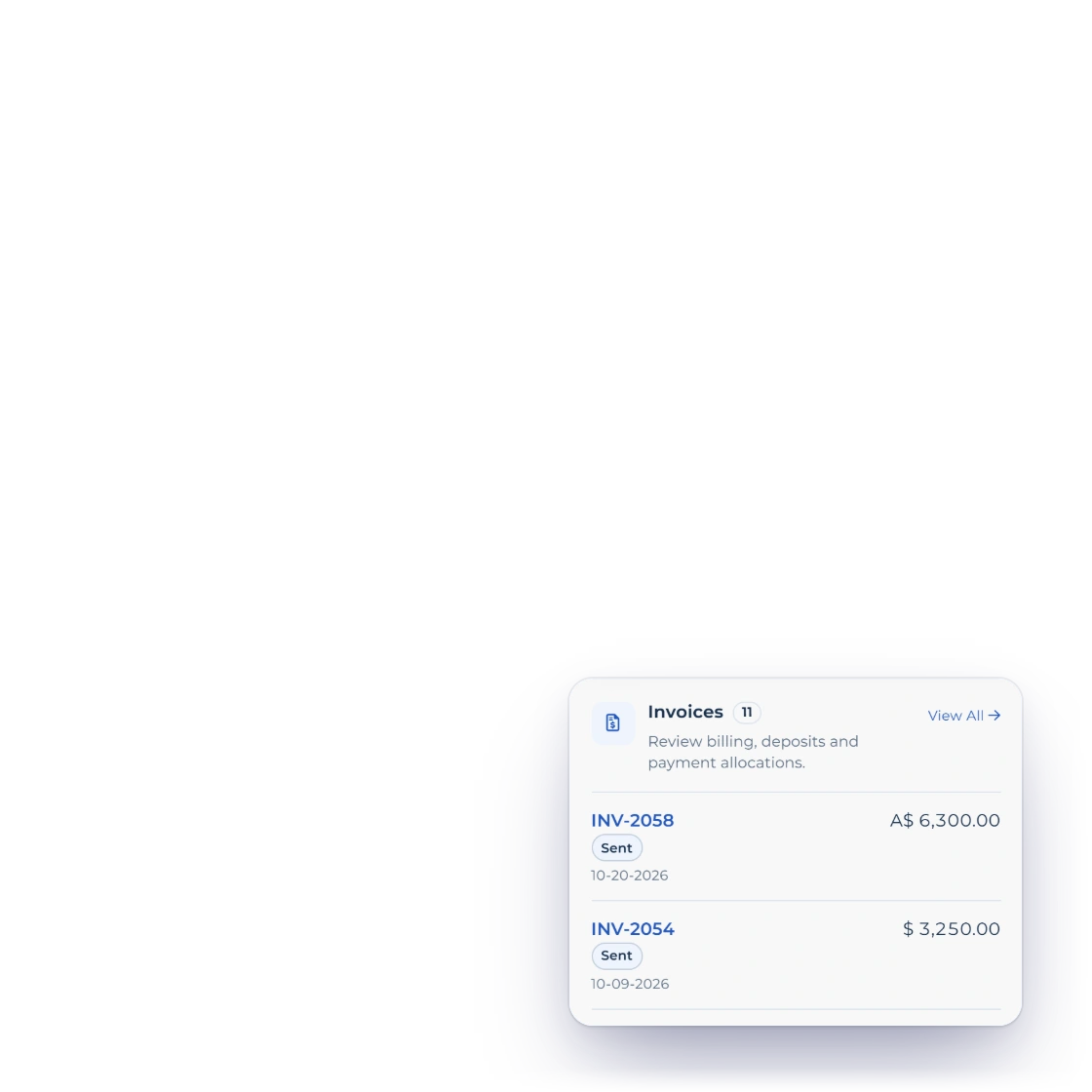
The Invoice Crowd Client Workspace for Bluefin Hospitality with Outstanding, Overdue and Unused Credit in Australian and US dollars, above the client’s Proposals, Estimates, Projects, Retainers and Invoices cards, each with its latest records, statuses and View All

A Client Workspace for every customer

Open Client Workspace and one page shows that client's proposals, estimates, projects, retainers and invoices, each with its most recent records and a View all link. Outstanding, Overdue and Unused Credit sit at the top for each currency and match the client's Statement of Account, so you know where things stand before the call.

  • Proposals through to invoices on one page
  • Outstanding, Overdue and Unused Credit
  • Totals kept per currency
Raising the invoice
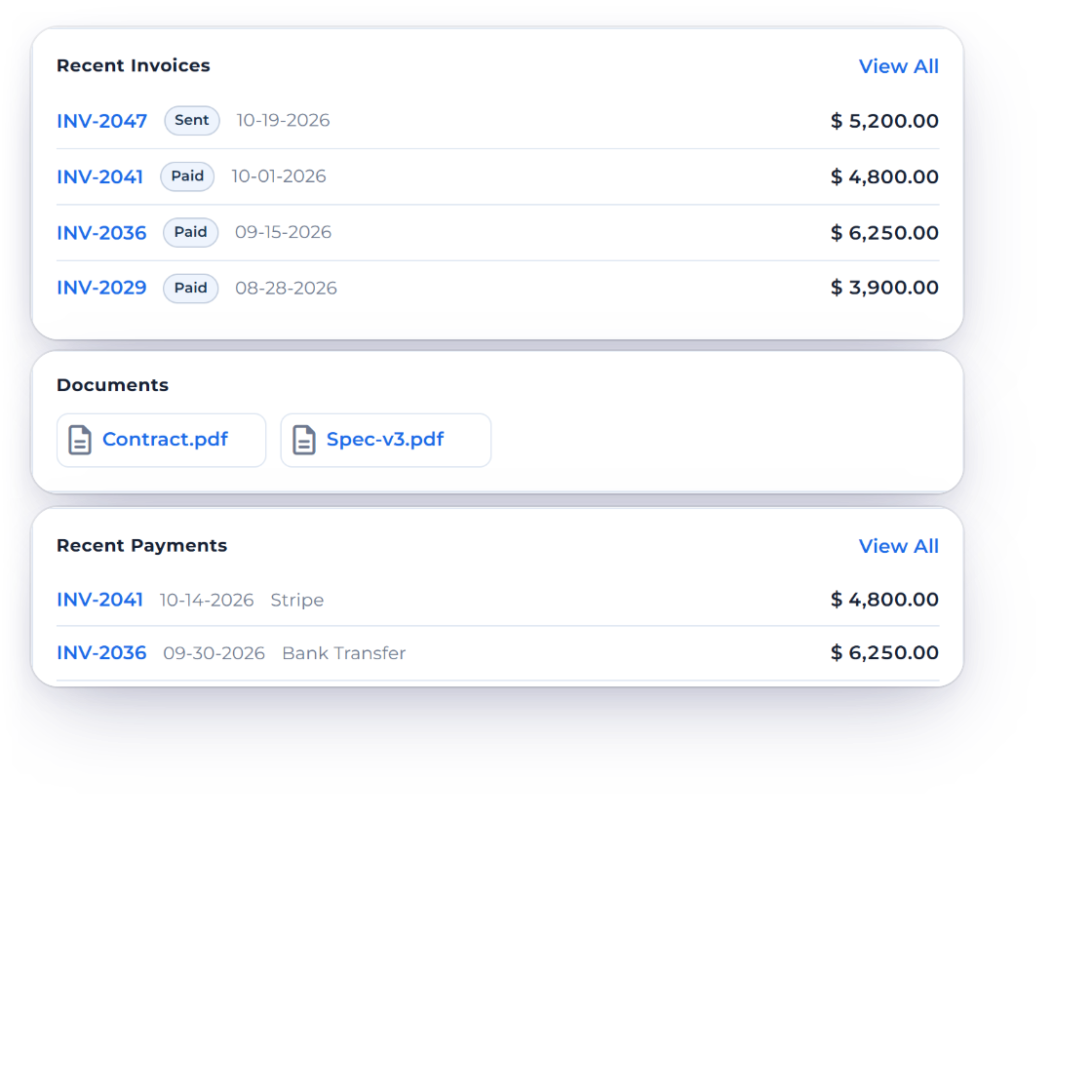
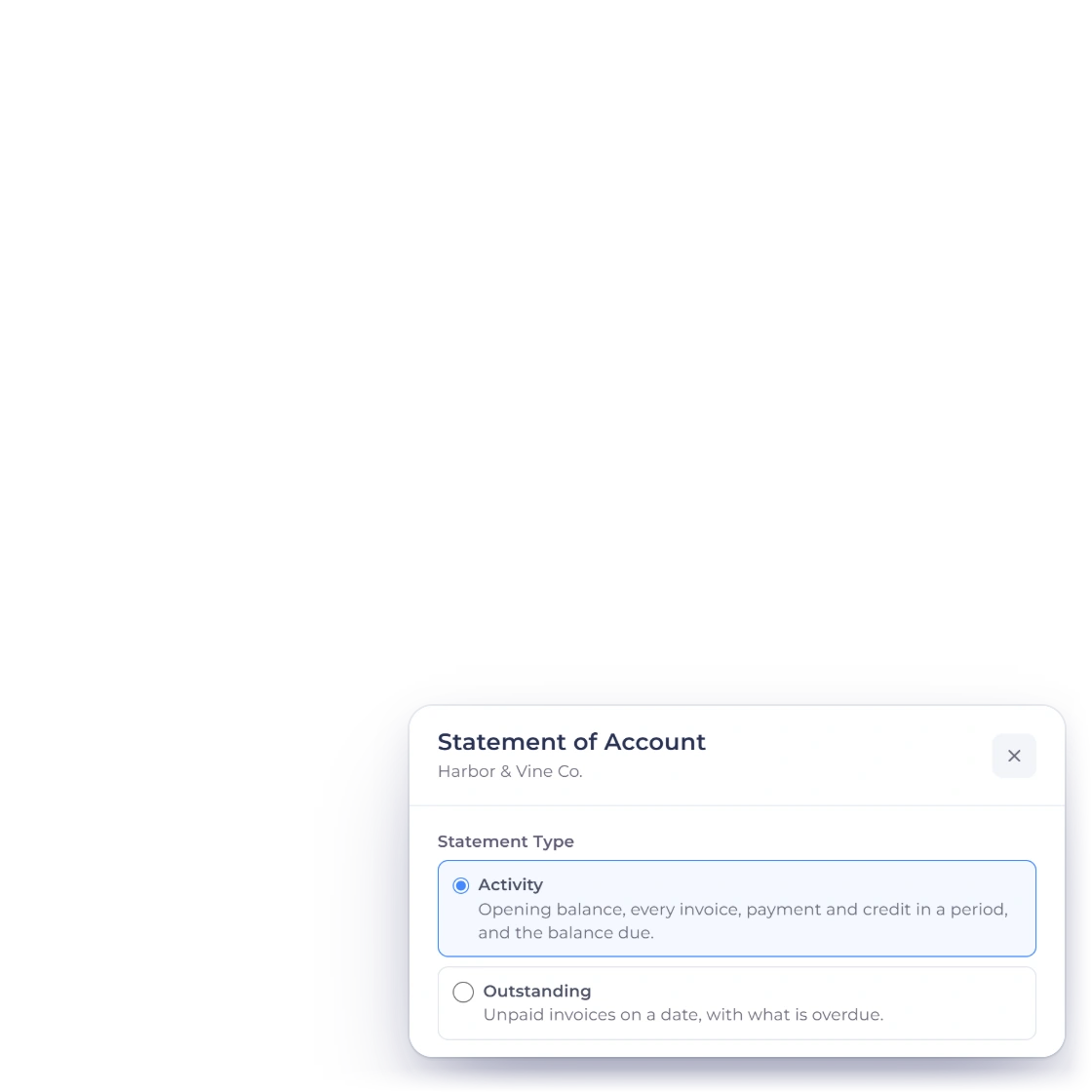
The Invoice Crowd View Customer drawer for Harbor & Vine Co. with Recent Invoices and their Sent and Paid statuses, Recent Payments by Stripe and bank transfer, and the documents attached to their invoices, beside the Statement of Account dialog offering an Activity or Outstanding statement

Their history, a click away

View Customer shows the full record with Recent Invoices, Recent Payments and the documents attached to their invoices, such as a signed agreement or a specification. Statement of Account turns the same history into an Activity or Outstanding PDF, ready to send.

  • Recent invoices and payments
  • Files attached to their invoices
  • Activity or Outstanding statements

Getting to the right person

Find them, or take the list elsewhere

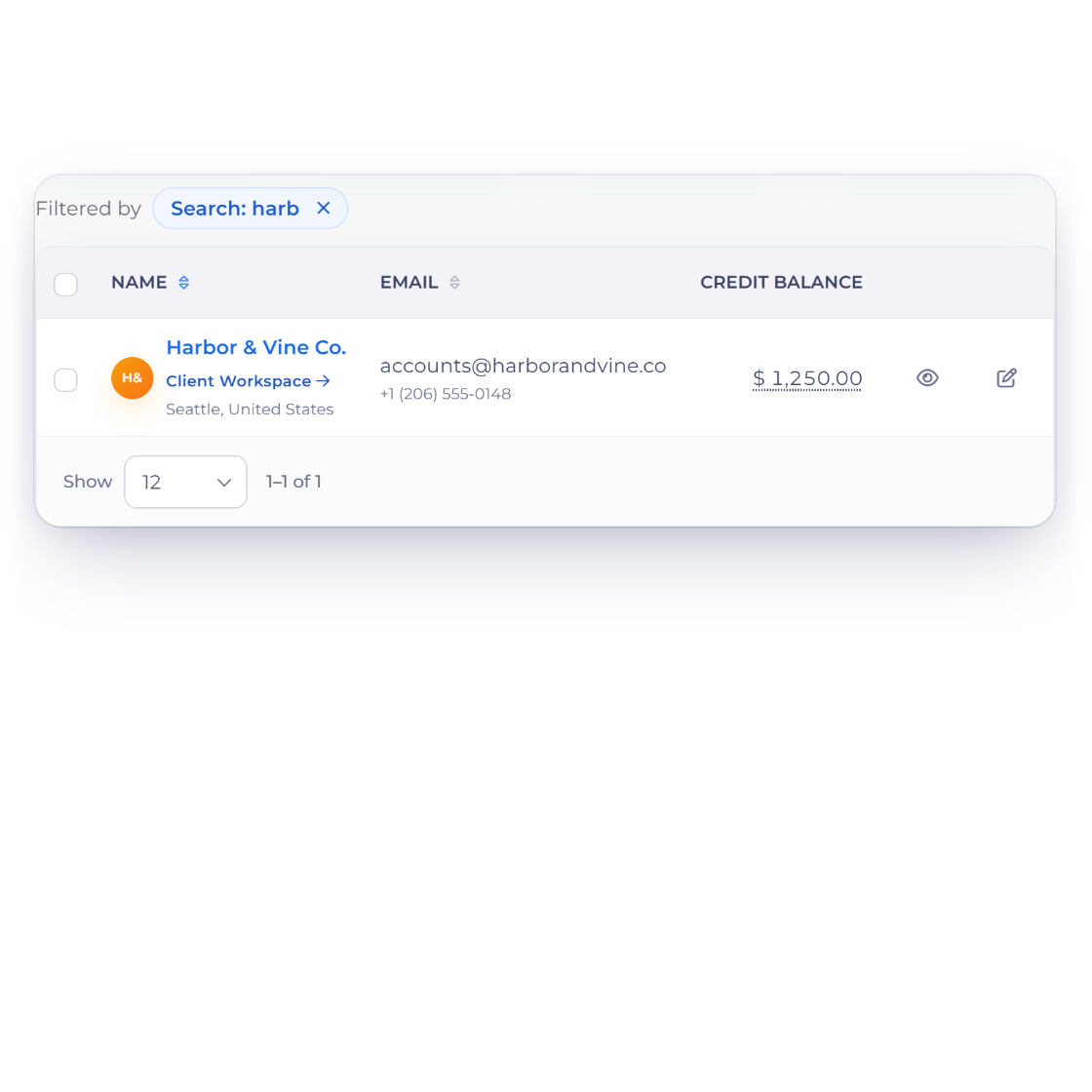
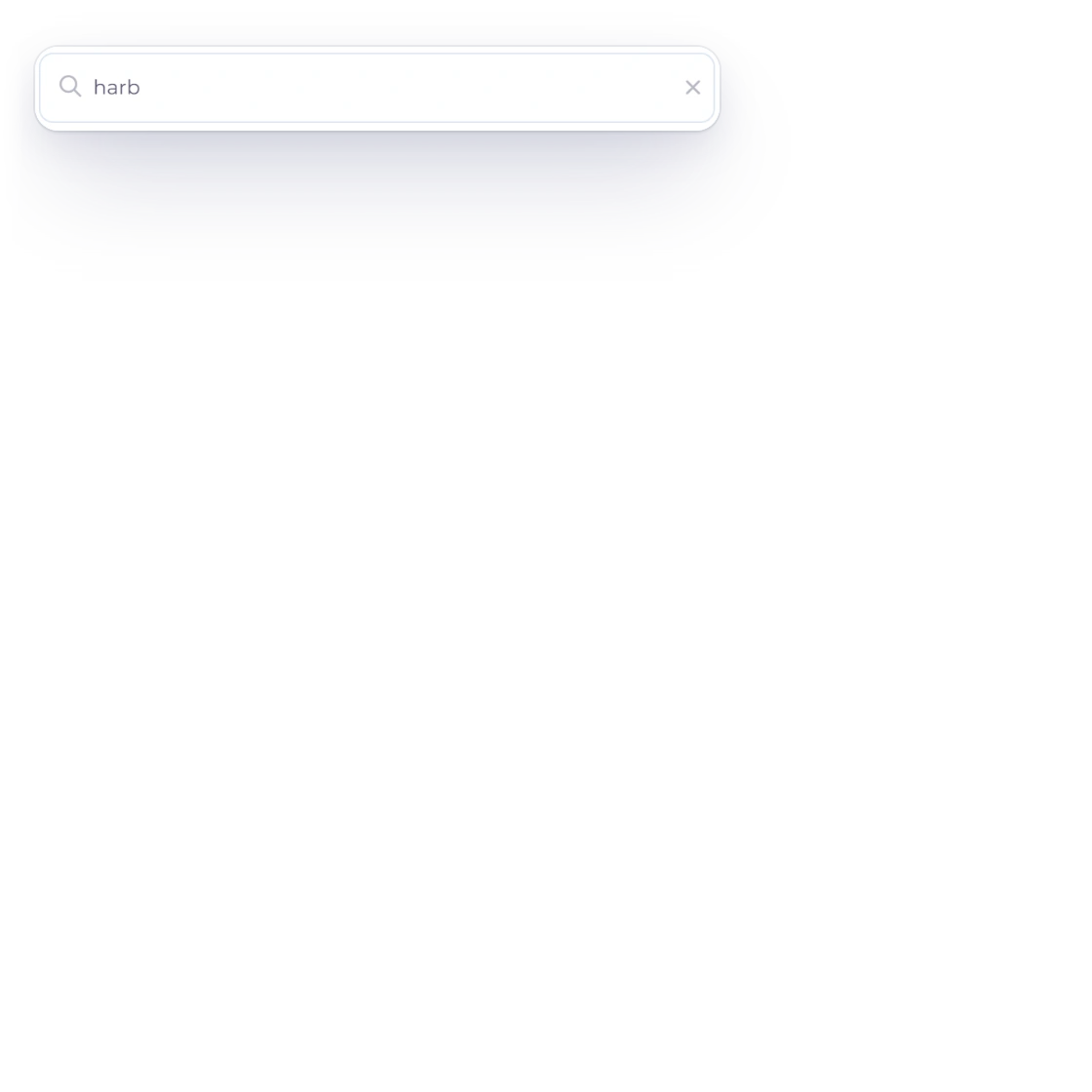
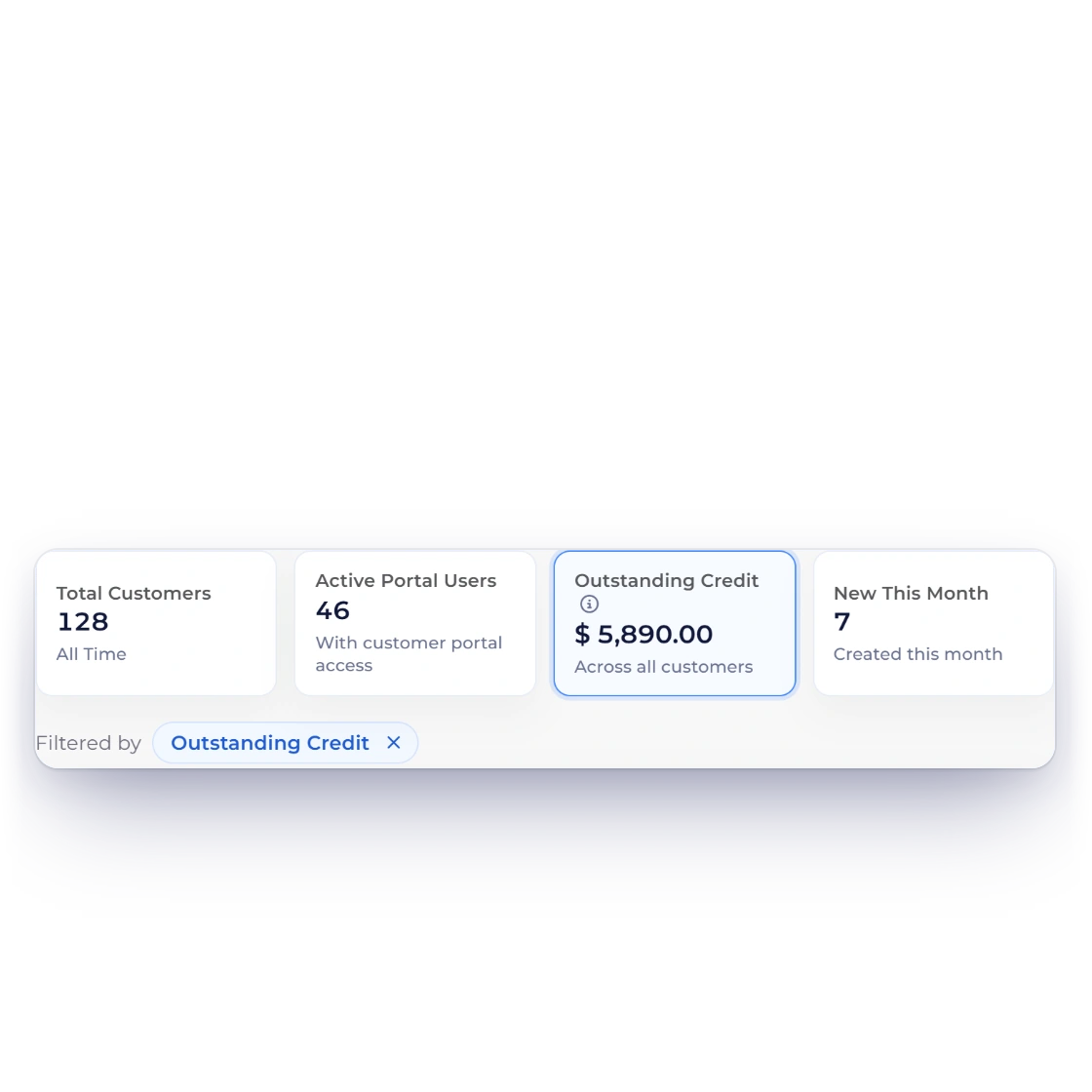
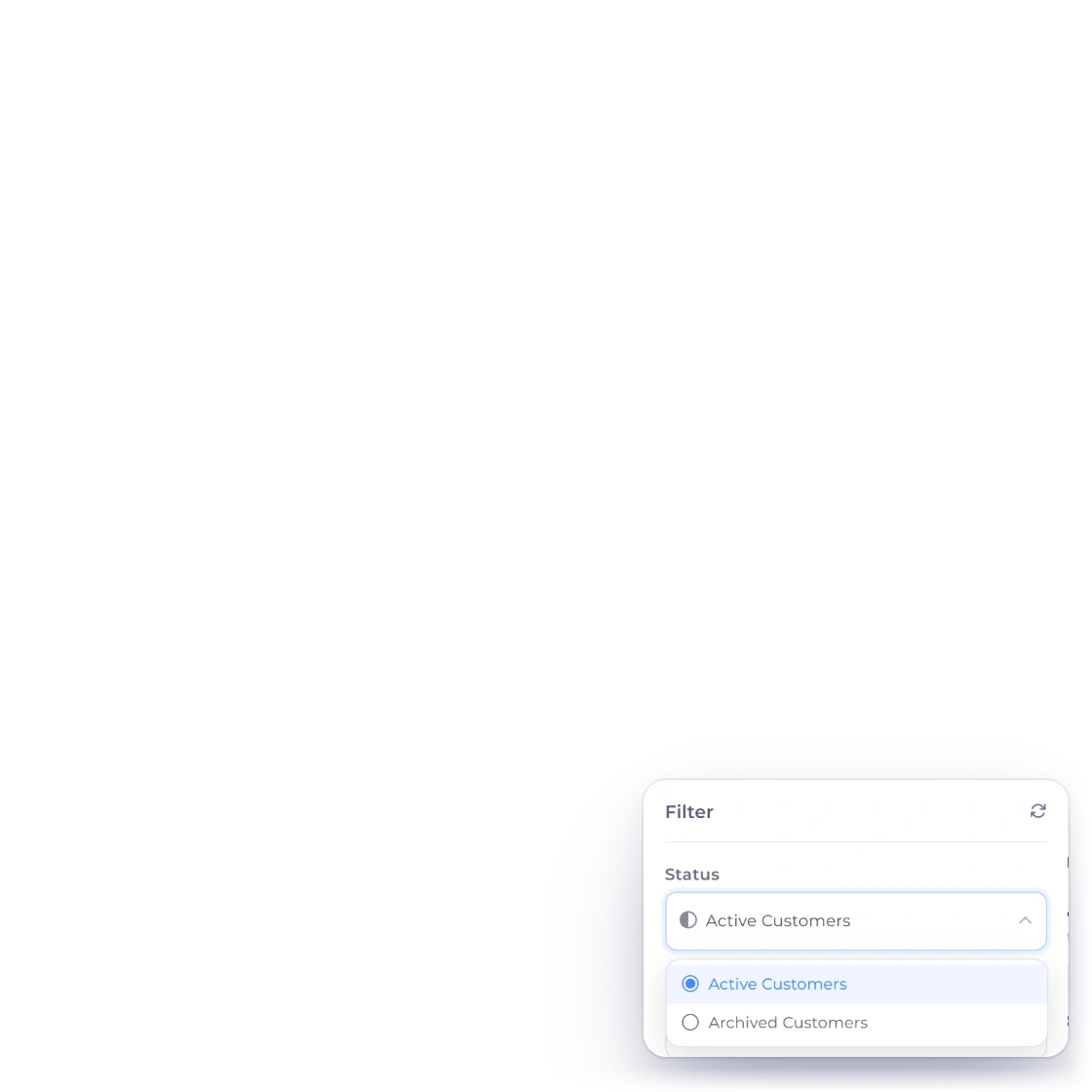
The Invoice Crowd customers list narrowed to Harbor & Vine Co. by a search for harb, the Outstanding Credit tile filtering the list to the four customers with credit, and the Filter panel with Status set to Active Customers or Archived Customers

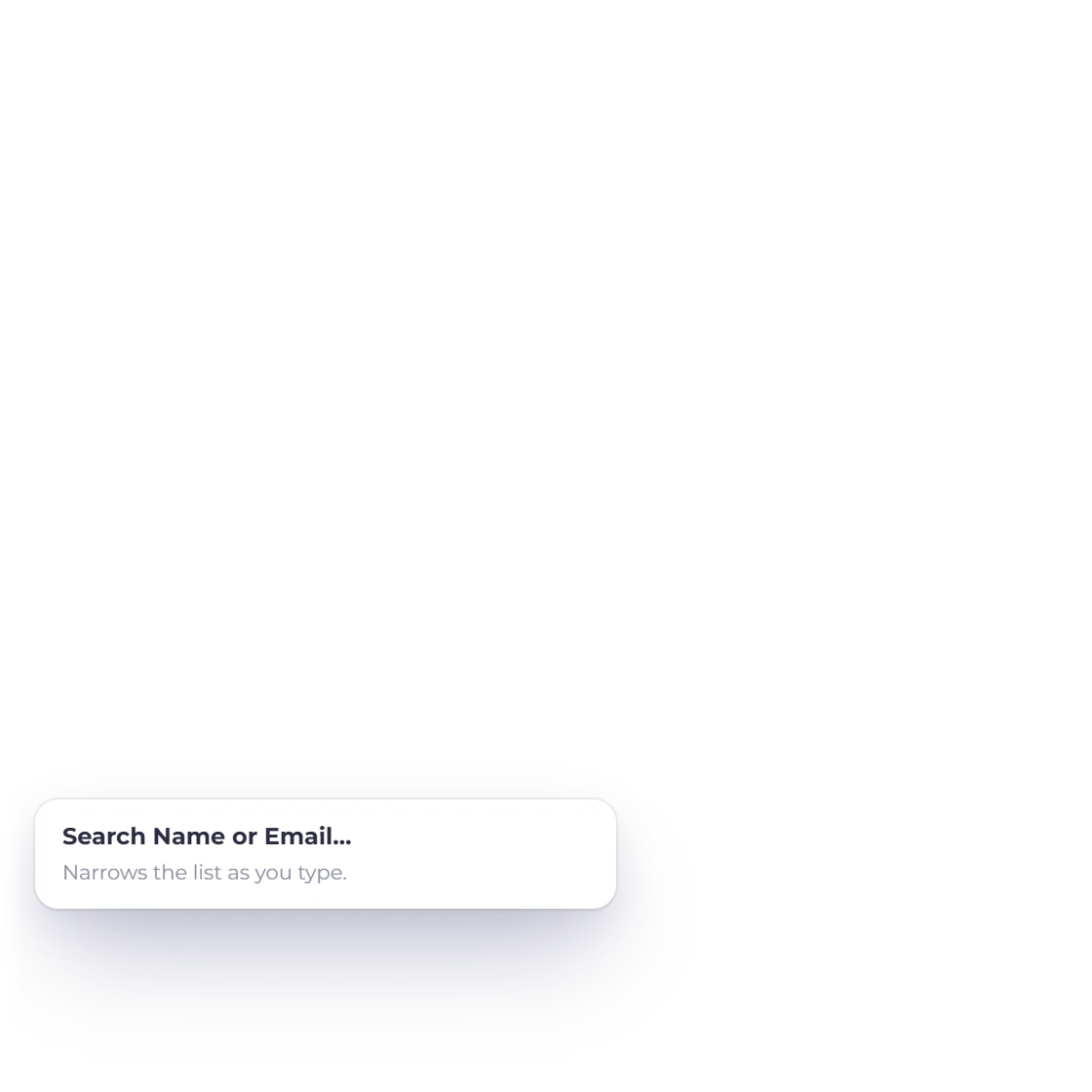
Search that narrows as you type

Type part of a name or an email address and the list narrows to the matching customers, ready for the moment a client calls. Total Customers, Active Portal Users, Outstanding Credit and New This Month filter the list in one click, and Filter adds business profile and archived customers.

  • Match on name or email
  • Tiles that filter in one click
  • Archived customers one filter away
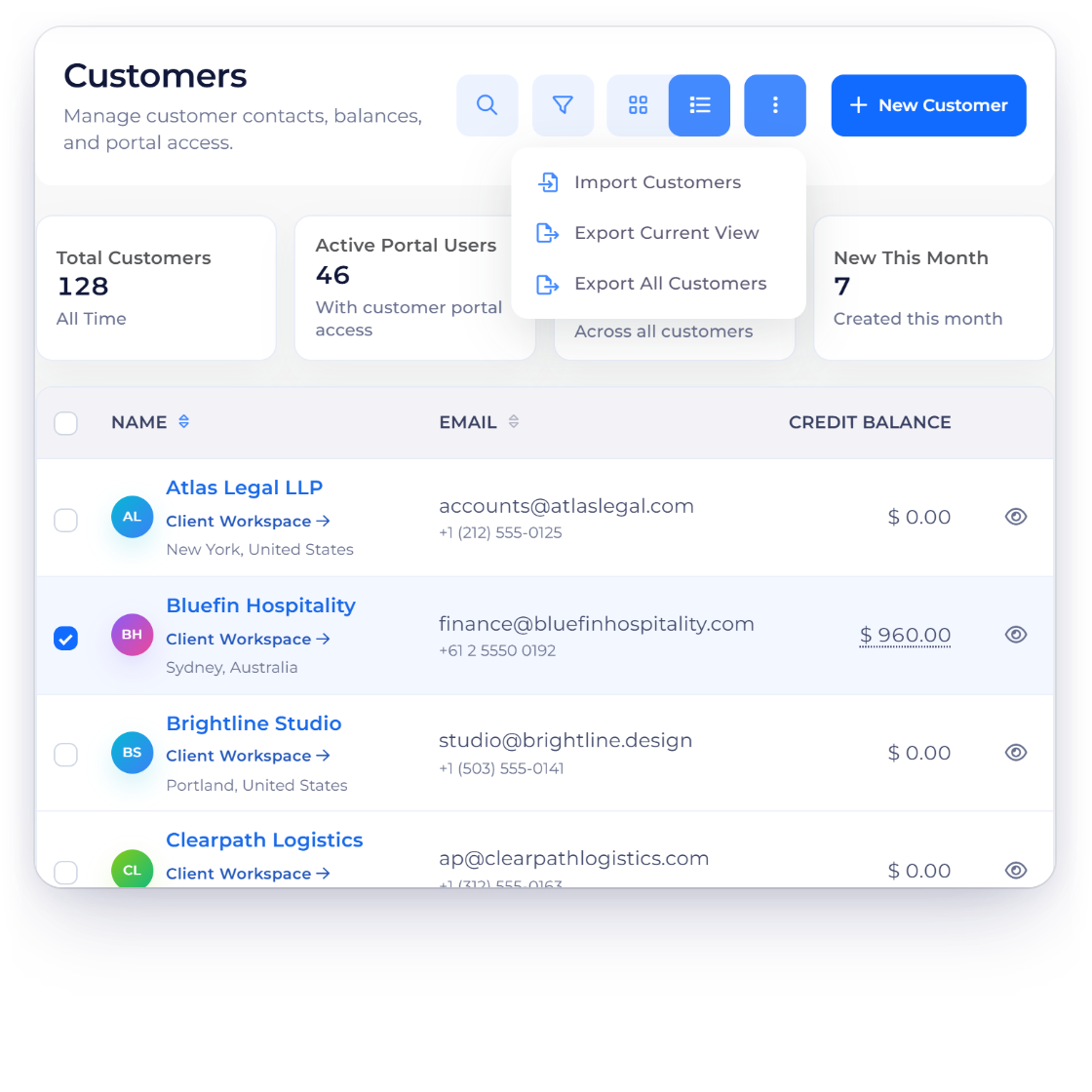
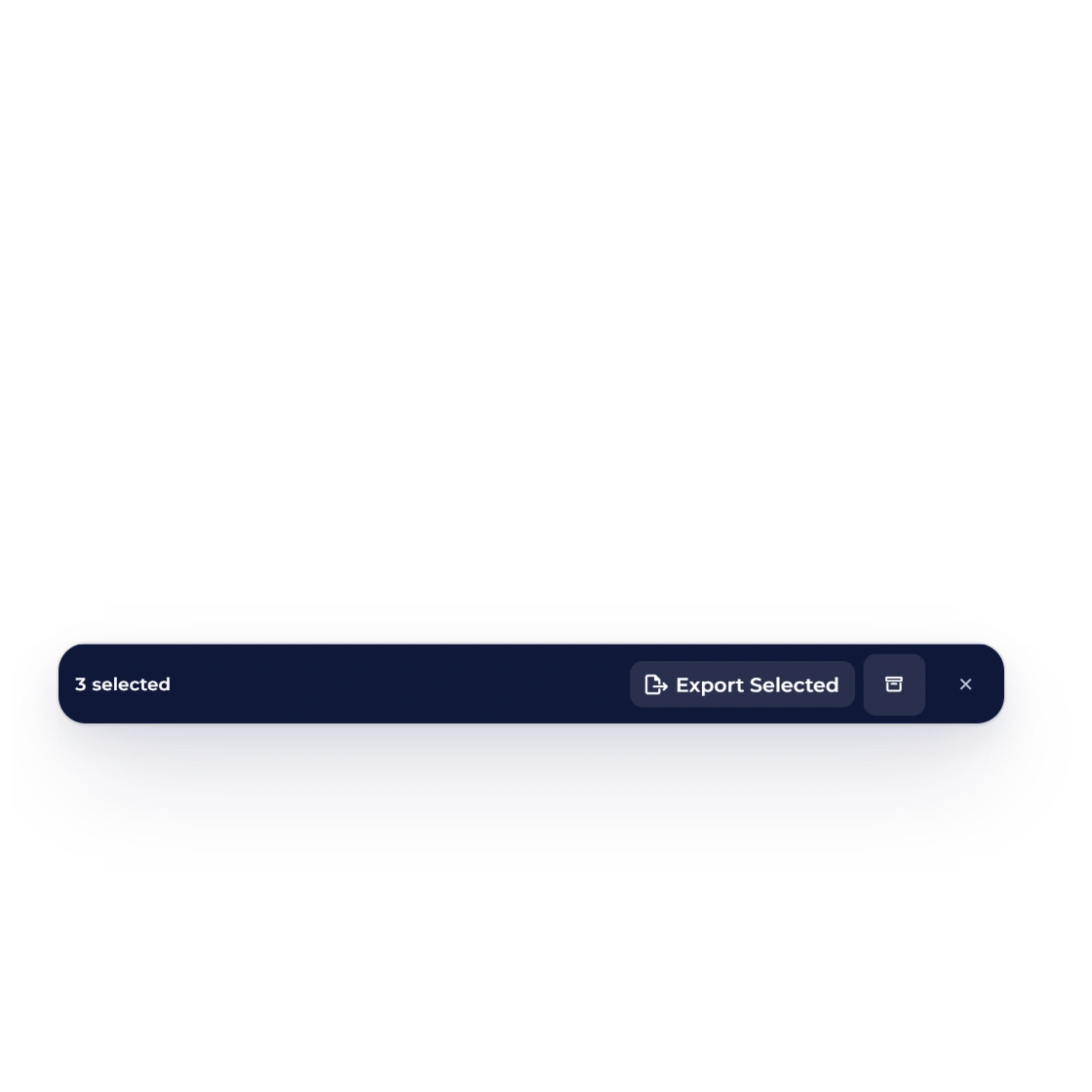
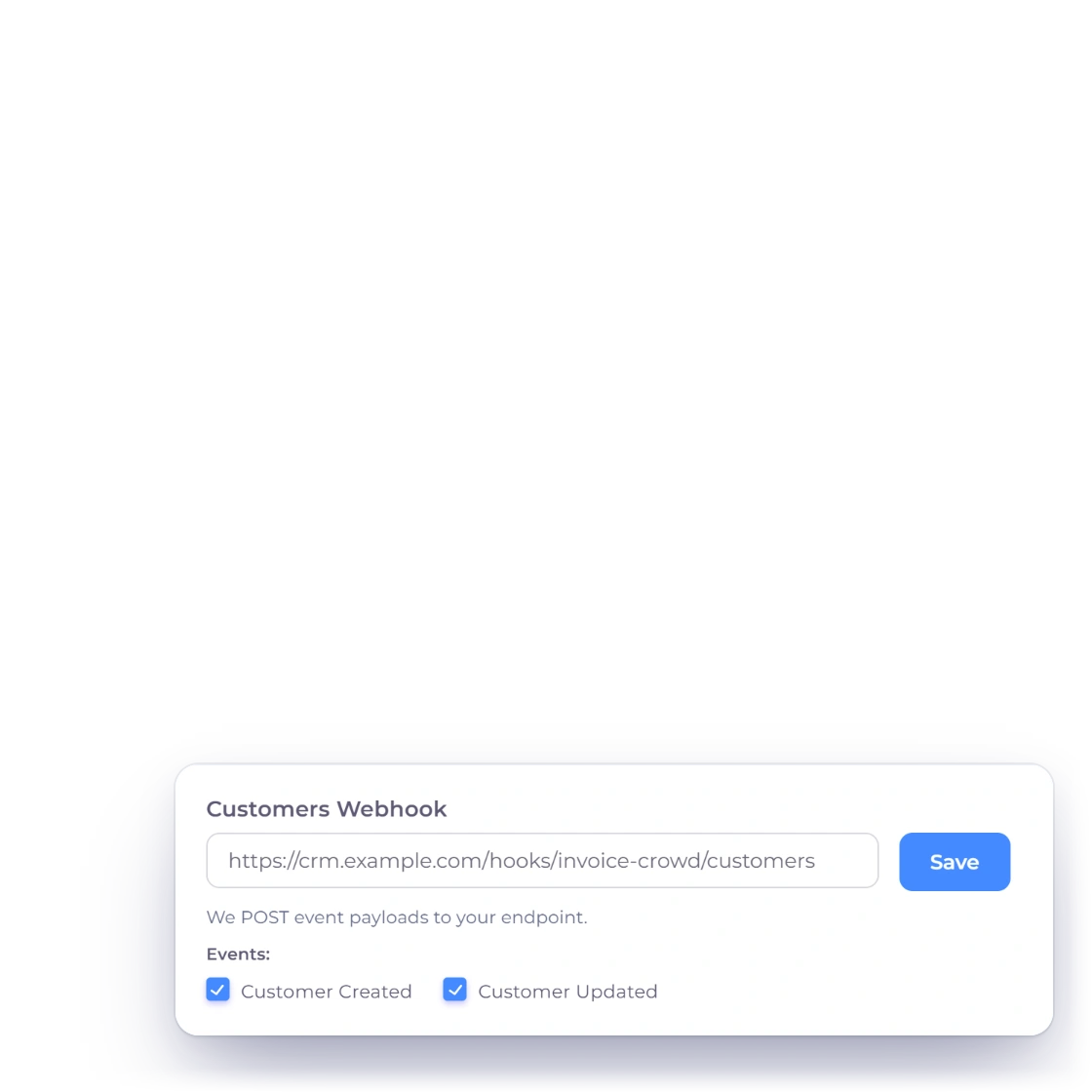
The Invoice Crowd customers list with the More menu open at Import Customers, Export Current View and Export All Customers, three customers ticked with Export Selected in the bulk bar, and the Customers Webhook sending Customer Created and Customer Updated events to a URL you choose

Export the list or pipe it out

A customer list is yours to move. Export All Customers or Export Current View downloads a CSV for a mailing tool, a spreadsheet or your accountant, and Export Selected takes only the rows you tick. Customer Created and Customer Updated webhooks notify a URL you choose, and Zapier and Pabbly Connect pass customers to the rest of your tools.

  • Export all, the current view or a selection
  • Webhooks on create and update
  • Zapier and Pabbly Connect
Outbound webhooks

Also included

What else reads from the customer record

A customer record is the hub of your billing. Invoicing, reporting and portal access all point back to it.

  • Their own portal login

    Customers sign in to view, approve, download and pay what you have sent them.

  • Recurring agreements

    See which customers are on a schedule and what each cycle bills them.

  • Per-client late fees

    Set late fees per invoice, so a long-standing client can have different terms from the ones a new client gets.

  • Buyers become customers

    Someone who pays through a payment link is added as a customer record.

  • Currency per customer

    Bill an overseas client in their currency while your reporting stays in yours.

  • Estimates and proposals

    Estimates and proposals are raised against the same customer record, and accepted ones convert into invoices for it.

  • Business profile assignment

    Assign a customer to one or more business profiles and filter the list by business, all from one login.

  • Outbound webhooks

    Notify your own systems the moment a customer is created or updated.

  • Custom fields

    Put the reference number or account code a client insists on onto their invoices, or fill it in from their record.

  • Aged debt report

    See which customers are behind and by how long, across the whole list.

  • Statement of Account

    Download an Activity or Outstanding statement PDF for any customer, per currency, straight from the customer list.

  • Team access

    Team members with the right role can work from the same customer records.

Questions

Customer records, answered

How many customers can I add?

Your plan sets the number: the free Basic plan holds 5 customer profiles, and paid plans hold more, up to unlimited on Business.

Can I export my customer list?

Yes. Export All Customers downloads the whole list as a CSV, Export Current View keeps your search and filters, and Export Selected downloads the rows you tick, ready for a mailing tool, a spreadsheet or your accountant. Your customer data is always yours.

Can I connect customer records to my CRM?

Yes, through Zapier or Pabbly Connect using your Invoice Crowd sign-in: pass new customers to other apps, or create them from other apps. You can also export the list, or set the outbound Customer created webhook to notify a URL you control.

What is kept on a customer record?

Customer Name, Company Name and Contact Person, email with up to 10 extra CC or BCC addresses, phone, website, billing and shipping addresses, the customer's tax registration number, currency, business profiles, notes, social links and the automatic-reminder switch. Client Workspace and View Customer then show their documents, payments and balances.

Can customers see their own invoice history?

Yes, through the customer portal. They sign in to view what has been sent, approve estimates, download documents and pay outstanding invoices, which cuts down the emails asking you to resend something they already have.

Who can see my customer records?

You and the team members you invite, with the access their role allows. Members can be limited to selected customers, and each customer sees only their own documents in the portal.

What happens when I archive a customer?

Archiving takes the customer off your lists and pickers and frees a place in your plan, while every invoice, payment and file stays in your books. Filter by Archived Customers and choose Restore Customer to bring them back.

Can I stop automatic reminders for one customer?

Yes. Edit the customer and, under Preferences, switch on Don't send automatic reminders to this customer. Scheduled reminders for their invoices, estimates and proposals are then skipped, and Send Reminder still sends one whenever you choose.

Can I give a customer a statement of account?

Yes. Choose Statement of Account on the customer in your Customers list, pick Activity for a period or Outstanding for unpaid invoices on a date, choose the currency and select Download PDF. Then attach the PDF to your own message.

Can I use AI to look up or create customers?

Yes. Ask the AI Assistant to look up a customer or prepare a new customer record for confirmation. With AI Connections, Claude, ChatGPT or another MCP app can work with the customer records you allow and prepare invoice or proposal drafts for them.

Put every customer on a record worth opening

Contact details, invoice history and attachments in one place, and a search that gets you there before the client has finished saying their name.

  • 30-day free trial
  • No card details asked for
  • Export your list whenever you want