

Skip to content

Features

Retainers that count the hours your clients pay for each month

A retainer in Invoice Crowd is a monthly recurring invoice with a set number of hours included. Billable time your team logs on the client's chosen projects counts against those hours: unused hours carry over or expire, extra hours go on the next invoice, and the same hour is never billed twice.

  • Hours Included Each Month
  • Carry over or expire unused hours
  • Extra hours on the next invoice
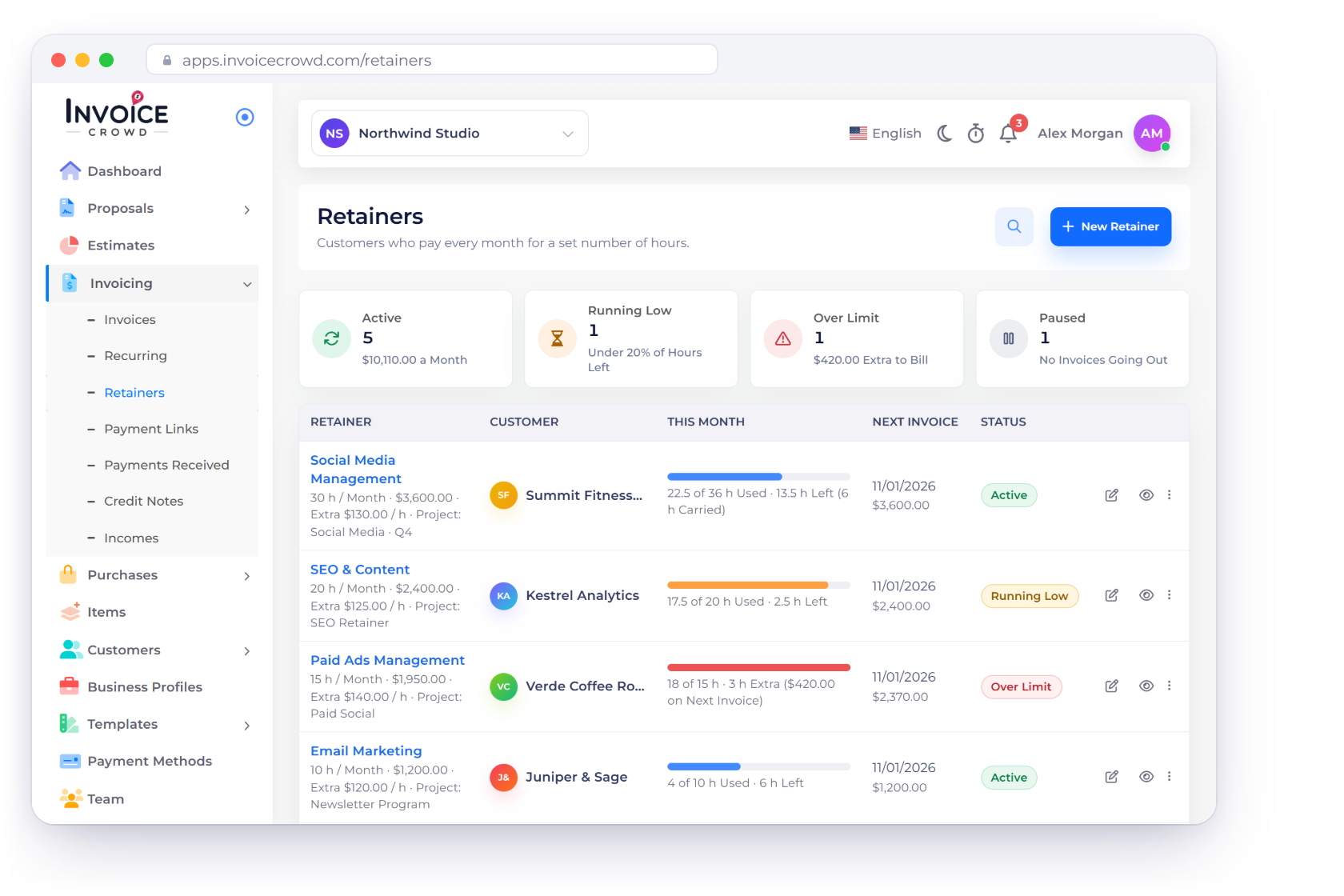
Invoice Crowd Retainers screen with Active, Running Low, Over Limit and Paused tiles, each customer's hours this month and next invoice, the hour bank of one retainer and an invoice that bills last month's extra hours

What is inside

One recurring invoice, plus an hour bank

A retainer uses the recurring invoice you already know for the schedule and the sending. The Retainer option adds the hours: how many are included, what happens to unused and extra hours, and which projects' time counts.

Setting it up

Monthly, from the recurring editor

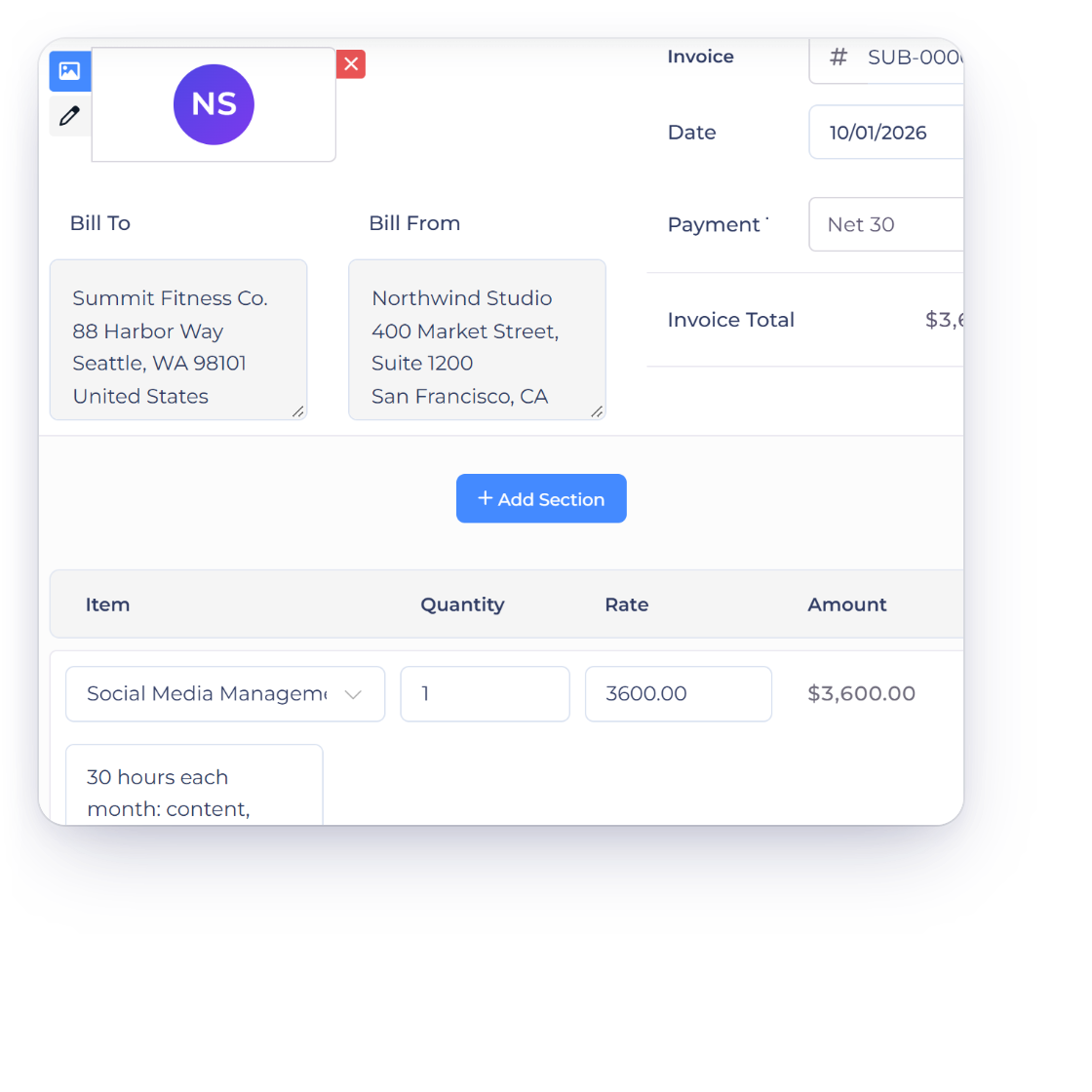
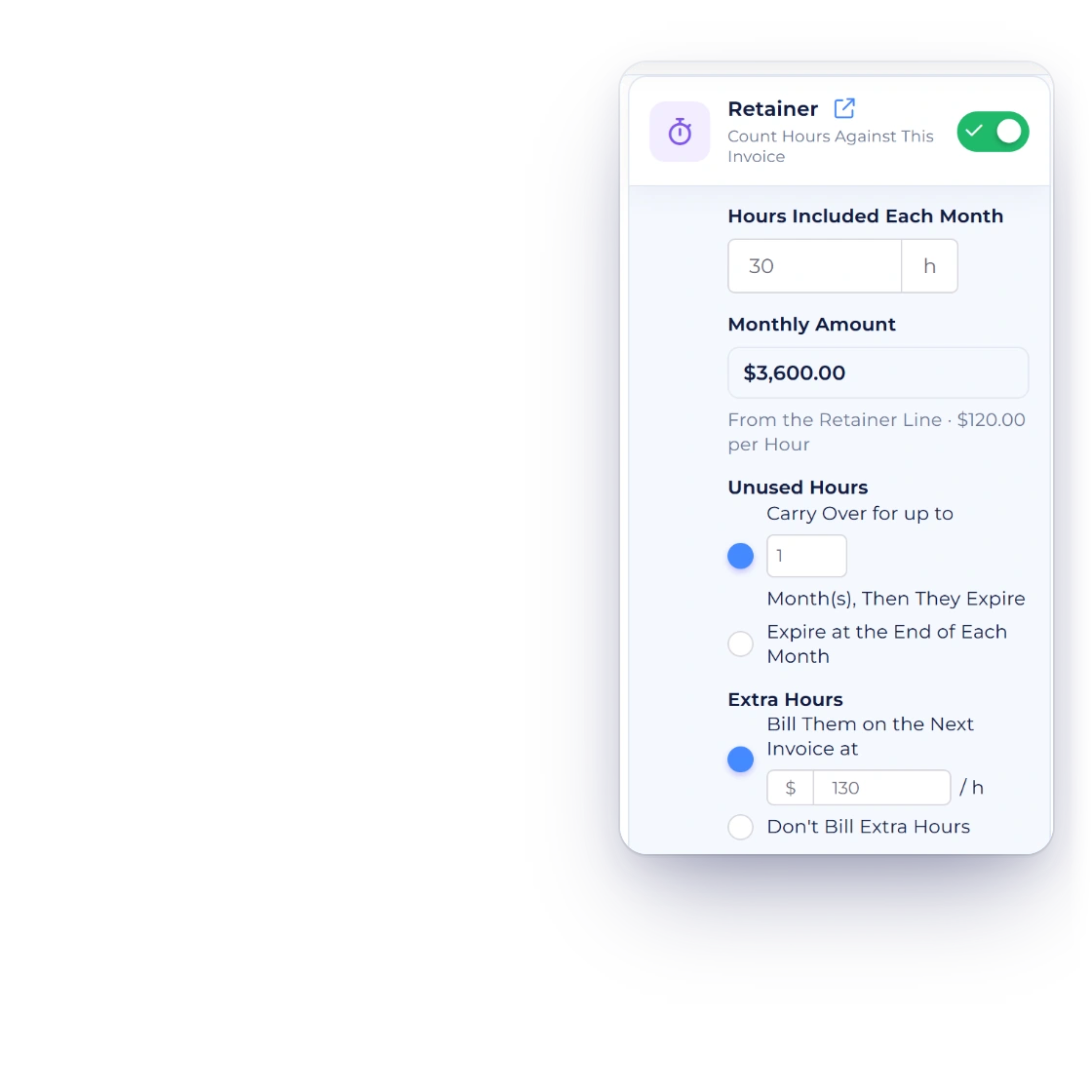
Invoice Crowd recurring invoice editor with the Retainer option on: 30 hours included each month, a monthly amount of $3,600.00, unused hours carried over for one month and extra hours billed at $130.00 an hour

Turn a monthly recurring invoice into a retainer

New Retainer starts a monthly recurring invoice, first created on the 1st of next month, and opens it in the editor with the Retainer option on. Set Hours Included Each Month; the Monthly Amount comes from the retainer line, with its price per hour beside it. Then choose whether unused hours carry over for a set number of months or expire, and whether extra hours are billed on the next invoice at an hourly rate or not billed at all.

  • Monthly schedules only
  • Sent automatically, or created as a draft to review
  • Manual recurring invoices, not card subscriptions
Recurring invoices
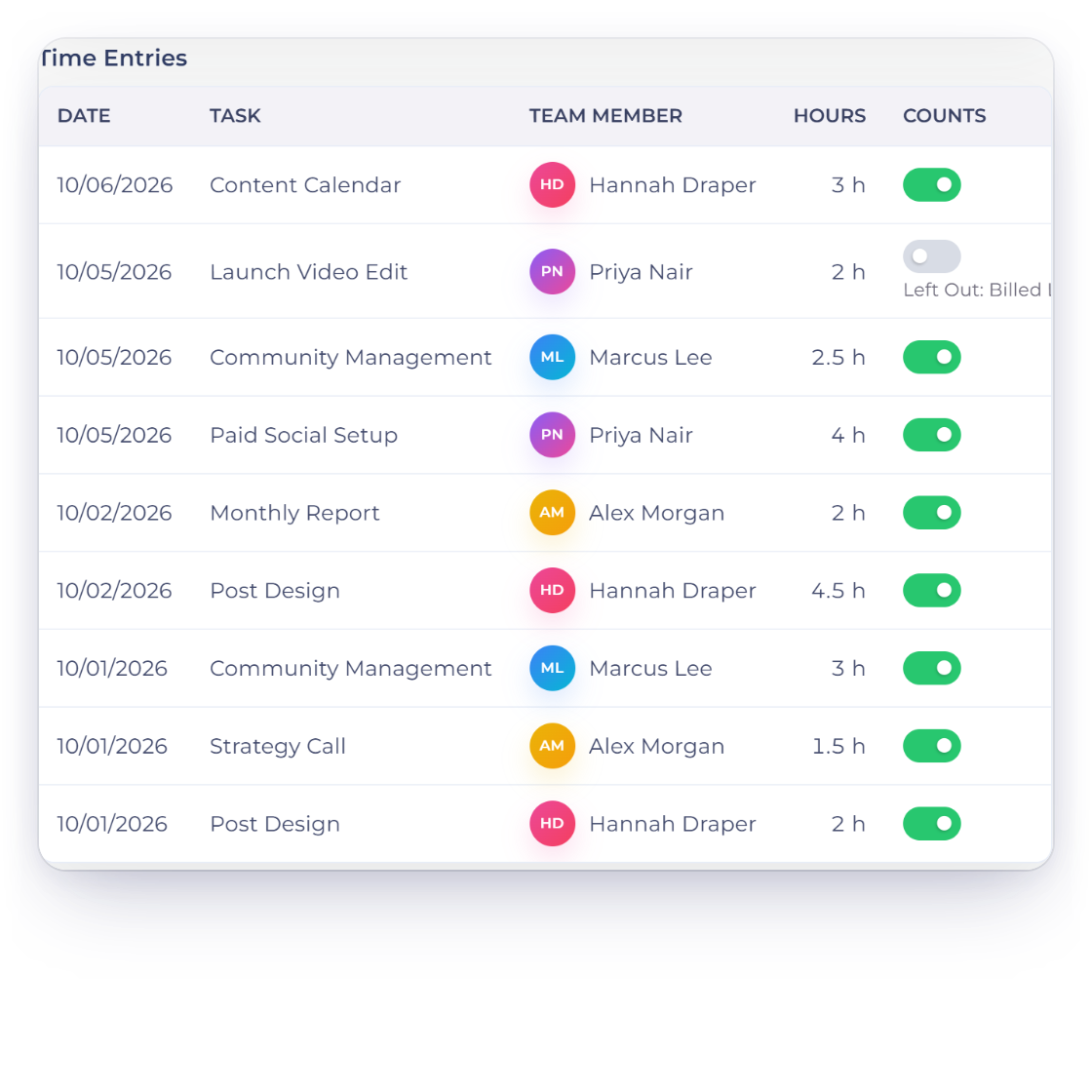
Invoice Crowd retainer page with the month's time entries and a Counts switch on each, one entry left out of the retainer, and the projects whose billable time counts

Choose whose time counts, then check each entry

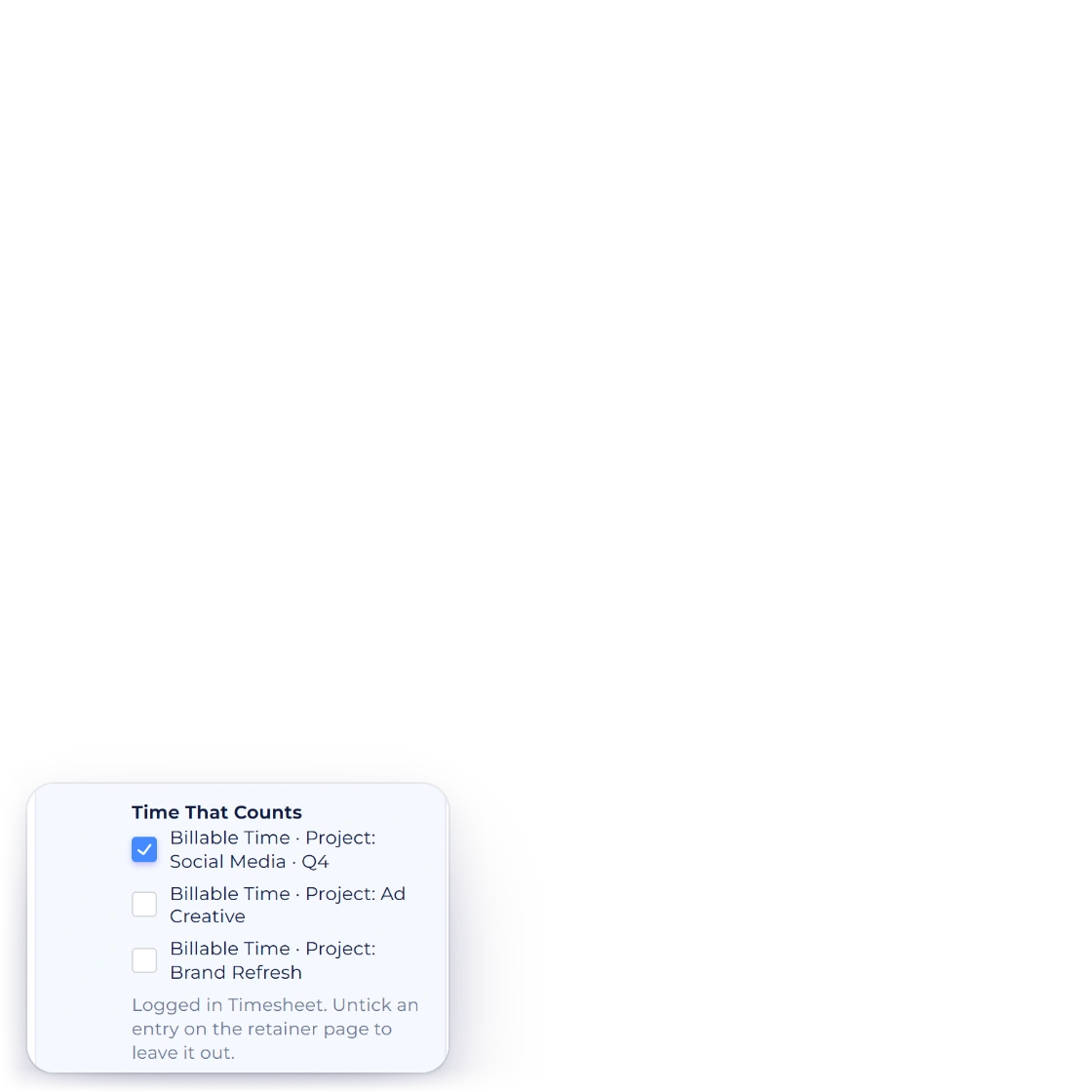
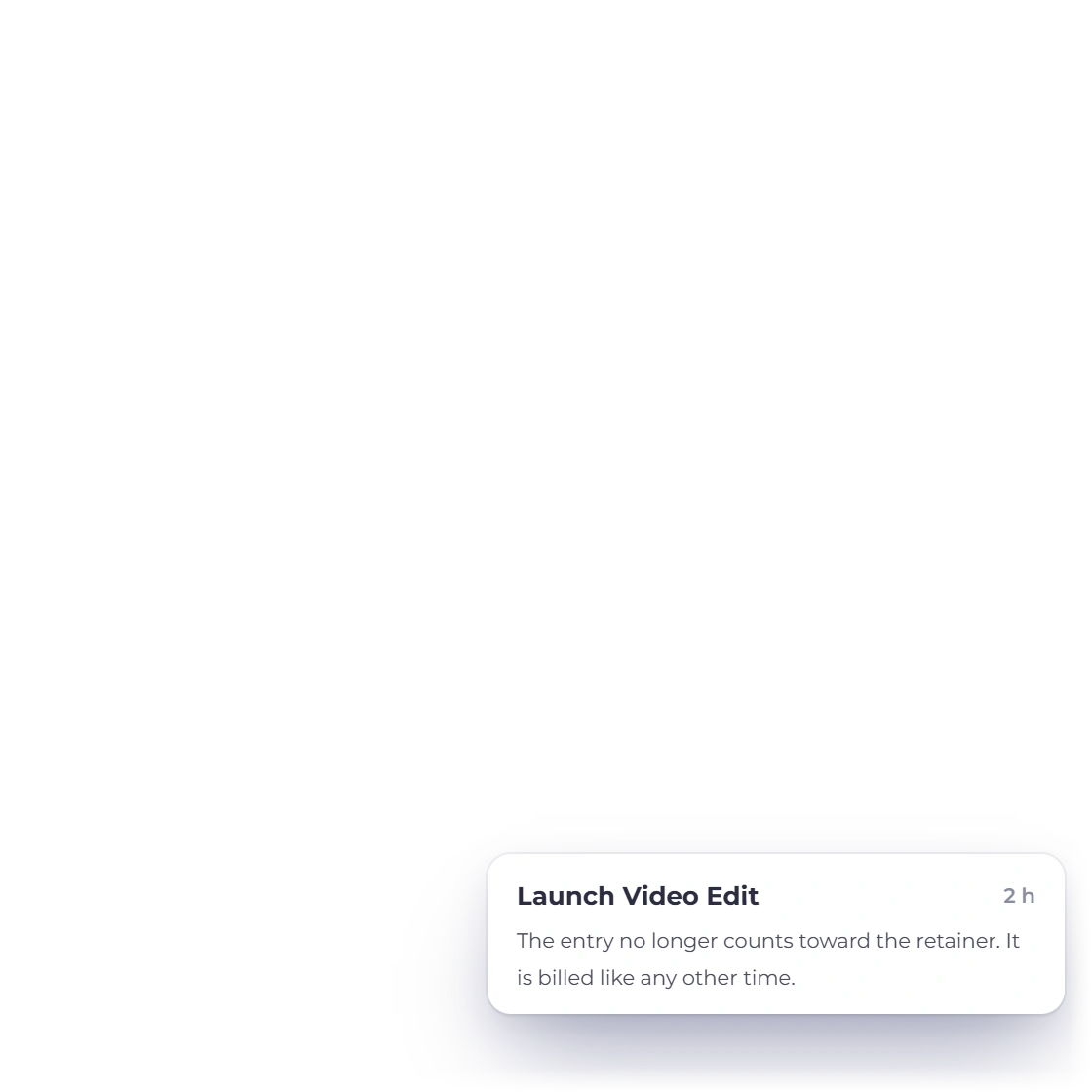
Under Time That Counts, tick the customer's projects whose billable time draws on the retainer. Time logged on those projects counts from the day the month's invoice is created. The retainer page lists the month's entries with a Counts switch, so you can leave one out and bill it like any other time.

  • Only billable time on the chosen projects counts
  • Counts can change for the current month only
  • An entry left out is billed from the Timesheet as usual
Timesheets

The hour bank

Used, left, carried and extra

Invoice Crowd retainer page with This Month, Remaining, Carried Over and Unbilled Overage tiles and the month's hour bank bar, plus a second retainer that is running low

See every client's hours at a glance

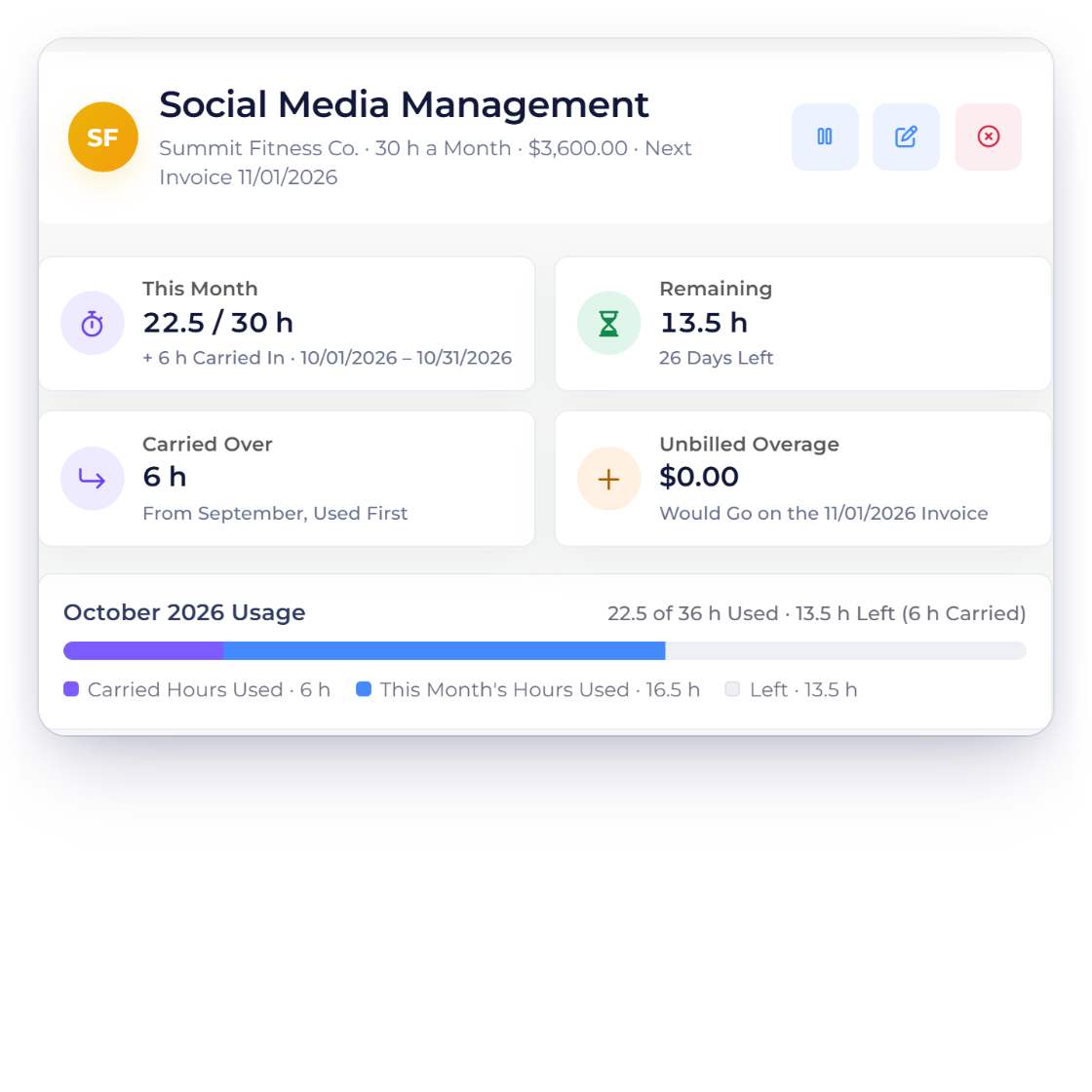
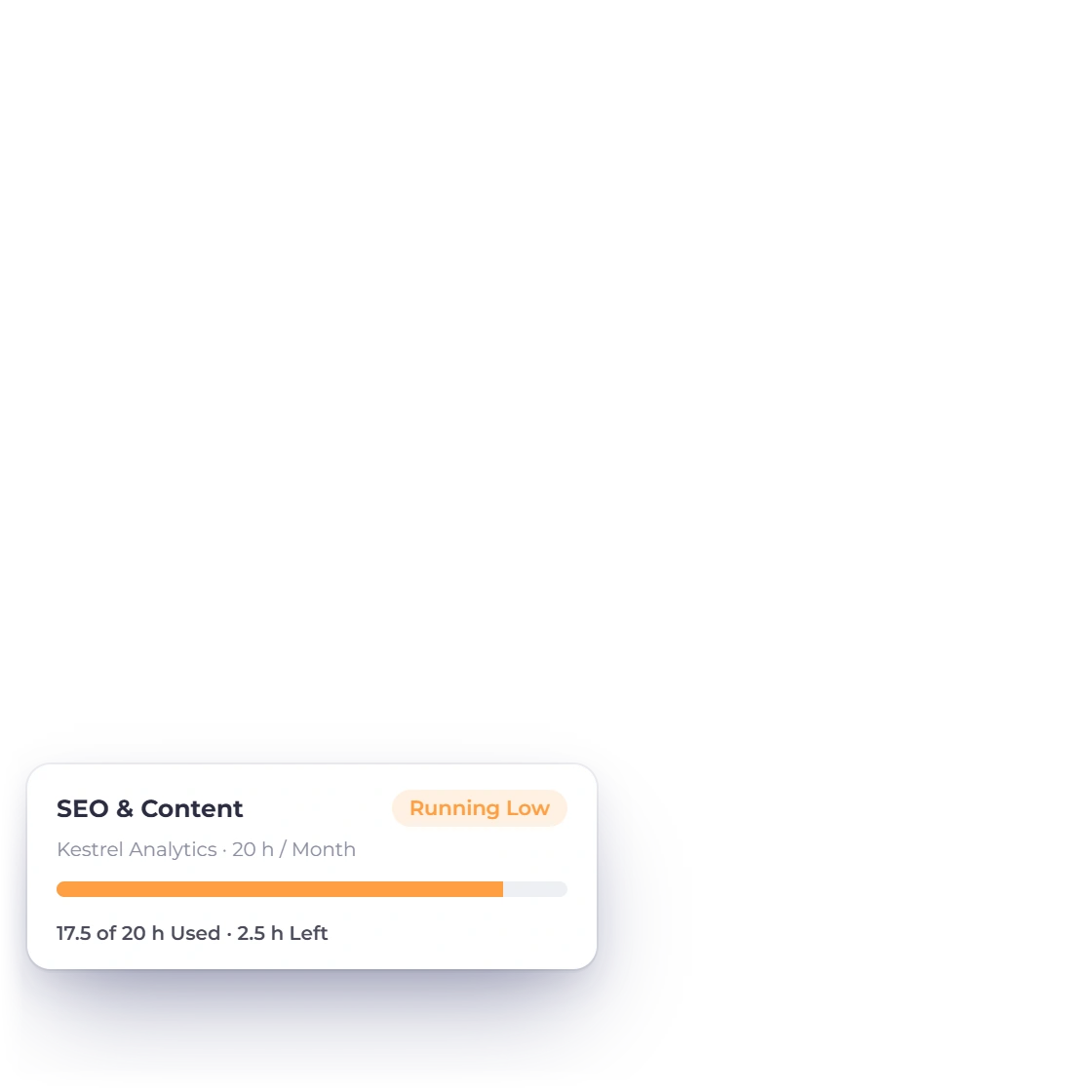
The Retainers list shows each retainer's hours this month as a bar, with its next invoice and status. Tiles count Active, Running Low (under 20% of hours left), Over Limit and Paused retainers, and filter the list when you click them. Open a retainer for This Month, Remaining, Carried Over and Unbilled Overage, with the month's usage bar.

  • Active shows what retainers bill each month
  • Over Limit shows the extra waiting to bill
  • Paused retainers send no invoices
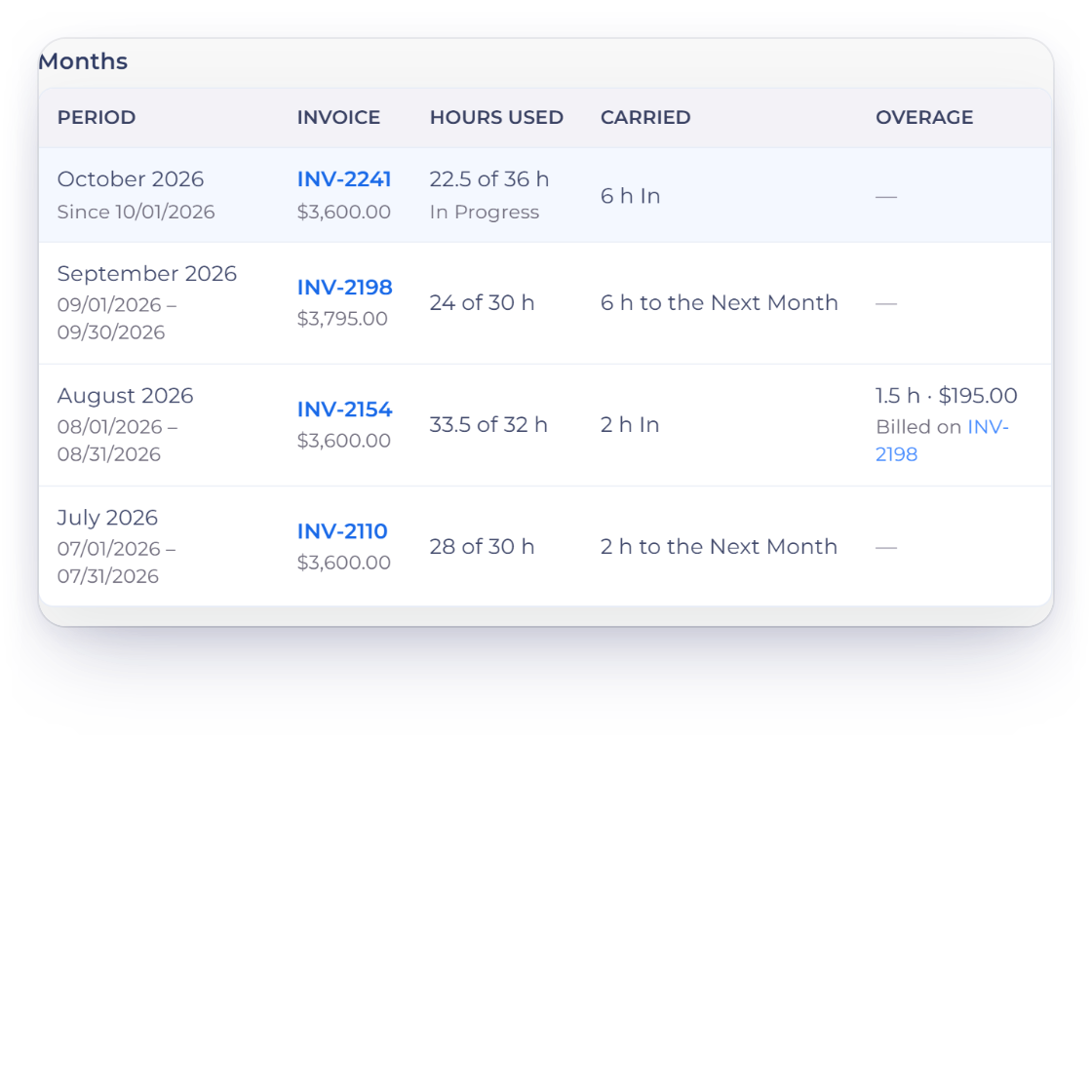
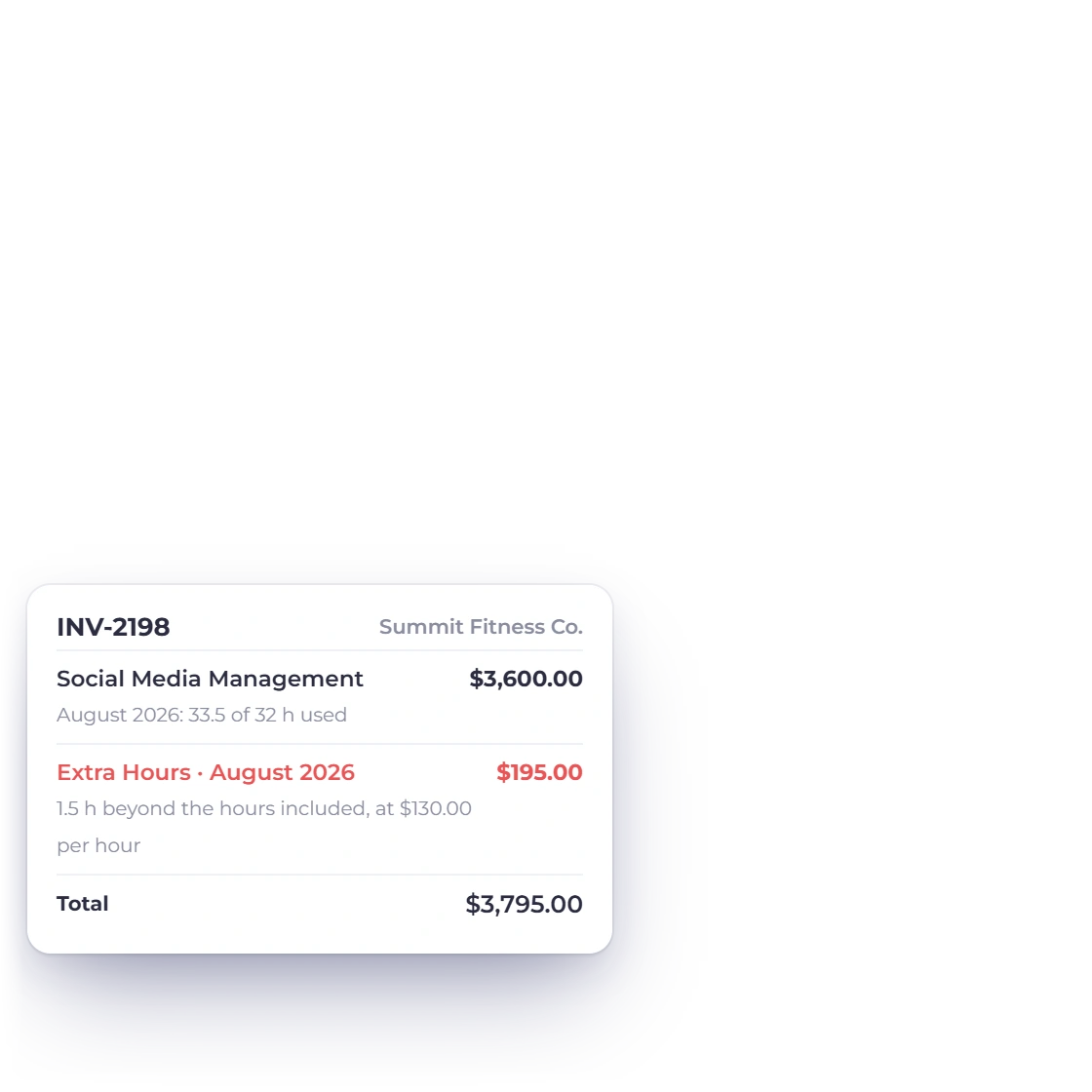
Invoice Crowd retainer months table with hours used, hours carried to the next month and 1.5 extra hours in August billed on the next invoice, beside the invoice that carries them

Carry unused hours over, bill extra hours next month

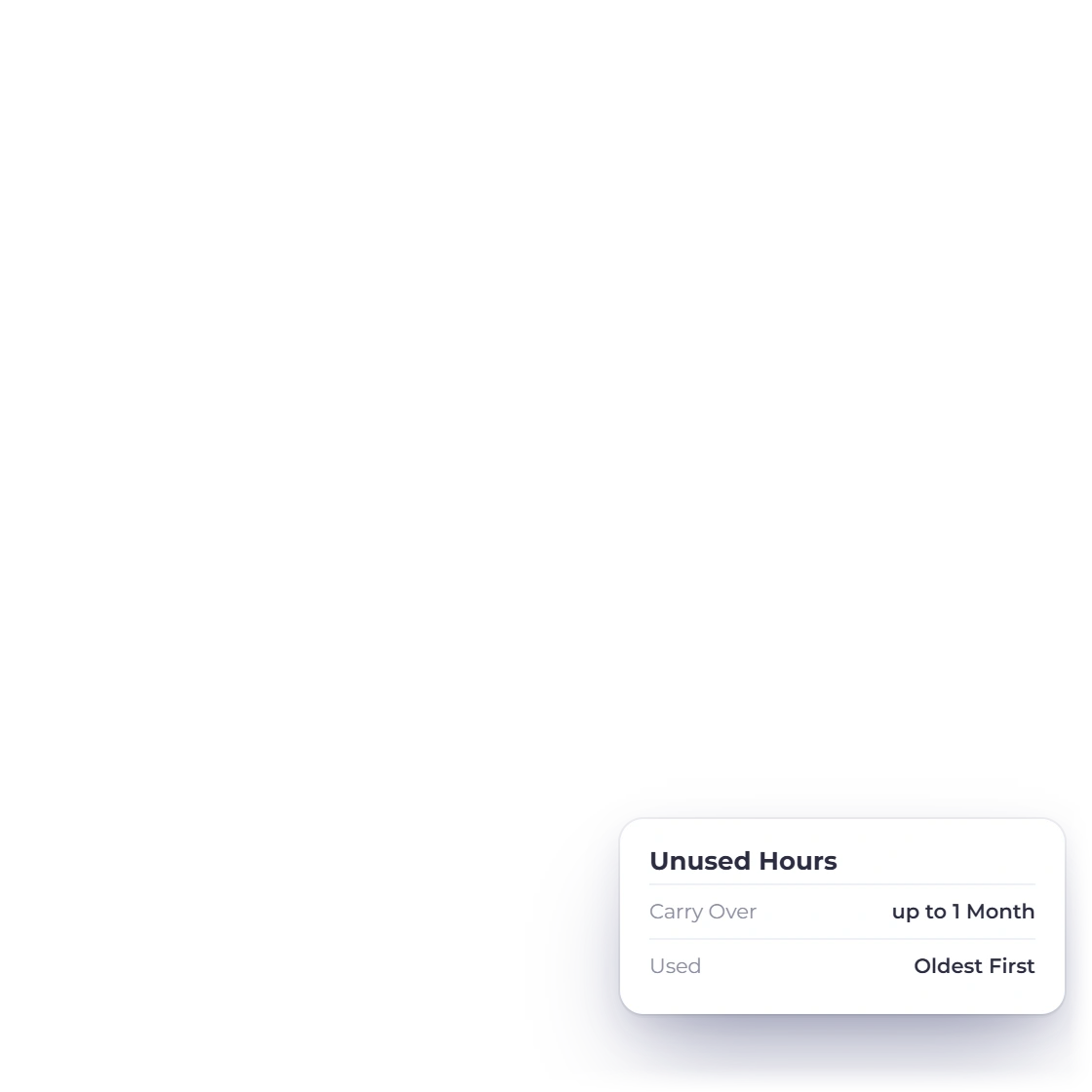
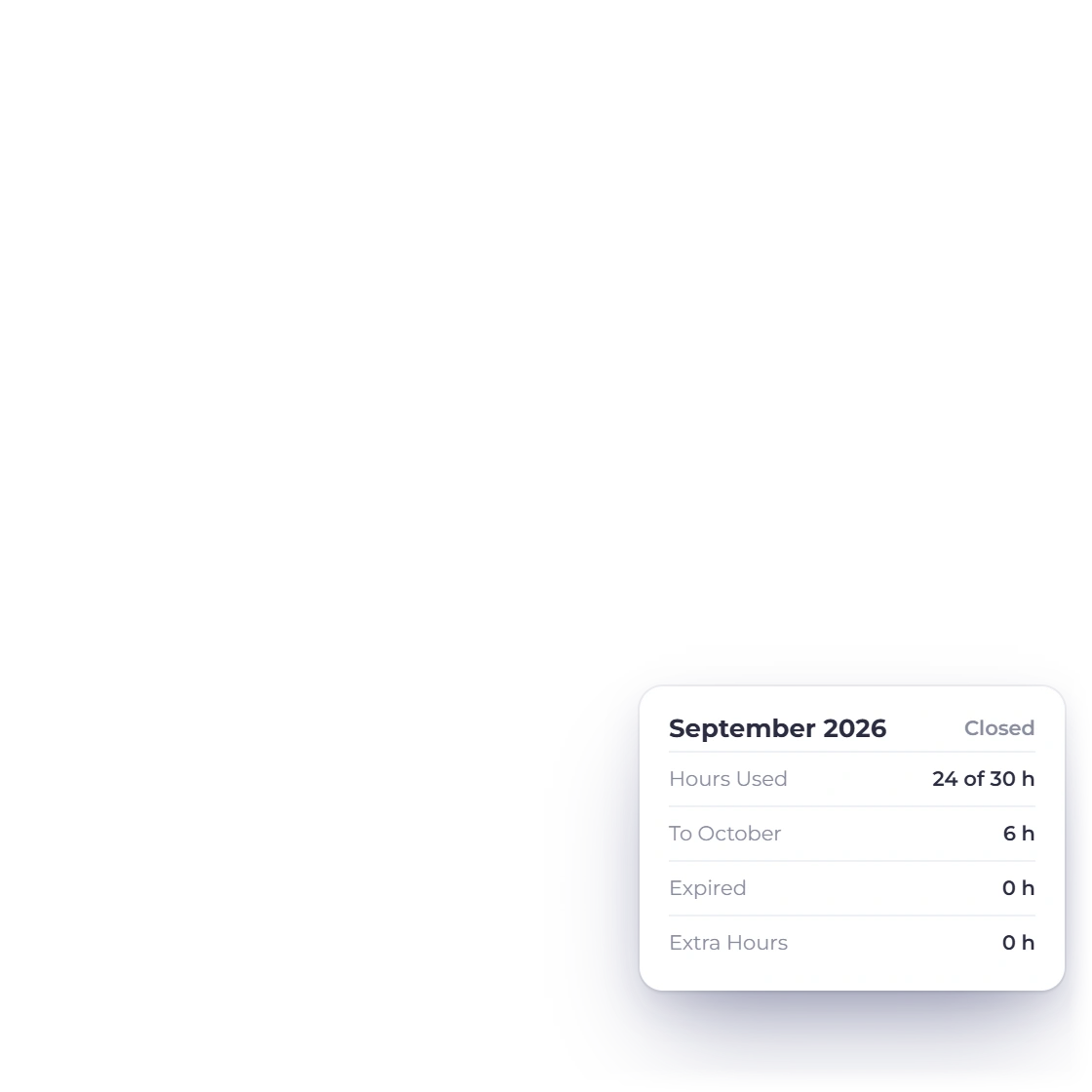
When the next invoice is created, the month closes. Carried hours are used first, oldest first, then the month's own hours. Unused hours carry into the next month or expire, as you chose. Hours over what was available become an Extra Hours line on that invoice, at your rate and with the retainer line's taxes, and the retainer line notes the hours used.

  • The Months table shows hours used, carried and expired
  • Extra hours link to the invoice that billed them
  • Retainer time is never billed again elsewhere

Your client, your control

Hours only in the portal

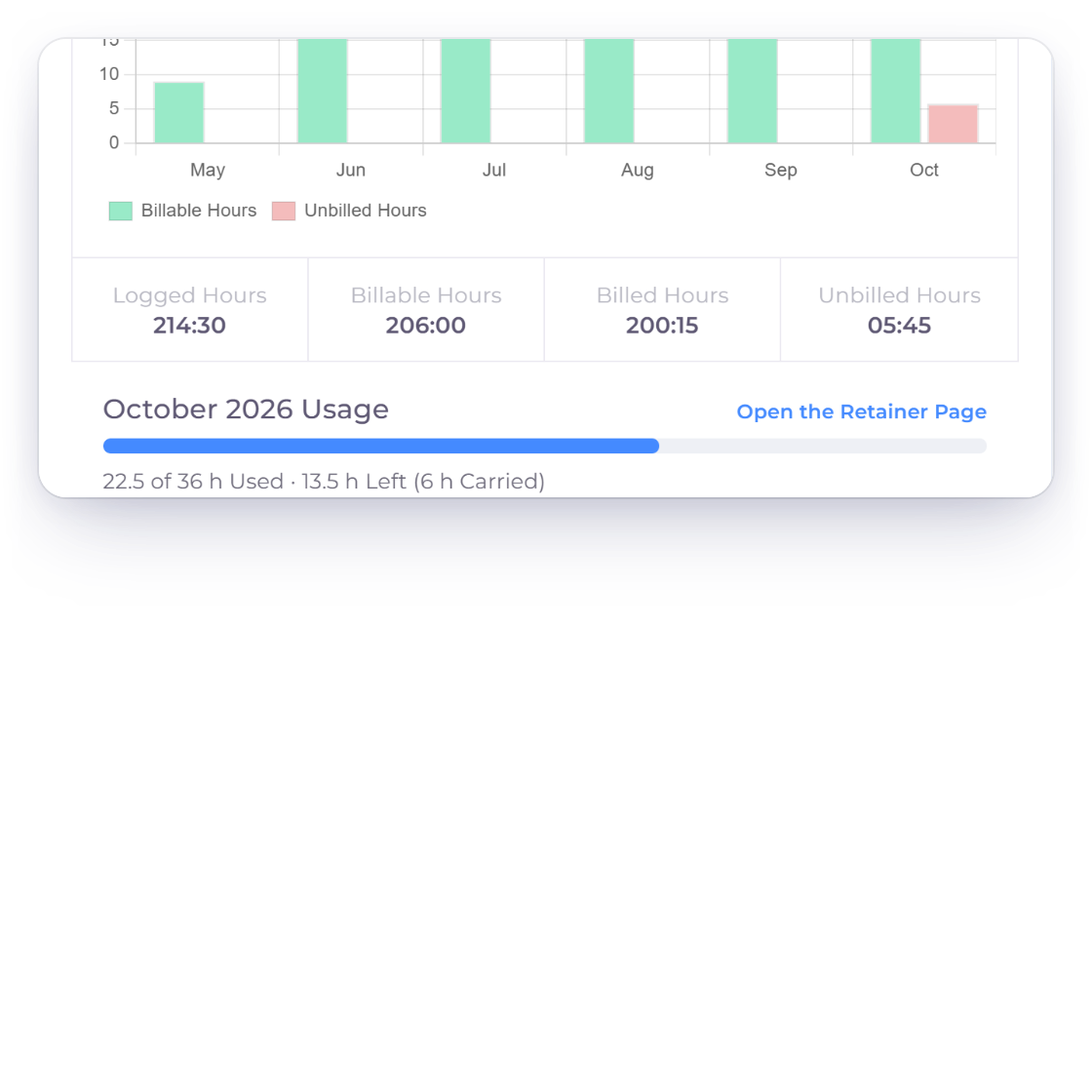
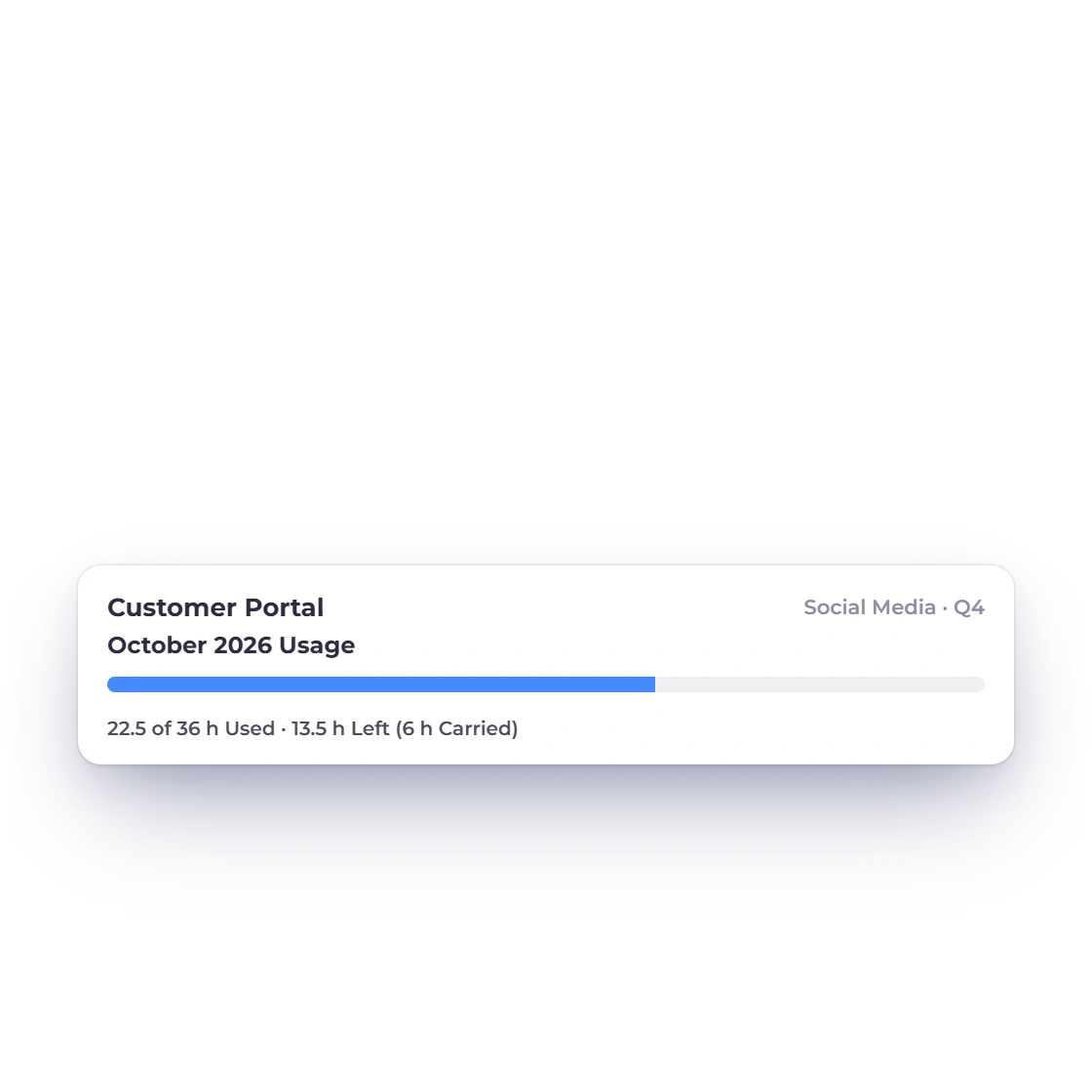
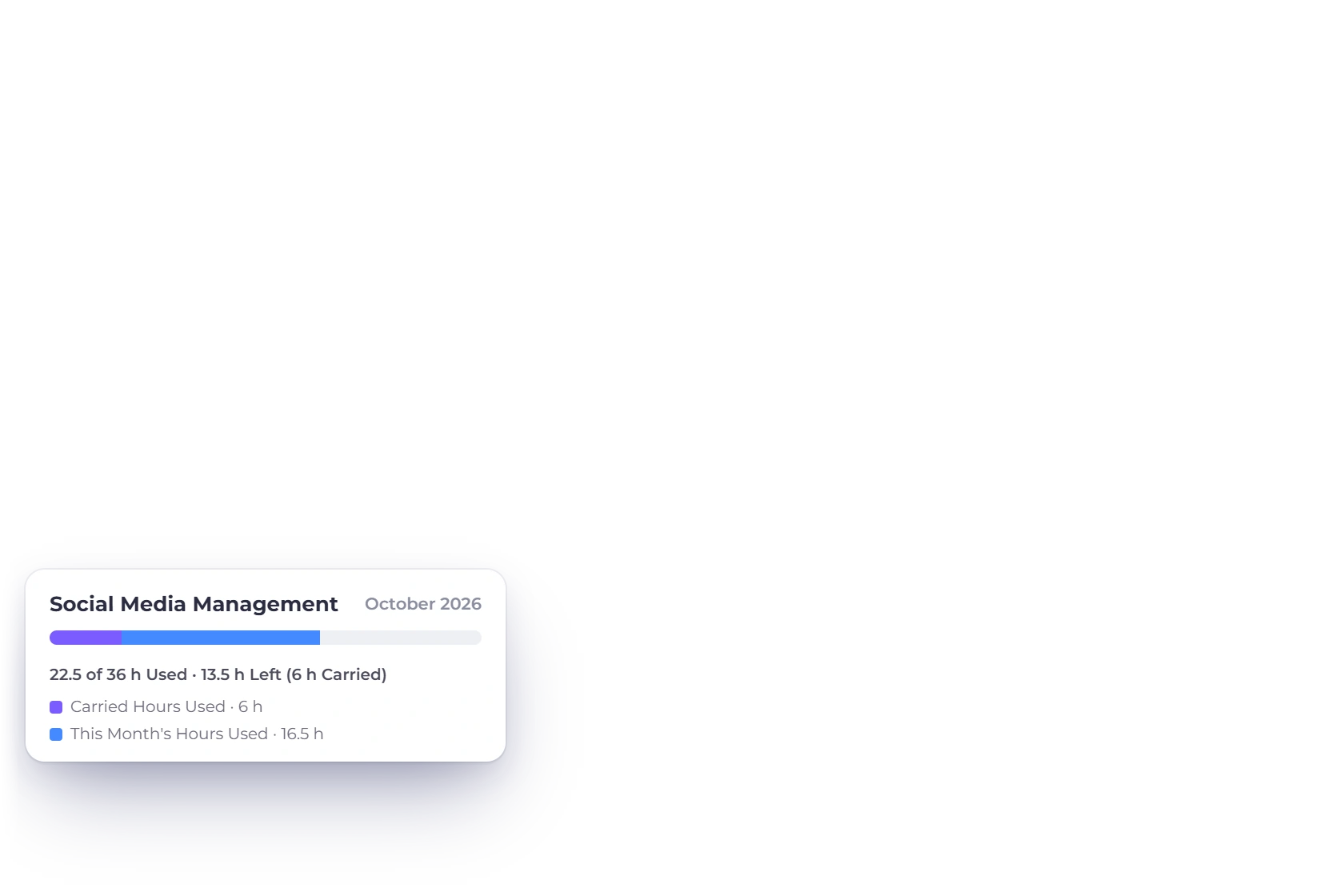
Invoice Crowd project overview with the retainer's October hours bar, and the same bar in the customer portal showing hours only, with no rates or amounts

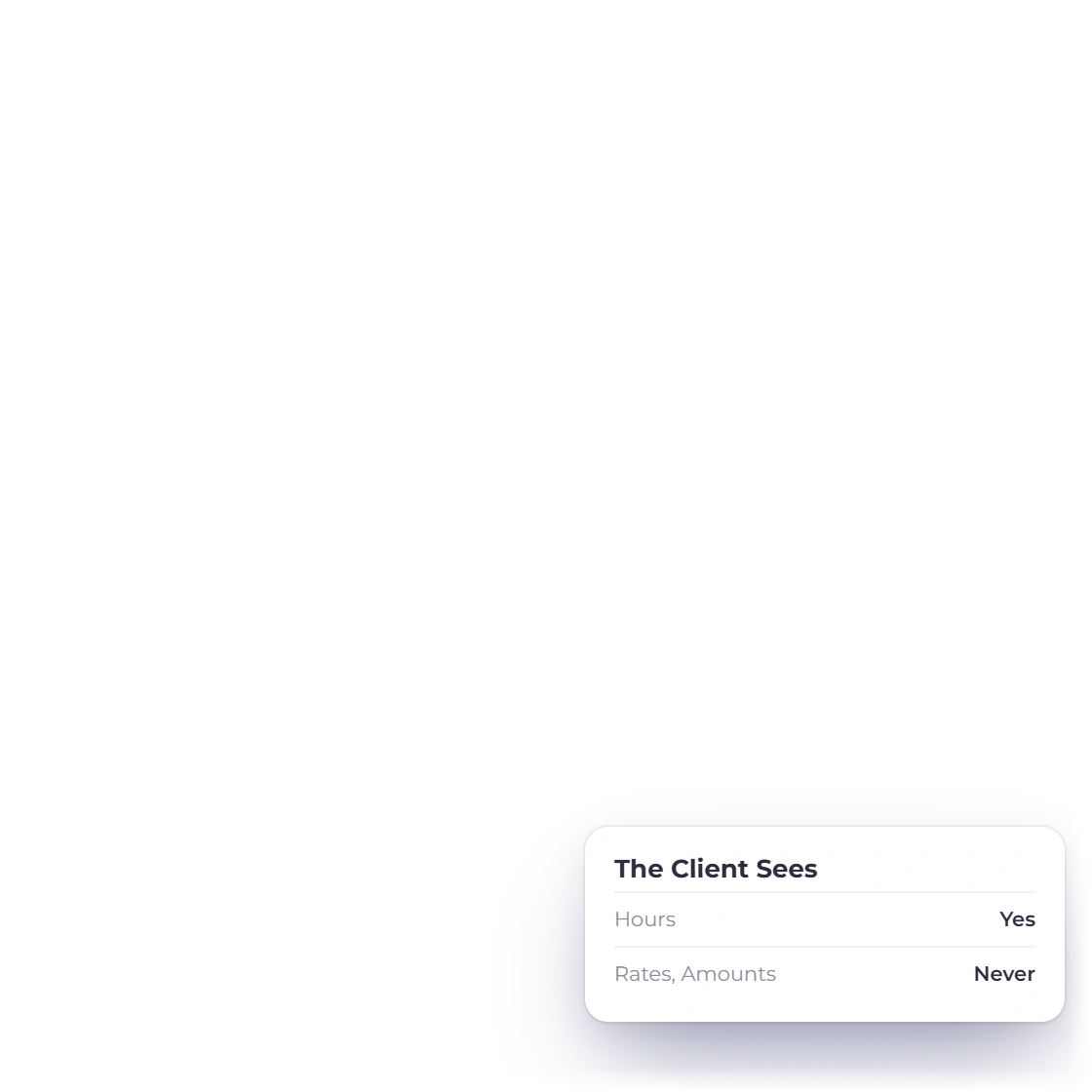
Clients see their hours, never your rates

The project page shows the retainer's hours bar for the open month, and so does the same project in the customer portal. The client sees hours used, hours left and hours carried. The portal never shows rates, amounts or a link to the retainer.

  • Your view links to the retainer page
  • The portal view is hours only
  • The bar moves as your team logs time
Customer portal
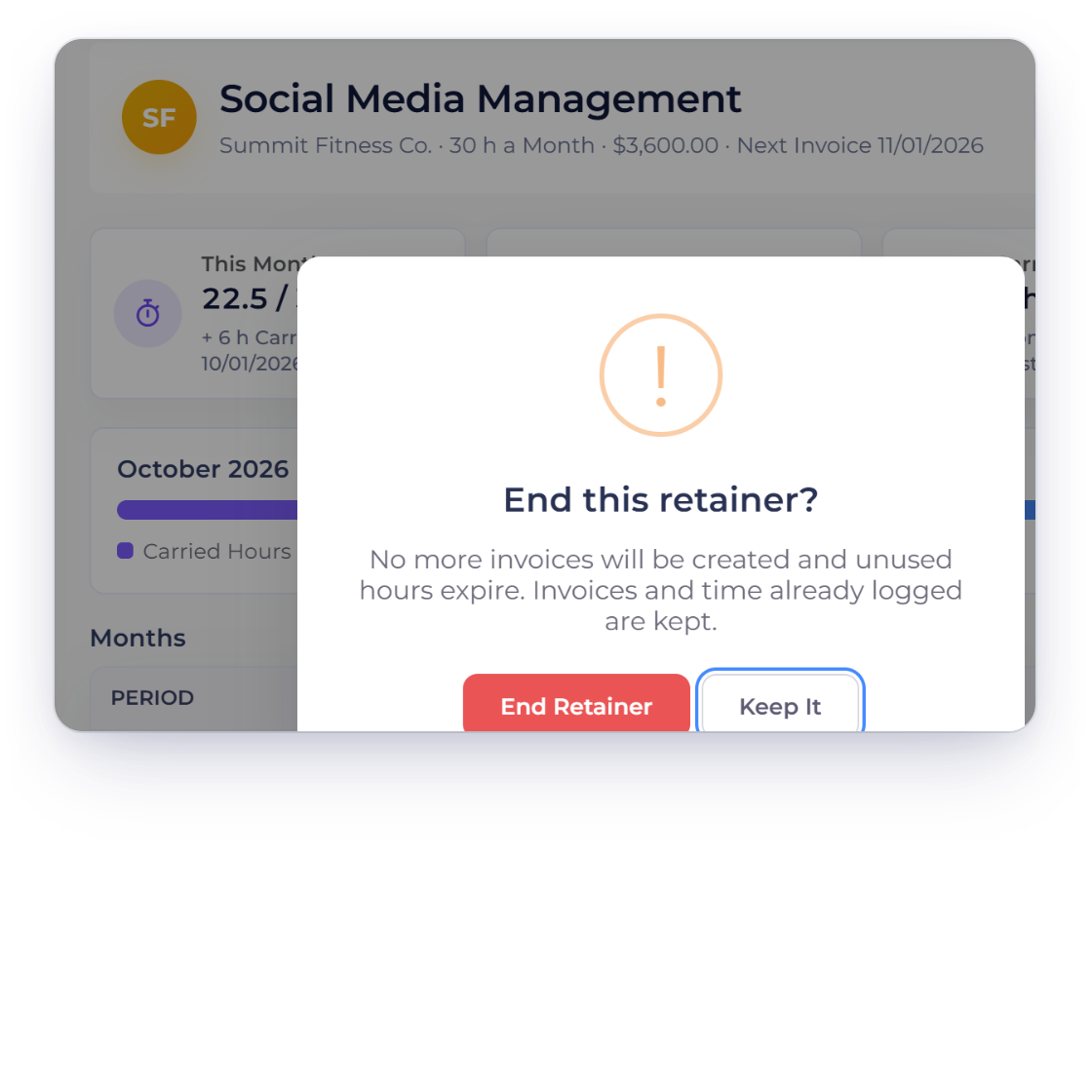
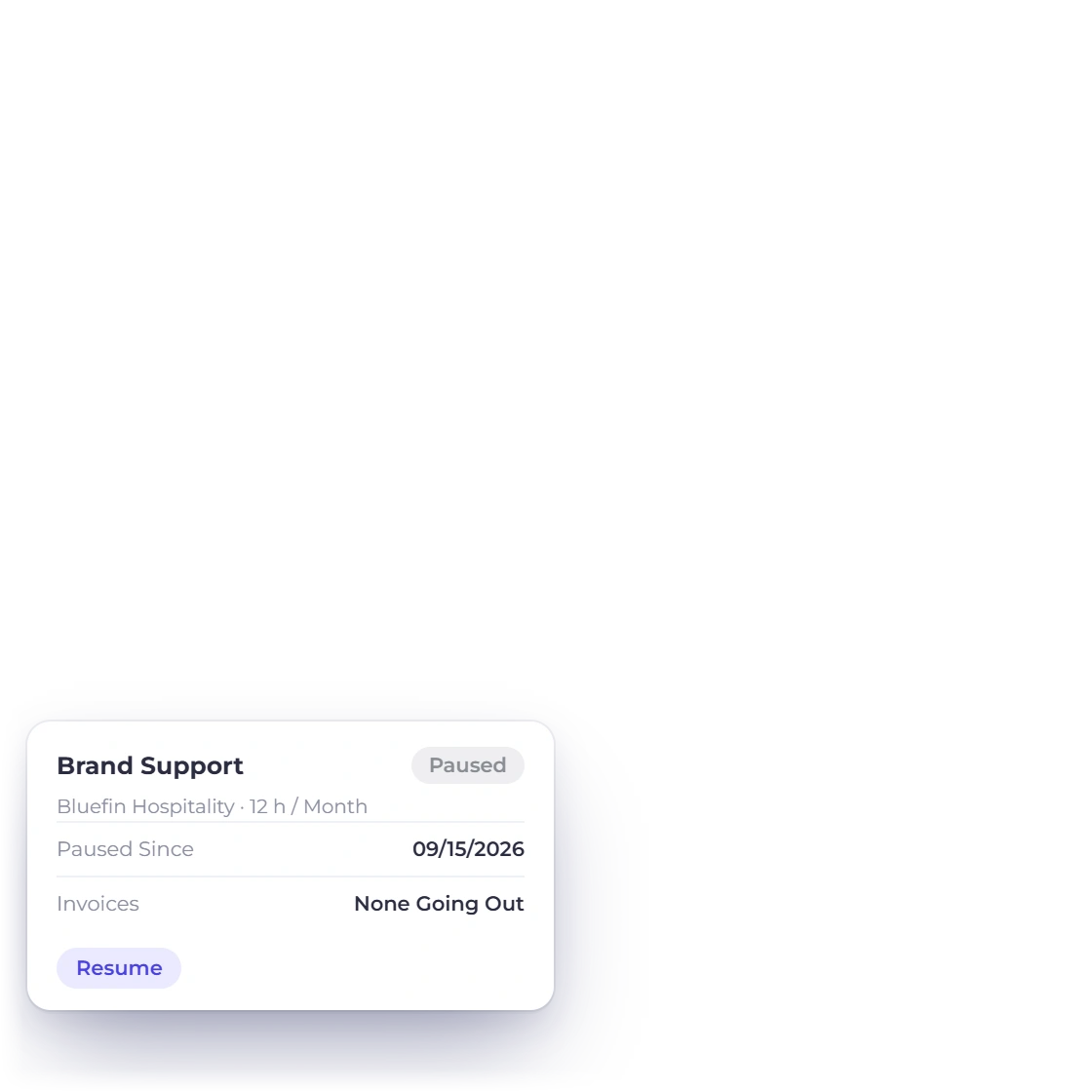
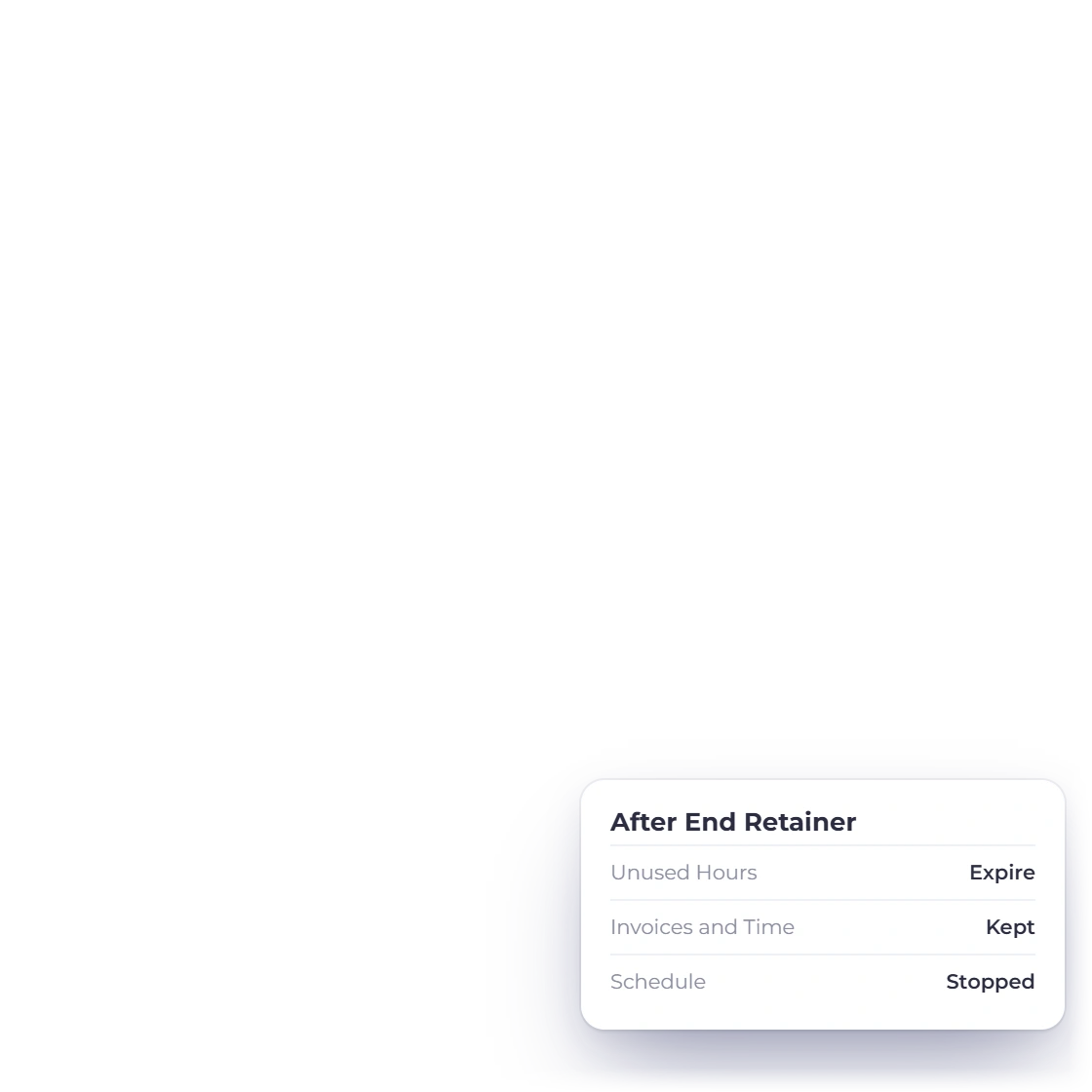
Invoice Crowd End Retainer confirmation saying no more invoices will be created, unused hours expire and invoices and time already logged are kept, beside a paused retainer

Pause or end a retainer and keep its history

Pause stops the invoices until you resume. End Retainer stops the schedule and closes the month on the day you end it: unused hours expire, and that month's extra hours are recorded but not billed, because no next invoice will carry them. Every invoice, month and time entry stays on the retainer page.

  • End Retainer asks you to confirm first
  • An ended retainer cannot be resumed
  • Start a new retainer to begin again

Built in

The details of a retainer

How the hours are set, counted, carried and billed, and who can change them.

  • Hours Included Each Month

    Set the hours in quarter-hour steps. The monthly amount and the price per hour come from the retainer line on the invoice.

  • Carry over or expire

    Unused hours carry into the following months for as long as you set, then expire. Or let them expire at the end of each month.

  • Extra hours, next invoice

    Hours beyond what was available become one Extra Hours line on the next invoice, at the rate you set.

  • Or don't bill extra hours

    Choose Don't Bill Extra Hours and the extra time is recorded on the month without reaching an invoice.

  • Never billed twice

    Retainer time is left out of Money Waiting, the Timesheet's unbilled totals, Invoice These and the invoice wizard.

  • Running Low and Over Limit

    Tiles count retainers under 20% of their hours and those over the limit, with the extra waiting to bill.

  • Pause and resume

    Pause stops the invoices until you resume, and the list shows the date the retainer was paused.

  • End Retainer

    Ending stops the schedule, expires unused hours and keeps every invoice and time entry on the retainer page.

  • Month by month

    The Months table lists each month's invoice and status, hours used, hours carried in and out, and any extra hours.

  • Hours bar in the portal

    Clients see the month's hours used, left and carried on their project page. No rates, no amounts.

  • Who can change it

    Retainers follow the Invoices permission. Pause and End need recurring edit rights; the Counts switch needs Worklog access.

  • Paid plans

    Retainers come with paid plans. On the Free plan the Retainers menu shows a lock and opens the plan comparison.

Questions

Retainers, answered

Does Invoice Crowd support client retainers?

Yes. Invoice Crowd has Retainers: a monthly recurring invoice with a set number of hours included each month. Billable time your team logs on the client's chosen projects counts against those hours, unused hours carry over or expire, and extra hours are billed on the next invoice. Retainers are on paid plans and sit under Invoicing, next to Recurring.

What happens to unused retainer hours?

You choose for each retainer: Carry Over for up to a number of months, after which they expire, or Expire at the End of Each Month. Carried hours are used before the month's own hours, oldest first, and the retainer page shows how many hours were carried in, carried to the next month and expired each month.

How are hours over the retainer billed?

When a month closes, hours over what was available go on the next invoice as one Extra Hours line for that month, at the rate you set (by default the retainer's own price per hour) and with the same taxes as the retainer line. You can choose Don't Bill Extra Hours instead. If you end a retainer, that month's extra hours are recorded but not billed, and the confirmation says so.

Which time counts toward a retainer?

Billable time on the projects you tick under Time That Counts, all belonging to the retainer's customer, logged from the day the month's invoice is created. Time is logged in the Timesheet or with the header timer, which are part of Worklog on paid plans. On the retainer page, the Counts switch leaves an entry out for the current month, and that entry is then billed like any other time.

Can the same hours end up on two invoices?

No. Time a retainer counts, or that a closed month has already billed, is left out of Money Waiting, the Timesheet's unbilled totals, Invoice These and the invoice wizard. A selection made only of retainer time is refused, with a link to the retainer.

Can my client see how many retainer hours are left?

Yes, in hours only. The project page in the customer portal shows the open month's hours bar: hours used, hours left and hours carried over. Clients never see your rates, the amounts or a link to the retainer page.

Can a retainer charge my client's card automatically?

No. A retainer is a monthly manual recurring invoice, sent automatically or created as a draft for you to review. Card subscriptions charge a fixed amount, so they could never collect a changing Extra Hours line. Your client pays each retainer invoice like any other invoice, with the payment options you offer.

Does a retainer change my accounting?

No new postings are involved. Each monthly retainer invoice is an ordinary sales invoice, recorded when it is issued, and an Extra Hours line posts like any other invoice line. Counting hours posts nothing to your books.

Put your monthly retainers on an hour bank

Start a retainer from Invoicing, set the hours included each month, tick the projects whose time counts, and let the next invoice carry any extra hours.

  • No card required to start
  • Your data stays yours
  • Cancel anytime